
README file from
Github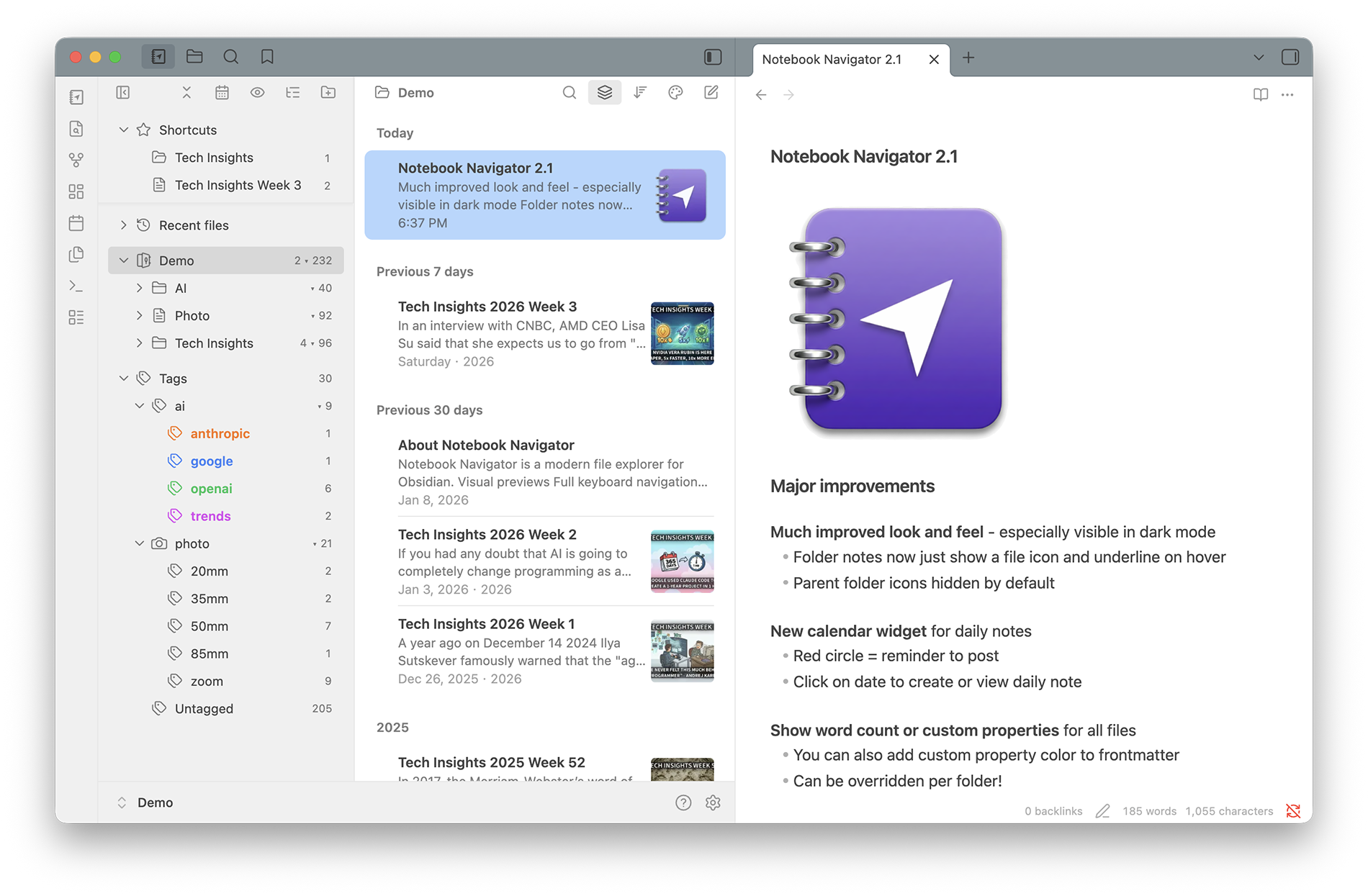
Read in your language: English • العربية • Deutsch • Español • فارسی • Français • Bahasa Indonesia • Italiano • Nederlands • Polski • Português • Português (Brasil) • Русский • ไทย • Türkçe • Українська • Tiếng Việt • 日本語 • 한국어 • 中文简体 • 中文繁體
Turn Obsidian into a fast, customizable notes browser with folders, tags, properties and shortcuts in one view. Visual previews. Full keyboard navigation. Dual-pane layout. Mobile optimized. Works with 100,000+ notes.
If you love using Notebook Navigator, please consider ☕️ Buying me a coffee or Sponsor on GitHub ❤️.
Coming from another app? Read the switching guides for Evernote, Apple Notes, Bear, OneNote and Day One.





1 Installation
- Install Obsidian - Download and install from obsidian.md
- Enable community plugins - Go to Settings → Community plugins → Turn on community plugins
- Install Notebook Navigator - Click "Browse" → Search for "Notebook Navigator" → Install
- Install Style Settings (optional) - For customizing colors and appearance, install Style Settings plugin by searching for "Style Settings" in Community plugins
2 Getting started
Here is the official tutorial for learning and mastering Notebook Navigator:
The video has subtitles in 21 languages.
3 Security and quality
Notebook Navigator is checked with TypeScript, ESLint with the official Obsidian ESLint plugin, Prettier, Vitest and a production build before changes are merged. The build must complete with zero errors and zero warnings.
Security checks run through CodeQL, with scan history in the CodeQL workflow runs. Current status is shown in the badges at the top of this page.
Notebook Navigator runs locally, but some features make documented HTTP requests for updates, downloads, and remote content. See section 11 - Network and Diagnostics Disclosure for the full list.
Table of contents
- 4 Documentation
- 5 Keyboard shortcuts
- 6 Synced and local settings
- 7 Search
- 8 Custom hotkeys
- 9 Commands
- 10 Features
- 11 Network and Diagnostics Disclosure
- 12 Contact
- 13 Questions or issues?
- 14 License
4 Documentation
-
API Reference - Public API documentation. Covers metadata management, navigation control and event subscriptions for JavaScript/TypeScript developers.
-
Theming Guide - Guide for theme developers. Includes CSS class reference, custom properties, and theme examples for light and dark modes.
-
Startup Process - Plugin initialization sequence. Cold boot vs warm boot flows, metadata cache resolution, deferred cleanup, and content generation pipeline. Includes Mermaid diagrams.
-
Metadata Pipeline - Cache rebuild sequence, provider pipeline stages, and completion signals. Includes Mermaid diagrams.
-
Storage Architecture - Guide to storage containers (IndexedDB, Local Storage, Memory Cache, Settings). Data flow patterns and usage guidelines.
-
Rendering Architecture - React component hierarchy, virtual scrolling with TanStack Virtual, performance optimizations, and data flow.
-
Scroll Orchestration - How the plugin ensures accurate scrolling when tree structures change (tag visibility, settings, etc.)
-
Service Architecture - Business logic layer: MetadataService, FileSystemOperations, ContentProviderRegistry. Dependency injection patterns and service data flow.
5 Keyboard shortcuts
| Key | Action |
|---|---|
| ↑/↓ | Navigate up/down in current pane |
| ← | In navigation pane: collapse or go to parentIn list pane: switch to navigation pane |
| → | In navigation pane: expand or switch to list paneIn list pane: switch to editor |
| Tab | In navigation pane: switch to list paneIn list pane: switch to editorIn search field: switch to list pane |
| Shift+Tab | In list pane: switch to navigation paneIn search field: switch to navigation pane |
| Enter (macOS)F2 (Windows/Linux) | Rename item inline in navigation pane or list pane |
| Enter | In navigation pane: open folder note on Windows/Linux by default (when enabled)In list pane: open selected file on all systems (when enabled)In search field: switch to list pane |
| Escape | In search field: close search and focus list pane |
| PageUp/PageDown | Scroll up/down in navigation pane and list pane |
| Home/End | Jump to first/last item in current pane |
| DeleteBackspace | Delete selected item |
| Cmd/Ctrl+A | Select all notes in current folder |
| Cmd/Ctrl+Click | Toggle notes selection |
| Shift+Click | Select a range of notes |
| Shift+Home/End | Select from current position to first/last item |
| Shift+↑/↓ | Extend selection up/down |
| Cmd/Ctrl+↑/↓ | Rearrange selected files up/down in manual sort mode |
Note: All keyboard shortcuts can be customized. See section 8 - Custom hotkeys for details on adding VIM-style navigation (h,j,k,l), alternate keys, and modifier combinations.
6 Synced and local settings
Many settings in Notebook Navigator display a sync toggle — a cloud icon that switches between "Enable sync" and "Disable sync". This controls where each setting is stored and whether it is shared across devices.
6.1 How sync works
Obsidian plugins store their configuration in data.json, located at .obsidian/plugins/notebook-navigator/data.json inside your vault folder. When you use a sync service — such as Obsidian Sync, iCloud, GitHub, Dropbox, or Google Drive — this file is synchronized across all your devices along with the rest of your vault. Any setting saved to data.json will propagate to every device that syncs the vault.
When sync is enabled (default) for a setting, the value is saved to data.json and synchronized to all devices through your sync service.
When sync is disabled for a setting, the value is saved to Obsidian's local storage instead. Local storage is device-specific and is not included in vault sync. The setting will have its own independent value on each device. When you disable sync for a setting, the current value is copied to local storage on the current device, and the value is removed from data.json to prevent it from overriding local values on other devices.
If you do not use a sync service, the sync toggle has no practical effect since data.json is only stored locally.
7 Search
Notebook Navigator has two search modes: filter search and Omnisearch. Switch between them using the up/down arrow keys or by clicking the search icon. Combine file names, properties, tags, dates, and filters in one query (e.g., meeting .status=active #work @thisweek).
7.1 Filter search
Filters files by display name, alias, tags, properties, dates, folders, extensions, and tasks within the current folder and subfolders. Default search mode.
File names and aliases
word- Match notes with "word" in the display name or an aliasword1 word2- Require every word to match across the display name and aliases-word- Exclude notes with "word" in the display name or an alias".F"- Match text literally; a term that opens with a double quote is never interpreted as a tag, property, date, or filter (e.g.,".F"matches names containing.Finstead of filtering on a property)-".F"- Exclude notes with the literal text in the display name or an alias
Tags
#tag- Include notes with tag (also matches nested tags like#tag/subtag)#- Include only tagged notes-#tag- Exclude notes with tag-#- Include only untagged notes#tag1 #tag2- Match both tags (implicit AND)#tag1 AND #tag2- Match both tags (explicit AND)#tag1 OR #tag2- Match either tag#a OR #b AND #c- AND has higher precedence: matches#a, or both#band#c- Cmd/Ctrl+Click a tag to add with AND. Cmd/Ctrl+Shift+Click to add with OR
Properties
.key- Include notes with a property key that starts withkey.key=value- Include notes where the property value containsvalue."Reading Status"- Property key with whitespace (double-quoted)."Reading Status"="In Progress"- Keys and values with whitespace must be double-quoted-.key- Exclude notes with a property key that starts withkey-.key=value- Exclude notes where the property value containsvalue- Cmd/Ctrl+Click a property to add with AND. Cmd/Ctrl+Shift+Click to add with OR
Filters
has:task- Include notes with unfinished tasks-has:task- Exclude notes with unfinished tasksfolder:meetings- Include notes where a folder name containsmeetingsfolder:/work/meetings- Include notes only inwork/meetings(not subfolders)folder:/- Include notes only in the vault root-folder:archive- Exclude notes where a folder name containsarchive-folder:/archive- Exclude notes only inarchive(not subfolders)ext:md- Include notes with extensionmd(ext:.mdis also supported)-ext:pdf- Exclude notes with extensionpdf- Combine with tags, names, and dates (e.g.,
folder:/work/meetings ext:md @thisweek)
Dates
@today- Match notes from today using the default date field@yesterday,@last7d,@last30d,@thisweek,@thismonth- Relative date ranges@2026-02-07- Match a single day (also supports@20260207)@2026- Match a calendar year@2026-02or@202602- Match a calendar month@2026-W05or@2026W05- Match an ISO week@2026-Q2or@2026Q2- Match a calendar quarter@13/02/2026- Numeric formats with separators (@07022026follows your locale when ambiguous)@2026-02-01..2026-02-07- Match an inclusive day range (open ends supported)@c:...or@m:...- Target created or modified date-@...- Exclude a date match
The default date field follows the current sort order. When sorting by name, the date field is configured in Settings → Notes → Date → When sorting by name.
AND/OR behavior
AND and OR operators work in tag/property-only queries (queries that contain only #tag, -#tag, #, -#, .key, -.key, .key=value, or -.key=value filters). If the query also includes names, dates, task filters, folder filters, or extension filters, AND and OR are matched as file name words instead.
- Operator query:
#work OR .status=started - Mixed query:
#work OR ext:md(ORis matched in file names)
7.2 Omnisearch
Full-text search across the vault, filtered to the current folder, subfolders, or selected tags. Requires the Omnisearch plugin. If Omnisearch is not installed, search falls back to filter search.
Note previews show Omnisearch result excerpts instead of the default preview text.
Known limitations
- Performance - Can be slow when searching for fewer than 3 characters in large vaults
- Path filters - Folder scoping is sent to Omnisearch for all folder paths except names containing
"or,. Folder names with non-ASCII characters require Omnisearch 1.30.0 or later. Results are always filtered to the current view after Omnisearch returns - Limited results - Omnisearch returns at most 50 results. When searching in a folder, the limit covers the folder and its subfolders, so subfolder matches count toward the limit even when
Show notes from subfoldersis disabled - Preview text - Note previews are replaced with Omnisearch result excerpts, which may not show the actual search match highlight if it appears elsewhere in the file
8 Custom hotkeys
Edit .obsidian/plugins/notebook-navigator/data.json to customize Notebook Navigator hotkeys. Open the file and locate the keyboardShortcuts section. Each entry maps an action to one or more key bindings:
"pane:move-up": [ { "key": "ArrowUp", "modifiers": [] }, { "key": "K", "modifiers": [] } ]
Add multiple bindings per action to support alternate keys, like the ArrowUp and K example above. Combine modifiers in one entry by listing each value, for example "modifiers": ["Mod", "Shift"]. Keyboard sequences such as gg or dd are not supported. Reload Obsidian after editing the file.
8.1 Modifiers
| Modifier | Key |
|---|---|
Mod |
Cmd (macOS) / Ctrl (Win/Linux) |
Alt |
Alt / Option |
Shift |
Shift |
Ctrl |
Control (prefer Mod for cross-platform) |
8.2 Available actions
| Action | Default key(s) |
|---|---|
pane:move-up |
ArrowUp |
pane:move-down |
ArrowDown |
pane:page-up |
PageUp |
pane:page-down |
PageDown |
pane:home |
Home |
pane:end |
End |
pane:rename |
Enter (macOS), F2 (Windows/Linux) |
pane:delete-selected |
Delete, Backspace |
navigation:collapse-or-parent |
ArrowLeft |
navigation:expand-or-focus-list |
ArrowRight |
navigation:focus-list |
Tab |
list:focus-navigation |
ArrowLeft, Shift+Tab |
list:focus-editor |
ArrowRight, Tab |
list:select-all |
Mod+A |
list:extend-selection-up |
Shift+ArrowUp |
list:extend-selection-down |
Shift+ArrowDown |
list:manual-sort-up |
Mod+ArrowUp |
list:manual-sort-down |
Mod+ArrowDown |
list:range-to-start |
Shift+Home |
list:range-to-end |
Shift+End |
search:focus-list |
Tab, Enter |
search:focus-navigation |
Shift+Tab |
search:close |
Escape |
9 Commands
Set custom hotkeys for these commands in Obsidian's Hotkeys settings:
View & navigation
Notebook Navigator: OpenOpens Notebook Navigator in left sidebar. If already open, moves keyboard focus over to the list pane. Suggestion: Bind to a shortcut key likeCmd/Ctrl+Shift+Eto move keyboard focus to the list pane - this is essential for full keyboard navigationNotebook Navigator: Toggle left sidebarToggles the left sidebar. When opening, sets the left sidebar view to Notebook Navigator (unlike Obsidian's built-in "Toggle left sidebar" command which restores the previous left sidebar view)Notebook Navigator: Open homepageOpens the Notebook Navigator view and loads the homepage target configured in settingsNotebook Navigator: Select vault profileOpens modal to switch between vault profilesNotebook Navigator: Select vault profile 1-3Activates a vault profile by its position. Opens the profile selection modal when no profile exists at that positionNotebook Navigator: Reveal fileReveals current file in navigator. Expands parent folders and scrolls to file. This command is useful if you have the settingAuto-reveal active noteswitched off and want to reveal notes manually. Suggestion: Bind to a shortcut key likeCmd/Ctrl+Shift+Rto quickly change the selected folder or tag to the current fileNotebook Navigator: Open all filesOpens all notes in the currently selected folder, tag, or property. When opening 15 or more files, shows a confirmation dialogNotebook Navigator: Navigate to folderSearch dialog to jump to any folderNotebook Navigator: Navigate to tagSearch dialog to jump to any tagNotebook Navigator: Navigate to propertySearch dialog to jump to any property key or valueNotebook Navigator: Navigate backMoves to the previous folder, tag, or property selection in navigator historyNotebook Navigator: Navigate forwardMoves to the next folder, tag, or property selection in navigator historyNotebook Navigator: Add to shortcutsAdds or removes the current file, folder, tag, or property from shortcutsNotebook Navigator: Open shortcut 1-9Opens shortcut by its position in the shortcuts listNotebook Navigator: SearchOpens quick search field or focuses it if already open. Search persists between sessions. Suggestion: Bind to a shortcut key likeCmd/Ctrl+Shift+Sfor quick file filteringNotebook Navigator: Search whole vaultSelects the vault root folder and opens search with subfolders included (available when eitherShow root folderorShow hidden itemsis enabled)
Selection
Notebook Navigator: Select next fileMoves selection to the next file in the current folder or tag view. Respects custom sort order. Suggestion: Bind to a shortcut key likeOption+Cmd+Rightto quickly go to the next file in listNotebook Navigator: Select previous fileMoves selection to the previous file in the current folder or tag view. Respects custom sort order. Suggestion: Bind to a shortcut key likeOption+Cmd+Leftto quickly go to the previous file in list
Layout & display
Notebook Navigator: Toggle dual pane layoutToggle single/dual-pane layout (desktop and tablet). Suggestion: Bind to a shortcut key likeCmd/Ctrl+Shift+Ato quickly switch between single-pane and dual-pane layoutNotebook Navigator: Toggle dual pane orientationToggle dual-pane orientation between horizontal and verticalNotebook Navigator: Toggle descendantsToggle subfolders / descendants notes display for folders and tags. Suggestion: Bind to a shortcut key likeCmd/Ctrl+Shift+Dto quickly toggle display of notes from subfolders / descendantsNotebook Navigator: Toggle hidden folders, tags, and notesShow or hide hidden folders, tags, and notesNotebook Navigator: Toggle tag sort orderToggle between alphabetical and frequency-based tag sortingNotebook Navigator: Toggle tags by selectionToggle limiting tags to those found in notes within the selected folder or propertyNotebook Navigator: Toggle properties by selectionToggle limiting properties to those found in notes within the selected folder or tagNotebook Navigator: Toggle compact modeToggle list mode between standard and compactNotebook Navigator: Toggle pinned sectionShow or hide pinned notes in the list paneNotebook Navigator: Collapse / expand all navigation itemsCollapse or expand all navigation items based on the current state. WhenKeep selected item expandedis enabled (default on), all folders except the current one will be collapsed. This is handy to keep the navigation tree tidy when searching for documentsNotebook Navigator: Collapse / expand selected itemCollapse or expand the selected navigation item
Calendar
Notebook Navigator: Toggle calendarToggles calendar on or off. Suggestion: Bind to a shortcut key likeCmd/Ctrl+Shift+Cto quickly show the calendarNotebook Navigator: Open daily noteOpens today's daily note based on calendar settings. Creates the note if it doesn't existNotebook Navigator: Open weekly noteOpens the current weekly note. Creates the note if it doesn't existNotebook Navigator: Open monthly noteOpens the current monthly note. Creates the note if it doesn't existNotebook Navigator: Open quarterly noteOpens the current quarterly note. Creates the note if it doesn't existNotebook Navigator: Open yearly noteOpens the current yearly note. Creates the note if it doesn't exist
File operations
Important: Obsidian has no context of "current folder or tag", so when creating notes in Obsidian by default they are created in the root folder, same folder as current file, or a specific folder. When working with Notebook Navigator you always want to create new notes in the currently selected folder or tag, so the first thing you should do is bind Cmd/Ctrl+N to Notebook Navigator: Create new note so new notes are always created in the currently selected folder or tag. The same also applies to moving and deleting files. This is why you should use these commands instead of the built-in Obsidian commands when using Notebook Navigator.
Notebook Navigator: Create new noteCreate note in currently selected folder. Suggestion: BindCmd/Ctrl+Nto this command (unbind from Obsidian's default "Create new note" first)Notebook Navigator: Create new note from templateCreate note from template in currently selected folderNotebook Navigator: Move filesMove selected files to another folder. Selects next file in current folderNotebook Navigator: Merge notesCreate one note from selected Markdown notes in the current list orderNotebook Navigator: Convert to folder noteCreate a folder matching the file name and move the file inside as the folder noteNotebook Navigator: Set as folder noteRename the active file to its folder note nameNotebook Navigator: Detach folder noteDetach the folder note in the selected folder and rename itNotebook Navigator: Pin all folder notesPin all folder notes in all folders. Command is only visible when folder notes are enabledNotebook Navigator: Delete filesDelete selected files. Selects next file in current folder
Tag operations
Notebook Navigator: Add tag to selected filesDialog to add tag to selected files. Supports creating new tagsNotebook Navigator: Set property on selected filesDialog to set property on selected filesNotebook Navigator: Remove tag from selected filesDialog to remove specific tag. Removes immediately if only one tagNotebook Navigator: Remove all tags from selected filesClear all tags from selected files with confirmation
Maintenance
Notebook Navigator: Rebuild cacheRebuilds the local Notebook Navigator cache. Use this if you experience missing tags, incorrect previews or missing feature imagesNotebook Navigator: Restore default settingsReplaces the settings file with verified defaults after saving a timestamped backup. This command is only available when Notebook Navigator cannot read its settings and stops during startup
9.1 Command IDs
| Command ID | Command name |
|---|---|
notebook-navigator:open |
Notebook Navigator: Open |
notebook-navigator:toggle-left-sidebar |
Notebook Navigator: Toggle left sidebar |
notebook-navigator:open-homepage |
Notebook Navigator: Open homepage |
notebook-navigator:select-profile |
Notebook Navigator: Select vault profile |
notebook-navigator:select-profile-1 |
Notebook Navigator: Select vault profile 1 |
notebook-navigator:select-profile-2 |
Notebook Navigator: Select vault profile 2 |
notebook-navigator:select-profile-3 |
Notebook Navigator: Select vault profile 3 |
notebook-navigator:reveal-file |
Notebook Navigator: Reveal file |
notebook-navigator:open-all-files |
Notebook Navigator: Open all files |
notebook-navigator:navigate-to-folder |
Notebook Navigator: Navigate to folder |
notebook-navigator:navigate-to-tag |
Notebook Navigator: Navigate to tag |
notebook-navigator:navigate-to-property |
Notebook Navigator: Navigate to property |
notebook-navigator:navigate-back |
Notebook Navigator: Navigate back |
notebook-navigator:navigate-forward |
Notebook Navigator: Navigate forward |
notebook-navigator:add-shortcut |
Notebook Navigator: Add to shortcuts |
notebook-navigator:open-shortcut-1 |
Notebook Navigator: Open shortcut 1 |
notebook-navigator:open-shortcut-2 |
Notebook Navigator: Open shortcut 2 |
notebook-navigator:open-shortcut-3 |
Notebook Navigator: Open shortcut 3 |
notebook-navigator:open-shortcut-4 |
Notebook Navigator: Open shortcut 4 |
notebook-navigator:open-shortcut-5 |
Notebook Navigator: Open shortcut 5 |
notebook-navigator:open-shortcut-6 |
Notebook Navigator: Open shortcut 6 |
notebook-navigator:open-shortcut-7 |
Notebook Navigator: Open shortcut 7 |
notebook-navigator:open-shortcut-8 |
Notebook Navigator: Open shortcut 8 |
notebook-navigator:open-shortcut-9 |
Notebook Navigator: Open shortcut 9 |
notebook-navigator:search |
Notebook Navigator: Search |
notebook-navigator:search-vault |
Notebook Navigator: Search whole vault |
notebook-navigator:toggle-dual-pane |
Notebook Navigator: Toggle dual pane layout |
notebook-navigator:toggle-dual-pane-orientation |
Notebook Navigator: Toggle dual pane orientation |
notebook-navigator:toggle-calendar |
Notebook Navigator: Toggle calendar |
notebook-navigator:open-daily-note |
Notebook Navigator: Open daily note |
notebook-navigator:open-weekly-note |
Notebook Navigator: Open weekly note |
notebook-navigator:open-monthly-note |
Notebook Navigator: Open monthly note |
notebook-navigator:open-quarterly-note |
Notebook Navigator: Open quarterly note |
notebook-navigator:open-yearly-note |
Notebook Navigator: Open yearly note |
notebook-navigator:toggle-descendants |
Notebook Navigator: Toggle descendants |
notebook-navigator:toggle-hidden |
Notebook Navigator: Toggle hidden folders, tags, and notes |
notebook-navigator:toggle-tag-sort |
Notebook Navigator: Toggle tag sort order |
notebook-navigator:toggle-tags-by-selection |
Notebook Navigator: Toggle tags by selection |
notebook-navigator:toggle-properties-by-selection |
Notebook Navigator: Toggle properties by selection |
notebook-navigator:toggle-compact-mode |
Notebook Navigator: Toggle compact mode |
notebook-navigator:toggle-pinned-section |
Notebook Navigator: Toggle pinned section |
notebook-navigator:collapse-expand-list-groups |
Notebook Navigator: Collapse / expand all list groups |
notebook-navigator:collapse-expand |
Notebook Navigator: Collapse / expand all navigation items |
notebook-navigator:collapse-expand-selected-item |
Notebook Navigator: Collapse / expand selected item |
notebook-navigator:new-note |
Notebook Navigator: Create new note |
notebook-navigator:new-note-from-template |
Notebook Navigator: Create new note from template |
notebook-navigator:move-files |
Notebook Navigator: Move files |
notebook-navigator:merge-notes |
Notebook Navigator: Merge notes |
notebook-navigator:select-next-file |
Notebook Navigator: Select next file |
notebook-navigator:select-previous-file |
Notebook Navigator: Select previous file |
notebook-navigator:convert-to-folder-note |
Notebook Navigator: Convert to folder note |
notebook-navigator:set-as-folder-note |
Notebook Navigator: Set as folder note |
notebook-navigator:detach-folder-note |
Notebook Navigator: Detach folder note |
notebook-navigator:pin-all-folder-notes |
Notebook Navigator: Pin all folder notes |
notebook-navigator:delete-files |
Notebook Navigator: Delete files |
notebook-navigator:add-tag |
Notebook Navigator: Add tag to selected files |
notebook-navigator:set-property |
Notebook Navigator: Set property on selected files |
notebook-navigator:remove-tag |
Notebook Navigator: Remove tag from selected files |
notebook-navigator:remove-all-tags |
Notebook Navigator: Remove all tags from selected files |
notebook-navigator:rebuild-cache |
Notebook Navigator: Rebuild cache |
notebook-navigator:restore-default-settings |
Notebook Navigator: Restore default settings |
10 Features
10.1 Interface
- Dual-pane layout - Navigation pane (folders/tags/properties) and list pane (files)
- Single-pane mode - Navigation and list views with animated transitions
- Resizable panes - Horizontal or vertical split orientation
- Independent UI zoom - Scale Notebook Navigator without changing Obsidian zoom
- Single-pane startup view - Navigation pane or list pane
- Multi-language support - 21 languages with RTL layout support
- Interface icon set - Customizable UI icons across the plugin
10.2 Navigation
- Vault profiles - Multiple filtered views with per-profile hidden folders/tags/notes, file visibility, banner, and shortcuts
- Shortcuts - Notes, folders, tags, properties, and saved searches with pinning and reordering
- Recent notes/files - Recent items section stored per vault profile, optionally pinned with shortcuts
- Calendar - Daily notes calendar with day selection, feature image previews, and vertical split support
- Folder tree - Expand/collapse navigation with manual root folder ordering
- Tag tree - Hierarchical tags with configurable root tag ordering
- Property browser - Browse file properties organized by key and value with file counts, custom colors, icons, and drag and drop
- Auto-reveal active file - Folder expansion and scroll-to-selection
- Keyboard and commands - Configurable hotkeys, selection history back/forward commands, next/previous file commands, open shortcut 1–9 commands
10.3 Organization
- Pin notes - Keep important notes at the top of folders and tags
- Folder notes - Set/detach folder notes, pin folder notes, open in new tab option
- Tag operations - Add/remove/clear tags, rename/delete tags, create note in tag, drag-and-drop tag hierarchy
- Custom sort and grouping - Override sort/group settings per folder or tag
- Per-folder/tag appearances - Title rows, preview rows, compact mode, descendants toggle
- Hidden content - Hidden folders/tags/notes/files with patterns, frontmatter properties, and tag-based filtering per vault profile
- Exclude folders from descendants - Omit folders when collecting notes from subfolders, per vault profile; excluded folders stay visible and show their notes when selected
- Color and icon system - Folder/tag/property/file colors, icon packs, emoji/Lucide icons, frontmatter read/write, icon mapping by file name and file type category
- Name warnings - Warn about forbidden filesystem characters and characters that break Obsidian links when naming files and folders
10.4 File display
- Note previews - 1–5 preview lines with optional HTML stripping
- Thumbnails - Featured images plus auto-generated thumbnails for PDF, SVG, and drawing files stored in the metadata cache
- External images - Optional downloads for external images and YouTube thumbnails
- Date grouping - Group notes by Today, Yesterday, Previous 7 days, Previous 30 days, months, and years when sorted by date
- Property grouping - Group notes by a frontmatter property value, matching group by in Obsidian Bases: notes sharing the same value collect under one header, notes without the property go into a trailing None group, and groups sort by value with natural ordering
- Frontmatter support - Read note names and timestamps from frontmatter fields
- Note metadata - Show modification date and tags in the file list
- Task status - Show task progress in standard rows and optionally replace file icons for unfinished tasks in compact or all display modes
- Custom properties - Display frontmatter properties or word count in file list with per-folder/tag overrides and custom colors
- Parent folder display - Optional parent folder name and icon in file list
- Compact mode - Compact display when preview, date, and images are disabled
- Clickable tags - Tags in file list navigate directly to that tag
10.5 Productivity
- Search - Filter by file name, aliases, tags, properties, dates, folders, extensions, and tasks with AND/OR/exclusions
- Omnisearch integration - Full-text search via Omnisearch
- Drag and drop - File moves, tagging, shortcut assignment, tag tree reparenting, spring-loaded folders
- Context menus - Create notes/folders/canvases/bases/drawings and run file/tag actions
- Drawings - Create Excalidraw and Tldraw drawings from navigation and list pane menus
- Templates - Built-in template engine with
{{title}},{{date}},{{cursor}}and other tokens for calendar notes, folder notes and new notes from template, plus optional Templater support (see 10.6 Templates) - File operations - Create, rename, duplicate, move, trash files and folders
- Filtering - Folder/tag/note/file exclusions with patterns and frontmatter properties
10.6 Templates
Templates are markdown notes stored in the folder set under File operations & templates > Templates > Template folder location. Notebook Navigator applies them when it creates calendar notes, folder notes, notes created with New note from template and, through folder templates, any new note in a folder. Daily notes that Notebook Navigator creates with the Daily Notes core plugin settings use the template configured in that plugin. The Template engine setting selects how a template is processed:
| Engine | Behavior |
|---|---|
| Automatic | Uses Templater for templates that contain <% when the Templater plugin is installed. All other templates use the built-in engine. |
| Notebook Navigator | Always uses the built-in engine. |
| Templater | Always uses the Templater plugin. |
One engine processes each template. In Automatic mode a template that contains <% is handed to Templater as a whole, and any {{...}} tokens in it stay as written.
Using Templater alongside Notebook Navigator. With the engine set to Notebook Navigator, Templater's commands, hotkeys and Insert template keep working, and <%...%> text in templates is left unchanged. Templater's Trigger Templater on new file creation option is independent of this setting: when it is on, Templater also processes every note Notebook Navigator creates, runs any <%...%> commands in it and can apply its own folder templates to notes whose body is empty apart from frontmatter. Turn that option off when Notebook Navigator handles creation templates, or exclude the folders Notebook Navigator manages in Templater's settings.
The built-in engine replaces the tokens below when the note is created. Unknown {{...}} text is left unchanged, so templates shared with other plugins keep working. Write {{!date}} to keep {{date}} as text. In quoted frontmatter values such as title: "{{prompt:Title}}", replacements escape quotes and backslashes according to the YAML quote style.
| Token | Result |
|---|---|
{{title}} |
File name of the note without extension |
{{folder}} |
Name of the folder containing the note |
{{path}} |
Vault path of the note |
{{date}} |
Date of the note. Periodic notes use the start of their period and format it with their file name pattern. Other notes use today in the format from General > Formatting > Date format. |
{{date:FORMAT}} |
Date of the note in a Moment format, for example {{date:dddd, MMMM D}} |
{{date+1d}}, {{date-2w:FORMAT}} |
Date of the note with an offset. Units: y year, Q quarter, M month, w week, d day, h hour, m minute, s second |
{{yesterday}}, {{tomorrow}} |
Day before or after the note date, in the same default format as {{date}} unless a format is given |
{{monday}} to {{sunday}} |
Days of the week that contains the note date, in the Date format setting unless a format is given. Weekly notes use the seven days starting at the note date. |
{{time}}, {{time:FORMAT}} |
Current time in the format from General > Formatting > Time format |
{{today}}, {{today:FORMAT}} |
Current date in the format from General > Formatting > Date format. Use {{today:YYYY-MM-DD}} for date properties in frontmatter. |
{{now}}, {{now:FORMAT}} |
Current date and time as an ISO 8601 timestamp, default YYYY-MM-DD[T]HH:mm:ssZ, the format Notebook Navigator reads from frontmatter |
{{cursor}} |
Removed from the note. The editor cursor is placed here when the note opens. |
{{prompt:Label}} |
Asks for a value when the note is created and inserts it. The same label used more than once, including in a command's file name format, is asked once. {{value:Label}} works the same way, and a label defaults to Value. |
Folder templates
A folder template applies to every note created in that folder and, by default, its subfolders. Right-click a folder, including the vault root, and choose Set folder template.... The closest folder with an applicable template wins, so a template on the root folder acts as the default for the whole vault and a template on Personal/DailyNotes overrides it there. Explicit templates configured for calendar notes, daily notes and folder notes take precedence over folder templates. The configured folder templates are listed under File operations & templates > Templates, where each one can be limited to This folder only or removed. Folders with their own template show a small icon before their note count in the navigation pane; Show folder template icons turns that off.
Folder templates apply to notes created by Notebook Navigator: New note, notes created from a tag or property, calendar notes, daily notes and folder notes. Notes created by Obsidian itself or by other plugins are not filled.
Examples
A standard template for all notes, set as the folder template of the root folder /:
---
created: "{{now}}"
---
A calendar note template that asks for a title when the note is created. Set it under Calendar > Calendar integration, or as the folder template of the daily notes folder, where it overrides the root template. With Name fields under Frontmatter set to title, the list pane shows the entered title instead of the file name:
---
created: "{{now}}"
title: "{{prompt:Title}}"
---

## Tasks

- [ ] {{cursor}}

## Notes
Create note commands
Under File operations & templates > Create note commands you can add your own commands. Each command has a name, an optional template, a file name format, a location, either the folder currently selected in the navigator or a specific folder, and an optional button with its own icon on the ribbon or on the tab bar of every note. Without a template the folder template of the target folder applies, so a folder that already has one only needs the command for its name and prompts. Running the command asks for every {{prompt:Label}} value in the file name format and the template, creates the note with the generated name and opens it. Commands appear in the command palette as Notebook Navigator: <name>, so they can also be bound to hotkeys.
Example meeting note command with the file name format {{date:YYYYMMDD}} {{prompt:Title}} and this template:
---
title: "{{prompt:Title}}"
created: "{{now}}"
---

## Attendees

- {{cursor}}

## Notes
Running it asks for the title once, names the note 20260916 Weekly sync and writes the same title into the title property.
Weekly note template:
# Week {{date:ww}} of {{date:gggg}}

- [[{{monday:YYYY-MM-DD}}]]
- [[{{tuesday:YYYY-MM-DD}}]]
- [[{{wednesday:YYYY-MM-DD}}]]
- [[{{thursday:YYYY-MM-DD}}]]
- [[{{friday:YYYY-MM-DD}}]]

{{cursor}}
11 Network and Diagnostics Disclosure
Notebook Navigator runs locally, but some features make HTTP requests from Obsidian. Startup debug logging can also write a local diagnostic file in your vault.
11.1 Release update checks (Optional)
- Setting: "Check for new version on start"
- Request:
https://api.github.com/repos/johansan/notebook-navigator/releases/latest - Frequency: At most once per 24 hours, on startup
- Data: Sends standard HTTP metadata; does not include vault content
11.2 Icon pack downloads (Optional)
- Setting: Enable an icon pack in the Icon Packs tab
- Requests:
https://raw.githubusercontent.com/johansan/notebook-navigator/main/icon-assets/...(manifest, font, metadata) - Storage: Stored locally in IndexedDB
11.3 External images, videos, and YouTube thumbnails
- Feature images (Optional): Controlled by the "Download external images" setting. Downloads remote images and YouTube thumbnails for feature images and stores them locally in IndexedDB.
- Welcome modal (First launch): Loads a YouTube thumbnail from
https://img.youtube.com/vi/<id>/.... - What's new modal (On update / when opened): Loads release banner images from
https://raw.githubusercontent.com/johansan/notebook-navigator/main/images/version-banners/<filename>using the filename and extension declared by the release note. - What's new modal (On update / when opened): Loads release videos from
https://raw.githubusercontent.com/johansan/notebook-navigator/main/images/version-banners/<id>.mp4for release notes that include a video. - What's new modal (When opening a release video): Opens release videos from
https://cdn.jsdelivr.net/gh/johansan/notebook-navigator@main/images/version-banners/<id>.mp4so browsers can play the video directly. - What's new modal (On update / when opened): Loads YouTube thumbnails from
https://img.youtube.com/vi/<id>/...for release notes that include a YouTube link.
11.4 Startup debug files (Optional)
- Setting: "Startup debug logging"
- Storage: Writes a timestamped
nn-debug-...mdfile in the vault root, then stops after startup settles. The file may sync if the vault root is synced. - Data: Includes startup timing, plugin version, minimum supported Obsidian version, platform, cache counts, queue counts, IndexedDB status, and diagnostic errors. It does not include note contents, tag names, frontmatter values, or a list of vault files.
- Paths and identifiers: Startup initialization, PDF diagnostics, and error cases can include the Obsidian app/vault identifier, vault-relative PDF paths, or error stack details. Review and redact the file before sharing it publicly.
- Upload: Notebook Navigator does not upload debug files. They are shared only if you upload, attach, or sync them outside the plugin.
11.5 Privacy and data handling
- Notebook Navigator does not send note content, file names, tags, or debug files to a Notebook Navigator server.
- Requests to GitHub, YouTube, and any external image host are made directly from your device and include standard HTTP metadata (IP address, user-agent, and similar).
- Downloaded icon packs and images are stored locally (IndexedDB). Recent notes/files and UI state are stored locally (Obsidian local storage).
12 Contact
Notebook Navigator is built and maintained by Johan Sanneblad. Johan has a PhD in Software Development and has worked with innovation development for companies such as Apple, Electronic Arts, Google, Microsoft, Lego, SKF, Volvo Cars, Volvo Group and Yamaha.
Feel free to connect with me on LinkedIn.
13 Questions or issues?
Read the FAQ for answers to common questions.
Join our Discord for support and discussions, or open an issue on the GitHub repository.
Pull requests are not accepted. With the emergence of agentic coding, outside code submissions cannot be quality-controlled to the standard the project maintains, so any pull request is closed automatically. Contribute ideas as feature requests instead — open an issue. See CONTRIBUTING.md for details.
14 License
This project is licensed under the GNU General Public License v3.0 - see the LICENSE file for details.