
README file from
GithubObsidian Quiet Outline
An outline plugin makes headings easier to read.
Features
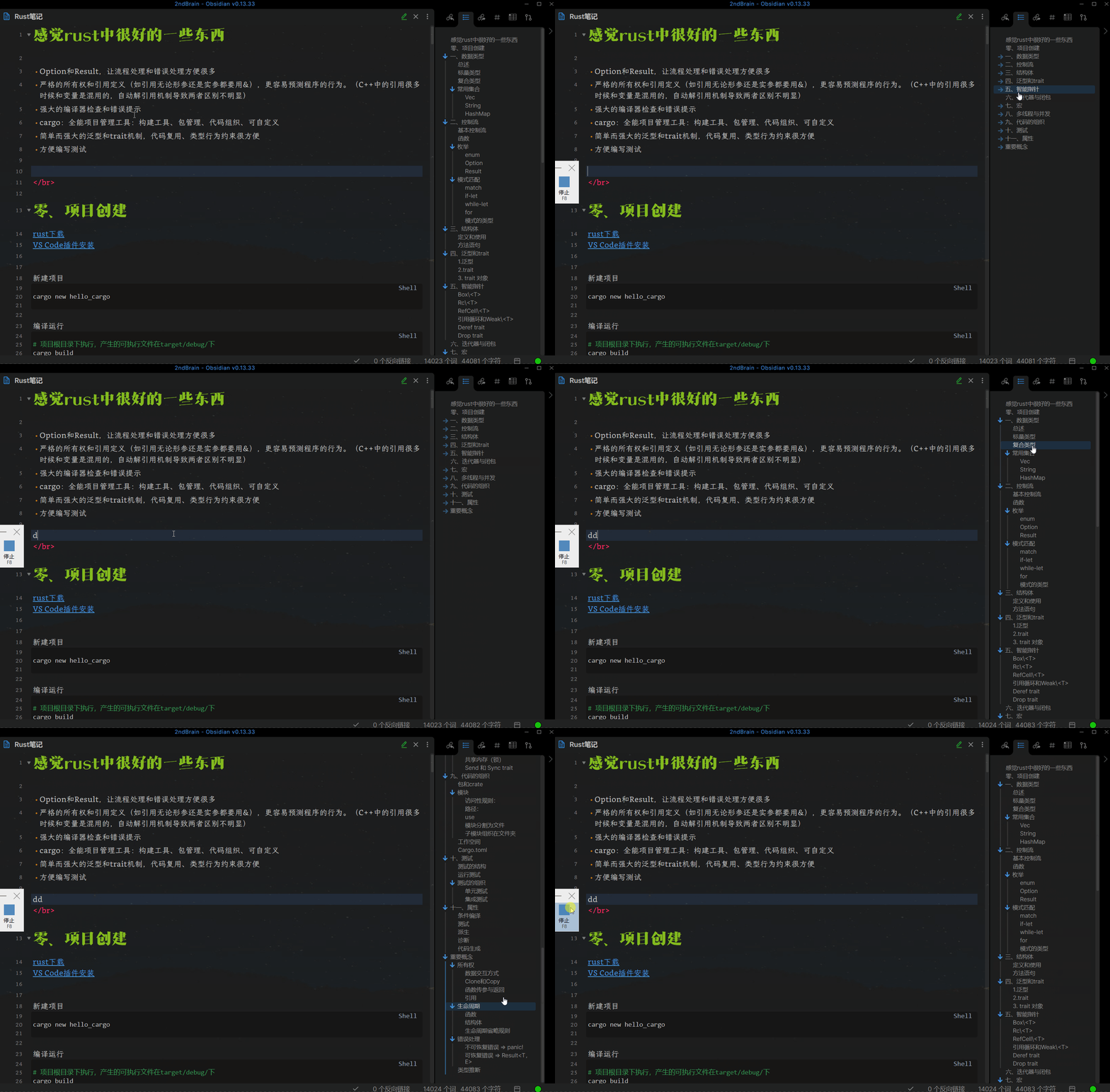
- No auto-expand when editing
- Search support
- Markdown render support
- Auto expand and collapse
- Default level
- Level Switch Bar
- Drag and modify note
- Navigation in Canvas
- Navigation in Kanban
- Navigation in Bases
- Navigation in PDF
- Hover preview
- Remember expand state
- Vim-Like keymap
- Some hotkeys
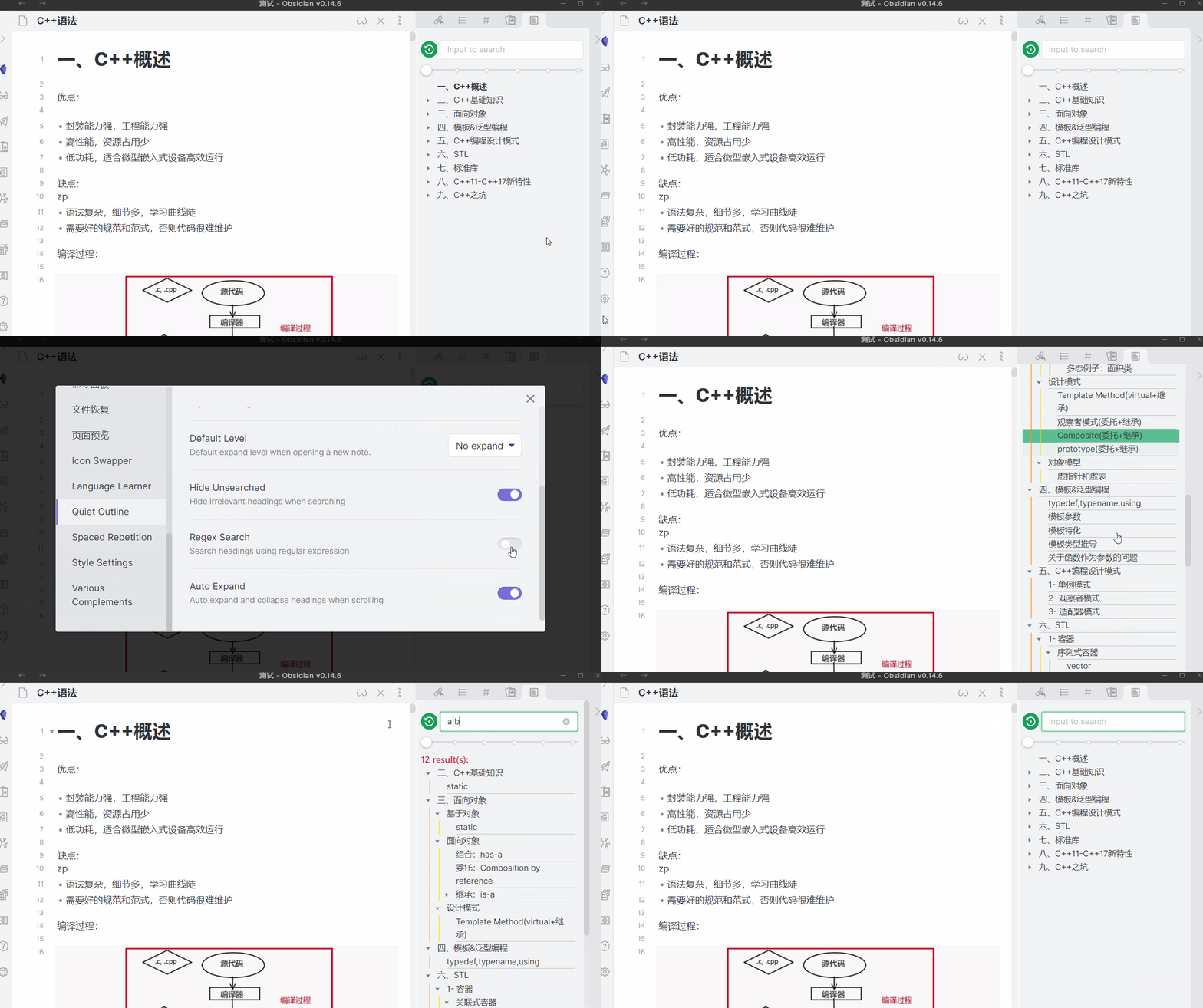
No auto-expand when editing
Default Outline:
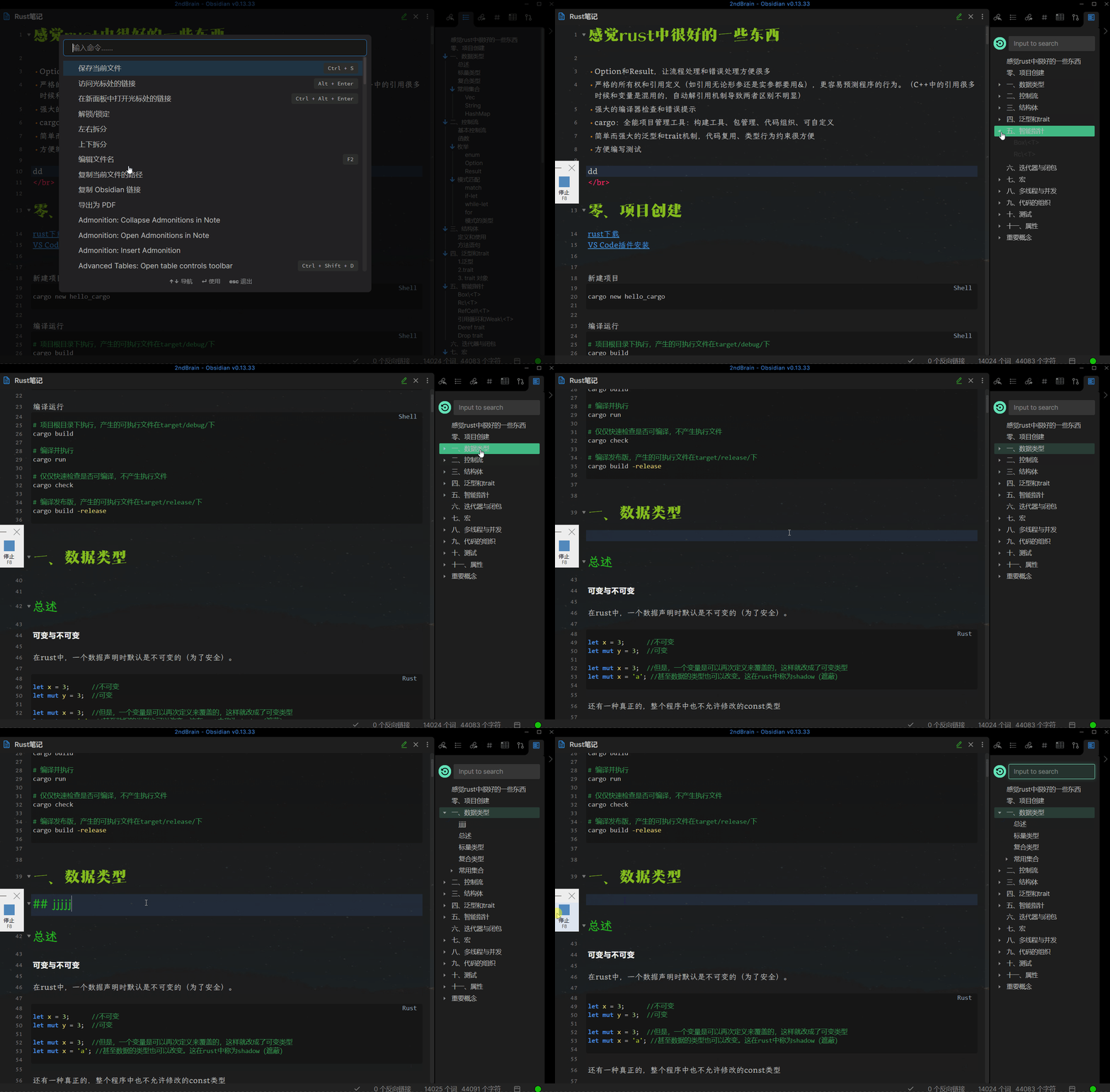
Quiet Outline:
Search support
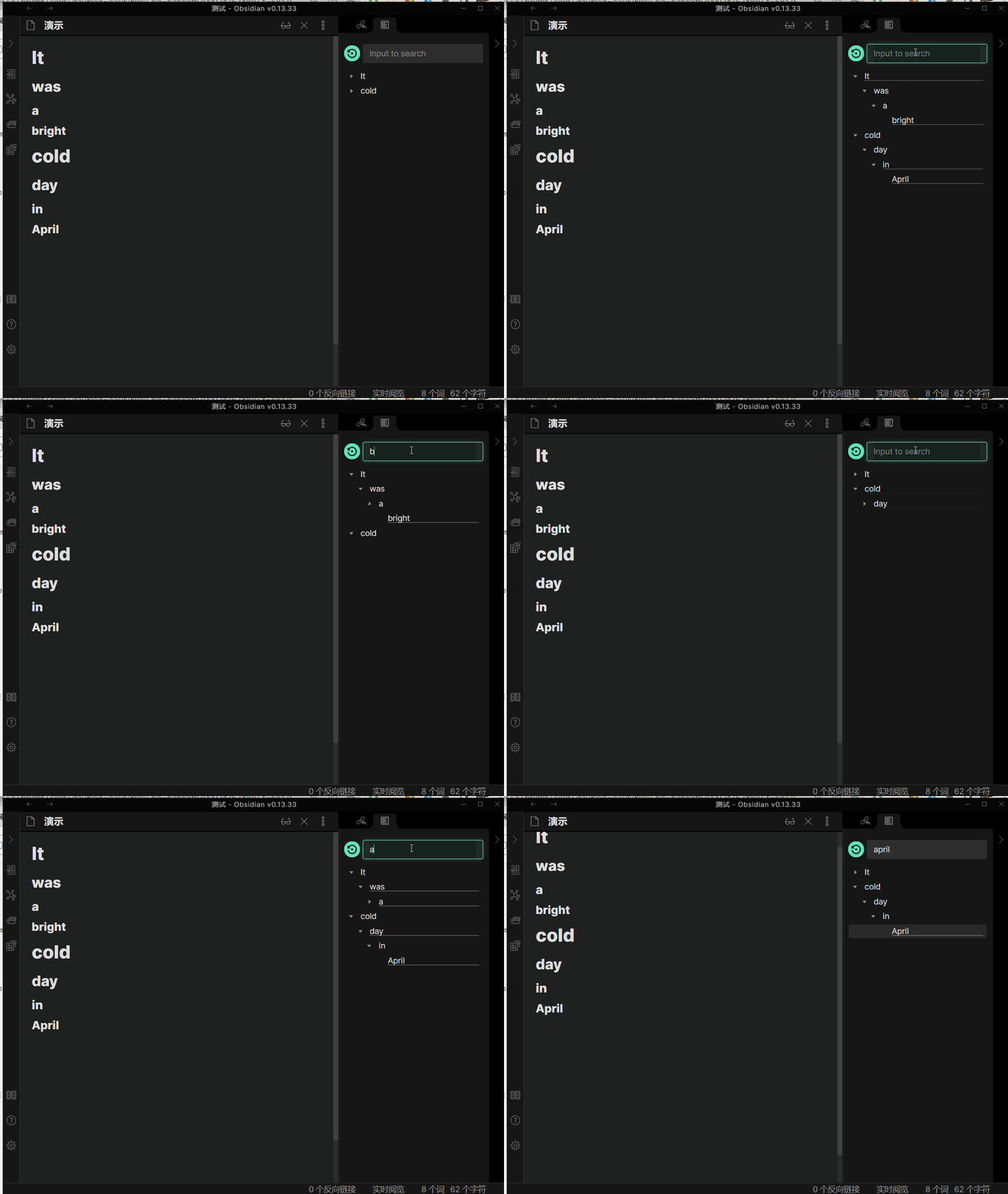
hide irrelevant results:
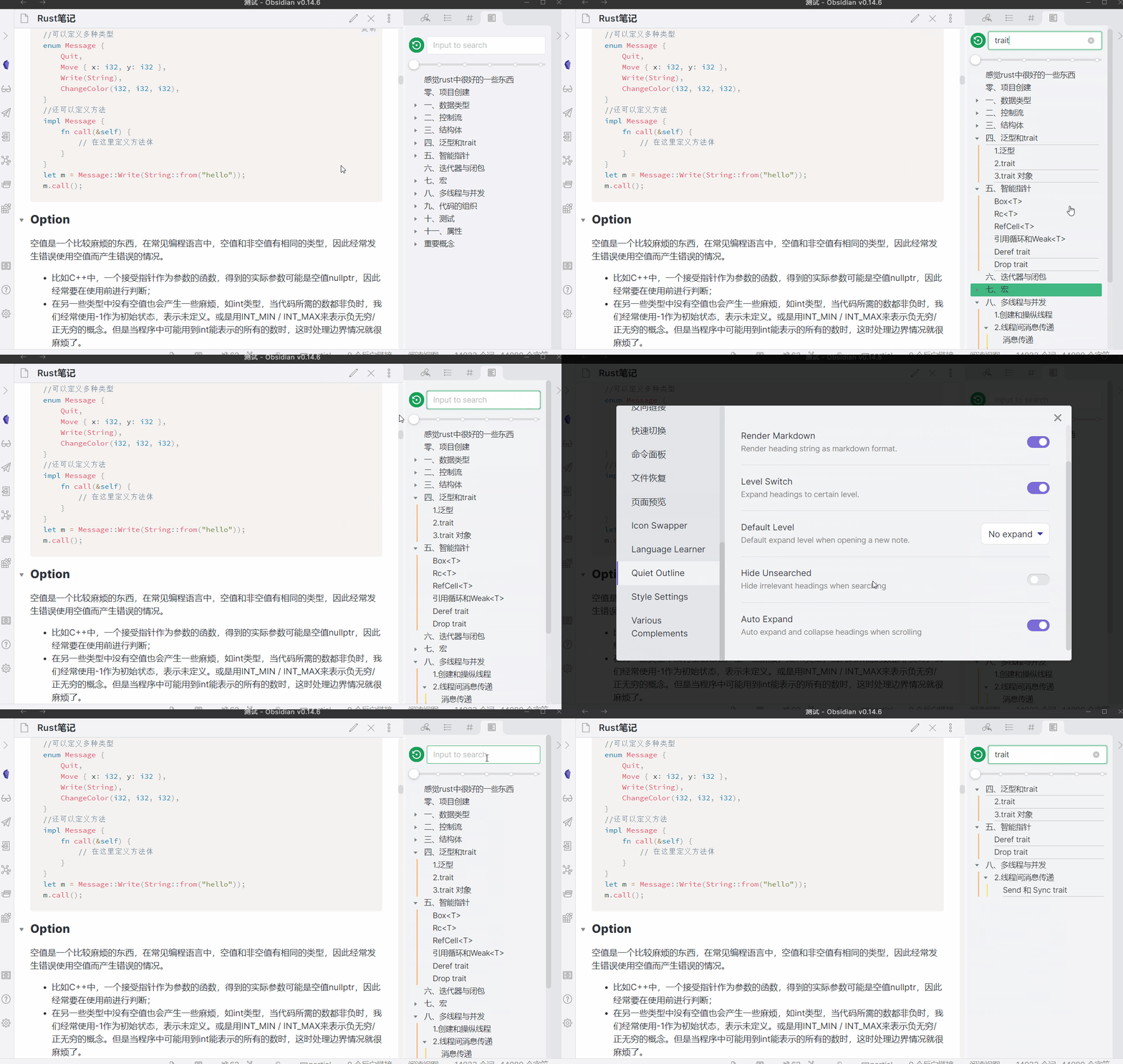
use regex:
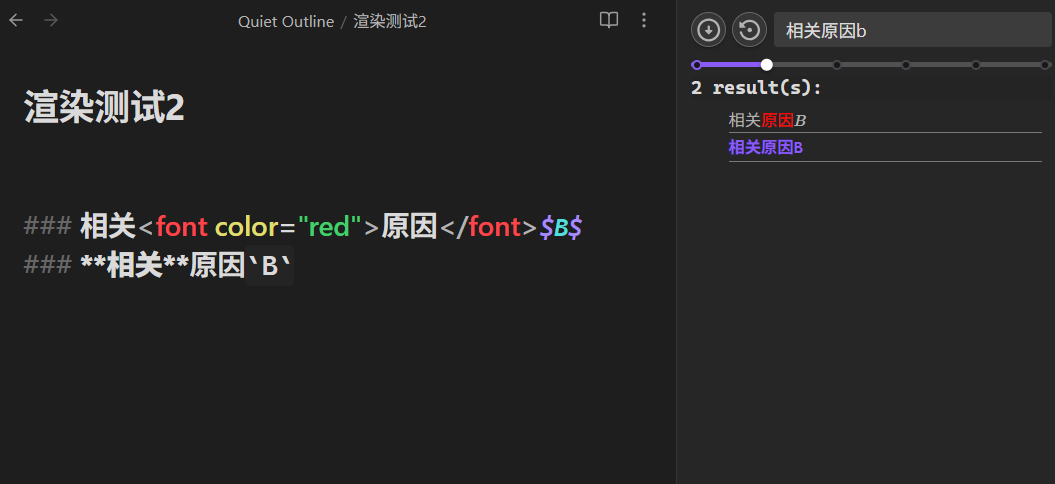
support searching content by piercing through Markdown/HTML syntax:
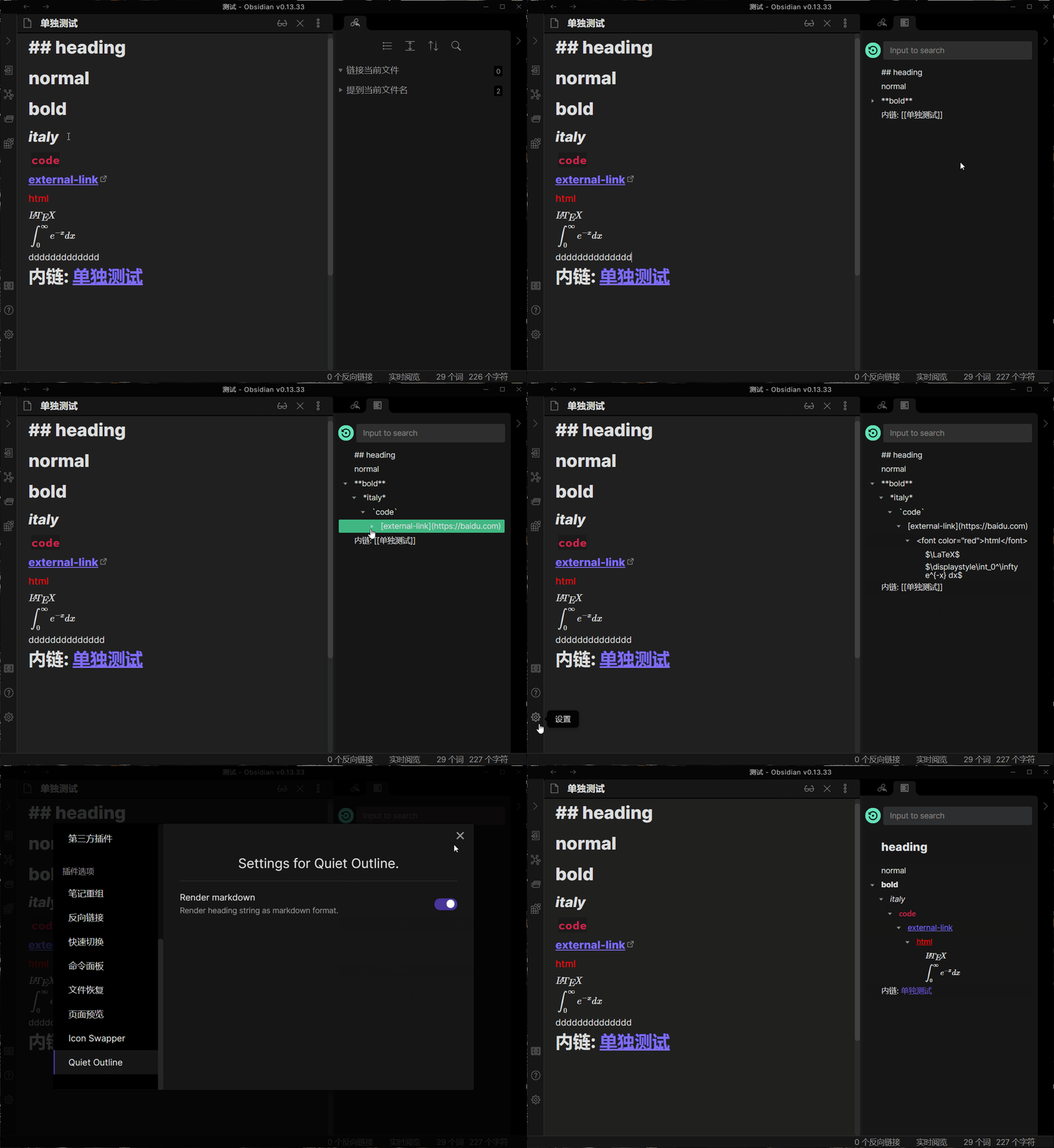
Markdown render support
Auto expand and collapse
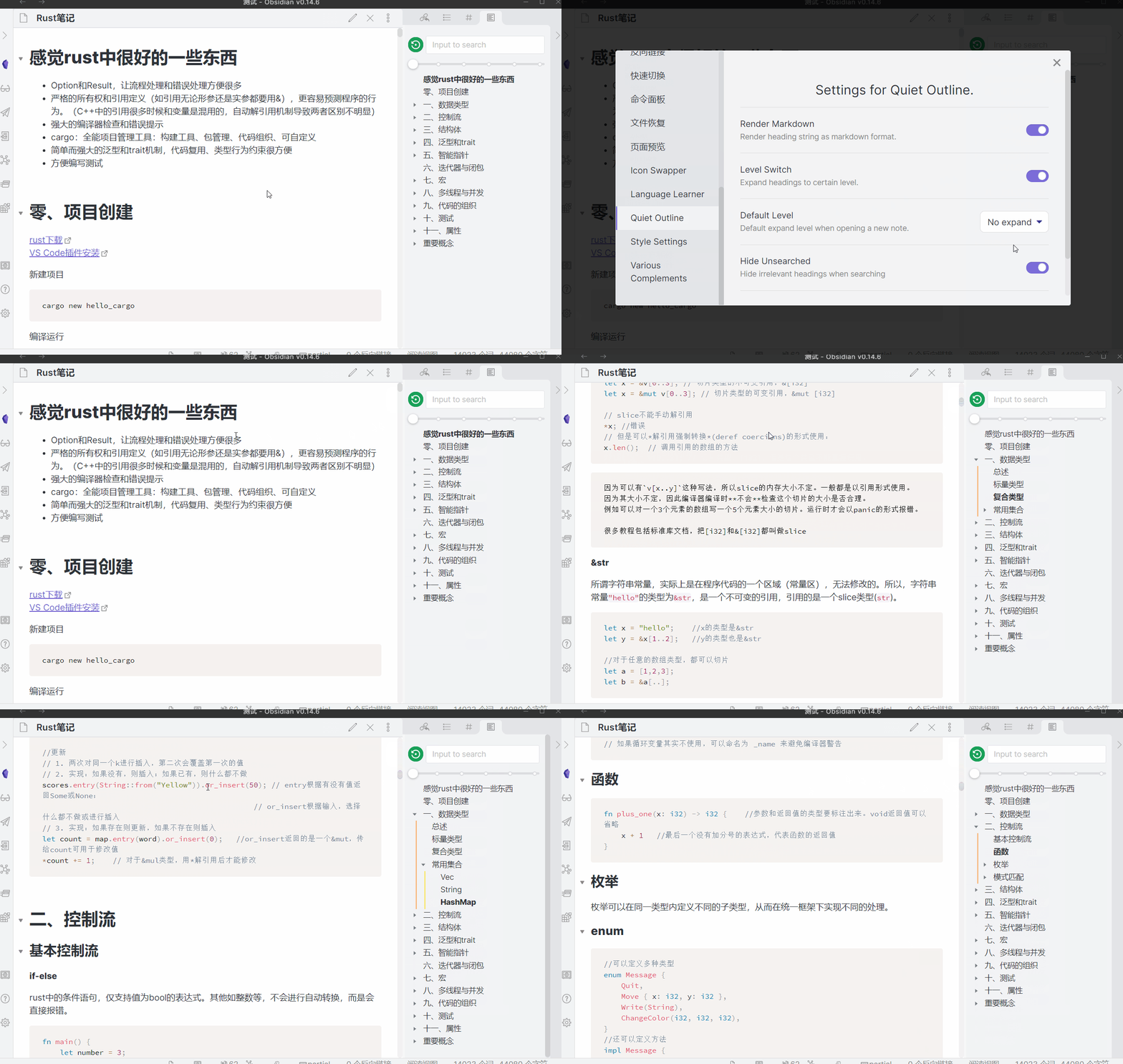
Level Switch Bar
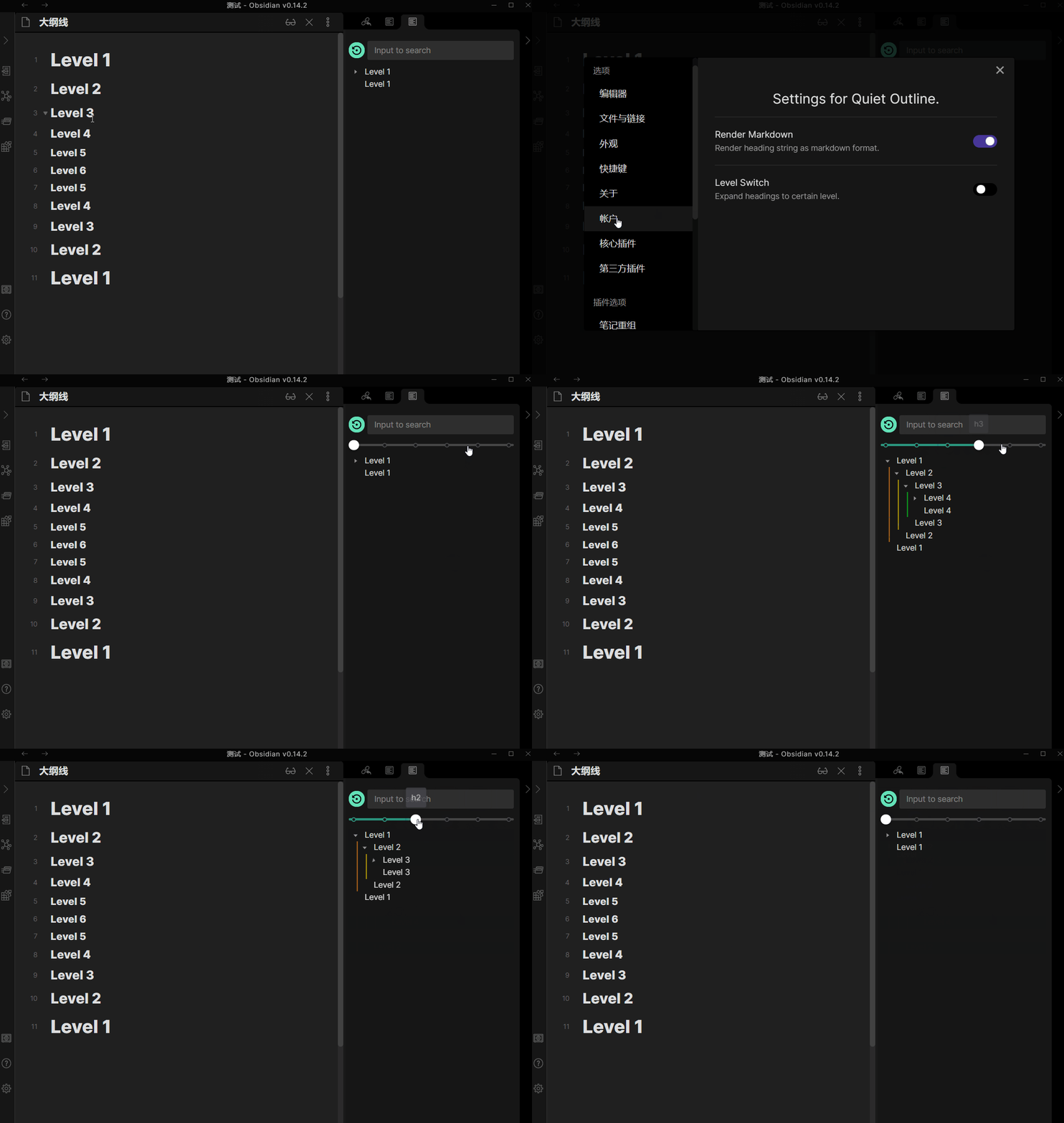
Default level
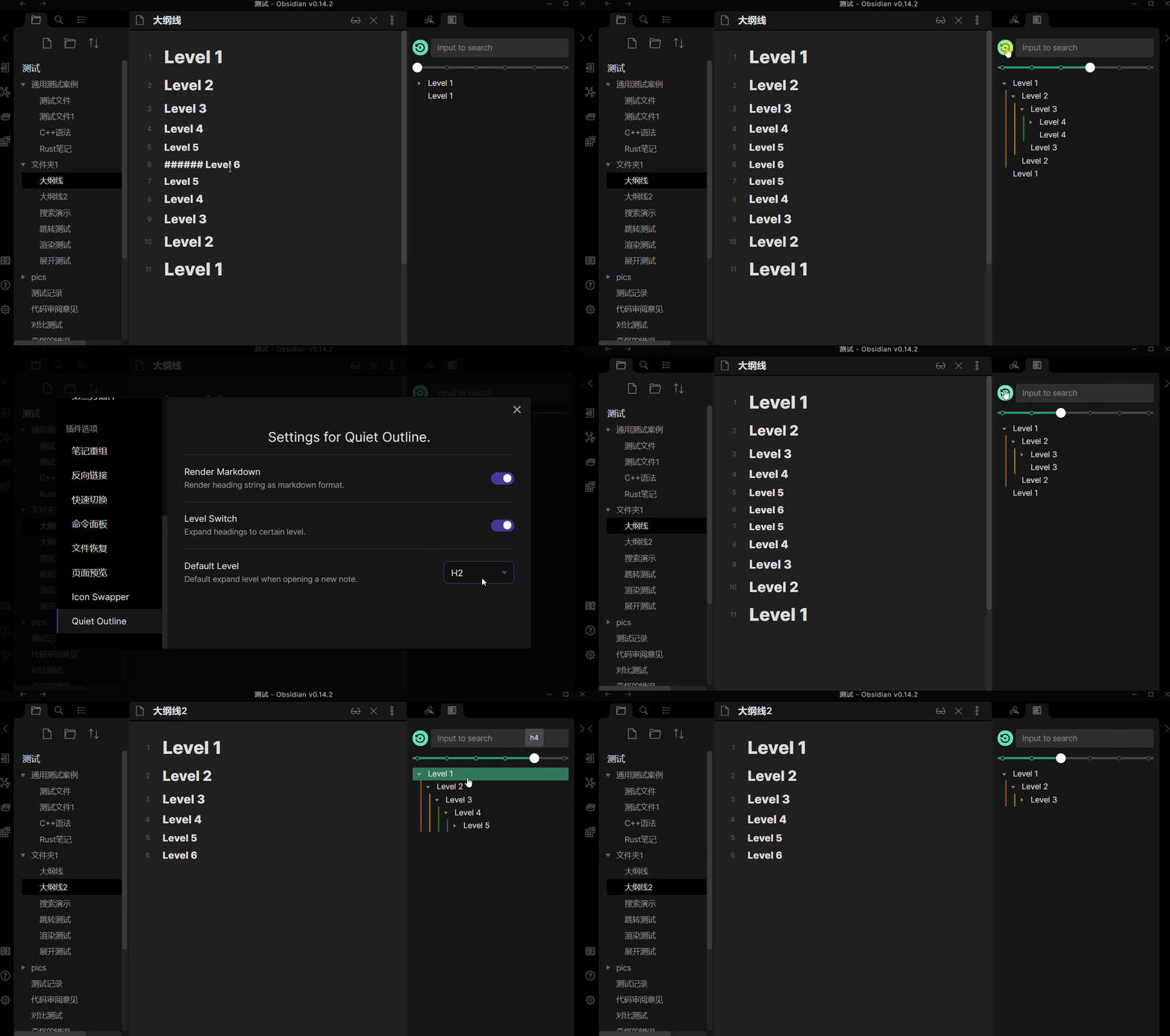
You can customize the default level per note. See release note in 0.3.33
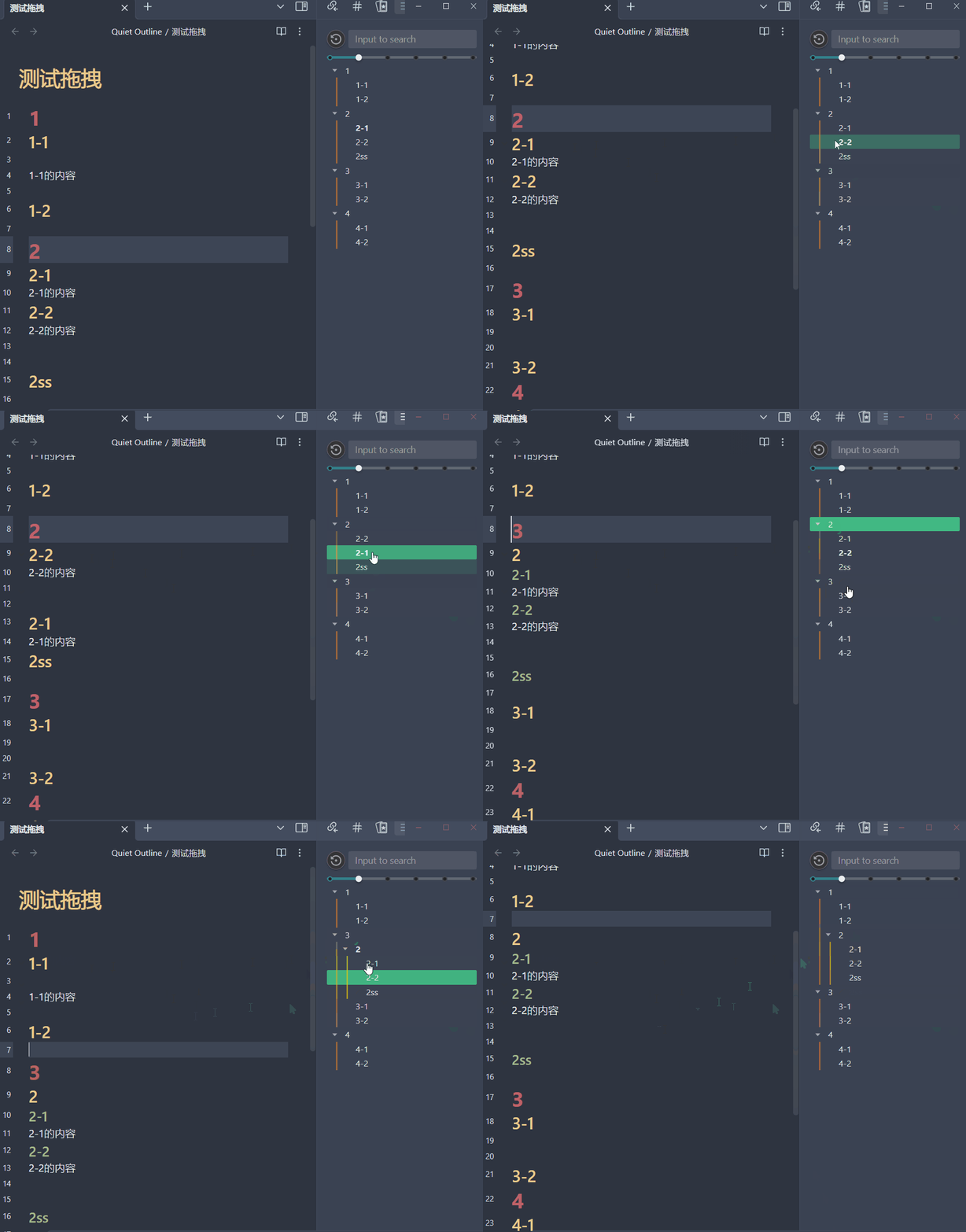
Drag and modify note
Navigate in Canvas
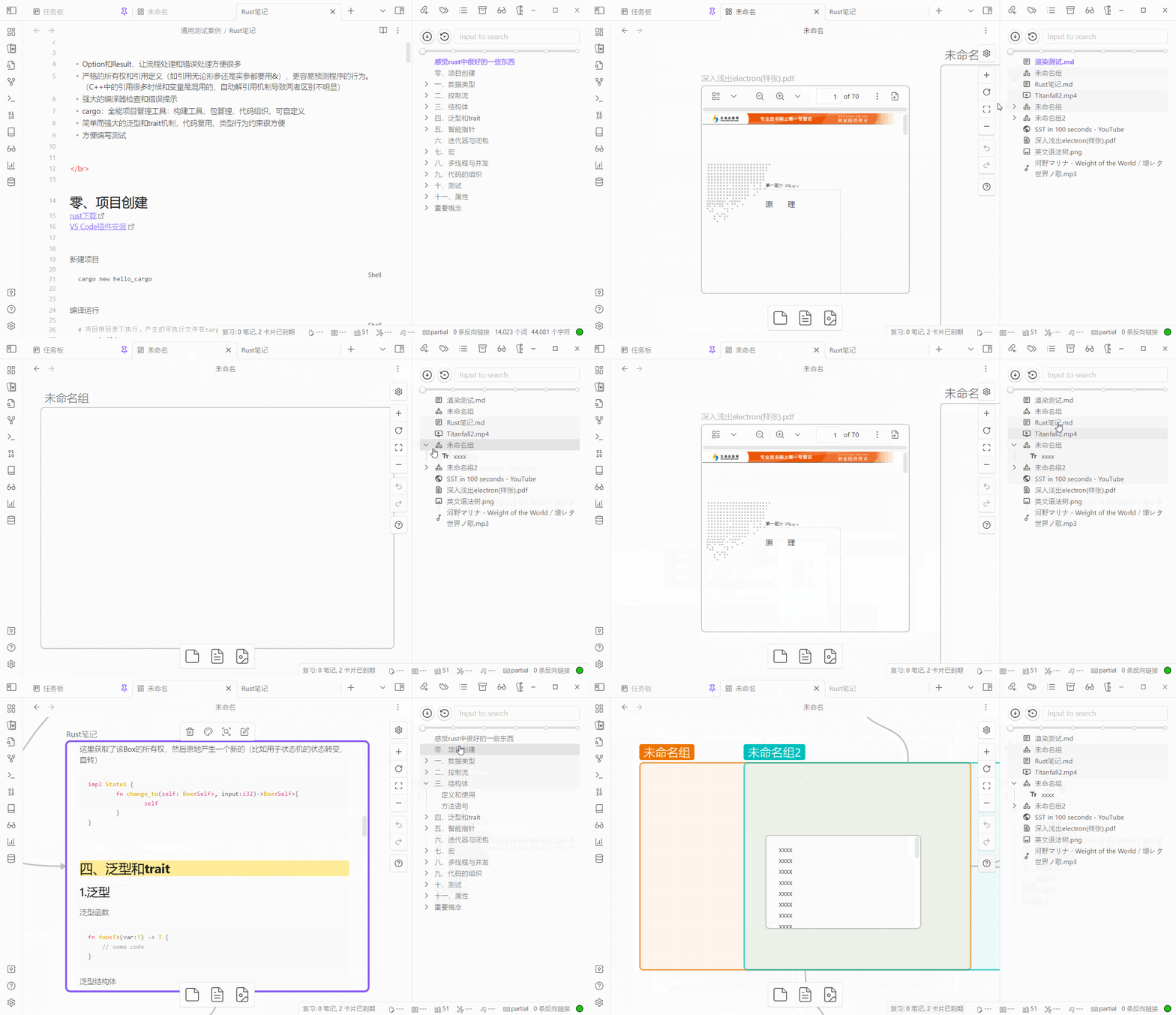
Navigate in Kanban
Navigate in Bases
Lists the rows of the active Bases view (table, cards or list), following its filters, sorting and grouping. The property shown per row can be changed in the Bases settings tab.
Navigate in PDF
Supports reading and displaying the table of contents (outline / bookmarks) embedded in PDF files:
- Click to Jump: Click on any outline item to navigate directly to the destination page and position in the PDF.
- Active Page Sync: Automatically tracks and highlights the corresponding outline heading as you scroll or change pages in the PDF.
Show content when hovering on heading
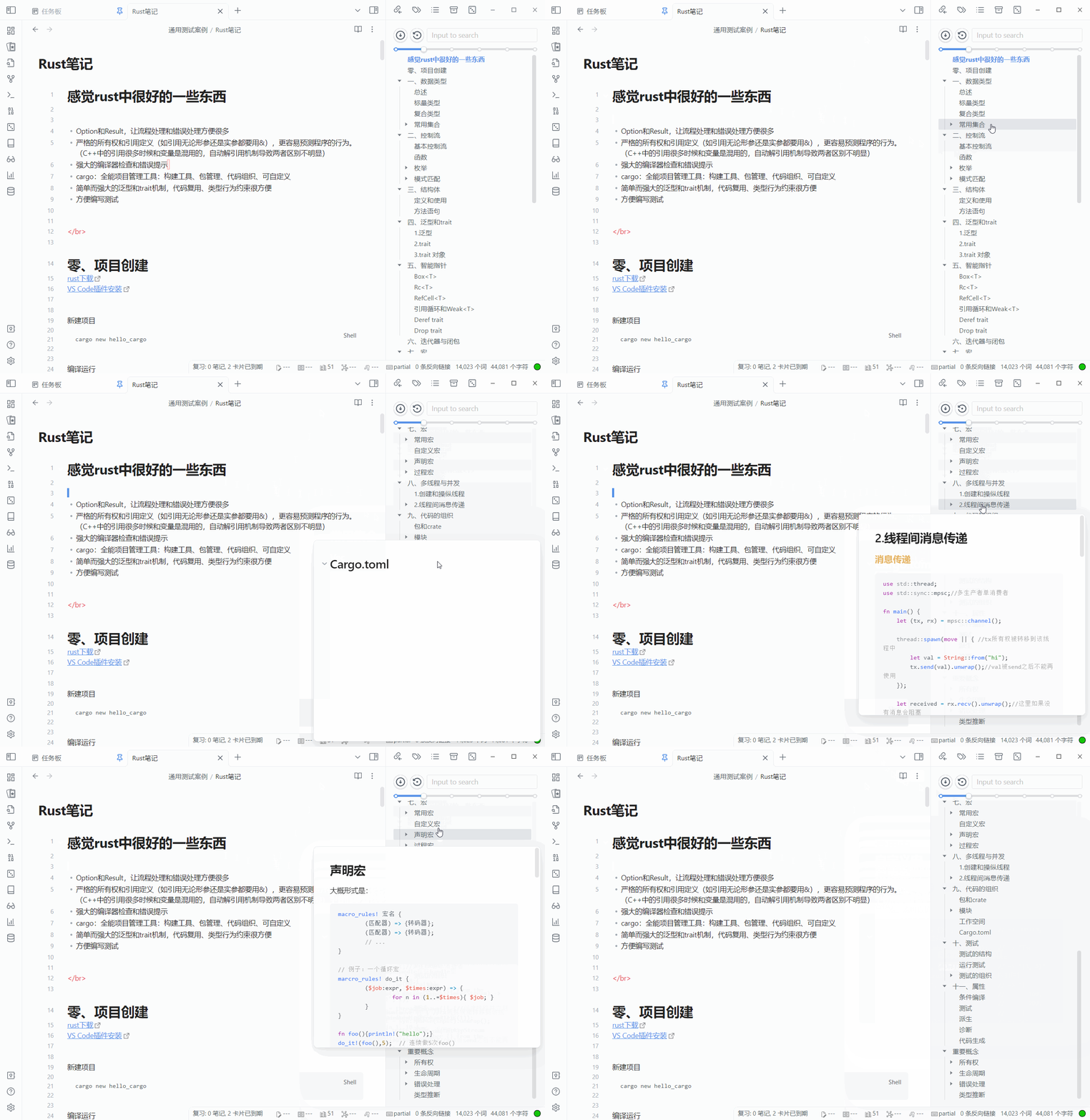
Remember State
When enabled, the plugin will remember the scroll position, cursor position of markdown note, and heading expansion state of the outline view. This allows you to switch between different views without losing your place.
Vim-Like keymap
https://github.com/user-attachments/assets/a321c9a8-af27-495f-8822-5824ee453af2
- Focus heading tree:
JK(and ArrowUP ArrowDown) to move down/upHL(and ArrowLeft ArrowRight) to collapse/expand/to focus search input areaZ Zto center the headingG Gto go to topShift Gto go to bottomSpaceto jump in note without to focus into itEnterto jump and focus into note, clear search inputEscapeto focus back to note
- Focus search area:
Escapeto clear search inputEnterto focus heading tree
Also support to operate canvas:
https://github.com/user-attachments/assets/babf3d56-9d66-4cbd-9bb8-8a41269fc332
JKHLto move to next nodeIto edit a file/text nodeZ Zto zoom in a nodeZ Ato zoom out
Hotkeys
- Increase/Decrease level
- Jump to prev/next heading
- Copy all headings to clipboard(See in 0.3.32)
Limitations
-
Due to the lazy-rendering strategy of built-in editor (Only text showed in the current window is rendered. If scrolling too fast, you will see some text is not ready to be rendered and the editor stutters), sometimes you can't jump to the place you want by one click in edit mode,especially when the note is opened for the first time since you open obsidian app. Outline core plugin has the same issue. Solution: Just click again.
-
Cross-level is not supported, which means you can use
h1->h2->h3,but noth1->h3->h4, whileh3andh4will be treated ash2andh3. -
Some extented grammars in obsidian are not supported by default. But we can extend the markdown-parser to fix it! If you believe any grammar is frequently used and should be implemented, create an issue to discuss about it.
Usage
Open command panel and input Quiet Outline ,then press Enter .
For markdown-rendering, open Markdown Render option in setting panel.
Install
Download from github
- Download the latest release.
- Extract and put the three files (
main.js,style.css,manifest.json) to folder{{obsidian_vault}}/.obsidian/plugins/obsidian-quiet-outline.
Install from Plugin Store
- Open Settings > Third-party plugin
- Click Browse community plugins
- Search for "Quiet Outline"
- Click Install
Buy me a coffee
If you enjoy this plugin, feel free to buy me a coffee.