
README file from
GithubOperon
Operon is a task management plugin for humans and agents in Obsidian. It keeps tasks in Markdown while giving them structured metadata, durable identity, reusable views, planning surfaces, recurrence, reminders, and time tracking.
What problem does Operon solve?
Obsidian keeps work close to notes, but tasks can spread across daily notes, project notes, checklists, files, calendars, and boards as a vault grows. Operon brings those fragments into one task system without pulling them out of Markdown.
A key part of that is unifying Obsidian's two natural task shapes: lightweight inline tasks inside notes and larger file-based tasks that deserve their own note. Operon indexes and manages both under the same workflows, filters, Table, Calendar, Kanban, and Task Editor.
It helps you capture tasks where they naturally belong, then later find, edit, filter, schedule, pin, track, or move them through a workflow from one set of tools.
Who is Operon for?
Operon is for Obsidian users who want task management to live inside their vault instead of a separate app. It is especially useful if your work already spans daily notes, project notes, meeting notes, long-running areas, recurring responsibilities, or agent-assisted workflows.
It is designed for people who need more than plain checkboxes, but still want their tasks to remain readable, editable, linkable Markdown.
Operon supports ten interface languages: English, Turkish, German, French, Spanish, Simplified Chinese, Traditional Chinese, Japanese, Russian, and Italian. English is built in; the other nine languages install as small on-demand packs. Natural-language date input is available in all ten languages.
Core features
Durable task identity and index
Every Operon task gets an operonId and is indexed from its source location in the vault. That lets the same task stay recognizable as it appears in notes, filters, the Table, Calendar, Kanban, the Pinned Task Dock, recurrence, and time tracking.
The result is one task record that can move through many views without becoming duplicated work.
Unified inline and file tasks
Operon brings lightweight inline checkbox tasks and larger file-based tasks into the same system. Inline tasks can behave like micro-files with identity, metadata, history, and context; larger work can become a file task with its own note.
Both task shapes stay part of the same index, Task Editor, filters, schedules, Table, Kanban boards, and Calendar views.
At any point, an inline task can be converted into a file task, or a file task can be converted back into an inline task. Operon preserves canonical task information during these format changes, so the task can change shape without losing its core identity or structured fields.
The point is not choosing one task format forever; it is letting the task grow into the shape it needs.
Task creation methodology
Turn notes into executable work from the place where the work appears: the command palette, the current cursor line, the Task Creator, inline task chips, an inline task command, a file task, a selected note fragment, an existing note, a Calendar event, or a Kanban/Calendar context.
Across these entry points, Operon supports more than twenty inline and file task creation or conversion variations.
Quick capture stays fast, while richer creation flows can add metadata, parent tasks, subtasks, templates, dates, recurrence, or a dedicated file when the work needs more structure.
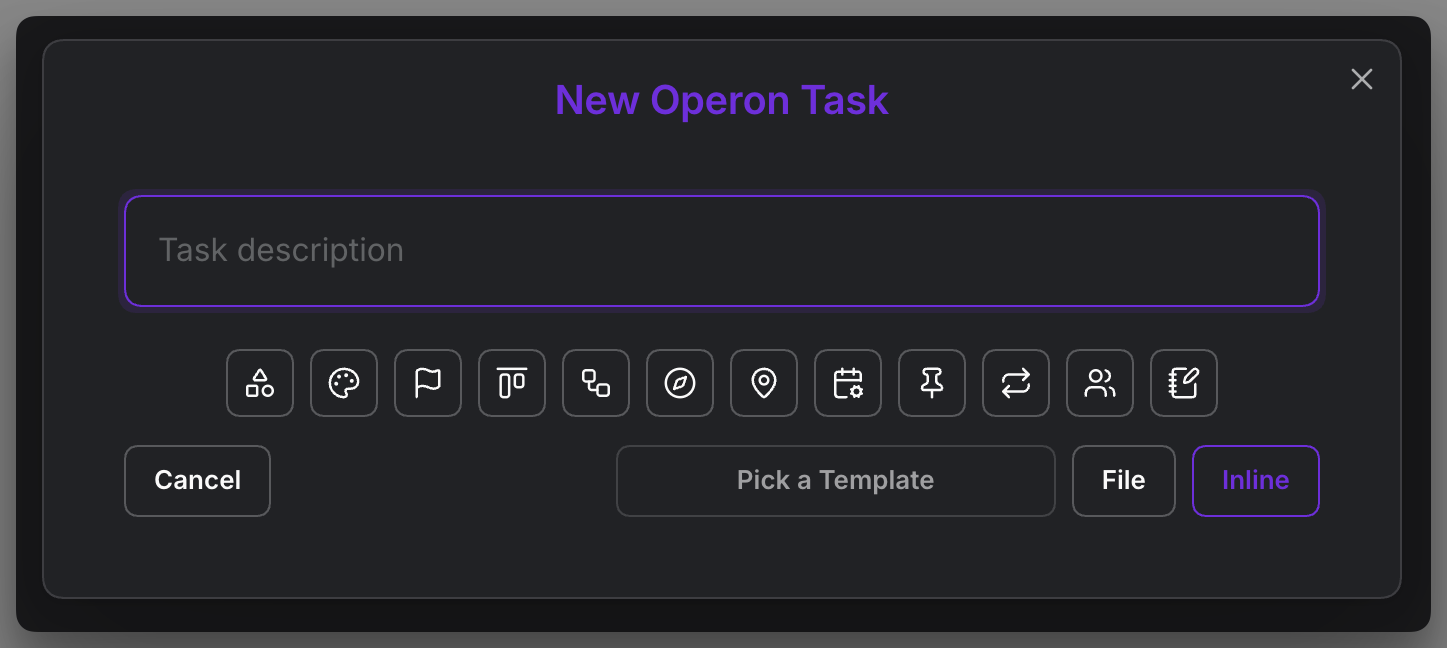
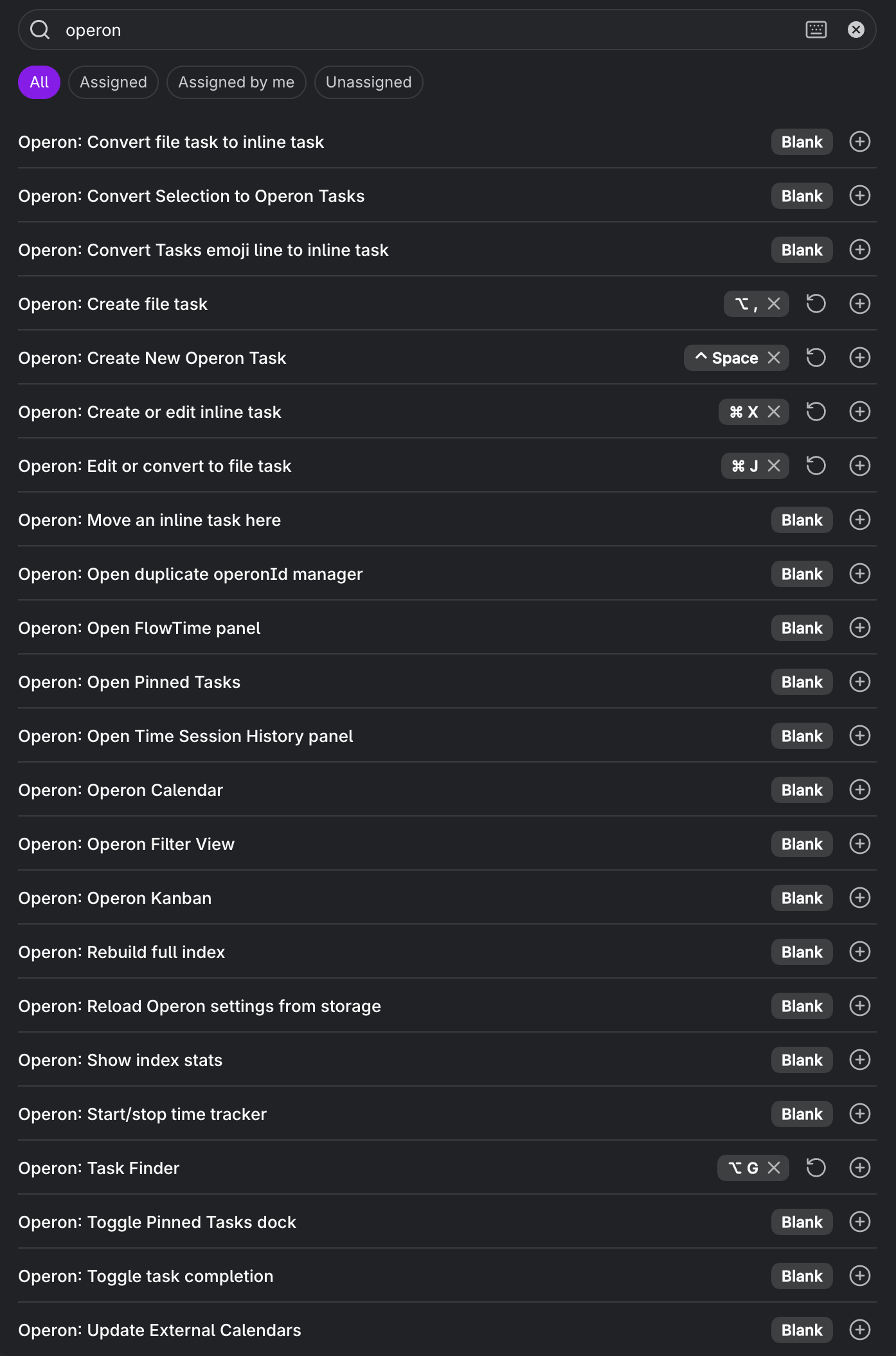
Create New Operon Task
- Open the main Task Creator from the Command Palette with
Create New Operon Task. - Open it from the Operon ribbon icon.
- Choose whether the new task should become an inline task or a file task.
- Use it when the task needs structured fields before it is written.
- Add fields such as description, notes, icon, color, priority, status, parent task, schedule, deadline, recurrence, pinned state, assignees, or contexts.
- Write inline tasks into the configured default target, a daily note target, below an inline parent, or inside a file-task parent context.
- Create file tasks in the configured file-task location, or follow parent/source folder behavior when that is enabled.
- Attach existing subtasks, dependency links, and pinned state during creation.
- Reopen the creator with the same draft if inline or file creation cannot be completed.
Create or edit inline task
- Run
Create or edit inline taskfrom the Command Palette. - Run the command on an empty line to create a new inline Operon task.
- Run it on plain text or a list item to convert that line into an inline task.
- Run it on a normal Markdown checkbox to upgrade an existing checklist item into an Operon inline task without rewriting the line.
- Run it on an existing Operon inline task to open the Task Editor.
- Select a text fragment and run the command to create an inline task from the selection.
- Inherit useful parent fields when creating inside a file task or another parent context.
- Place the new inline task at the current cursor position when the editor context allows it.
- Fall back to the configured inline task target or daily-note target when the current note cannot receive the task.
- Use this path when the task belongs inside the note you are already writing.
Empty line:
- [ ] Review release checklist {{operonId:: ...}}

Plain text line:
Review release checklist
↓
- [ ] Review release checklist {{operonId:: ...}}

Normal Markdown checkbox:
- [ ] Review release checklist
↓
- [ ] Review release checklist {{operonId:: ...}}

Selected text:
release checklist
↓
- [ ] release checklist {{operonId:: ...}}
Create file task
- Run
Create file taskfrom the Command Palette. - Create a new task as its own Markdown file.
- Choose a file task template when the work needs a prepared structure.
- Let templates fill themselves with variables such as
{{date}},{{time}},{{status}},{{priority}}, and{{taskDescription}}. - Use the configured file task folder or target rules.
- If the cursor is on a convertible inline task, promote that inline task into a file task.
- If a single non-task line or fragment is selected, seed the file task from that text and replace the source with a wikilink to the new file.
- If the source is inside a parent file task, apply linked auto-parent behavior when enabled.
- Use this path for projects, research, content pieces, deliverables, or any task that needs its own body.
Before:
Draft migration guide

Created file task:
Draft migration guide.md

Source note after conversion:
[[Draft migration guide]]
Edit or convert to file task
- Run
Edit or convert to file taskfrom the Command Palette. - Open the current file task for editing when the active note is already an Operon file task.
- Open the Task Editor when the current note already has Operon task frontmatter.
- Convert a normal Markdown note into an Operon file task when the note becomes actionable.
- Start the same conversion from a note's context menu with
Convert to Operon File Task…in the File Explorer, tab headers, links, and Bases. - Preserve existing managed frontmatter, tags, and the note body while applying the selected file task template.
- Promote work into a file task when it needs sections, references, decisions, or inline subtasks.
Convert file task to inline task
- Run
Convert file task to inline taskfrom the Command Palette. - Convert an Operon file task into a single inline task representation.
- Preserve canonical task information such as description, checkbox state, tags, and canonical fields.
- Insert the inline task at the current empty cursor line when that target is available.
- Otherwise, insert it into the configured inline task target file or daily-note target.
- Move the source file to Obsidian trash after conversion.
- Use this path when a task no longer needs its own note.
File task:
---
operonId: task-123
status: Project.InProgress
priority: A
dateDue: 2026-05-31
datetimeCreated: 2026-05-18T10:15:00
datetimeModified: 2026-05-19T14:30:00
---

# Draft migration guide

After conversion:
- [ ] Draft migration guide {{operonId:: task-123}} {{status:: Project.InProgress}} {{priority:: A}} {{dateDue:: 2026-05-31}} {{datetimeCreated:: 2026-05-18T10:15:00}} {{datetimeModified:: 2026-05-19T14:30:00}}
Convert Tasks emoji line to inline task
- Run
Convert Tasks emoji line to inline taskfrom the Command Palette. - Convert a compatible Obsidian Tasks-style emoji line into an Operon inline task.
- Map supported Tasks dates such as due, scheduled, start, completed, cancelled, and created dates into Operon fields.
- Convert leading time ranges into timed scheduling fields when possible.
- Preserve unsupported Tasks syntax as a note instead of silently dropping it.
- Use this when adopting Operon inside a vault that already contains Tasks-style task lines.
- Keep the conversion focused on task metadata that Operon can understand and manage.
Before:
- [ ] 09:00-10:30 Review release plan #release ⏳ 2026-05-20 📅 2026-05-22 🛫 2026-05-19 ➕ 2026-05-18

After:
- [ ] Review release plan #release {{operonId:: ...}} {{dateScheduled:: 2026-05-20}} {{datetimeStart:: 2026-05-20T09:00:00}} {{datetimeEnd:: 2026-05-20T10:30:00}} {{estimate:: 5400}} {{dateDue:: 2026-05-22}} {{dateStarted:: 2026-05-19}} {{datetimeCreated:: 2026-05-18T00:00:01}}
Convert Selection to Operon Tasks
- Run
Convert Selection to Operon Tasksfrom the Command Palette after selecting Markdown list items. - Convert selected checkbox lines, Tasks emoji lines, bullet items, and numbered items into Operon inline tasks.
- Preserve indentation and infer parent-child links from selected list hierarchy only.
- Apply normal inline task inheritance to top-level converted items, including file-task auto-parent behavior when enabled.
- Use Tasks priority emojis when present; when they are absent, keep Operon's default priority instead of inheriting a parent priority.
- Skip paragraphs, empty markers, code blocks, and unsupported task lines instead of converting them.
- Use this when migrating a checklist or outline into Operon without converting surrounding prose.
Before:
- [ ] Prepare launch
  - [ ] Review notes 📅 2026-05-22
  - Draft announcement

After:
- [ ] Prepare launch {{operonId:: ...}}
  - [ ] Review notes {{operonId:: ...}} {{parentTask:: ...}} {{dateDue:: 2026-05-22}}
  - [ ] Draft announcement {{operonId:: ...}} {{parentTask:: ...}}
Move inline task here
- Run
Move an inline task herefrom the Command Palette. - Choose an existing inline task and move it to the current editor position.
- Use this when the task's surrounding context changes.
- Keep the task identity while relocating the task line inside the vault.
Create from Calendar or Kanban
- Pick an existing task and place it into the selected Calendar slot or Kanban cell.
- Create inline or file tasks from Calendar slot actions.
- Create inline or file tasks from Kanban cell actions.
- Seed the new task with the target date, time range, status, lane, pipeline, or context implied by the surface.
- Create tracked time sessions directly from timed Calendar selections.
- Use Calendar daily-note parent seeding when daily notes are configured as Operon tasks.
- Show the Task Editor when a newly placed or created task does not match the active Calendar or Kanban filter.
- Use this when planning creates the task, not just schedules an existing one.
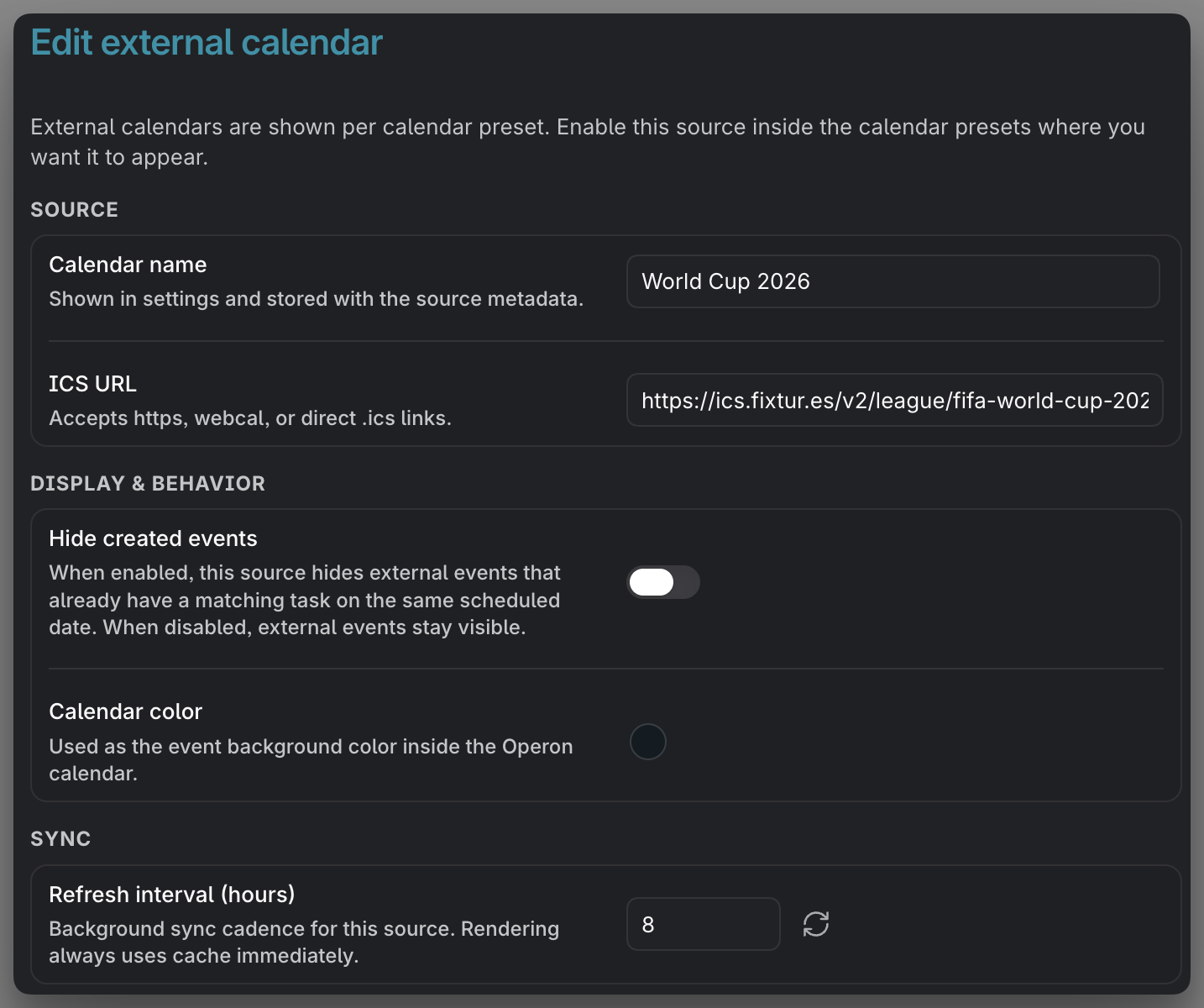
Create from external Calendar events
- Create an Operon task from a read-only external Calendar event.
- Choose whether the new task should be an inline task or a file task.
- Seed the new task with the event title and selected event time.
- Keep the external event as read-only Calendar context while creating a local task record you can manage.
- Use this when an outside commitment needs to become actionable inside the vault.
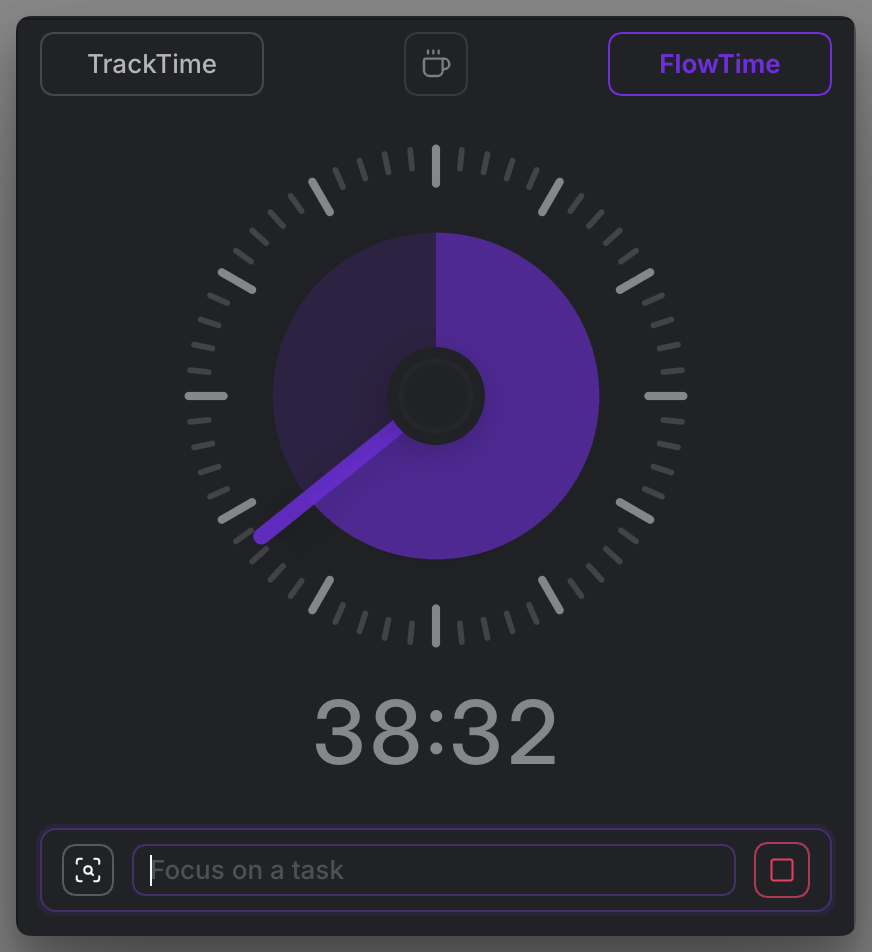
Create from TrackTime and FlowTime
- Create a quick inline task from the TrackTime and FlowTime surface when a timed or focused session reveals a new piece of work.
- Keep the capture lightweight so the task can be named, saved, and returned to without breaking the timing or focus flow.
Creation is part of the workflow, not a separate intake ritual.
Subtasks, parent tasks, and relationships
Break larger work into subtasks, connect related tasks, define dependencies, and keep parent-child structure visible without leaving Markdown.
When a subtask is created from a parent, Operon can seed it with inherited context. Which fields follow the parent is configurable in the Relationships settings, so a child inherits exactly the fields you choose, while status can start from either the parent's pipeline or the default workflow. Inherited values are starting context, not a lock; they can be changed after the subtask is created.
The parentTask field links the child back to the parent, and the Dynamic Subtasks Filter can open a focused window over any task that already has subtasks, showing just that task's subtree.
Parent tasks can reflect descendant progress, estimates, and tracked duration, so larger work stays readable as it changes.
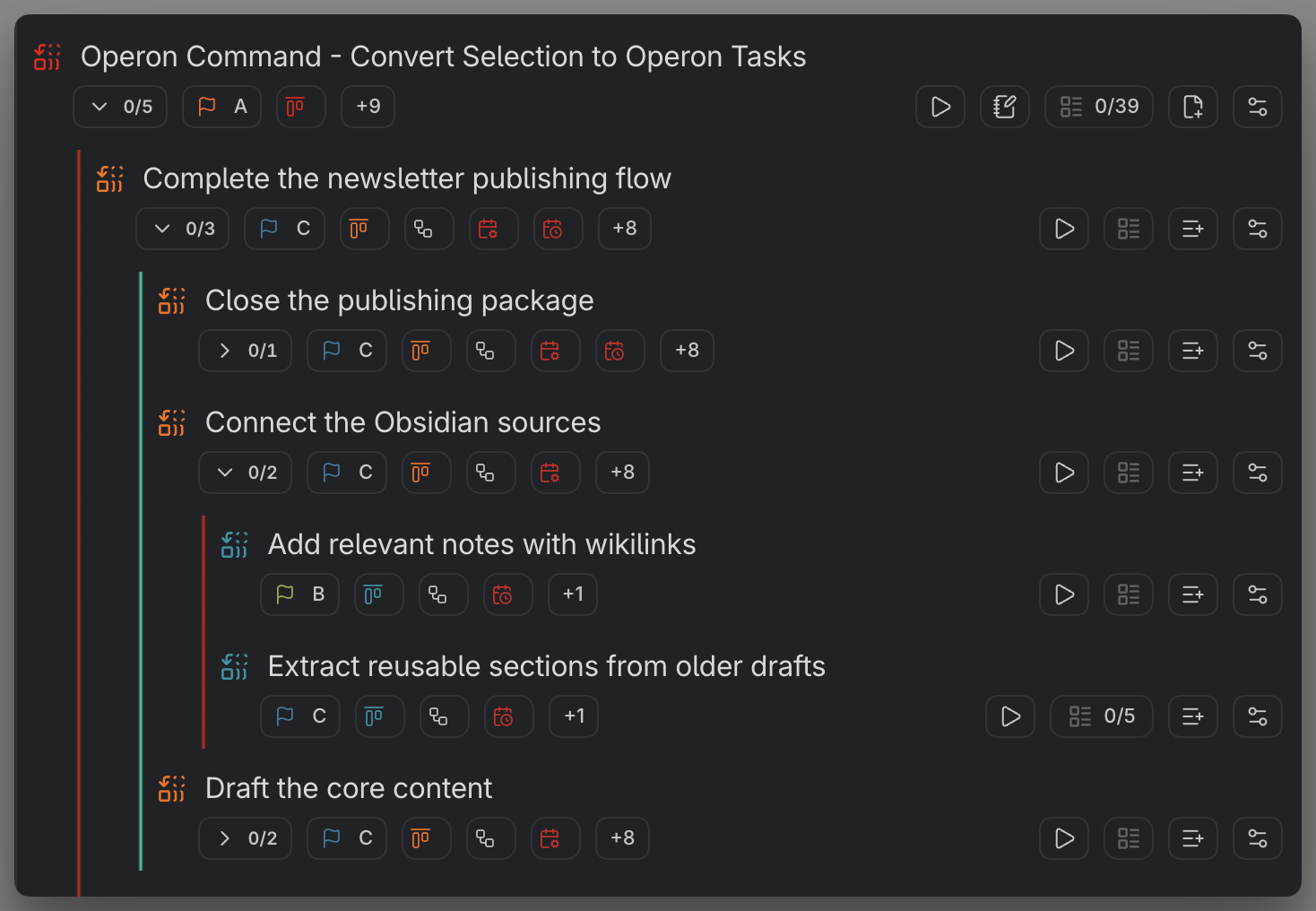
Hierarchy gives big work a shape without forcing it out of the note system.
Project serials
A project serial is a short, stable label like PROD-007 that Operon puts on every task inside a project. Like the issue IDs used by project tools, it is a handle you can say out loud, write in a commit message, or point to in a discussion. Serials are assigned automatically and in order across a whole parent task tree.
They are read-only and visual. The task's operonId stays the machine identity underneath; the serial sits on top as a human-friendly name, stored in Operon's own state, so turning serials on does not rewrite a single line of your notes. Prefixes can be renamed inline, and each project counts its own numbers, so PROD-12 and MKTG-12 can coexist.
Serial identity chips appear across task rows, Kanban cards, and the Table, where Project Serial can also serve as a column, and serial groups can drive Filter conditions, grouping, and sorting.
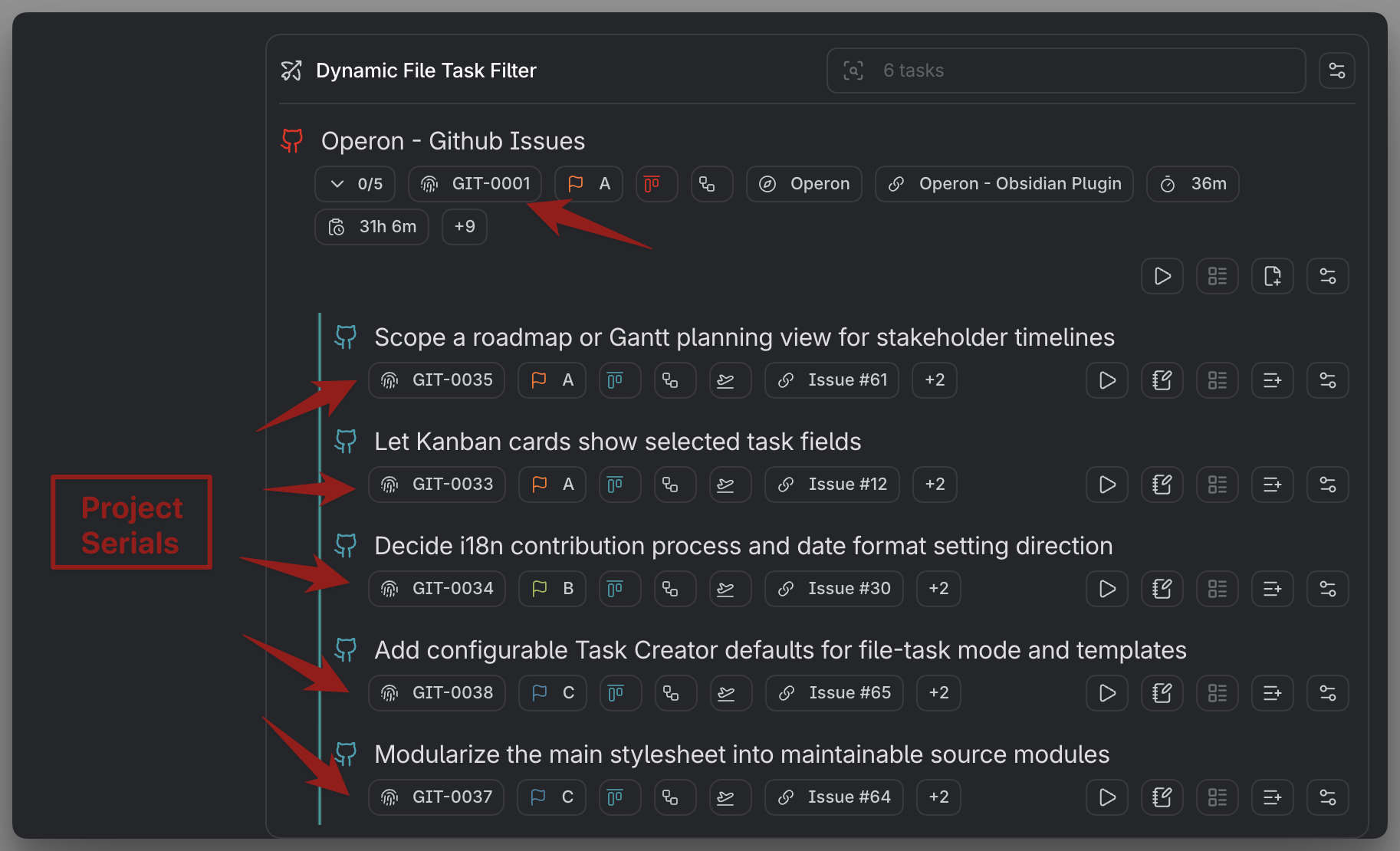
Serials give tasks a name people can use while the operonId keeps the identity machines can trust.
Task Editor
Create and edit tasks with structured controls for canonical fields such as status, priority, dates, tags, contexts, assignees, parent task, dependencies, recurrence, reminders, pinning, and time tracking.
The right side of the editor gives form-like control over task data. The file body panel keeps the Markdown source close, so file tasks and inline tasks can still be edited in the context of the note where they live.
File tasks open with the file body visible by default. Inline tasks can also reveal their source file body when needed, making it possible to inspect the surrounding note, edit Markdown, and use familiar Obsidian editing behavior from inside the Task Editor.
Body changes are saved automatically: edits autosave two seconds after you stop typing, and closing the Task Editor saves any pending changes immediately. You can also save explicitly with the save button.
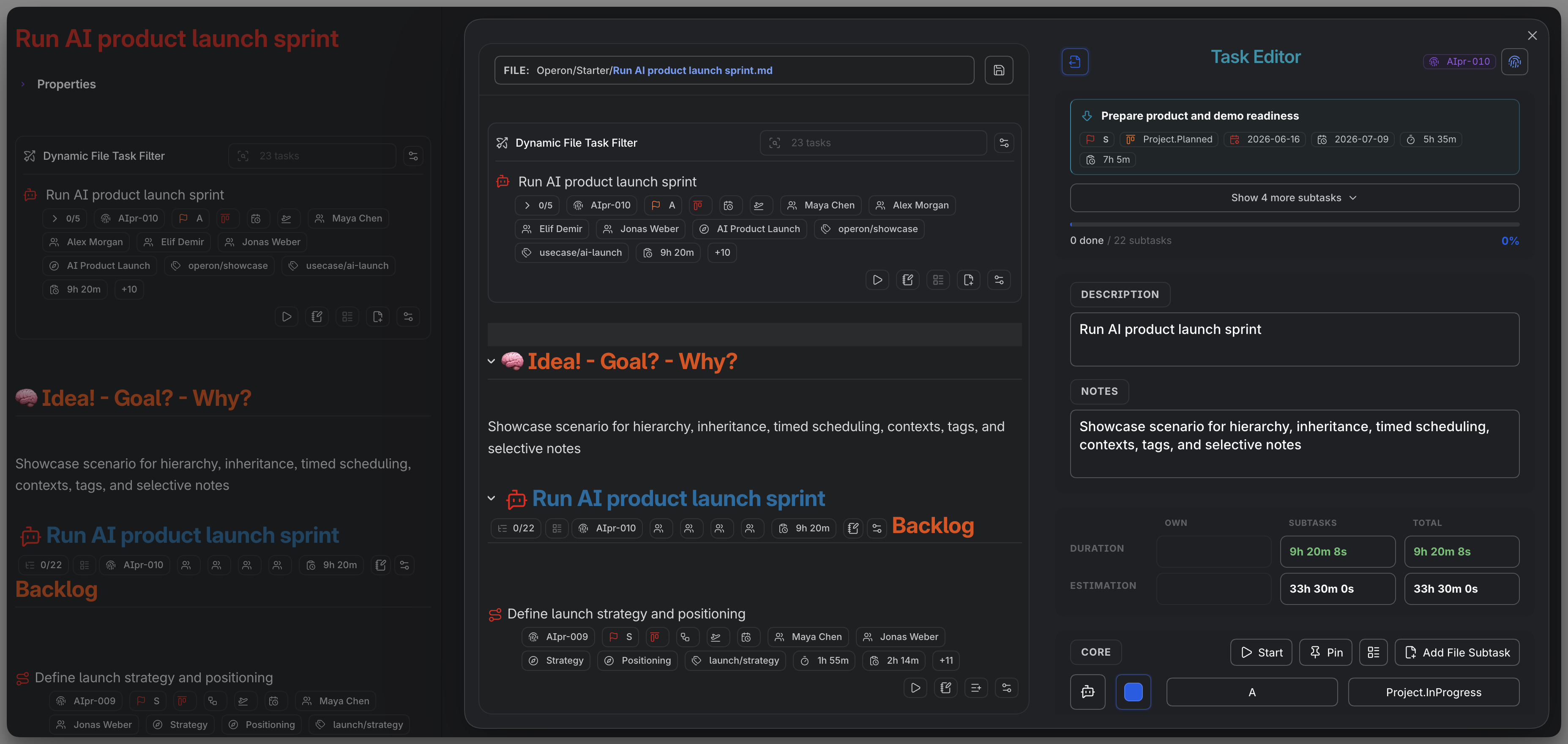
The editor is a structured doorway into Markdown, not a replacement for it.
Task Finder
Find what you remember, not where you filed it. Task Finder searches across inline tasks and file tasks from one focused command surface.
Use remembered words, task format toggles, and quick modes for overdue, today, or recently modified work. When you know the project but not the file, Project Tasks and Project Tree scopes narrow the search before the search begins.
Task Finder uses a purpose-built ranking model instead of plain text filtering. It can match task names, ids, parent and descendant task names, notes, status, priority, tags, contexts, assignees, dates, and related task links, then rank results so exact and prefix matches stay close to the top.
Task Finder can include or exclude inline tasks, file tasks, finished tasks, and cancelled tasks. It can also remember the last selected scope, use dot-shortcuts for scope switching, and show customizable compact chips in result rows.
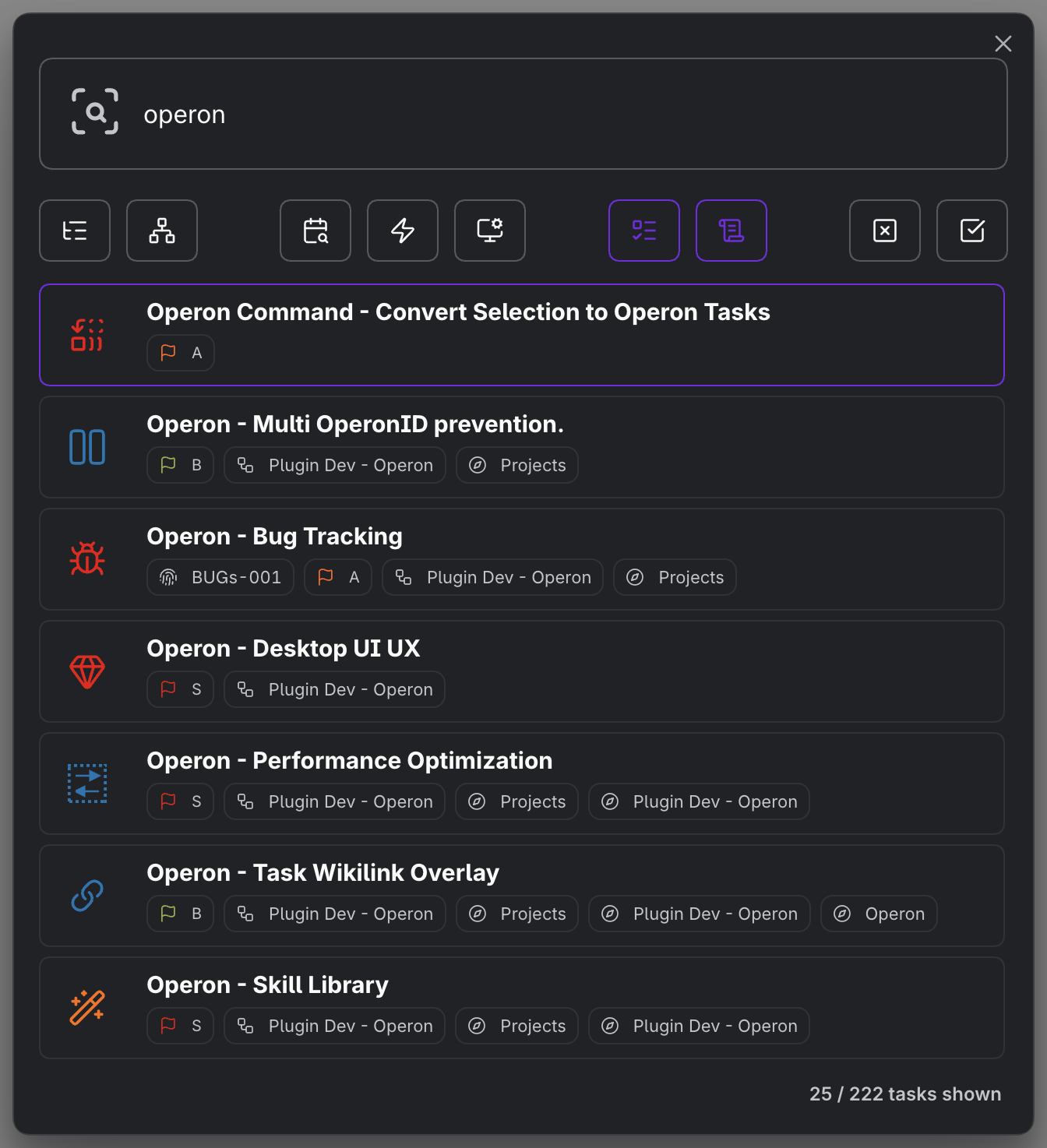
Selecting a task from Task Finder opens that task in the Task Editor.
It is a fast recovery surface for the moment when you remember the work, but not the note that contains it.
Filters
Turn task rules into reusable work scopes. A filter can combine fields, operators, values, match logic, groups, sorting, grouping, and subgrouping into one saved view.
Filters can work with task text, checkbox state, tags, pinned state, project trees, folder trees, dates, numbers, lists, and canonical task fields. Saved filters can also reach discovered file-task frontmatter properties with typed conditions and presence operators, and go-to filters can be marked as favorites. That makes them useful for both small personal slices and large operational views.
Saved filters can be reused in the Filter View, embedded inside notes with an operon code block, opened in side panels, or attached to Calendar and Kanban presets. You can also search inside an already filtered scope to narrow a large task set further.
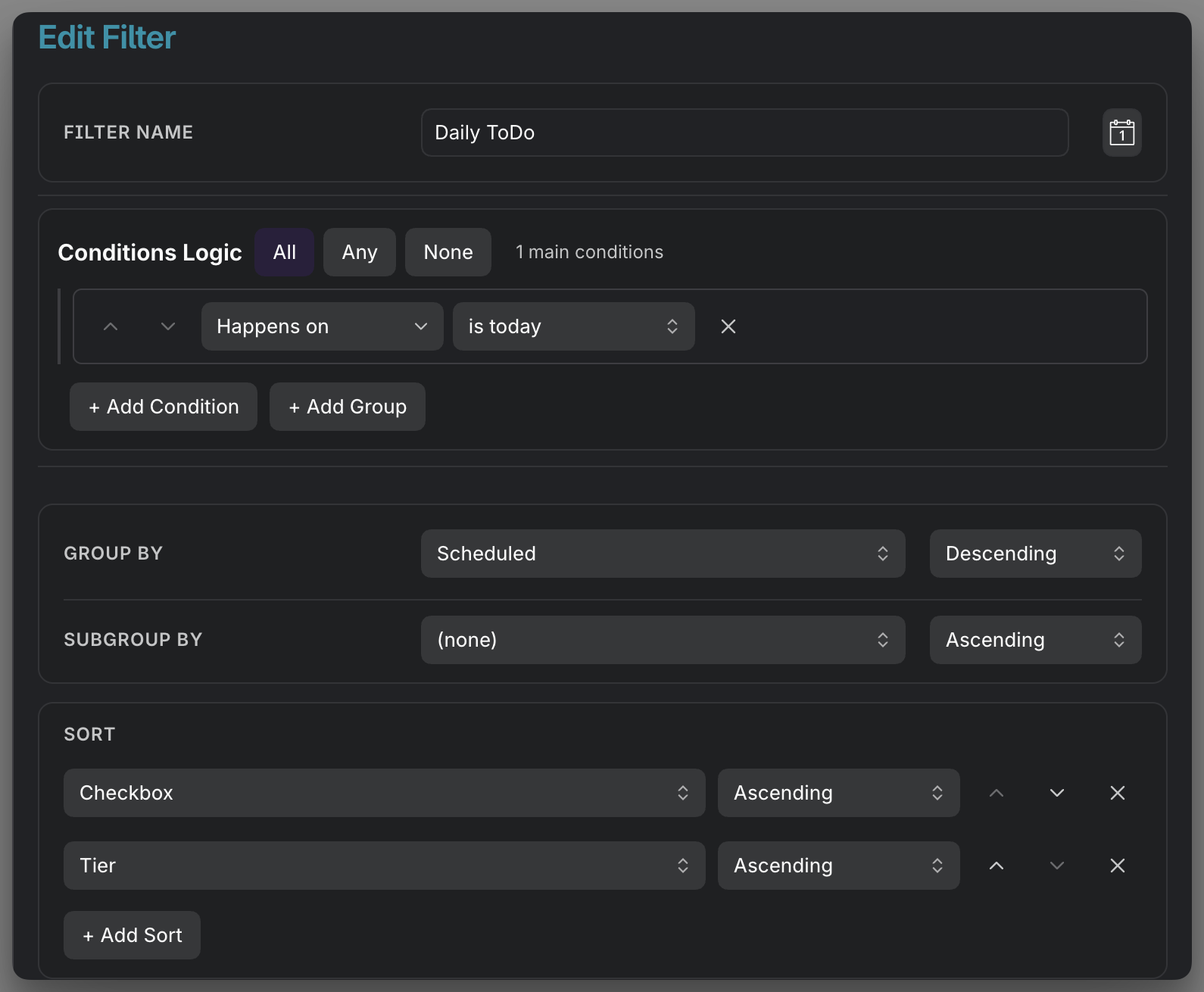
A filter is not just a one-time query; it is a named slice of the vault that can travel across Operon surfaces.
Custom pipelines, statuses, priorities, and colors
Model different workflows with your own pipelines, statuses, priorities, icons, color rules, and display preferences.
A task field means the same thing in YAML, filters, Calendar, Kanban, and the Task Editor because the system maps it once and reuses it everywhere. Separate pipelines let different work types follow different status paths while still sharing one task model.
Pipelines and priorities can also carry descriptions: human-readable guidance that tells both people and agents when each status path or priority level should be used during task creation.
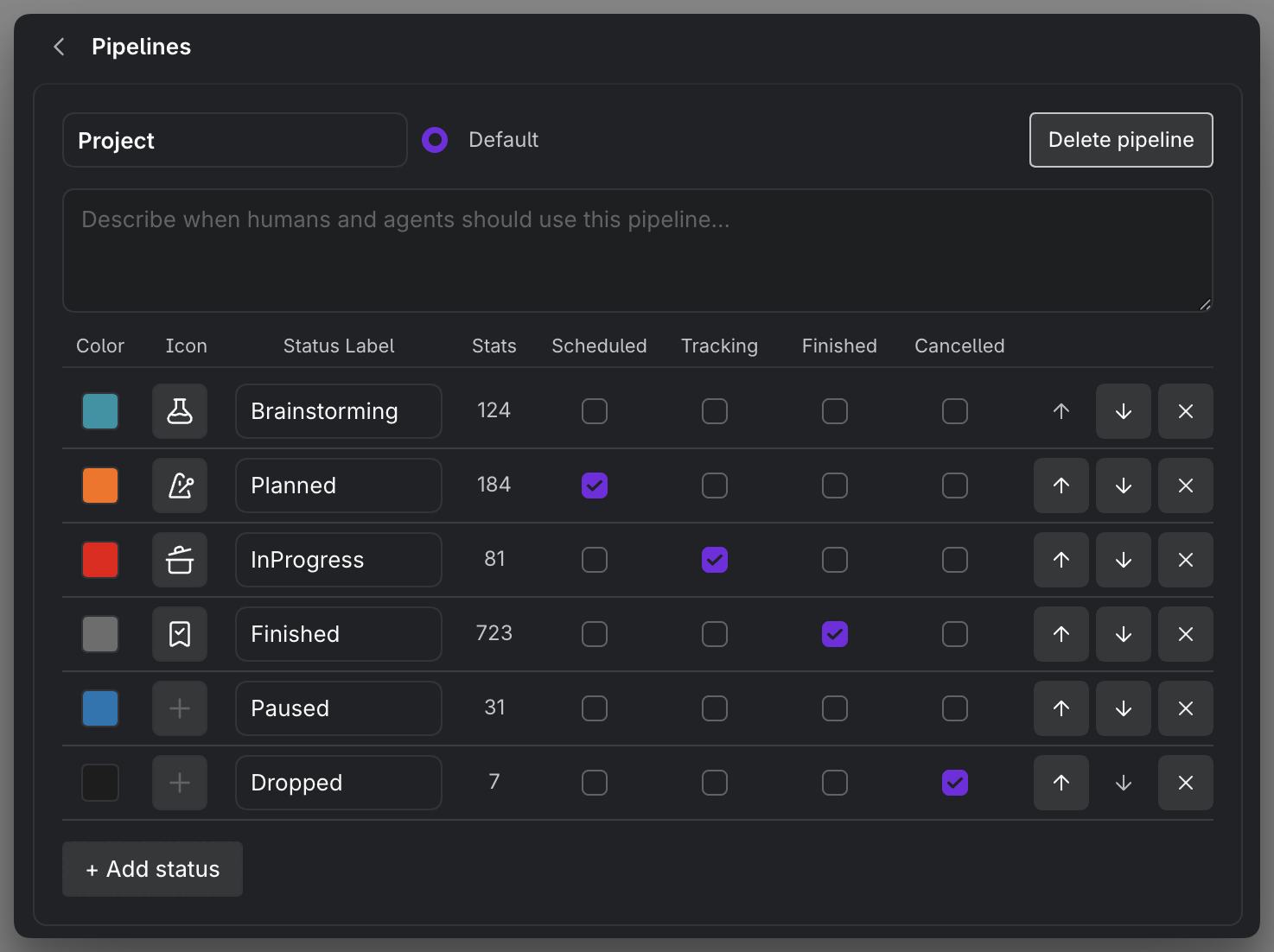
Customization works best when the same rules travel across every surface.
Key mappings
Key mappings keep Operon's internal task model aligned with the property names you see in YAML and the UI. Each task field has a stable canonical key, while the visible property name can be adjusted for your vault.
This matters because the same field may appear in file-task frontmatter, inline task metadata, filters, the Task Editor, Calendar, Kanban, compact chips, and task cards. A mapped field keeps its meaning across those surfaces instead of becoming a collection of similar-looking but disconnected properties.
Key mappings can also define field types, custom keys, icons, and whether a property is hidden from the rendered file-task metadata view while still remaining in YAML.
Inline task syntax
Operon inline tasks stay readable as normal Markdown checkboxes. Structured fields are stored after the task text in {{key:: value}} containers, while Obsidian tags remain regular #tags outside those containers.
- [ ] Draft release notes #release {{operonId:: abc1234}} {{status:: Project.InProgress}} {{priority:: A}} {{dateDue:: 2026-05-31}}
The syntax lets a compact line carry identity, workflow, dates, priority, and other task metadata without turning the note into a separate database file.
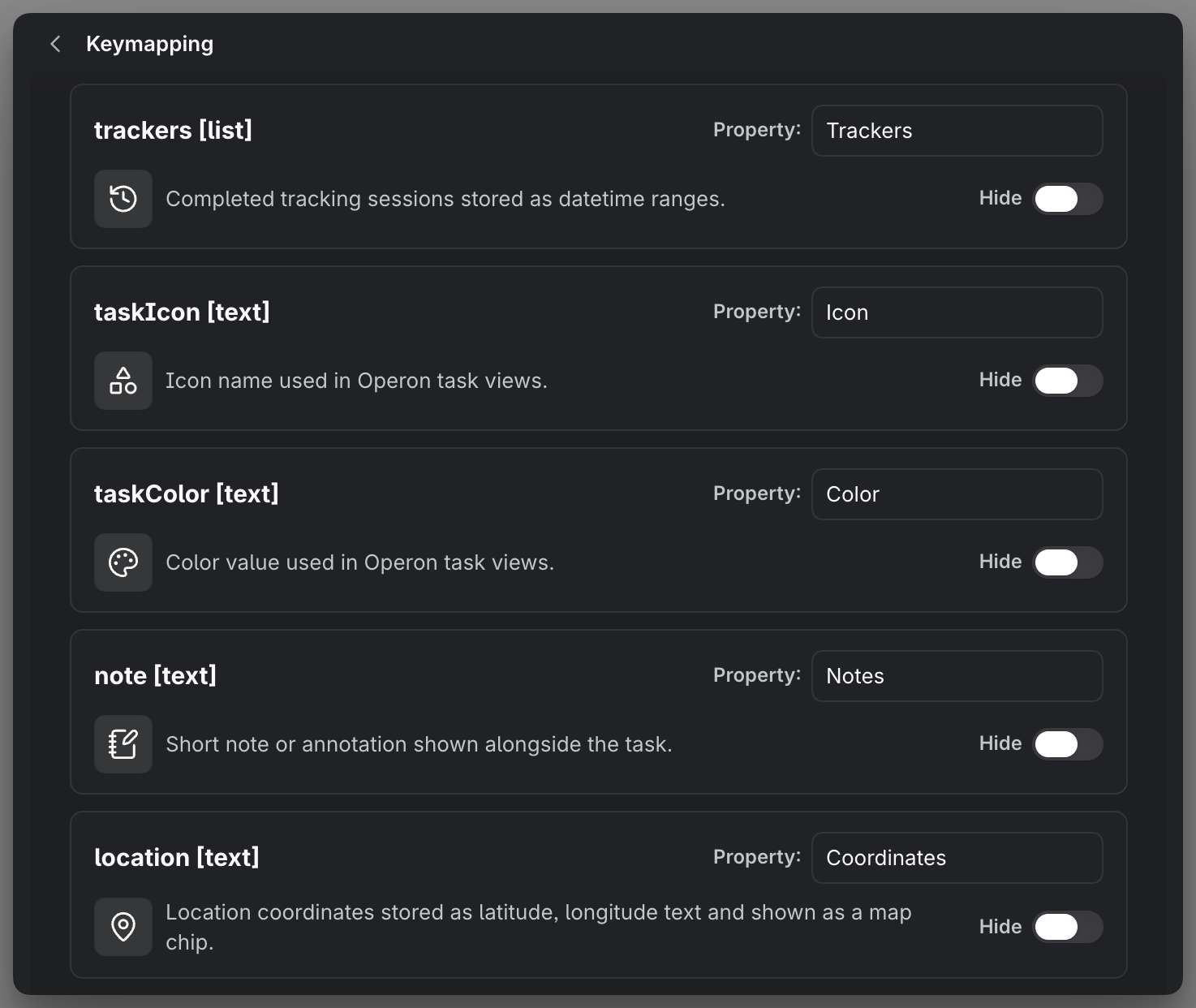
A task field means the same thing everywhere because it is mapped once.
Custom keys
Operon's built-in fields cover the common task model; custom keys cover the rest. A custom key is a task field you define yourself—such as a client, an effort score, or a review flag—and add as a real canonical field rather than a loose YAML property.
Each custom key gets a visible property name, a type (Text, Number, Date, Date & time, List, or Checkbox), and an optional icon. Custom keys are written as {{your-key:: value}} on inline tasks and as frontmatter on file tasks, and they can be used in filters, search, and Table columns. Text, Number, Date, Date & time, and List keys can also use type-matched controls across the Task Editor, Task Creator, compact chips, Kanban sorting, and swimlanes. Checkbox keys are stored and validated, but currently do not appear in the editor, creator, chip, or swimlane surfaces.
- [ ] Send the proposal {{operonId:: abc1234}} {{status:: Project.InProgress}} {{client:: Acme}} {{effort:: 3}}
Value suggestions can come from existing vault frontmatter, so a custom field can reuse the values your notes already contain, and wikilink-backed values stay linked and previewable.
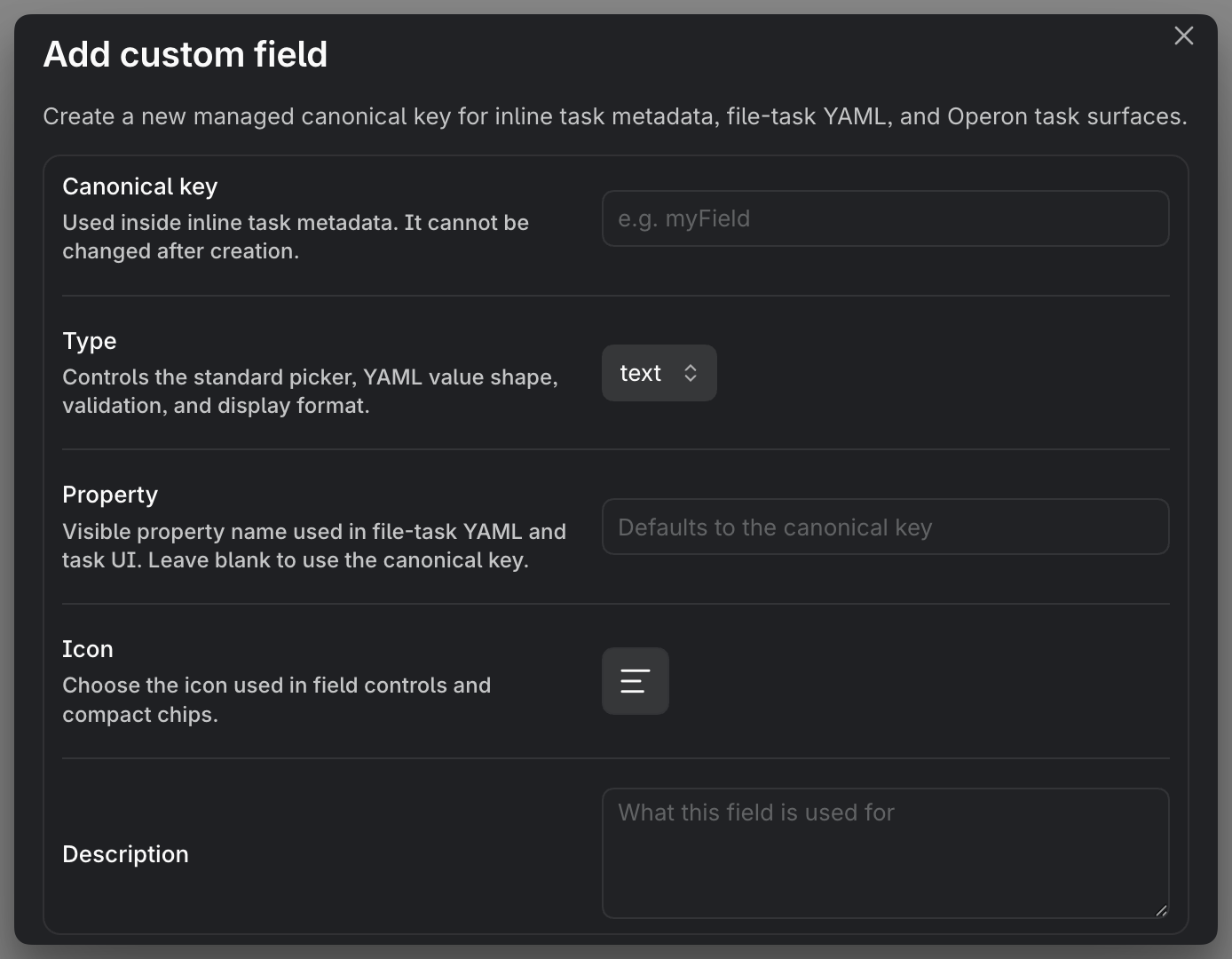
Custom keys let the task model grow in your direction without leaving Markdown.
Operon Table
See tasks as rows and columns, like a spreadsheet over the vault. Inline tasks and file tasks sit in the same rows with the same fields, so one grid covers all your work regardless of how each task is written. Where Calendar plans by when and Kanban plans by how far along, the Table plans by comparison.
A table is shaped by a Table preset: a filter chooses which tasks appear, columns choose which fields each row shows, and grouping, subgrouping, multi-sort, and summaries arrange the rows and roll up totals for each group and the whole table. Beyond Operon's own fields, file task property columns can surface unmanaged frontmatter properties from the current scope, so existing note metadata becomes workable without reshaping your notes first.
The Table is not a read-only report. Editing a cell is a real change written back to the task's Markdown: date cells open the date picker, status cells the status picker, and a double-click opens the full Task Editor. Search and Task Finder-style scopes narrow the grid in place, and the source column jumps to the exact note or line behind any row.
Every Table preset is stored as a portable .table file that opens as a normal Table view and can travel with the vault. The same table can also be embedded inside notes or exported.
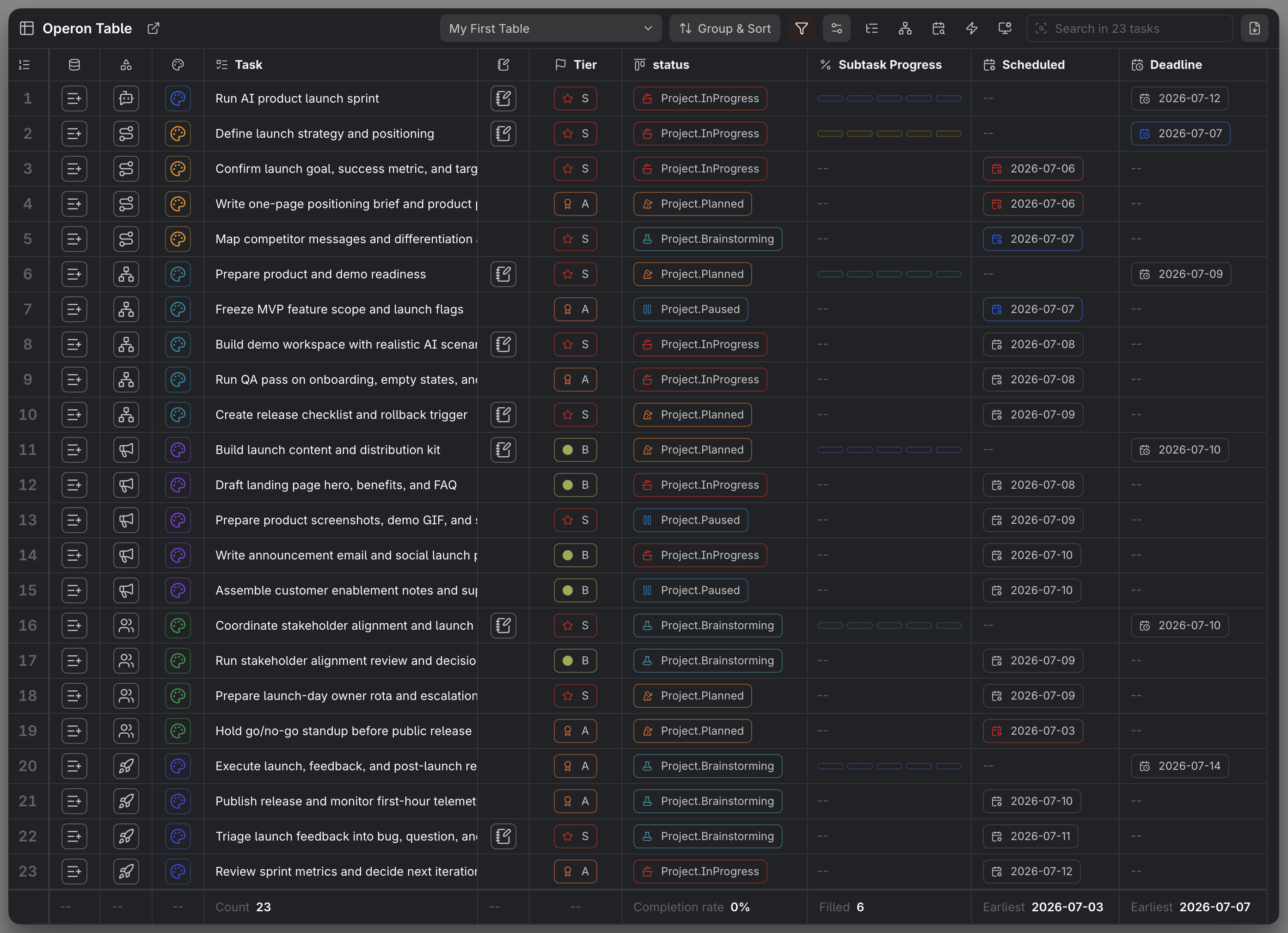
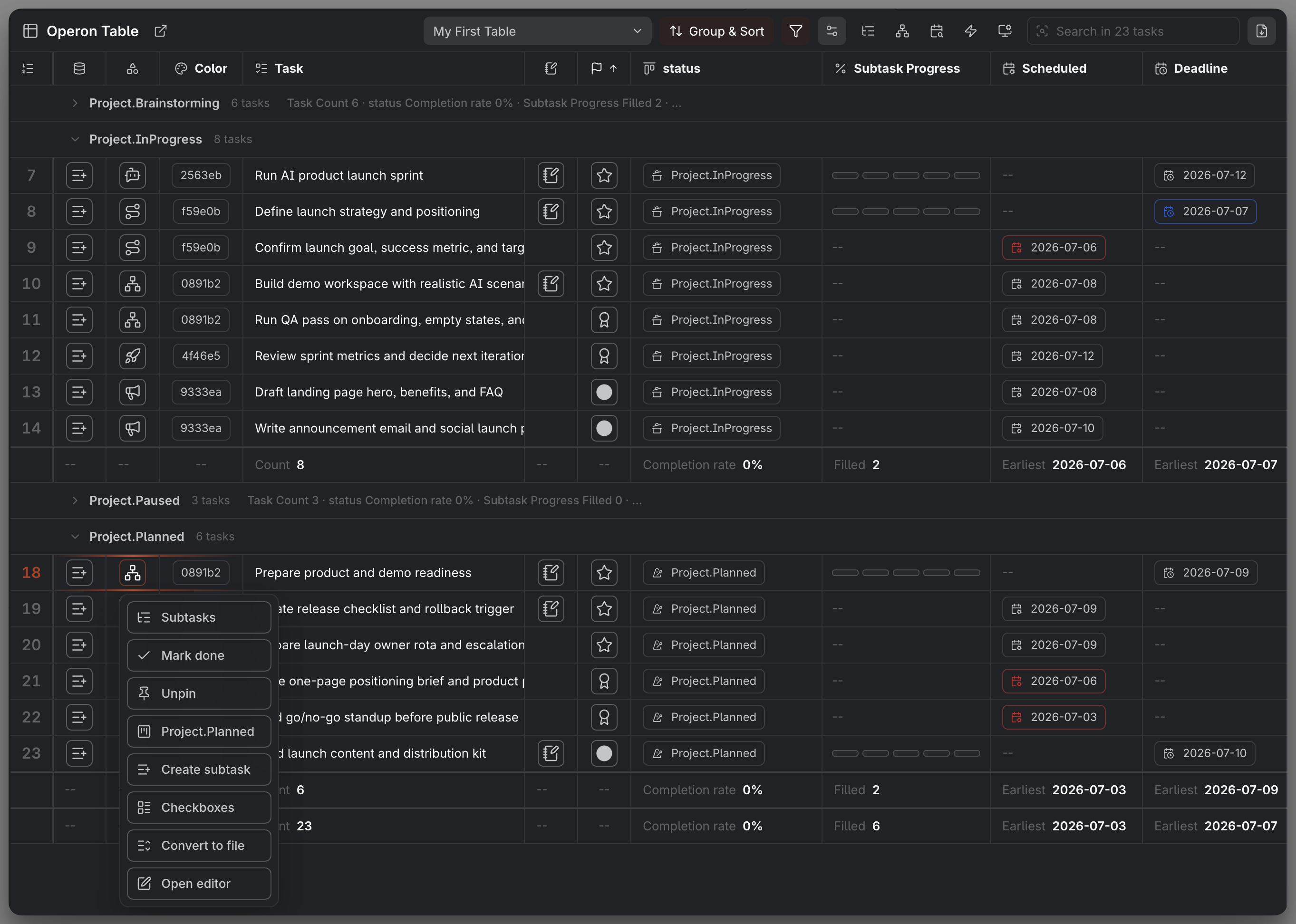
The Table lines fields up side by side so sorting, grouping, and summaries can surface what a card or a calendar cell would hide.
Calendar planning
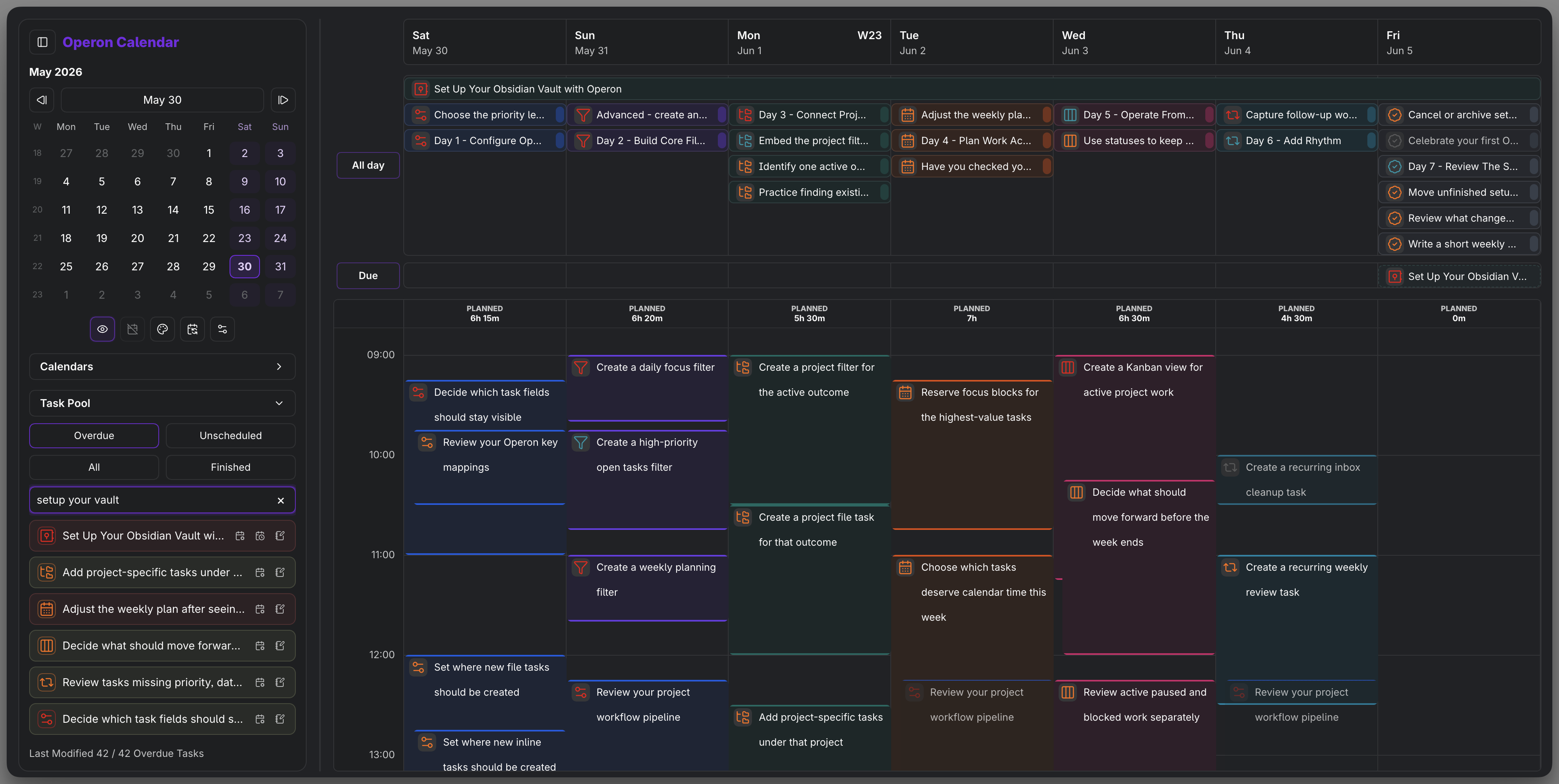
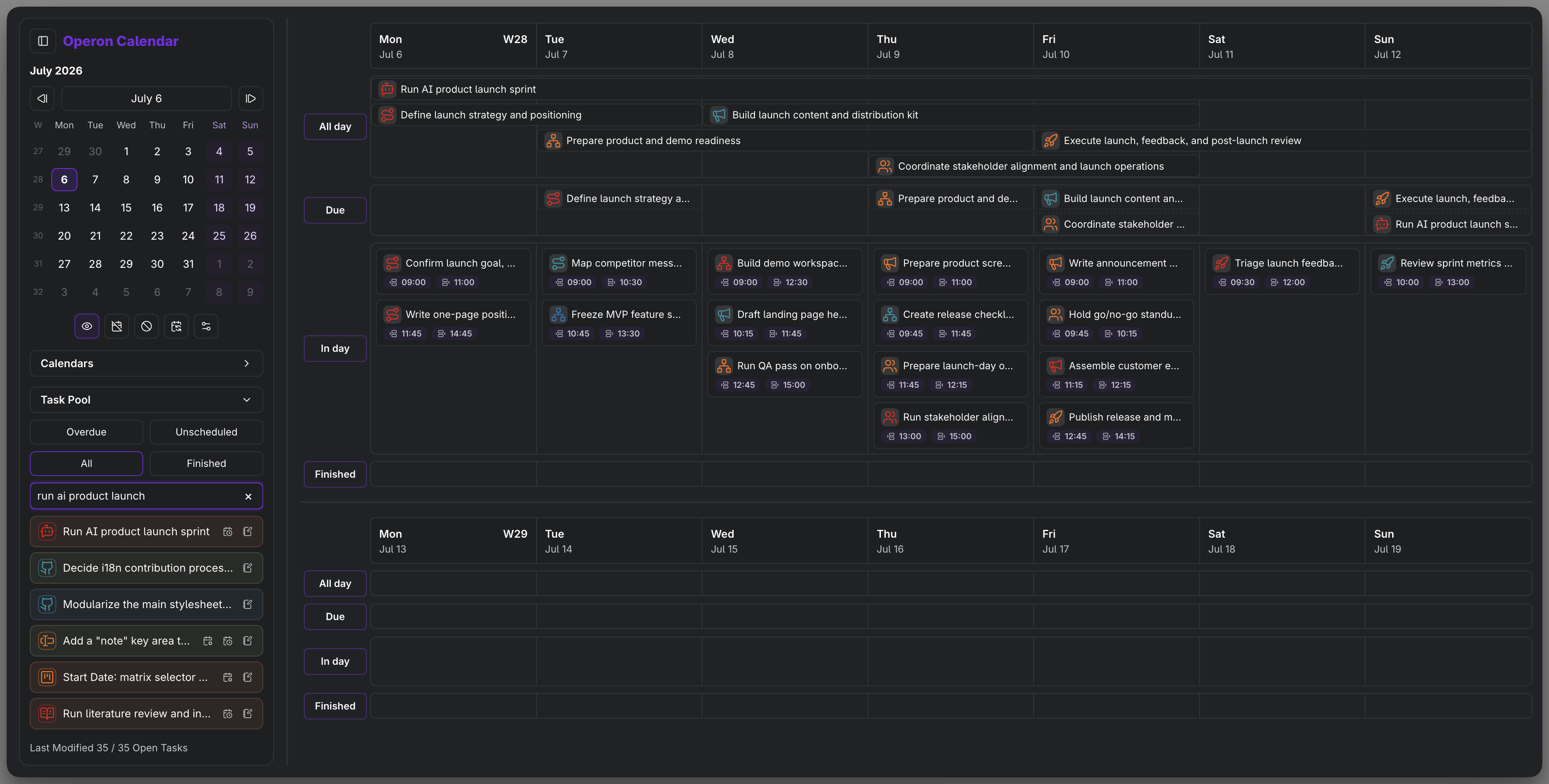
Plan scheduled, due, recurring, and time-blocked work with Calendar presets. A preset can use Time Grid for day-style timed planning, Multi-Week for broader planning across several weeks, or the Time Tracker Grid for reviewing time, and multiple calendar leaves can stay open side by side when you want different views at the same time.
Tasks can appear as all-day items, due items, timed blocks, finished work, or projected recurring occurrences depending on the view. Read-only external ICS calendars can sit beside Operon tasks in Calendar for context.
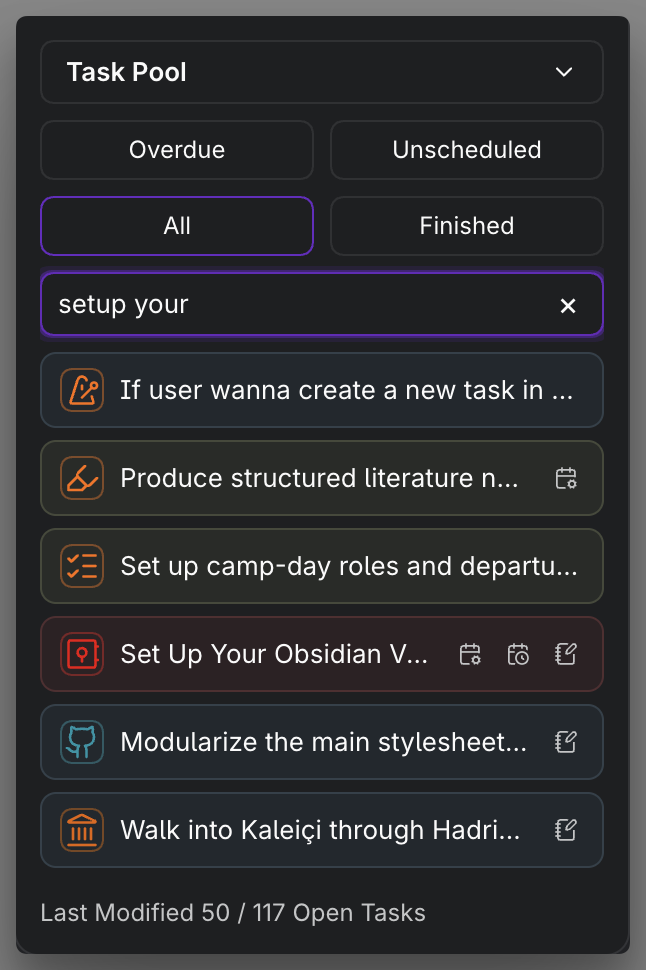
The Task Pool turns the Calendar sidebar into a planning inbox. It can show Overdue, Unscheduled, Open, or Finished tasks, and it always shares the active Calendar preset filter, so the pool and the grid describe the same slice of the vault. Tasks can be dragged from the pool onto Calendar to schedule them as all-day or timed work.
When screen space is tight, Calendar navigation can switch between Sidebar and Toolbar modes. That keeps the planning controls reachable without forcing the same layout on every workspace.
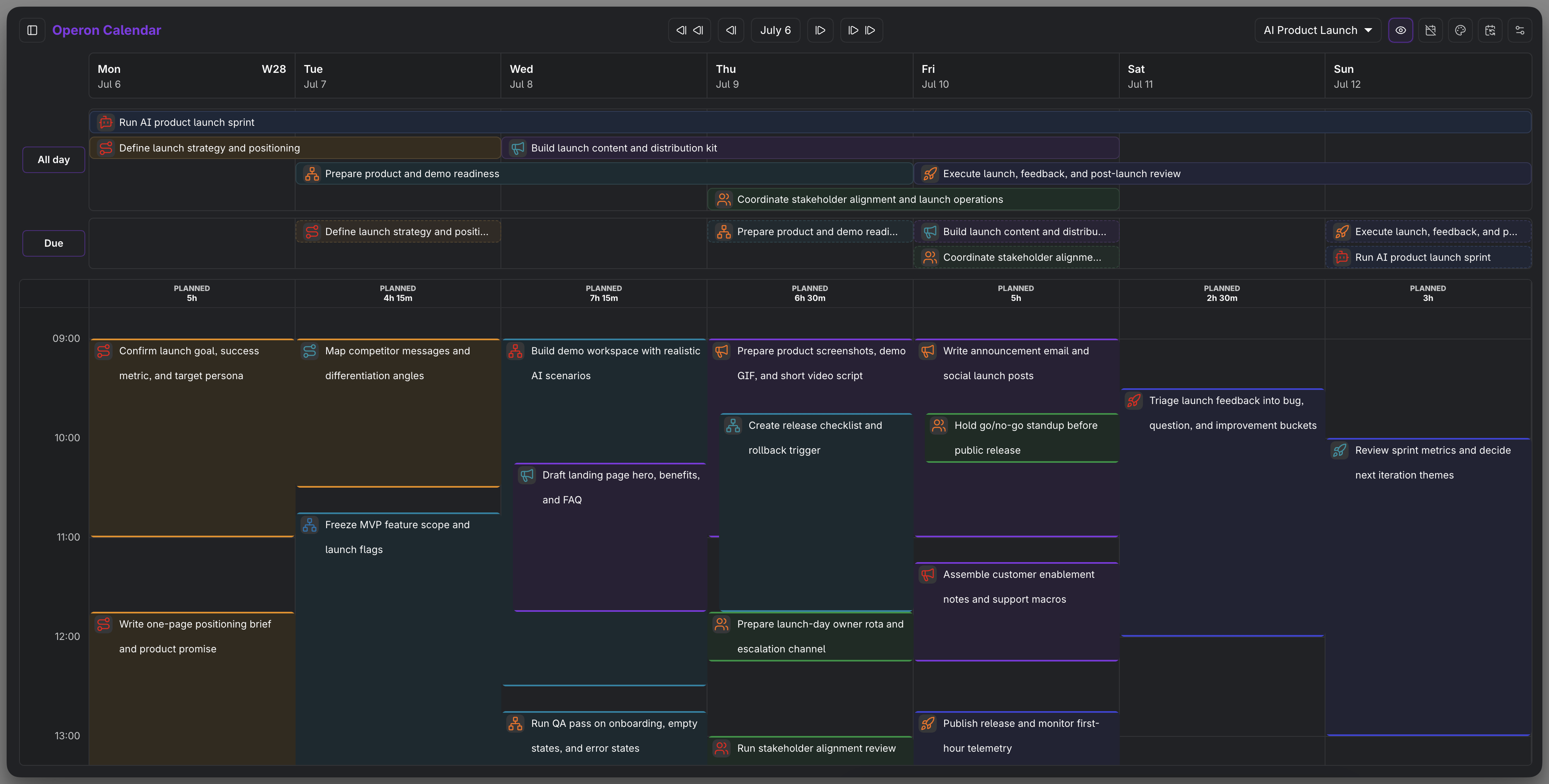
The Time Tracker Grid is built for looking back, not just ahead. It arranges each day into three lanes, Planned, External, and Tracked, so scheduled blocks, external calendar events, and recorded time sit side by side with daily totals. Past planned blocks can be logged as tracked time, and tracked sessions can be selected, moved, and edited directly on the grid.
On phones, Calendar cycles through Agenda, Day, 2 Days, and 3 Days views. Each mobile view can open with its own preset, and views can be included or skipped, so a phone can keep a dense review preset on Day while lighter planning presets serve the wider views.
Calendar gives intention a place in time without stripping away task metadata.
Kanban boards
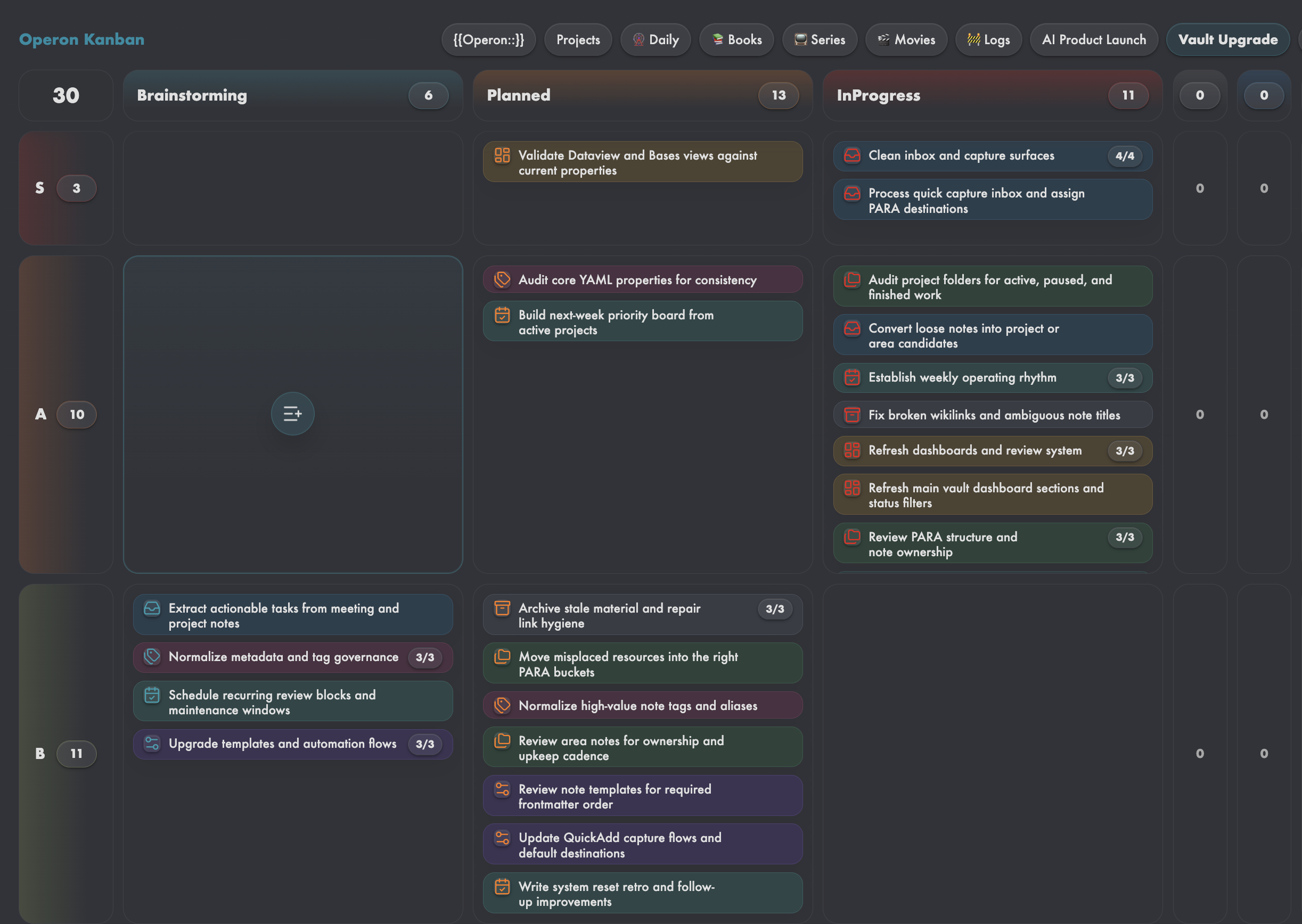
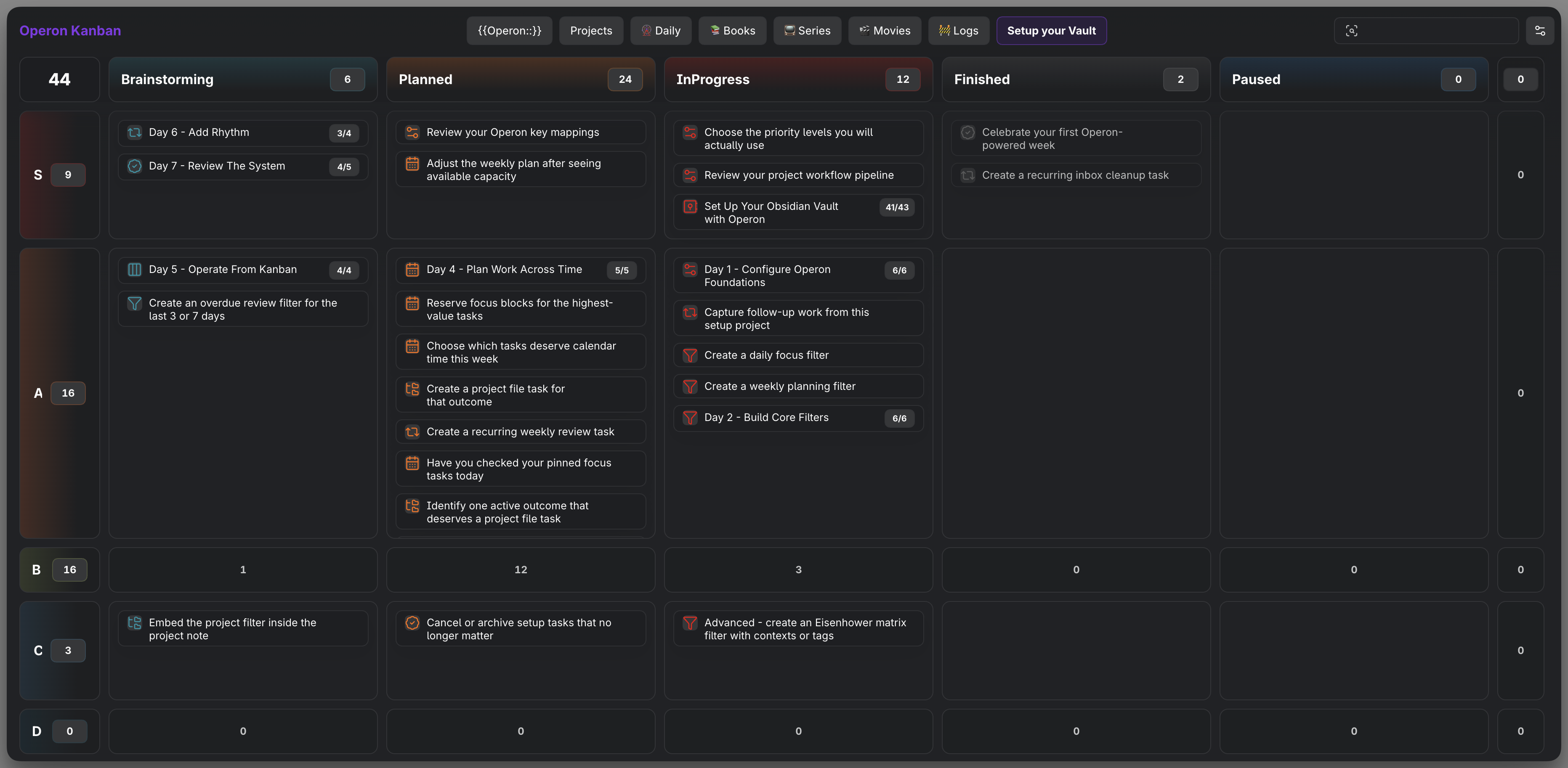
Turn task metadata into a visual workflow board. Columns come from pipeline statuses, while swimlanes can organize cards by priority, tags, contexts, assignees, due date, or scheduled date.
Cards are still the same Operon task records. Dragging a card across columns or swimlanes updates the underlying task metadata, so Kanban, Filters, Calendar, and the Task Editor stay aligned.
Cards can carry Kanban Task Chips under the title, so priority, dates, assignees, recurrence, and custom fields can be scanned without opening anything. Trailing action chips such as start or stop timer, pin, note, add subtask, and open checkboxes keep the next step usable from the card itself, and Project Serial identity chips appear when a task has one.
Cards can also show segmented progress tracks for subtasks and plain checkboxes, plus optional compact note previews, so a card reveals how far its work has come. Within a column, a board can sort automatically by rules or keep a manual order you arrange by hand.
Saved board presets let different workflows keep their own pipeline, filter, swimlane, color source, appearance, collapsed sections, and sort rules.
Kanban search uses the same task-search engine behind Task Finder. As you type or switch search scopes, the board narrows in place so matching cards stay visible on the same surface.
Kanban gives workflow shape to the same local task records without turning them into a separate board database.
Pinned Task Dock
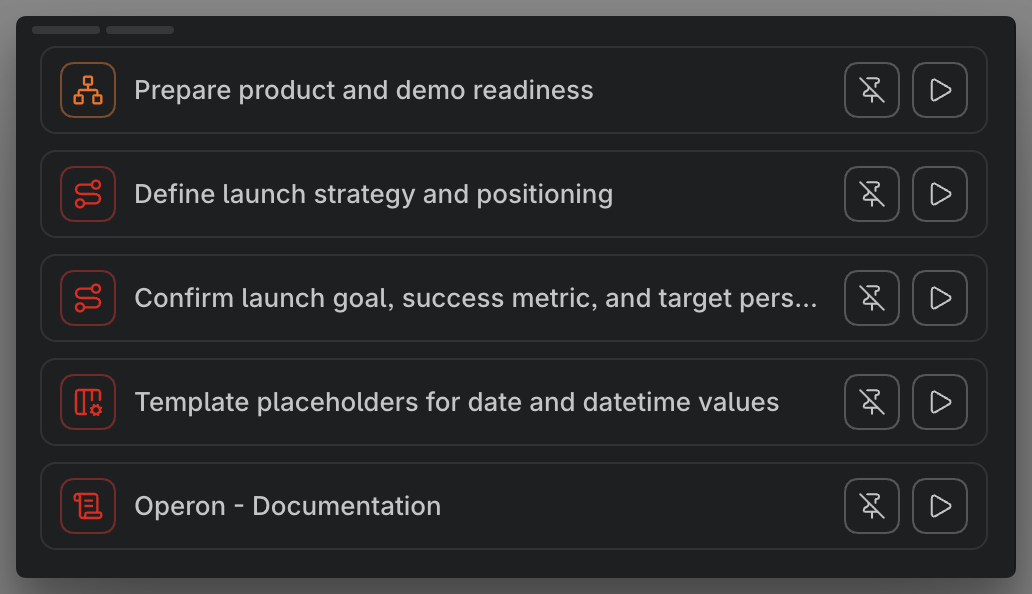
Pin next actions from task rows and keep a focused working set visible. Pinned tasks live in a floating dock or in the side panel, so active tasks stay nearby without keeping another full view open.
The vault can hold everything; the dock holds only what matters right now.
Pinned tasks make focus portable across the vault.
Contextual menus and task actions
Operon keeps common task actions close to the task surface you are already using. A contextual menu can appear on pinned tasks, filter rows, Kanban cards, Calendar items, task pool entries, FlowTime tasks, and time history rows.
The visible actions change by context. A task can offer actions such as open editor, jump to source, mark done, start timer, pin or unpin, change status, set a fixed or relative reminder, open subtasks or checkboxes, convert between inline and file form, cancel task, unschedule, or skip this occurrence only when that action makes sense for the current surface.
Contextual menu settings let you choose which globally enabled actions can appear on each supported surface.
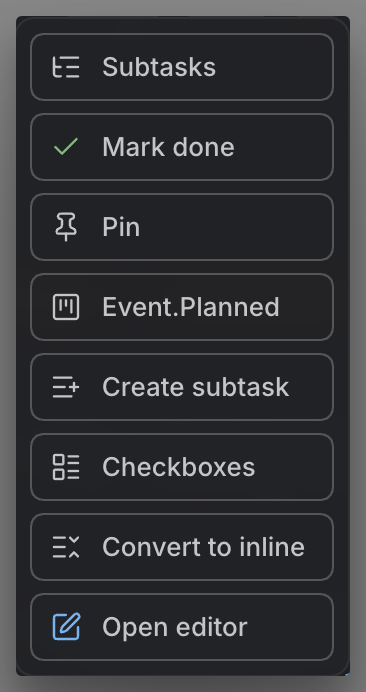
Contextual menus reduce navigation by bringing the next useful action to the place where the task is already visible.
Recurrence
Create repeating tasks without turning them into a separate calendar system. Operon recurrence rules can be schedule-based, completion-based, or count-based, with daily, weekly, monthly, and yearly patterns.
Recurring tasks can create fresh occurrences with new task identity while carrying the useful task context forward. Per-occurrence fields such as completion state, tracked time, progress, and dependencies are reset so each occurrence remains a real task of its own.
File task recurrence
For recurring file tasks, each new occurrence is created as a new Markdown file. If the file title does not contain a date or week token, the completed file is renamed with its occurrence date first, which frees the original title for the next task and avoids filename conflicts.
Completed file: Weekly Review.md
Renamed to:      2026-05-19 - Weekly Review.md
Next file:       Weekly Review.md
The body of a recurring file task is also prepared for the next run. Plain Markdown checkboxes are reset to unchecked, and owned Operon inline subtasks are recreated with fresh task ids under the new file task.
Previous file body:
- [x] Check inbox
- [x] Update weekly metrics {{operonId:: old-child}} {{parentTask:: old-file-task}}

Next file body:
- [ ] Check inbox
- [ ] Update weekly metrics {{operonId:: new-child}} {{parentTask:: new-file-task}}
Recurring file task series can also define property cleanup rules in settings. For example, a recurring bike tour file can keep the same structure while clearing measurement fields such as Distance, TimeInMotion, SpeedAvg, SpeedMax, HeartRateAvg, Banner, or Image in the next generated file.
Distance:
TimeInMotion:
SpeedAvg:
SpeedMax:
HeartRateAvg:
Banner:
Image:
Inline task recurrence
Recurring inline tasks stay in the Markdown file where they already live. When a new occurrence is created, Operon inserts a fresh checkbox line with a new task identity and keeps the recurring task close to its original note context.
Date and week tokens
If an inline task name or file task title contains a single date token or week token, Operon updates that token for the next occurrence.
Review 2026-05-19.md -> Review 2026-05-26.md
Weekly Planning W21.md -> Weekly Planning W22.md
Projected occurrences can appear in Calendar, skipped dates can be managed from the repeat controls, and temporal edits can apply to one occurrence or to this and following tasks.
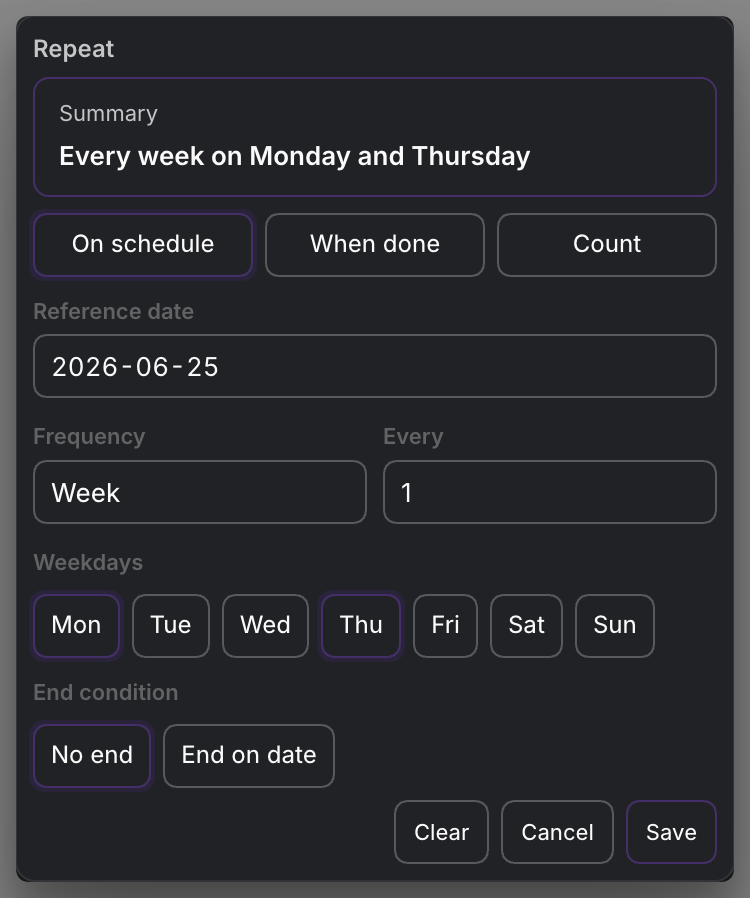
Recurrence keeps repeated work connected to its original context without making every occurrence feel like a copy-paste chore.
Reminders
A due date tells you when something is expected; a reminder tells you when to look at it. Operon separates the two on purpose, so a task can be due Friday and still nudge you on Wednesday afternoon.
Reminders live in two fields. ReminderDatetimes holds a fixed moment that nothing about the task changes. ReminderRules holds an offset relative to one of the task's own dates, such as dateDue.1d for one day before it is due; move the date and the reminder moves with it. A task can mix both freely, duplicates are refused, and reminders can be added from the Task Editor, dedicated pickers, or contextual menu actions with common offsets one click away.
Delivery follows where you are. Inside Obsidian, reminders arrive as in-app notifications that open the task's source; on desktop, optional system notifications can reach you while Obsidian is in the background; missed reminders are caught up within a configurable window instead of being lost. A vault audio file or downloadable sound pack can play once per batch, and an optional automation pins a task when its reminder arrives.
The companion currently supports Android: the opt-in Mobile notification snapshot keeps the next seven days of resolved reminders ready for the standalone Operon Notify app, which can deliver native notifications even while Obsidian itself is closed.
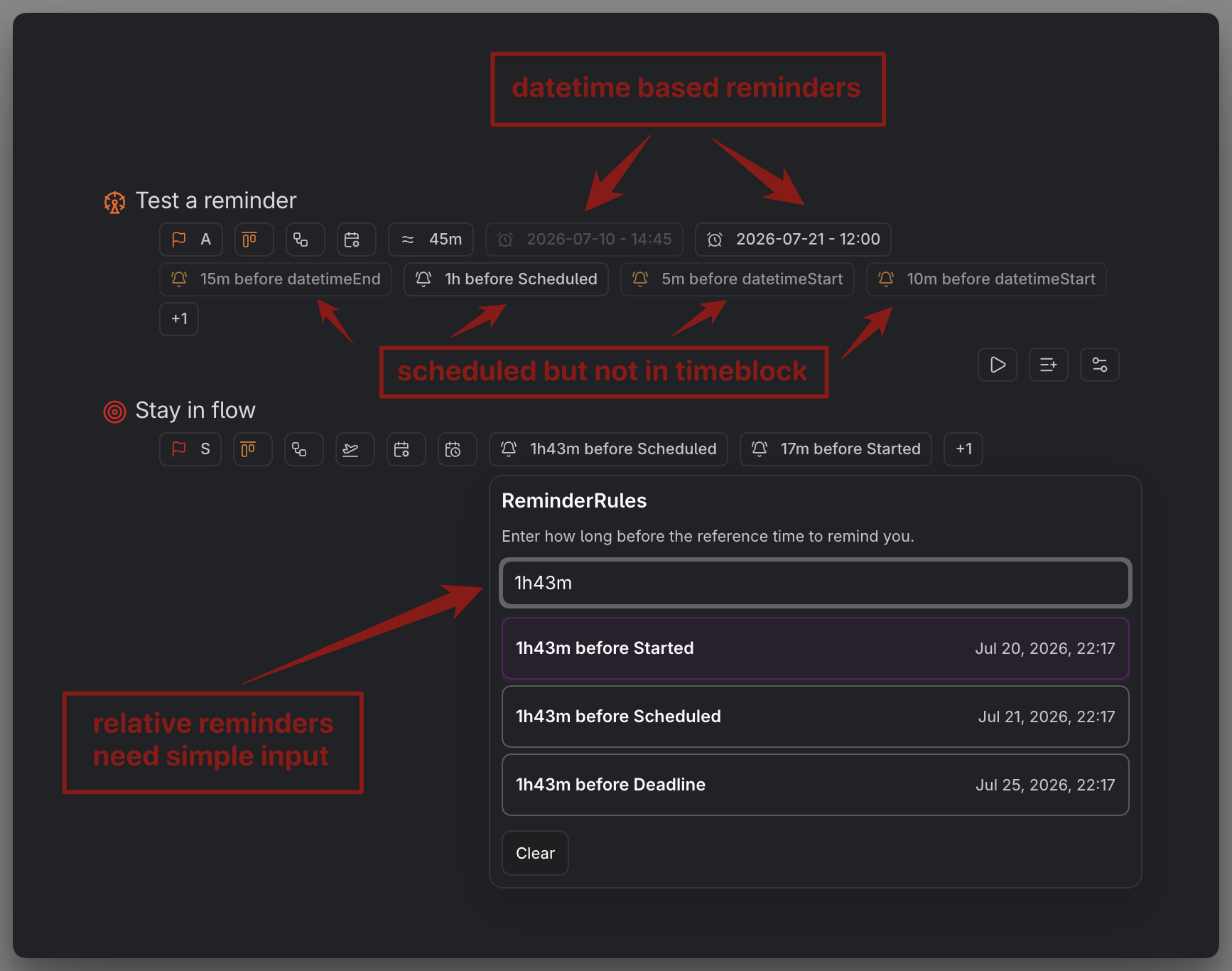
Reminders separate when work is due from when you want to be told about it.
Time tracking
Track work from the task itself. Operon can start and stop timers, store completed tracking sessions, and keep duration fields attached to the task record that explains the work.
TrackTime records actual sessions. FlowTime adds a focused countdown rhythm, while manual session editing makes it possible to add, correct, or remove tracked ranges after the fact.
Task duration is stored in seconds, which keeps calculations stable even when the UI shows human-friendly labels. duration stores the task's own tracked time.
totalDuration is updated automatically as a cumulative value across parent and child tasks. Parent tasks can show the combined tracked effort of their descendants without manually recalculating the rollup.
Recorded effort stays visible in the Task Editor, compact task chips, Calendar, Kanban, and time history views. In Calendar, the Time Tracker Grid sets planned, external, and tracked time side by side, so tracking feeds review as well as records.
Time Session History
The Time Session History panel gathers tracked sessions into one review surface. Sessions can be opened for quick editing, removed when needed, or replayed by starting the timer again for the same task.
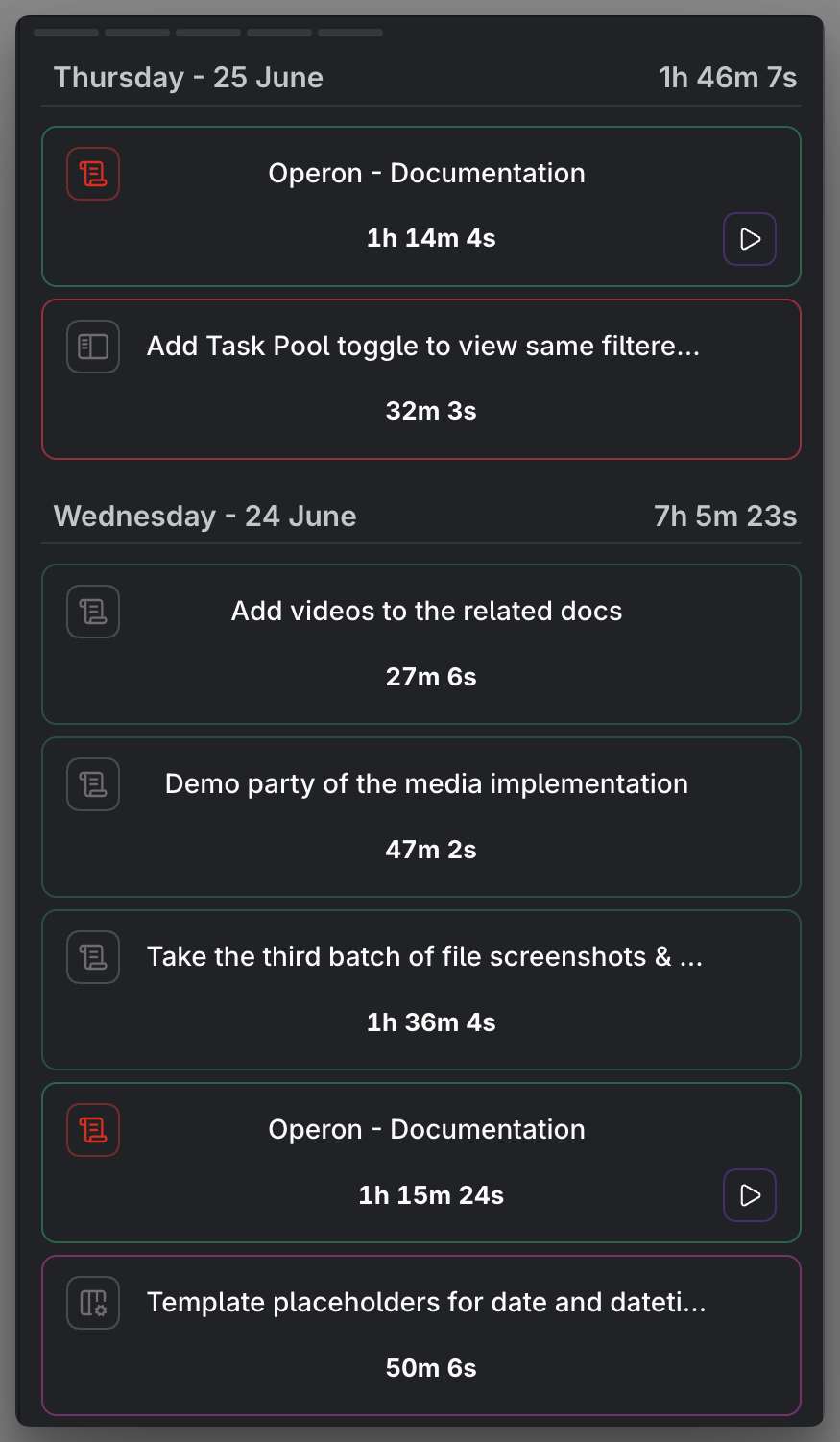
Time tracking turns effort into task history instead of leaving it as a separate timer log.
CLI, Agent Runtime, and Developer API
Operon also provides public desktop integration surfaces for terminal workflows, scripts, agents, and other Obsidian plugins. Tasks remain Markdown in the vault; the Runtime adds versioned reads and applies changes through sealed plans with receipts and same-plan recovery.
operon-cli is the public gateway for terminal use and external processes:
npm install --global @stratejya/operon-cli
operon setup
operon doctor --live
Source: Operon CLI on GitHub · Package: @stratejya/operon-cli on npm
Scripts and agents can use typed requests or persistent JSONL sessions. Another enabled plugin in the same Obsidian Desktop process can use the capability-gated, type-only Developer API. These integration surfaces require Obsidian Desktop and a live Operon Runtime; they do not make the main Operon plugin desktop-only.
Start with the Agent Runtime overview, CLI installation guide, Developer API overview, or JSONL session guide.
Documentation
Operon ships with a full documentation set: 133 guides covering every surface, from the first task to recurrence rules, field pickers, mobile behavior, agent workflows, and integration paths. Read it wherever it suits you:
- On the web: the same set is browsable at operon.cc/docs.
- Inside your vault: Operon can download the docs as normal Markdown files into a folder you choose (default
Operon/Docs), so they work with Obsidian search, links, and graph view, stay useful to an AI assistant reading your vault, and can refresh themselves after plugin updates. - From Settings: more than fifty contextual documentation links sit beside the settings they explain, opening your downloaded docs first and falling back to the matching web page.
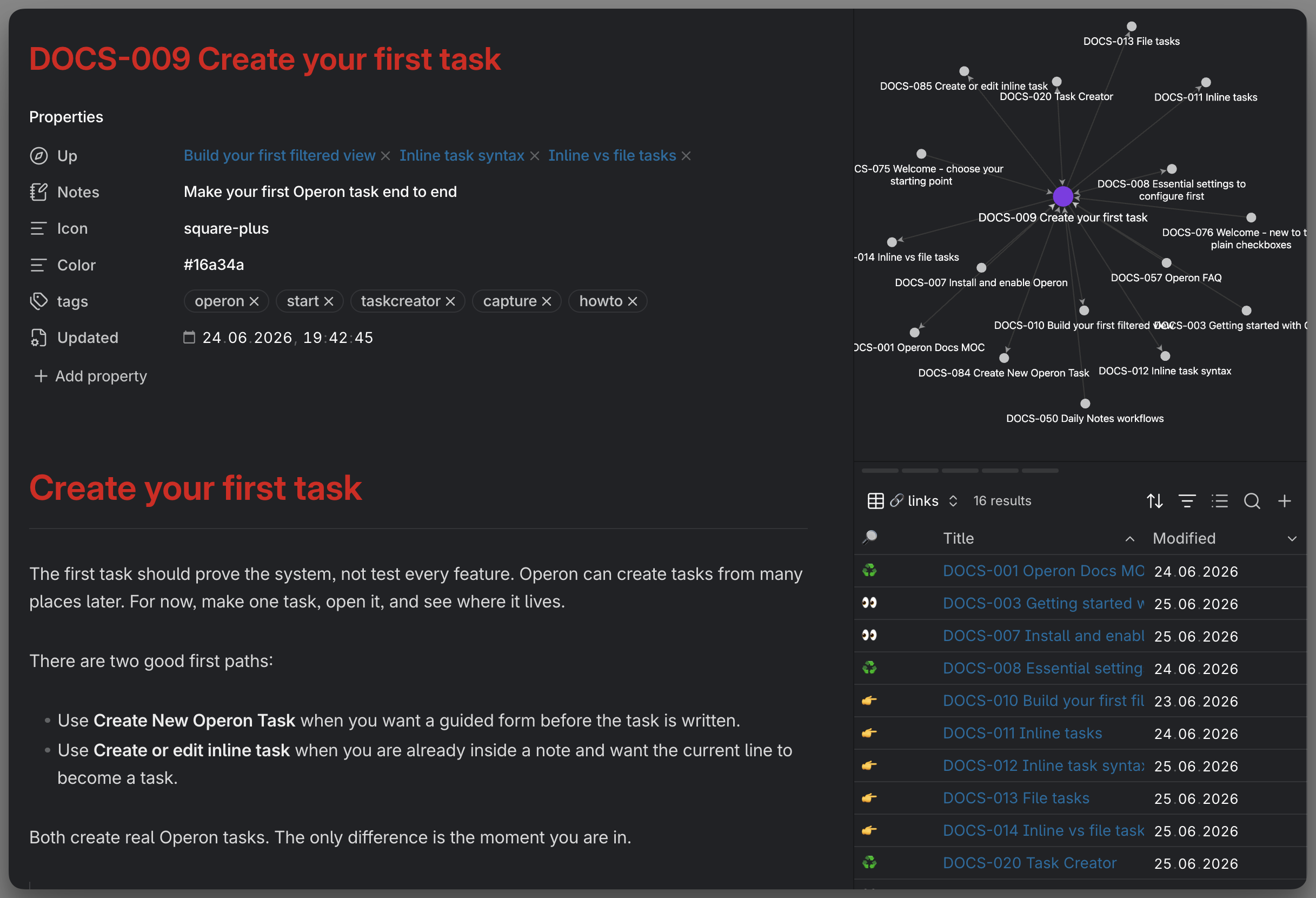
The manual lives where the work lives.
Status
Operon is maintained by Hasan Yılmaz and has been in public distribution since version 1.0.0 (May 2026). Development is active, with regular feature releases documented in CHANGELOG.md.
Operon has been developed in the maintainer's live Obsidian vault from the beginning and is still actively used there; the current working vault contains more than 5,500 indexed Operon tasks. This is real-world usage evidence, not a formal benchmark.
Compatibility and Requirements
Operon requires Obsidian 1.7.2 or newer and is not marked as desktop-only, so it can be installed on both desktop and mobile Obsidian. Some workflows are naturally more comfortable on larger screens, and the pinned dock can be disabled on phones. The interface language can be chosen in Settings; English is built in, and the other nine languages download as small verified packs on demand.
Operon's inline task metadata syntax is specific to Operon. Compatibility risk is more likely to come from overlapping surfaces: another task plugin may also render checkbox rows, rewrite Markdown tasks, manage recurrence, or add its own task planning views. If you use another task-management plugin, test the combination on a small set of notes first and avoid letting multiple plugins manage the same task surfaces.
Installation uses Obsidian's normal Community Plugins flow. No separate beta installer or manual installation path is required for regular users.
Core integrations
Operon does not require another community plugin to be installed.
Some workflows use Obsidian core plugin behavior:
- Daily Notes: used by daily-note based inline task creation, daily-note navigation, and related date-based workflows. If you do not use Daily Notes, inline tasks can be directed to a fixed target file instead.
- Page Preview: used by Obsidian's
hover-linkpreview behavior for task title and wikilink previews. If Page Preview is disabled, those hover previews may not appear, but the task data and task actions still work. - Web Viewer: used to open web links from Operon Table cells in a new tab when available.
One optional community integration: if the Maps plugin is installed, the Location picker's Map tab and location chip map previews use it. Places and manual coordinate entry work without it.
Operon bundles CodeMirror modules for editor integrations and ical.js for parsing read-only external Calendar sources.
Data and Network Behavior
Operon stores its canonical plugin data in Obsidian's plugin configuration area under .obsidian/plugins/operon/. User-facing settings and configuration live in data.json, organized into stable domains for core settings, taxonomy, views, interface preferences, automation, and integrations. Non-settings data is kept separate: state/ stores user state such as pinned tasks, active trackers, and repeat series; runtime/ stores the task index; and cache/ stores parsed external calendar cache data.
Older Operon versions used a vault-root .operon/ folder. Current versions no longer read from, write to, or clean up that legacy folder. If a stale .operon/ folder remains in a vault or reappears from sync, Operon ignores it and continues using the canonical plugin configuration area.
For Obsidian Sync users, Operon's canonical settings package follows Obsidian's plugin data location. If you sync plugin settings, Operon settings in data.json can sync with the rest of your Obsidian configuration. Runtime index and cache files remain local plugin data and can be rebuilt from vault content when needed.
Vault and clipboard access
Operon is a local-first task manager for Markdown tasks. To build its task index and keep task views accurate, it uses Obsidian's Vault API to work with files inside the active vault.
- Vault enumeration: Operon lists Markdown files in the vault to find inline tasks, file tasks, task templates, daily-note targets, filters, and picker suggestions. This gives Operon access to vault file paths, but it is used for local indexing and navigation inside Obsidian.
- Vault read/write: Operon reads task files to parse task metadata and writes only when you create, edit, move, convert, schedule, complete, or otherwise update tasks through Operon.
- Clipboard access: Operon writes to the system clipboard only for user-initiated copy actions, such as copying an
operonId, copying an external task link, or copying an embeddable filter block. Operon may also read the system clipboard only after an explicit user action, such as using the Location picker clipboard button to import coordinates copied from the Maps plugin. Clipboard text is parsed locally and used only when it contains validlat, lngcoordinates. - External calendar sources: If you configure external ICS calendar URLs, Operon fetches those read-only calendar sources and stores the parsed cache locally under the plugin cache folder.
- Release checks: When enabled, Operon checks GitHub once on startup for newer compatible Operon releases. This is enabled by default and can be disabled in Operon settings.
- Language packs: English is included with Operon. If you choose another interface language, Operon downloads that data-only language pack from the matching version tag in the Operon GitHub repository and stores the verified copy locally under
runtime/locales/. Downloaded languages are checked for updates only when Operon ships a different pack hash; task or vault content is never included in these requests.
Operon does not monitor clipboard changes, include telemetry, analytics, tracking pixels, or background usage reporting. Task data stays in your vault, and Operon plugin data stays inside Obsidian's plugin configuration storage.
License
Operon is licensed under the GNU General Public License, version 3 or later (GPL-3.0-or-later). See LICENSE for the full license text.
This license allows use, study, modification, redistribution, and commercial distribution, but distributed modified versions and derivative works must preserve the same GPL freedoms and provide the corresponding source code under GPL-compatible terms.
Branding
The Operon name, logo, icon, plugin ID, and official release identity are reserved by the maintainer. Modified versions and forks must use clearly different branding and must not imply that they are official Operon releases or endorsed by the Operon maintainer. See TRADEMARK.md.
Contributions
Contributions are accepted under the same GPL-3.0-or-later license. See CONTRIBUTING.md.