
README file from
GithubLemons Search
A fast fuzzy finder and quick switcher with previews.
Lemons Search adds dedicated search views for files, aliases, commands, and note content. Each view includes keyboard navigation and a preview of the selected result.
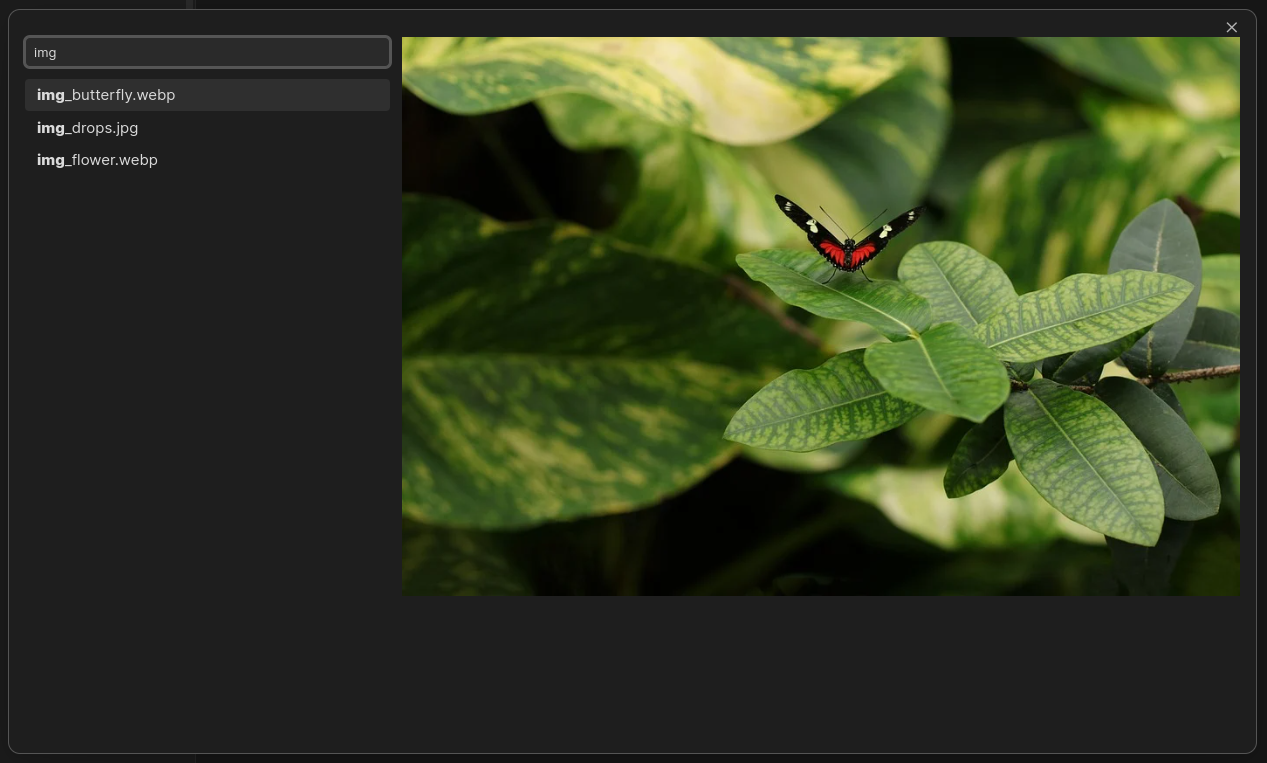
The search engine runs in a background worker to keep the editor responsive.
Commands
Lemons Search: Open search: Find files by path.Lemons Search: Open alias search: Find files by name or alias.Lemons Search: Open full-text search: Search Markdown note contents and preview the matching block.Lemons Search: Command palette: Find and run Obsidian commands.
Full-text search
Full-text search applies each query atom to individual words and requires all
positive atoms to occur in the same Markdown block. Prefix an atom with ! to
exclude blocks containing it.
By default, full-text atoms use fuzzy subsequence matching. For example, apl
matches apple, but substitutions and transposed characters are not treated
as general spelling corrections. The modifiers 'foo, ^foo, foo$, and
^foo$ request substring, prefix, postfix, and exact-word matching. Full-text
matching is case-insensitive.
When Fuzzy search in full-text is disabled, plain atoms require exact
words. Substring ('), prefix (^), and negation (!) remain available;
postfix $ syntax is not supported in that mode.
Search syntax
Every query consists of search atoms separated by spaces. Escape a space with \ to keep it within one atom.
In the following illustration, each underlined part is a separate search atom.
movie Star\ Wars
----- ----------
Modifiers change how an atom is matched:
- Substring: Prefix with
'. For example,'foomatchesyummy foodbut notfunny doodle. - Prefix: Prefix with
^. For example,^foomatchesfoodbut notyummy food. - Postfix: Append
$. For example,.md$matchesfoo.mdbut notfoo.txt. - Exact: Combine
^and$. For example,^foo.md$matches onlyfoo.md. - Negation: Prefix an atom with
!, such as!foo,!^foo, or!.md$.
Lowercase atoms ignore casing. An uppercase letter makes file, alias, and command search case-sensitive. Full-text search remains case-insensitive.
Keyboard Navigation
While the input field is focused, use these shortcuts:
↑Move selection up by one↓Move selection down by oneHomeMove selection to the first itemEndMove selection to the last itemEnterOpen selection in same tabCtrl + EnterOpen selection in a new tabTabCopy the current selection into the search barEscapeCancel the search
Some shortcuts can be changed in the plugin settings.
Mouse Navigation
- Click a suggestion to open it in the same tab.
- Ctrl-click a suggestion to open it in a new tab.
Contributing
Implementation details are documented in ARCHITECTURE.md.