
README file from
GithubStoryLine — Obsidian Plugin for Writers
By Jan Sandström
StoryLine transforms your Obsidian vault into a complete book planning and writing tool. Organize scenes, build characters, manage locations, track plotlines, and monitor your progress — all inside Obsidian.
Support StoryLine
If StoryLine helps your writing, please consider buying me a coffee. Donations keep the plugin actively maintained.

Quick Start
- Install the plugin and enable it in Obsidian settings.
- Click the StoryLine ribbon icon in the left sidebar to open the plugin.
- You'll be prompted to create your first project — give it a name and start writing.
Views
Corkboard View
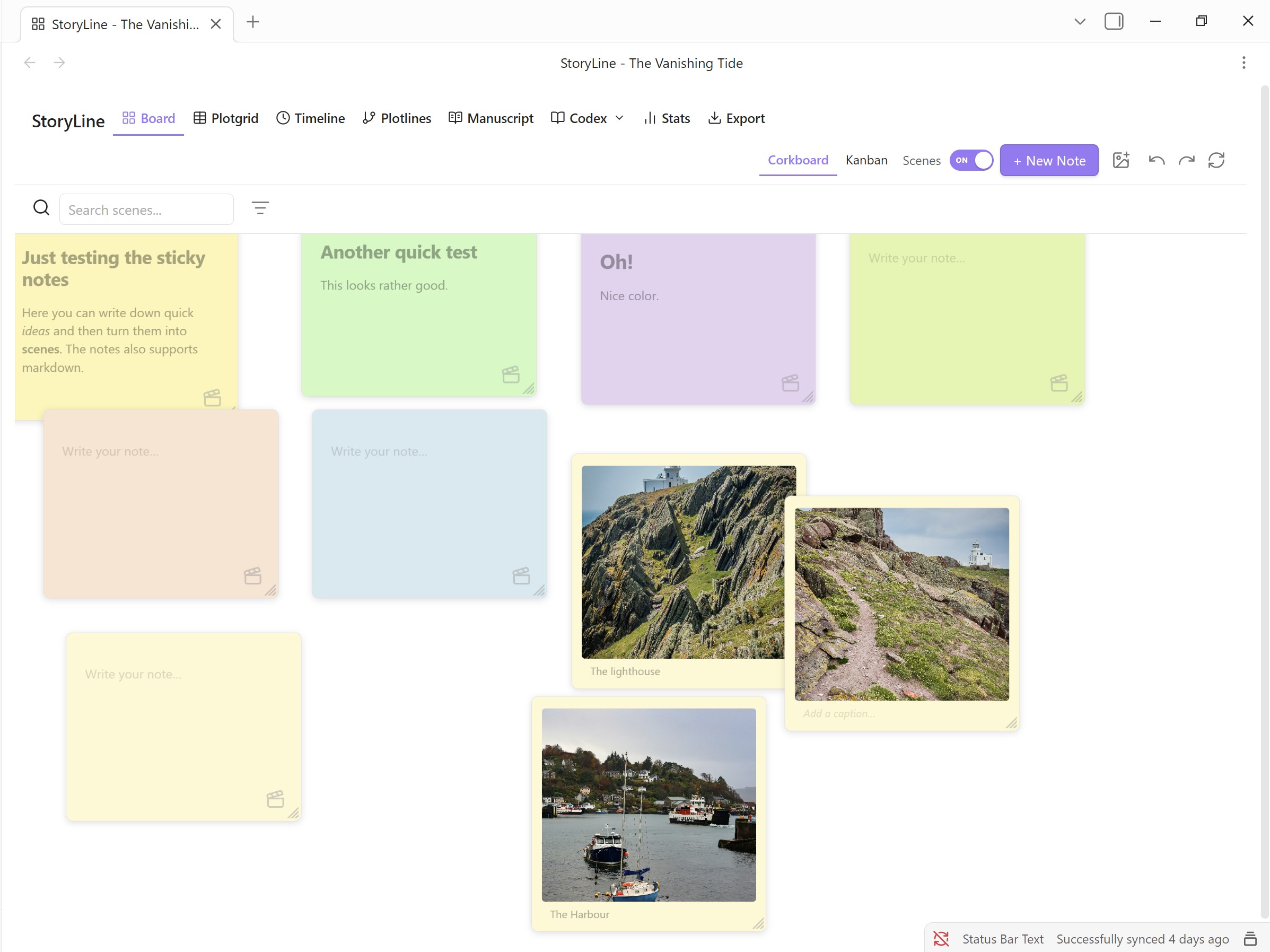
A freeform spatial canvas inside the Board view. Use sticky notes to brainstorm and capture your first ideas — then convert them into full scenes when they're ready. Notes are stored in a separate Notes/ folder to keep your Scenes/ folder clean; converting a note moves it to Scenes/ automatically. Notes support markdown and can be styled with different colors. Image sticky notes let you pin reference art, maps, and charts directly on the board — drag images from the vault or desktop, add captions with [[wikilinks]], and click to open a fullscreen lightbox. Pin scene cards and notes anywhere on the board and drag to rearrange. Toggle between the standard Kanban columns and corkboard mode with a single click. Positions are saved per project.
Board View
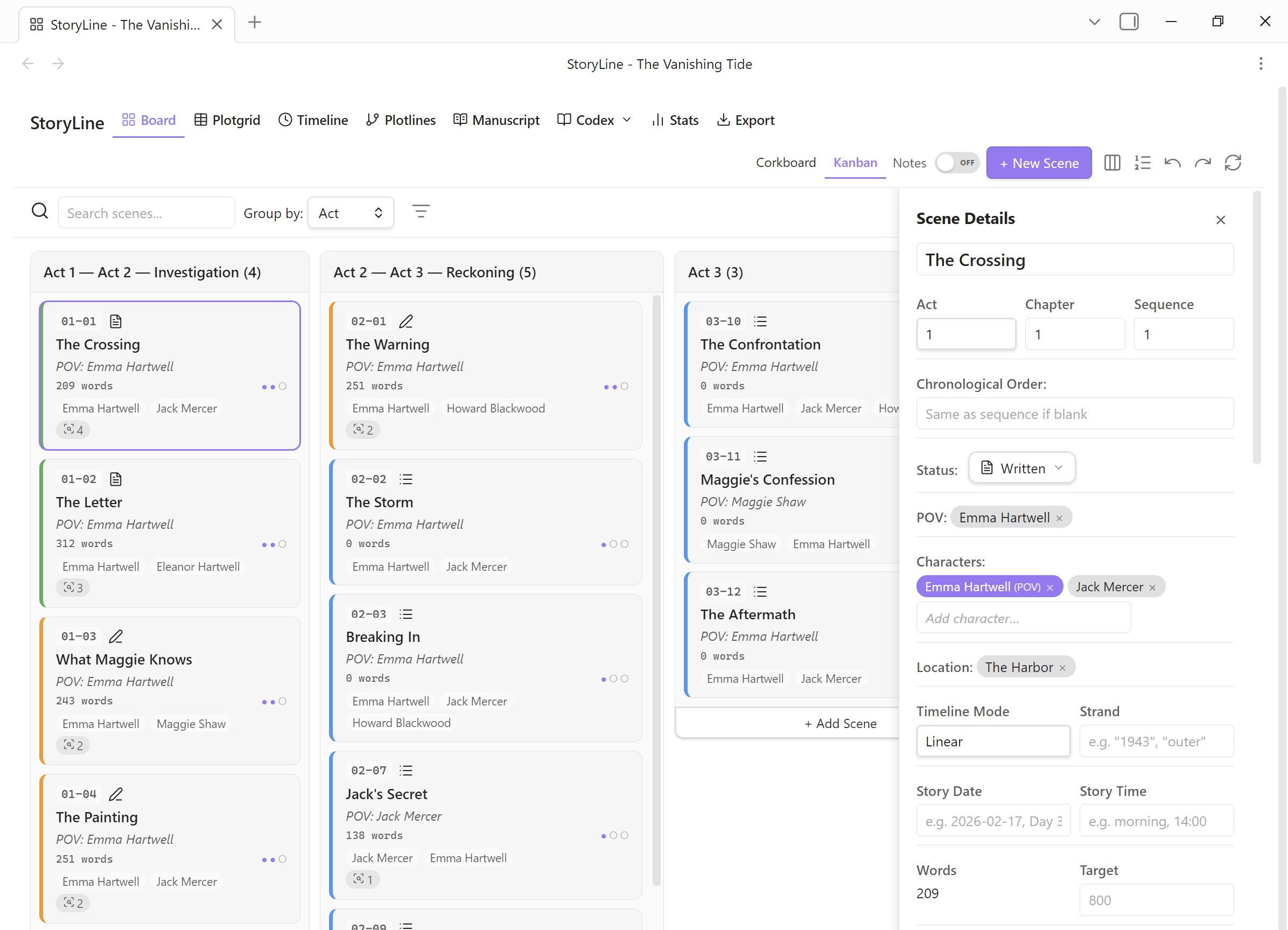
Kanban-style scene cards organized by act, chapter, or status. Drag & drop scenes between columns. Color-coded by status, POV, emotion, or tag. Multi-select for bulk edits.
Plotgrid View
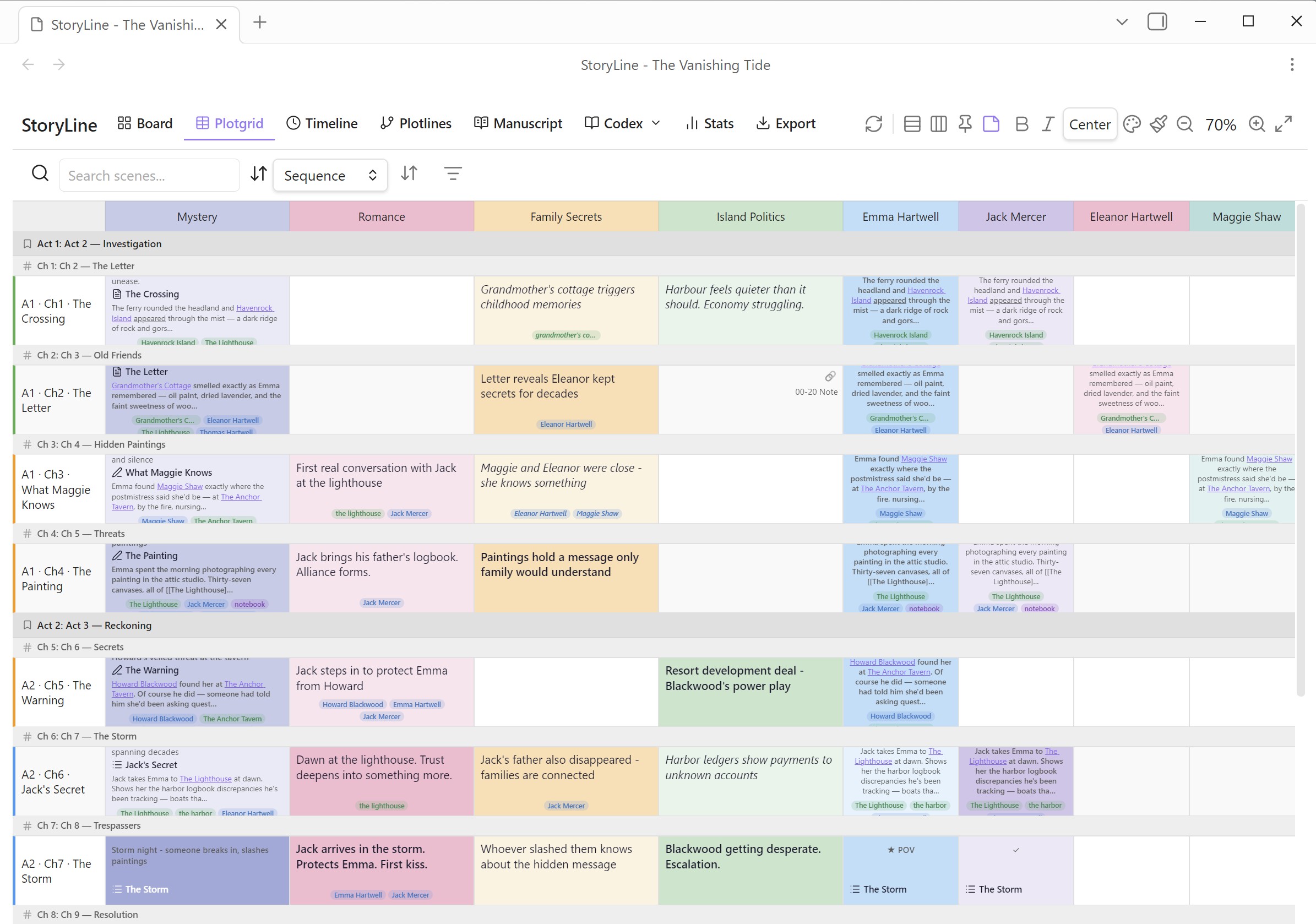
Spreadsheet-style grid for mapping scenes against plotlines, themes, or story threads. Each cell can hold free text, formatting, colors, and linked scene cards. Double-click any cell to edit. Sticky headers keep row and column labels visible while scrolling.
Act and chapter divider bands show where story sections begin and end. Scene rows are color-coded by status. Click any row or column header to jump straight to the file. Uses the same shared filters as the Board and Timeline views. When a cell has a linked scene, the inspector shows a tabbed panel — edit cell notes or the full scene details without leaving the grid.
Auto-Note — When enabled (on by default), typing into an empty cell automatically creates a linked corkboard note. The note is tagged as an idea with a plotgrid origin label so you can trace it back to the row and column it came from. Toggle Auto-Note on or off from the toolbar.
Codex Entity Tags — Each cell automatically shows color-coded pills for characters, locations, and codex entries detected in the cell text or linked scene prose.
Timeline View
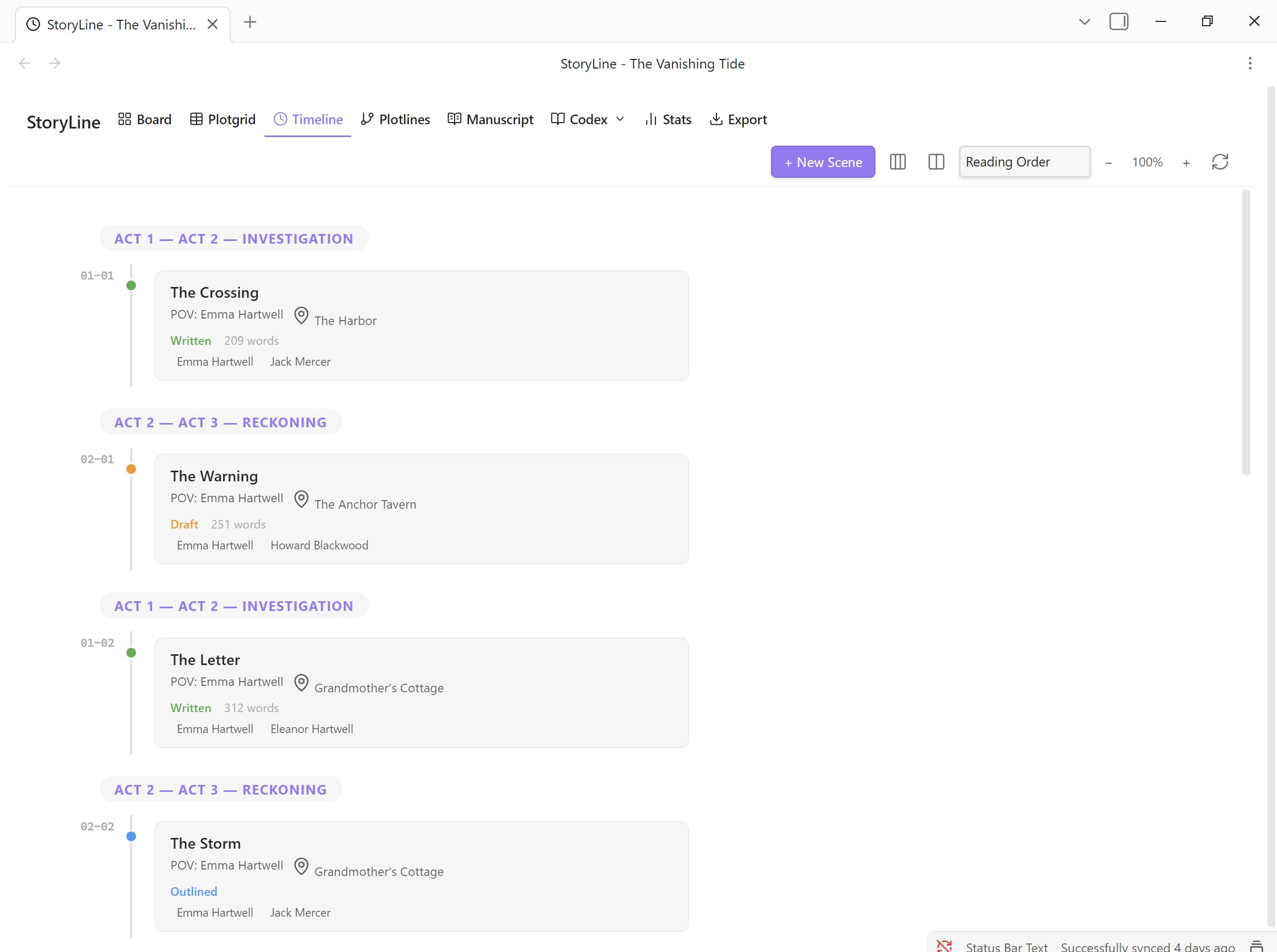
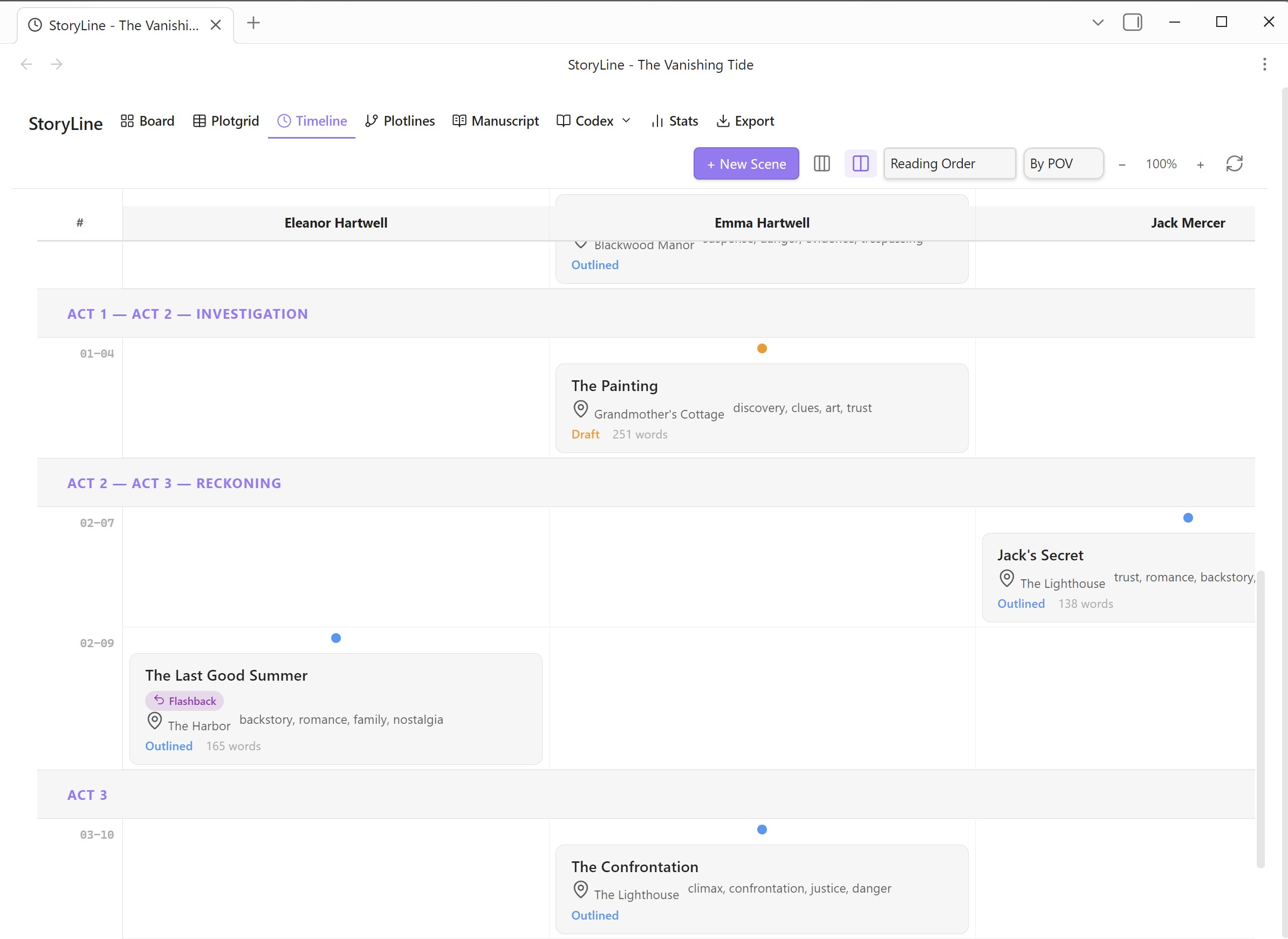
Chronological scene timeline with visual markers for intensity, status, and duration. Supports swimlane grouping by POV, character, location, or plotline.
Plotlines View
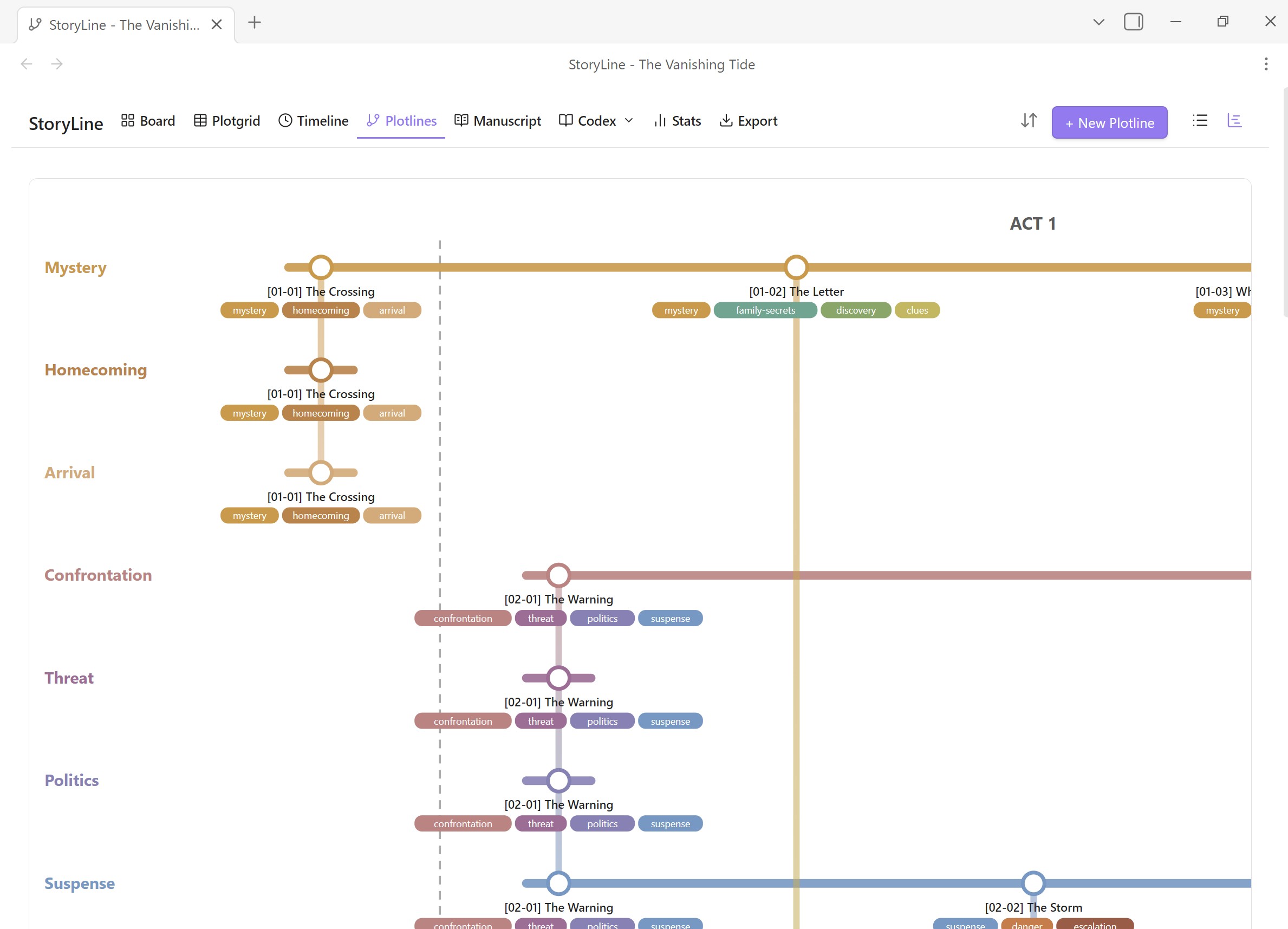
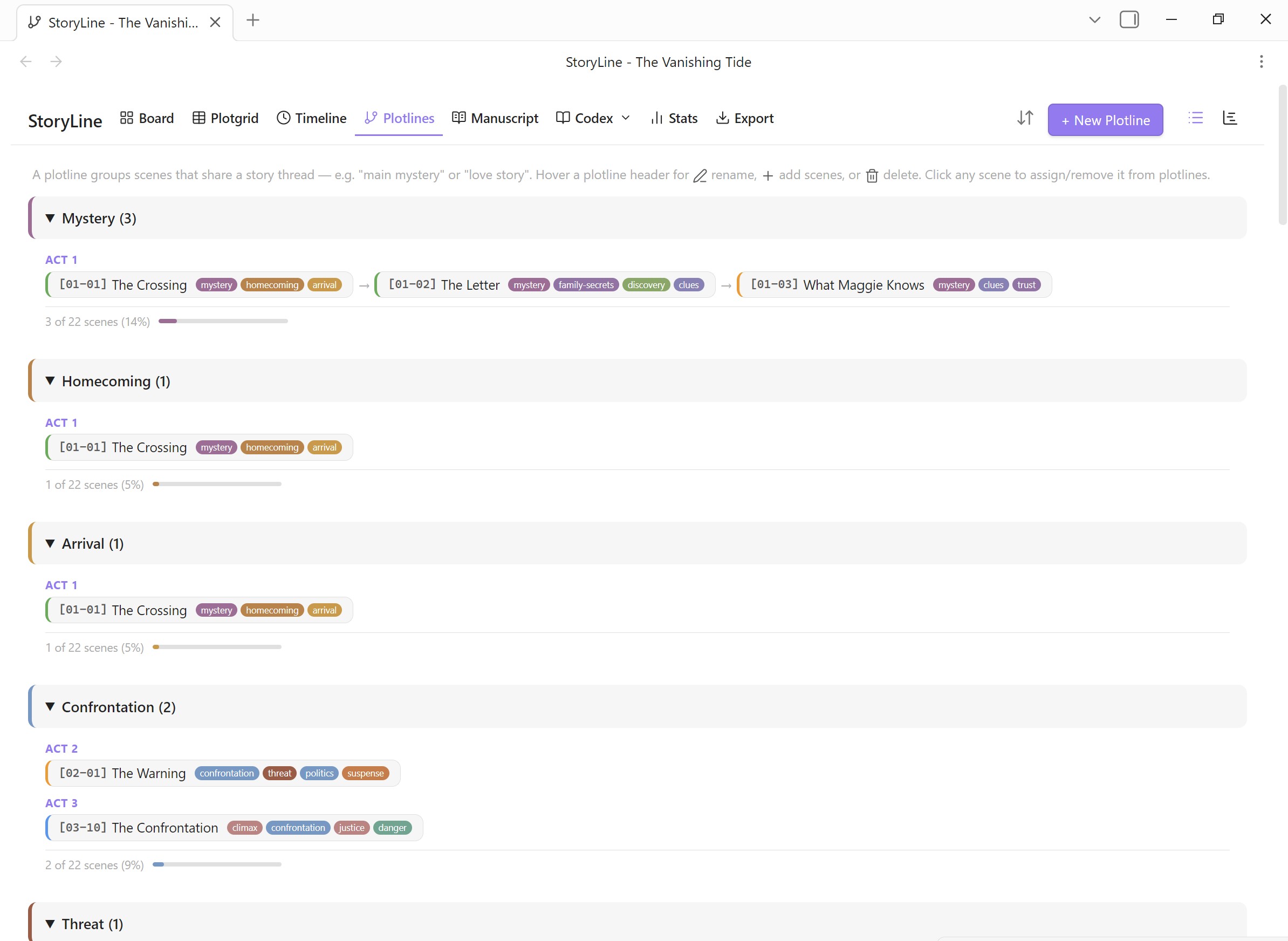
Track plotlines across your scenes with two view modes: a transit-style subway map (default) and a classic list view. The subway map uses flat SVG lanes with gradient connectors between shared scenes, act dividers, and scene labels with tag pills. Drag to pan large stories. Assign per-tag colors directly from the plotline header using the palette button or right-click context menu.
Manuscript View
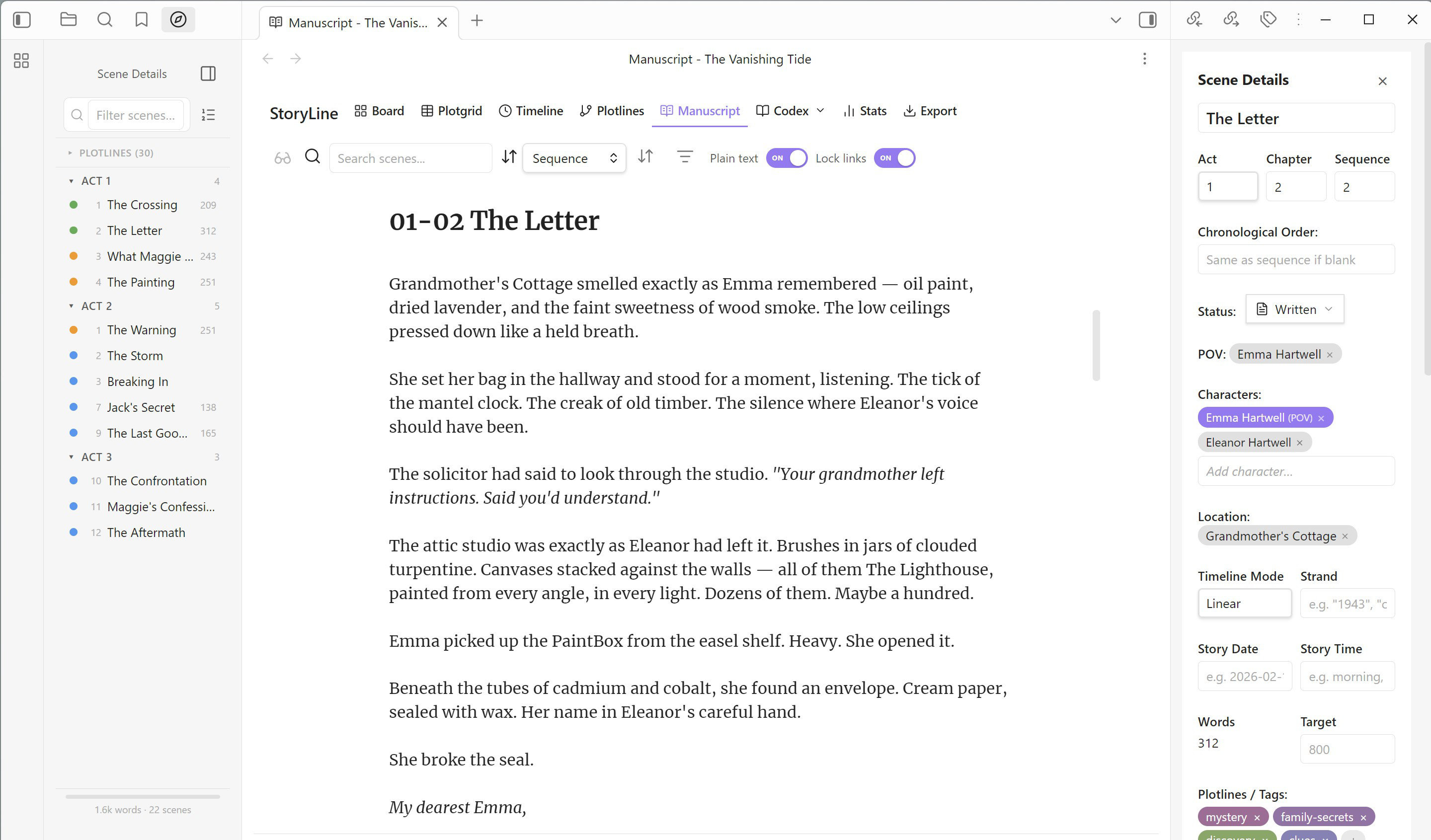
Scrivenings-style continuous document view. Every scene is rendered as an embedded Live Preview editor, ordered by act → chapter → sequence, so you can read and edit your entire story in one scrollable page without switching files.
Act and chapter dividers appear automatically between sections. Each scene block has a header with the scene title and a color-coded status badge. Click the title to open the file in a new tab. Supports the same shared filters as other views. A word count footer shows scene count and total words.
Plain Text — toggle on to hide wiki-link styling, tag prefixes, and external-link URLs so the text reads like clean prose.
Lock Links — toggle on to make internal links and tags non-editable. The cursor skips over link text, preventing accidental changes while you write around them.
Both toggles default to ON and appear in the filter bar.
Focus Mode — click the glasses icon to dim, darken, and blur surrounding UI so you can focus purely on writing. Configurable in Settings with sliders for dim, darken, and blur amounts.
Characters View
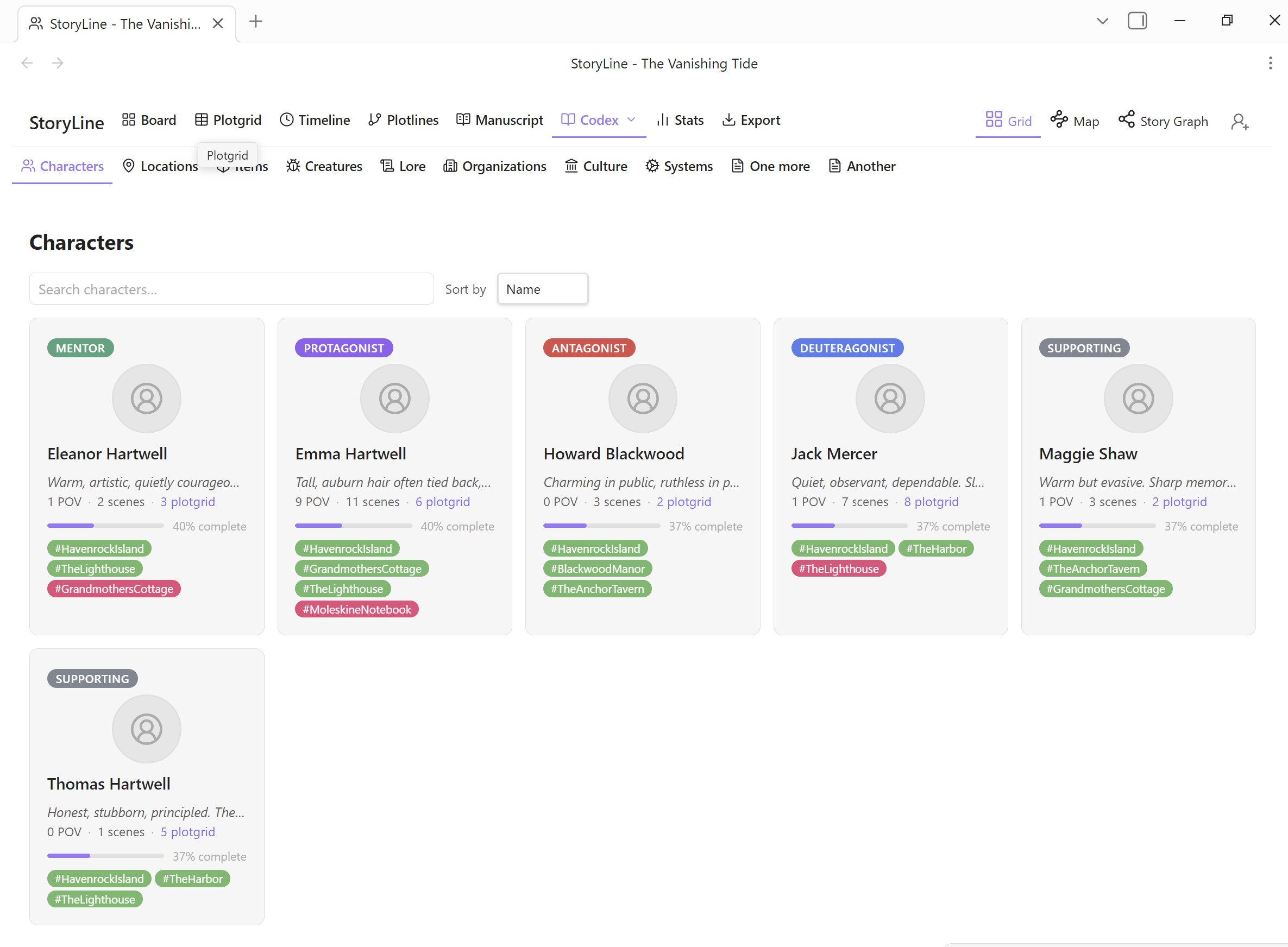
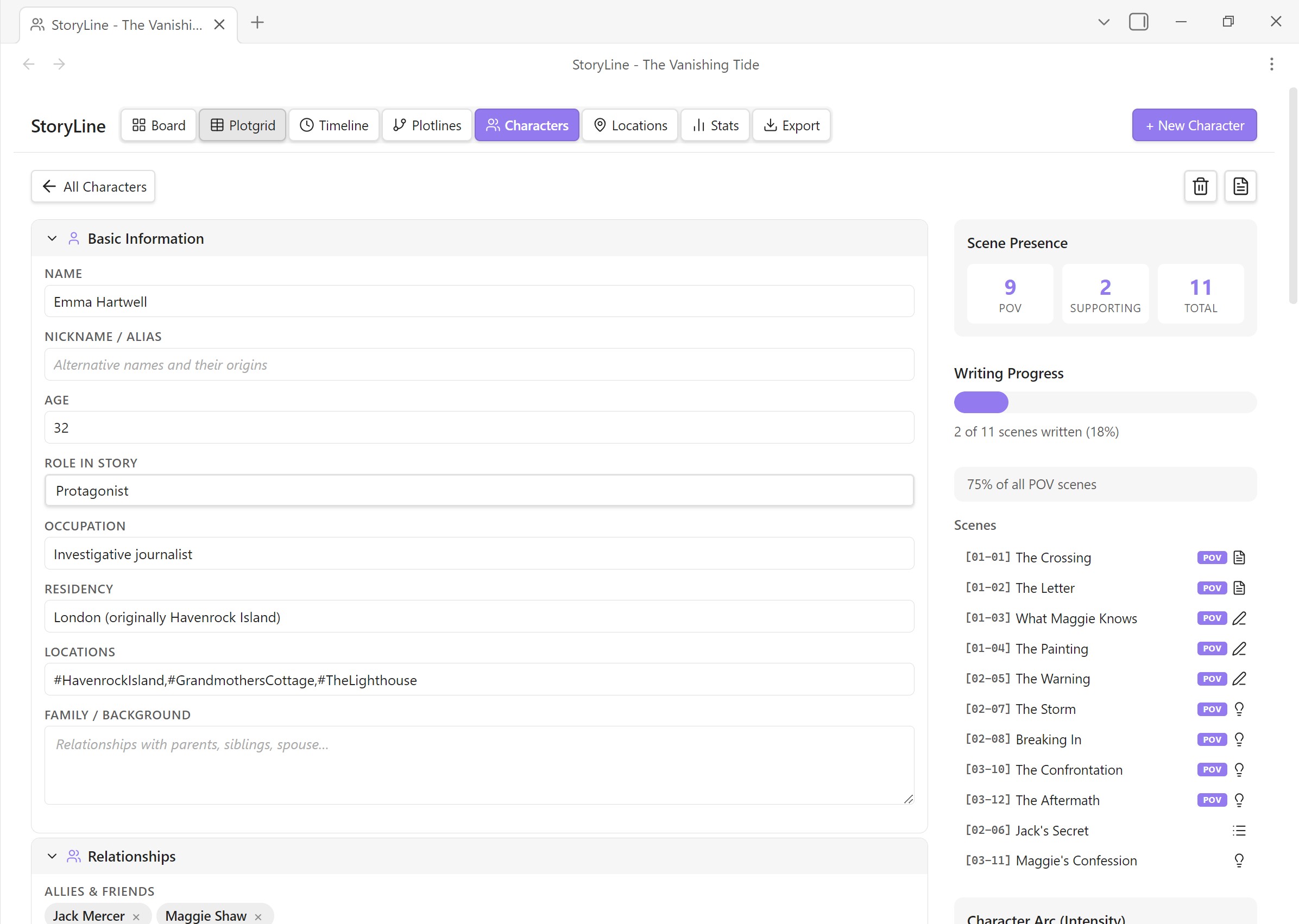
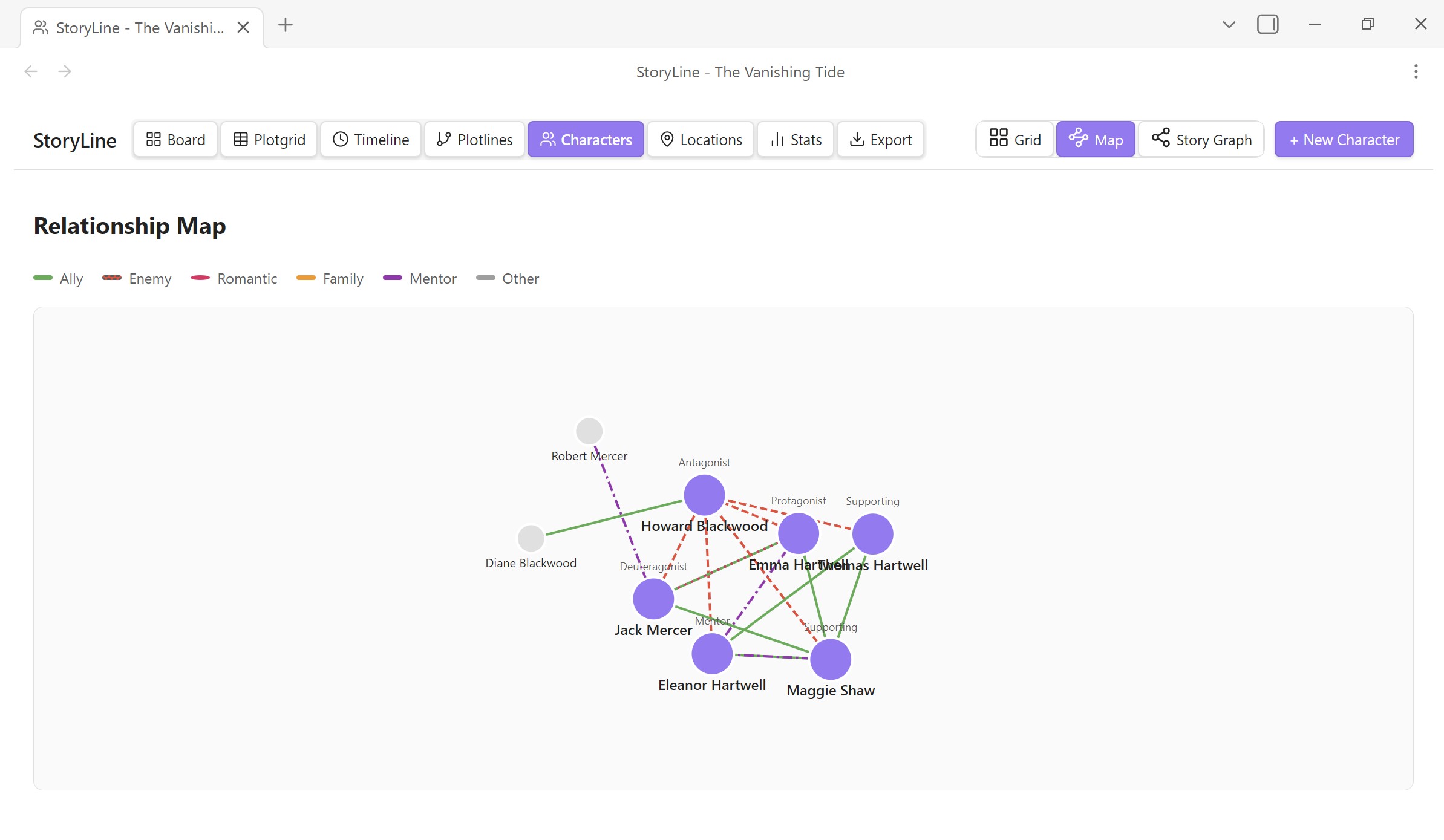
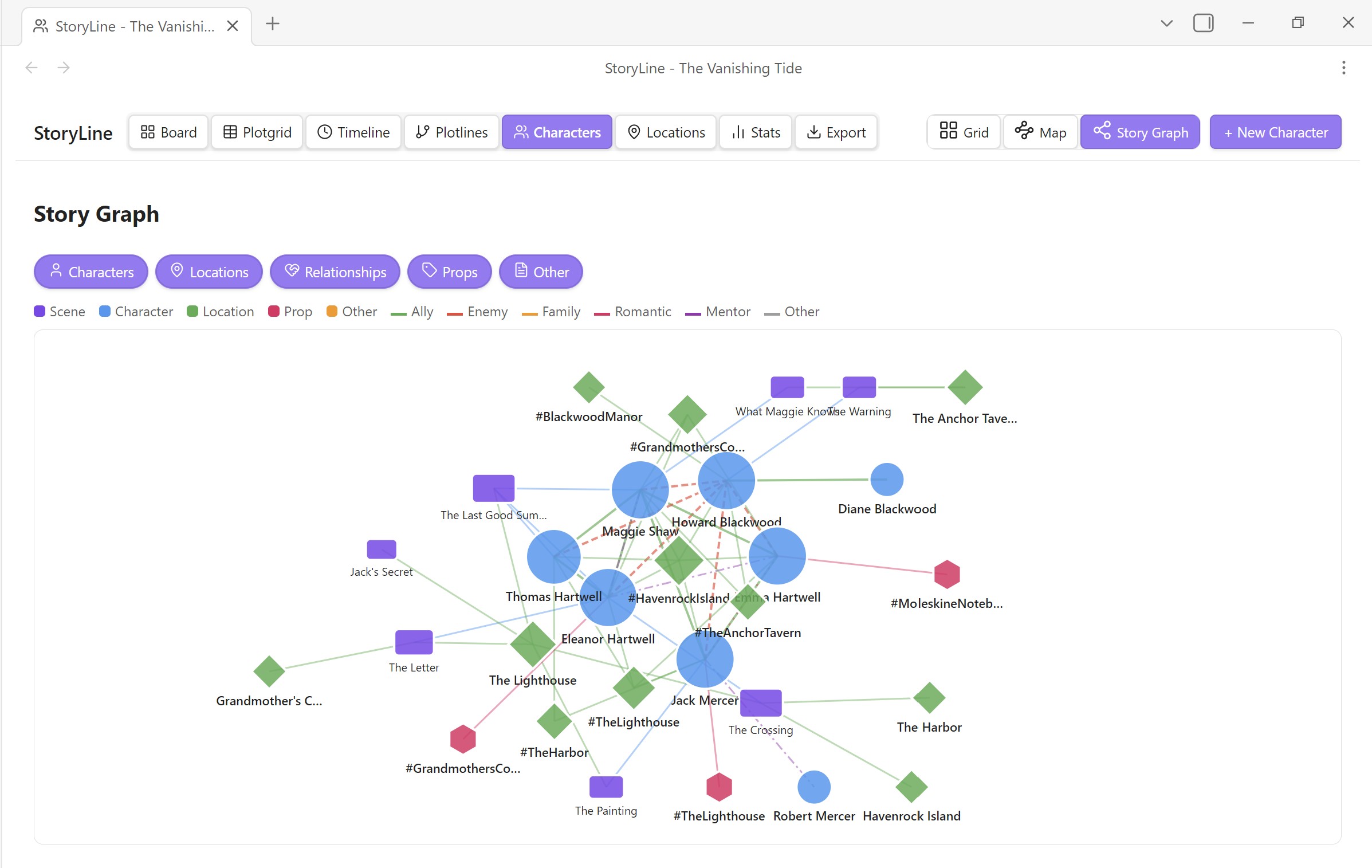
Rich character profiles with collapsible sections: basic info, physical traits, personality, backstory, relationships, character arc, and custom fields. Portrait images — click to add a character image (import from computer or choose from vault). Portraits display on overview cards (64×64 px) and in the detail editor (96×96 px). Image gallery with carousel, captions, and a floating lightbox viewer. Includes a force-directed relationship map and a story graph showing how characters connect to scenes, locations, and props.
In version 1.5.0, Characters live inside the new Codex hub alongside Locations and any custom categories you create.
Locations View
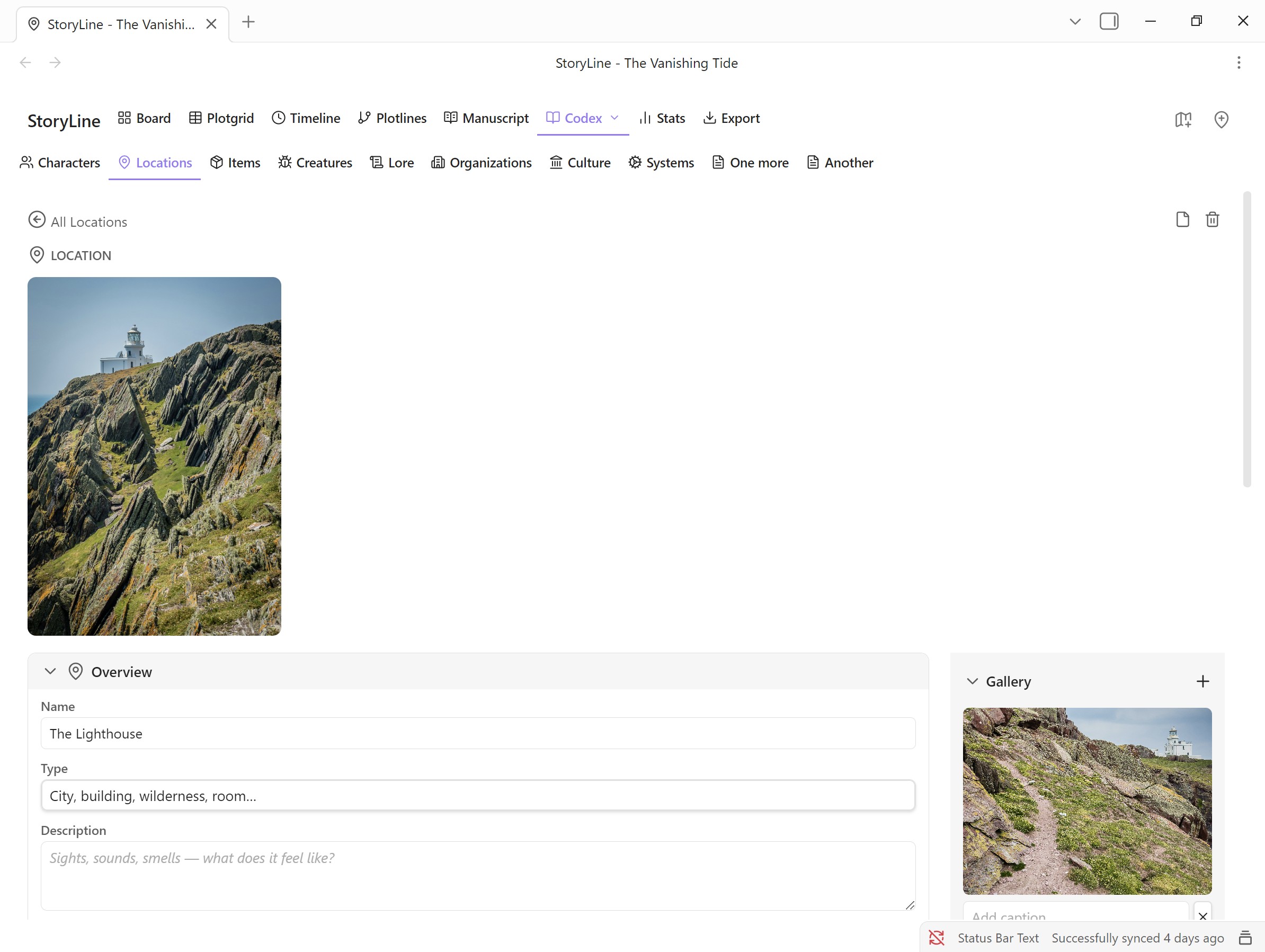
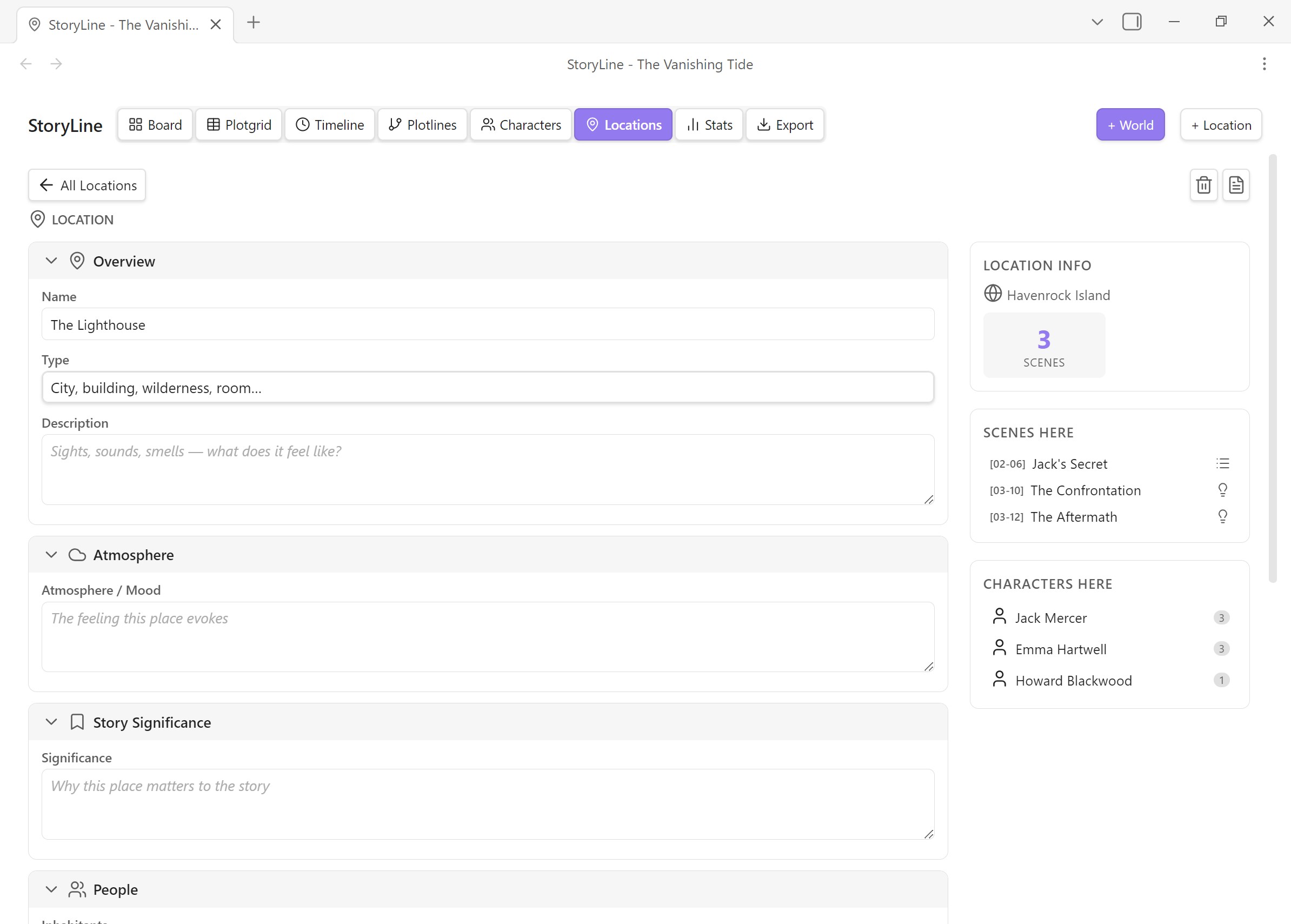
Hierarchical worldbuilding with worlds as top-level containers and locations nested underneath. Each location has fields for atmosphere, significance, and narrative role. Portrait images — add images to worlds and locations; thumbnails appear in the tree view and larger portraits in the detail editor. Image gallery with carousel, captions, and lightbox.
Locations are now part of the Codex hub in version 1.5.0.
Navigator View
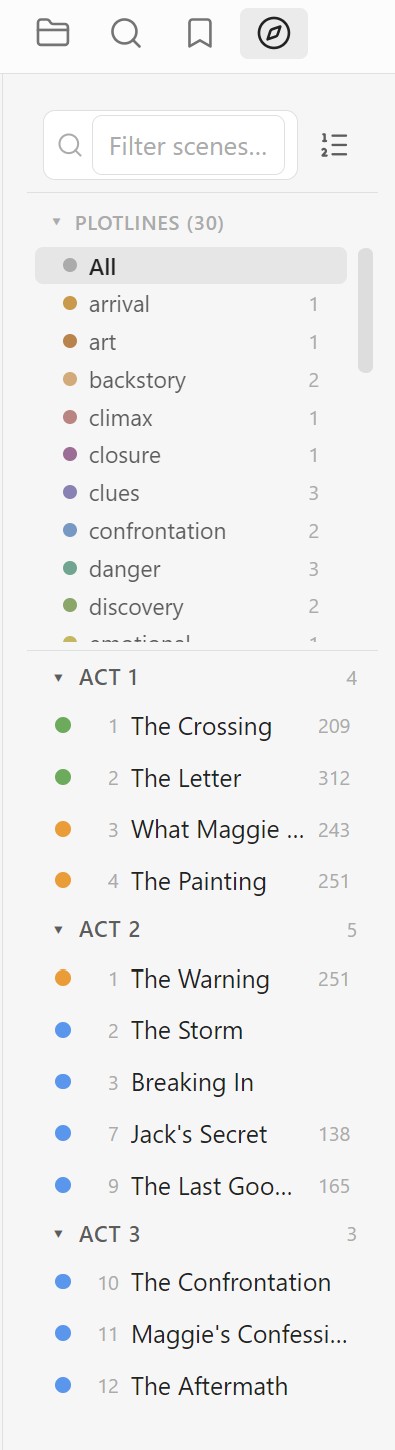
A compact sidebar panel for quick scene navigation. Search, sort, and filter your scenes without leaving your current view. Includes plotline filtering with color-coded dots and scene counts, five sort modes (sequence, status, recent, words, title), act grouping with collapsible sections, pinned scenes for quick access, and a progress bar. Opens automatically when a project loads (configurable) or via the command palette. A Scene Details button opens the Inspector sidebar for the active scene.
Scene Details Sidebar
A standalone sidebar panel that displays the full Inspector for the currently active scene file. View and edit all scene metadata — title, status, POV, characters, location, tags, conflict, notes, and more — side-by-side with your writing. The panel auto-updates when you switch between files in the editor. Open it from the Navigator's Scene Details button or the command palette.
Stats View
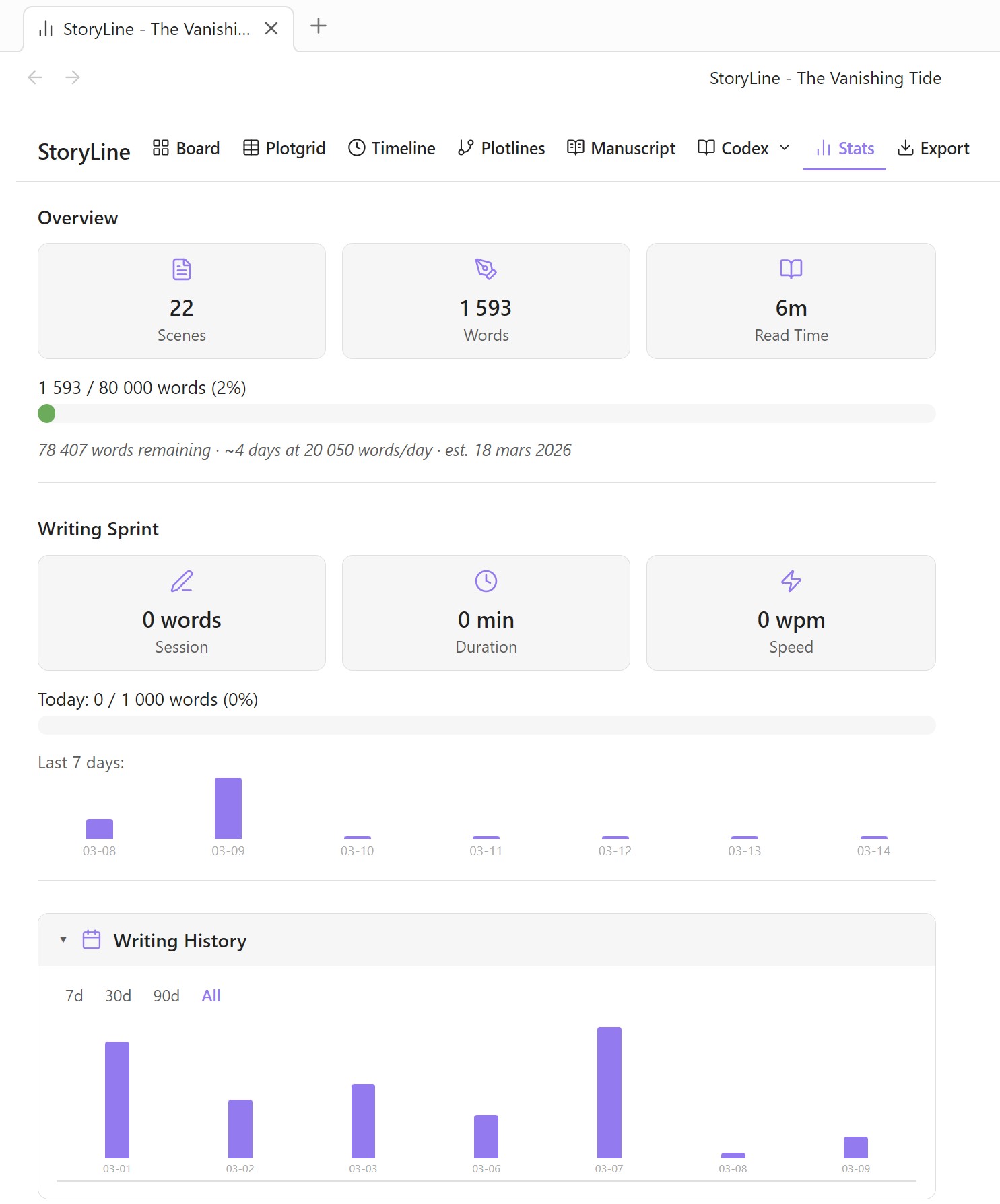
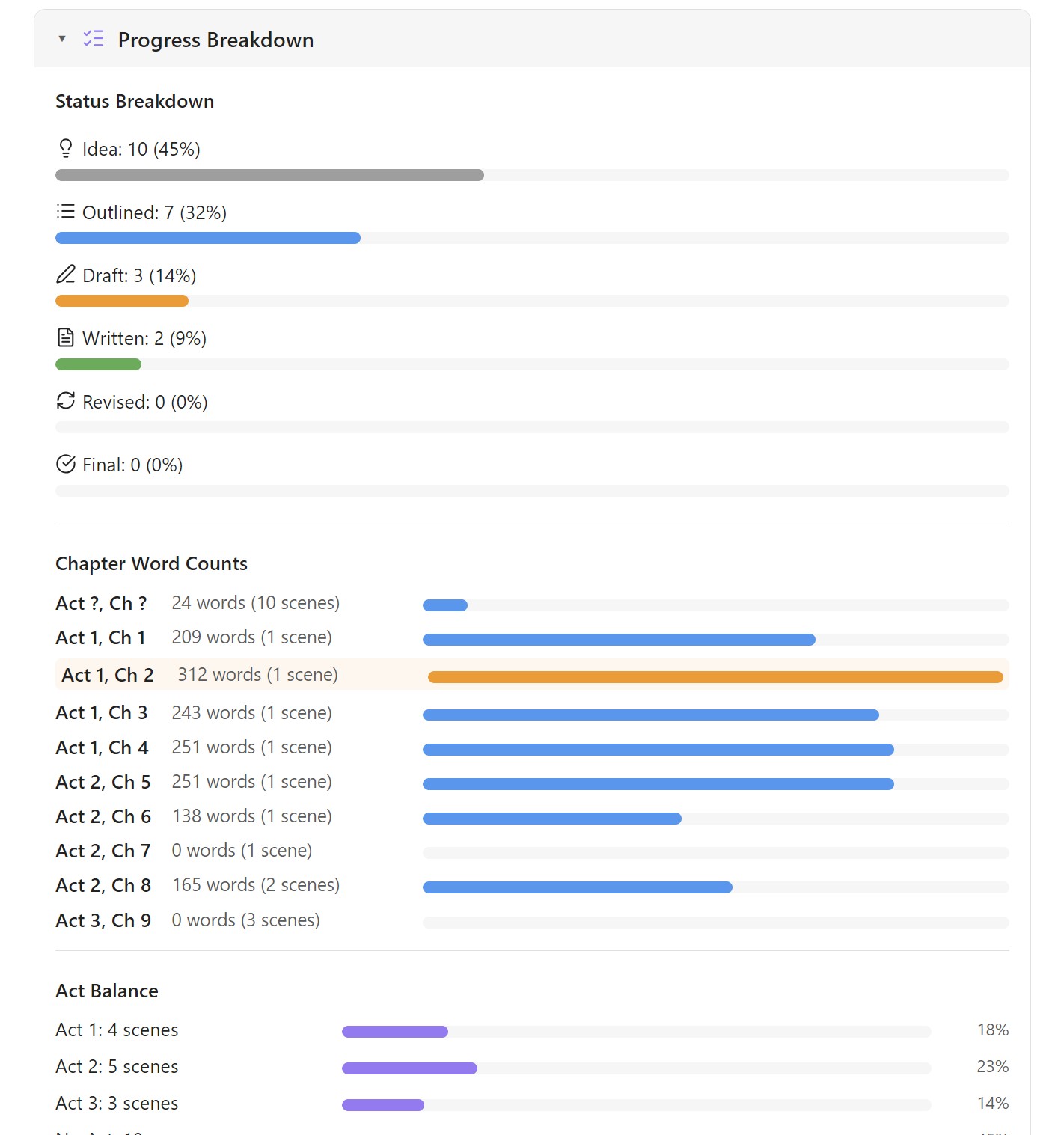
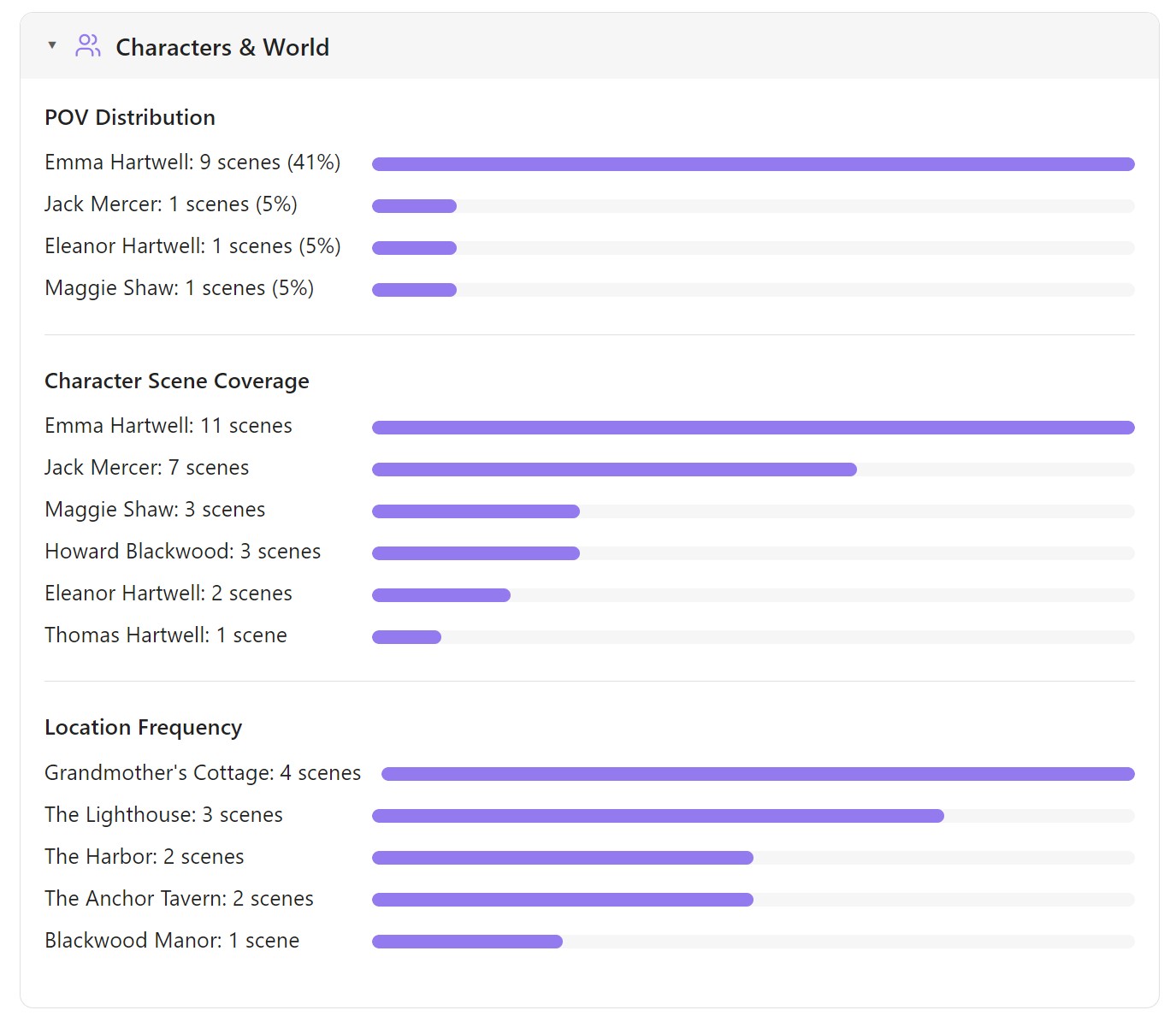
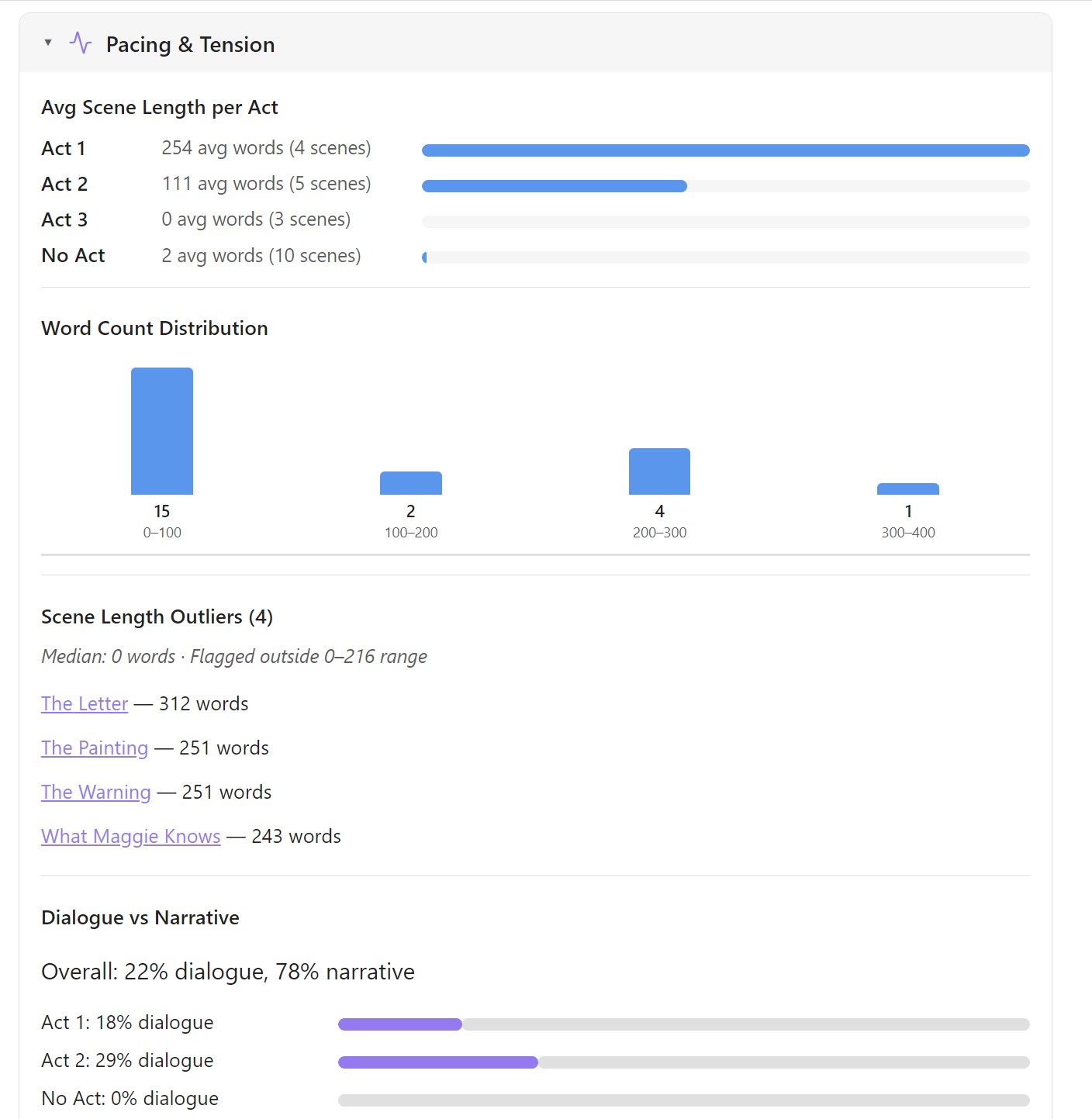
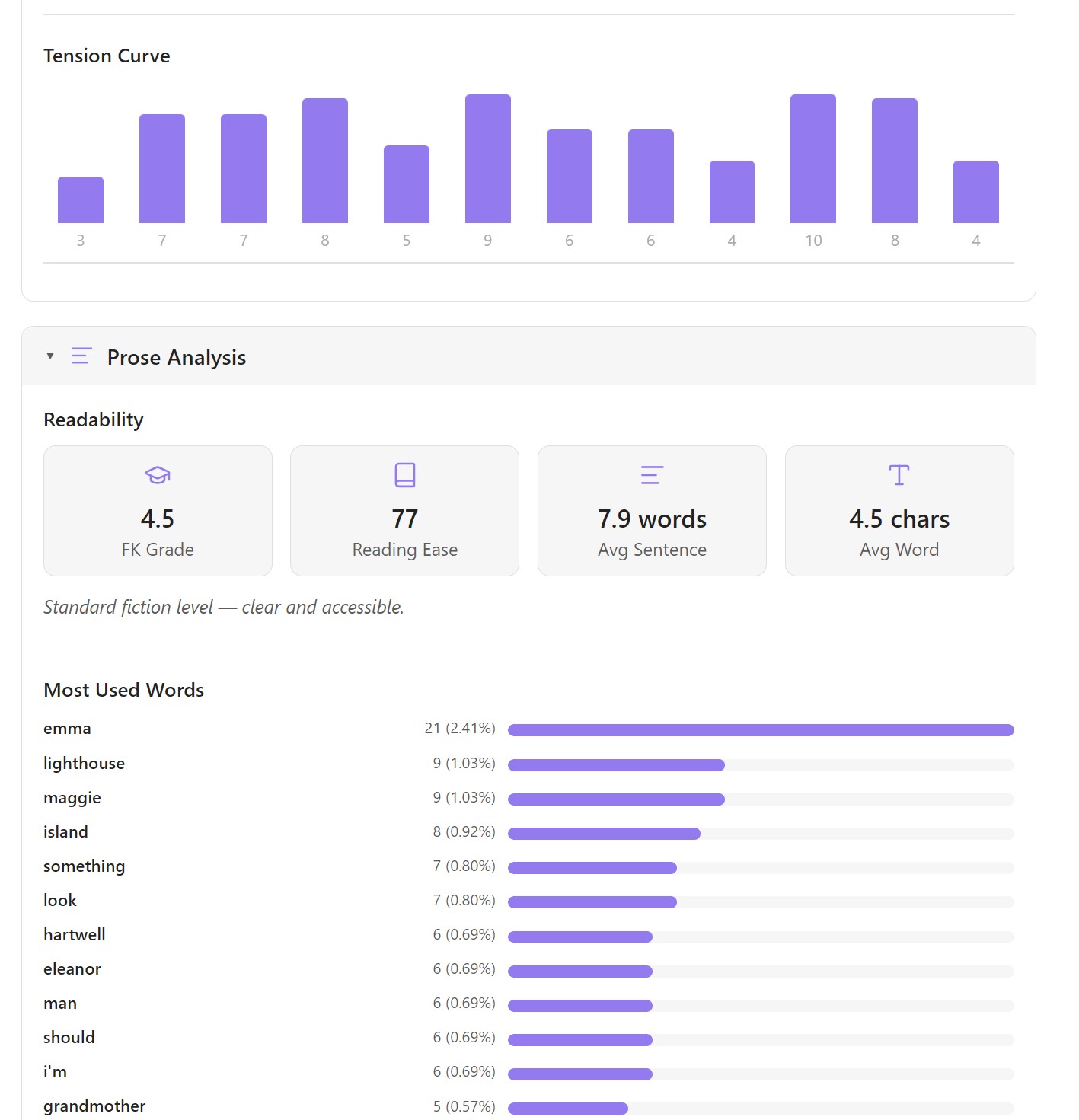
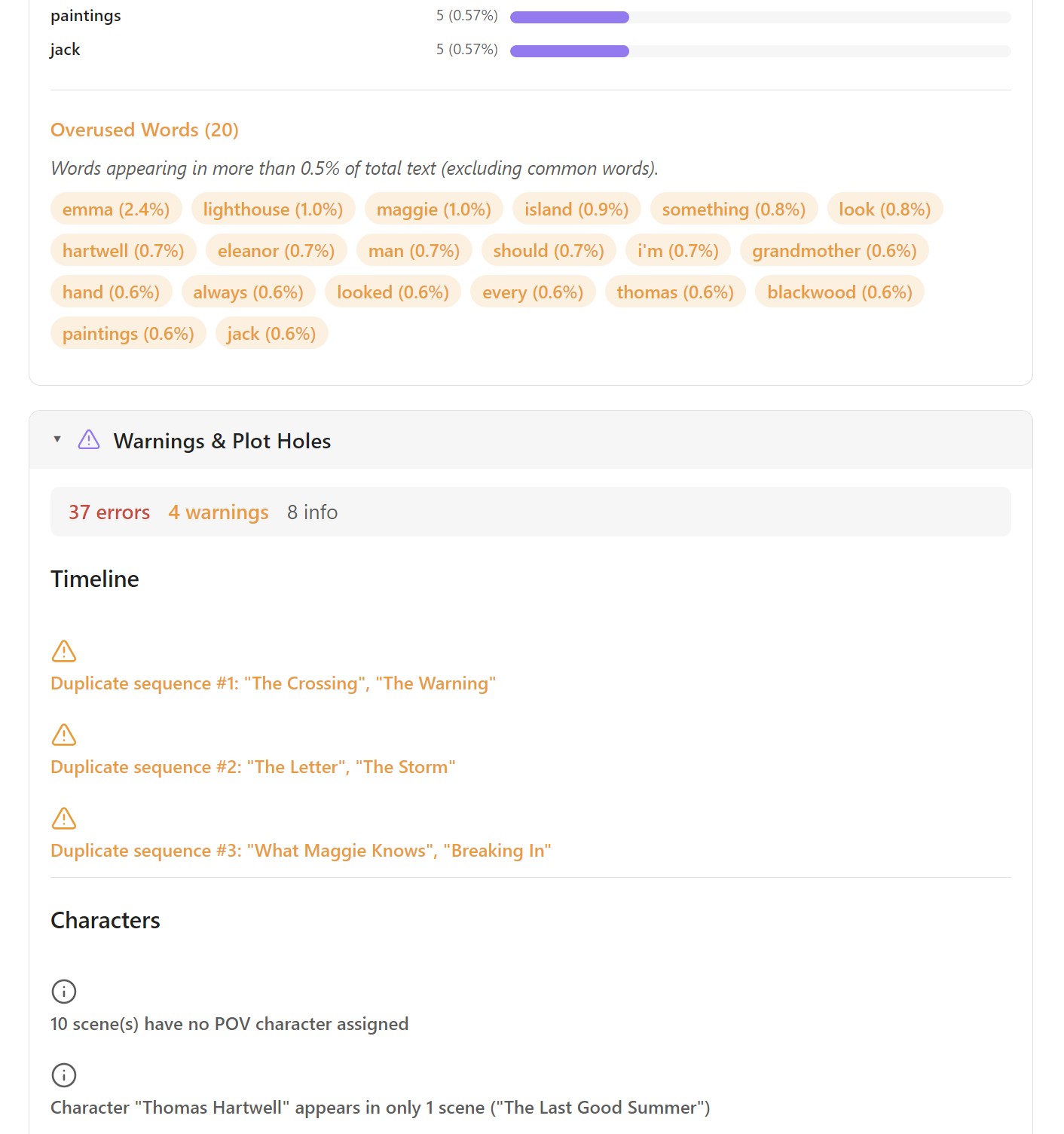
Statistics dashboard with eight collapsible sections: project overview with goal tracking and reading time estimate, writing sprint timer with daily / weekly / monthly progress rings and streak, writing history with daily bar charts (7d/30d/90d/All), progress breakdown by status/chapter/act, character & world coverage analysis with character × chapter heatmap, setup & payoff map with chain visualization, pacing & tension with dialogue ratio, tension curve, and pacing coach, prose analysis with readability scores and word frequency, echo finder for repeated phrases, and automated plot hole warnings.
Export
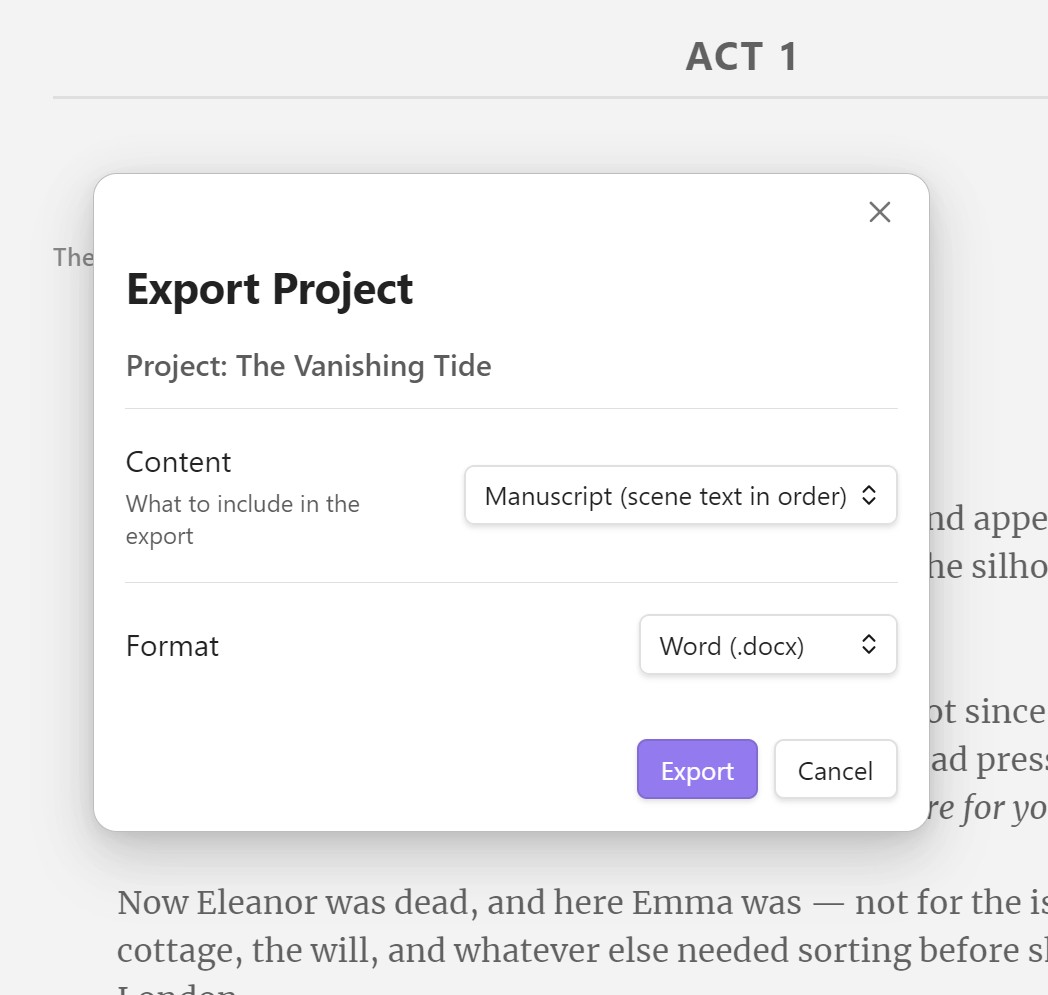
Six export formats: Markdown, JSON, CSV, HTML, PDF, and DOCX. Export either an outline (metadata + stats) or a full manuscript. DOCX export includes its own settings for page size, margins, font, and header styles. PDF export works on desktop. DOCX and HTML export also work on mobile.
Key Features
- Scrivener Import — Import a .scriv project (Scrivener 2 & 3) as a new StoryLine project. Attempts to convert scenes, characters, locations, and research. Results may vary — review imported data carefully. Access via Settings → Import or the command palette.
- Custom Scene Fields — Define your own metadata fields on every scene (Story Grid functions, Truby aspects, beat-sheet labels, genre conventions, anything your method needs). Edit values in the Inspector, group the Kanban board by them, filter scenes by them, and see them as badges on scene cards. Managed under Settings → Custom Scene Fields.
- Codex Hub — A unified hub for Characters, Locations, and your own custom categories (Props, Factions, Magic Systems — whatever you need). Each category gets its own folder, search, and detail pages. Two-way change detection flags scenes that reference modified codex entries.
- Codex Linking — Associate Codex entries with scenes via tag-pill inputs in the Inspector and right-click assignment from detected links. Codex categories also appear as column sources in Plot Grid sync.
- Scene Colors — Assign a custom background tint to any scene card from the right-click menu in Board, Timeline, or Navigator views.
- Manuscript View — Scrivenings-style continuous document with embedded Live Preview editors. Read and edit your whole story in one scrollable page. Plain Text, Lock Links, and Focus Mode toggles for distraction-free writing.
- Scene Management — Full metadata, six-stage status pipeline, drag-and-drop, multi-select bulk edits, notes, snapshots, and reusable templates. Optional subtitle field for scene headings.
- View Snapshots — Save and restore project-wide layout snapshots (corkboard positions, Plot Grid state, scene ordering). Auto-saves while active. Per-project, stored in
System/Snapshots/. - Scene Archive — Right-click a scene to archive it. Archived scenes are moved to an
Archive/folder and hidden from all views. Restore them via the archive button in the Board toolbar. - Corkboard Mode — Freeform spatial canvas with text and image sticky notes for brainstorming. Drag images from vault or desktop, add captions with wikilinks, open lightbox previews. Convert notes into scenes when ready.
- DOCX / PDF / HTML Export — Export manuscripts and outlines to Word, PDF, and standalone HTML. DOCX includes configurable page size, margins, and font settings.
- Timeline Modes — Ten non-linear narrative modes: flashback, flash-forward, parallel, frame, simultaneous, time skip, dream, mythic, circular, and linear.
- Beat Sheet Templates — Save the Cat, Three-Act, Hero's Journey, Seven-Point, Story Circle, Romancing the Beat, 27 Chapter Method — scaffold your acts with named beats. The template name is stored as a
beatsheetYAML field on each scene. - Relationship Map — Interactive force-directed graph with six color-coded relationship types.
- Story Graph — Visualize how scenes connect to characters, locations, and props via
#tagsand[[wikilinks]]. - Link Scanner — Auto-detects
[[wikilinks]],#tags, and plain-text name mentions in scene text and entity fields, classifies them as characters, locations, codex entries, or other. - Cross-Entity References — "Referenced By" panel on every character, location, and codex detail page shows which other entities and scenes mention it. Uses
[[wikilinks]],#tags, and plain-text name detection. - Hide / Show Fields — Hide built-in fields you don't use (per entity type) to declutter editors. Hover any field label → click the eye icon. Data is never deleted.
- Tag Type Overrides — Right-click any tag to reclassify it (prop, location, character, other).
- Filtering & Presets — Filter by status, character, location, tag, or free text. Save presets for quick reuse.
- Setup / Payoff Tracking — Link foreshadowing and resolution scenes. Warns about unresolved setups. Renaming a scene automatically updates all setup/payoff references.
- Plot Hole Detection — Automated validation across six categories.
- Pacing Analysis — Bar charts and histograms for scene length and distribution.
- Writing Sprint — Built-in countdown timer for focused writing sessions.
- Writing Goals — Set daily, weekly, and monthly word-count targets in Settings → Writing Goals. The Stats view shows three circular progress rings (Today / This week / This month) that turn green when you hit each goal.
- Custom Location Types — Add your own location types (Planet, Star System, Galaxy, Dimension, etc.) under Settings → Custom Location Types, or use the + Add custom type… option in the Location editor's Type dropdown. Built-in types like City, Town, and Wilderness remain available.
- Story Navigator — Compact sidebar panel with search, sort, plotline filter, act grouping, pinned scenes, progress bar, and a Scene Details button. Auto-opens on project load.
- Scene Details Sidebar — Standalone Inspector panel that follows the active editor file. Edit scene metadata side-by-side with your writing.
- Research Sidebar — Right-sidebar panel for storing research notes, web clips, images, and open questions. Search, tag filter, type filter, and auto-suggest mode that surfaces relevant posts based on the active scene's metadata.
- Series Mode — Group multiple books into a series with a shared Codex. Characters, locations, and custom categories are stored once and shared across all books. From v1.9.5 you can also mark individual entities as book-only (right-click → Demote / Restrict to ) so each book can have its own minor characters and locations on top of the shared cast.
- Additional Source Folders (Experimental) — Point StoryLine at any vault folder and it will scan all
.mdfiles, routing each to the correct manager by its frontmattertype:field. Supports any folder structure. - Color Coding — Color by status, POV, emotion, act, or tag. 16 built-in color schemes (4 Catppuccin + 12 mood-based palettes) or custom. Per-tag overrides from Plotlines view or Settings. HSL fine-tuning sliders for plotline and sticky note palettes. Dark/light mode aware.
- Per-Project Colors — Optionally save color scheme, HSL adjustments, and sticky note theme per project so each book can have its own look.
- Sticky Note Themes — Six built-in sticky note color themes (Classic, Pastel, Earth, Jewel, Neon, Mono) with per-note overrides and HSL sliders.
- Plotline Subway Map — Transit-style SVG visualization with gradient connectors, act dividers, scene labels, and drag-to-pan.
- Image Galleries — Add up to 10 images per character or location with captions, carousel browsing, and a floating lightbox viewer.
- Custom Field Templates — Define your own reusable fields for characters, locations, and scenes. Supports text, textarea, dropdown, and multi-select (tags) input types. Multi-select fields can pull options from a vault folder.
- Autocomplete Inputs — Character, location, and tag fields use smart autocomplete with tag-pill styling.
- Chapter Descriptions — Add descriptions to acts and chapters via the Board view's right-click menu.
- Undo / Redo —
Ctrl+Z/Ctrl+Shift+Zwith a 50-action stack.
Keyboard Shortcuts
| Shortcut | Action |
|---|---|
Ctrl+Shift+1–7 |
Switch between views |
Ctrl+Shift+N |
Quick-add a new scene |
Ctrl+Shift+E |
Export project |
Ctrl+Z / Ctrl+Shift+Z |
Undo / Redo |
Project Structure
StoryLine/
  My Novel.md              ← Project file (Markdown + YAML frontmatter)
  My Novel/
    Scenes/                ← Scene files (Markdown + frontmatter)
    Notes/                 ← Corkboard sticky notes
    Archive/               ← Archived (cut) scenes
    Research/              ← Research posts (notes, web clips, questions)
    Codex/                 ← Codex hub folder
      Characters/          ← Character profiles (Markdown + frontmatter)
      Locations/           ← Location & world profiles (Markdown + frontmatter)
      [Custom]/            ← Any custom categories you add
    System/                ← Per-project settings (JSON, auto-managed)
    Exports/               ← Exported files
Series projects use a shared Codex at the series level:
StoryLine/
  My Series/
    series.json            ← Series manifest
    Codex/                 ← Shared Codex (Characters, Locations, custom)
    Book One.md
    Book One/
      Scenes/
      System/
All files are standard Markdown with YAML frontmatter. Edit them directly in Obsidian or through StoryLine's UI.
Multiple Projects
Create, switch, and fork projects from the command palette. Each project gets its own folder structure. The last-used project is remembered across sessions.
Series Mode
Group multiple book projects into a series with a shared Codex. Characters, locations, and custom categories are stored once at the series level and available in every book — no duplication.
- Create Series — Command palette → Create Series from Current Project, or Settings → Project Management → Create Series. Your book moves into a new series folder with a shared Codex.
- Add to Series — Command palette → Add Current Project to Series. Pick an existing series; your book and its Codex entries are migrated in.
- Remove from Series — Command palette → Remove Current Project from Series. The shared Codex is copied back into a local Codex and the book moves out.
- Rename Book — Settings → Project Management → Rename book. Renames the project file, folder, and updates frontmatter and series manifest.
- Manage Series — Settings → Project Management → Manage Series, or the "Manage Series…" button in the Open Project modal. View, rename, reorder, add, or remove books.
When a project belongs to a series, the project selector shows a series badge. All views (Characters, Locations, Codex) automatically use the shared series Codex — your workflow stays the same.
Required Obsidian setting: Before creating or joining a series, make sure Settings → Files & Links → "Automatically update internal links" is turned ON. StoryLine checks this before migration and will block the operation if it's off — otherwise
[[wikilinks]]would break when files move.
StoryLine/
  My Series/
    series.json
    Codex/
      Characters/
      Locations/
    Book One.md
    Book One/
      Scenes/
      System/
    Book Two.md
    Book Two/
      Scenes/
      System/
StoryLine v1.8.4 — Transform your vault into a powerful book planning tool.
MIT License