
README file from
Githubgogoga Mind Map
English | 简体中文
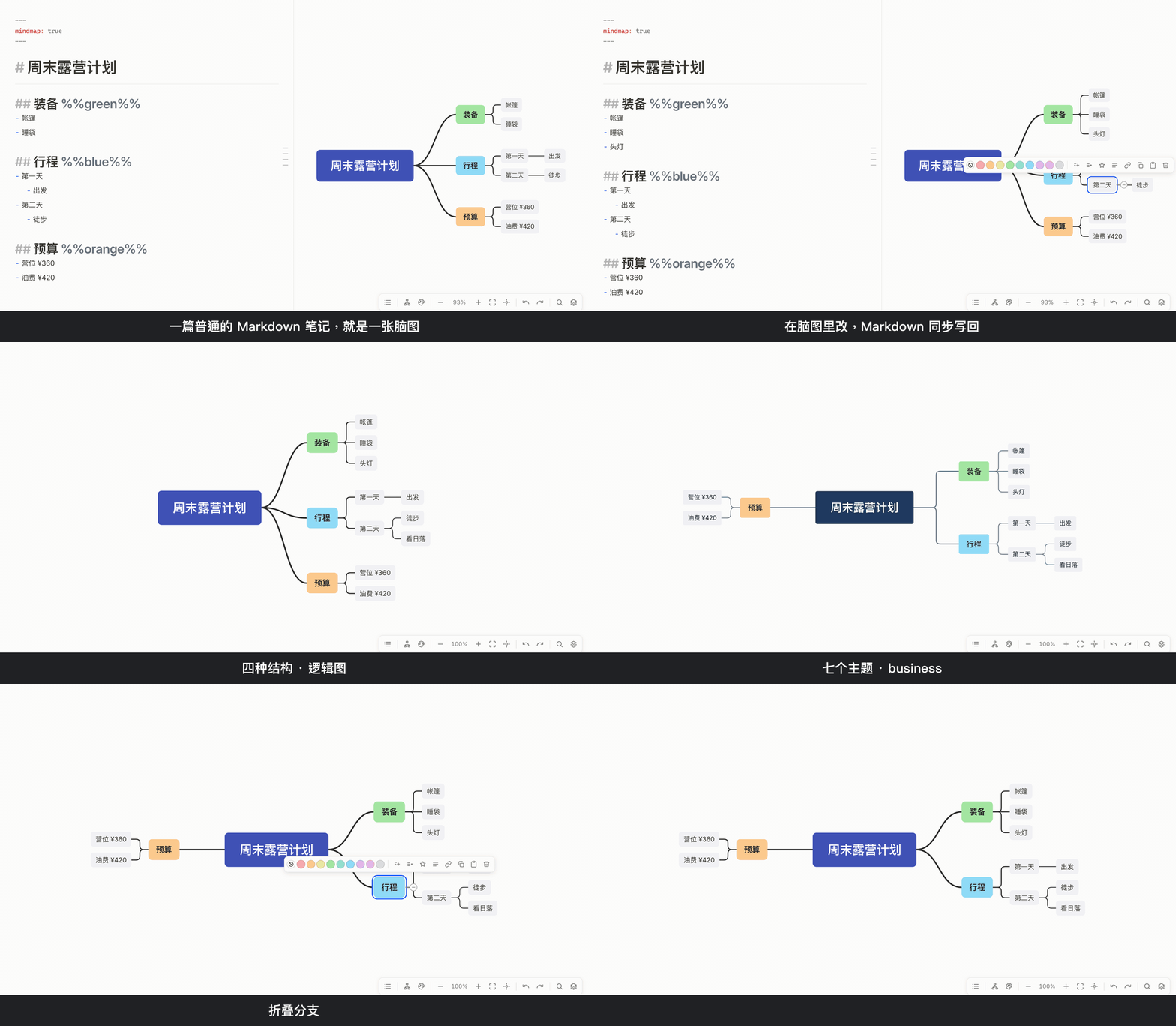
An XMind-style mind map plugin. Markdown is the single source of truth: headings and list items are the nodes, and the mind map view is just another editor for the same .md file, so edits on either side show up on the other. No runtime dependencies; works on both desktop and mobile.
The interface follows Obsidian's language setting — English, or Simplified Chinese when Obsidian is set to Chinese.
Usage
[!tip] For a quick start, copy the two Chinese-language example notes in
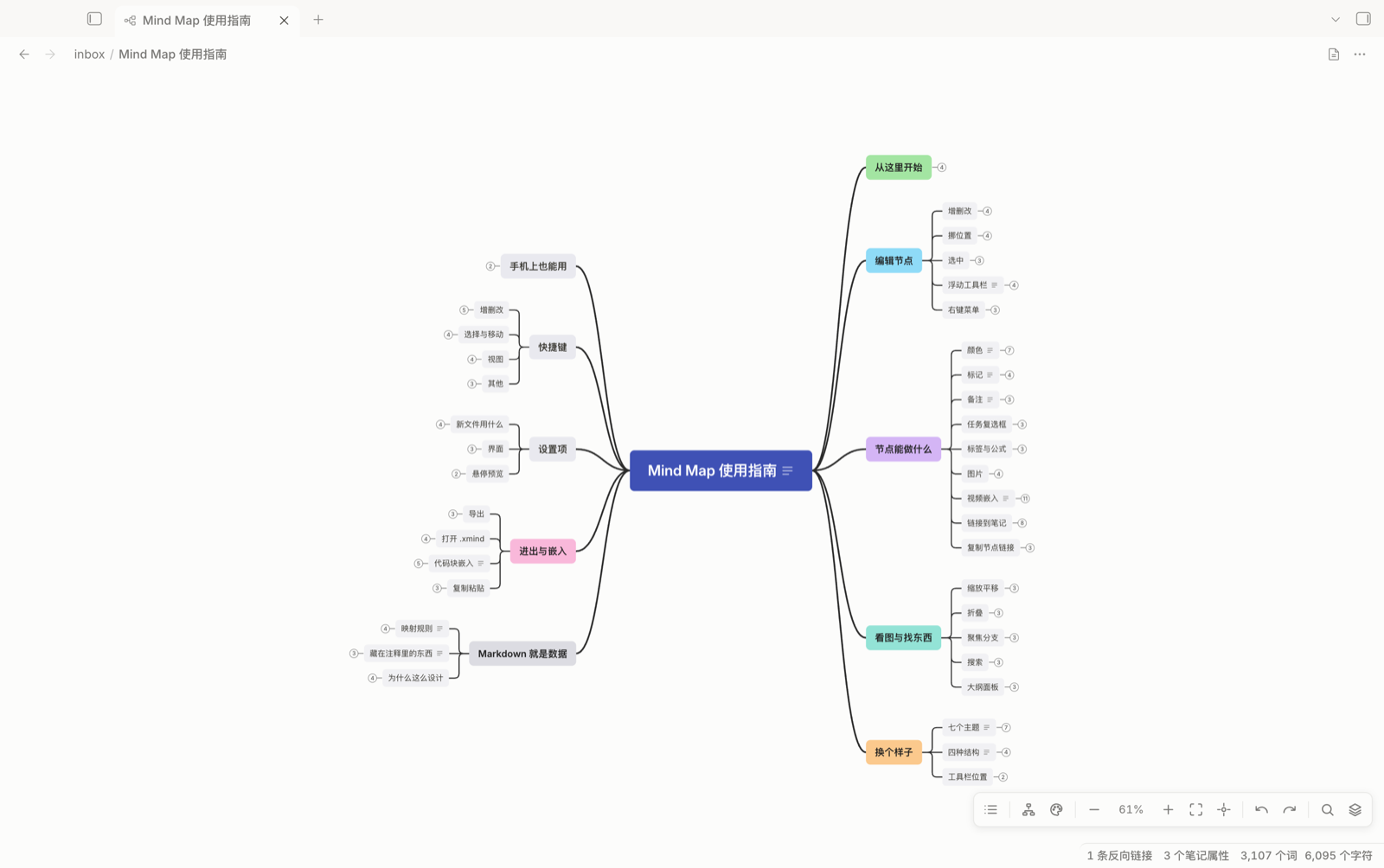
docs/into your vault. Mind Map 使用指南 (Mind Map user guide), opened as a mind map, is a clickable, foldable map of the plugin's features: every capability is on it, demonstrated by the plugin itself. The note it links to, 脑图代码块嵌入示例 (Mind map code block example), is an ordinary note with twomindmapblocks embedded in it.
- Command palette → New mind map, or add
mindmap: trueto the frontmatter of any note. - Notes with this key open as a mind map by default. Switch back and forth with the button in the top-right corner of the view, the command Toggle between mind map and Markdown, or the file context menu.
Switching a regular note to a mind map adds
mindmap: trueso it keeps opening that way; turn off Remember the mind map view in settings to switch only the current tab and leave the file alone. To write and watch side by side, use Preview as mind map in a split (command palette or file context menu): the map opens on the right, follows your typing as you go, and the file isn't changed. - In a regular note, write a
```mindmapcode block containing the same kind of Markdown, and it renders as a small mind map in both Reading view and Live Preview. It's read-only by default. Click the pencil in the toolbar or double-click a node to start editing. Changes are written straight back into the code block, and undo and redo only apply within the block. - Put an
.xmindfile in your vault and open it directly: it renders read-only, you can switch between sheets, and one click in the top-right corner does Convert to Markdown note. Bothcontent.json(XMind Zen / 2020 and later) andcontent.xml(XMind 8) are supported. Boundaries come along; floating topics, relationships, summaries, and comments aren't supported yet, and a note in the top-right corner says how many were left out. - From the view menu (⋯ in the top-right corner) or the command palette: Export as PNG, Export as SVG, Copy as image. PNG is exported at 2× resolution, and Obsidian's bundled Inter font is embedded, so the export matches what you see on screen.
Editing
- Click to select, double-click to edit. A selected node shows a floating toolbar above it: 9 colors, edit note, and delete.
- Drag a node onto another node to make it a child of that node, or into a gap in a column of children to insert it at that position. In the left-and-right layout you can also drag it to the other side.
- Shift-click to add to the selection, ⌘-click to toggle, Shift-drag on empty space to box-select, ⌘A to select all. With multiple nodes selected, color and delete apply to the whole group.
- Click ≡ on a node to view its note, or use the note button in the toolbar to edit it. Notes support Markdown and stay directly under the node when written back.
- ⌘F searches nodes: matches are highlighted, Enter / Shift+Enter jump between results and center them, and collapsed ancestors expand automatically.
- ⌘C / ⌘X / ⌘V copy, cut, and paste subtrees. The clipboard holds Markdown as an indented list, so you can paste it anywhere. The other way round, paste a list, headings, or plain text lines, and they become children of the current node, following their structure.
- The level button in the toolbar: Expand all, Show main topics only, Show up to level 2 / Show up to level 3.
- While editing, Shift+Enter inserts a line break. Multi-line text is stored as
<br>in the heading or list item and renders normally in Reading view. - Touch: one finger to pan, two fingers to zoom, tap to select, press and hold for 0.4 seconds then drag to change a node's parent. Buttons get larger automatically on touch screens.
- Outline panel: the leftmost toolbar button or the command Toggle outline panel opens a tree list on the left, linked both ways with the canvas. In the panel: ↑↓ to move, Tab / Shift+Tab to demote / promote, Alt+↑↓ to reorder, Enter to add a sibling and rename it in place, Delete to delete, Space to fold. On the canvas, Alt+arrow keys likewise reorder, promote, and demote.
- Link nodes to notes: press ⌘K or click the link button in the toolbar, then pick an existing note or create a new one. The label becomes
[[note|original text]], and a newly created note opens in a split on the right. Press ⌘K again on a linked node to open or remove the link. Hold ⌘ and hover for a page preview. - Structures: logic chart (rightward), mind map (left and right), org chart (downward), and tree chart. Switch them from the structure menu in the toolbar: Logic chart (rightward), Mind map (left and right), Org chart (downward), Tree chart.
- Themes: switch with the palette button in the toolbar. Seven themes: Snow (the default: dark center with gray node backgrounds), Rainbow (one color per branch), Business (blue tones with right-angle elbow lines), Warm (orange tones with large rounded corners), Mono (black-and-white outlines with thin lines), Line (text-only nodes with thin elbow lines), and Forest (green-toned branches).
Your choice is written to
mindmap-themeand applies per file; the Default theme setting changes the theme for new files. Every theme has a dark mode. - Math and images:
$E=mc^2$in a label renders as math.![[image.png|160]]orrenders as a thumbnail, where the number is the width; select it and drag the handle in the bottom-right corner to resize. Code blocks in notes get syntax highlighting. Math and images are embedded when exporting PNG/SVG. - Context menu: available on nodes and on empty space. Editing, adding and removing nodes, focus, fold, link, note, markers, tasks, Convert level to headings / Convert level to lists, Copy node link, and delete are all there.
- Focus on a branch: show one branch on its own as if it were the root. The breadcrumb at the top takes you back to the full map or any ancestor in one click; Esc also exits.
- Markers: the star button in the node toolbar opens a picker with four groups, Priority, Progress, Flags, and Symbols. Markers are stored as emoji at the start of the text, so they display anywhere.
- Boundaries: click the boundary button in the node toolbar, press ⌘⇧B, or right-click a node → Add boundary to draw a dashed frame around it and its branch. Select several adjacent siblings first to frame them together. Right-click again, or right-click the boundary's title, to add or edit a title or remove the boundary; double-clicking the title also edits it. Boundaries are included in PNG/SVG exports.
- Node width: select a node and drag the handle on its outer edge to set the width; the text rewraps and the height follows. Double-click the handle, or right-click → Reset to automatic width, to go back. Stored as
%%w=240%%. - Task checkboxes:
[ ] itemrenders as a checkbox; clicking cycles between incomplete, complete, and removed. - #tags: a
#tagin a node renders in tag style; clicking it opens global search. - External links:
[text](https://…)or a bare pasted URL becomes a link that opens in the browser when clicked. Trailing punctuation isn't swallowed into the link. - Video and other iframe embeds: paste an
<iframe …>copied from Bilibili or YouTube straight into a node and it renders as a player. Only the iframe tag is accepted, andsrcmust be http(s). Attributes are parsed separately and the element is built with the DOM API, never innerHTML. Autoplay is off by default (autoplay=0is added at render time without touching the note; writeautoplay=1yourself if you want autoplay), and players in collapsed branches aren't loaded. Embeds also work in notes, rendered by Obsidian's own renderer. A shield covers the player: a single click only selects the node, and the player is released only when you double-click it or click the Activate button in the bottom-right corner, so a stray click doesn't send you to the source site. An activated node gets a dashed outline and is deactivated when you click elsewhere. When selected, drag the handle in the bottom-right corner to resize (aspect ratio is locked by default; hold Shift to change height only; double-click to reset to 560×315). - Drag in and paste: drag a note from the file list onto a node to add it as a
[[link]]child. Dropped or pasted images are saved to the attachment folder and become image nodes. - Copy node link: heading nodes give
[[note#heading]]; list nodes get a block ID added automatically and give[[note#^id]], which you can reference from other notes. - Mobile: the node toolbar has add child and add sibling buttons, and the bottom toolbar has undo and redo, so you can fully edit without a keyboard.
- ⌘B / ⌘I make the selected nodes bold or italic as a whole.
Markdown mapping
---
mindmap: true
mindmap-structure: mindmap   # optional: logic-right (default) | mindmap | org-down | tree-right
mindmap-theme: rainbow       # optional: snow (default) | rainbow | business | warm | mono | line | forest
---

# Central topic                ← the only H1; the file name is used if there is none

A paragraph here becomes the central topic's note.

## Main topic %%green%%        ← %%color%% colors a node and is invisible in Reading view
### Subtopic
- Deeper levels use lists
	- One level deeper
- Fold state is stored in the file too %%fold%%
- Color names:
red orange yellow green teal blue purple pink gray, or#hex. - In the mind map (left and right) structure, dragging a main topic to one side pins it there with
%%left%%/%%right%%, so the other branches stay put. - Boundaries are stored in the same comment:
%%box%%frames the node and its branch,%%box=3%%also takes in the next two siblings, and%%box "Title"%%adds a title. - Headings go down to H6, after which lists are used automatically. New nodes use lists from level 4 by default; change this with the Deepest heading level setting.
- Paragraphs and code blocks under a node are kept as-is as its note, and the node shows a ≡ icon you can click to view it.
- Markdown exported from XMind uses this same heading hierarchy, so it opens directly; it also works the other way, imported into XMind.
Keyboard shortcuts (when the canvas has focus)
| Key | Action |
|---|---|
| Tab | Add child node |
| Enter | Add sibling node (adds a child on the root node); Shift+Enter inserts before |
| Double-click / Space / F2 | Edit; Enter to commit, Esc to cancel |
| Delete / Backspace | Delete the selected nodes and their subtrees |
| ⌘F | Search nodes; Enter / Shift+Enter to jump |
| ⌘C / ⌘X / ⌘V | Copy / cut / paste subtree |
| Shift+Enter (while editing) | Line break inside a node |
| ⌘K | Link to a note / create a new note |
| ⌘⇧B | Add a boundary around the selected nodes, or remove it |
| Alt+↑↓ / Alt+←→ | Reorder among siblings / promote or demote |
| Shift+click / ⌘+click / Shift+drag / ⌘A | Add to selection / toggle / box-select / select all |
| Drag node | Change parent or reorder |
| / | Fold or unfold the selected node |
| 1–9 / 0 | Show down to level N (1 = main topics only) and fit the view / expand everything |
| ⌘⇧0 | Zoom to the selected branch |
These keys are handled by the map itself. Folding, showing down to a level, zooming to a branch and toggling a boundary are also commands, so you can bind your own keys in Settings → Hotkeys (search for "gogoga Mind Map"). | Arrow keys | Move between nodes | | ⌘Z / ⌘⇧Z | Undo / redo | | Scroll wheel / drag empty space | Pan (set the wheel to zoom in settings → Mouse wheel; Shift + wheel then pans) | | ⌘+scroll wheel / pinch / ⌘= ⌘- | Zoom; ⌘0 to fit the canvas |
Development
pnpm install
pnpm test            # unit tests for Markdown round-tripping and layout
pnpm typecheck
pnpm lint            # the same ESLint rules the Obsidian community directory runs
pnpm build           # outputs dist/main.js
pnpm install-vault   # copies the build into the vault set by OBSIDIAN_VAULT=...
pnpm harness         # watch-builds dev/harness.js; open dev/index.html with any static server
pnpm gen-bench 3000  # writes a large mind map note into the vault's inbox for stress testing
Performance
With 3,000 nodes (measured in Obsidian desktop, after optimization): opening takes 195 ms, a single render 11 ms, each relayout while typing 7 ms, panning 0.2 ms per frame, folding to level 2 55 ms, and exporting PNG 785 ms. With 1,000 nodes the figures are 53 ms / 2 ms / 1.6 ms / 0.2 ms / 10 ms.
Rendering reuses DOM elements by node ID and only rebuilds elements whose content changed; connectors reuse their path and only update d; while typing, only the node being edited is re-measured.
dev/index.html is a debug page that runs outside Obsidian. It can switch themes, structures, and dark mode, and prints the Markdown being written back in real time.
Structure
| File | Responsibility |
|---|---|
src/markdown.ts |
Markdown ⇄ tree, lossless round-trip |
src/model.ts |
Tree model and add/delete/move operations |
src/layout.ts |
Layout engine (logic chart / left-and-right) and connector geometry |
src/canvas.ts |
Rendering, pan and zoom, selection, inline editing, keyboard |
src/view.ts |
Obsidian TextFileView: reads and writes the file, and holds the undo stack |
src/main.ts |
View registration and redirection, commands, code blocks (including write-back), menus |
src/codeblock.ts |
Locates and replaces the mindmap code block in the host note |
src/export.ts |
SVG / PNG export with embedded fonts |
src/xmind.ts |
.xmind reading (built-in zip and XML parsing) → Markdown |
src/xmind-view.ts |
Read-only .xmind view and conversion |
src/outline.ts |
Outline panel |
src/note-picker.ts |
Picker modal for linking notes |
src/theme.ts |
Theme registry: connector shape, branch colors, underline levels, spacing |
src/icon.ts |
The plugin's own mind map icon (Phosphor tree-structure) |
src/icon-picker.ts |
Icon picker in settings, searchable, supports emoji |
src/icon-value.ts |
Pure logic for icon values (prefixes, emoji detection) |
src/property-icon.ts |
Preview for the icon row in the Properties panel; click it to pick an icon |
styles.css |
Theme variables and each theme's [data-theme] color block, following Obsidian's light/dark mode |
Release
Pushing a tag publishes a release: git tag 0.3.1 && git push --tags (the tag must match version in manifest.json exactly, without a v). GitHub Actions builds the plugin and attaches main.js, manifest.json, and styles.css to the release.
BRAT users can install it by entering the repository URL. To install manually, put these three files in
<vault>/.obsidian/plugins/gogoga-mindmap/. Node isn't needed at runtime.
Support
gogoga is free and open source. If this plugin helps you, you can support its development on afdian (爱发电). Obsidian also shows a support button for it in the community directory. Bug reports and ideas help just as much.
License
MIT, see LICENSE.