
README file from
Github

Annotator
Read and annotate PDFs, EPUB books, web pages and videos inside Obsidian, and keep what you mark as Markdown in your vault. Every annotation is a block in an ordinary note, so it links, embeds, searches and syncs like the rest of your notes.
Website: annotator.esh.sh.
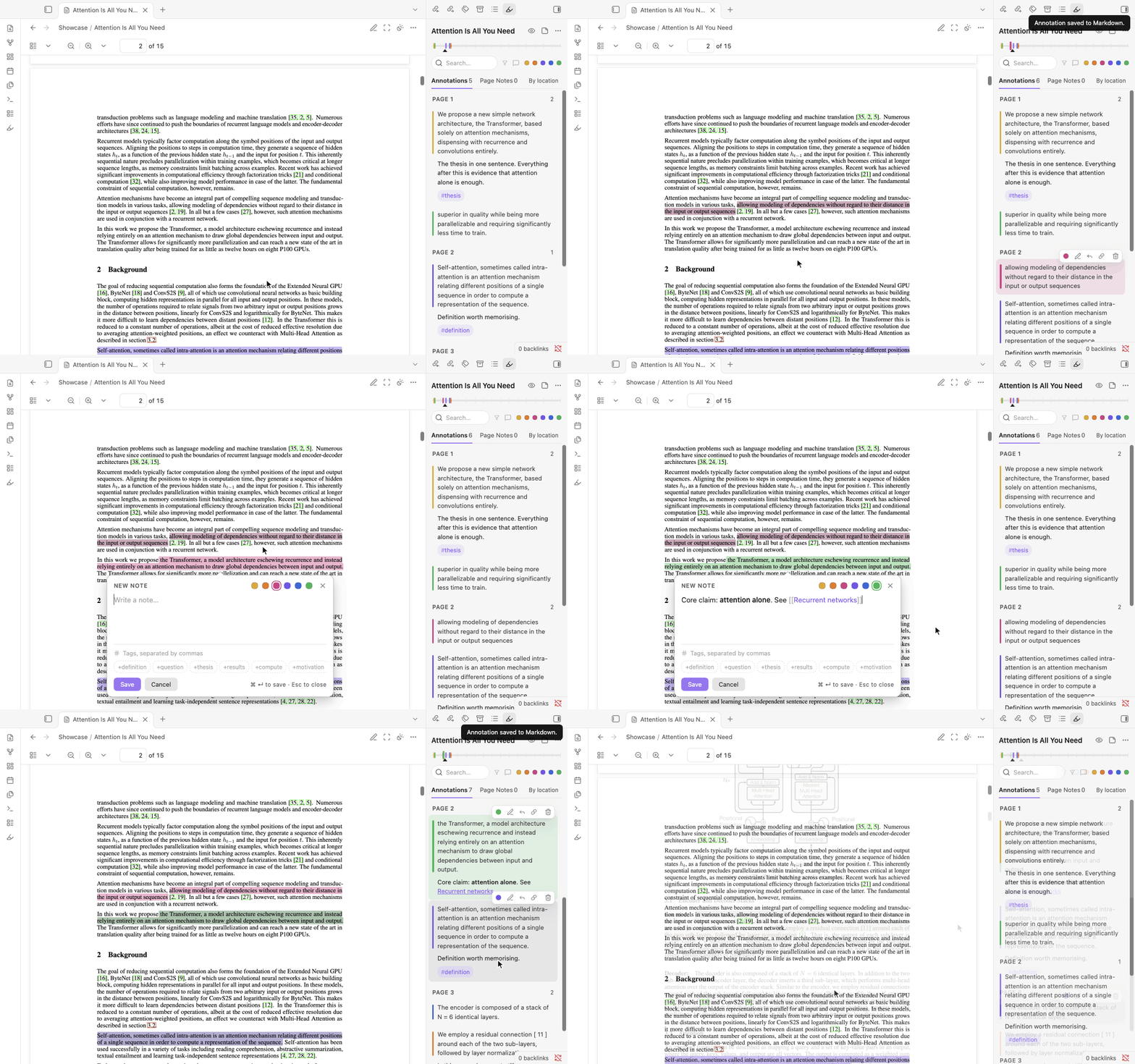
Version 0.3 is a new reader. Earlier versions showed the Hypothesis web client in a frame; this one is built on Obsidian's own PDF view and editor. Your annotation notes are read and written in the same format as before: Coming from Annotator 0.2 says what changes.
Install
In Obsidian: Settings → Community plugins → Browse, search for "Annotator", install and enable it. It needs Obsidian 1.11.4 or later and works on desktop (macOS, Windows, Linux) and Android. On iOS and iPadOS the reader has been tested in the iOS Simulator; a check inside Obsidian on an iPhone or iPad is still to come.
Start
- Open a PDF or a book from your vault and run Open annotations sidebar from the command palette. Select text to highlight it or write a note.
- Or make a note with an
annotation-targetproperty that names a file or a web address, and open it. - Open annotated source… lists everything you have annotated.
The rest of this page says what you can do and how.
Where annotations live
Each source has one annotation note: a Markdown note with an
annotation-target property that names the source. Open the note, or the
source, and the reader shows both. The note is yours to move, rename and edit;
the sidebar's menu has Open annotation note.
A new annotation note starts with the heading "Annotations". In the settings
you can choose another heading, or name a template note: its properties and
text are kept ({{title}}, {{date}} and {{target}} are filled in) and
annotations are added after it.
The annotation-target may be written in any of the usual ways:
| Written as | Example |
|---|---|
| A path in the vault | annotation-target: Papers/Attention.pdf |
| A wikilink | annotation-target: "[[Attention.pdf]]" |
| An embed | annotation-target: "![[Attention.pdf]]" |
| A Markdown link | annotation-target: "[Attention](Papers/Attention.pdf)" |
| A web address | annotation-target: https://arxiv.org/pdf/1706.03762 |
| An HTML file in the vault | annotation-target: "[[Saved page.html]]" |
| A Dataview inline field | annotation-target:: [[Attention.pdf]] in the note's text |
A name that differs from a file's only by the kind of space in it (a no-break space pasted from a web page) still finds that file.
The note is the source's property sheet
A PDF or a book cannot carry properties of its own, so the annotation note is
where they go: tags, a status, an author, whatever you list your reading by.
The note opens its source, and Add the PDF's details to the note makes
the note (with the PDF's title, authors and year) even before the first
highlight. Make a Base of everything annotated writes
Annotated sources.base at the top of your vault and opens it: a table of
every annotation note with its source, progress, author, year and tags, and a
second view of what you are in the middle of. It is yours to change; running
the command again opens it and writes nothing. Made by hand, such a Base
needs one filter:
filters:
  and:
    - '!note["annotation-target"].isEmpty()'
views:
  - type: table
    name: Sources
    order:
      - file.name
      - note.annotation-target
      - note.annotation-progress
      - note.author
      - note.year
annotation-progress is there when
reading progress is kept in the note.
Nothing is stored anywhere else. If a block in the note is damaged (a sync conflict, a slip of the hand), the readable annotations are still shown, the sidebar names the damaged part with a button to its line, and nothing is written until you have repaired it.
Highlighting and notes
Select text. A small bar appears with six inks and Note.
- A colour highlights the passage.
Hhighlights in the last colour used,1–6pick a colour,Aopens a note on the passage. - A note is written in Obsidian's own editor: links, tags, lists and
formatting work as in any note.
Ctrl/Cmd+Entersaves,Escapecancels. - A selection may run over a page break in a PDF; it is one highlight.
- In the sidebar, a card's quote takes you to the passage; its actions edit, reply, copy a link to the annotation, or delete. Deleting can be undone.
- Page notes (the second tab) are notes about the whole source. One written while a PDF page or a book chapter is in view remembers it: its card says "Page 12" (or the chapter) and goes there, and in an exported PDF it sits on that page.
The sidebar can sort by place or by date, filter by colour or to what has a
note, and search
(tag:idea, text:…, quote:…, since:7day narrow it). The strip at its top
shows where the annotations fall in the source and where you are.
To search every annotation in the vault at once, run Search all
annotations…: type a few letters of a quote, a note, a #tag or a source's
title, and choosing a result opens its source at the passage.
PDFs
The reader works on Obsidian's built-in PDF view. Three buttons are added to the view's header, and a fourth while it has something to do: after you follow a link inside the PDF (a citation, a contents entry), Back to page N returns you to where you were. The command PDF: go back to where a link was followed does the same and can be given a hotkey.
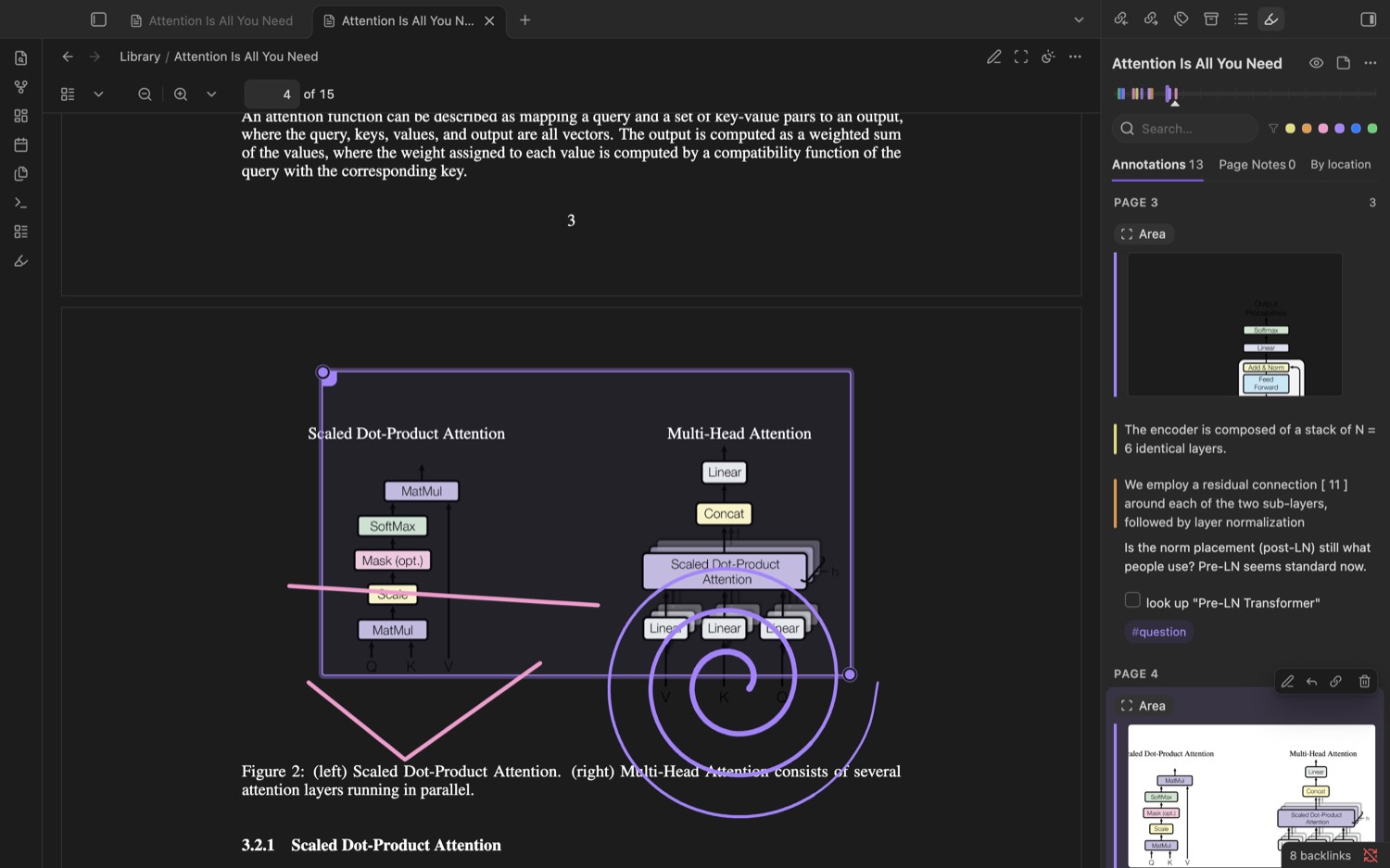
Page appearance chooses the paper: Auto (follows your theme), Light, Sepia, or Dark. The Sepia paper is a styling variable (see STYLING.md), so it can be parchment or anything else.
On a dark page the text is light and pictures are left as they are, so a line drawing in black on a clear ground can vanish. Darken pictures too (in the same card) turns the whole page instead: drawings and diagrams show, and photographs look like negatives. Pictures you keep of areas are taken from the page as printed either way.
Mark an area keeps a picture of part of a page with a note: a figure, a
table, an equation. Drag over the part to keep, or press Enter to place a
frame and move it with the arrow keys. The picture is saved as an attachment
and leads the note. The words that lie inside the area are kept with it, so a
picture of a table is found by what it says.
- Select a saved area to move it (arrow keys, or the grip at its top-left
corner) or resize it (
Shift+arrow keys, or the grip at its bottom-right). Its picture is taken again. - A PDF that is pictures of pages (a scan) has no text to select. The sidebar says so and offers areas and drawing, which work on any page.
Draw on the page is freehand: underline, circle, point, write in the margin. The toolbar has the six inks, three pens, an eraser, Undo, Done and Cancel.
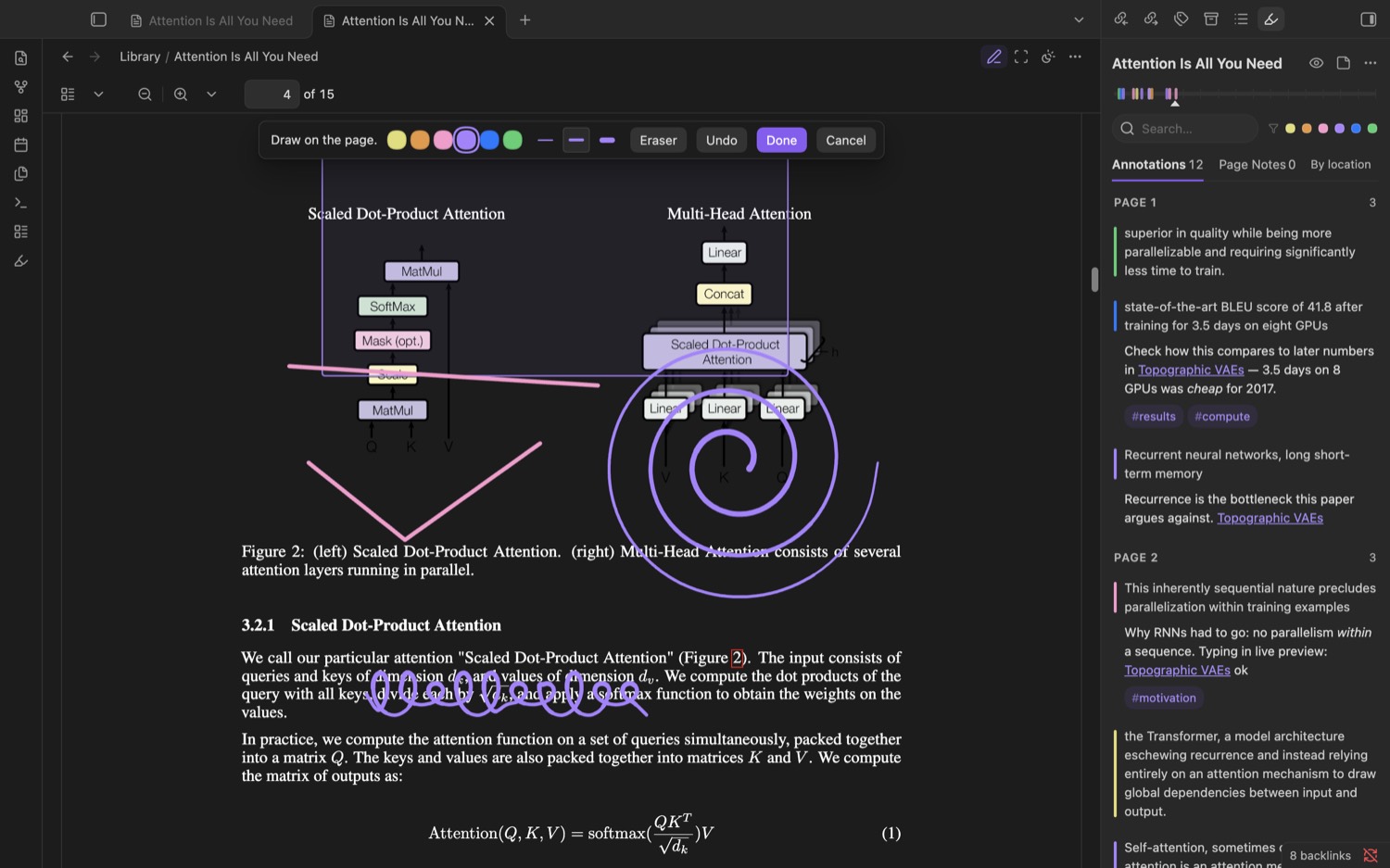
- A pen that reports pressure draws thinner and thicker; fast strokes are smoothed. Once a pen has drawn, a finger moves the page instead of drawing.
- The eraser (the button, or the other end of the pen) removes whole strokes.
Ctrl/Cmd+Ztakes back the last change, an erasure too.Enteror Done keeps the drawing. - A saved drawing can be put right. Select it: the grip at its corner drags
it, the arrow keys move it, and the pencil (or
Enter, or a double-click) opens it again to erase strokes, add to it, or give it another ink. Its note and tags are untouched.
Export a PDF with its annotations
Export PDF with annotations (command palette, or the sidebar's menu) saves
<name> (annotated).pdf beside the PDF. Any PDF reader shows it with the
highlights in their colours and their notes as comments, areas as boxes,
drawings as ink and page notes as sticky notes.
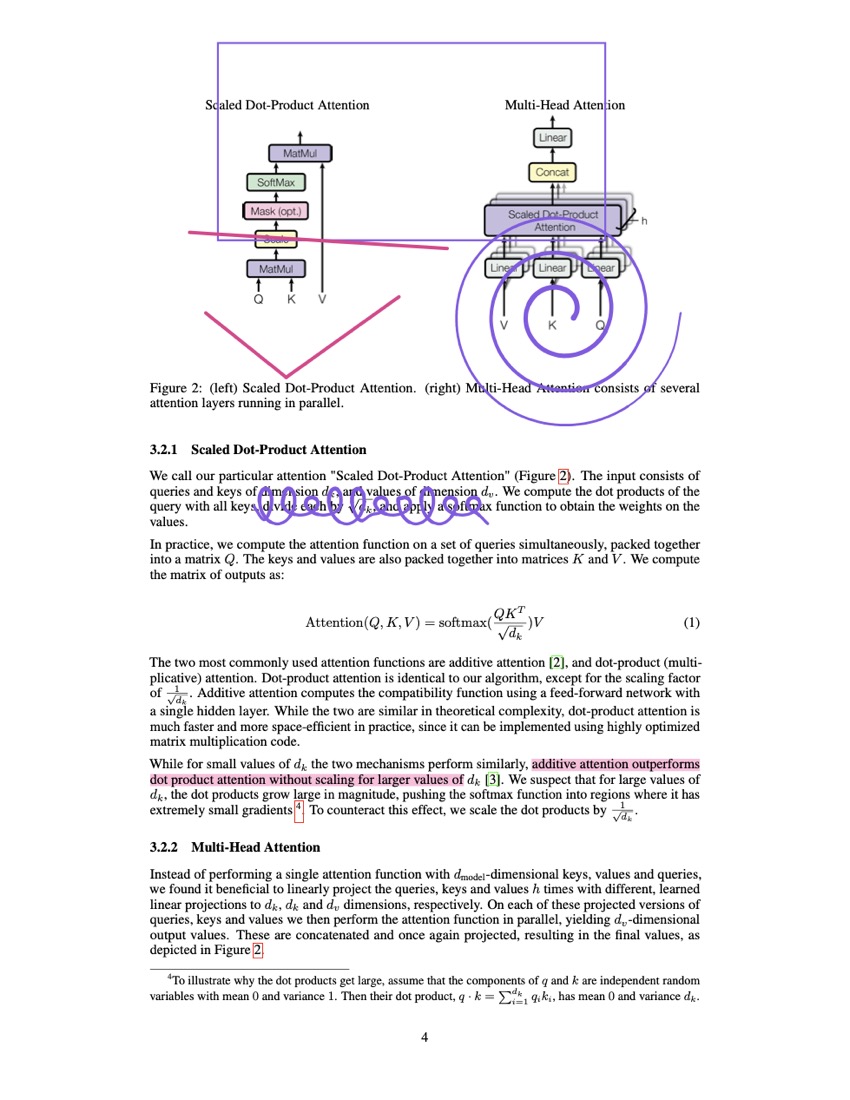
The original file is never changed: the copy is the original with the annotations added after it. Exporting again replaces the earlier copy. Encrypted PDFs cannot be exported this way; the reader says so.
The PDF's own details
Add the PDF's details to the note (sidebar menu or command palette) reads
what the file records about itself (title, authors, year, DOI, subject,
keywords) and adds them as properties of the annotation note. Properties the
note already has are left alone, and nothing is looked up online. Export
templates can then use {{title}}, {{author}} and {{year}}.
A PDF that was annotated in another program
PDF annotations are part of the PDF standard, so what Preview, Acrobat, a tablet's note app or a reference manager put into a file can be read. When a PDF holds such annotations the sidebar says so and offers to take them in (also in the sidebar's menu and the command palette):
| In the PDF | Becomes |
|---|---|
| Highlight | A highlight of the words under it, in the nearest ink, with its comment as the note |
| Underline, strike-out, squiggly | The same, tagged underline, strike-out or squiggly |
| Rectangle, oval, text box | An area, with its text as the note |
| Sticky note | A small area at its spot, with its text as the note |
| Ink | A drawing |
| An answer to any of these | A reply |
From then on they are annotations like any other: edit, recolour, move, tag, link and export them. They keep the date they were made.
- The PDF file is not changed, so its own copies stay visible on the page
under yours. Export PDF with annotations writes a copy in which each is
there once, as it is in your notes now; a passage tagged
underline,strike-outorsquigglyis written as that kind of mark. - Taking in again adds only what is new in the file.
- Not taken: stamps, attached files, form fields, review states, and anything in an encrypted PDF. A mark over a scanned page (no text under it) comes in as an area.
Books (EPUB)
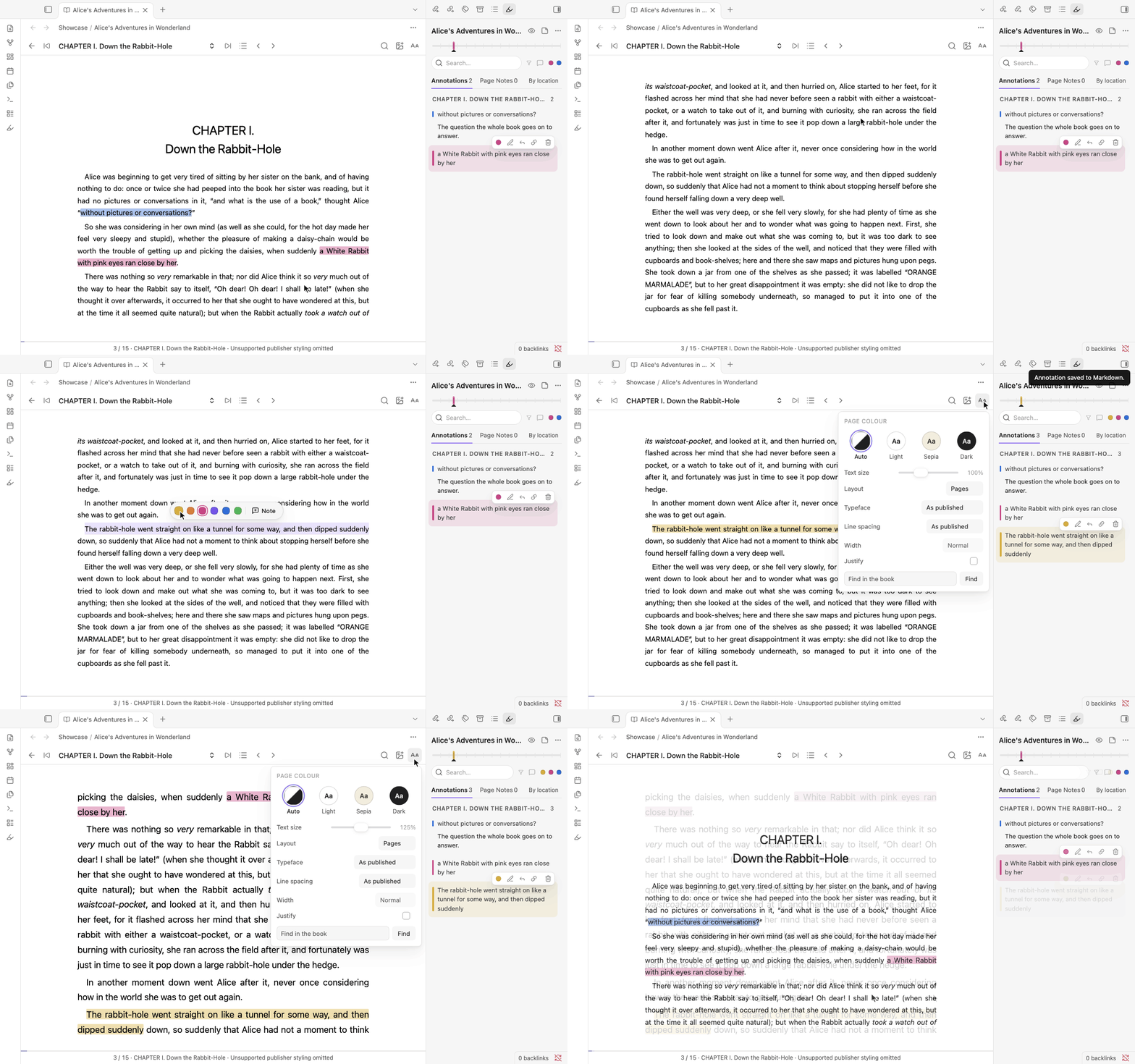
The bar has Back, the chapter with turns either side, Contents, page turns, Find, Keep a picture and Reading controls.
-
Contents lists the book's own table of contents, nested, with where you are and how many annotations each chapter holds.
-
Find (
Ctrl/Cmd+F) looks through the whole book and lists every match under its chapter; a result takes you there and selects the words. -
In the Pages layout a swipe turns one page, as does a tap at either side of the page; the arrows in the bar and the arrow keys do the same.
-
Reading controls: page colour, text size, layout (Scroll or Pages), typeface, line spacing, column width and justification. Fixed-layout books keep the publisher's pages as they are.
-
Keep a picture with a note (the picture button, or the Mark an area command): every picture on screen offers itself; click one, or Tab to it and press
Enter. The picture's own file, as the book holds it, is saved as an attachment and leads the note; the kept picture is framed in its ink. What the book says about the picture (its description and caption) is kept with it, so it is found by search. A book's text has no fixed page, so it is the whole picture that is kept, not a rectangle; text in tables and captions is highlighted like any other text.
The thin line at the bottom is how far you are through the book.
Videos and recordings
A note whose annotation-target is a YouTube link, or a video or audio file
in your vault, with annotation-target-type: video, opens as a player with
timed notes.
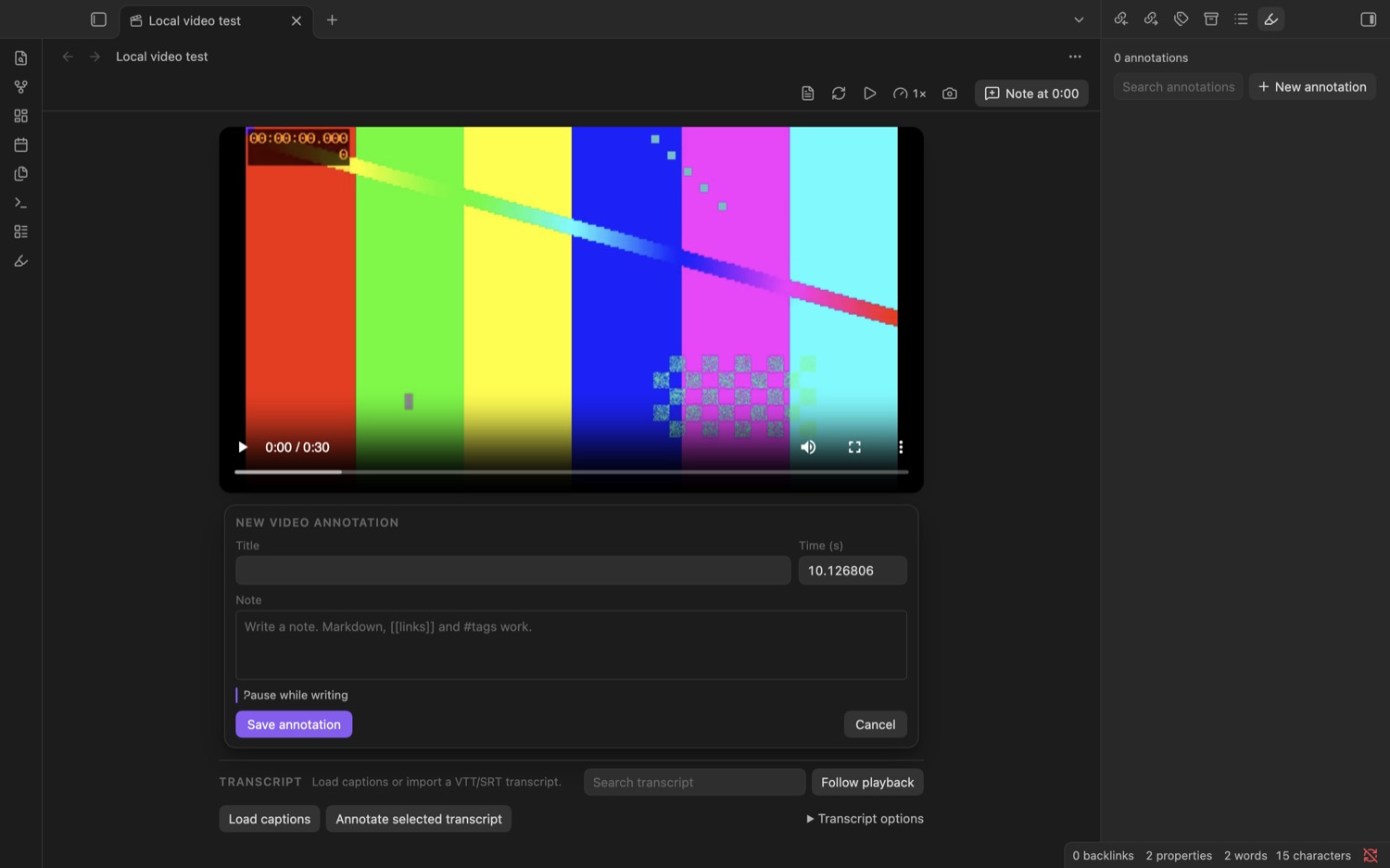
- Note at 0:12 (or
N) writes a note at the current moment, in a card under the picture. The video waits while you write; untick Pause while writing to keep it running. - The camera button (or
S) makes a frame note: the frame is frozen, you keep all of it or drag over a part, and the note opens with the picture. This reads the frame of a video file directly. For YouTube it pictures the player in the app's window, which only works on desktop; elsewhere you get a plain note at that moment. - The timeline under the player has a marker for every note.
KorSpaceplays and pauses,JandLskip ten seconds, the arrow keys five. - Captions can be loaded or imported (VTT or SRT). Select words in the
transcript and a bar offers Highlight (
H: kept at once, at the time they are said) and Note (A: a note that quotes them). What your notes quote is marked in the transcript; a mark leads to its note. - An audio file gets a slim player and everything else the same.
Web pages
A web page is annotated where it lives: the real page, in Obsidian's own Web
viewer (a core plugin; desktop). Open a note whose annotation-target is a
web address, or run Open website in core Web viewer, and the page opens
with its annotations on it.
- Highlights and notes. Select text on the page; the bar offers the inks and Note. A highlight is painted in the page's own text and found again by its words when the page has changed around it. Click one to open its note.
- Keep a picture with a note (the picture button beside the address bar,
or the Mark an area command): every picture on the page offers itself;
click one, or Tab to it and press
Enter;Escapeleaves. What the Web viewer showed of the picture is saved as an attachment and leads the note, and the picture is framed in its ink on the page. It is found again by its place and by its address, and by its address alone if the page has moved it. Nothing is downloaded for this: the picture kept is what was on screen. - Nothing a page says is treated as an instruction. The page can only offer a selection or a picture; what is saved is shown in Obsidian's own window first, and saving takes your click there. Your notes are never sent to the page.
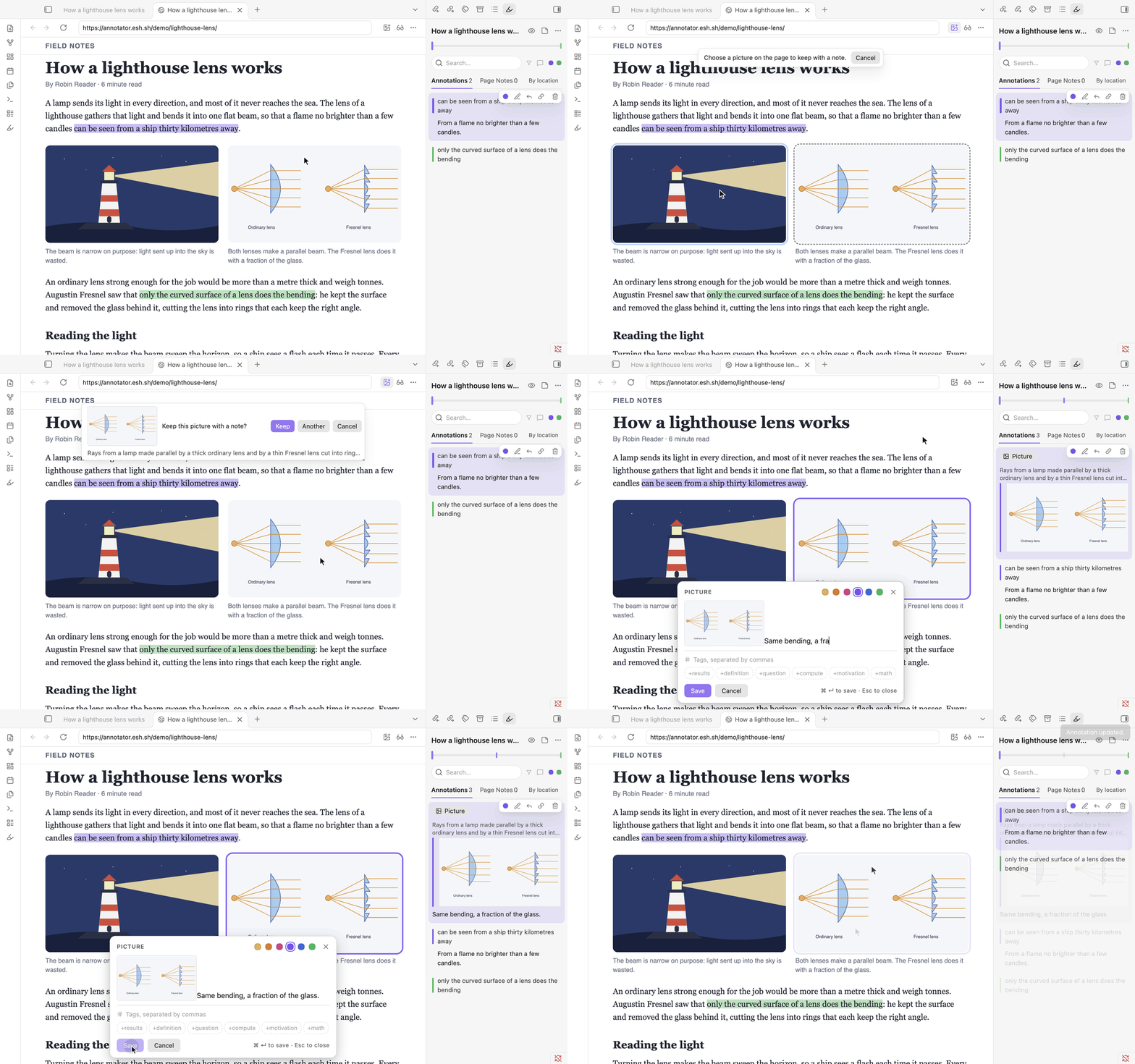
To try it, open the sample article at
https://annotator.esh.sh/demo/lighthouse-lens/ in the Web viewer: it is the
page in the recording, and its text and pictures are free to reuse.
Where there is no Web viewer (phones and tablets) or no network, a reading copy stands in: Save website as an offline Markdown reading copy keeps the page's text as a note you can read and annotate anywhere, and the annotations made on the live page show on it. A reading copy is text only: a picture note is listed with its picture, but has no place on the copy.
An HTML file in the vault can be a source too: point a note's
annotation-target at it. The first time, a reading copy is made from the
file and kept beside it ("… (reading copy).md"); that copy is what you read
and annotate, offline, and it syncs with the vault. The HTML file is not
changed. A page saved from a browser keeps the address it came from.
Sources outside the vault
A note may point at a file on the internet or elsewhere on your computer. The
first time, the reader asks, then downloads or copies it once into
Annotator sources in your vault and reads it from there. If that fails it
says why, and nothing is left behind.
A file on your computer is written as its full path, the way your system
writes it, or as a file: address:
| Written as | Example |
|---|---|
| A path on macOS or Linux | annotation-target: /home/me/Papers/Attention.pdf |
| A path on Windows | annotation-target: C:\Users\me\Papers\Attention.pdf |
| A file address | annotation-target: file:///C:/Users/me/Papers/Attention.pdf |
The key is annotation-target, spelled exactly so and without a colon of its
own: in Obsidian's Properties editor, type the name alone and the path as its
value. A note whose property is a near miss (annotation-target:,
annotator-target) is told so when it opens, with a button that renames the
property.
With Zotero
Zotero can stay your library while you annotate in Obsidian.
- The PDF. Zotero keeps each attachment in its data folder, under
storage, in a folder with an eight-character name (in Zotero, right-click the PDF and choose Show File). Give that path as the note'sannotation-target, for example/Users/me/Zotero/storage/N7SMB24A/Attention.pdf. The reader asks once, copies the file intoAnnotator sourcesand reads the copy; Zotero's file is never changed. - Highlights made in Zotero's own reader are kept in Zotero's database,
not in the PDF, so the file in
storagedoes not carry them. Zotero can export a copy that does (File → Export PDF…). Put that copy in your vault and run Take in the annotations this PDF already holds. - The other way, Export PDF with annotations writes a copy with your highlights as standard PDF annotations, which is the kind Zotero's reader shows for a PDF that has them.
- Details. Add the PDF's details to the note reads what the PDF records about itself. Nothing is read from Zotero's database.
The first point was tried on macOS with a folder laid out like Zotero's. The exchange of highlights rests on both programs following the PDF standard and has not been tried with Zotero itself.
Reading progress
With Keep reading progress in the note on (settings; off by default),
leaving a PDF, book or video writes where you were to its annotation note as
the property annotation-progress ("12/340", "37%", "12:34"), so a list or a
Base can show what you are in the middle of. It is written once, on leaving.
The note travels with your vault, so the place does too: when a note says something this device did not write, the source opens there (the page of a PDF, the part of a book, the time in a recording). After that the device's own place is the newer one again.
Exporting notes
From the sidebar's menu:
- Copy all as Markdown and Export to a summary note: callouts, plain
quotes, or your own template (
{{quoted}},{{quote}},{{note}},{{image}},{{kind}},{{location}},{{link}},{{colour}},{{tags}},{{date}},{{title}},{{author}},{{year}}). - Export as individual notes + Base: one note per annotation with properties, and a Base that lists them.
- Export PDF with annotations (PDFs).
- Hypothesis JSON, from the command palette, for other annotation tools.
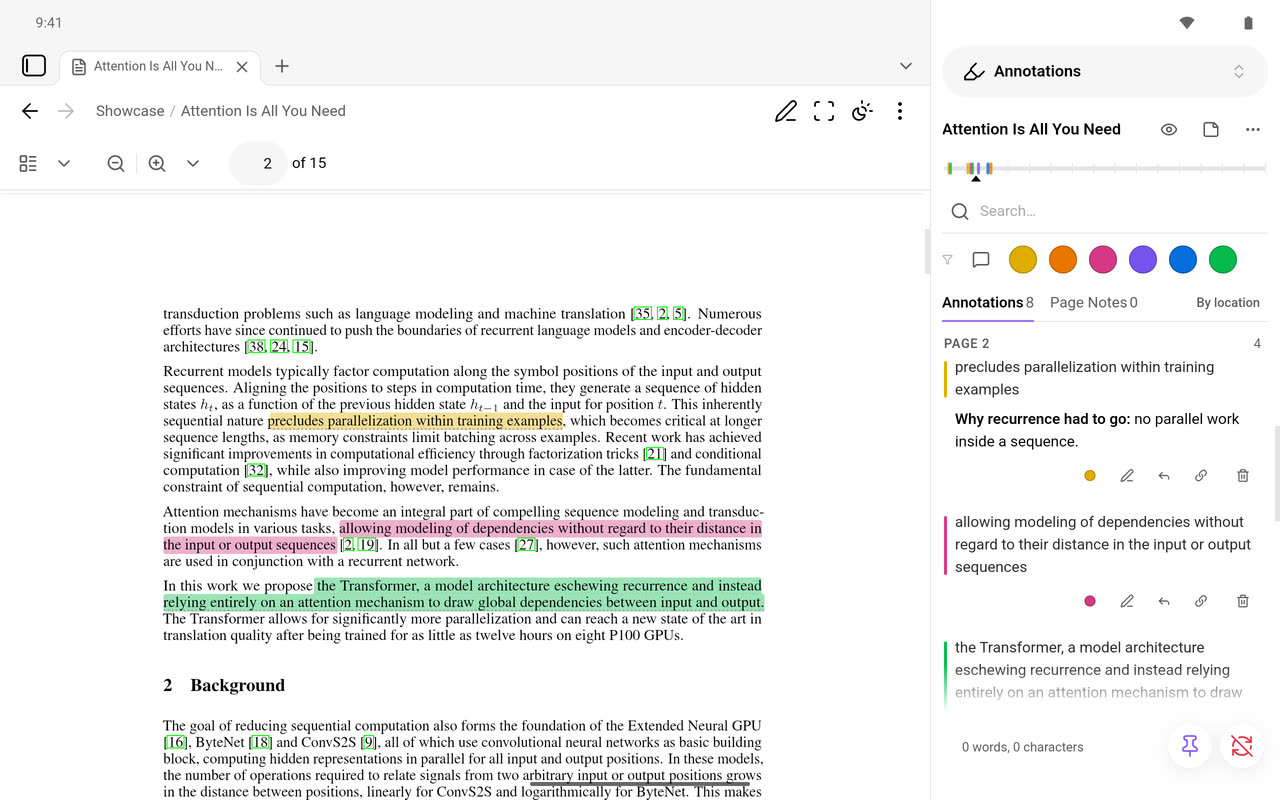
On phones and tablets
Obsidian for Android on a phone, left to right: a PDF with its highlights, a selection with the bar, a note being written, the annotations in the right drawer, and a book.
Read full screen (in the view's menu, or the command) hides the app's header and navigation bar while you read; the small button at the bottom corner brings them back, and they come back by themselves when you go to something that is not a source.
Long-press to select; the bar with the inks and Note sits above the navigation. A note is written in a sheet above the keyboard. Marking an area and drawing work by touch. Page colours and a book's contents open as sheets from the bottom. Opening a source shows the source: the annotations are in the right drawer when you want them.
On a tablet there is room for both. The first time a source is opened with the tablet held wide, the right drawer is docked beside the page with the annotations in it; undock it and it stays undocked. A note is written beside its passage, above the keyboard, and two sources can be open side by side, each with its own annotations.
Keyboard
| Where | Keys |
|---|---|
| Text selected | H highlight, 1–6 ink, A note |
| Writing a note | Ctrl/Cmd+Enter save, Escape cancel |
| Marking an area | Enter place or keep, arrows move, Shift+arrows resize, Escape leave |
| A saved area, focused | arrows move, Shift+arrows resize, Alt for fine steps |
| Drawing | Enter keep, Ctrl/Cmd+Z undo, Escape leave (asks once) |
| A saved drawing, focused | arrows move, Alt for fine steps, Enter open for changes |
| Book | Ctrl/Cmd+F find |
| Video | K/Space play, J/L ±10 s, arrows ±5 s, N note, S frame note |
Every command is in the command palette and can be given a hotkey.
Making it yours
Highlights, cards and pages follow your theme. Colours, highlight strength, the paper of the Sepia page and more are variables you can set from a CSS snippet or the Style Settings plugin: see STYLING.md.
Coming from Annotator 0.2
Updating is all there is to do.
- Your notes are not converted. The annotation blocks in your notes are
the format this version reads and writes. Check annotation notes
(migration) in the command palette counts your annotated sources and
highlights and lists anything that cannot be read; it changes nothing.
One character differs in what is written from now on: the tags line of a
new or edited annotation has a space after its quote mark (
> #tag), so that every tag is clickable in Live Preview. Annotator 0.2 reads that line to the same tags, and blocks you do not edit stay as they are. - Your settings come along at the first start: dark mode, the book's
reading mode and text size, the default folder, the Markdown options and
whether annotation notes open in the reader. The settings file and the
workspace as they were are kept beside the plugin, in
native-upgrade-backup-v1.json. - Tabs that were open on an annotated source open again on it.
- Switch between reader and Markdown note is the same command, so its hotkey still works.
What you should notice, measured on the same vault (how):
| 0.2.11 | 0.3.0 | |
|---|---|---|
| Plugin files on disk | 26.3 MB | 1.5 MB |
| Enabling the plugin at each start, desktop | 1.1 s | 0.014 s |
| The same on an Android emulator | 6.0–8.6 s | 0.05–0.13 s |
| First highlight of an annotated PDF, Android emulator | 2.0–2.7 s | 0.9–1.4 s |
| The same on a desktop | 0.32–0.48 s | 0.40–0.43 s |
| Memory kept after closing a 7.6 MB PDF | 9.7 MB | 0.2 MB |
What is different:
- PDFs open in Obsidian's own PDF view, with the annotations in a sidebar that you can dock where you like. Books, web pages and videos each have their own view. Nothing is loaded from the Hypothesis client any more.
- A web page is read as a copy saved in your vault (or in Obsidian's Web viewer), not through a frame.
- Videos are annotated by time and by frame in the plugin itself; the annotate.tv setting of 0.2 is no longer used.
- Notes written here can hold things 0.2 did not have: areas, drawings, picture notes, annotations taken in from a PDF. Annotator 0.2 on another device still reads such a note.
What is checked, and how
The rules that decide what is written into your notes (the annotation format, creating, editing and deleting a block, reading a changed note in parts, the geometry of areas and of lines drawn by hand) are written in Bend and proved for every input; the proofs are checked on every build. The rest is tested: over 600 tests of the reader, and the PDF export is read back with two independent PDF readers. See proofs/README.md and SECURITY.md.
Limits to know about
- A highlight over a page break is shown by Annotator 0.2 (on a device not yet updated) on one page only.
- A frame of a paused YouTube video includes the player's own controls; take it while the video plays.
- Text in scanned PDFs is not recognised (no OCR).
- A PDF placed on a Canvas is shown without its highlights; open it in a tab to see and make them.
- Drawing is for PDFs; books have highlights, notes and picture notes, videos have notes and frame notes.
- A picture note in a book is not shown by Annotator 0.2 (it has no passage to anchor to there); the note itself is kept.
- iOS and iPadOS: the reader's own code has been run in iOS WebKit in the Simulator (selection, highlights, notes, drawing, books), not yet inside Obsidian for iOS on a device. YouTube may refuse to play there (its Error 153). The reader then says so and offers Open in YouTube; a note's time opens the video there at that time, and notes and the transcript work as before.
If Obsidian adds PDF annotation of its own
PDF annotation is on Obsidian's public roadmap as planned (November 2026). Nothing can be said yet about how it will work, so nothing is promised here about working with it. What holds today: your annotations are Markdown in your own notes, not in a database; Export PDF with annotations writes them into a copy of the PDF as standard PDF annotations, which any program that follows the standard reads; and Take in the annotations this PDF already holds reads standard annotations another program wrote. Books, web pages and videos are not PDFs and stay as they are.
Contributing
CONTRIBUTING.md says how the repository is laid out and how to build, test and check the proofs. Bugs, questions and suggestions are welcome as issues. What changed in each version is in CHANGELOG.md.
License
Annotator is licensed under the GNU AGPLv3: see LICENSE.TXT. The licences of the code it bundles are attached to each release.
Support
If you want to support me and my work, you can sponsor me on GitHub (preferred) or donate on PayPal.