
README file from
GithubVaultend — Obsidian Plugin
Focus on writing. Let AI handle the organization.
An AI-powered vault maintenance plugin for Obsidian. Automatically tag, link, and organize your notes — with full privacy control and undo safety.



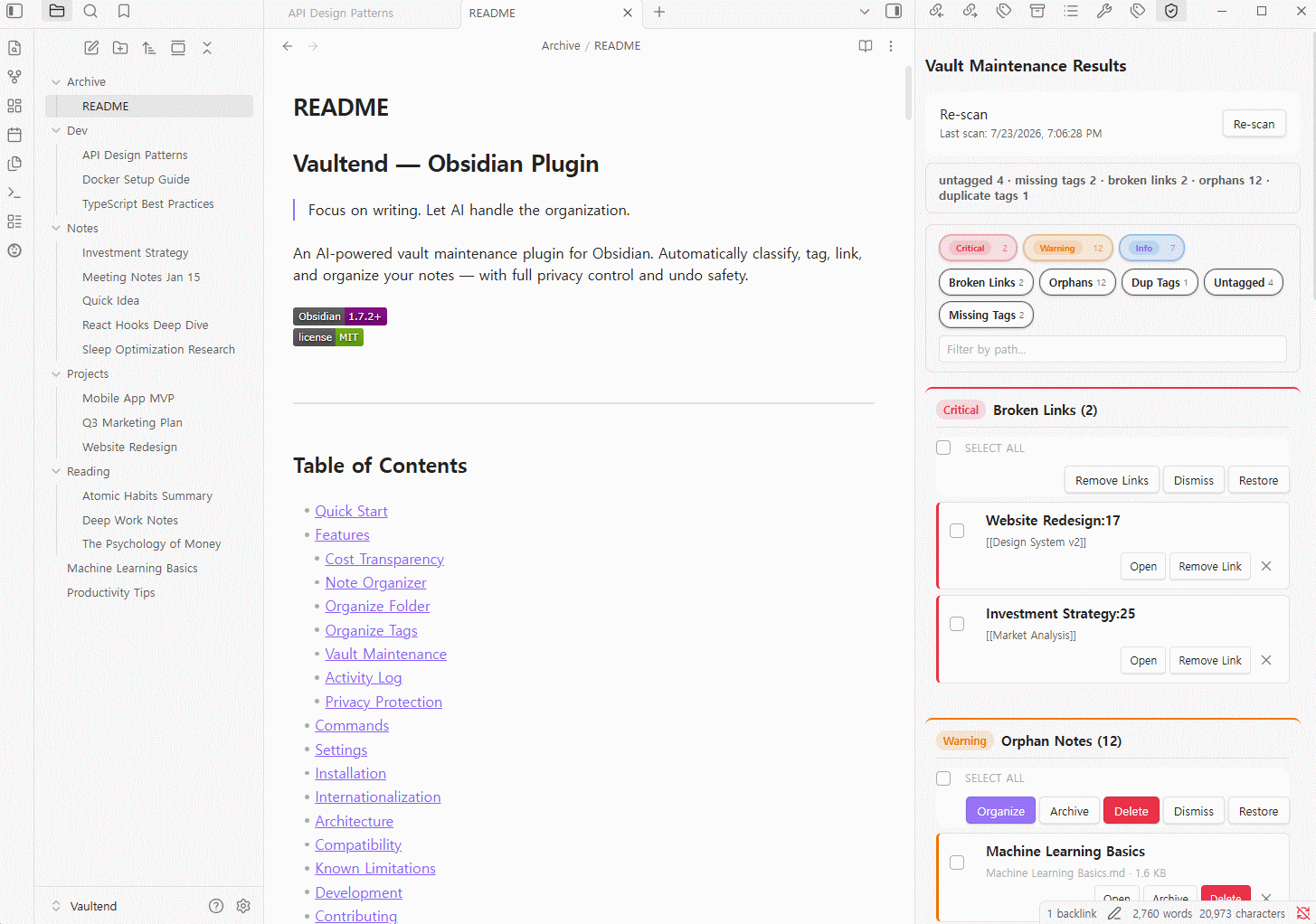
Table of Contents
- Quick Start
- Features
- Commands
- Settings
- Installation
- Internationalization
- Compatibility
- Known Limitations
- Development
- Contributing
- License
Quick Start
- Install the plugin (see Installation)
- Go to Settings → Vaultend → AI Provider
- Select your provider (OpenAI, Google Gemini, Ollama, or Custom) and enter your API key
- Open the Command Palette (
Ctrl/Cmd + P) and try Organize Current Note
That's it. The plugin is ready to organize your vault.
Features
Cost Transparency
Every AI feature in this plugin shows token usage and estimated cost after each call. No hidden spending — you always know exactly what you're paying for.
| Feature | Where cost is shown |
|---|---|
| Note Organizer | Bottom of the result modal |
| Organize Folder | Per-note in the result side panel |
This is a deliberate design choice: AI tools should be transparent about resource consumption.
Note Organizer
Analyze the active note with AI — tag and link — all from an interactive modal.
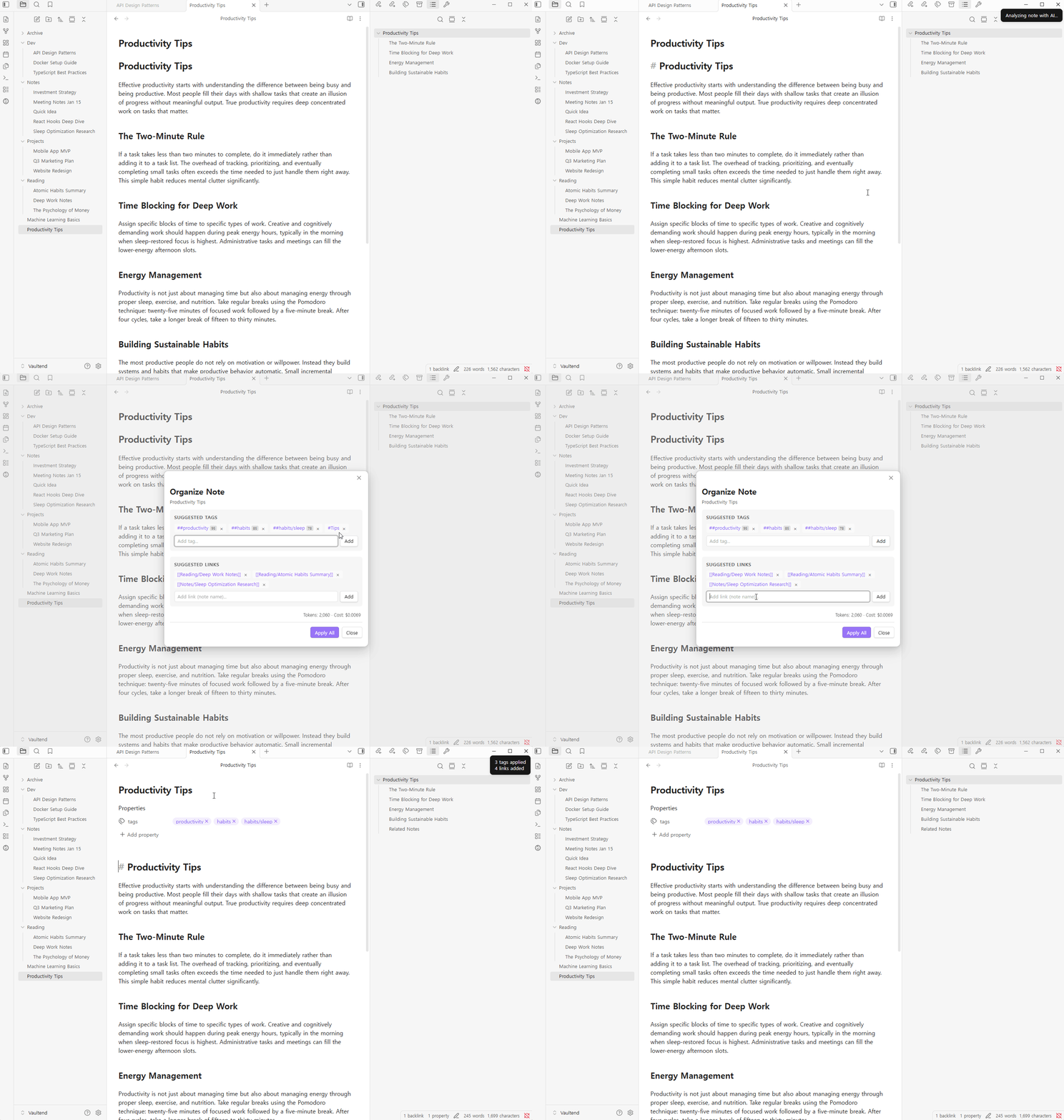
How to use: Open a note → Ctrl/Cmd + P → "Organize Current Note"
This command only appears when a note is actively open in the editor.
The AI will:
- Suggest tags using a hybrid strategy — strongly-matching existing tags are preferred (per-tag confidence ≥ 0.7), and new tags are freely created when no strong match exists. New tags never semantically overlap with existing ones.
- Propose links via AI analysis with vault existence validation — only notes that actually exist in your vault are suggested, preventing broken links
- Summarize the note content for quick reference
Results open in an interactive modal where you can review and edit everything before applying:
| Feature | Description |
|---|---|
| Editable tag chips | Remove suggested tags or add your own with the input field |
| Editable link chips | Remove suggested links or add new ones |
| Apply All | One click to apply tags + links together |
| Re-organize | Re-run AI analysis to get fresh suggestions |
| Token & cost display | See exactly how many tokens and how much the AI call cost |
Nothing changes until you click Apply All. You're always in control.
Organize Folder
Batch-organize any folder in your vault with AI. Pick a folder, and the plugin suggests tags and links for each note — with full per-note review in a side panel.
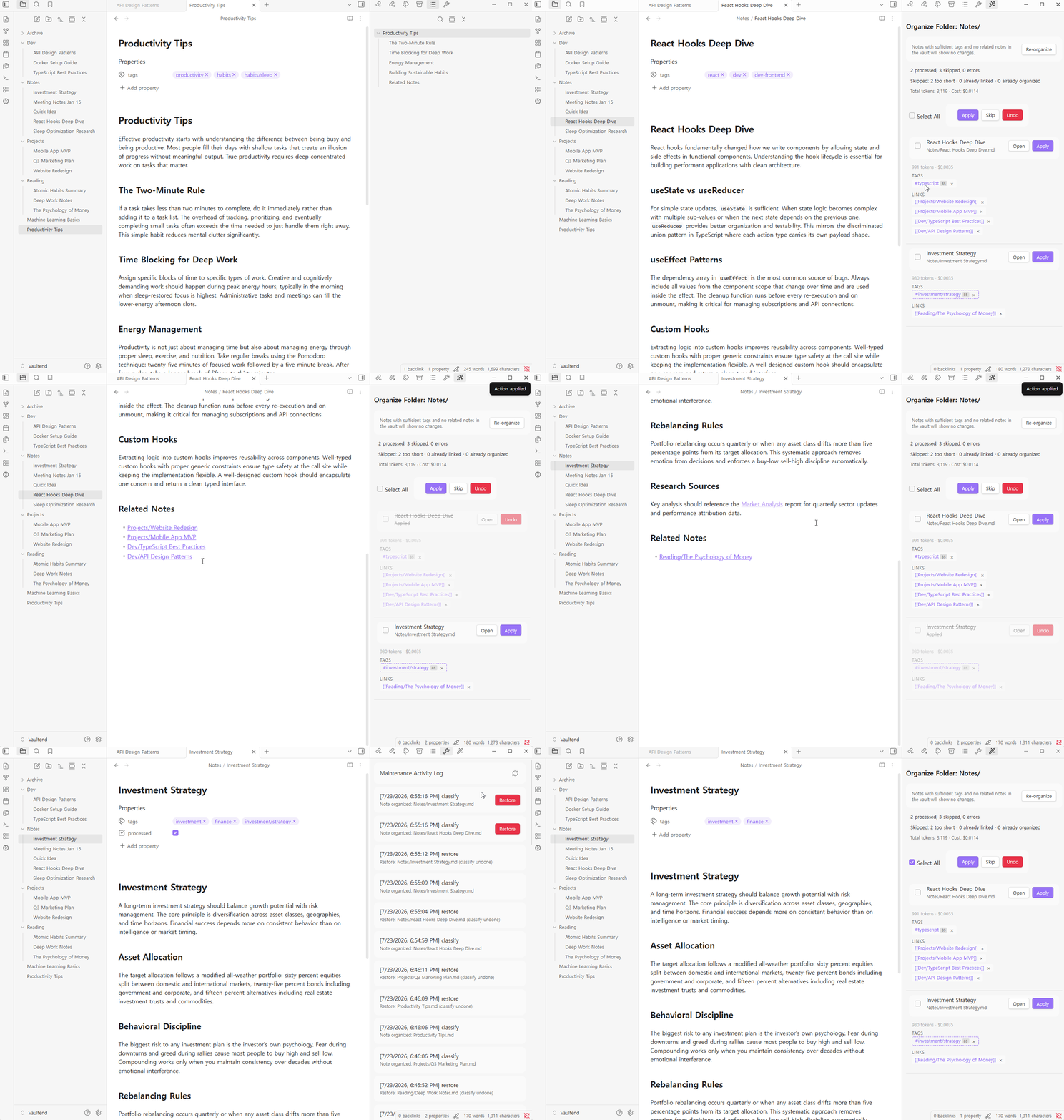
How to use:
- Command Palette:
Ctrl/Cmd + P→ "Organize Folder" → select a folder from the fuzzy search modal - Context menu: Right-click a folder → "Organize Folder"
How it works:
- Select a target folder (any folder in your vault)
- The plugin scans all notes in that folder (progress shown in a side panel with progress bar, counter, and cancel button)
- Each note gets sent to AI for tagging and link suggestion
- Results open in a side panel with per-note detail
Result panel features:
| Feature | Description |
|---|---|
| Per-note detail | Summary, suggested tags and links for each note |
| Tag/link chips | View suggested tags and links as removable chips |
| Apply / Skip | Apply changes per-note or skip individual notes (autoApply=off) |
| Batch preview | Before batch-apply, preview all suggestions in a modal with per-tag/link chip toggles (× to disable, ↺ to restore) — remove unwanted suggestions without re-calling AI |
| Batch operations | Select All checkbox + "Apply" / "Skip" buttons |
| Undo | Revert any applied change (tags, links) via Undo button |
| Open note | Click to open any note directly from the result panel |
| Token & cost | Per-note token usage and estimated cost |
Two modes:
- autoApply=off (default): Review each note's suggestions, check/uncheck, then Apply
- autoApply=on: Changes are applied automatically; use Undo to revert any unwanted change
How AI decides tags and links:
- Tags: Hybrid strategy — strongly-matching existing tags are preferred (per-tag confidence ≥ 0.7), new tags are created when no strong match exists. New tags never semantically overlap with existing ones.
- Links: AI analyzes note content and selects related notes from your vault. Every suggested link is validated against actual vault notes — hallucinated links are filtered out.
Organize Tags
Find and merge duplicate tags across your vault using AI-powered similarity detection.
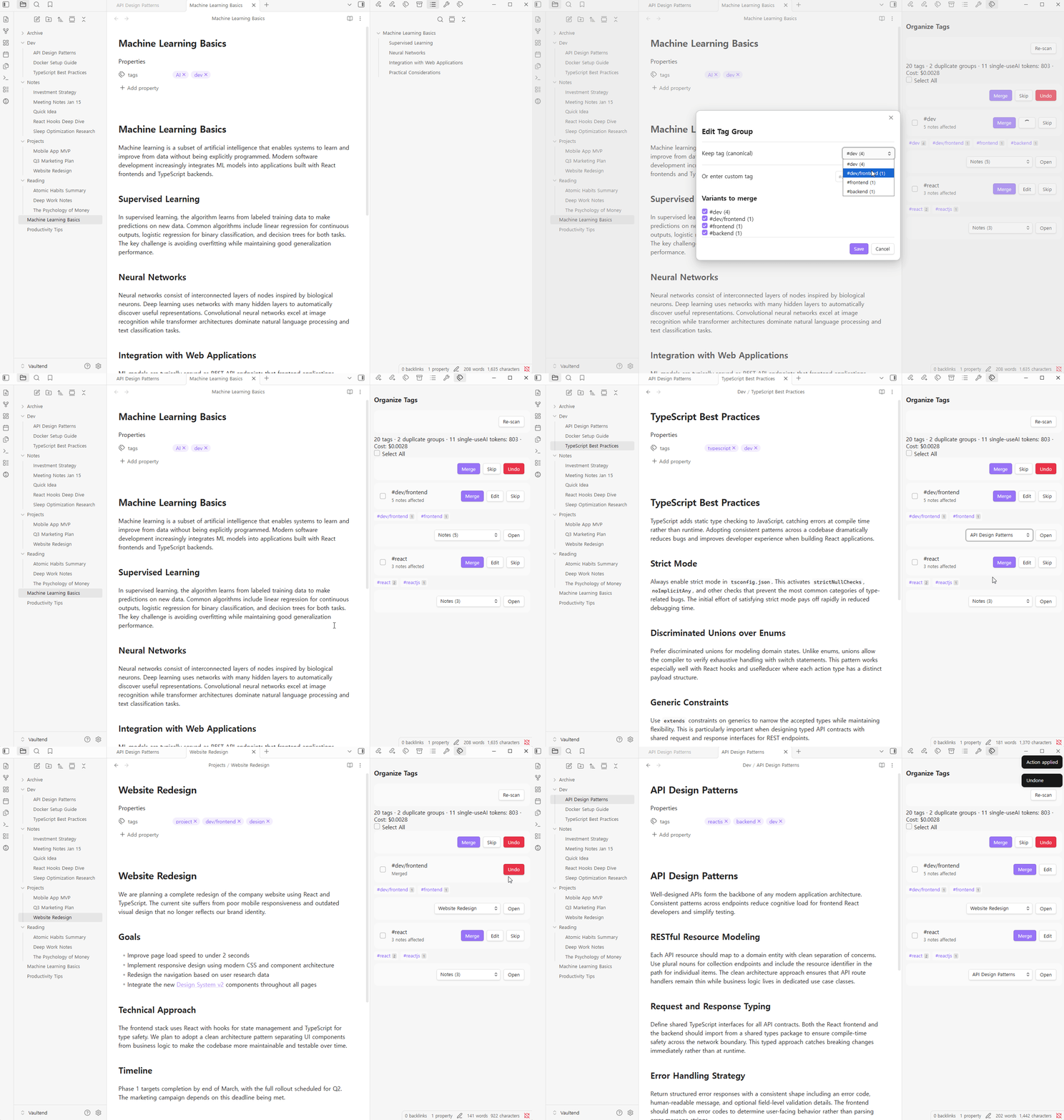
How to use: Ctrl/Cmd + P → "Organize Tags"
How it works:
- The plugin collects all tags in your vault
- Stage 1 — String normalization: groups tags that differ only in casing, hyphens, or pluralization (e.g.,
#project-managementvs#ProjectManagement) - Stage 2 — AI embedding similarity: detects semantically similar tags across languages (e.g.,
#meeting-notesvs#회의록) - Results open in a side panel showing each duplicate group with the canonical tag and its variants
Result panel features:
| Feature | Description |
|---|---|
| Canonical tag | The recommended tag to keep (editable — click to change) |
| Variant list | All similar tags that will be merged |
| Affected notes | Number of notes that will be updated |
| Edit | Customize the canonical tag name before merging |
| Merge / Skip | Merge per-group or skip |
| Batch operations | Select All + "Merge" / "Skip" buttons |
| Undo | Revert merged tags via Undo button or Activity Log |
Merge replaces all variant tags with the canonical tag across every affected note's frontmatter. Each merge is recorded in the Activity Log with full undo support.
Vault Maintenance
Scan your vault for structural issues and fix them in bulk. No AI required — all detection is local analysis (link graph, file content, keyword matching).
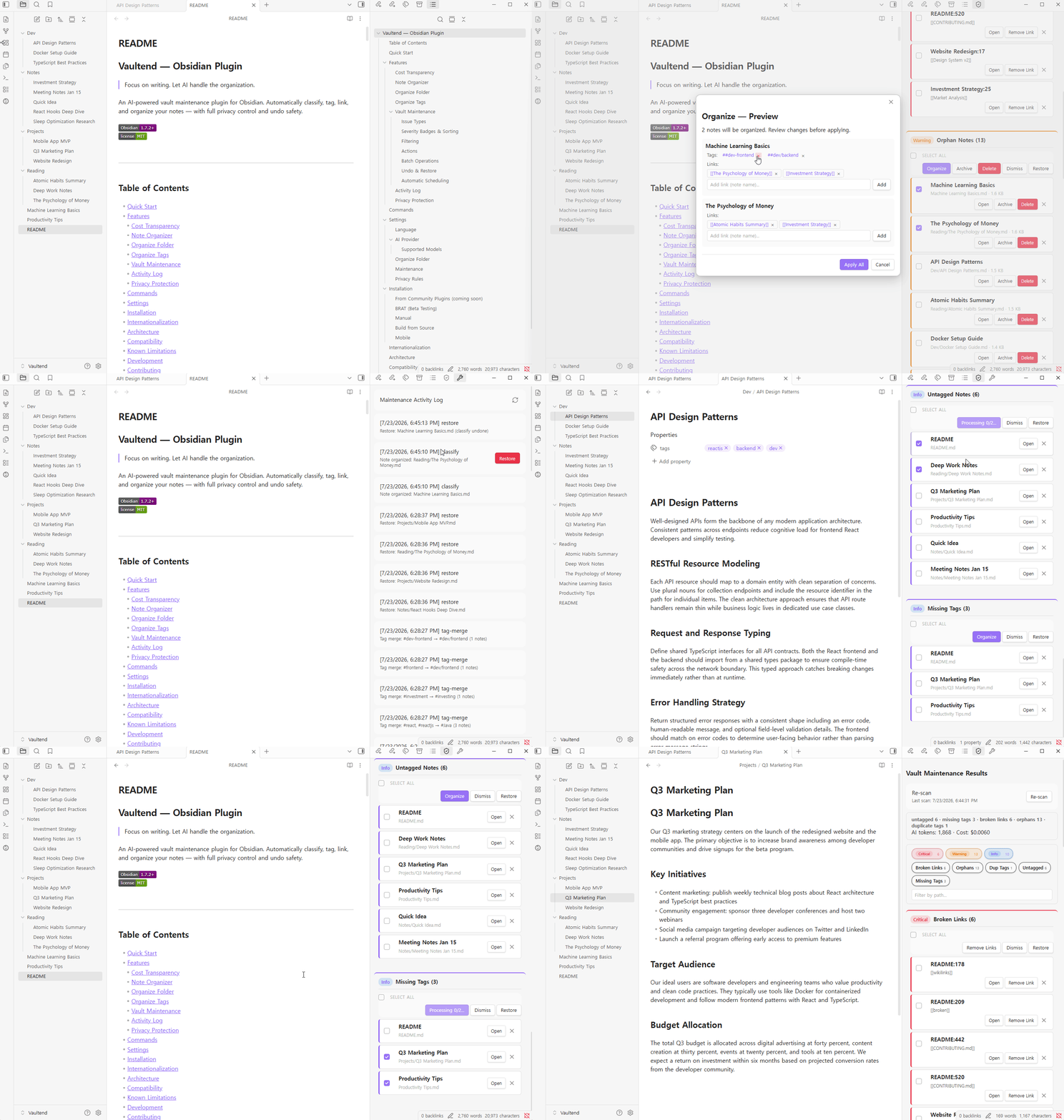
How to use:
- Full vault:
Ctrl/Cmd + P→ "Run Maintenance" - Single folder: Right-click a folder → "Scan this folder for maintenance"
Issue Types
| Type | Severity | Description |
|---|---|---|
| Broken Links | Critical | [[wikilinks]] pointing to non-existent notes (heading/block fragment aware) |
| Empty Notes | Critical | Notes with no content (shows backlink impact) |
| Orphan Notes | Warning | Notes not linked from anywhere (canvas-aware) |
| Duplicates | Warning | Similar notes detected via TF-IDF cosine similarity (side-by-side view) |
| Duplicate Tags | Warning | Duplicate tags detected via 2-stage analysis: string normalization + cross-language embedding similarity (see also Organize Tags) |
| Untagged Notes | Info | Notes without any tags |
| Missing Tags | Info | AI-suggested tags for notes that need them |
Severity Badges & Sorting
Results are sorted by severity (Critical → Warning → Info) so you always see the most urgent issues first. Each section header shows a color-coded badge.
Filtering
Narrow down results in large vaults:
- Severity chips — toggle entire severity levels on/off
- Type chips — toggle individual issue types
- Text search — real-time path-based filtering (type a folder name or note title)
Actions
Each issue has contextual action buttons:
| Action | Available for | Effect |
|---|---|---|
| Open | All | Open the note in editor |
| Note dropdown + Open | Duplicate Tags, Duplicates | Browse affected notes in a dropdown and open any one |
| Archive | Empty, Orphan | Move to archive folder (with restore support) |
| Delete | Empty, Orphan | Delete permanently (with undo) |
| Apply Tags | Missing Tags, Untagged | Write suggested tags to frontmatter |
| Remove Link | Broken Links | Convert [[broken]] to plain text |
| Open Side by Side | Duplicates | Compare two notes in split view |
| Merge | Duplicate Tags | Merge variant tags into canonical form across all affected notes |
| Dismiss | All | Strikethrough + Undo button (recoverable) |
Batch Operations
Select multiple items and act on them at once:
- Check the Select All checkbox at the top of a section (or check individual items)
- Click an action button: Archive, Delete, Dismiss, etc.
Undo & Restore
Made a mistake? Every action is recoverable:
- Dismiss: Shows strikethrough text with an inline Undo button — click to restore the item immediately
- Delete: Recorded in the Activity Log with full content backup. Click Restore in the log to bring the note back.
- Archive: Recorded with the destination path. Click Restore in the log to move the note back to its original location.
Automatic Scheduling
Enable in Settings to run maintenance on a timer (default: every 60 minutes). The plugin runs in the background and only notifies you when issues are found.
Activity Log
Track every action the plugin takes — and restore previous states.
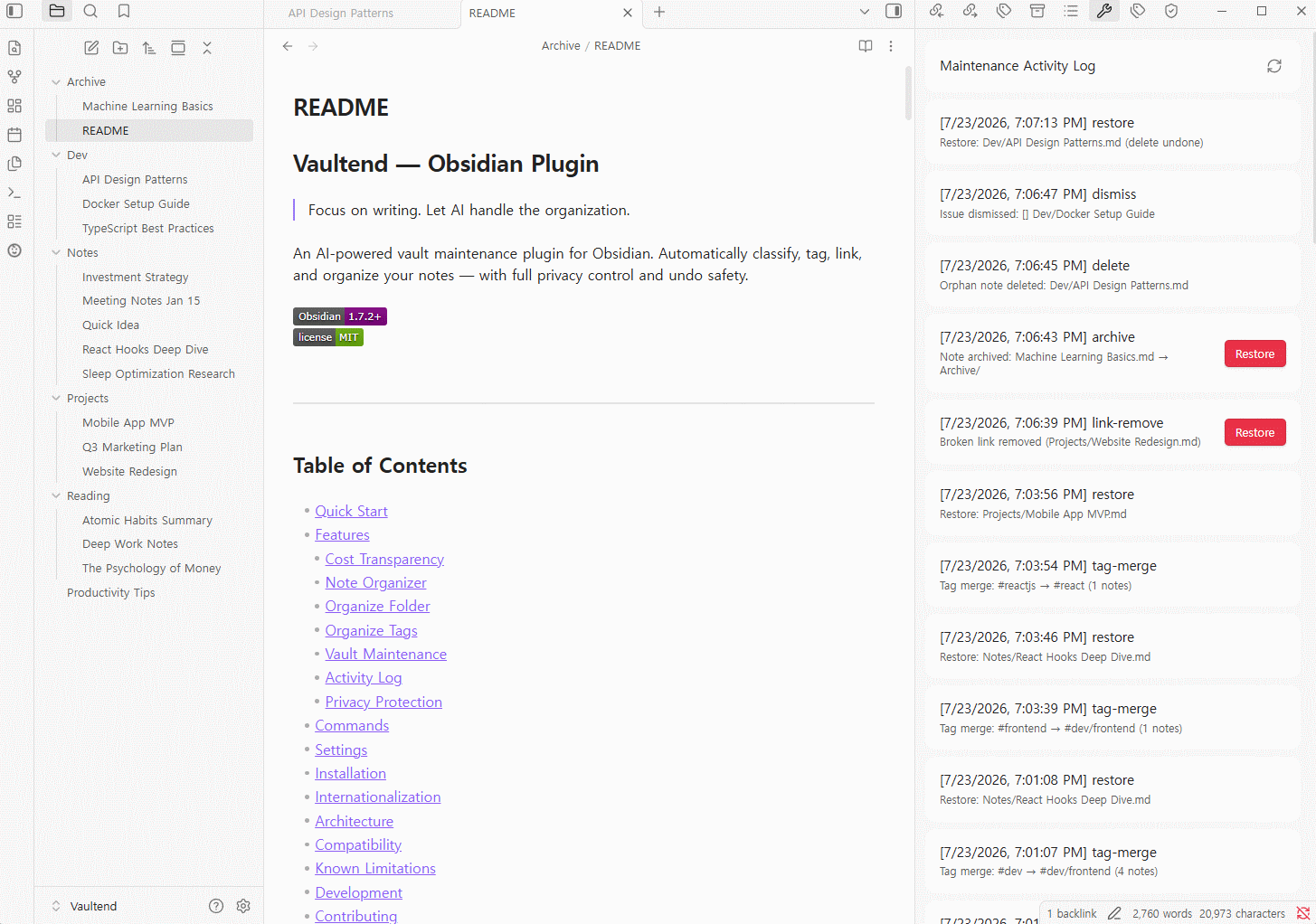
How to open: Ctrl/Cmd + P → "Open Maintenance Log"
What gets recorded:
-
Note deletions (with previous content for restore)
-
Note archival (with destination path for restore)
-
Tag additions
-
Link removals
-
Issue dismissals
-
Note classifications
-
Restorations (when you use the Restore button)
Restore button: Entries that modified or deleted content show a red Restore button. Click it to revert the note to its state before the action. Archived notes are moved back to their original location. The restoration itself is also logged.
Refresh: Click the ↻ button to reload the latest entries without restarting Obsidian.
Privacy Protection
Fine-grained control over what gets sent to AI. Configure rules in Settings → Privacy.
| Rule Type | What it does |
|---|---|
| Folder exclude | Notes in specified folders are never sent to AI |
| Tag exclude | Notes with specific tags are excluded from AI context |
| Properties exclude | Notes with specific frontmatter properties are excluded |
| Content redact | Regex patterns are replaced with [REDACTED] before sending |
Content redaction example: Pattern password:\S+ replaces password:abc123 with [REDACTED] before sending. Your original note is never modified. For simple word masking, just type the word (e.g., vaultend) — regex knowledge is not required for basic use.
Key guarantee: Privacy rules run before ANY data leaves your device. AI never sees excluded or redacted content.
Commands
All commands are accessible via Ctrl/Cmd + P (Command Palette).
| Command | Description | Requires AI |
|---|
| Organize Current Note | Tag and link the active note | Yes | | Organize Folder | Select a folder and batch-organize its notes | Yes | | Organize Tags | Find and merge duplicate tags across the vault | Yes | | Run Maintenance | Scan entire vault for issues | Partial | | Scan this folder for maintenance | Right-click context menu | Partial | | Organize Folder (context menu) | Right-click a folder to organize it | Yes | | Open Maintenance Log | Show activity log sidebar | No |
"Partial" means orphan/broken-link/empty/duplicate detection works offline, but missing-tag suggestions require AI.
Settings
Access via Settings → Community Plugins → Vaultend.
Language
| Setting | Description | Default |
|---|---|---|
| Display Language | en / ko / auto | Auto (follows Obsidian) |
AI Provider
| Setting | Description | Default |
|---|---|---|
| AI Provider | OpenAI, Google Gemini, Ollama (Local), or Custom (OpenAI-compatible) | OpenAI |
| API Key | Your provider's API key | — |
| Model | Select from dropdown or enter custom model ID | gpt-4o |
Embedding support by provider: All providers support the core features (classification, tagging, organization, maintenance). Embedding-based features (tag similarity ranking, cross-language tag resolution, link suggestions) require a provider with embedding API support.
Provider Chat/Completion Embeddings OpenAI Yes Yes Google Gemini Yes Yes Ollama (Local) Yes Yes (requires embedding model, e.g. nomic-embed-text)Custom Yes Depends on endpoint Note on DeepSeek: DeepSeek was removed in v1.0.2 because it does not provide an embedding API. Since Vaultend relies on embeddings for tag similarity, cross-language tag resolution, and link suggestions, using a provider without embedding support results in degraded functionality. DeepSeek users can use the Custom (OpenAI-compatible) provider option if they only need core features, but embedding-based features will not work.
Changes apply immediately — no restart needed.
Supported Models
The dropdown lists pre-defined models for each provider. You can also select Custom to enter any model ID manually.
| Model ID | Description |
|---|---|
gpt-5.6-sol |
Frontier model for complex professional work |
gpt-5.6-terra |
Balances intelligence and cost |
gpt-5.6-luna |
Optimized for cost-sensitive workloads |
gpt-5.5 |
Coding and professional work, 1M context window |
gpt-5.4 |
Affordable model for coding and professional work |
gpt-5.4-mini |
Strong mini model for coding and subagents |
gpt-5.4-nano |
Most economical GPT-5.4 option |
gpt-4.1 |
General purpose |
gpt-4.1-mini |
Compact variant |
gpt-4.1-nano |
Most economical GPT-4.1 option |
gpt-4o |
Multimodal flagship (legacy, still supported) |
gpt-4o-mini |
Compact multimodal (legacy, still supported) |
o4-mini |
Reasoning model (compact) |
o3-mini |
Compact reasoning |
Source: OpenAI API Models Reference (retrieved 2026-07-15)
| Model ID | Description |
|---|---|
gemini-3.5-flash |
Most intelligent model; best for agentic and coding tasks |
gemini-3.1-flash-lite |
Frontier-class performance at a fraction of the cost |
gemini-2.5-pro |
Advanced model for complex tasks with deep reasoning |
gemini-2.5-flash |
Best price-performance for high-volume tasks with reasoning |
gemini-2.5-flash-lite |
Fastest and most budget-friendly multimodal model |
Source: Gemini API Models Reference (retrieved 2026-07-15)
| Model ID | Description |
|---|---|
llama3.2 |
Meta's Llama 3.2 (default) |
llama3.1 |
Meta's Llama 3.1 |
mistral |
Mistral AI |
gemma2 |
Google Gemma 2 |
qwen2.5 |
Alibaba Qwen 2.5 |
phi3 |
Microsoft Phi-3 |
Ollama runs models locally — no API key needed. Install models with
ollama pull <model>. For embeddings, also installnomic-embed-text.
Note: Model availability changes over time. If a listed model returns an error, check the official documentation links above for the latest status, or use the Custom option to enter a newer model ID. This list was last updated on 2026-07-15.
Organize Folder
| Setting | Description | Default |
|---|---|---|
| Auto-apply results | When enabled, AI classification results (move, tag, link) are applied immediately without manual review | Off |
Maintenance
Maintenance scans only Markdown (.md) notes. Non-text files such as Excalidraw and Canvas are automatically excluded.
| Setting | Description | Default |
|---|---|---|
| Auto Maintenance | Run on a timer | Off |
| Interval | Minutes between auto-scans | 60 |
| Exclude Folders | Folders to exclude (chip UI with vault autocomplete) | — |
| Exclude Tags | Notes with these tags are skipped (chip UI with vault autocomplete) | — |
| Archive Folder | Destination for archived notes | Archive |
Privacy Rules
Add rules in the Privacy section. Each rule has:
- Name — descriptive label
- Type — Folder exclude / Tag exclude / Properties exclude / Content redact
- Pattern — the folder path, tag, property key, or regex pattern
Installation
From Community Plugins
- Open Settings → Community Plugins → Browse
- Search "Vaultend"
- Click Install, then Enable
- Configure your AI provider in Settings
BRAT (Beta Testing)
- Install BRAT
- BRAT settings → Add Beta Plugin
- Enter:
dhwang0803-glitch/Vaultend - Enable Vaultend in Community Plugins
- Configure AI provider and API key
Manual
- Download
main.js,manifest.json,styles.cssfrom the latest release - Create
.obsidian/plugins/vaultend/in your vault - Copy the 3 files into that directory
- Restart Obsidian → enable the plugin
- Configure AI provider and API key
Build from Source
git clone https://github.com/dhwang0803-glitch/Vaultend.git
cd Vaultend
npm install
npm run build
Copy main.js, manifest.json, styles.css to your vault's plugin directory.
Mobile
The same 3 files go in .obsidian/plugins/vaultend/.
- With Obsidian Sync: Install on desktop — it syncs automatically
- Android:
Internal Storage/Documents/Obsidian/[Vault]/.obsidian/plugins/vaultend/ - iOS: Files app → Obsidian → [Vault] →
.obsidian/plugins/vaultend/
Internationalization
| Language | Status |
|---|---|
| English | Full support (default) |
| Korean (한국어) | Full support |
Change in Settings → Language. Views update immediately; command palette names update after restart.
Want to contribute a translation? See CONTRIBUTING.md for details.
Compatibility
| Platform | Minimum Version |
|---|---|
| Obsidian | 1.7.2 |
| Desktop | Windows, macOS, Linux |
| Mobile | Android, iOS |
AI Providers: OpenAI API, Google Gemini API, Ollama (local), Custom (OpenAI-compatible). Embedding-based features (tag similarity, link suggestions) require a provider with embedding support.
Known Limitations
| Area | Limitation |
|---|---|
| AI dependency | Organizer and Organize Folder require an API key. Maintenance scan (orphans, broken links) works without AI. |
| API costs | All AI calls consume tokens. Token usage and cost are shown in every AI feature (Organizer, Organize Folder). |
| Network | AI features need internet. Maintenance scans work offline. |
| Search index | BM25 keyword + optional embeddings. Very large vaults (5000+ notes) remain performant (P95 < 10ms for BM25). |
| Duplicates | Note duplicates use TF-IDF cosine similarity — may miss very short notes. Tag duplicates (Maintenance + Organize Tags) use 2-stage detection (string normalization + embedding); embedding stage requires AI and is capped at 200 tags per batch. |
| Organize Folder | Processes notes in batches to avoid API rate limits and excessive costs. Click "Continue" to process the next batch. |
| Mobile | Background switching may interrupt AI calls. |
| Privacy | Rules control this plugin only. Review your AI provider's data policies separately. |
Development
npm run dev        # Watch mode
npm run build      # Production build
npm run lint       # ESLint
npm run test       # Vitest (unit + integration tests)
npm run test:watch # Watch mode tests
Contributing
Contributions are welcome! See CONTRIBUTING.md for guidelines on translations, bug reports, and pull requests.