Variant Editor

by Kunal Jain
5
4
3
2
1
Score: 41/100

Description

The Variant Editor plugin helps writers explore different ways to express the same idea without losing earlier drafts. It lets you create multiple variations of a word, phrase, or entire sentence, then compare them directly in context. You can drag variants to reorder them, switch between options with a click, and finally commit to the one that works best, replacing the placeholder syntax with clean text. All variants are stored inline using a simple markup format, so they remain portable even if the plugin isn't active.

Reviews

No reviews yet.

Stats

22
stars
1,097
downloads
1
forks
277
days
249
days
249
days
0
total PRs
0
open PRs
0
closed PRs
0
merged PRs
6
total issues
3
open issues
3
closed issues
0
commits

Latest Version

8 months ago

Changelog

  • Dimming fixed
  • Right Click Context Vibes

README file from

Github

Variant Editor Obsidian Plugin

GitHub release (latest by date) License Obsidian Downloads

SplashVariant

Writing is an iterative process, and finding the perfect phrasing often requires exploring multiple variations of the same text. This plugin makes that process seamless by allowing you to:

  • Create multiple variants of words, phrases, or entire sentences
  • View each variant in context with a single click
  • Compare alternatives side-by-side
  • Commit to your favorite variant when you're ready

Stop deleting and rewriting the same sentence over and over. With Variant Editor, you can keep all your ideas and variations in one place, making your writing process more efficient and creative.

Use

  1. Open Obsidian Settings
  2. Go to Community Plugins and click "Browse"
  3. Search for "Variant Editor"
  4. Click Install and then Enable
  5. Optionally set the hotkeys for the "Create Variant from Selection" and "Commit All Variants in Selection/Document"
  6. Select a range of text and use the command palette to create variants!

Features

Create and Compare Variants

Variant Editor allows you to create multiple versions of text and quickly switch between them to see which one works best in context.

  • Highlight text and use the command palette to create variants
  • Click on variants to see them in context
  • Drag and reorder variants to prioritize your favorites
  • Commit your chosen variant when you're satisfied

Cross-Platform Support

Variant Editor works seamlessly across all platforms that Obsidian supports:

  • Desktop (Windows, macOS, Linux)
  • Mobile (iOS and Android)
  • Tablet (iPad and Android tablets)

Screenshots

Dark Mode

Dark Mode

Light Mode

Light Mode

See Variants in Context
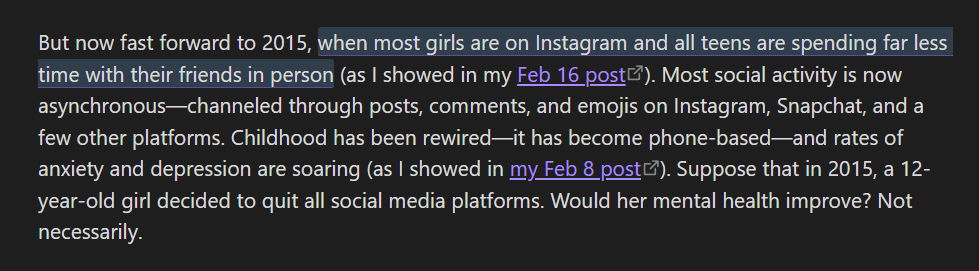
See Variants in Context

Commit All Variants
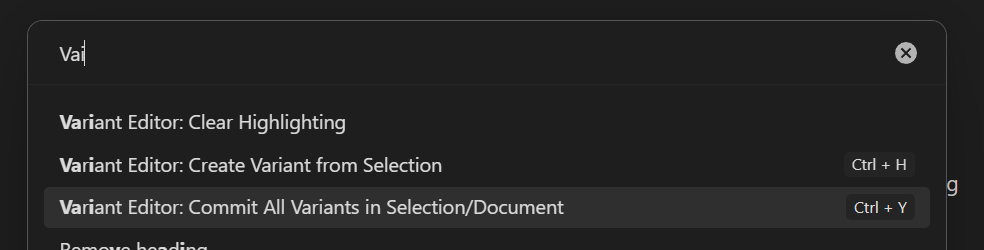
Commit All

How It Works

Variant Syntax

Variant Editor uses a special syntax to store variants in your Markdown files:

{{variant1|variant2|variant3}}^INDEX

Where:

  • Each variant is separated by a pipe character (|)
  • INDEX is the currently selected variant (0-based)

For example, {{quick|fast|rapid}}^0 means "quick" is currently selected.

Usage

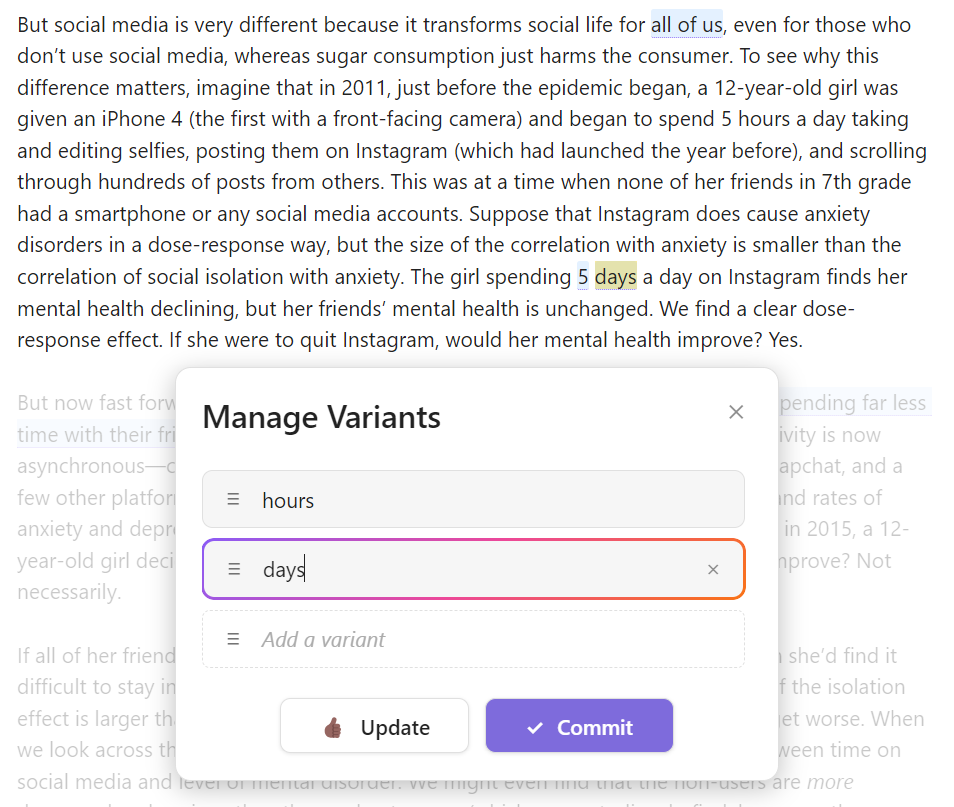
  1. Create Variants:

    • Highlight text you want to create variants for
    • Use the command palette (Ctrl/Cmd+P) and select "Create Variants"
    • Enter multiple variants in the modal that appears
    • Drag to reorder variants if needed
    • Click "Update" to save your variants
  2. View Variants:

    • Click on any variant in your document to see it in context
    • The active variant will be highlighted with a rainbow border
  3. Commit Variants:

    • When you're satisfied with a variant, click "Commit" in the modal
    • This will replace the variant syntax with the selected text
    • You can also use the "Commit All Variants" command to finalize all variants in your document

https://github.com/kunalJa/VariantEditor/raw/master/screenshots/feature_showcase.mp4

Note on Sharing

If you share your Markdown files with others who don't have the Variant Editor plugin, or turn the plugin off, you'll see the raw variant syntax which looks like {{variant1|variant2|variant3}}^INDEX. You can also manually create variants by using this syntax.

Contributing

Contributions are welcome! Please feel free to submit a Pull Request.

License

0BSD

Similar Plugins

info
• Similar plugins are suggested based on the common tags between the plugins.
Editing Toolbar
3 years ago by Cuman
An obsidian toolbar plugin, modified from the Cmenu plugin
Pixel Perfect Image
a year ago by Johan Sanneblad
Pixel perfect 100% image resizing, copy to clipboard, show image in Finder/Explorer, edit image in external editor, and much more.
Better MathJax
3 years ago by GreasyCat
Spellcheck Toggler
2 years ago by Julian Szachowicz
A plugin for Obsidian which gives you more control over the red-underline spellcheck behaviour.
Auto Correct Capitals Misspellings
2 years ago by Ummel
This plugin automatically corrects words where the first two letters are capitalized and the rest are lower case.
Write Good
a year ago by Mark Hesketh
Obsidian plugin to help improve writing style
Proofreader
a year ago by pseudometa (aka Chris Grieser)
AI-based proofreading and stylistic improvements for your writing. Changes are inserted as suggestions directly in the editor, similar to suggested changes in word processing apps.
Hemingway Mode
2 years ago by Joaquín Bernal
Rich Text Editor Shortcuts
2 years ago by Joshua Wootonn
Create and toggle checkboxes, paste links wrapping your current selection, and toggle underline without leaving the keyboard.
Nova
3 months ago by Shawn Duggan
Nova - AI plugin for Obsidian that edits your documents directly through natural conversation. Stop copying from chat, start collaborating with AI.
Table Line Break Mobile
3 months ago by marcelflymark
Obsidian plugin: Insert a new line break inside a table cell using the <br> HTML element
Duplicate line
a year ago by Marcin Sztolcman
Plugin for Obsidian: duplicate current line, or selection.
Mode manager
a year ago by dk949
Better management of reading/editing modes in obsidian
Expand Selection
a month ago by Alex Tait
Expands the editor selection to lines, sections, or the entire note for convenience on mobile.
AI Revisionist
a year ago by Synaptic Labs
Regex Line Filter
a year ago by 64MM4-KN1F3
A note filtering plugin for Obsidian
Editing Mode Hotkey
2 years ago by Signynt
Obsidian plugin to change the default editing mode (between Live Preview and Source) using a command or hotkey
Select word
2 years ago by Connor Espino
Edit Link Alias
4 months ago by mnaoumov
Obsidian Plugin that adds edit link alias command.
Quick Nav
a year ago by exoticknight
Enhance your editing experience by unleashing the hidden power of shortcuts.