
README file from
GithubStoryteller Comic Drafter
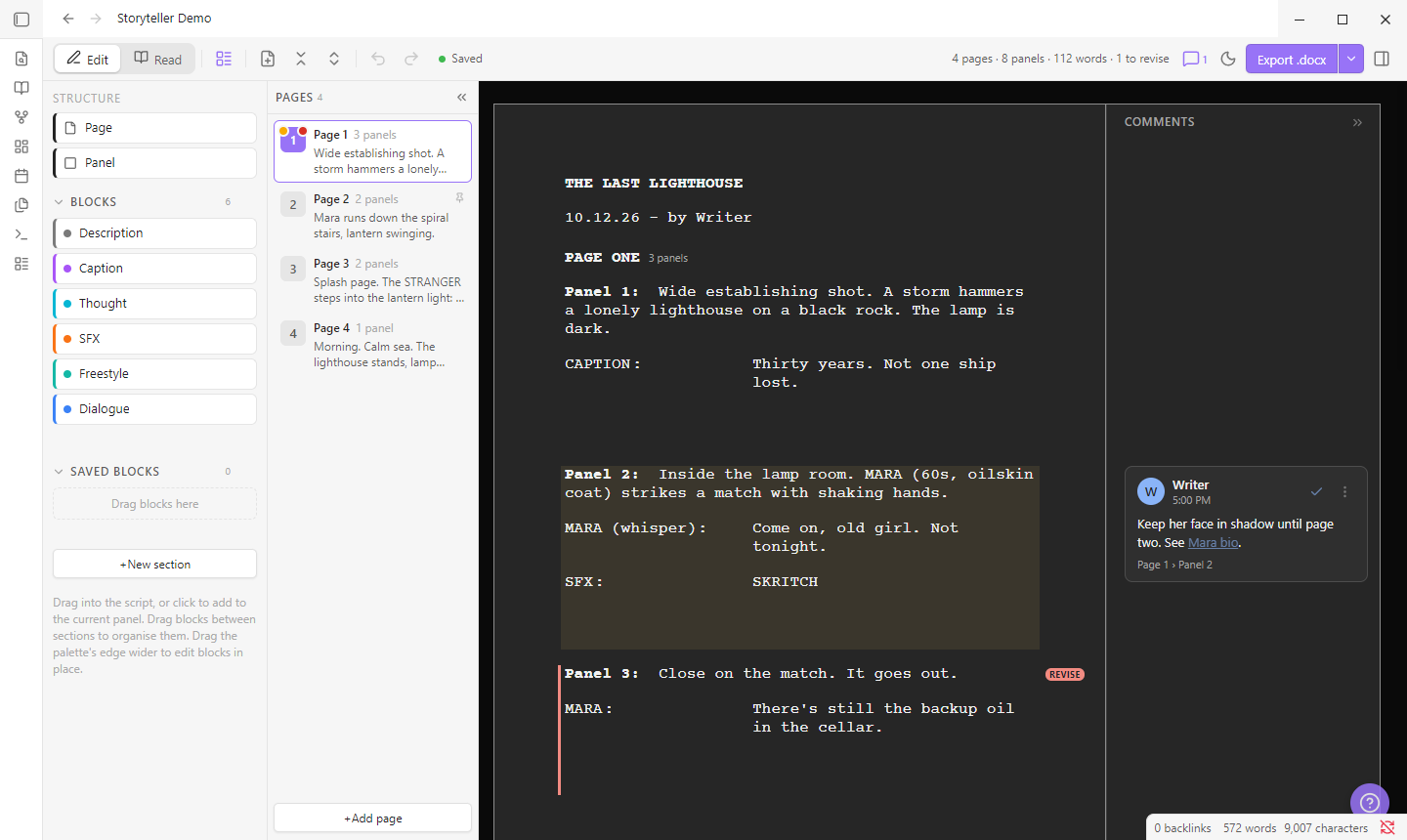
Write comic scripts in Obsidian with drag-and-drop pages, panels and lettering blocks, keep a series of issues in order, and export each script to an editable Word file.
Scripts are .comic files with their own editor. The layout follows Greg Pak's comic script template: Courier 12pt, PAGE ONE, Panel 1: running into its description, and numbered dialogue hanging at 2".
Contents: Quick start · Writing · Organising a script · Projects · Exporting to Word · Keyboard shortcuts · Settings · Install · Tips · Privacy
Quick start
- New script: click the book icon in the ribbon, or right-click a folder → New comic script.
- Write: type the panel description after
Panel 1:. Add dialogue, captions and SFX with the + buttons under a panel, or drag them in from the palette on the left. - Review: press Ctrl+E to see the script as it will print.
- Export: click Export .docx. The Word file opens, ready for final edits.
- Writing a series? Click the library icon in the ribbon to open Projects and keep your issues in order.
Press ? in the editor at any time for help and every shortcut.
Writing
- Pages → panels → blocks. Page, panel and balloon numbers fill themselves in and update as you rearrange.
- Block palette. Description, Dialogue, Caption, Thought, SFX and Freestyle, plus any block types you make. Save finished blocks to reuse them, and group them into sections.
- Quick-add row. Star (☆) the blocks you use most and they appear as + buttons under every panel.
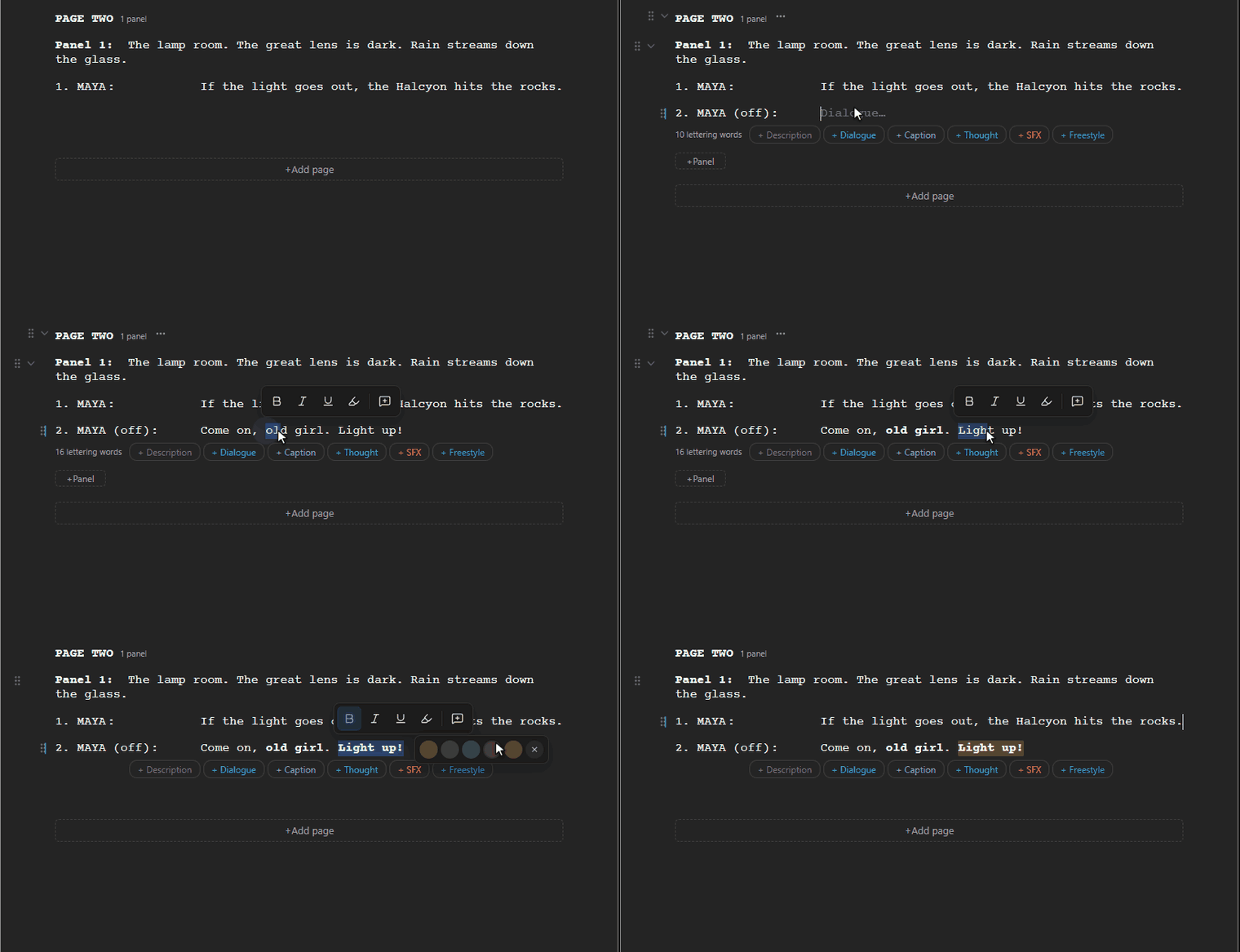
- Speaker field. Type
MAYA (off)and it splits into speaker and modifier. Names autocomplete from the script. - Formatting you see as you type. Bold, italic, underline and highlights in five colours, from shortcuts or the bar over selected text. No
**markers to type, and styles combine. - Freestyle blocks for anything else (title cards, TO BE CONTINUED, notes): align, indent, box or resize them.
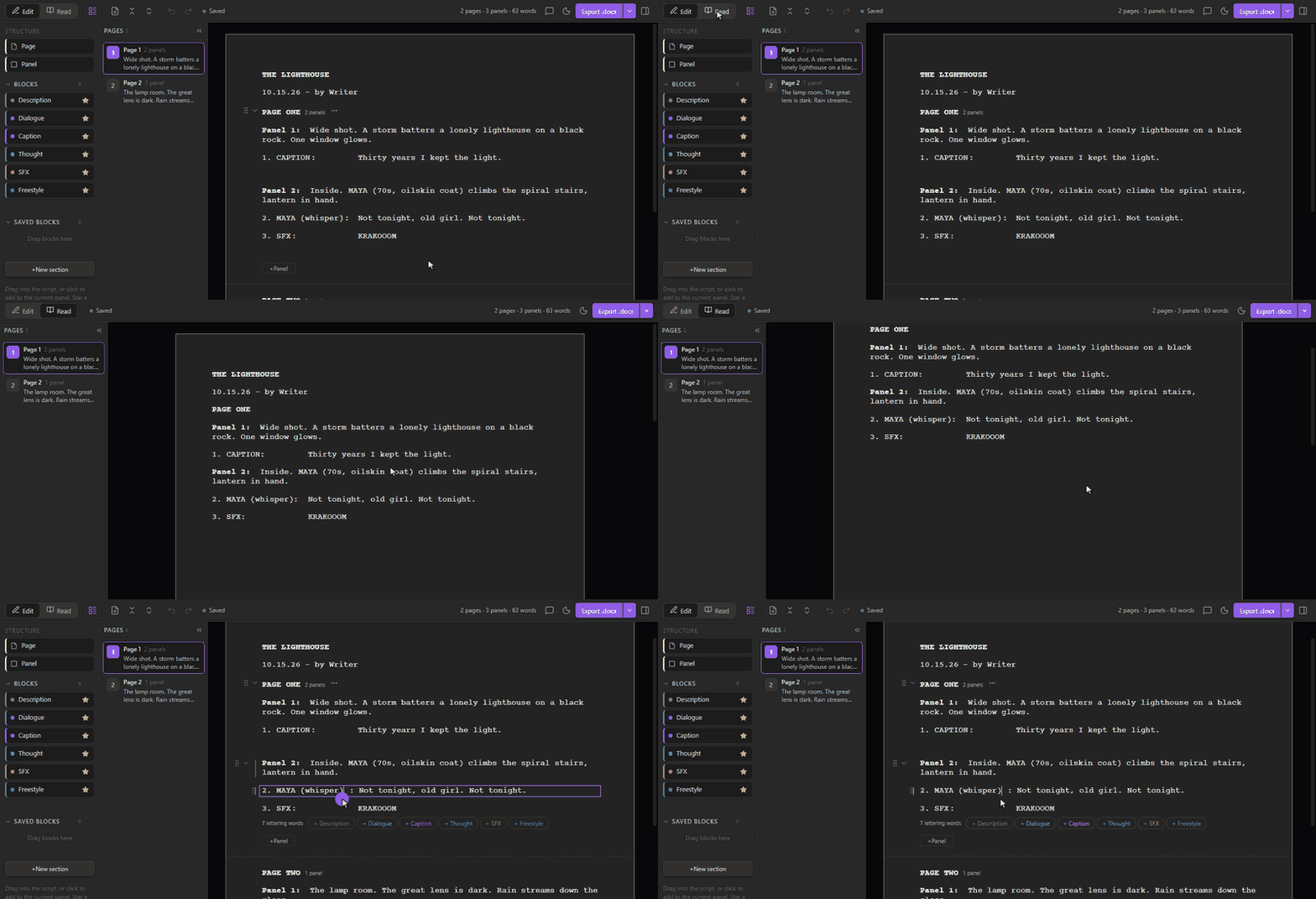
- Read mode (Ctrl+E) shows the clean script. Double-click any line to edit it.
Organising a script
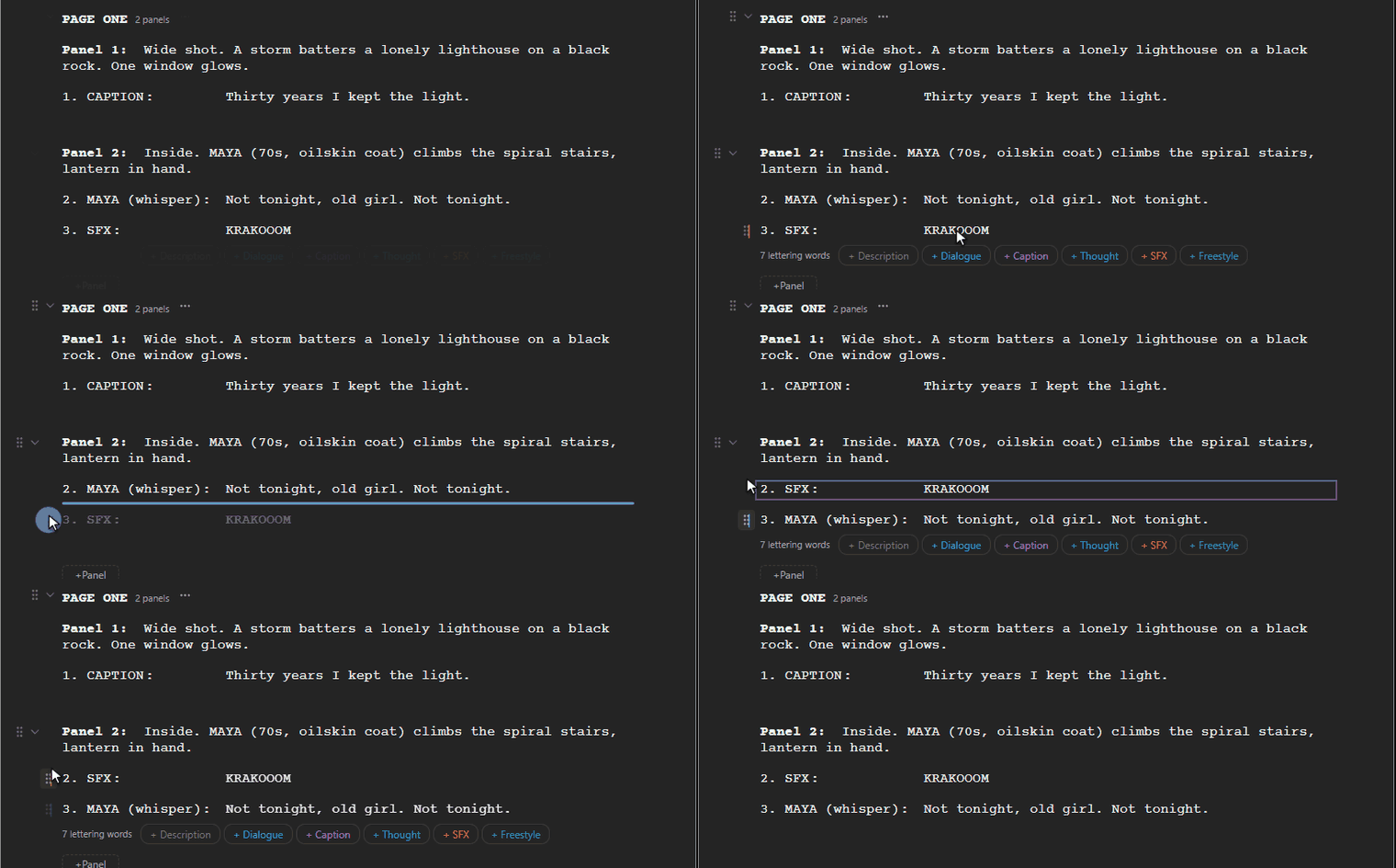
- Drag anything. Move blocks, panels and pages with the ⠿ grip, even into another page.
- Pages list. Jump to a page, drag to reorder, or collapse it to a rail of page numbers.
- Swap or move pages from a picker, without dragging (right-click a page).
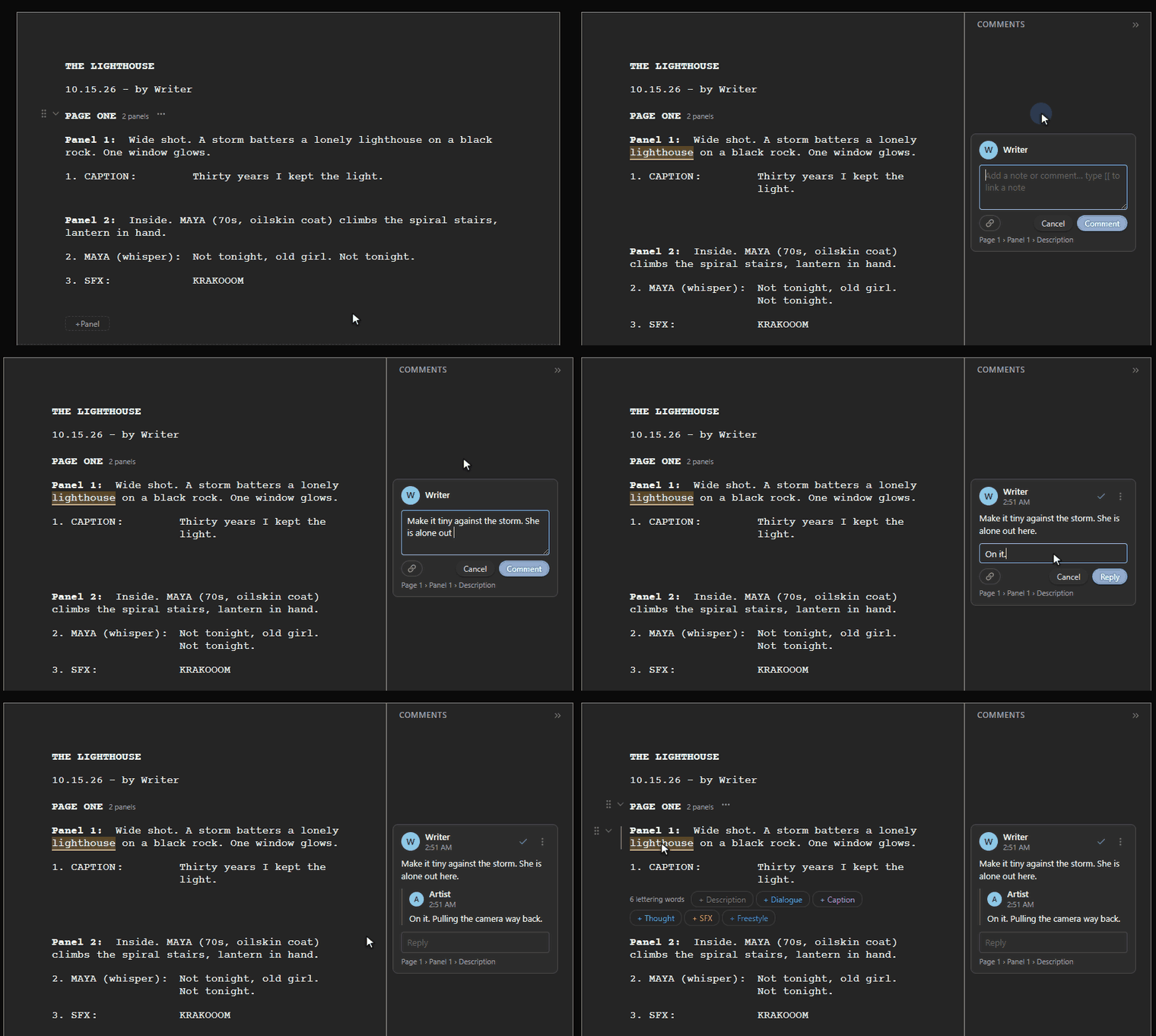
- Comments in a margin like Google Docs. Comment on a whole item or on just some words (Ctrl+Alt+M), reply in threads, and link notes with
[[links]]. - Revise, pin and lock any page, panel or block from the right-click menu.
- Undo every change, deletes included.
| Dragging a block | Read mode |
|---|---|
 |
 |
Projects
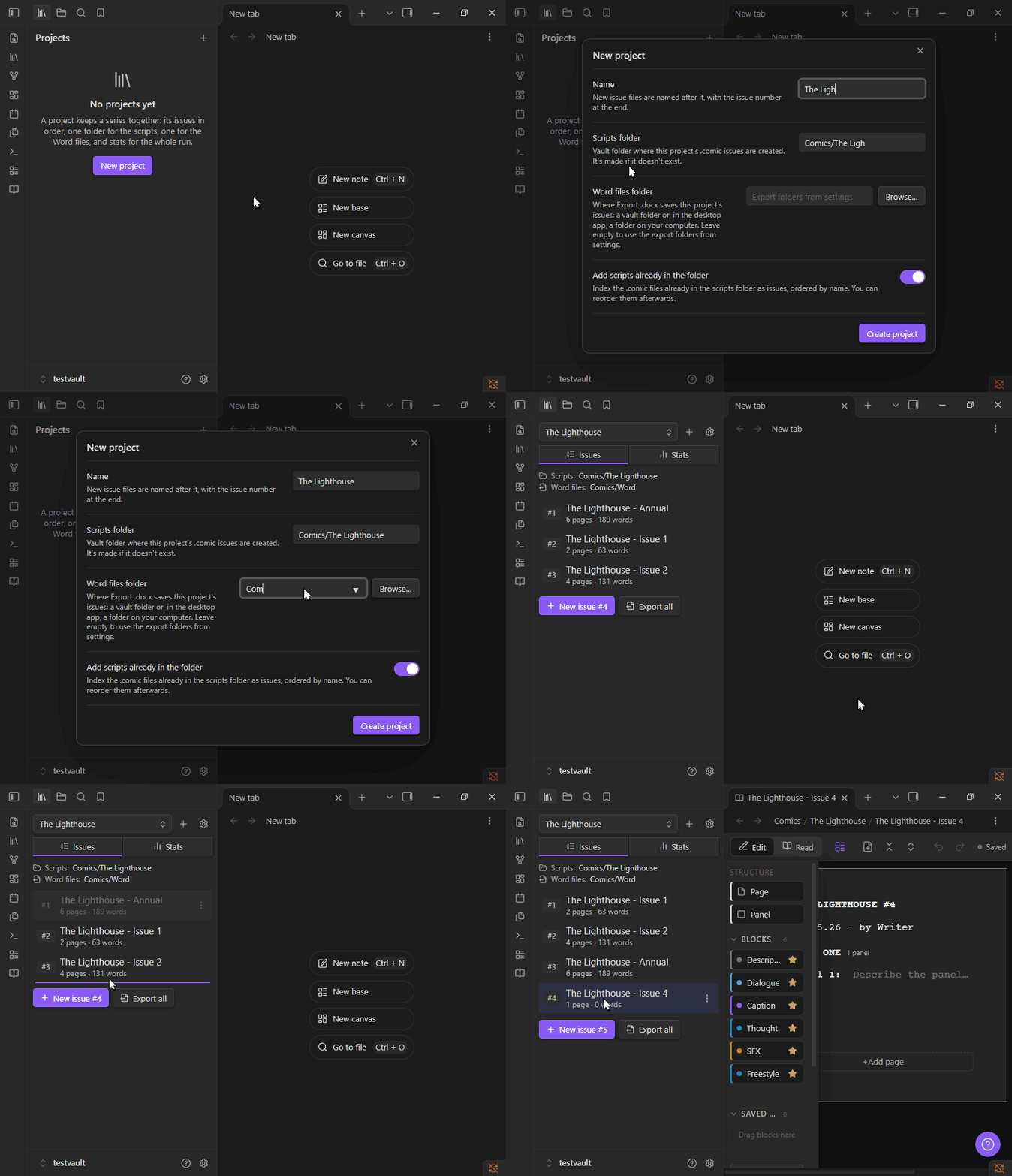
A project keeps a series together, like Longform but simpler. Open the Projects tab with the library icon in the ribbon, or Open comic projects in the command palette.
Setting up
- Click + to make a project. Give it a name, a scripts folder for its
.comicissues, and a Word files folder for its exports (a vault folder, or any folder on your computer in the desktop app). - Existing folders work. Scripts already in the folder become issues, numbered by file name ("Issue 2" before "Issue 10"). Subfolders count too.
Issues
- Numbered in reading order. Drag an issue to reorder, or right-click → Change issue number….
- One project per issue. An issue can't be added to a second project.
- New issue creates the next one ("The Lighthouse - Issue 4") in the project folder and opens it.
- Nothing gets lost. Renaming or moving an issue keeps its number. Scripts added to the folder later wait under Not in the index, ready to add. Remove from project never deletes the file.
- Add a script from anywhere: right-click a
.comicfile → Add to project….
Exporting
- Export .docx on any issue saves it straight to the project's Word folder.
- Export all writes every issue's Word file in one go.
Stats
- Totals: issues, pages, panels and words.
- Averages: pages per issue, panels and words per page, balloons per panel.
- Warning signs: the most crowded panel, open comments and pages marked for revision.
- Per issue: bar charts of pages and words. Click a bar to open the issue.
- Cast: every speaker by number of balloons, and which issues they appear in (hover).
- Table of every issue with totals.
Stats update as you write.
Exporting to Word
- Export .docx writes the template's styles: a page break per comic page, margin comments, red
[REVISE]markers and your highlights. - Opens in Word when done (you can turn this off).
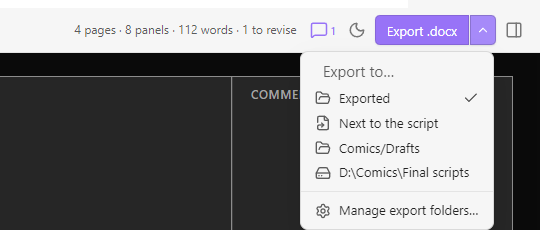
- Choose where files go. Add vault folders, next to the script, or folders on your computer. The ▾ arrow beside the button picks one and remembers it. Projects can have their own folder.
Keyboard shortcuts
| Keys | Action |
|---|---|
| Ctrl/Cmd + B / I / U | Bold / italic / underline |
| Ctrl/Cmd + Shift + H | Highlight |
| Ctrl/Cmd + Alt + M | Comment on the selected words |
| Ctrl/Cmd + E | Edit / Read mode |
| Ctrl/Cmd + Enter | New block of the same type |
| Ctrl/Cmd + Shift + Enter | New panel |
| Alt + ↑ / ↓ | Move the current block |
| Alt + PageUp / PageDown | Previous / next page |
| Ctrl/Cmd + Z / Shift + Z | Undo / redo (outside text fields) |
| ? or Ctrl/Cmd + / | Help and all shortcuts |
Commands in the command palette: New comic script, Open comic projects, New issue in the current project, Export current script as .docx, and more.
Settings
| Section | What you can change |
|---|---|
| Block types | Your own block types, and which blocks a new panel starts with |
| Numbering | PAGE ONE or PAGE 1; balloon numbers per page, per panel, or off |
| Editor appearance | Draft font and size, light / dark / auto paper, animations, your name |
| Word export | Comments, revision markers, highlights, page breaks, Word font, open after export, export folders |
| New scripts | Folders new scripts can be created in |
Project folders are set per project, from the ⚙ button in the Projects tab.
Install
From a release: download main.js, manifest.json and styles.css from the latest release into <vault>/.obsidian/plugins/storyteller-comic-drafter/, then enable Storyteller Comic Drafter under Settings → Community plugins.
From source:
npm install
npm run build   # then copy main.js, manifest.json and styles.css as above
npm run dev rebuilds on save, npm run lint runs Obsidian's review rules and npm test runs the unit tests.
Needs Obsidian 1.5.7 or newer.
Check a download: releases are built by GitHub Actions from the tagged source and come with signed build attestations. To confirm a file is the one built from this repository, run gh attestation verify main.js --repo S-Urchin/obsidian-storyteller (the same works for styles.css and manifest.json).
Tips
- Can't see the .docx in Obsidian? Turn on Settings → Files and links → Detect all file extensions, or use Show in file manager in the export message.
- Exact template match: set Word font to Courier Final Draft if you have it.
- Touch screens: long-press → Move up / Move down instead of dragging.
- Spelling suggestions: Shift+right-click inside text for the normal menu.
Privacy
- No network access and no telemetry.
- Reads and writes only your
.comicscripts and the.docxfiles you export. Files leave the vault only if you choose a folder on your computer. - Project lists and settings are stored in the plugin's own
data.jsonin your vault.