CSS Inserter

by Erika Gozar
5
4
3
2
1
Score: 45/100

Description

Category: Customization & UI

The CSS Inserter plugin allows Obsidian users to apply custom CSS snippets to selected text within their notes. Users can define snippets with specific HTML tags, classes, and styles, enabling precise formatting control. The plugin supports adding, removing, and managing CSS styles through the context menu, command palette, or hotkeys. It offers flexibility for customization while requiring basic CSS knowledge, making it ideal for users who want to enhance the visual presentation of their notes.

Reviews

No reviews yet.

Stats

6
stars
1,367
downloads
0
forks
616
days
253
days
514
days
0
total PRs
0
open PRs
0
closed PRs
0
merged PRs
2
total issues
1
open issues
1
closed issues
83
commits

Latest Version

a year ago

Changelog

  • Changed html in the Settings panel to remove unnecessary nested <span>'s.

Full Changelog: https://github.com/Erallie/css-inserter/compare/1.0.14...1.0.15

README file from

Github

About CSS Inserter

Obsidian Marketplace GitHub Latest Release Latest Downloads All-time Downloads Our Discord Our Other Projects Donate


This is a plugin for Obsidian that inserts user-defined css snippets into the selected text.

This plugin is a fork of Style Text by Juanjo Arranz.

The main difference between this plugin and Style Text is that with CSS Inserter you can specify the html tag, the class, and the style for each CSS snippet.

This plugin requires basic knowledge of CSS. Links on how to format each setting can be found under Set up CSS snippets.

Instructions

Set up CSS snippets

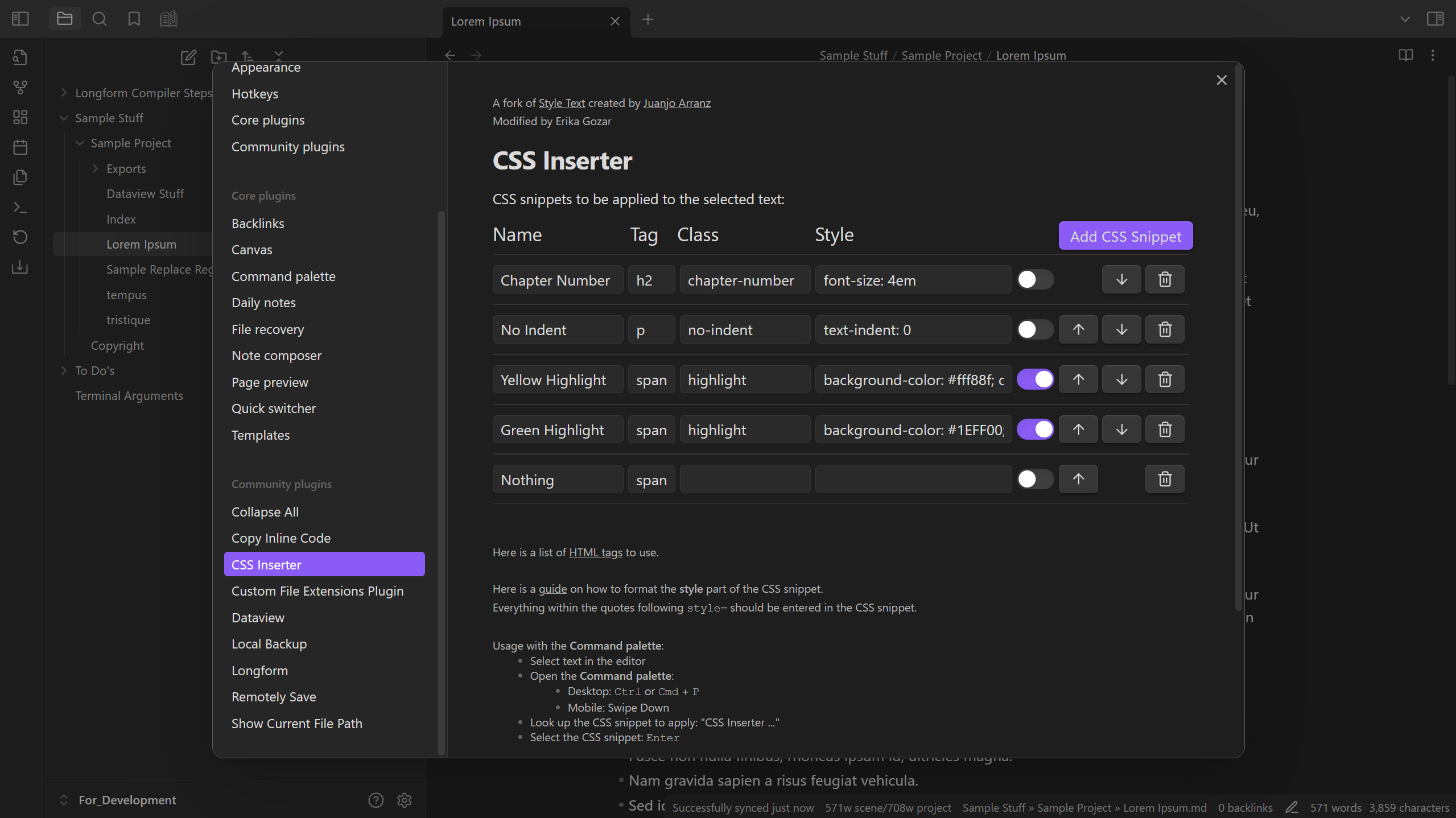
After installing the plugin, first go to Settings → CSS Inserter and set up your CSS snippets the way you want.

Give your snippet a name and specify the HTML tag, the class, and the style you want the snippet to apply. Only a name and a tag are required. If you do not want to use the other options, leave them blank.

Here is a list of HTML tags to use.

And here is a guide on how to format the style part of the CSS snippet. Everything within the quotes following style= should be entered in the CSS snippet.

Settings panel

You can re-order snippets by pressing the up arrow ( ) and down arrow ( ) buttons next to the snippet, or delete the entire snippet by pressing the trash bin ( ) button.

The toggle option next to the snippet disables/enables showing the CSS snippet in the Context menu.

Apply and remove CSS snippets

To apply or remove a CSS snippet, first go into Edit mode and select the text you want to apply the snippet to or remove the snippet from. The first time you select text that already has CSS snippets applied, the entire text will automatically be selected for you (on desktop only).

After you do that, there are three ways you can apply or remove a CSS snippet:

  1. Right-click the note (on desktop) or perform the command Show context menu under cursor to open the Context menu. Enabled snippets will appear there. Select Insert CSS and then the snippet you want to apply, or select Remove CSS to remove the applied CSS snippet.
  2. Open the Command palette and search for and select the CSS style you'd like to apply, or perform the CSS Inserter: Remove CSS command to remove the CSS snippet (see Command palette).
  3. Set up a Hotkey prior in Settings → CSS Inserter for your desired CSS snippet (or for the CSS Inserter: Remove CSS command if you want to remove the CSS). Afterward, select the text and perform the Hotkey (see Hotkeys).

Installation

Obsidian Marketplace

To install this plugin via the Obsidian Marketplace, perform the following steps:

  1. Navigate to the CSS Inserter plugin page by either selecting this link or doing the following:
    1. Navigate to Settings → Community plugins
    2. Select Turn on community plugins.
    3. Select Community plugins → Browse and search for "CSS Inserter".
  2. Select Install.
  3. To enable the plugin, select Enable.

BRAT

Install this plugin using BRAT by doing the following:

  1. Make sure the BRAT plugin is installed in your vault.
  2. Go to Settings → BRAT → Beta Plugin List → Add Beta Plugin
  3. Enter https://github.com/Erallie/css-inserter into the input field and select Add Plugin.

Manual installation

To install this plugin manually, follow these steps:

  1. Go to the Releases page and find the latest release.
  2. Download main.js, manifest.json, and styles.css.
  3. Go to your Plugins folder ([vault root]/.obsidian/plugins) and create a new subfolder called css-inserter.
  4. Move the downloaded files to the new folder.

Similar Plugins

info
• Similar plugins are suggested based on the common tags between the plugins.
Admonition
5 years ago by Jeremy Valentine
Adds admonition block-styled content to Obsidian.md
Custom Frames
4 years ago by Ellpeck
An Obsidian plugin that turns web apps into panes using iframes with custom styling. Also comes with presets for Google Keep, Todoist and more.
Code Styler
3 years ago by Mayuran Visakan
A plugin for Obsidian.md for styling codeblocks and inline code
Contextual Typography
5 years ago by mgmeyers
Sheets Extended
3 years ago by NicoNekoru
Plugin that adds features to tables in obsidian including merging, vertical headers, and custom css
MySnippets
5 years ago by Chetachi
MySnippets is a plugin that adds a status bar menu allowing the user to quickly manage their snippets within the comfort of their workspace 🖌.
Canvas CSS class
3 years ago by Lisandra-dev
A plugin that will add a css class to your canvas & adding to each canvas the path to help personnalization
css snippets
5 years ago by Daniel Brandenburg
Obsidian plugin for css snippets
Style Text
3 years ago by Juanjo Arranz
Apply custom CSS styles to selected text in your Obsidian Notes
Snippetor
4 years ago by ebullient
An assist for creating CSS snippets for Obsidian
Hyphenation
3 years ago by 7596ff
Enables justified text and hyphenation
Custom Classes
3 years ago by Lila Rest
A minimal Obsidian plugin that allows you to add your own HTML classes to chosen Markdown elements directly from your notes.
Markdown Tags
a year ago by John Smith III
Enhance your Markdown documents with custom tags. Use predefined or custom labels, customizable colors, and arrow indicators to visually track tasks and statuses.
Regex Mark
2 years ago by Mara-Li
Snippet Commands
5 years ago by death_au
Registers custom css snippets as commands (which you can bind hotkeys to)
Base Tag Renderer
3 years ago by Darren Kuro
A lightweight obsidian plugin to render the basename of tags in preview mode.
Obsidian Stylist
3 years ago by ixth
Obsidian plugin that allows to add classes and styles on markdown blocks
Auto Class
4 years ago by Nathonius
Automatically add CSS classes to notes based on file path.
Group Snippets
4 years ago by Mara-Li
Create folder of snippets to activate them in one click !
CSS Inlay Colors
2 years ago by Benji Grant
Show inline color hints for CSS colors in Obsidian
Custom Theme Studio
7 months ago by @gapmiss
An Obsidian.md plugin to create and tweak custom themes with live CSS editing, element styling, and instant previews. All without leaving Obsidian.
Checkbox styling helper
2 years ago by JaewonE
Helps you styling checkboxes in preview mode.
Tailwind Snippet
2 years ago by Nicholas Wilcox
An Obsidian plugin that enables usage of Tailwind CSS.
Source Mode Styling
3 months ago by Chris Howard
Obsidian plugin. Provides a customisable raw look in source mode using a monospace font to clearly differentiate from Live Preview.
Frontmatter to HTML Attributes
2 months ago by Tarek Saier
Makes YAML frontmatter available as data-* attributes in HTML, enabling metadata based CSS styling.