
README file from
GithubAwesome Image — Image Viewer & Image Manager for Obsidian
An Obsidian plugin that gives you a smooth image viewer (zoom, pan, rotate, full-screen, gallery) and a complete image management workflow: auto-download remote images, deduplicate them with SHA-256 into a single content-addressed media folder, rewrite Markdown image links, convert wikilink image embeds, find unused images, and export notes together with their images.


Keywords: obsidian image plugin · obsidian image viewer · obsidian zoom image · obsidian image gallery · obsidian attachment management · obsidian download images locally · obsidian find unused images · obsidian wikilink to markdown image link
Table of contents
- Why Awesome Image?
- Features
- Screenshots
- Installation
- Quick start
- Commands
- Image viewer (Normal mode & Pin mode)
- Image processing: content-addressed media folder
- Export notes with referenced images
- Convert wiki image links to Markdown links
- Find unused (orphan) images
- Settings reference
- Safety, backups and reverting a run
- FAQ
- Development
- Release
- Credits & attribution
- License
Why Awesome Image?
Managing images in Obsidian usually breaks in three ways: remote images disappear, attachments scatter across dozens of folders, and the same picture gets saved five times under five different names. Awesome Image is a one-stop solution for image management in your Obsidian vault, combined with the excellent viewing experience of Obsidian Image Toolkit.
Design philosophy
- Always available. No internet? No problem. Your images live completely offline, so broken CDNs, expired links or dead image hosts are never your problem again.
- Central management. Images no longer scatter around your vault, which is what leads to outdated links, duplicated files and orphaned attachments.
- Just enough automation. Pasted images are processed automatically, but you always get to see exactly what happened.
Features
🖼️ Image viewer
- Zoom in / zoom out an image with the mouse wheel or the toolbar zoom icons
- Pan / move an image by dragging with the mouse or pressing the keyboard arrow keys
- Full-screen image preview
- Rotate and flip an image from the footer toolbar
- Invert image colors (useful for dark-mode diagrams and scanned notes)
- Copy an image to the clipboard
- Gallery navbar with thumbnails of every image in the current note, so you can switch images without closing the viewer
🗂️ Image management
- Content-addressed media folder — every image is stored once, under a SHA-256 filename, in a sharded folder
layout (
assets/img/7/4/c/74c2e1…png), and Markdown links are rewritten automatically - 🔗 Auto-download internet images into your vault so notes keep working offline
- ⚡ Process on paste — pasted screenshots and binary images are moved and renamed the second you paste them
- ♻️ Automatic deduplication — identical image bytes always resolve to the same file, so duplicates stop multiplying
- 🔎 Find unused images — list every image in the vault that no note links to, review it, then delete manually
- 🔁 Convert wiki image links to Markdown links (
![[image.png]]→) across the whole vault - 📦 Export notes with their images — copy a note or folder together with the local images it references, preserving vault-relative paths and leaving the originals untouched
Screenshots
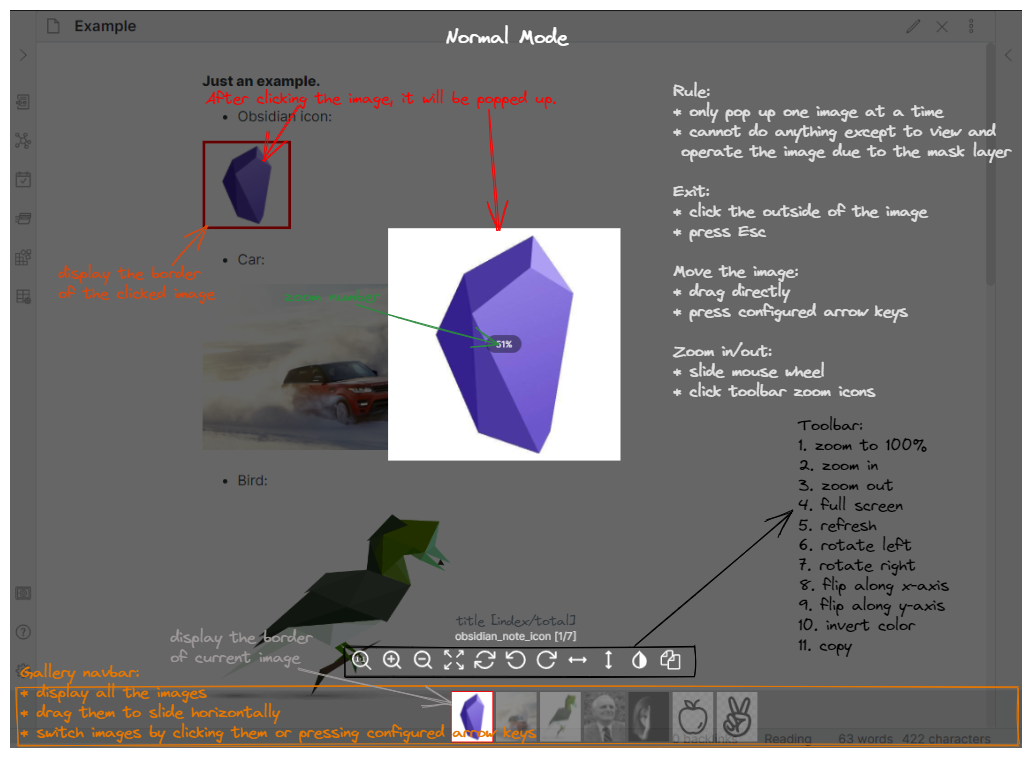
Normal mode: click an image in a note to open the full image viewer with zoom, rotate, flip, invert and the gallery navbar.
Installation
From Obsidian community plugins (recommended)
- Open Settings → Community plugins and turn off Restricted mode.
- Click Browse, search for “Awesome Image”.
- Click Install, then Enable.
Manual installation
- Download
main.js,manifest.jsonandstyles.cssfrom the latest release. - Copy them into
<your vault>/.obsidian/plugins/awesome-image/. - Reload Obsidian and enable Awesome Image in Settings → Community plugins.
Beta versions (BRAT)
Install the BRAT plugin and add AwesomeDog/obsidian-awesome-image as a beta plugin.
Quick start
- Back up your vault (Git commit, filesystem backup, or Obsidian Sync version history).
- Open Settings → Awesome Image and set your Media folder (default:
assets/img). - Open a small test note, press
Ctrl+P/Cmd+Pand runAwesome Image: Process images for active file. - Check the rewritten links and the created folders.
- When the result looks right, run
Awesome Image: Process images for all your notes. - Using
![[wikilink]]image embeds? RunConvert wiki image links to Markdown links in the whole vaultfirst.
Commands
Open the Command palette with Ctrl+P (Cmd+P on macOS) and search for Awesome Image.
| Command | What it does |
|---|---|
Awesome Image: Process images for active file |
Processes the active Markdown note only. Canvas and other file types are skipped. |
Awesome Image: Process images for all your notes |
Processes every Markdown file matching Include, skipping notes under Ignore folders. |
Awesome Image: Convert wiki image links to Markdown links in the whole vault |
Rewrites wiki image links to Markdown links vault-wide. |
Awesome Image: List images that are not linked by your notes |
Reports unused/orphan images. Read-only — it never deletes anything. |
Right-click a note or folder in the File Explorer for Export notes with referenced images (enable Show export menu first).
Image viewer (Normal mode & Pin mode)
The viewer is independent from image processing: it only changes how you look at images, never your files or links.
Normal mode
When Pin an image is turned off in the settings, the viewer runs in Normal mode.
Behaviour
- Clicking an image pops it up above a transparent mask layer.
- You can preview one image at a time.
- While the popup is open you cannot edit or browse your notes — only view and manipulate the image.
Gallery navbar
- All images in the current note appear as thumbnails at the bottom; click a thumbnail to switch images.
- Enable Display gallery navbar in the settings to use it.
- The navbar background color and the border color of the selected thumbnail are configurable.
Exit
- Click outside the image, or press
Esc. - In full-screen mode, exit full-screen first, then close the preview popup.
Pin mode
Turn Pin an image on to pin images on top of the workspace so you can keep reading and editing your notes while the image stays visible.
Image processing: content-addressed media folder
Image processing normalizes image links and stores image bytes in the configured Media folder (default assets/img).
⚠️ Back up first. Processing edits Markdown note text and creates files and folders in your vault. There is no plugin-level undo. If this is your first run, or you are unsure what a setting does, cancel the confirmation dialog and make a copy or snapshot of the entire vault (Git, a filesystem backup, or Obsidian Sync / version history).
What processing does
For each supported Markdown image link () in the selected scope, the plugin:
- Reads the local image bytes, or downloads the image when the link is an HTTP(S) URL.
- Calculates a SHA-256 hash of those bytes. The hash becomes the stable filename, with the extension detected from the image content.
- Creates or reuses the file inside the Media folder (automatic deduplication).
- Rewrites the image link in the processed note to point at the new file.
Existing local images are copied, not deleted. Identical bytes always reuse the existing hash-named file. Unsupported or unresolved links are left unchanged. Errors while reading, downloading or saving an image are collected in the processing-failures dialog.
Storage layout
Output is deliberately sharded by the first three characters of the hash. This nested layout is an intentional storage best practice: it keeps a large media collection manageable while giving every image a predictable, collision-free location.
<Media folder>/<1st hash char>/<2nd>/<3rd>/<full 64-character SHA-256>.<extension>
For example, an image whose hash starts with 74c:
assets/img/7/4/c/74c2e1...9ab3.png
Here ... only abbreviates the middle of the complete 64-character hash.
Before and after
The exact hash and extension depend on the image bytes and your Media folder.
Before processing
My vault/
|-- Notes/
| `-- Travel.md
`-- Photos/
|-- sunset.jpg
`-- map.png
Notes/Travel.md
----------------


After processing
My vault/
|-- Notes/
| `-- Travel.md
|-- Photos/
| `-- sunset.jpg (original is kept)
`-- assets/img/
|-- 7/4/c/74c2e1...png (local image copy)
`-- d/2/a/d2a91f...png (downloaded from URL)
Notes/Travel.md
----------------


The local image is copied into the hash layout, the external image is downloaded there, and the note links are updated. The original local image stays where it was.
Scope and limitations
- Media folder is the root of the generated hash layout. Changing it affects future runs only; old files are not moved.
- On paste processing automatically moves and renames newly pasted
Pasted image …files in the active note. This path does not show the batch confirmation dialog, so create your backup before enabling it. - The processing commands currently recognize Markdown image links. Wikilinks such as
![[image.png]]are not rewritten — convert them first with the conversion command.
Export notes with referenced images
Enable Show export menu in the settings, then right-click a Markdown file or folder in the File Explorer and choose
Export notes with referenced images. Enter a vault-relative destination folder when prompted.
This export action recursively copies the selected notes and the local images they reference, preserving each file's original vault path. It leaves the source notes, links and images unchanged, and never overwrites an existing destination file.
Useful for: sharing a subset of a vault, handing a project folder to someone else, or publishing notes elsewhere without hunting for attachments.
Convert wiki image links to Markdown links
Awesome Image: Convert wiki image links to Markdown links in the whole vault rewrites wiki links that point at an
image into [Markdown](links), in every note covered by Include and Ignore folders. It asks for confirmation
first, because it edits note text in place and there is no bulk undo.
Recognized image extensions: jpg, jpeg, png, gif, svg, bmp, tiff, webp.
| Before | After |
|---|---|
![[sunset.jpg]] |
 |
![[sunset.jpg|300]] |
 |
![[sunset.jpg|300x200]] |
 |
![[sunset.jpg|A caption]] |
 |
[[sunset.jpg]] |
[sunset.jpg](sunset.jpg) |
[[sunset.jpg|A caption]] |
[A caption](sunset.jpg) |
[[img/sunset.jpg]] |
[sunset.jpg](img/sunset.jpg) |
Notes
- The result is always a Markdown link, whatever Files & Links → Use
[[Wikilinks]]is set to. The path itself still follows your New link format setting (shortest / relative / absolute). - In a Markdown embed the size lives in the alt text, so
![[image.png|300]]becomesand Obsidian still renders it 300 px wide. A caption such as![[image.png|A caption]]is kept as the alt text. - A wiki link without
!is a link, not an embed, so it needs visible text: the file name is used when there is no caption. Otherwise[](sunset.jpg)would render as nothing. - This command is deliberately images-only. Links to notes, PDFs and other attachments are untouched, so your wiki note links are never rewritten behind your back.
Deliberately left unchanged
- Links that do not resolve to an existing image file, including
[[#Heading in this note]]. - Links inside fenced code blocks and inline code.
- Excalidraw and Kanban notes, which store structured data inside Markdown files.
The closing notice reports how many image links were converted and how many were left unchanged.
This is also the way to make image processing work in a vault that uses wiki image embeds: run the conversion first, then
Process images for all your notes.
Find unused (orphan) images
Awesome Image: List images that are not linked by your notes scans the vault and reports images that no note references.
It opens a dialog with paths and file sizes, lets you open an item or copy all paths, and does not delete anything.
Deletion stays a manual, deliberate action — the command is a report, not a cleanup or rollback tool.
Settings reference
| Setting | Description |
|---|---|
| Pin an image | Off → Normal mode (modal viewer). On → Pin mode (image stays on top while you edit). |
| Display gallery navbar | Show thumbnails of all images in the current note at the bottom of the viewer. |
| Gallery navbar background color | Background color of the thumbnail bar. |
| Selected image border color | Border color of the currently selected thumbnail. |
| Media folder | Root of the content-addressed hash layout (default assets/img). |
| Include | Glob/pattern of Markdown files to process in vault-wide commands. |
| Ignore folders | Folders skipped by vault-wide commands. |
| On paste processing | Automatically move and rename pasted images in the active note. |
| Show export menu | Add Export notes with referenced images to the File Explorer context menu. |
Safety, backups and reverting a run
There is no automatic reverse operation. The safest way to revert is to restore the affected notes from your vault copy, Git history, or another version-history system. Because original local images are retained, do not delete the generated media folder until you have restored links and confirmed that no notes still reference those files.
For a cautious first run
- Back up or snapshot the vault.
- Set and note the desired Media folder.
- Process one small test note and inspect both the note link and the created folders.
- Run the all-notes command only after the result is exactly what you expect.
FAQ
Does the plugin delete or move my original images? No. Local images are copied into the media folder; the originals stay in place. Only note text (the link) is rewritten.
Why are filenames SHA-256 hashes instead of readable names? Because content-addressed names are stable, collision-free, cross-platform safe, and give you automatic deduplication: the same picture pasted into ten notes is stored exactly once.
Does it support ![[image.png]] wikilink embeds?
Not directly for processing. Run Convert wiki image links to Markdown links in the whole vault first, then process.
How do I clean up unused images in my Obsidian vault?
Run List images that are not linked by your notes, review the reported paths and sizes, then delete them yourself.
Can I undo a batch run? There is no bulk undo. Restore from a vault backup, Git history, or Obsidian Sync version history.
Will it change my Obsidian link settings?
No. It respects your New link format; it never flips the global [[Wikilinks]] option.
What about images inside code blocks? Links inside fenced code blocks and inline code are skipped on purpose.
Development
Development requires Node.js 22 or newer. Install dependencies, run checks, build the plugin, then deploy the generated files directly into a local vault:
npm install
npm test
npm run build
npm run deploy -- "C:/path/to/your/vault"
The vault path can also be provided through the OBSIDIAN_VAULT environment variable. The deploy command installs
main.js, manifest.json and styles.css under .obsidian/plugins/awesome-image/. Enable Awesome Image in
Obsidian's community plugins after the first deployment. Restart Obsidian after changing manifest.json; for source
changes, rebuild and reload the plugin.
Release
Use npm's version command to update package.json, package-lock.json, manifest.json and versions.json, then push the
generated commit and tag (tags intentionally have no v prefix):
npm version patch
git push origin master --follow-tags
The release branch for this repository is master. Pushing the tag starts the release workflow: it checks the version,
builds the plugin, and creates a draft GitHub release containing main.js, manifest.json and styles.css for review and
publication.
Contributing
Issues and pull requests are welcome. Please open an issue describing the bug or feature first, include your Obsidian version, operating system and plugin version, and — for processing issues — a minimal example note with the affected links.
Credits & attribution
Special thanks to sissilab's marvelous Obsidian Image Toolkit; the image viewer part of this plugin is based on that great work.
License
See LICENSE.
Related searches: obsidian image viewer plugin · obsidian zoom image mouse wheel · obsidian image gallery preview · obsidian save web images locally · obsidian attachment folder management · obsidian duplicate image cleanup · obsidian find orphaned attachments · obsidian convert wikilink to markdown image · obsidian export note with images