
README file from
GithubRibbon Folder
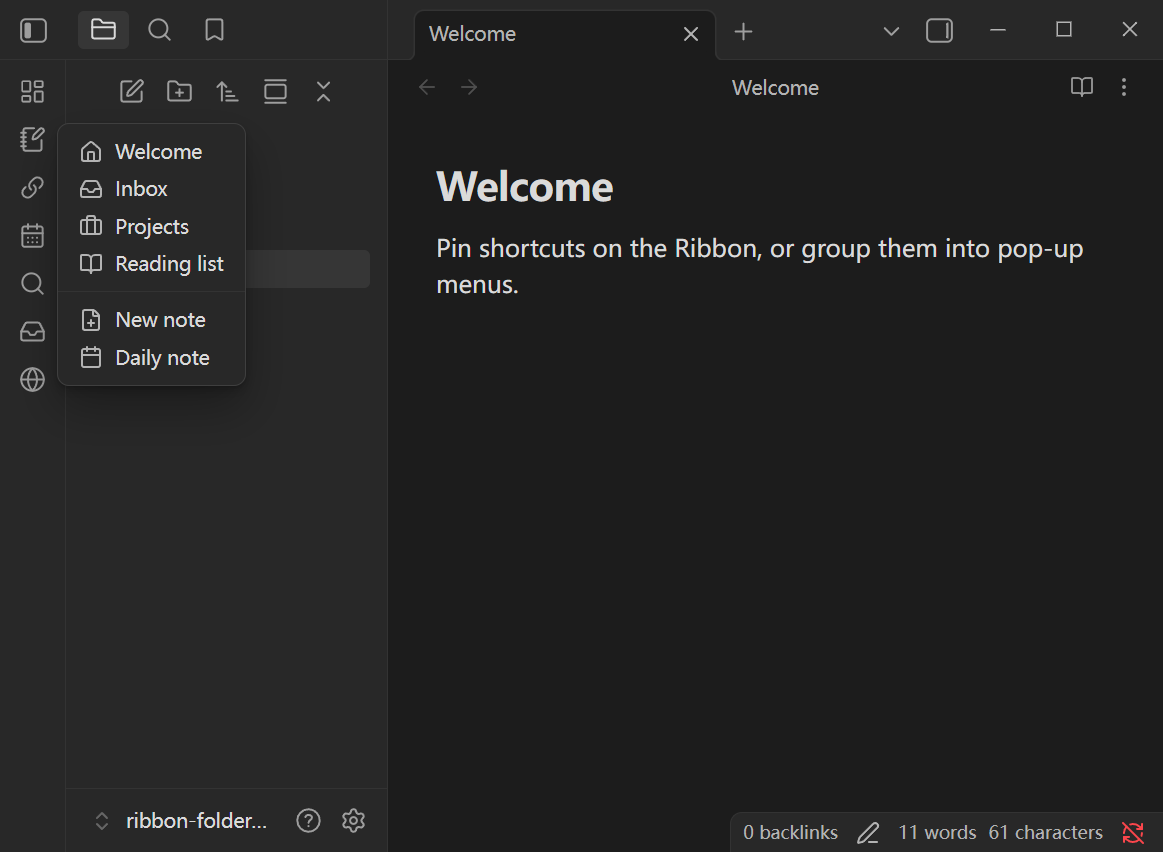
Organize Obsidian’s left Ribbon: pin commands, files, and web links as one-click shortcuts, or tuck them into group buttons with pop-up menus.
Features
Shortcuts
- Pin commands, vault files, or web links directly on the Ribbon
- Each pin is a single button that runs immediately (no menu)
- Drag to reorder; customize tooltip and icon
Groups
- Create group buttons that open a pop-up menu
- Menu items can be commands, files, web links
- Per-group options:
- Menu display: icon only / label only / both
- Trigger: click or hover
- Custom display names and icons per item
Icons
- Lucide icon names (e.g.
folder,globe) - Custom
.svgfiles via an icon folder, relative path, or full vault path
Other
- Global setting for where files open: new tab / current tab / split
Installation
Community plugins (recommended)
- Settings → Community plugins → Browse
- Search for Ribbon Folder
- Install → Enable
Manual
- Download
main.js,manifest.json, andstyles.cssfrom the latest release - Put them in
VaultFolder/.obsidian/plugins/ribbon-folder/ - Enable Ribbon Folder under Community plugins
Requires Obsidian 1.13.0 or newer.
Usage
Shortcuts
- Open Settings → Ribbon Folder → Shortcuts
- Add a command, file, or web link
- Optionally set a tooltip and icon
- The button appears on the Ribbon; click to run / open
Groups
- Open Settings → Ribbon Folder → Groups
- Create a group; set name, icon, menu display, and trigger
- Add menu items (command / file / web link / separator)
- Click (or hover) the Ribbon group button to open the menu
Custom icons
- Set Icon folder (e.g.
.obsidian/iconsorscripts/icons) - In any icon field, use a Lucide name, a file under that folder (e.g.
add.svg), or a full vault path
Feedback
Issues and suggestions: GitHub Issues