README file from
GithubMasking Type
Features / 機能概要
This plugin adds the following features to Obsidian.
このプラグインはObsidianに以下の機能を追加します
-
To aid memorization, hide text in bold, italics, and highlighted text.
-
太字、斜体、ハイライトされたテキストを隠し、暗記作業をサポートする
Installation / インストール方法
Obsidian Settings > Community plugins > Browse > Type 'masking' into the search box > Select the 'Masking Type' card > Install > Enable
Obsidianの設定 > コミュニティプラグイン > 閲覧 > 検索ボックスに「masking」と入力 > 「Masking Type」のカードを選択 > インストール > 有効化
Usage / 使い方
Hide text / テキストを隠す
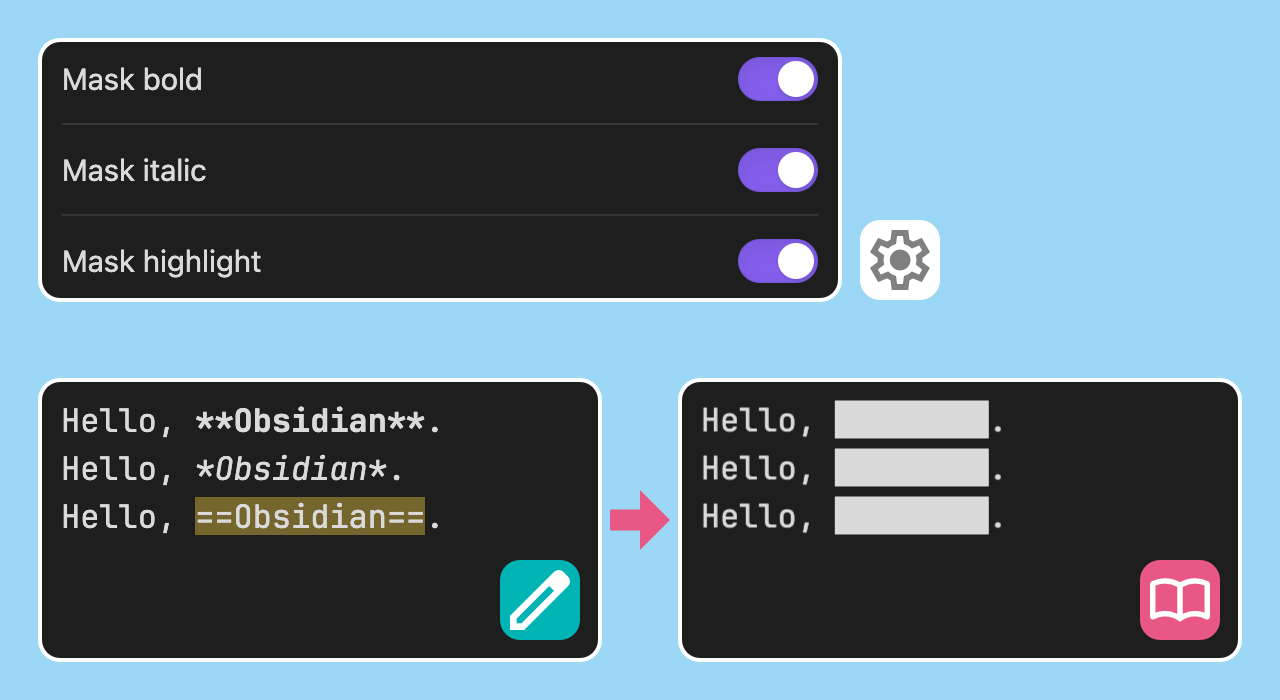
Items that are turned on in the settings are filled in.
設定でオンにした項目が塗りつぶされます
Display text / テキストを表示
Click on the filled area.
塗りつぶされた部分をクリックしてください
Set for each note / ノートごとに設定する
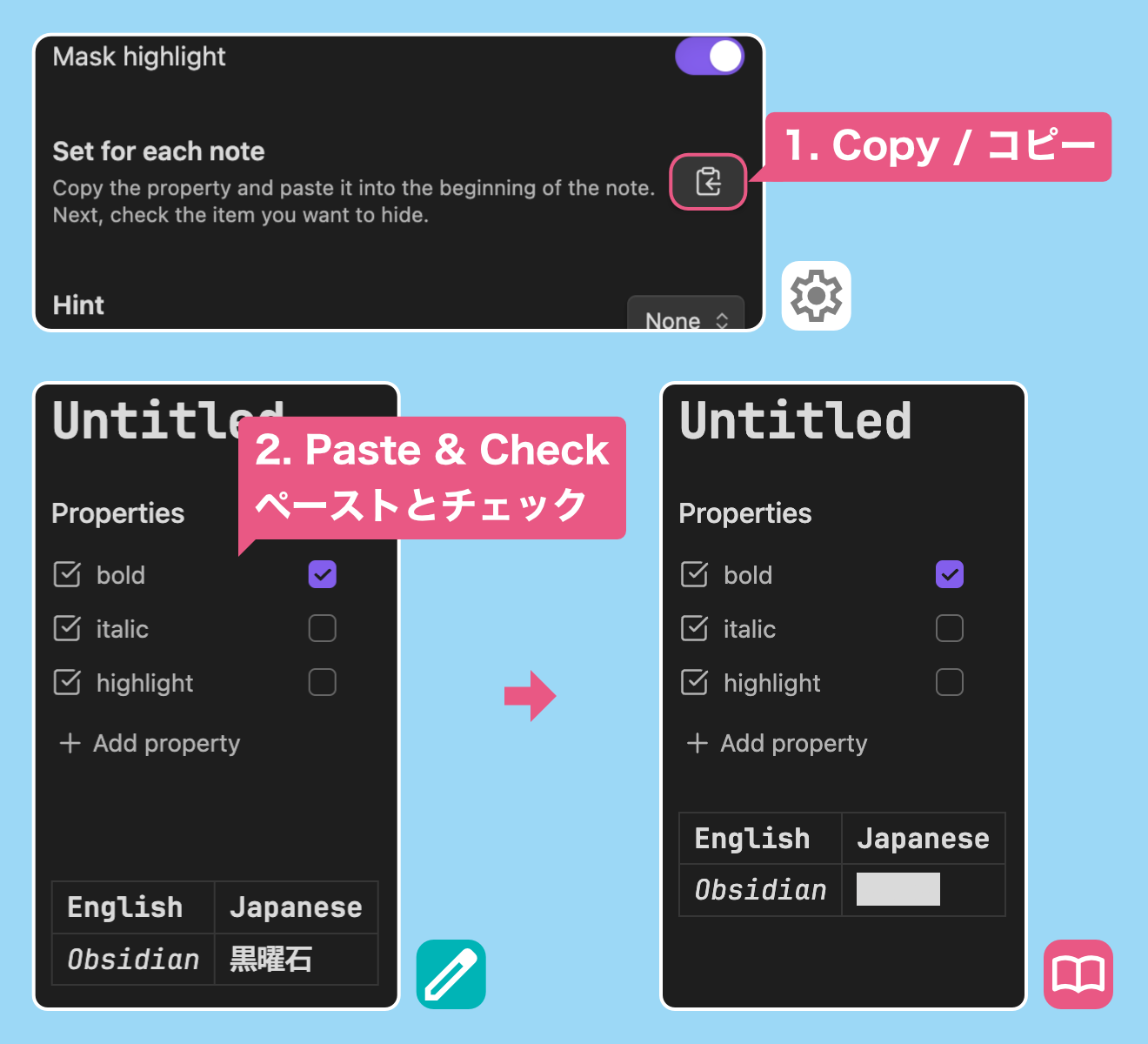
Copy the property from the settings and paste it into the beginning of the note.
Next, check the item you want to hide.
設定からプロパティをコピーし、ノートの先頭にペーストします
次に、隠したい項目にチェックを付けてください
Show hints / ヒントを表示する
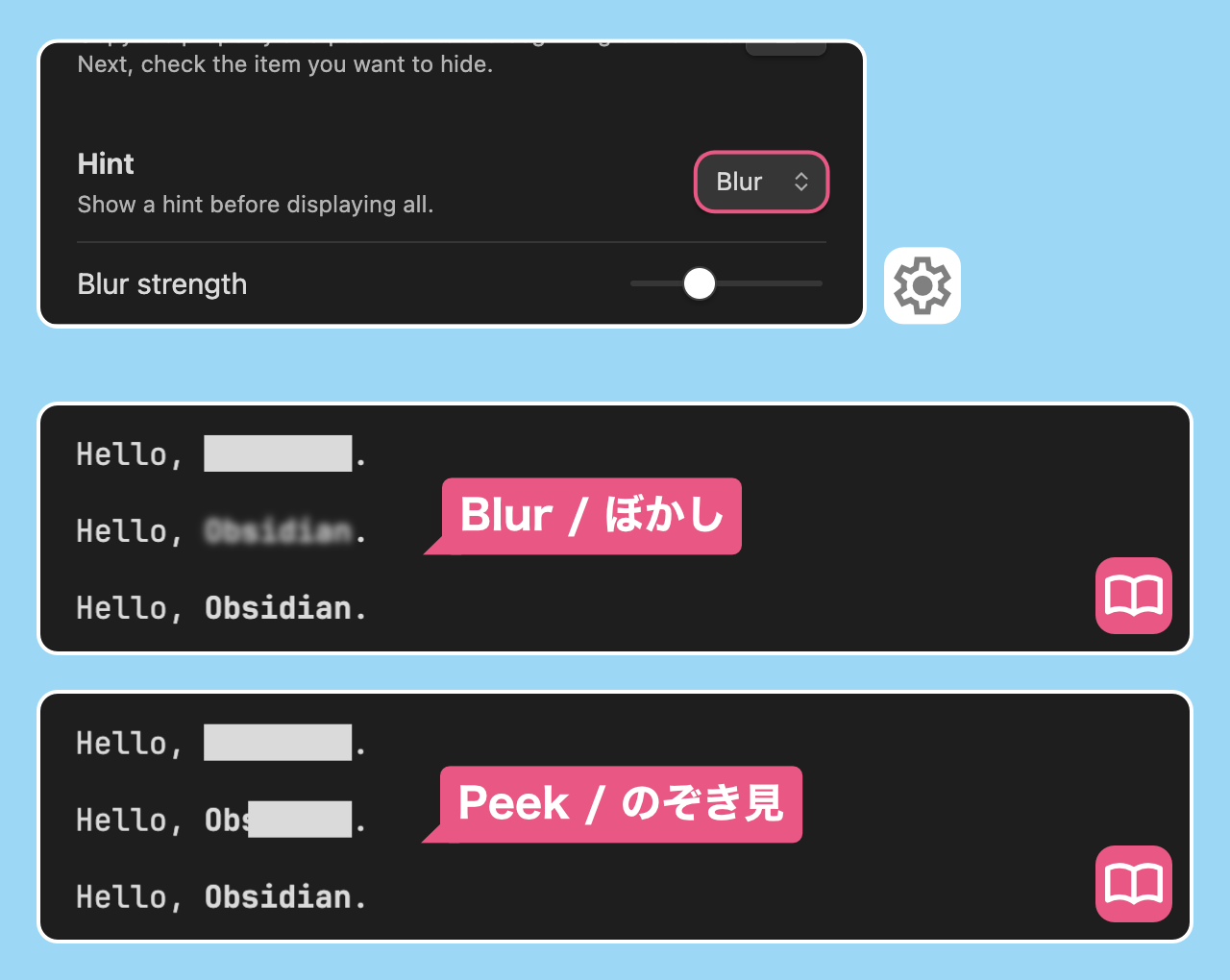
By selecting the type of hint from the settings, a hint can be displayed before all text is displayed.
設定からヒントの種類を選択することで、全体を表示する前にヒントを表示することができます
Hint type / ヒントの種類
- Blur / ぼかし
- Peek / のぞき見
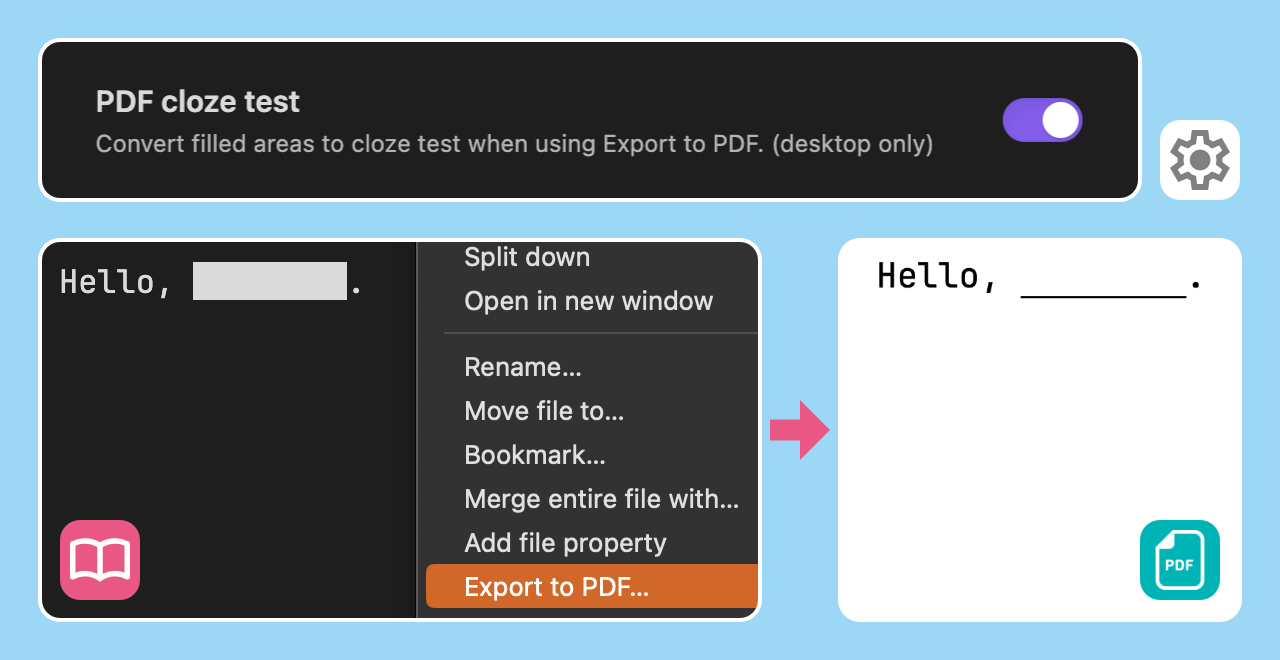
PDF cloze test / PDF の穴埋め化
Convert filled areas to cloze test when using Export to PDF. (version 1.1.0~, desktop only)
PDF にエクスポートを使用する際に、塗りつぶし箇所を穴埋め問題に変換します(バージョン 1.1.0~、デスクトップ専用)