
README file from
GithubLivecodes playground
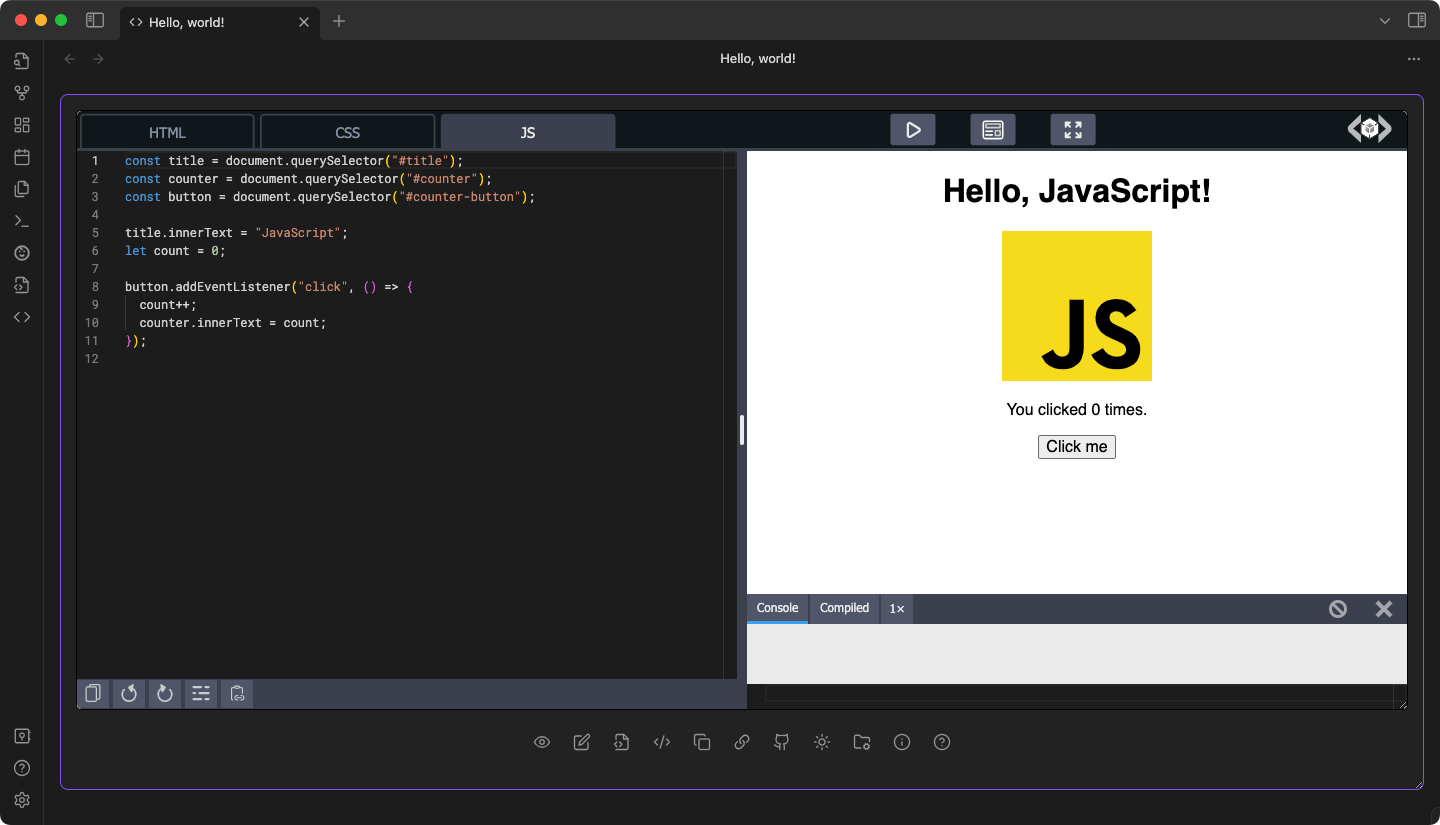
Livecodes playground, an open-source client-side code editor plugin for Obsidian.md - powered by Livecodes.io.
Read about why Livecodes, it's features and how to self-host
[!IMPORTANT] The Livecodes codebase can be self-hosted but is not 100% off-line. Internet connection is required.
Installation
Install from community.obsidian.md
From Obsidian's settings or preferences:
- Community Plugins > Browse
- Search for "Livecodes PLayground"
Manually:
- download the latest release archive
- uncompress the downloaded archive
- move the
livecodes-playgroundfolder to/path/to/vault/.obsidian/plugins/ - Settings > Community plugins > reload Installed plugins
- enable plugin
or:
- download
main.js,manifest.json&styles.cssfrom the latest release - create a new folder
/path/to/vault/.obsidian/plugins/livecodes-playground - move all 3 files to
/path/to/vault/.obsidian/plugins/livecodes-playground - Settings > Community plugins > reload Installed plugins
- enable plugin
Usage
Initial setup
- create a folder inside your vault for storing playground configuration files (
*.JSON)- default:
playgrounds
- default:
- create a folder inside your vault for storing playground markdown notes (
*.MD)- default:
playgrounds/notes
- default:
New playground
New playgrounds can be created via:
-
New playground- (command) opens a prompt for the playground name, markup language, style language, CSS processors, and script language. -
Quick playground- (command) and (ribbon menu) open a prompt for the playground name. The default markup, style, & script languages can be configured in the settings. -
Open starter playground(command) opens a suggestion prompt with a list of simple starter playgrounds. These starter include_hyperscript,Alpine.js,Angular,Arrow.JS,Astro,Bootstrap 5,Bulma (CSS),C++,HTMX,Javascript,jQuery,Lemonade.JS,Lit,Lua,Lua (wasm),Markdown,MDX,modulo.js,Open-props (CSS),Perl,PHP,PHP (wasm),Preact,Python,Python (wasm),React,React Native,Reef.js,Riot.js,Ruby,SCSS,Solid.js,Stellar,Stencil.js,Svelte,Tailwind CSS,Typescript,VanJS,Vue 2,Vue 3 SFC -
New playground from CodePen(command) opens a prompt for a CodePen URL and attempts to import the pen and create a new playground. Please note: this command is experimental and is dependent on CodePen's source code for presenting pens. If CodePen's changes their HTML code, the command could stop working -
Open codeblocks in Livecodes(command) Live-preview and Source mode. The command parses the markdown note for codeblocks and will attempt to create a new playground with 1-3 codeblocks (markup, style, script) based on the codeblock's language. Supported languages includehtml,mdx,css,scss,javascript,js,jsx,typescript,ts,tsx,astro,svelte. -
Open in Livecodes- (codeblock context menu) via right-click (ctrl+click) in supported fenced code blocks. Reading mode ONLY. Supported languages includehtml,mdx,css,scss,javascript,js,jsx,typescript,ts,tsx,astro,svelte. -
Open in Livecodes- (file context menu) via right-click (ctrl+click) for supported file extensions. Supported extensions includehtml,mdx,css,scss,js,jsx,ts,tsx,astro,svelte. -
Open in Livecodes- (folder context menu) via right-click (ctrl+click) for supported file extensions. Supported extensions includehtml,mdx,css,scss,js,jsx,ts,tsx,astro,svelte. To activate the menu, the folder must have 1-3 files with the supported extensions. e.g. (index.html,style.css,main.js) -
Obsidian
URI- Create a new playground via importing of a raw JSON configuration file, easily hosted as a Github gist. The Obsidian URI expects 2 parameters,vaultandgistUrlformatted asobsidian://playground?vault=VAULTNAME&gistUrl=RAW_JSON_URLThegistUrlneeds to be URI encoded (see: Obsidian Help)e.g.
obsidian://playground?vault=Playground&gistUrl=https%3A%2F%2Fgist.githubusercontent.com%2Fgapmiss%2Ff558657bcde37c677724004c36ed8dcd%2Fraw%2Ff8a7173bbd17d0886534c2f2017385a5fb3cff48%2FJavascript_starter.json
Open playground
Playgrounds can be opened via:
-
Open playground- (command) and (ribbon menu) opens a playground fuzzy search prompt. -
Open playground- (context menu) via right-click (ctrl+click) for playground config files (*.JSON). -
Obsidian
URI- Create a new playground via importing of a raw JSON configuration file, easily hosted as a Github gist. The Obsidian URI expects 2 parameters,vaultandplaygroundPathformatted asobsidian://playground?vault=VAULTNAME&playgroundPath=VAULT_PATH_TO_JSONTheplaygroundPathneeds to be URI encoded (see: Obsidian Help)e.g.
obsidian://playground?vault=VAULTNAME&playgroundPath=path/to/playground.json
[!IMPORTANT] The above context menu options are only available when all file extensions are detected by Obsidian. Open
Settings>File and linksand enableDetect all file extensions

Issues and bug reports
Please submit issues, bug reports, feature requests, etc. to gapmiss/livecodes-playground/issues
Development
cd /path/to/vault/.obsidian/pluginsgit clone https://github.com/gapmiss/livecodes-playground.gitcd livecodes-playgroundnpm installnpm run dev
Contributing
Contributions are welcome! Please open an issue for discussion before submitting a pull request with your changes.
Livecodes
This plugin is powered by the Livecodes SDK. The Livecodes SDK is licensed under the MIT License.
MIT License
Copyright (c) 2021-PRESENT Hatem Hosny
Permission is hereby granted, free of charge, to any person obtaining a copy of this software and associated documentation files (the "Software"), to deal in the Software without restriction, including without limitation the rights to use, copy, modify, merge, publish, distribute, sublicense, and/or sell copies of the Software, and to permit persons to whom the Software is furnished to do so, subject to the following conditions:
The above copyright notice and this permission notice shall be included in all copies or substantial portions of the Software.
THE SOFTWARE IS PROVIDED "AS IS", WITHOUT WARRANTY OF ANY KIND, EXPRESS OR IMPLIED, INCLUDING BUT NOT LIMITED TO THE WARRANTIES OF MERCHANTABILITY, FITNESS FOR A PARTICULAR PURPOSE AND NONINFRINGEMENT. IN NO EVENT SHALL THE AUTHORS OR COPYRIGHT HOLDERS BE LIABLE FOR ANY CLAIM, DAMAGES OR OTHER LIABILITY, WHETHER IN AN ACTION OF CONTRACT, TORT OR OTHERWISE, ARISING FROM, OUT OF OR IN CONNECTION WITH THE SOFTWARE OR THE USE OR OTHER DEALINGS IN THE SOFTWARE.