
README file from
GithubObsidian Attachment Management
This plugin supports more flexibly setting your attachment location with variables like ${notepath}, ${notename}, ${date} and ${md5}. An override setting feature can be used to change the global setting of a folder, file or extension.
Read the Original Name section before using the
${originalname}variable. Read the FAQ section if you have any questions about how to use this plugin.
Installation
- Install from Obsidian community plugins.
- Clone this repo
pnpm ito install dependenciespnpm run buildto start compilation in watch mode.- Copy the
main.js,manifest.jsonandstyle.cssfiles to your vaultVaultFolder.obsidian/plugins/obsidian-attachment-management
- Download the release file and unarchive the file to your vault
VaultFolder.obsidian/plugins/obsidian-attachment-management
Usage
Install and enable the plugin, after configuration you can paste or drop attachment file as usually and it will be auto renamed.
This plugin supports a command Rearrange linked attachments/Rearrange all linked attachments. If you run this command, it will rename all attachments (image file default, to rename another type, you need to enable Handle All Attachements) that have been linked in the markdown or canvas file as you configured.

Notice: The Rearrange linked attachments/Rearrange all linked attachments is currently an experimental feature; if you want to try it out, it's best to back up your files first.
Overriding Setting
You can set the attachment path setting for a file or folder. The priority of these settings are:
file setting > most close parent folder setting > global setting
If you want to reset the settings of files or folders to the global setting, use the command Reset Override Setting or the Reset button on the override setting panel. The reset will only work on each file or folder that you trigger the command on. A more appropriate method to handle resetting will be added in the future.
Original Name
The ${originalname} variable represents the filename (without extension) of the attachment at the moment it was first added to the vault. You can use it on its own (e.g. ${originalname}) or combine it with other text and variables (e.g. IMG-${originalname}-${date}).
The plugin persists the original name in data.json under originalNameStorage, keyed by the file's MD5 hash. This means that even after the attachment has been renamed by the plugin or by a subsequent Rearrange linked attachments run, ${originalname} will still resolve to the truly-original basename.
Note on duplicate content: the storage is keyed by MD5, so two attachments with identical bytes share a single record. If you paste/drop two distinct files that happen to have the same content, only one original name will be retained for that md5; both files will resolve
${originalname}to that same value.
Use the command Clear unused original name storage to prune entries whose file is no longer linked in the vault.
Roadmap of Features
This plugin currently supports:
- Setting the attachment location with
${notepath},${notename},${date}and${parent} - Auto-rename the attachment when pasting to
markdownorcanvas - Auto-rename the attachment file or folder while you rename the article (
markdownorcanvas) file - Auto-rename the attachment when dropping to
markdownorcanvas - Re-Arrange the attachment file that is linked by
markdownorcanvasto the corresponding path as you configured (experimental) - Processing duplicate attachment
- Processing duplicate attachment on create (the first time, you paste or drop an attachment in notes)
- Processing duplicate attachment on rename
- Override attachment configuration for specified notes or folder
- Exclude folders that you want this plugin to skip
- Add Exclude folder by menu
Settings
The path of attachment is composed of three parts :
{root path}/{attachment path}/{attachment name}.extension
And you can use the variables below to config:
${notepath}: The directory of themarkdownorcanvasfile under the vault root.${notename}: The filename of themarkdownorcanvasfile (without file extension).${parent}: The parent folder name of themarkdownorcanvasfile.${originalname}: The filename of the attachment file when it was first created in Obsidian.${date}: Date time format by Moment format options
Notice before using
${originalname}: see the Original Name section for how the original filename is persisted and how duplicate-content files are handled.
Root Path to Save New Attachments
You must select a root folder to save the attachment associated with a markdown or canvas file.

It can be set using the config of Obsidian in Files & Links and reset using this option.
- Copy Obsidian settings: use the Obsidian setting in the
Files & Linkssection. - In the folder specified below: set a fixed folder.
- Next to note in folder specified below: in the subfolder of the current
markdownorcanvasfile.
Attachment Path
A sub-folder to place attachment under the {root path}, available variables:
${notepath}: The directory of themarkdownorcanvasfile under the vault root.${notename}: The filename of themarkdownorcanvasfile (without file extension).${parent}: The parent folder name of themarkdownorcanvasfile.
Default value ${notepath}/${notename}.
Attachment Format
Set how to rename the attachment and available variables:
${notename}: The filename of themarkdownorcanvasfile (without file extension).${originalname}: The filename of the attachment file when first time it created.${date}: Date time format by Moment format options${md5}: MD5 hash of the attachment file (calculated when the attachment file was first created in the vault).
default value IMG-{date}.
Date Format
Use Moment format options to set the ${date}, default value YYYYMMDDHHmmssSSS. You should always use the ${date} variable to prevent the same file name.
Exclude Extension Pattern
This option is useful if you want to ignore some file types. Write a Regex pattern to exclude certain extensions from being handled.

Automatically Rename Attachment
Automatically rename the attachment folder/filename when you rename the folder/filename where the corresponding md/canvas file is placed.
Extension Override Setting
This feature allows you to specify the setting for a serials extension. You can use a regex pattern here to override the global setting.

Exclude Paths
If you want some paths to be skipped by this plugin, add them to the text area. If you have multiple paths, split them with a semicolon ';'.
By default, the "Exclude paths" will only work on the folder you added, and that folder contains at least one markdown file; you can toggle "Exclude subpaths" to exclude subpaths also.
The path is case-sensitive and should not have a leading slash '/' at the beginning.
Known Issues
No support for processing duplicated file names right now (in development). In backup, you could use the data variablexto use Unix timestamp with millisecond as filename (it will prevent duplicated filename).- When pasting or dropping a file in
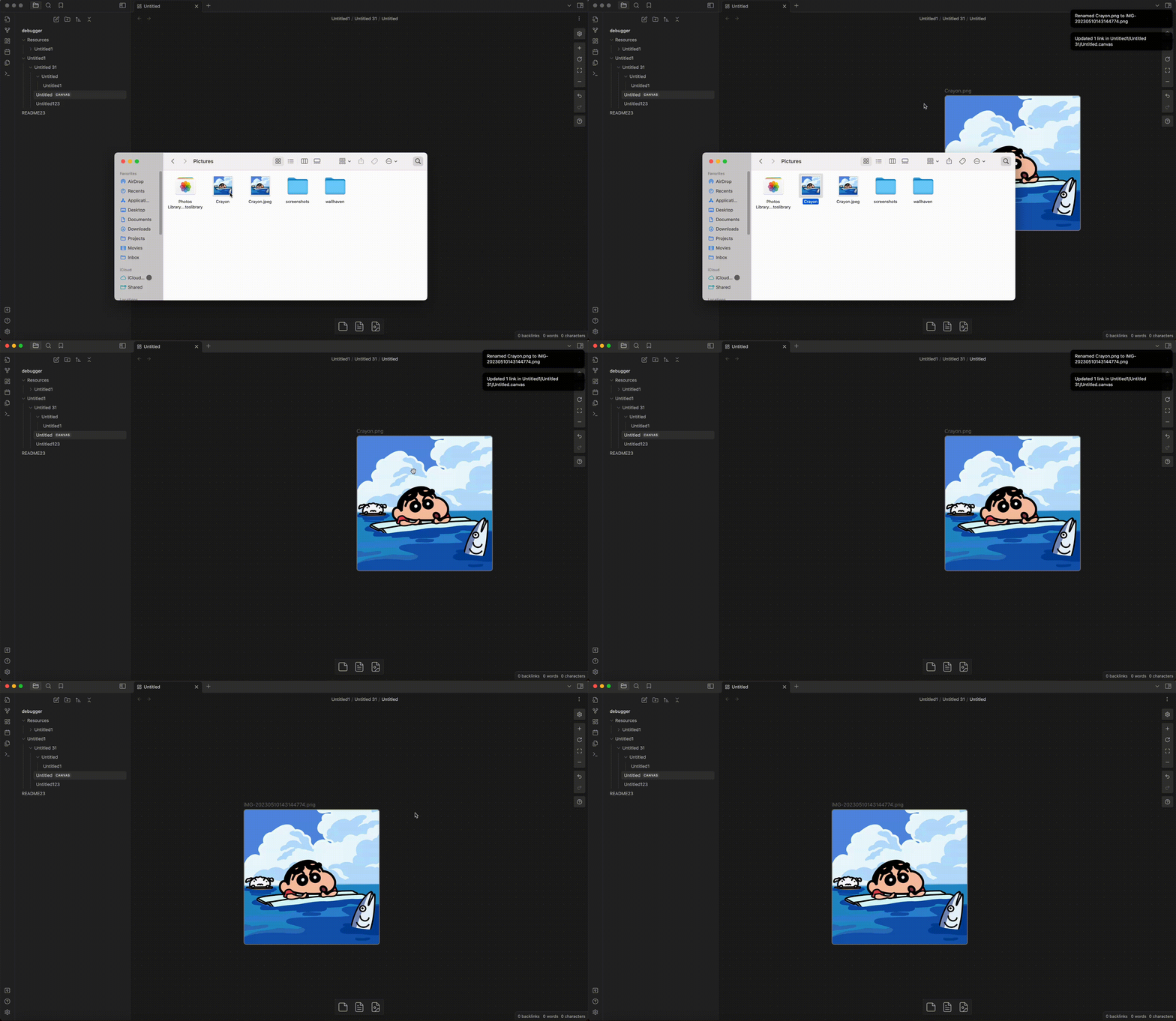
canvasandmarkdown, it will delay showing the updated link/filename. The reason is that Obsidian's API has nopasteordropevent support forcanvas, so I have implemented it in another way, and this caused the delay in renaming the attachment.
- Suppose you have a structure below with default configuration:
- Attachment directory, "assets/notes/hello/1.png"
- Note directory, "notes/Hello.md"
- Running the
Rearrangecommand may lead to an error since the folder already exists but has a lowercase name.
FAQ
Q1: What if I add '/' to Exclude Paths?
A1: It will exclude the whole vault folder.
Q2: Is this plugin support auto rename pdf file?
A2: By default, this plugin will only rename the image file. For other file types, you can use the extension override setting.
Q3: The link of the attachment in markdown file is not updated after I directly rename the attachment file, why?
A3: Make sure you have enabled the "Automatically Rename Attachment" option in the plugin setting, and "Files and links -> Automatically update internal links" in Obsidian setting.