
README file from
GithubHive
A dark/light Obsidian theme that follows your Settings → Appearance accent color.
Hive is a fork of Wasp by Santi Younger. For the classic Hive look, pick a yellow or amber accent.
Dark mode
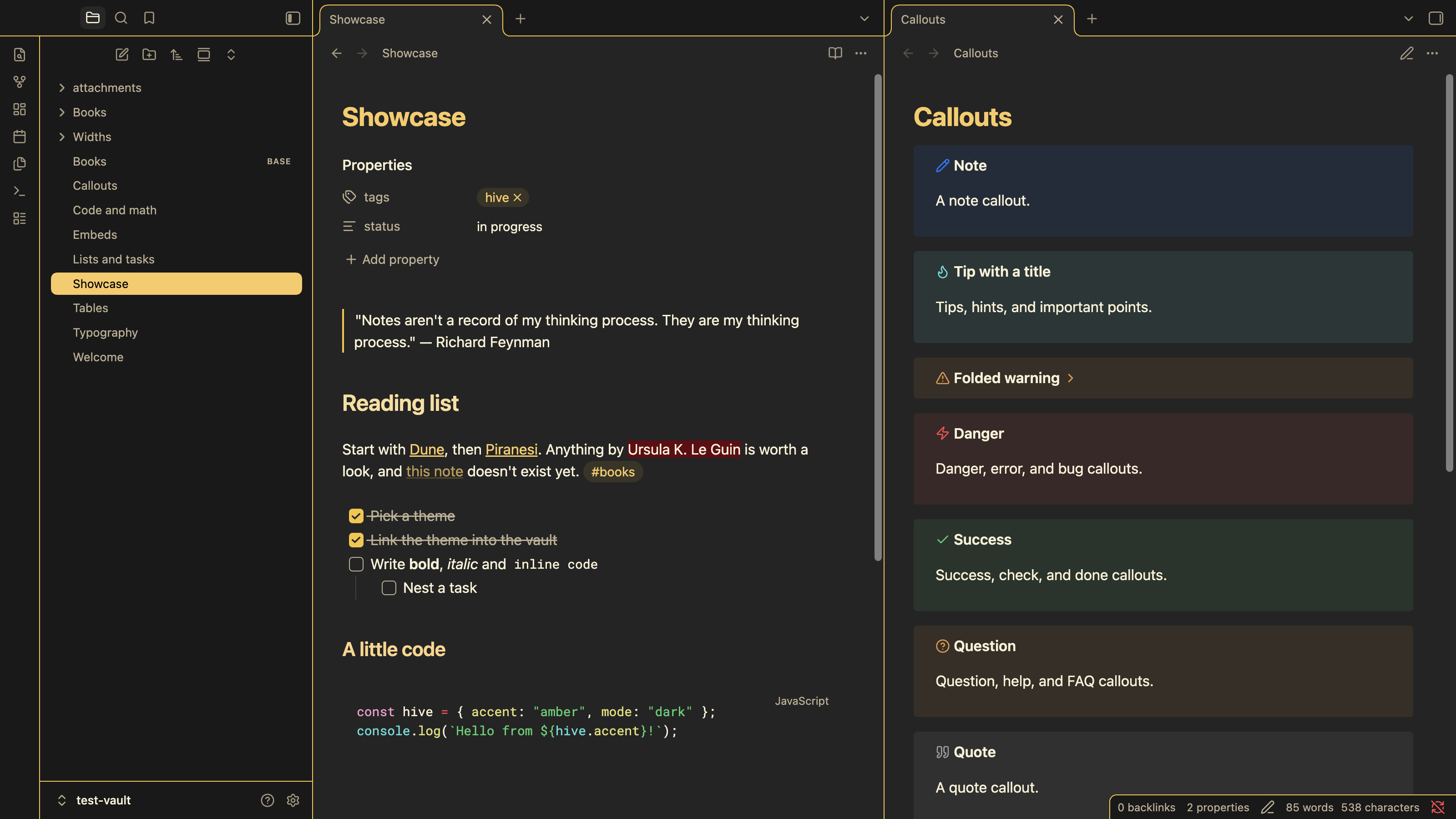 Dark backgrounds with accent-colored highlights.
Light mode
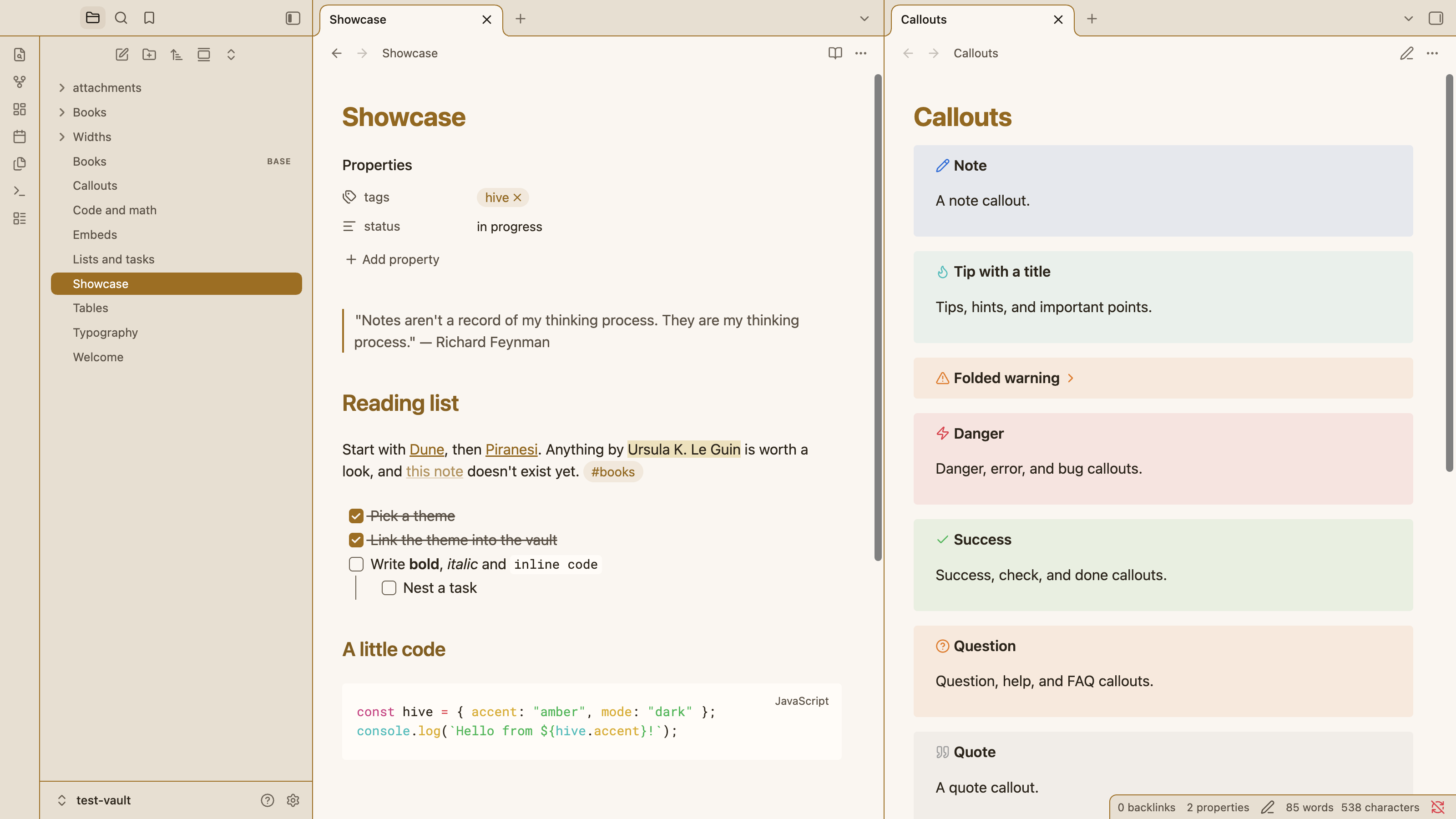 Light cream backgrounds with accent-colored highlights.
Install and Use
Hive is in Obsidian's community theme directory:
- Go to Settings → Appearance → Themes and select Manage.
- Search for Hive, then select Install and use.
- Set Accent color under Appearance to taste. The screenshots use
#f8c537in dark mode and the darker#9a6700in light mode, which keeps accent text readable on the light background.
To install by hand instead, download theme.css and manifest.json from the latest release and put both files in <your vault>/.obsidian/themes/Hive/.
Helper classes
Hive supports some of Minimal's helper classes. To use one in a note, add it to the cssclasses property:
---
cssclasses:
  - table-wide
---
Block widths
These need Settings → Editor → Readable line length turned on. Without it, notes already use the full width of the pane.
| Class | Effect |
|---|---|
wide |
Makes the whole note wide (readable line length + 300px) |
max |
Makes the whole note use 88% of the pane |
table-wide, img-wide, iframe-wide |
Makes only tables (including Bases and Dataview tables), images or iframes wide |
table-max, img-max, iframe-max |
Makes only tables, images or iframes use 88% of the pane |
table-100, img-100, iframe-100 |
Makes only tables, images or iframes use the full width of the pane |
Development
test-vault/ has sample notes for every surface the theme styles. Its theme files are symlinks to this repo. Open it with Open folder as vault.
To work on the theme live, start Obsidian with the debug port open and reload the CSS after each edit:
npm run devtools -- launch                         # restart Obsidian with --remote-debugging-port=9223
npm run devtools -- --vault test-vault reload      # re-read theme.css
npm run devtools -- --vault test-vault screenshot  # save screenshot.png
npm run screenshots regenerates the README screenshots in img/ from the test vault. See scripts/devtools.mjs for the other commands (windows, eval, console).
License
MIT — see LICENSE.
Hive by Peter Kristensen, based on Wasp by Santi Younger.