
README file from
GithubOnePage
🌐 English · 中文
Native macOS feel × Geeky editor details · Warm eye-friendly dual themes · Works out of the box
OnePage is an Obsidian theme deeply customized from Cupertino: a native macOS-style interface paired with VSCode-like geeky editor details, wrapped in warm paper colors that are easy on the eyes.
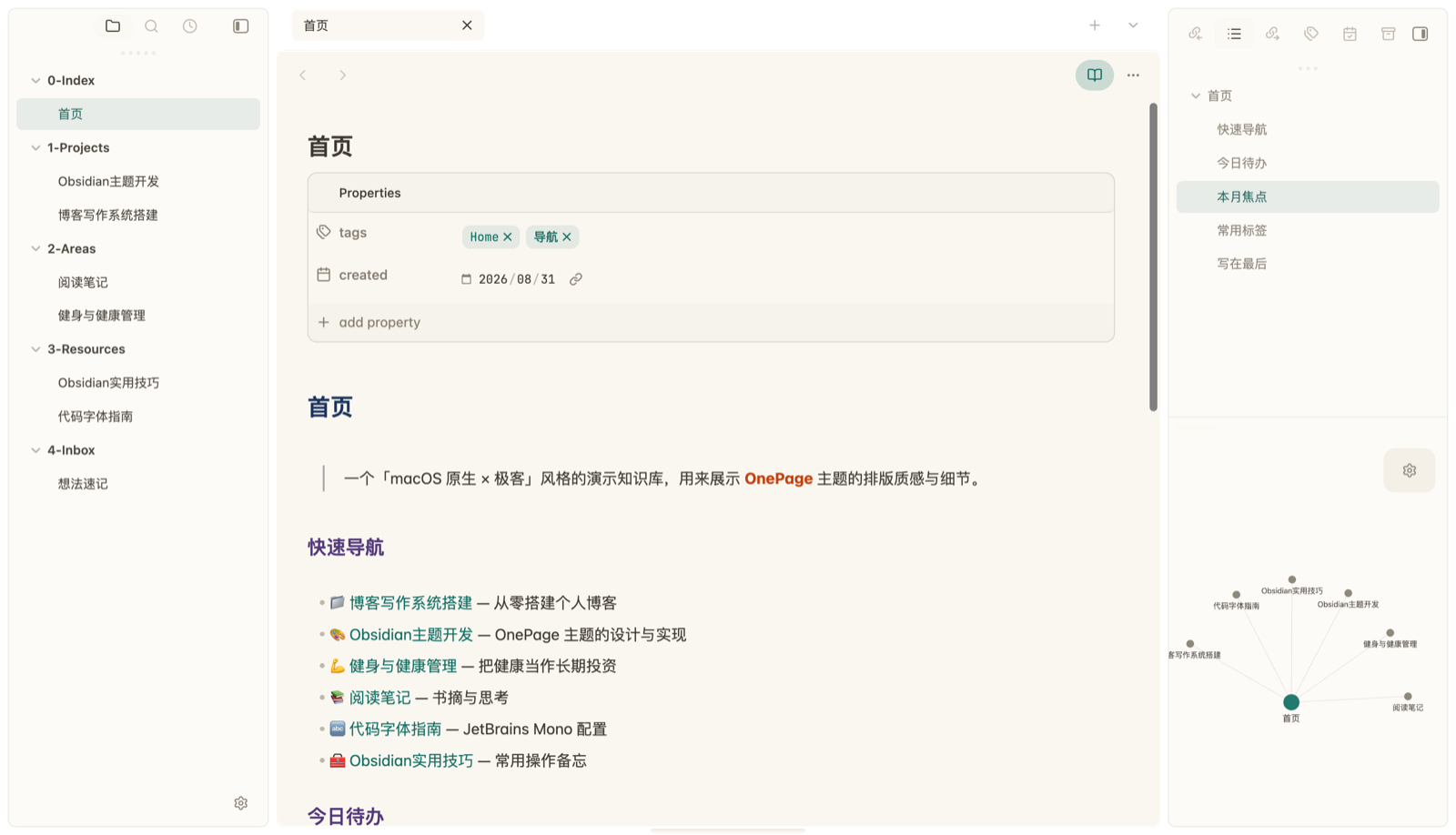
- 🌞 Light · Warm Paper: cream-white warm base + deep teal accent — reading feels like opening a warm paper book
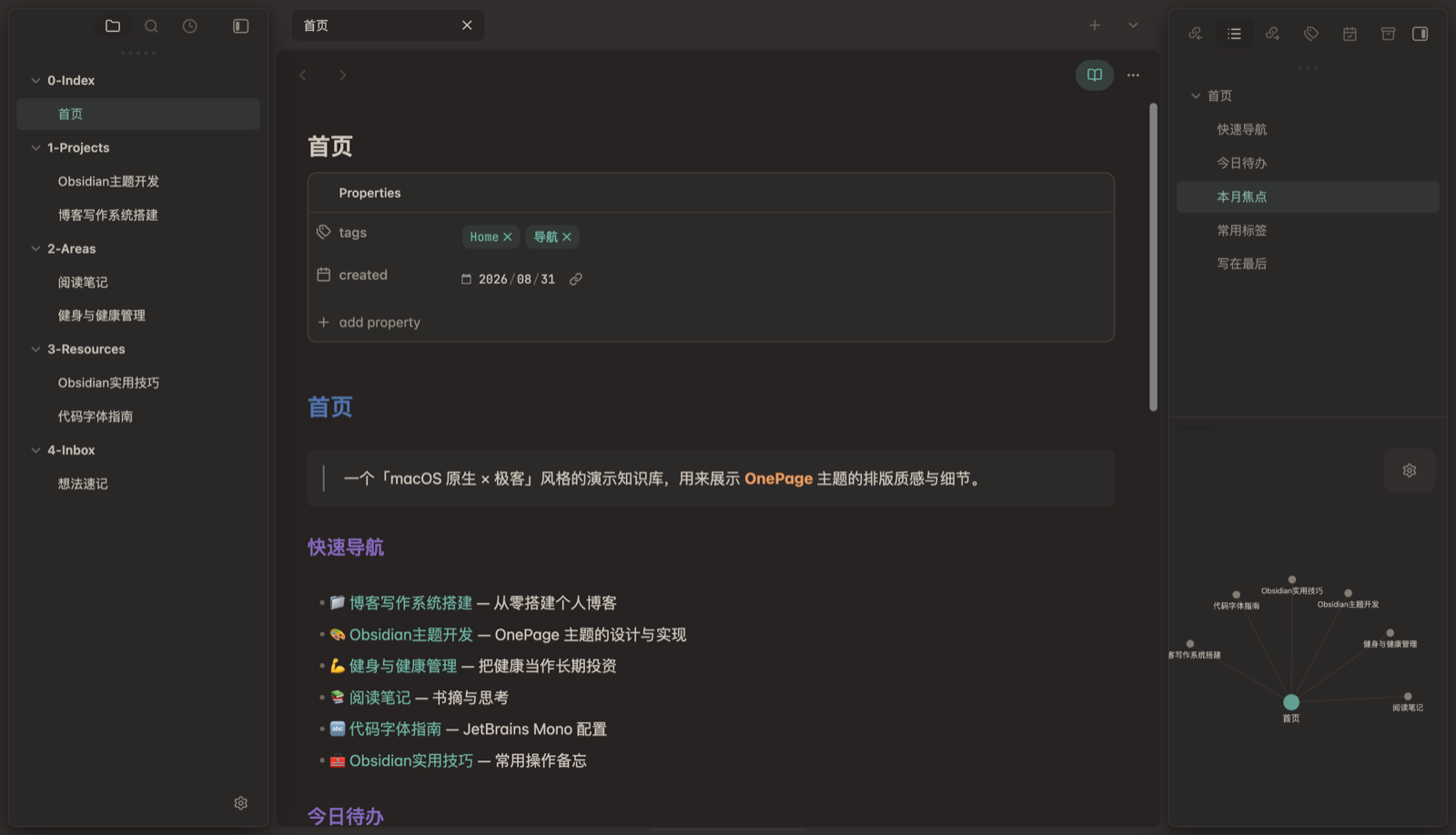
- 🌙 Dark · Warm Brown · Cool Anchor: warm brown base + cool teal accent — warm/cool contrast, easy on the eyes at night
Fully usable without Style Settings — both color schemes are baked into the theme, ready out of the box. Optionally install Style Settings for Cupertino-style deep customization (accent / layout / editor / accessibility, see below).
📣 Follow the official WeChat account 「一页清」
🎁 Feedback · Help · Collaboration
Search 「一页清」 in WeChat and send a message — I reply to everyone ❤️
Features
- Geeky editor details: subtle active-line highlight, accent-colored line numbers, 2px accent cursor, dimmed Markdown symbols
- Refined code: JetBrains Mono ligatures, pill-shaped inline code, rounded code-block borders
- Reading experience: tightened heading letter-spacing, thin underlined links, polished blockquotes, layered typographic colors (headings / bold / italic)
- Native UI: macOS capsule tabs, ultra-thin scrollbars, lightweight status bar, Notion-style file tree & properties
- ⚠️ Window translucent (not recommended): enabling it gives frosted-glass sidebars, but a macOS Electron compositing bug causes text ghosting/residue — keep it off (see below)
- Demo mode: enlarge fonts and hide sidebars / tabs / status bar for distraction-free presenting (see below)
- Deep customization: optional Style Settings with all Cupertino toggles + OnePage-specific options (see below)
- Focus editing: sidebars and other tabs dim while editing, restore on hover
Screenshots
Native macOS feel × geeky editor details, both themes ready out of the box.
| Warm Paper · Light | Warm Brown · Cool Anchor · Dark |
|---|---|
 |
 |
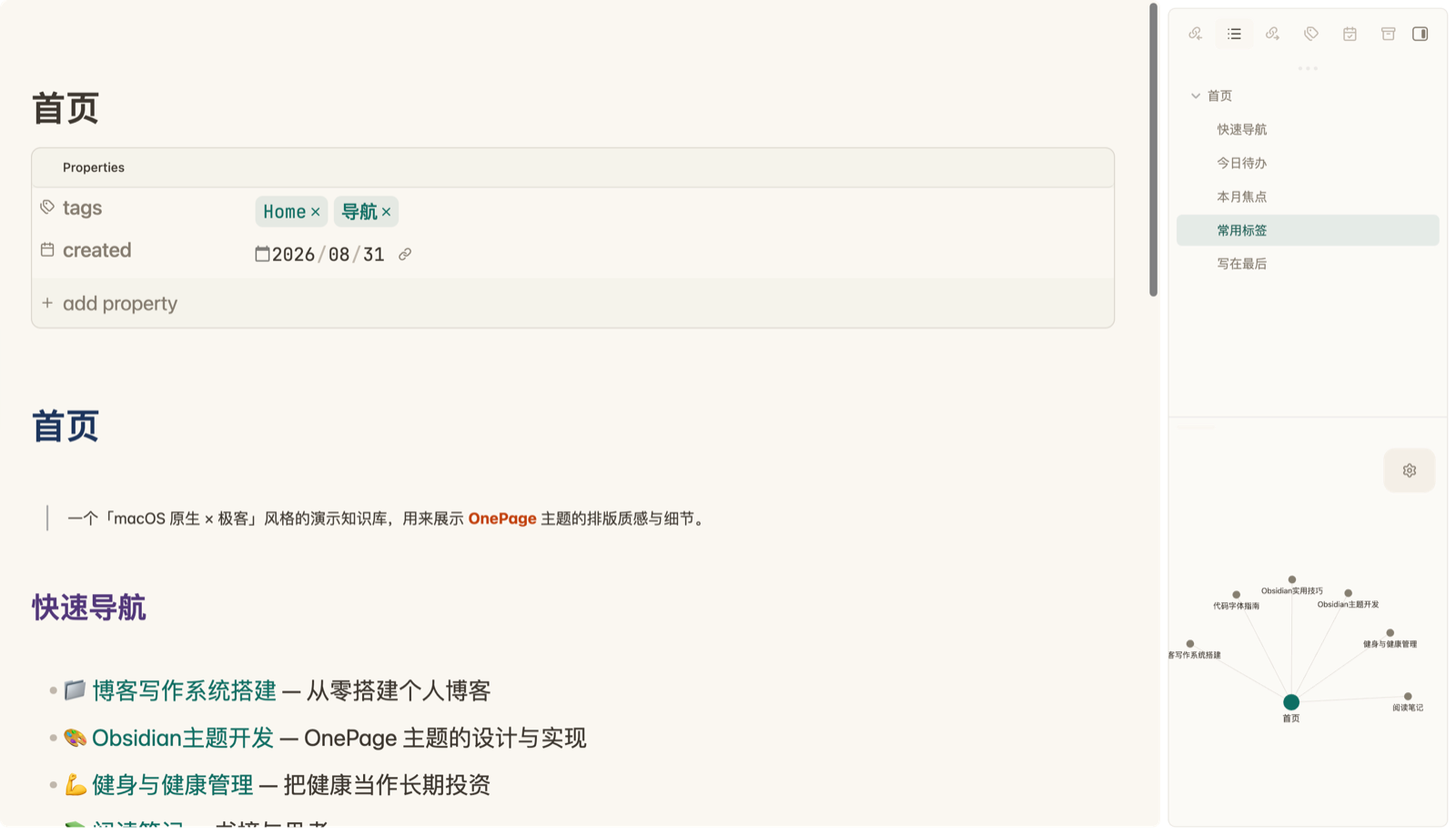
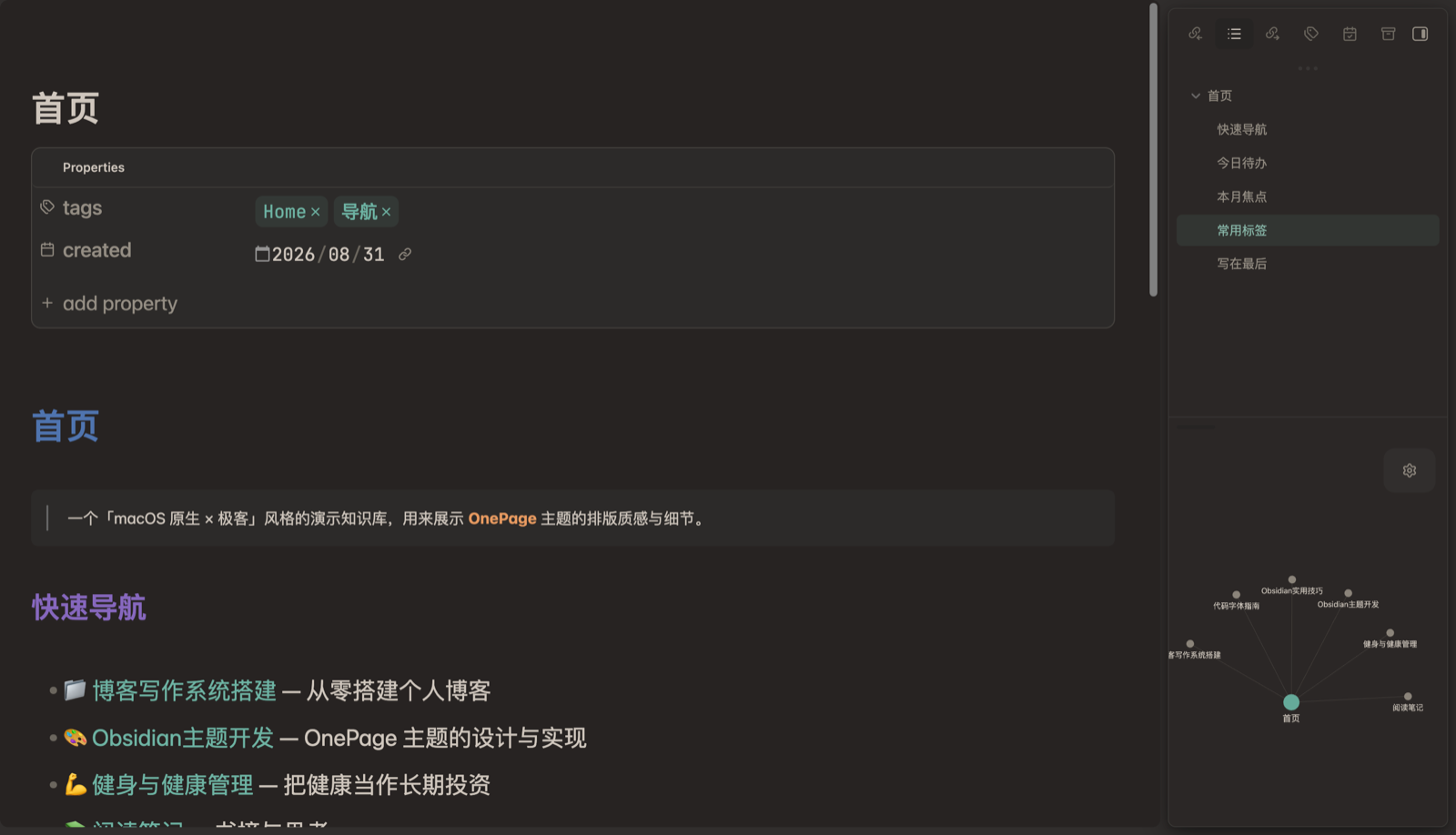
Demo mode (one-key presenting: larger fonts, hides sidebars / tabs / status bar)
| Demo Mode · Light | Demo Mode · Dark |
|---|---|
 |
 |
Official directory thumbnails: Light 512×288 · Dark 512×288


Requirements
- Obsidian 1.14.0 or newer. OnePage 2.0.0 is built on Cupertino 4.x, which requires 1.14. On 1.13.x you will simply stay on 1.3.0.
- Desktop users: also update the Obsidian installer (the downloaded app, not just the in-app update). The new base probes for modern rendering features and otherwise shows a notice at the top of the window.
- Mobile: the base ships mobile/touch styling, but OnePage's own custom layer is desktop-first — mobile is not specifically verified.
Full history: RELEASE.md · 中文:RELEASE_CN.md
Installation
Option 1: Official theme directory (recommended)
OnePage is listed in the Obsidian official theme directory — the easiest way, auto-updates:
- Settings → Appearance → Themes → Browse
- Search OnePage → click Install
- Select it from the theme list
Option 2: Download from the theme repository
To get the latest version first, or to manage manually:
- Visit the repository: https://github.com/ivaneye/OnePage
- Open Releases and download the latest, or grab
theme.css+manifest.jsonfrom the repo - Place them in your vault:
.obsidian/themes/OnePage/ - Settings → Appearance → Themes, choose OnePage
Option 3: BRAT plugin
- Install BRAT
- Add repository:
ivaneye/OnePage - Enable the theme in Appearance after installing
⚠️ About "Window translucent" (not recommended)
Turning on "Window translucent" gives semi-transparent frosted floating sidebars with soft shadows that blend seamlessly with the native macOS feel.
However, a macOS Electron rendering/compositing bug causes text ghosting / residue after enabling it (especially noticeable when scrolling the file list, or when closing/switching tabs), and it cannot be fixed from CSS (solid backgrounds, forced compositing layers, etc. were all tried without success).
Therefore "Window translucent" is not recommended — keep it off:
Settings → Appearance → turn "Window translucent" off.
If you already enabled it, turn it off and restart Obsidian to restore normal rendering.
⚠️ Must read: font dependency
The theme's default code font is JetBrains Mono Nerd Font (JetBrainsMono NFM).
- ✅ Installed: full effect (monospace + icon glyphs + ligatures)
- ❌ Not installed: falls back to your system monospace font (SF Mono / Menlo / Consolas) — the overall look is unaffected, only the code area differs
Download: https://www.nerdfonts.com/font-downloads → search JetBrainsMono and install. (macOS: double-click the ttf to install; Windows/Linux the same)
Style Settings deep customization (optional)
OnePage fully inherits Cupertino's Style Settings config. Install Style Settings, then adjust everything under Settings → Style Settings → OnePage:
🌐 Bilingual: the settings panel follows your Obsidian interface language (中文/English). Reopen the Style Settings panel after switching languages.
- Colors: accent color (one per light/dark; links, buttons and the graph update together), disable typographic colors, body line height, tinted sidebar
- Layout: hover ribbon / hover sidebar / focus view, always show Vault switcher, always show status bar, disable compact panel actions / compact sidebar tabs, disable media zoom
- Demo: demo mode (presenting, bindable hotkey), demo mode font size
- Editor: disable active line highlight / banner / block width / font variants / full-width elements / quick mode switcher, collapse the Properties panel by default
- Accessibility: disable adaptive mode, reduce contrast change, reduce motion, standard font size, fine-tune UI font & icon size, underlined links
All toggles default to OnePage's fixed design — the theme works out of the box even without Style Settings.
Demo mode (optional)
One-key switch to a clean presenting canvas: larger fonts (24px), hides the left sidebar / status bar / header, keeps the right outline.
Enable (either way):
- Recommended: install Style Settings → the command palette shows "Toggle 演示模式(投屏)" → bind any hotkey in Settings → Hotkeys (e.g.
Cmd+Shift+P) - In developer mode, manually add the
demo-modeclass tobody
Note: the demo mode toggle's command is generated by Style Settings — an optional dependency. Without Style Settings, both color schemes and all styles still work; only the demo mode hotkey is unavailable.
Feedback & support
Questions or suggestions? Follow the WeChat official account 「一页清」 and send a message (search in WeChat — hit follow so you don't lose me ❤️).
If OnePage helps you, feel free to share it with friends who use Obsidian — your recommendation is my biggest motivation to keep improving 🙏
Open source
- Based on Cupertino (MIT License, Copyright (c) 2025 aaaaalexis)
- Released under the MIT License, see LICENSE
- OnePage will merge upstream Cupertino updates as they're released
Changelog
See RELEASE.md for the full changelog (中文:RELEASE_CN.md).