
README file from
GithubSafeLearn Formatter for Obsidian
Shows what SafeLearn will do with your document while you write it.
SafeLearn is an open-source server that publishes a teacher's Markdown behind a school login. It reads a few tags of its own — who may read a block, what appears step by step in a presentation, what stands in columns. Those tags are instructions to the server, not text anyone is meant to read. This plugin takes them out of the way and puts what they mean in their place. It never changes your file.

Install
Settings → Community plugins → Browse → search for SafeLearn Formatter → Install, then Enable.
Nothing to configure to use the tags below. The directory features further down are opt-in and need a safeLearn instance; everything else works with no settings, no account and no network.
Write the tags from the menu
Right-click in the editor and open SafeLearn. The same commands are in the command palette, under SafeLearn Formatter.
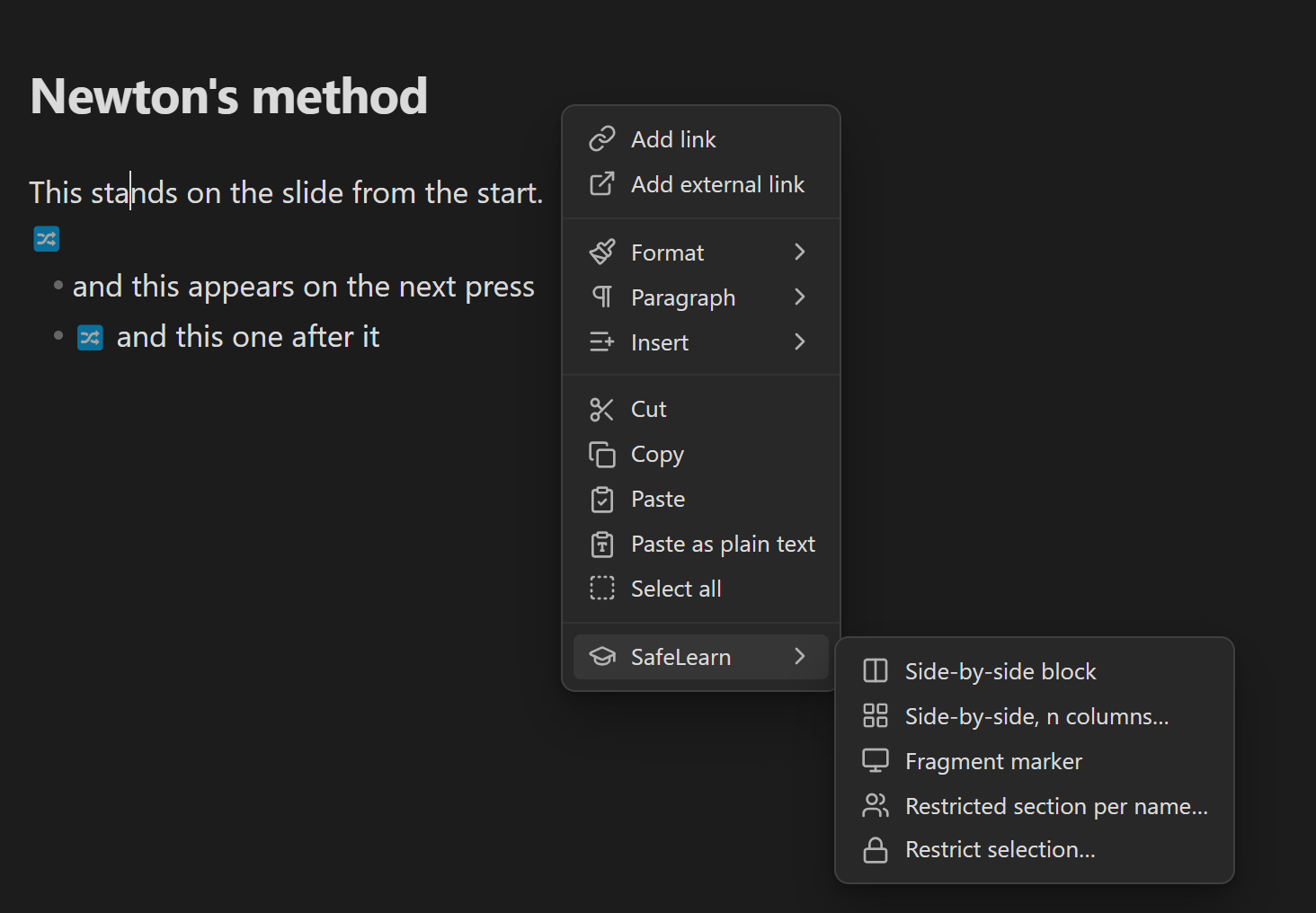
| Command | What it writes |
|---|---|
| Side-by-side block | Two columns. |
| Side-by-side, n columns… | Asks how many, defaults to three. |
| Fragment marker | ##fragment above the block the cursor is in. |
| Semester table… | Asks for a span, the weekdays the class meets and the subject columns, and writes a dated row for every lesson. |
| Restricted section per name… | One restricted block per name, in surname order — optionally each pre-filled with the same content. |
| Restrict selection… | Wraps the selection in a directive. |
| Invitation list… | The people you pick from the directory as a list — names, class, e-mail address — in whatever format the tool you invite from reads. Inserted or copied. |
With text selected, a side-by-side command encloses it whole and puts the separator after it. Every marker lands on a line of its own.
Restricted blocks — @@@
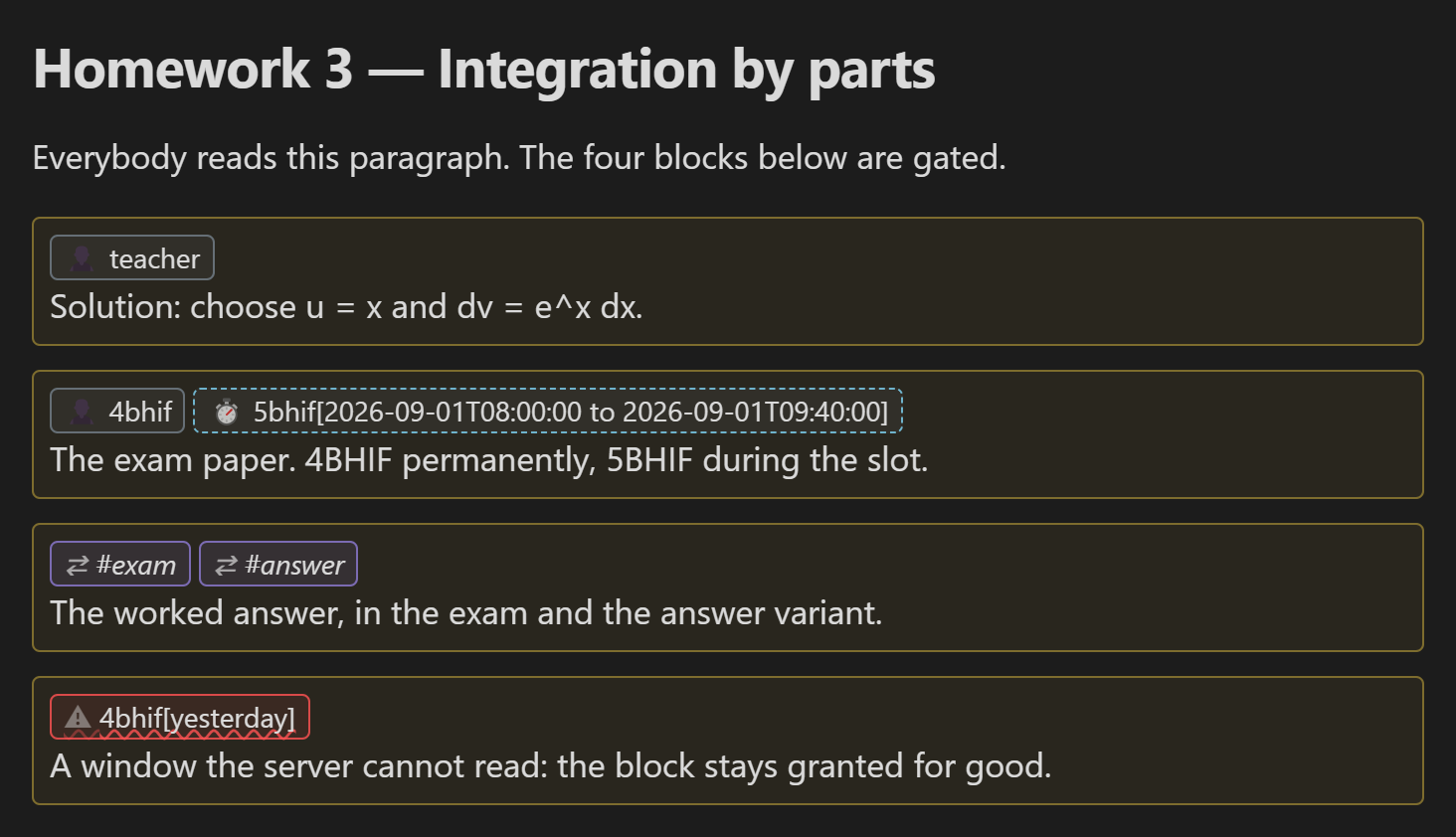
@@@ teacher opens a block only that reader sees, @@@ on its own closes it. The directive line stands as the block's heading, and every entry in it is shown as what it is:
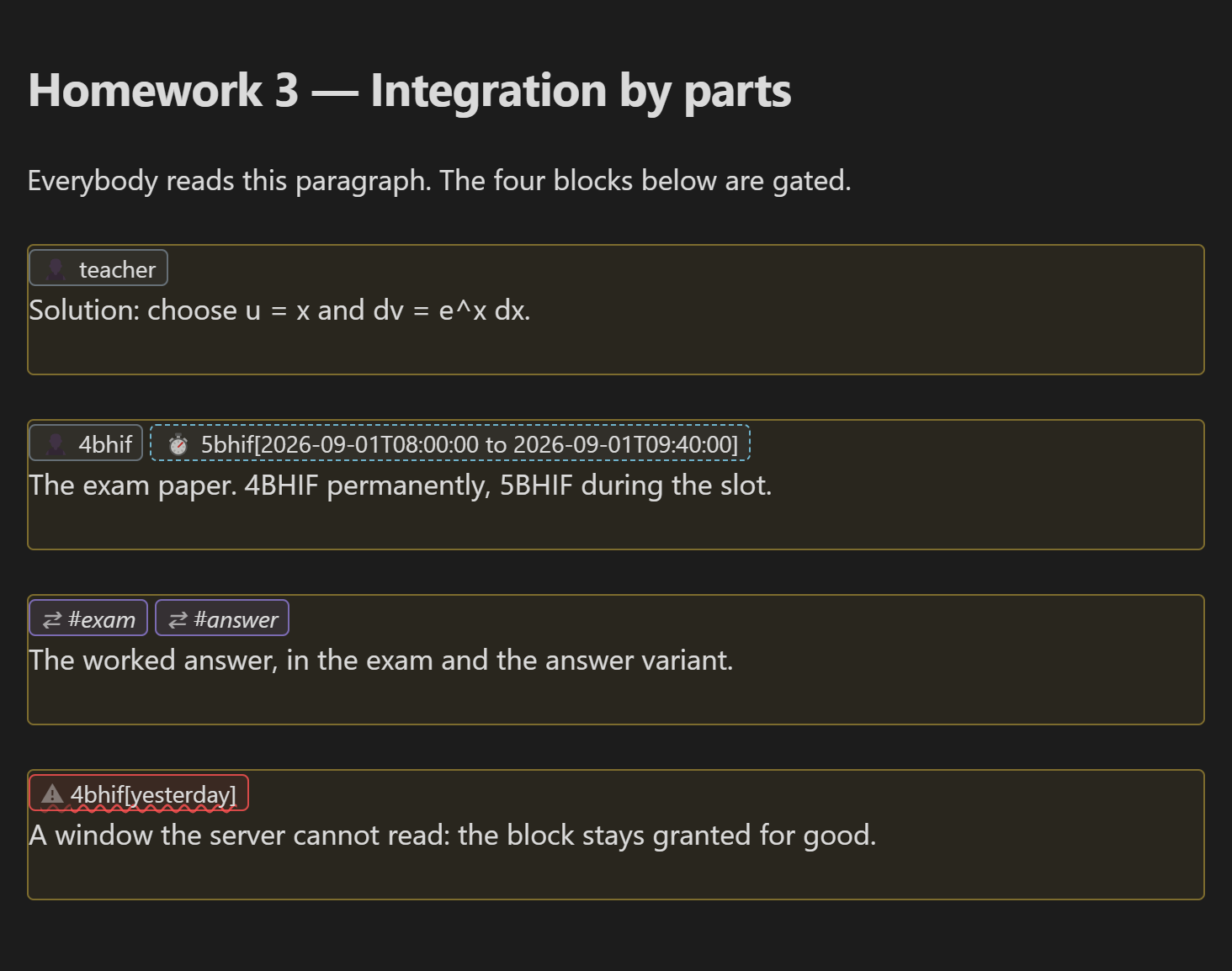
| Marking | Meaning |
|---|---|
| Plain chip | A permanent grant. |
| Dashed chip, stopwatch | Carries a time window — the block appears or disappears with nobody editing it. It never changes with the clock: a window that has closed looks like one that has not opened. |
| Red chip, warning | A window SafeLearn cannot read. It drops the window and keeps the entry, so the block is granted permanently. Nothing else anywhere tells you. |
| Italic chip, arrows | A view switch (#exam, #practice, #answer) — a variant of the document, not an audience. |
| Struck through | An entry SafeLearn discards entirely. |
Windows are reproduced exactly as you wrote them, never restated in words — a readable restatement would make a window sound that the server throws away.
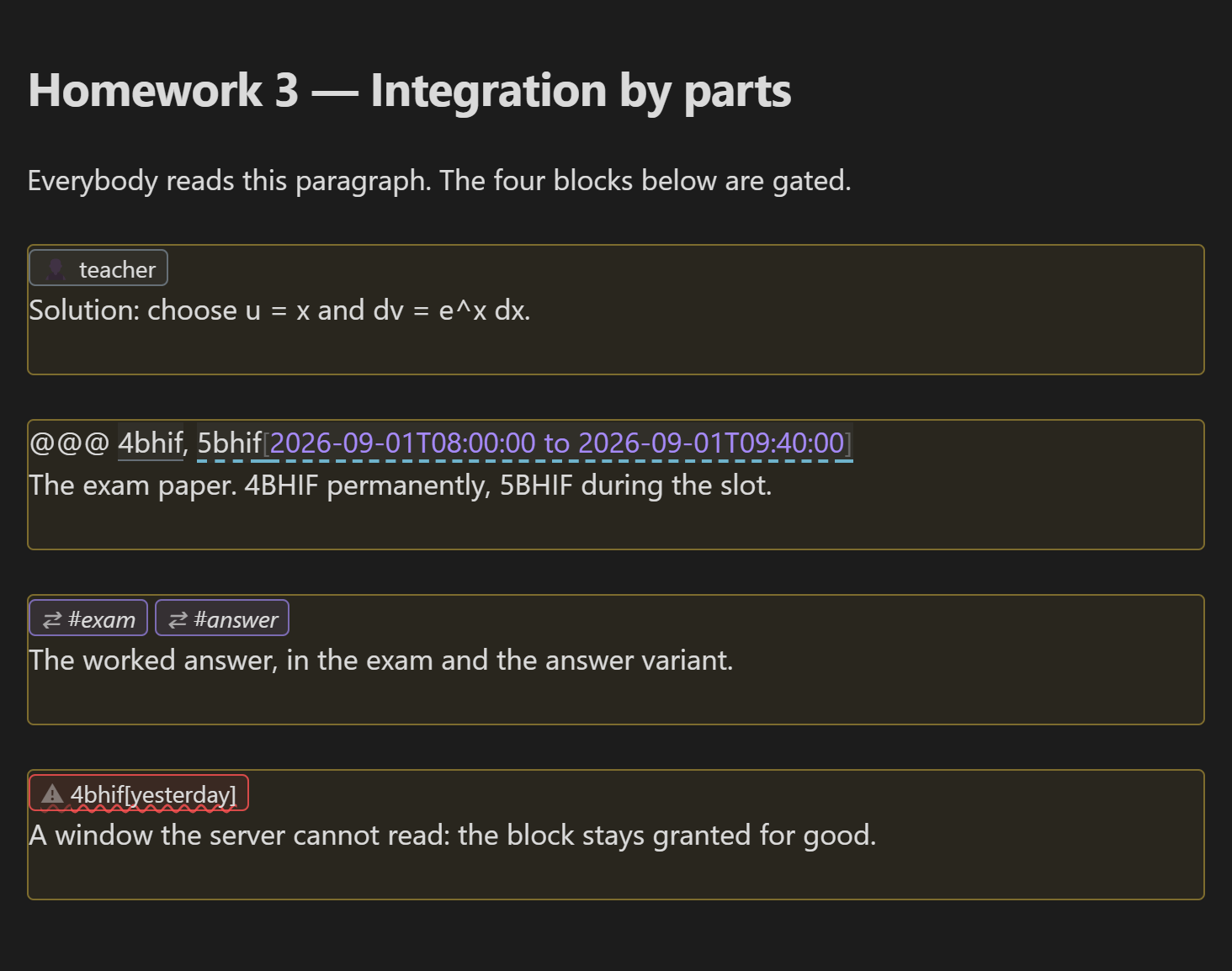
Put the cursor in the line and the characters are back, editable, while the other blocks keep their headings:
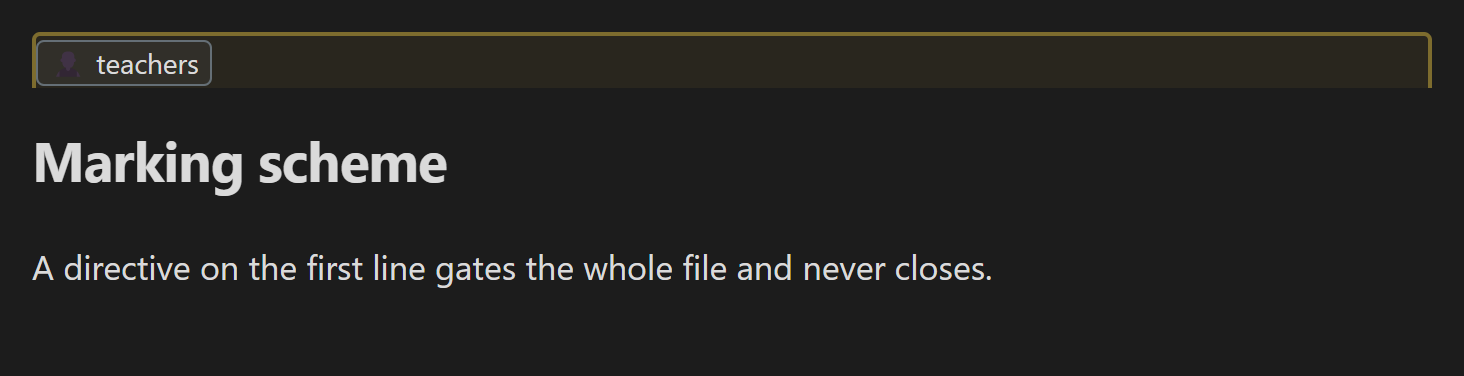
A directive on the first line gates the whole file. It has no closing marker, so its frame is drawn with the lower edge left off:
Reading view: the tags are gone, the headings remain.
A section per student
Restricted section per name… takes a pasted class list and writes one block per person, each with a heading inside the block — a heading above it would show every student the names of all the others.
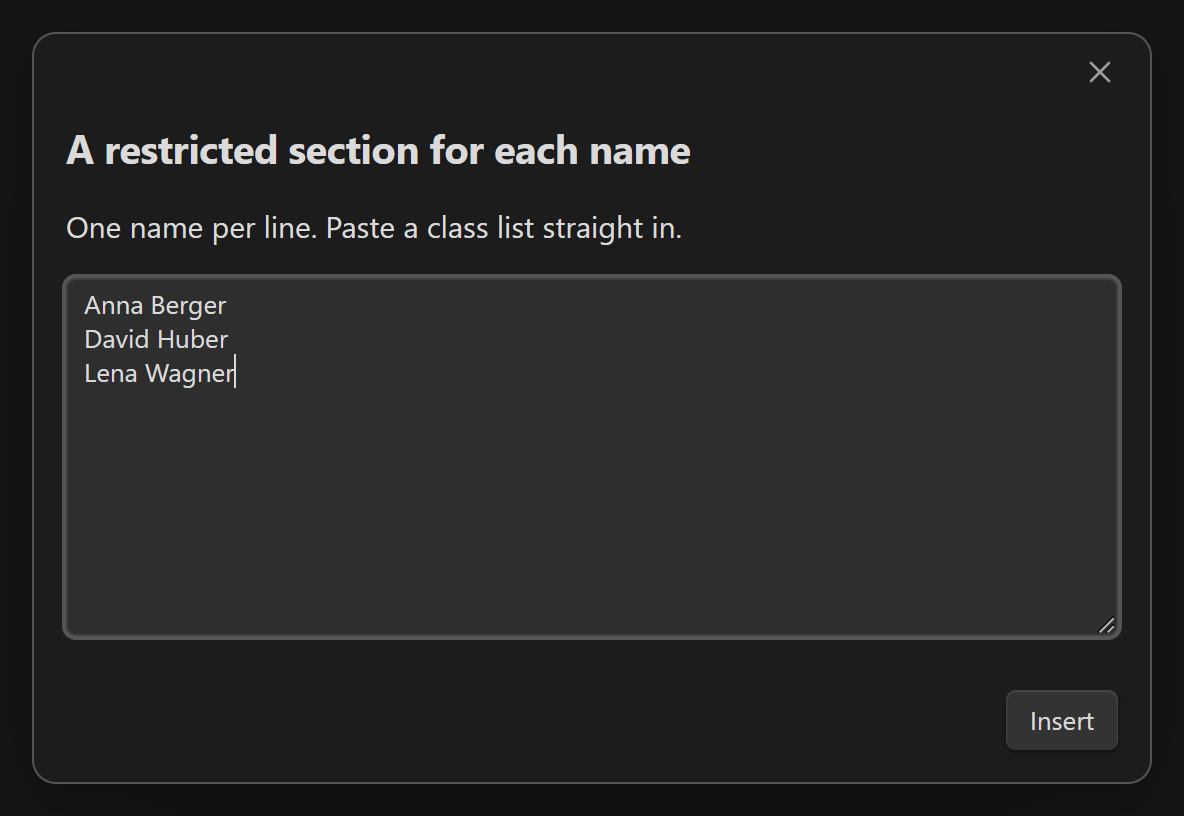
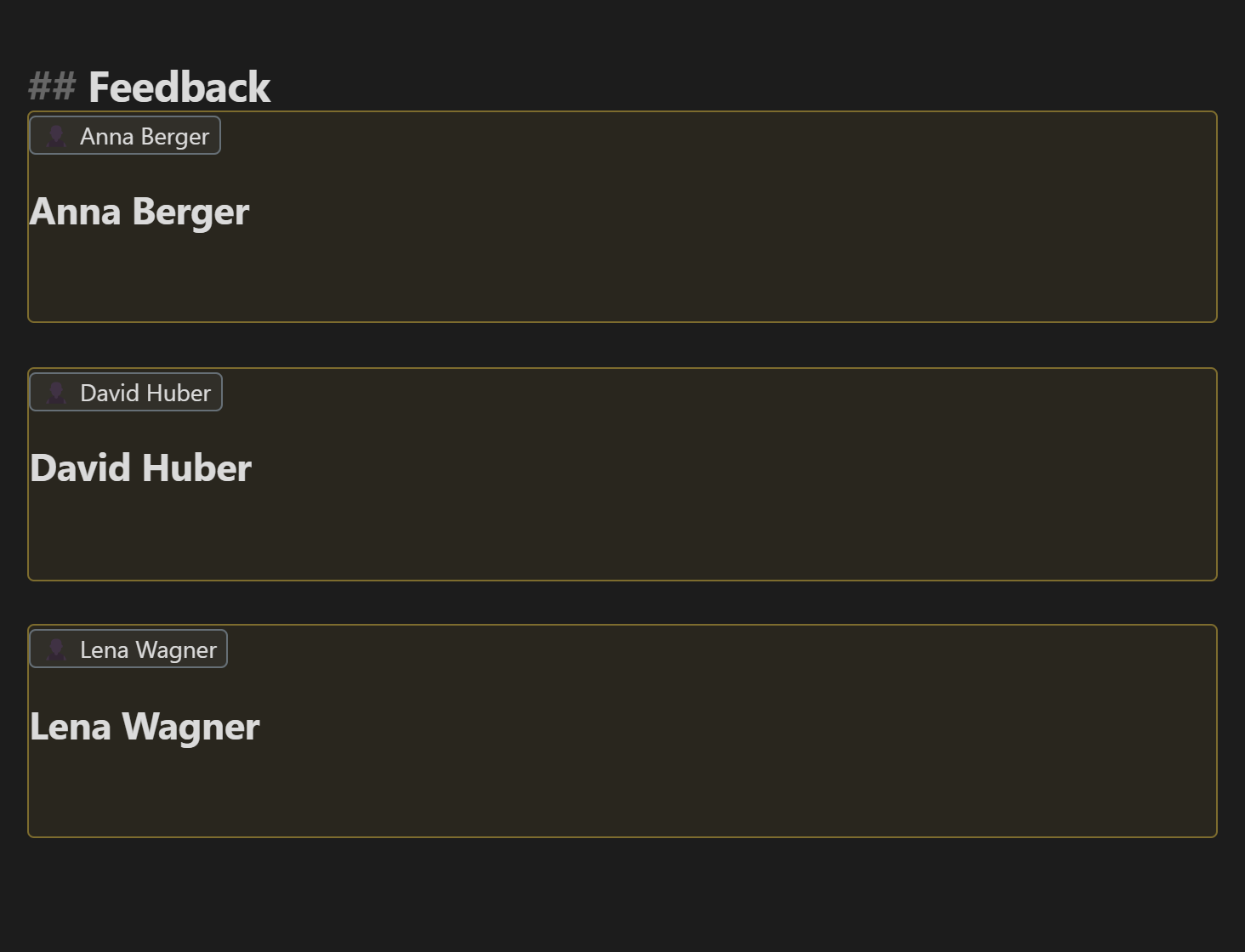
Below the names, the dialog has an optional field for content every section starts with — paste a grading grid, a feedback table or a checklist there once, and every student's section is created holding it, instead of you pasting it into each one. Left empty, each section gets a single blank line. A line starting with @@@ is refused there, since it would end the section early and leave the rest of the grid readable by everyone.
Five names are reserved (admin, teacher, teachers, student, students): SafeLearn reads them as roles, so a section for a student called Students is read by the whole school. The command writes your names unchanged and tells you when one of them was such a name.
Picking names from the directory
Restricted section per name… and Restrict selection… both open the same dialog, and where a safeLearn instance is configured and you are logged in, that dialog is a picker rather than a text area. Typing in the search field searches the school directory; typing in the class filter narrows a list of classes to check, and checking more than one shows matches from any of them.
Click anybody in the results to move them into the chosen list below, and click Add visible to move over everybody the results are currently showing in one action — which is how you take a whole class, however many people are in it. The chosen list is what gets inserted, and it is visible the whole time: click somebody there to take them back out, and somebody chosen under a filter that no longer shows them stays on it, counted, rather than disappearing. Choosing the same person twice leaves them on it once.
The chosen list keeps the directory's order, so a class you took over stands together while you pick. What gets written is in surname order, then first name, the way a class list is read — umlauts filed beside their base letter, double surnames under their first word. Names typed into the text area (where it is shown) keep the order you typed them in and follow the chosen people.
Somebody the directory has no entry for — a guest, or a student not yet enrolled — is written into the document afterwards rather than typed into the dialog.
If the directory cannot be reached, or a search fails on the server, this is shown above the search field as soon as it happens rather than looking like an empty match, and the plain text area appears below the picker so the dialog can still be answered.
With no instance configured, or with one configured but not logged in, this dialog is unchanged: the text area alone, one name per line, no search field and no network activity.
An invitation list from the directory
Invitation list… writes the people you pick as a list to paste into whatever you send the invitation from: a meeting, a shared document, a course in another system, a mailing list. It opens the same picker as above — search, class filter, Add visible — and needs a directory login; without one the dialog says so and writes nothing. There is no text area: a typed name has no address or class to write.
Below the picker you describe the format:
- Fields — given name, surname, class and e-mail address. Tick the ones to write and move them with the arrow buttons; the order of the rows is the order they are written in. Class is every class-like group the person holds, alphabetically, separated by
/. - Between fields, Before each entry, After each entry — free text.
- Between entries — Line break, Comma, or Custom text.
In every one of these texts, \n stands for a line break, \t for a tab and \\ for a backslash. A spreadsheet import that wants ,,,Given,Surname,address,, per line is given name, surname and e-mail address, , between fields, ,,, before and ,,\n after each entry, and nothing between entries.
The preview shows the first five entries exactly as they will be written — or a placeholder person, while nobody is chosen yet, so you can judge the format first. The list is in surname order, and somebody chosen twice is written once. Values are written as they are, without quoting.
Insert (or Ctrl/Cmd+Enter) writes the list at the cursor, replacing a selection; Copy puts it on the clipboard and leaves the note alone. The format you used is remembered for next time; who you picked is not.
Somebody without a value for a field — a student with no address in the directory, somebody without a class — is written with that field empty and its separators in place, and a notice says how many entries that affects. A safeLearn instance older than this command sends no addresses at all; the list is then written with empty address fields, and the notice says the instance does not send them.
Directory settings and login
Open under Settings → SafeLearn Formatter.
| Setting | What it's for |
|---|---|
| safeLearn instance URL | Your school's safeLearn server. Empty by default — everything below stays off until it is set. |
| Keycloak URL / Realm | The identity provider your instance authenticates against. Both default to the project's shared identity provider and only need changing for a self-hosted Keycloak. |
| Log in | Opens your realm's own login page in your system browser. No password is ever typed into Obsidian — the plugin only ever sees the token Keycloak hands back afterward. |
| Log out | Discards that token. |
Logging in also enables List classes in the command palette — a read-only, dismiss-when-read notice of every class-like value currently in the directory. (The server has no separate notion of "class" from any other role or group it tracks, so this is a best-effort reading of the same data the picker above uses, not an authoritative class list.)
Setting up the login (for whoever runs the safeLearn instance)
Logging in needs a Keycloak client that does not exist by default. In the safeLearn realm, create a public client (this project's own convention names it safelearn-plugin) with:
- Standard Flow enabled, PKCE (S256) required
- Direct Access Grants off — no password grant
- No client secret
- Valid Redirect URIs:
obsidian://safelearn-formatter-auth - No client roles of its own — what a login is allowed to do comes from the roles already on that person's Keycloak account, the same way the safeLearn server itself checks them
- Full Scope Allowed — so a role held as a client role on the main safeLearn client (e.g.
admin) reaches this client's tokens too, without maintaining it a second time here - The same client scope that carries the
ldapattribute mapper on the main safeLearn client, assigned to this client as well. It is a custom mapper, not part of Keycloak's defaultrolesscope, so it is not picked up by Full Scope Allowed and has to be added explicitly — otherwise a person whose teacher/admin role comes only from the LDAPOU=...claim (the common case) passes login but the directory picker and "List classes" stay empty with no error shown, because the server's role check reads that claim the same wayderiveRolesdoes for every other login
This is a one-time setup step for the person administering the Keycloak realm, not something the plugin or a person using it can do. Nobody using only the tags earlier in this document needs it.
Fragments — ##fragment
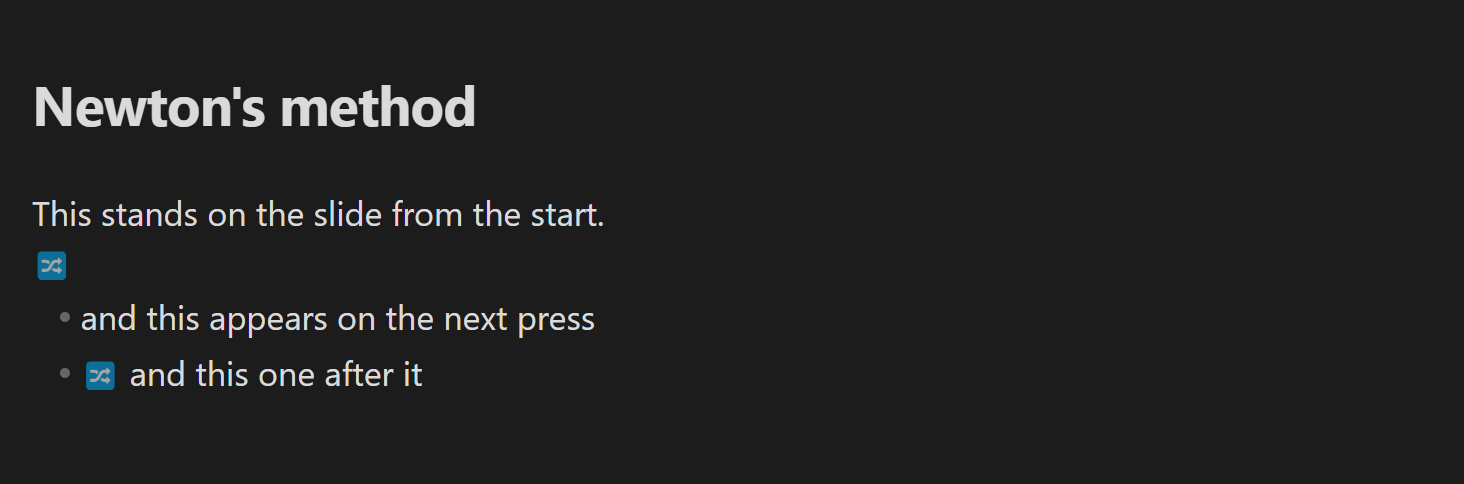
Content that appears one step at a time in a Reveal.js presentation. The tag is shown as an icon, and is its own characters again with the cursor in it.
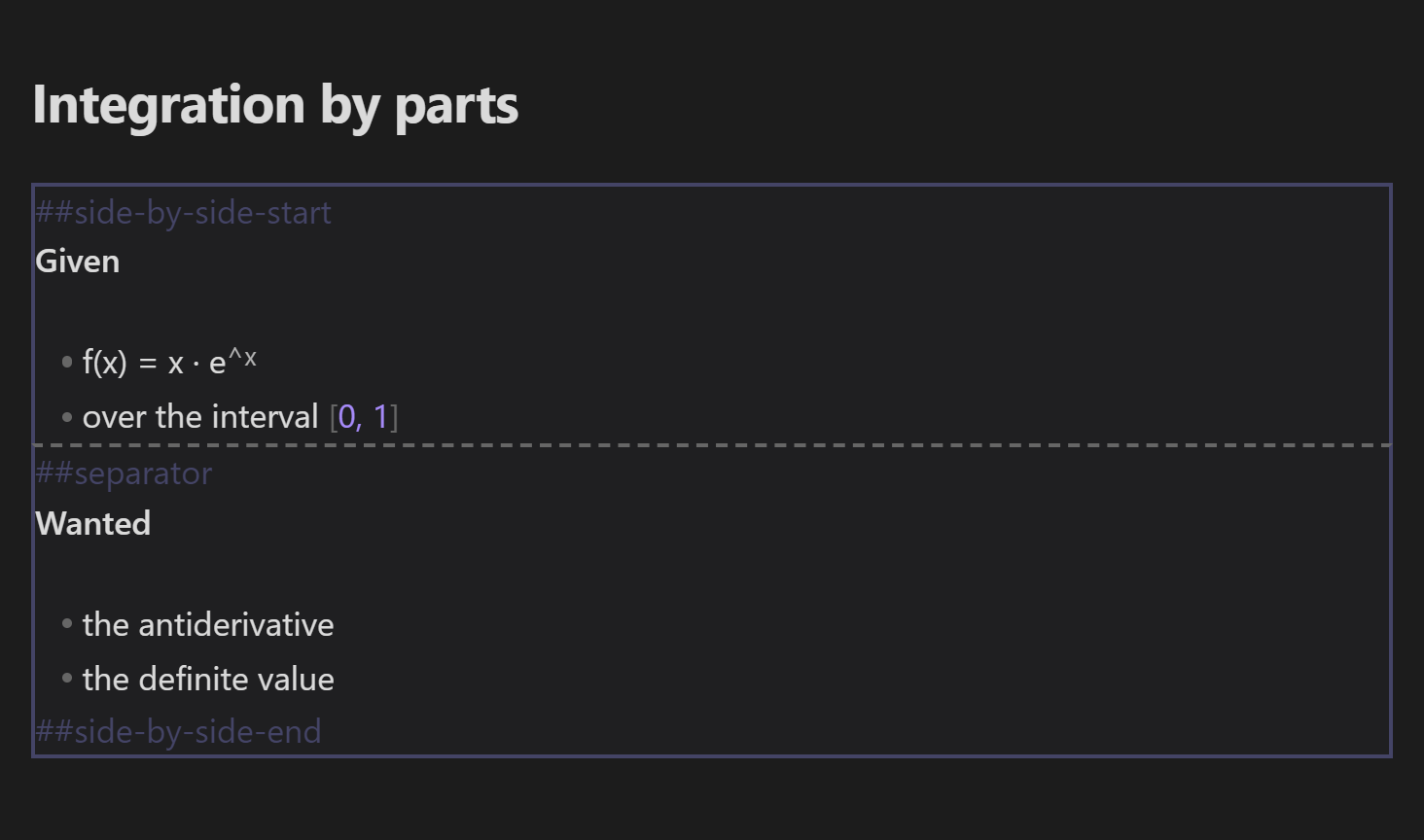
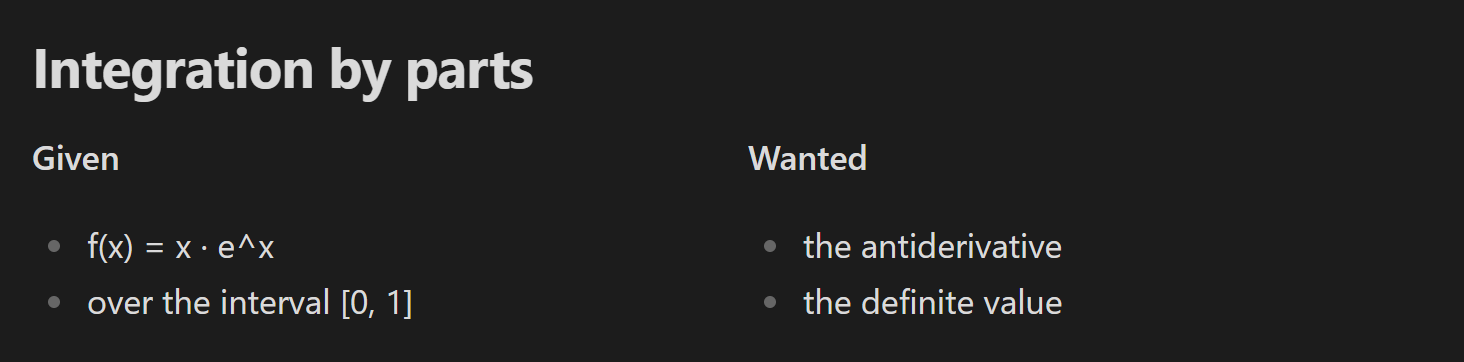
Columns — ##side-by-side-start
The block is drawn as the region it is while you write, and rebuilt as the columns the server makes of it when you read. (The widths are not Reveal's and are not meant to be.)
Good to know
- Obsidian 1.5.7 or later. No external dependencies, desktop and mobile.
- The plugin enforces nothing. It is purely visual — every permission is decided by your SafeLearn server.
- It marks exactly what the server acts on, no more: the rules are taken from SafeLearn's own parser, and a check in the SafeLearn repository runs both over the same directives. From a SafeLearn checkout:
npm run test:obsidian.