
README file from
GithubExcidian
Your spreadsheets, alive in your notes. Excidian shows Excel tables and sheets inside Obsidian, and every edit you make is saved straight back into the .xlsx file. No exports, no copies, no sync scripts.
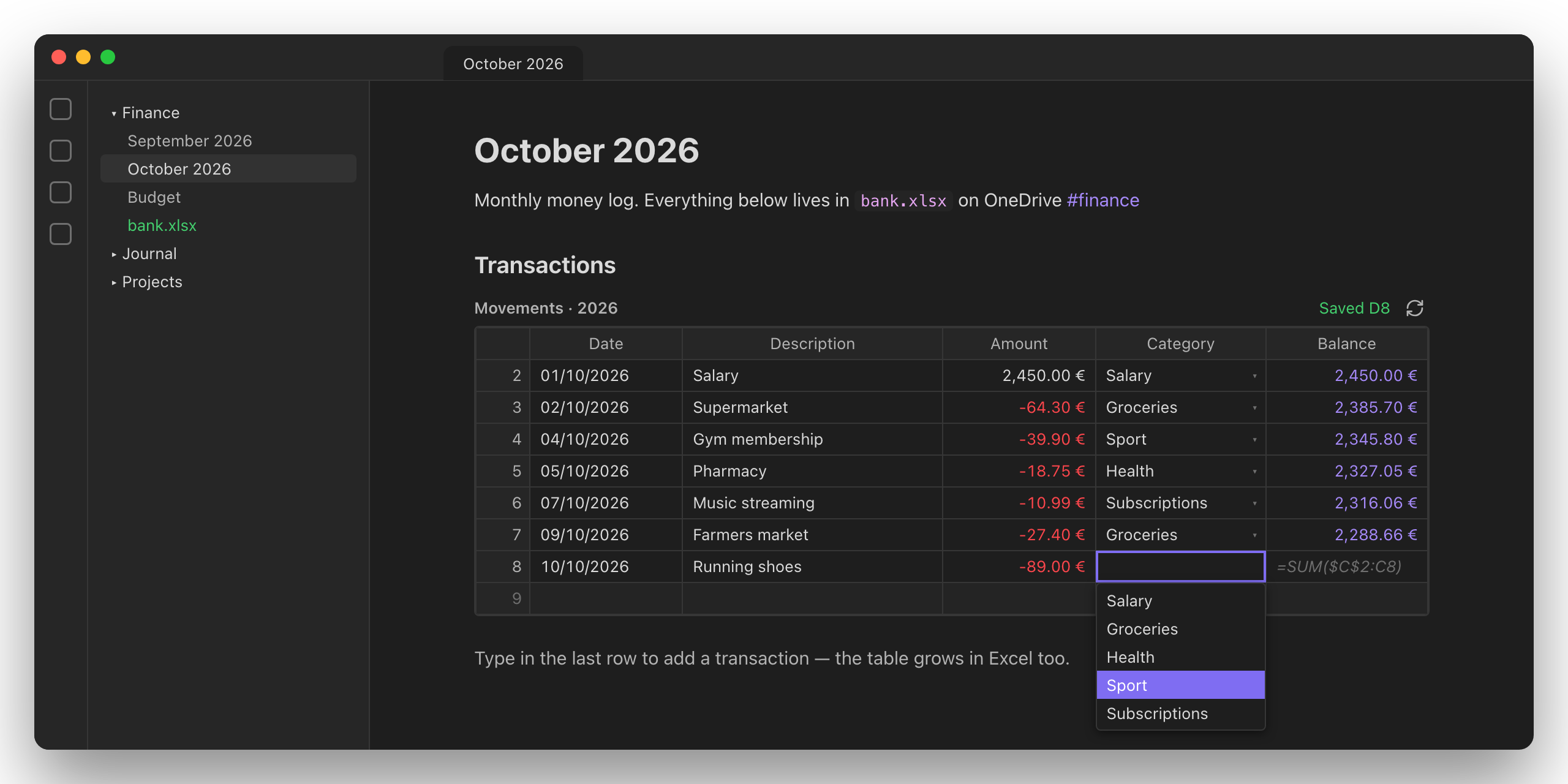
- Tables that grow as you type, with calculated columns filled in
- Sheets laid out like in Excel: widths, merged cells, fills, red negatives
- Dropdowns and data validation from your Excel rules
- OneDrive-aware: one note works on every computer; conflict copies are flagged
- Safe: only the cells you edit change, with an automatic backup
Website: francescoumberto.github.io/ObXcel · Desktop (macOS, Windows, Linux) and mobile (iOS, Android).
Installation
- From Obsidian: Settings → Community plugins → Browse → search Excidian → Install → Enable.
- Manually: download
main.js,manifest.jsonandstyles.cssfrom the latest release into<vault>/.obsidian/plugins/obxcel/, reload Obsidian and enable Excidian.
Requires Obsidian 1.13 or later.
Desktop and mobile
| Desktop | Mobile (iOS, Android) | |
|---|---|---|
Workbooks inside the vault (./bank.xlsx, Finance/bank.xlsx) |
✓ | ✓ |
Workbooks elsewhere (~/…, /Users/…, C:\…, onedrive:/…) |
✓ | — |
| Tables, sheets, editing, dropdowns, validation | ✓ | ✓ |
| Reload when the file changes, conflict-copy warnings | ✓ | ✓ |
| "Show file" in Finder / Explorer | ✓ | — |
Mobile apps can only reach files inside the vault. To use the same note on your computer and your phone, keep the workbook inside the vault and point to it with a relative path. Sync it with the vault (Obsidian Sync, iCloud, or similar) like any other file. A block that points outside the vault shows a message on mobile explaining this, and keeps working on desktop.
File access and privacy
Excidian reads and writes the Excel files that your notes point to. On desktop these can be outside your vault (for example in your OneDrive folder); for this it uses Node's file system (fs), because Obsidian's vault API only covers files inside the vault. On mobile it uses only the vault API, so it only reaches files inside the vault. In detail, it:
- reads the workbook named in each
excidiancode block, and writes to it only when you edit a cell; - creates
<name>.excidian-backup.xlsxnext to a workbook the first time it saves it in a session, and briefly a hidden temporary file there while saving; - looks at the workbook's folder to notice changes and sync-conflict copies, and lists the OneDrive folders in your home folder to resolve
onedrive:paths.
It touches no other files, makes no network requests, and collects no data. The OneDrive folder setting and dismissed warnings are stored on your device only.
Usage
A block shows either an Excel table or a sheet.
Table (Insert → Table in Excel), by its name. Best for lists you keep adding to, like your transactions:
```excidian
file: ~/Documents/Finance/bank.xlsx
table: Movimenti
```
The table's column names are the header, every row is shown (Excel filters are ignored), and the empty row at the bottom adds a row to the table. A table always fits the width of the note: its columns share the width in proportion to their Excel widths.
Sheet, whole or part of it. Best for summaries, budgets and dashboards:
```excidian
file: ~/Documents/Finance/bank.xlsx
sheet: Riepilogo
cols=[B, C, D]
headings: false
```
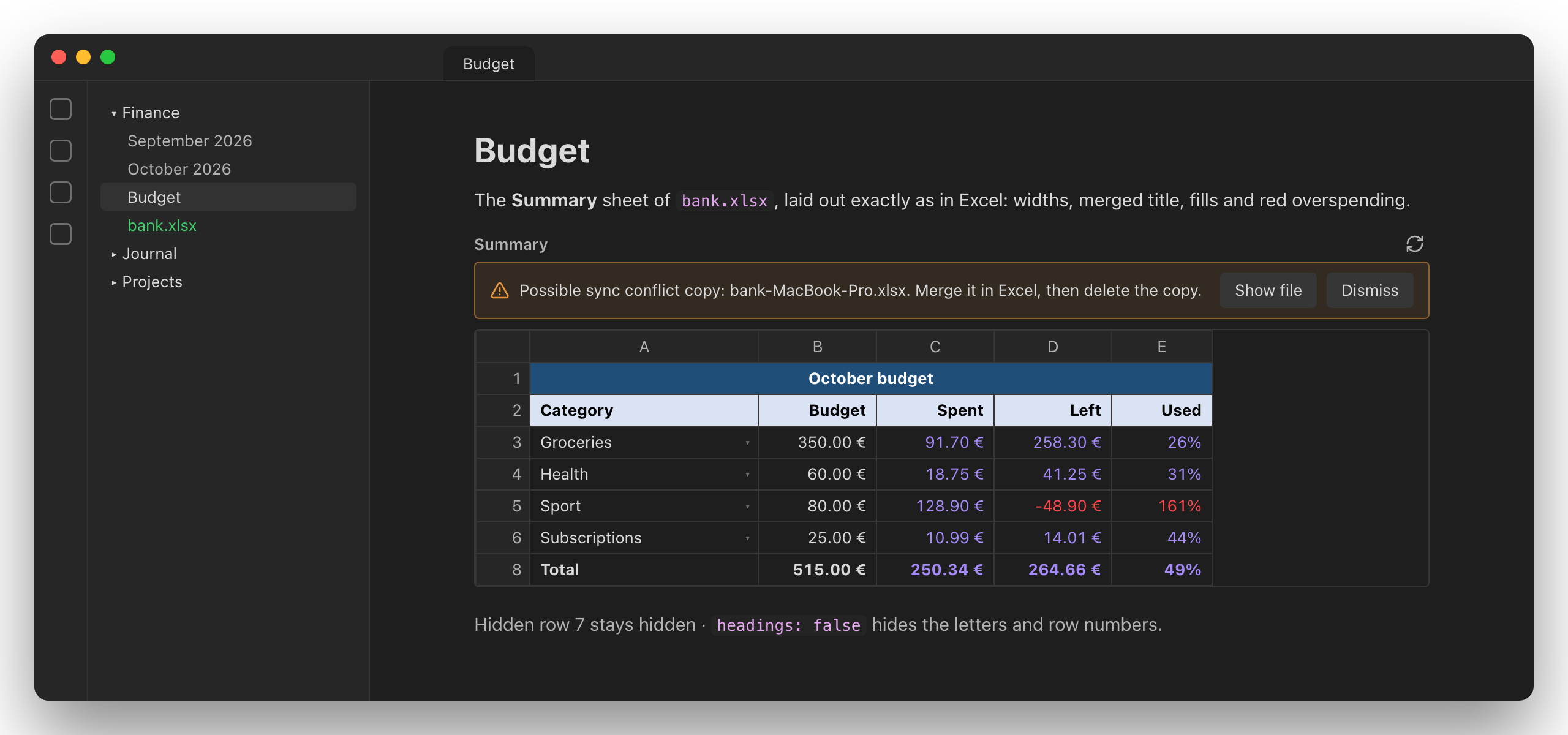
A sheet is laid out the way Excel shows it:
- columns get their Excel widths; a sheet wider than the note scrolls sideways, with the row numbers kept in view;
- hidden rows and columns stay hidden;
- merged cells span their rows and columns;
- formatting is kept: bold, italic, underline, strikethrough, font and fill colours, alignment, wrapped text, and coloured numbers from formats like
#,##0.00;[Red]-#,##0.00. Excel's plain black text and white background are left to your Obsidian theme, so sheets stay readable in dark mode; - Excel tables inside the sheet get a highlighted header row, and typing in the row just below a table adds a row to it (like in Excel).
| Key | Meaning |
|---|---|
file |
Required. Where the workbook is (see the table below). |
table |
Name of an Excel table (as in Table Design → Table Name). Table names are unique, so no sheet needed. |
sheet |
Sheet name or 1-based position. Defaults to the first sheet. |
range |
With sheet: A1:F200 for a fixed area, A1:F or A:F for "these columns, down to the last row". |
cols |
With sheet: only these columns, in this order: [B, C, D], [B:D, F]. Letters aren't case-sensitive; columns listed here show even if hidden in Excel. Overrides the columns of range (whose rows still apply). |
headings |
false hides column letters and row numbers (a table keeps its column names). |
Keys can be written key: value or key=value.
If the table or sheet isn't found, the error lists the ones that exist.
file: accepts:
| Example | Resolved from |
|---|---|
./Sheets/bank.xlsx, ../bank.xlsx |
the folder of the note, like a relative link |
Sheets/bank.xlsx |
the root of the vault |
~/Documents/bank.xlsx |
your home folder |
/Users/me/bank.xlsx, C:\…\bank.xlsx |
an absolute path, anywhere on the computer |
onedrive:/Finance/bank.xlsx |
this device's OneDrive folder (see below) |
Files in OneDrive
Write the path relative to your OneDrive folder, and the same note works on every computer:
```excidian
file: onedrive:/Finance/bank.xlsx
table: Movimenti
```
Each computer finds its own OneDrive folder: ~/Library/CloudStorage/OneDrive-… on macOS, the %OneDrive% folder on Windows, ~/OneDrive… elsewhere. With several OneDrive accounts, the first one that contains the file is used. To choose a folder yourself, set Settings → Excidian → OneDrive folder. This setting is stored on each device and not in the vault, so syncing the vault doesn't copy one computer's path to another.
Conflict copies. When the same file is changed on two devices before they sync, OneDrive keeps both versions and saves one as a copy named after the device, e.g. bank-MacBook-Pro.xlsx. Excidian shows a warning above the table when such a copy appears next to your file. Show file opens it in Finder/Explorer so you can merge the entries in Excel and delete the copy. Dismiss hides that warning on this device (a newer copy warns again). Names like bank (1).xlsx count too, so an unrelated file such as bank-2025.xlsx will also trigger the warning; dismiss it once.
Tips:
- Mark the workbook Always keep on this device in OneDrive, so it's never an online-only placeholder.
- Avoid editing the file on two devices at the same time, and close Excel on this computer while editing in Obsidian.
Editing
- Click a cell to edit it. Enter saves and moves down, Tab moves right (add Shift to go the other way), Esc cancels.
- The empty row at the bottom adds a new entry. For a table, the table grows by one row, the way typing below a table does in Excel. Calculated columns (like a running balance) are filled in, and the row gets the same formatting as the row above.
- What you type is converted automatically:
-45,12,50,1500.00→ number2026-10-03or03/10/2026(day/month/year) → date=SUM(B2:B40)→ formula- anything else → text; an empty cell clears it
Dropdowns and data validation
Rules set in Excel under Data → Data Validation work in Obsidian too:
- List rules show a ▾ in the cell. Editing it opens a dropdown: type to filter, use ↑/↓ and Enter (or click) to pick. The list can come from anywhere Excel allows: a typed list (
Grocery,Health,Sport), a range ($H$2:$H$10), a range on another sheet (Lists!$A$2:$A$10), a named range, or a table column throughINDIRECT("Categories[Type]"). - Number, date and text-length rules are checked when you save a cell. While editing, the rule's input message is shown under the cell, or a description like "Decimal between -10000 and 10000".
- Stop rules reject invalid values with the rule's error message, like Excel. Warning and Information rules save the value and show the message as a notice.
- Rules without "Show error alert" are only shown, never enforced. Custom (formula) rules are left for Excel to check.
- When a new row is added to a table, the rules of the table's columns grow with it, so the new row keeps its dropdowns in Excel too.
Tip: to manage a category list in one place, put the categories in their own table (e.g. Categories, column Type) and use =INDIRECT("Categories[Type]") as the list source. New categories added to that table appear in the dropdown automatically.
Good to know
-
Tables fit the width of the note; sheets keep Excel's column widths and scroll sideways when wider. Values too long for their column are cut off with "…" (unless the cell wraps text); hover a cell, or edit it, to see it in full.
-
With
colsin a different order than the sheet (e.g.[D, B]), merged cells don't span; their value shows in their first cell. -
Not shown: borders, fonts and font sizes, conditional formatting, charts and images.
-
Only the cells you edit change. The rest of the workbook (other sheets, charts, pivot tables, formatting) is saved untouched.
-
Formulas are not calculated in Obsidian. Excel recalculates everything the next time it opens the file. Until then, a newly written formula shows in grey italics.
-
Write formulas in English with commas, e.g.
=SUM(A1;A2)won't work but=SUM(A1,A2)will. That's how .xlsx files store them; Excel shows them in your language. -
Close the file in Excel while editing in Obsidian. If Excel has it open and you then save there, it overwrites the Obsidian edits. Excidian warns you when it detects this.
-
Rows can't be added to a table with a totals row; turn the totals row off in Excel to use the empty row.
-
Table headers can't be edited from Obsidian (rename columns in Excel).
-
The table reloads on its own when the file changes on disk.
-
The first time Excidian saves a file in each Obsidian session, it copies the original to
<name>.excidian-backup.xlsxnext to it.
Project structure (MVC)
src/
├── main.ts                    Plugin entry: picks the platform, wires settings, the settings tab and the code block
├── model/                     Excel data and rules. No Obsidian or Node imports: runs on desktop and mobile, testable in Node.
│   ├── workbook.ts            Workbook: sheets, tables, adding table rows, saving
│   ├── storage.ts             Storage interface (StoredFile), vault paths, backup and conflict-copy names
│   ├── workbook-store.ts      Load, queued save with backup, conflict copies, "open in Excel" check
│   ├── device-settings.ts     Per-device settings (OneDrive folder, dismissed warnings)
│   ├── sheet.ts               Reading and writing cells in a worksheet
│   ├── table.ts               An Excel table: range, header/totals rows, columns
│   ├── validation.ts          Data validation rules: reading, describing, checking values
│   ├── values.ts              Cell values, parsing typed input, date serials
│   ├── number-format.ts       Displaying values with Excel number formats
│   └── ooxml/                 Low-level .xlsx format: zip package, XML, references, styles, colours, formulas
├── view/                      Drawing only. Knows nothing about files or Excel.
│   ├── grid-data.ts           The data shape the grid renders
│   ├── grid-view.ts           Grid rendering, warning banners and keyboard cell editing
│   ├── cell-popup.ts          Dropdown and help panel under the cell being edited
│   └── settings-tab.ts        The Settings → Excidian page
├── platform/                  Storage implementations
│   ├── vault-file.ts          Files inside the vault, via Obsidian's vault API (used on mobile)
│   └── desktop/               Desktop only, loaded on demand: files anywhere via Node's fs, ~ and onedrive: paths
└── controller/                Glue between the model and the view
    ├── block-config.ts        Parses the code block settings
    ├── grid-builder.ts        Turns the model into grid data
    └── sheet-controller.ts    Lifecycle of one code block: load, show, save edits, watch, warnings
The model edits the workbook's XML directly instead of going through a spreadsheet library, so parts it doesn't understand are preserved exactly.
Development
npm install
npm run dev     # rebuild on change
npm run build   # type-check + production build
npm test        # model tests (Node, no Obsidian needed)
Install into a vault by copying main.js, manifest.json and styles.css to
<vault>/.obsidian/plugins/obxcel/, then enable Excidian under Settings → Community plugins.
For development, symlink the project folder there instead:
ln -s "$PWD" "<vault>/.obsidian/plugins/obxcel"
Releasing
Every push to main runs .github/workflows/ci.yml:
- Build: installs, runs the tests, builds
main.js, and checks thatpackage.json,manifest.jsonandversions.jsonagree on the version. The three plugin files are attached to the run as a download. - Release: if no release exists yet for the version in
manifest.json, it creates one named and tagged exactly like the version (e.g.0.1.0, nov, as Obsidian requires) withmain.js,manifest.jsonandstyles.cssattached. If that version is already released, this step is skipped. - Website: publishes
docs/to GitHub Pages, with the current version filled in.
To publish a new version:
npm version patch   # or minor / major: updates package.json, manifest.json and versions.json, and commits
git push
One-time setup on GitHub: Settings → Pages → Source: GitHub Actions.
License
MIT © 2026 Umberto Francesco Carolini