
README file from
GithubEnglish | 中文
Custom Icons
Icons for every surface of your Obsidian workspace — files and folders, tab headers, bookmarks, ribbon actions, community plugin settings — plus a built-in icon library backed by the full Iconify catalogue.
Icon surfaces
Each surface is a tab under Settings → Custom Icons with its own on/off switch. Native icons are hidden rather than removed, so disabling a feature restores Obsidian's own appearance.
| Surface | What you can do |
|---|---|
| File explorer | A default folder icon and a fallback file icon; per-extension rules (batch add, compound suffixes such as excalidraw.md win over md); named extension groups with presets (images, video, audio, documents, archives, code); per-item overrides via right-click in the tree; optional inheritance so subfolders and unmatched files follow the nearest ancestor folder. Overrides follow renames and are cleaned up on delete. |
| Tab headers | Sidebar tool tabs and editor tabs, popout windows included. Two-level resolution: a per-tab override wins, a per-view-type mapping is the fallback. Right-click an active tab to set or reset. |
| Bookmarks | All six bookmark kinds (file, folder, group, search, graph, URL). Per-item overrides win over a per-kind default; items are keyed by a stable id, so renaming or moving a bookmark keeps its icon. |
| Ribbon | Icons for the left ribbon actions, identified by tooltip text, restorable to the original at any time. |
| Community plugins | Give plugins that ship without an icon one (a fix for Obsidian 1.11+): a shared default, a random icon per plugin or for all at once, and icons in settings search results (Obsidian 1.13+). |
Colours are set alongside every icon, and batch actions (randomize, clear) apply to whatever the current filter shows.
Icon library
Open it from the ribbon button or the command "Open custom icon library".
- Icon packs — install whole sets from the built-in Iconify catalogue (220+ sets), or from any npm package that ships loose SVG files (path globs, popular presets included). Preview before installing; enable, disable, re-download or uninstall at any time. Packs are stored in the plugin folder and work offline once installed.
- My SVG — paste SVG source or upload
.svgfiles in bulk (file names become icon IDs). Organize into groups, sort, multi-select, and export/import the library as JSON to move it between vaults. - Lucide — browse every Lucide icon bundled with the plugin, with a filter separating the ones Obsidian already ships from the extras.
- All — search Lucide, your own SVGs and every installed pack at once, grouped by source.
Favorites, recently used and grid density are remembered across sessions and shared with the icon picker used throughout the plugin.
Library icons are registered as ordinary Obsidian global icons with the ID CI-<icon-id>, take effect immediately without a reload, and can be used by any other plugin.
Usage
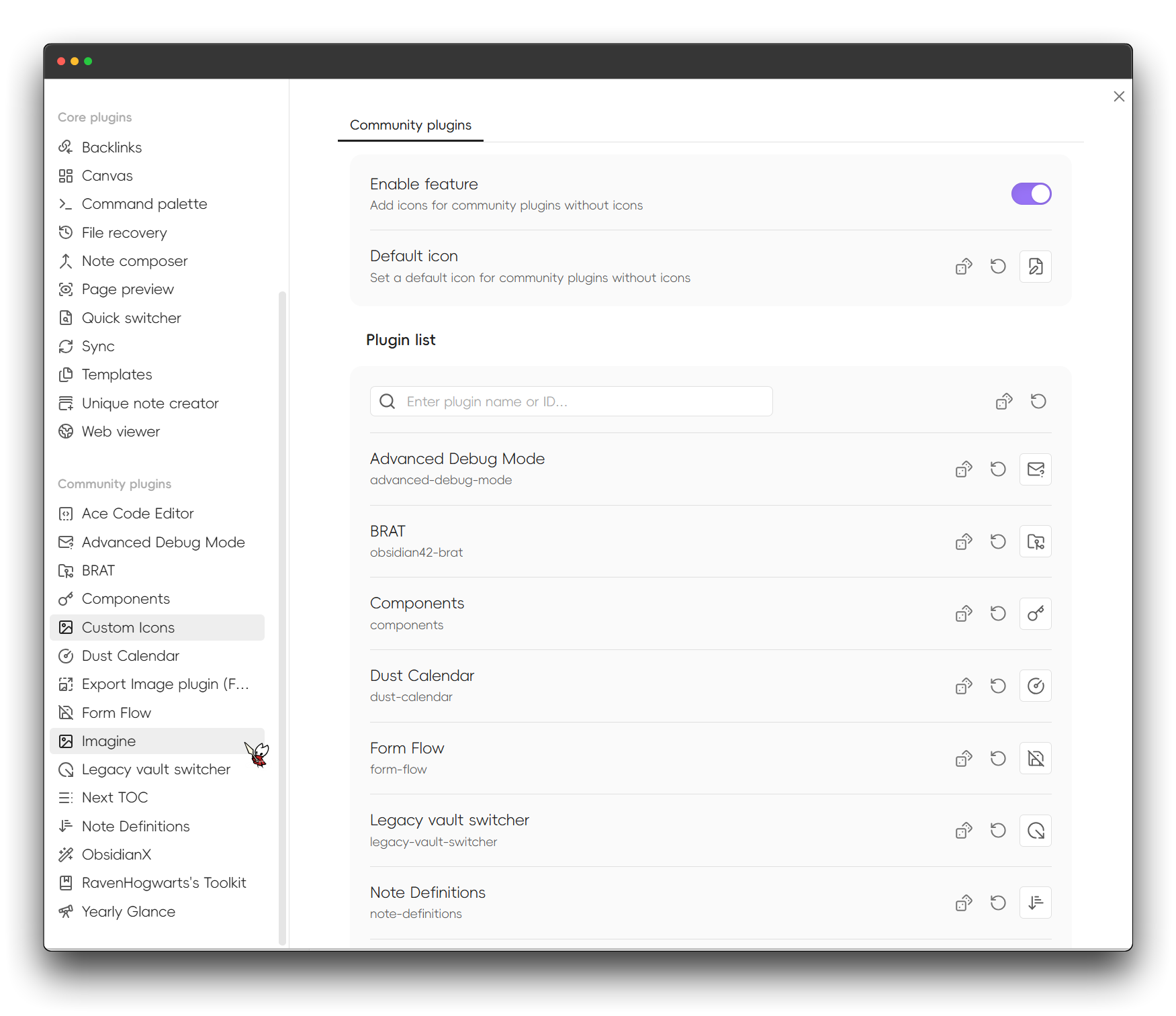
Icons are configured in two places: the settings tabs above, and in place — right-click a file, folder, bookmark or an active tab header. If anything looks wrong, run "Reapply all icons" from the command palette to re-register and reapply everything.
Experimental
Always load this plugin first keeps this plugin at the front of the community plugin load order, so other plugins never render before its icons are registered. It only reorders entries, never adds or removes them, and takes effect on the next restart.
Installation
Community plugin market
Click to install, or open Settings → Community Plugins, search for "Custom Icons" and install.
BRAT (beta versions)
- Install BRAT
- Click "Add Beta plugin" in BRAT settings
- Enter
Raven-Pensieve/obsidian-custom-icons
For plugin developers
Custom Icons exposes a cross-plugin API (contract v1) on its plugin instance. Copy docs/custom-icons-api.d.ts into your own repository — there is no npm package, deliberately: no build coupling, and the runtime guard is the version field anyway.
const provider = app.plugins.getPlugin("custom-sidebar-icons")?.api;
if (provider?.version === 1) {
    provider.renderTo(el, "CI-mdi-home");   // the only way to draw the Lucide extras
    provider.describe("CI-mdi-home");       // source, short name, pack id
    provider.catalog();                     // all candidates, grouped by source
    provider.openPicker({ onPick });        // reuse this plugin's icon picker
}

// Required: icon sets change without the plugin list changing
this.registerEvent(
    this.app.workspace.on("custom-icons:changed", () => this.invalidate()),
);
Do not cache the API reference (the plugin can be disabled and re-enabled), and do not split CI-<packId>-<name> yourself — both segments may contain hyphens, so ask describe().
Inline Icons is a reference consumer: it renders icons inside note bodies using this registry.
FAQ
My icon shows blank inside another plugin
Obsidian's setIcon renders once. If that plugin rendered its icon before Custom Icons loaded, the spot stays blank. In order:
- Run "Reapply all icons";
- Reopen the affected view;
- Enable Settings → Experimental → "Always load this plugin first" and restart — this is the root fix, since community plugins load in the order of the array in
.obsidian/community-plugins.json; - Reload that plugin, or restart Obsidian.
Upgrading from 0.x
v1.0 was a breaking remaster; the classic pre-1.0 features have all been reimplemented natively since, and the plugin no longer generates CSS snippets. The old CSS-based configuration, including the auto-generated CustomIcon-AutoGen snippet, is neither used nor migrated. Delete that snippet from your vault and set your icons up again in the settings page.
License
GPL-3.0 — see LICENSE.