
README file from
GithubPolar
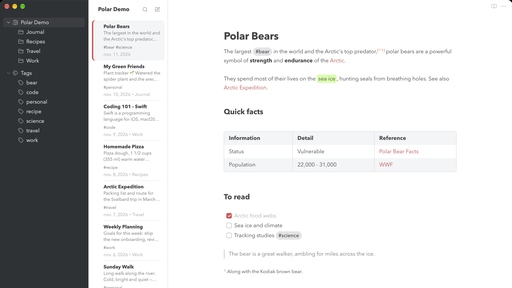
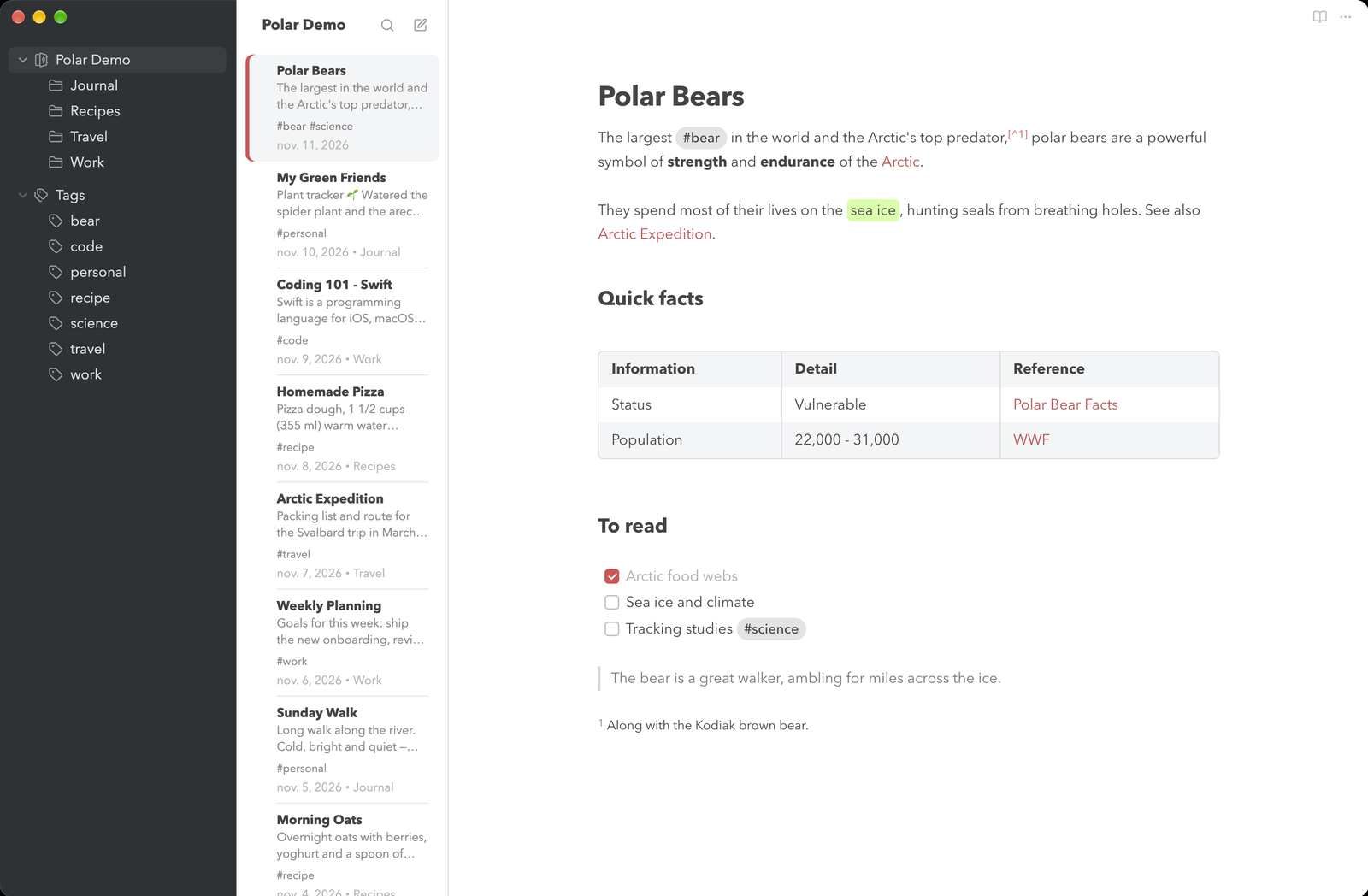
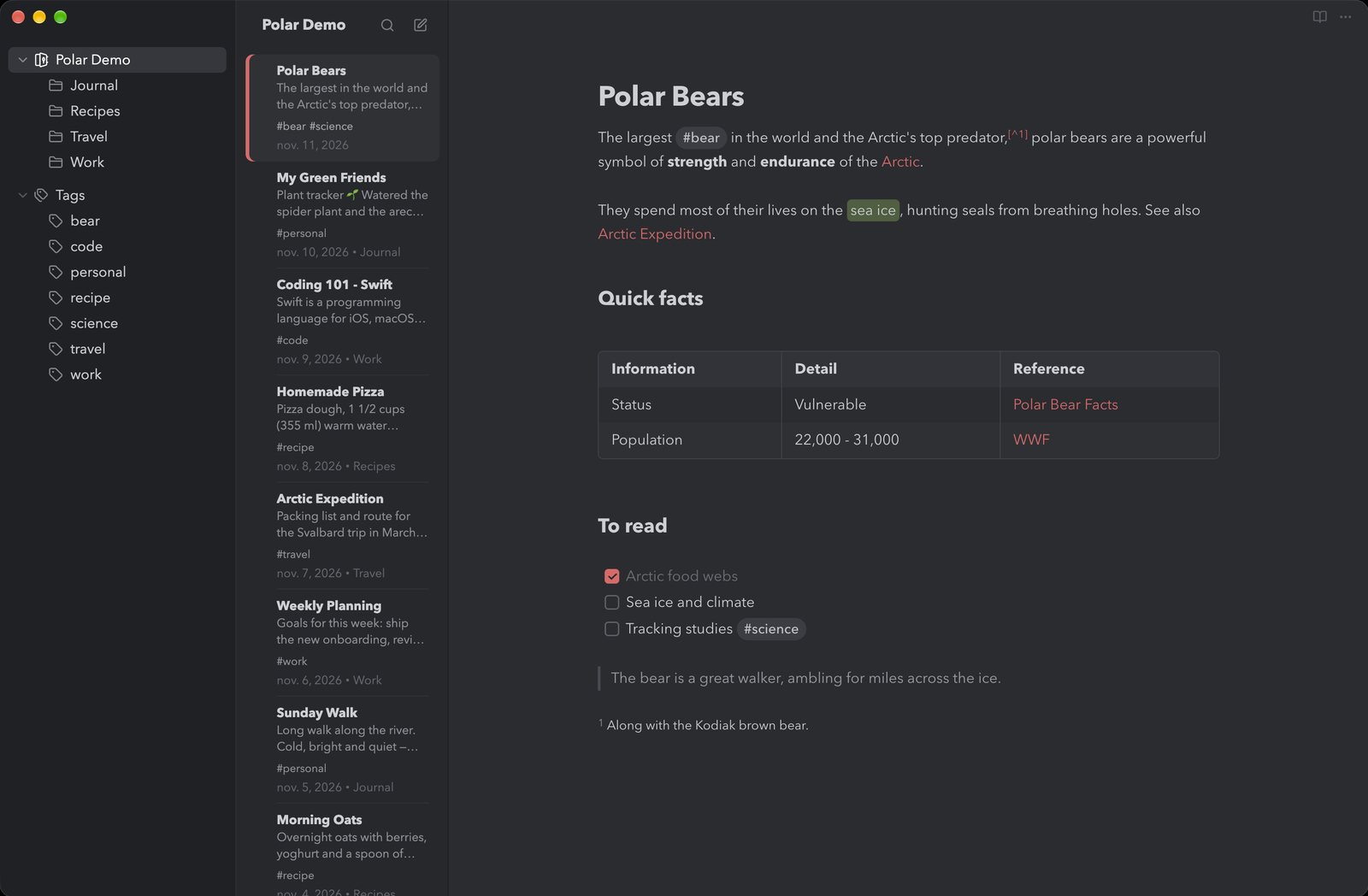
A calm, focused Obsidian theme inspired by the Bear notes app. Light mode follows Bear's Red Graphite look, dark mode its Dark Graphite look.
Polar is an independent community theme and is not affiliated with or endorsed by Bear or Shiny Frog.
[!IMPORTANT] The three-column look in the screenshots (tags · notes · editor) needs the Notebook Navigator plugin and a few Obsidian settings; a theme can only ship CSS, not plugins or settings. Without them Polar still works, as a dark sidebar with Obsidian's own file explorer next to a calm editor. See Recommended setup to get the full look.
Features
- Dark graphite sidebar, light note list, distraction-free editor
- Soft red accent for links, bullets, todos and the selected note
- Rounded pill tags, green marker highlights, striped rounded tables
- Quiet markdown syntax and a muted code palette
- No tab bar, status bar or vault footer: just your notes (each can be brought back with Style Settings)
- Light and dark mode
Recommended setup
To make Polar look like the screenshots:
-
Install Notebook Navigator. For the three-column layout (tags · notes · editor), install the Notebook Navigator plugin from the community plugins (source on GitHub) and place it in the left sidebar. Polar styles it out of the box.
-
Configure Notebook Navigator: note grouping none, task progress off, note counts off; toolbar: no navigation buttons, list only search and new note. Quickest way: download
notebook-navigator-settings.jsonand load it via Settings → Notebook Navigator → Import and export settings → Import from file. Note: importing resets any Notebook Navigator setting not in this file to its default. -
Obsidian settings:
Where Setting Value Editor Readable line length on Editor Backlinks in document off Appearance Show inline title on Appearance Show ribbon off Appearance Fonts, accent color leave empty / default (Polar sets its own) -
Style Settings (optional): to bring back the status bar, tab bar, vault footer or note header controls, see below. Leave them off for the screenshot look.
Notes
Polar hides the editor tab bar, the status bar, the vault footer and the sidebar tab row. Open settings with ⌘/Ctrl + , and other panes from the command palette.
Bringing hidden elements back (Style Settings)
Want some of it back? Install the Style Settings plugin from the community plugins and open Settings → Style Settings → Polar → Interface:
| Setting | Options |
|---|---|
| Status bar | Hidden (default), Show on hover (fades in when you point at the bottom-right corner) or Visible |
| Show tab bar | Brings back the tab bar above the editor; it becomes the window's drag area again |
| Show vault footer | Vault switcher, help and settings, shown as a compact two-line block in the bottom-left corner of the tag column, so both columns still run to the bottom of the window |
| Show note title and navigation buttons | Back/forward buttons and the file title in the note header |
Without Style Settings, or with everything left at its default, Polar looks exactly as in the screenshots.
License
MIT