
README file from
GithubFox Suite
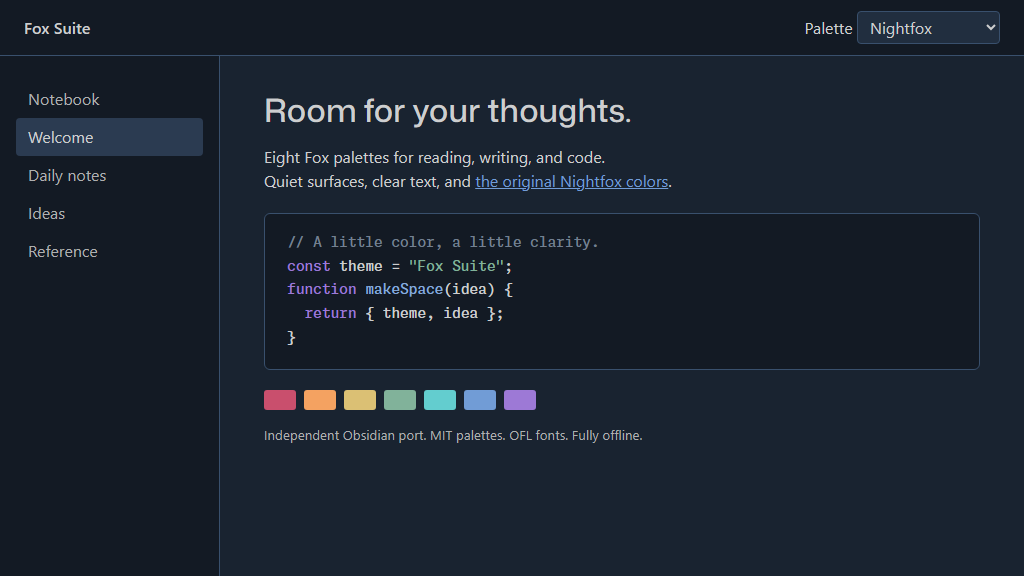
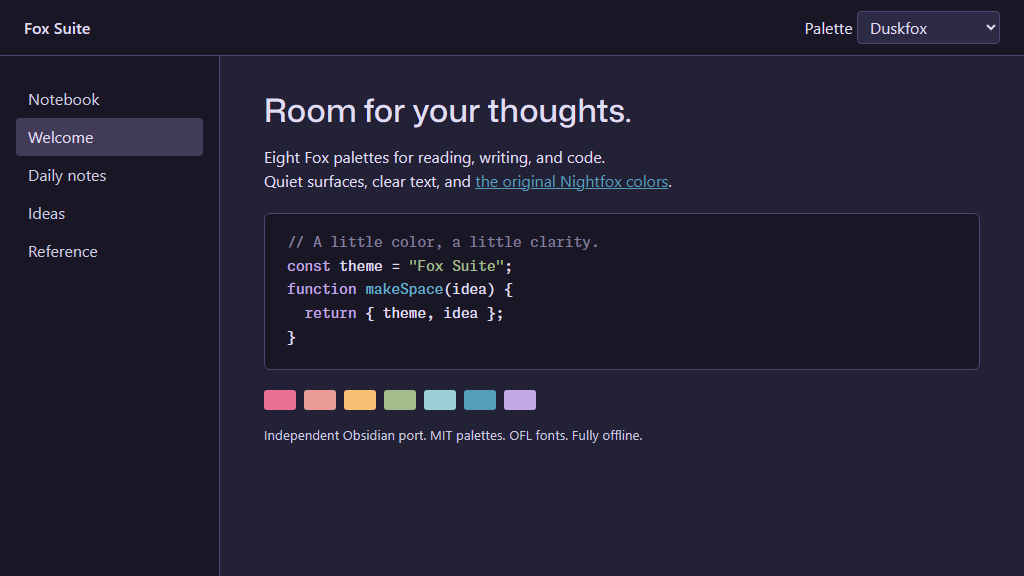
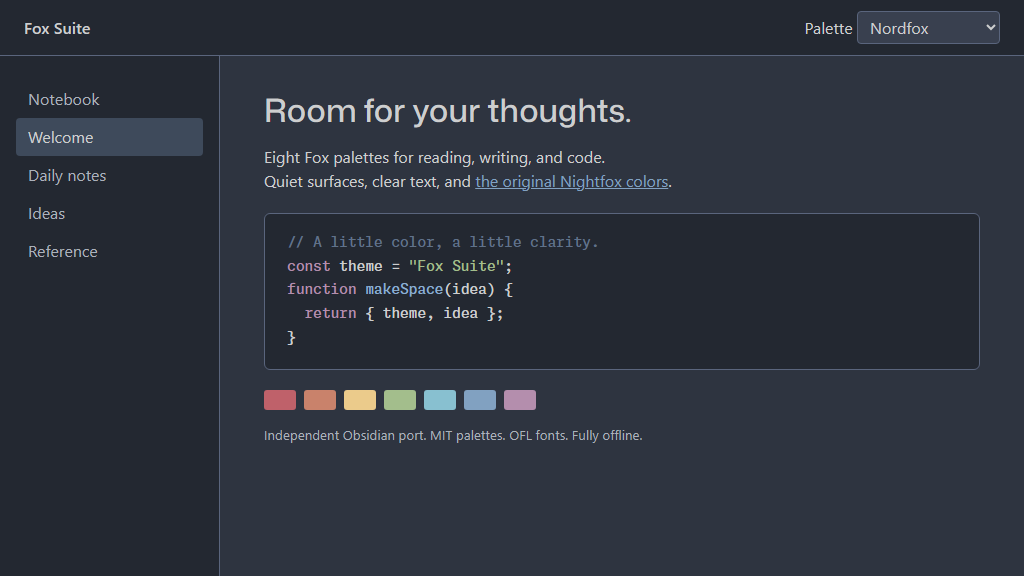
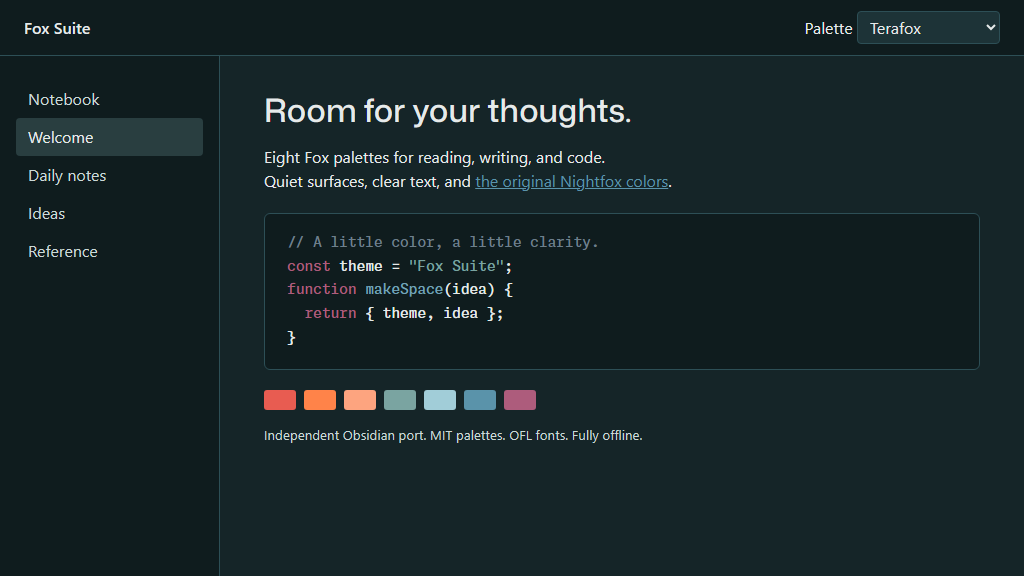
Seven Nightfox palettes plus Pilotfox in one self-contained Obsidian theme, with Monaspace Neon code and Mona Sans headings.
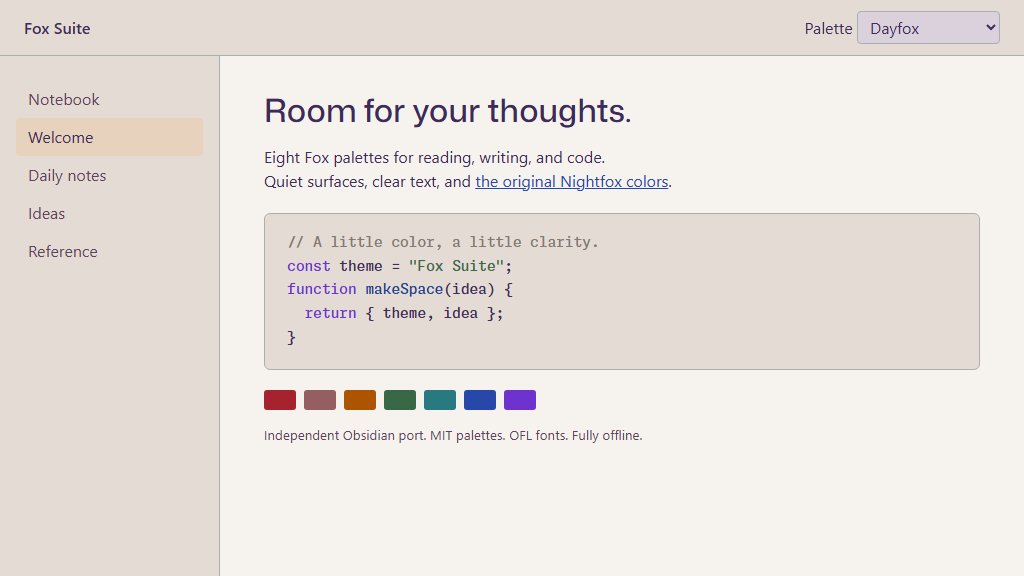
| Base color scheme | Default | Other palettes |
|---|---|---|
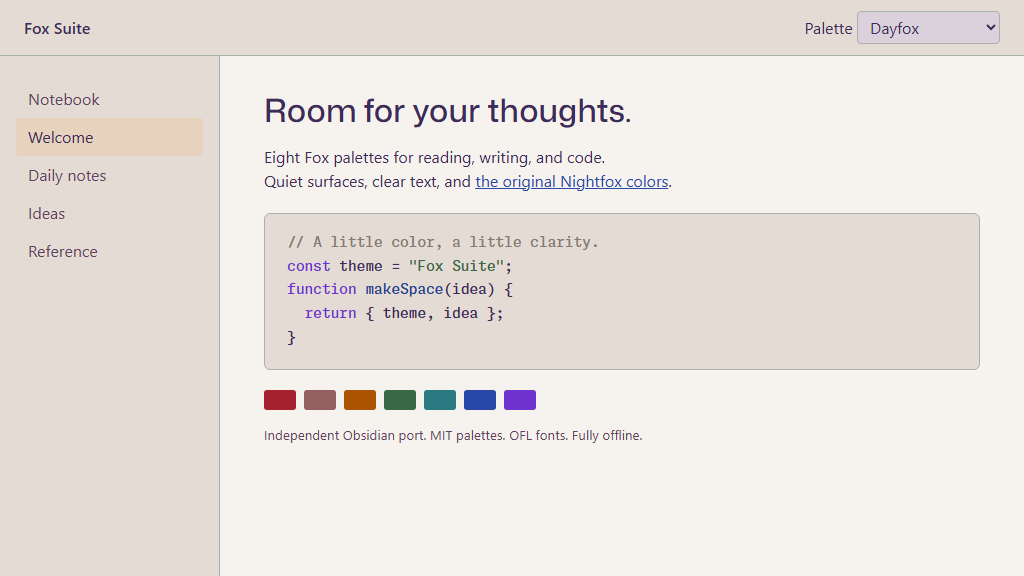
| Light | Dayfox | Dawnfox, Pilotfox |
| Dark | Nightfox | Duskfox, Nordfox, Terafox, Carbonfox |
Palettes
Light
| Dayfox (default) | Dawnfox |
|---|---|
 |
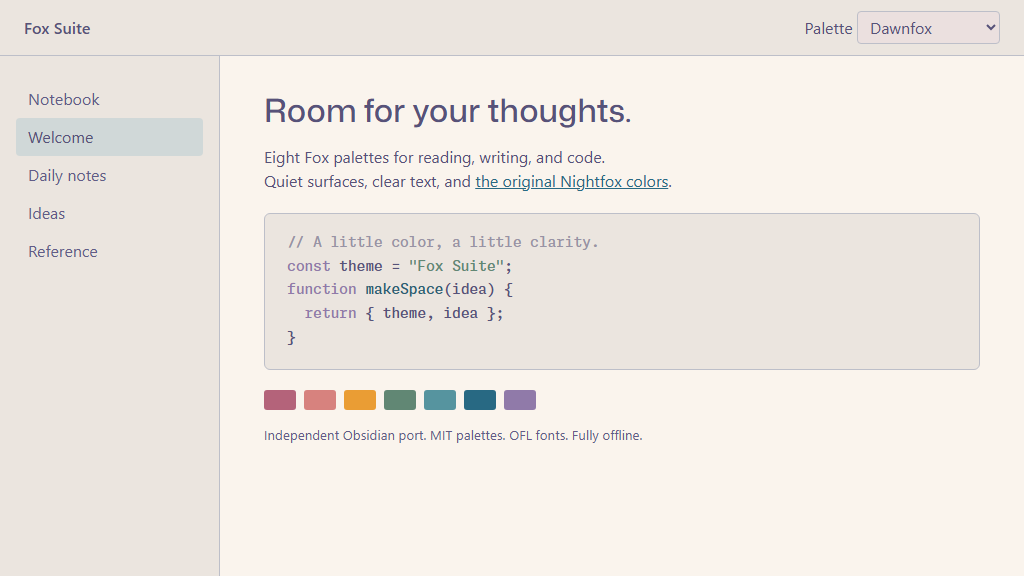 |
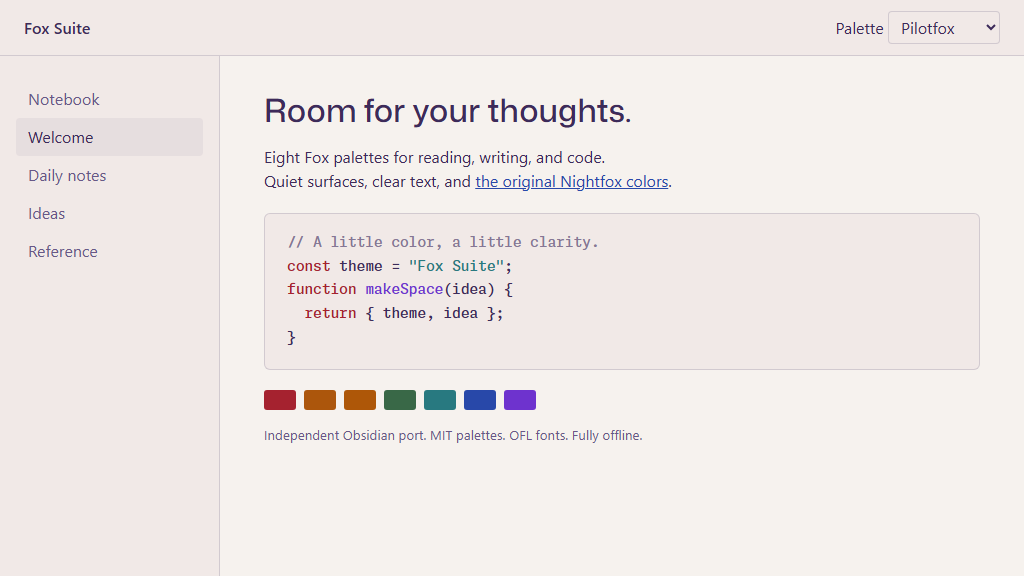
| Pilotfox | |
 |
Dark
| Nightfox (default) | Duskfox |
|---|---|
 |
 |
| Nordfox | Terafox |
 |
 |
| Carbonfox | |
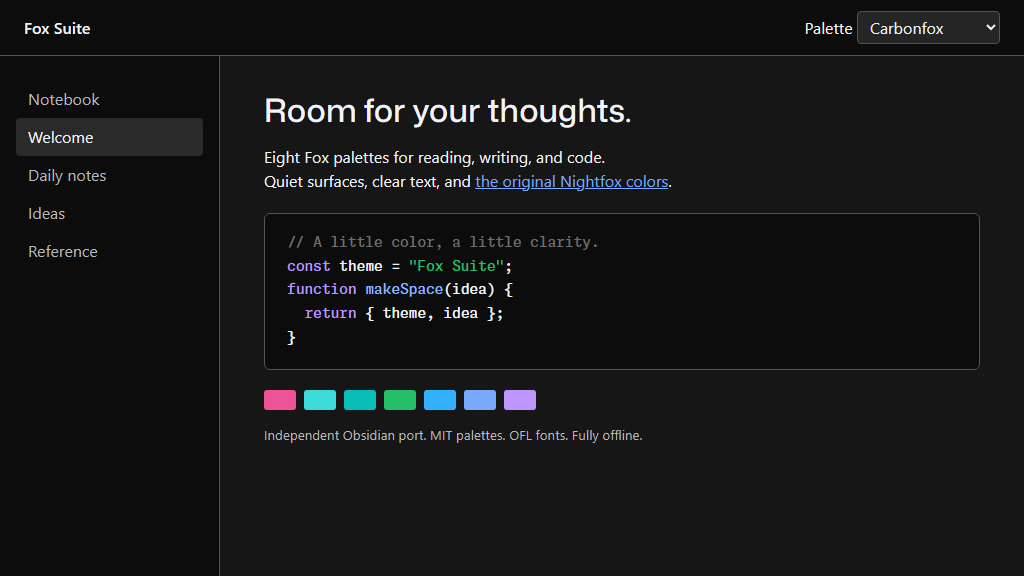 |
Without any plugins, Light uses Dayfox and Dark uses Nightfox. To select any other palette, use the free Style Settings community plugin; see Choose a palette. The Nightfox palettes do not override your reading width or configured body text size. Pilotfox also applies its captured font stacks, type sizes, and line heights. Fonts and their licenses are embedded; no network requests are needed.
Install manually
- Create
<vault>\.obsidian\themes\Fox Suite\. - Copy
manifest.jsonandtheme.cssinto that folder. - Select Fox Suite in Settings -> Appearance -> Themes. Reload Obsidian if it has not discovered the new manifest.
- Choose Light or Dark as your base color scheme.
If you previously used a standalone copilot-fox CSS snippet, disable it and
choose Pilotfox instead; otherwise its overrides will still win over
every light palette.
Choose a palette
Fox Suite has no palette menu of its own. Palettes are chosen with the Style Settings community plugin, which reads the options the theme declares:
- Open Settings -> Community plugins and turn on community plugins if Obsidian asks.
- Select Browse, search for Style Settings, then install and enable it.
- Open Settings -> Style Settings -> Fox Suite.
- Pick a Light palette (Dayfox, Dawnfox, or Pilotfox) and a Dark palette (Nightfox, Duskfox, Nordfox, Terafox, or Carbonfox).
The two choices are saved independently. Obsidian's base color scheme (Settings -> Appearance -> Base color scheme) decides which one is shown, so you can, for example, use Pilotfox by day and Nordfox at night. Changes apply immediately. If you disable Style Settings, the theme returns to Dayfox and Nightfox.
Pilotfox versus upstream Dayfox
Dayfox is the MIT-licensed upstream palette. Pilotfox layers the
236 values measured from the GitHub Copilot App 1.1.25 Dayfox appearance
(palettes/pilotfox.json) over it; any role not in that capture keeps
its upstream Dayfox value. Both share the background (#F6F2EE), foreground
(#3D2B5A), and blue (#2848A9), but secondary roles differ:
| Role in this port | Dayfox | Pilotfox |
|---|---|---|
Secondary surface (bg0) |
#E4DCD4 |
#F1E9E7 |
Muted text (fg2) |
#643F61 |
#685887 |
| Code comments | #837A72 |
#867795 |
Selection background (sel0) |
#E7D2BE |
#3D2B5A |
| Code strings | #396847 |
#287980 |
These are role mappings, not a claim that a Neovim status line and an Obsidian sidebar are identical components. Pilotfox also restyles primary buttons and code-block sizing to match the capture. No claim is made that the other variants reproduce Copilot's generated UI. See third-party notices.
Build and check
Node.js 20 or later is sufficient. There are no npm dependencies and no installation step.
npm run build
npm run check
npm run package
theme.css is generated from the pinned upstream Lua palette files (read as
data, never executed), the Pilotfox values in
palettes/pilotfox.json, scripts/shared.css, and the checksummed fonts.
Edit those sources rather than the generated CSS. npm run package writes
a manual-install folder at dist\Fox Suite\ using an explicit file
allowlist.
Open preview.html in a browser for a palette preview. Its sample content is
synthetic; the images are palette previews, not Obsidian screenshots. Append
a palette name to open it directly, for example preview.html#nordfox. Capture each palette at 1024×576 into
screenshots\<name>.png to refresh the gallery above.
Publish manually
- Review the author, stable theme name, README, and licenses.
- Commit and publish this repository yourself. Nothing here auto-publishes.
- Run
npm run checkandnpm run package. - For an Obsidian directory submission, create a GitHub release whose tag
exactly matches
manifest.json's version (initially0.1.0). - Attach
theme.cssandmanifest.jsonto that release. - Submit through Obsidian's Community directory.
The minimum version is conservatively set to the version used for development. Lower it only after checking the older version. Desktop palette rendering is covered; mobile still needs a hands-on check before claiming mobile parity. Before directory submission, replace the palette-preview image with a clean actual Obsidian screenshot if requested by the reviewers.
Credits and licenses
- Palettes: James Simpson / EdenEast, MIT, pinned in
palettes/upstream.json. - Original Obsidian mappings and build tooling: Bo Jordan, MIT.
- Monaspace Neon and Mona Sans fonts: SIL OFL 1.1, not MIT.
Full notices are in THIRD_PARTY_NOTICES.md,
licenses/, and the generated stylesheet. This is an independent port with
no GitHub, Obsidian, or upstream-author endorsement.