
README file from
Github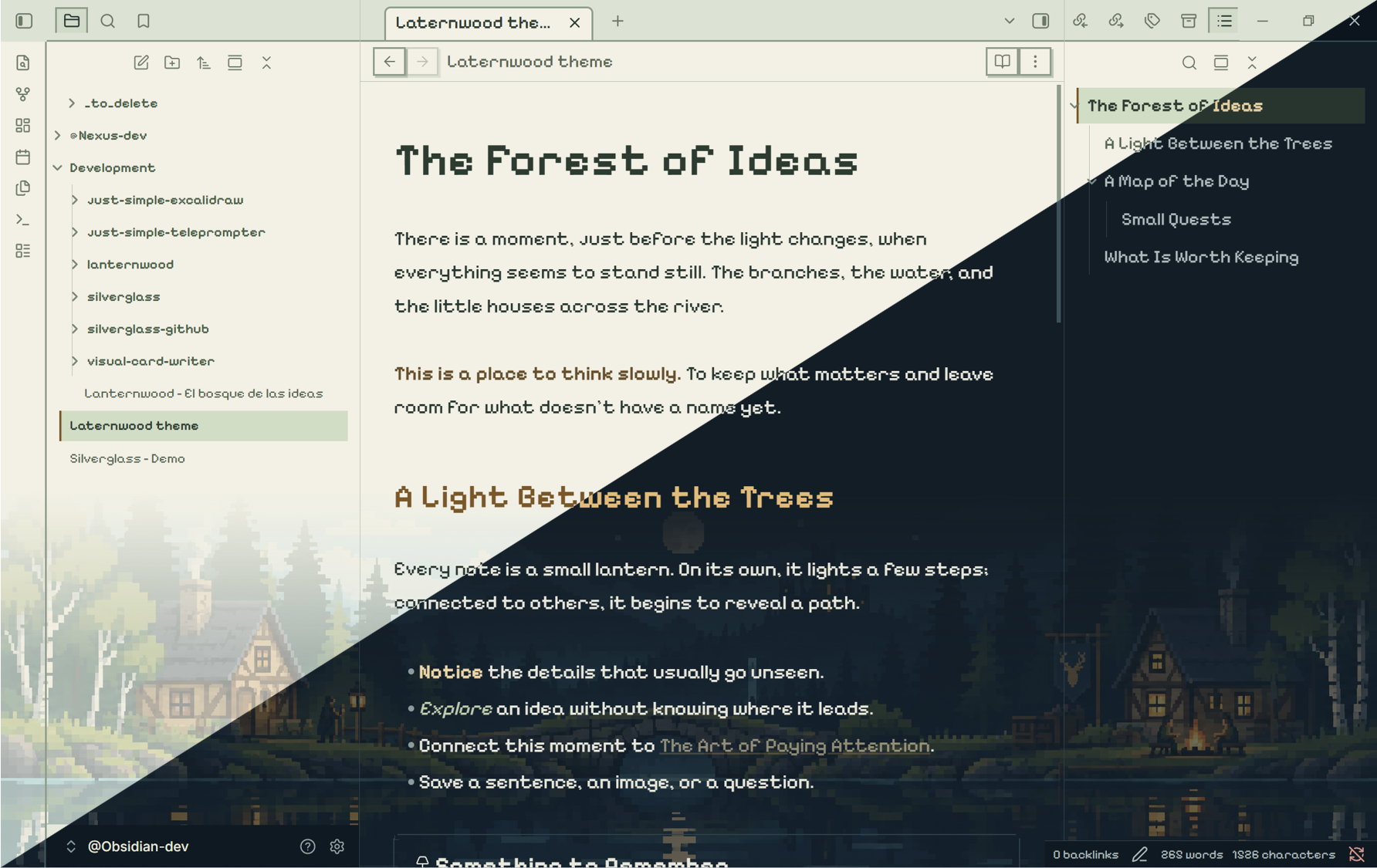
Lanternwood
A highly customizable pixel-art Obsidian theme with 10 configuration options for landscapes, typography, reading width and icons through Style Settings. Warm lanterns, forest greens and stepped details create a quiet place to write. Version 0.2.2. Original theme by David Hurtado.
Inspired by the atmosphere of Kingdom Two Crowns, with original scenery and no extracted game assets. Choose a simple pixel interface, a chunky classic forest, or a more detailed landscape — all in light and dark mode.
Download the latest release · Configuration · Typography
Six looks, one theme
The opening screenshot shows Classic forest, with larger pixel clusters and simpler silhouettes. Light mode is on the upper-left side of each comparison; dark mode is on the lower-right. These are user-supplied captures of Obsidian.
Pixel interface, no forest
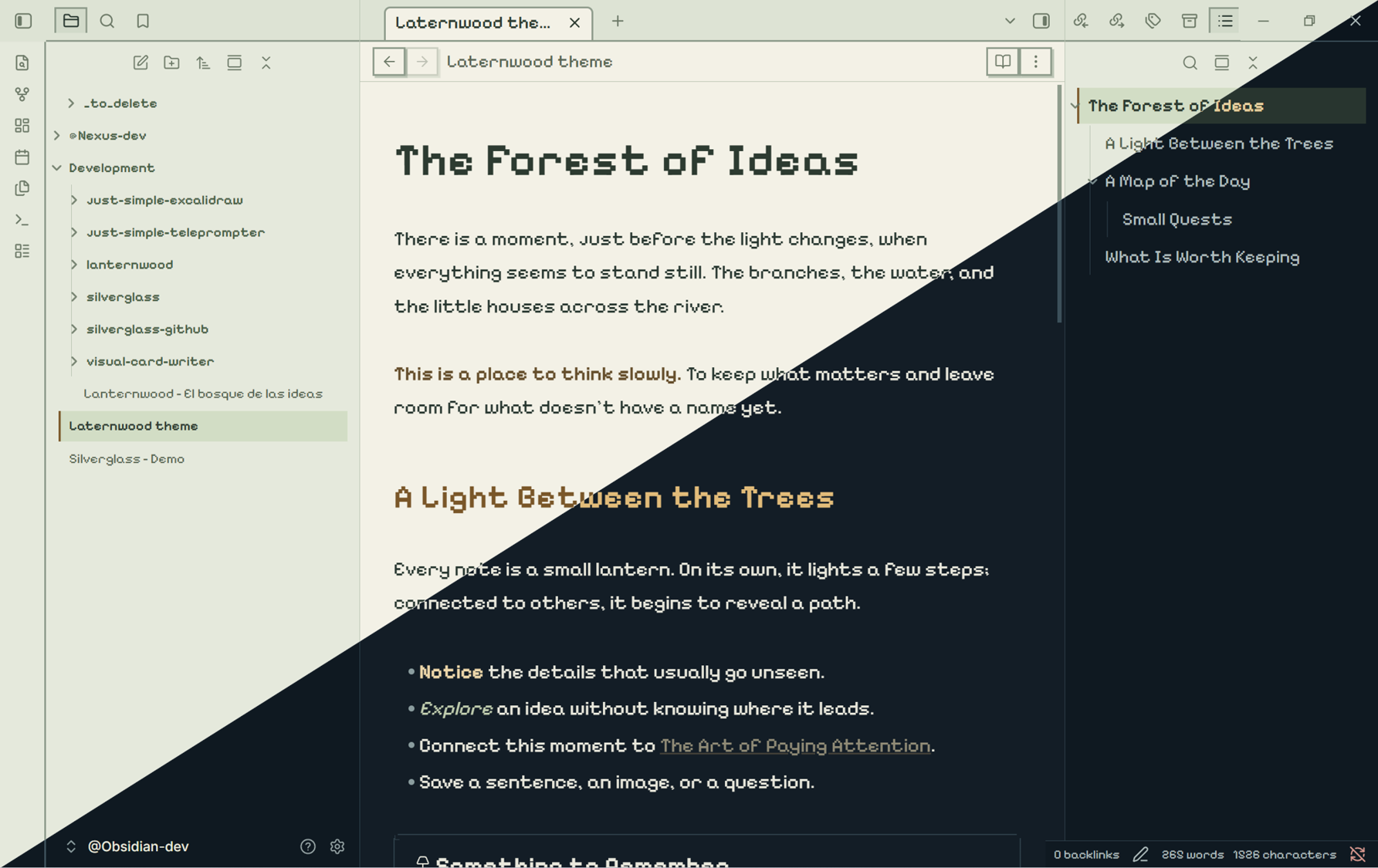
Turn Enable forest off for a clean background. The pixel typography, square controls and theme colors remain.
Detailed forest
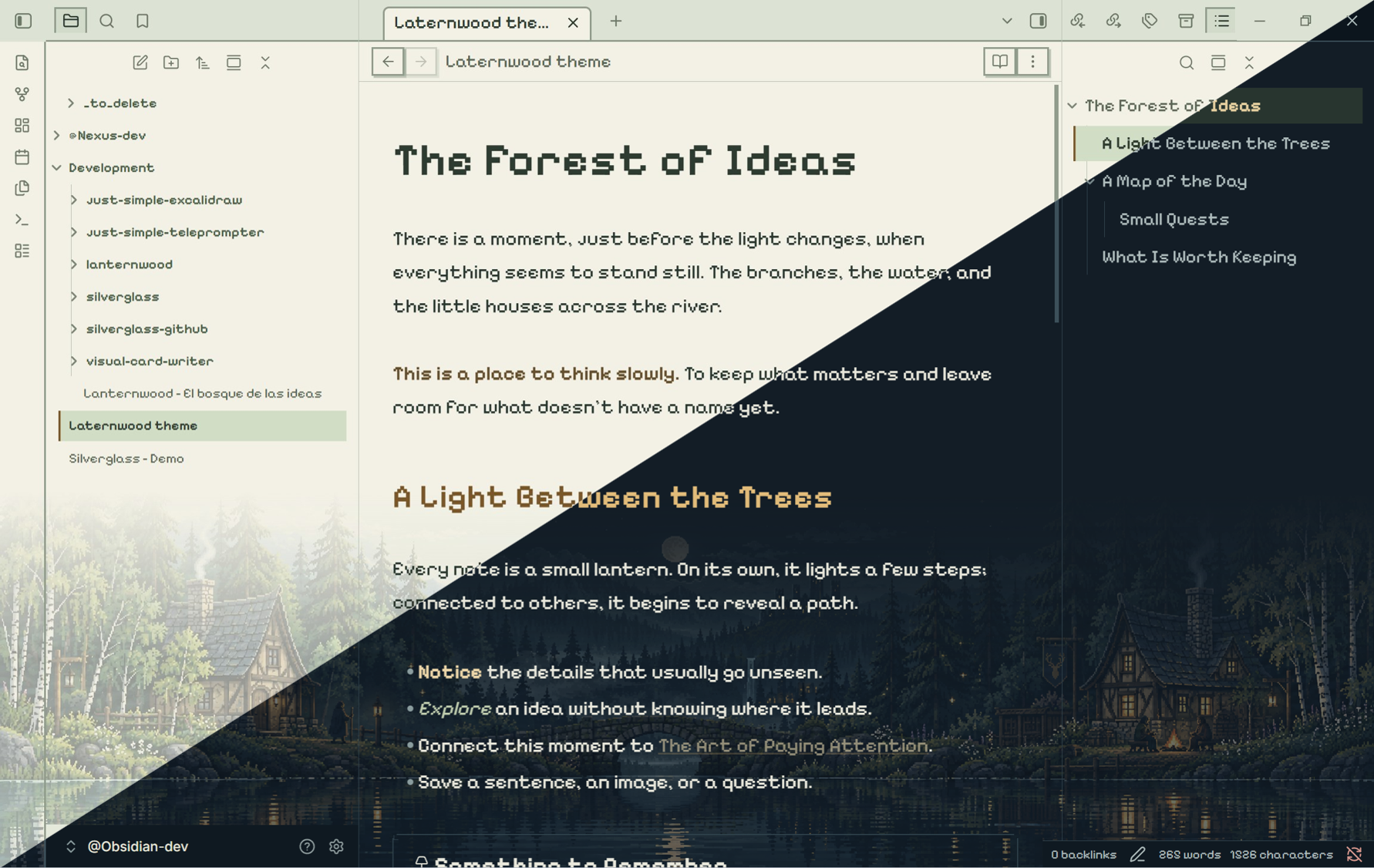
Enable the forest and select Detailed — more detail for finer textures. For the chunky artwork shown at the top, select Classic pixel — less detail. These three backgrounds × two color schemes make the six looks shown here.
All three screenshots use optional pixel note text. On a fresh install, note paragraphs keep your reading font and the forest is off.
Install
- Download Lanternwood-0.2.2.zip from the release. Extract and copy its
Lanternwoodfolder into your vault's.obsidian/themes/directory. It containsmanifest.jsonandtheme.css. - Select Lanternwood under Settings → Appearance → Themes.
- Install and enable Style Settings if you want to customize the theme.
- Open Settings → Style Settings → Lanternwood → Forest → Enable forest.
Alternatively, download manifest.json and theme.css from the same release
and place both in .obsidian/themes/Lanternwood/. Requires Obsidian 1.14.2
or later. This theme is not yet listed in the Community Themes directory.
To update, replace those two files with the files from the newer release.
The forest is off by default in a fresh install. The pixel theme works without Style Settings. Font, original glyphs and all four landscapes are embedded in CSS: no external asset folders, internet connection, font installation or API key are needed at runtime. The complete CSS is about 0.96 MB (938 KiB). The four landscapes use compressed WebP at their original 2172×724 dimensions; the original PNGs remain in the repository. WebP compression is lossy. The build is checked against a 1 MB project budget.
Day and night
Choose Landscape style in Style Settings:
- Classic pixel — less detail (default): large pixel clusters, simpler silhouettes, fewer fine textures and broader reflections, guided by the supplied Kingdom Two Crowns reference.
- Detailed — more detail: the original finer-textured forest artwork.
Each style has its own matching day/night pair. This selection changes the artwork, not the typography, opacity, forest height or editor layout.
Dark mode: midnight blue, sage green and amber, with illuminated cottages and a moonlit forest. Light mode: pale parchment, moss green and warm brown, with the corresponding daytime landscape. The correct image follows Obsidian's light/dark setting automatically.
The forest sits behind the workspace, with adjustable transparency and a soft vertical fade. It never reserves space or intercepts clicks: notes retain the full editor height with the forest on or off. Menus and toolbars retain their surfaces. The panorama preserves its proportions and crops to fit; its visible area changes with the window size and chosen background height. It is static.
Style Settings
Open Settings → Style Settings → Lanternwood. There are 10 controls in two groups. All option labels and descriptions are in English, regardless of Obsidian's interface language. Changes apply immediately.
The tables give fresh-install defaults. Your saved preferences can differ. Use the reset arrow next to a modified control to return it to its default.
Forest
| Control | Default | Available values | What it does |
|---|---|---|---|
| Enable forest | Off | On / Off | Shows the landscape behind the editor and sidebars. Also adds a forest toggle to the command palette. Disabling it leaves the rest of the pixel theme active. |
| Landscape style | Classic pixel — less detail | Classic pixel — less detail / Detailed — more detail | Chooses simpler shapes and larger pixel clusters, or the finer-textured original artwork. Both include matching day and night images. Only the scenery changes. |
| Background height | 360 px | 100–600 px, in steps of 10 | Sets how far the backdrop rises from the bottom of the workspace. Its top fades into the background. This does not reserve space or shorten the editor. |
| Forest opacity | 0.4 | 0.1–0.8, in steps of 0.05 | Controls transparency: lower values blend the scenery more gently into the workspace; higher values make it more visible behind the text. |
| Forest brightness | 1 | 0.5–1.2, in steps of 0.05 | Adjusts the image's brightness: 1 keeps the original brightness, values below 1 darken it and values above 1 brighten it. |
Opacity and brightness are independent. Lower opacity for a quieter reading background; lower brightness when the image itself feels too bright. Height, style, opacity and brightness become visible when the forest is enabled.
The actual height is limited to 75% of the viewport on desktop, 65% in windows up to 800 px wide, and 60% in mobile mode. The image keeps its proportions and may crop as the window changes size. A tall, opaque forest deliberately reaches farther behind the note, reducing contrast near the bottom. Light and dark modes use the same control values, with different artwork.
Typography and reading
| Control | Default | Available values | What it does |
|---|---|---|---|
| Use reading font for headings | Off | On / Off | Replaces the pixel heading font with the reading font. Applies to note headings, the inline title and callout titles. Leave off for pixel headings. |
| Use regular interface font for navigation | Off | On / Off | Uses your regular interface font for the file explorer, outline, view-header title, settings labels, buttons and dropdowns. Leave off for pixel navigation. |
| Use pixel font for note text | Off | On / Off | Uses Pixelify Sans for note text in editing and reading views, with a 19 px base size. When off, paragraphs use your Obsidian reading font. |
| Reading width | 760 px | 520–1000 px, in steps of 20 | Sets the target readable line width. Requires Obsidian's Settings → Editor → Readable line length to be enabled; the available pane width still limits it. |
| Use native Obsidian icons | Off | On / Off | Restores native icons in place of the theme's 16 custom pixel glyph designs and their aliases. Icons outside that custom set already retain their native appearance. |
The font switches have specific scopes: tabs, the title bar, status bar, modal titles and frontmatter properties retain their pixel styling. Property names have no decorative border. The native-icon switch changes glyphs, independently of fonts and scenery.
For your configured reading font throughout a note, turn Use reading font for headings on and Use pixel font for note text off.
Settings provided by Obsidian
The light/dark color scheme, your text font, interface font, monospace font and regular font size are configured in Obsidian's Appearance settings. Lanternwood uses those preferences where it does not explicitly apply pixel typography. The pixel-note-text option sets its own 19 px base size. Readable line length is an Obsidian Editor setting; Lanternwood's width slider works with it.
There is no separate day/night switch, animation control or independent sidebar forest toggle: the landscape follows the color scheme and spans the workspace.
Typography
The pixel typeface is Pixelify Sans, by The Pixelify Sans Project Authors.
The bundled file is a variable TrueType font with weights 400–700, embedded
directly in the theme CSS. Its internal CSS family name, Lanternwood Pixel,
is an alias for Pixelify Sans, not a different typeface. You do not need to
install it, and it loads without a network connection.
Prefer a different font? Use Style Settings to disable Pixelify Sans for note text, headings and navigation, then choose your replacement fonts using Obsidian's standard font settings:
- Open Settings → Style Settings → Lanternwood → Typography and reading.
- Turn Use pixel font for note text off.
- Turn Use reading font for headings and Use regular interface font for navigation on.
- Open Settings → Appearance and select your preferred Text font and Interface font. You can also choose a separate Monospace font for code.
Style Settings controls where the theme uses Pixelify Sans; the replacement font is selected in Obsidian, not in a font picker inside Style Settings. These switches do not remove Pixelify Sans from every part of the interface: tabs, title/status bars, modal titles and frontmatter properties retain it.
| Area | Font used |
|---|---|
| Headings, inline title and callout titles | Pixelify Sans by default; the heading switch selects the reading font. |
| Navigation and controls | Pixelify Sans by default; the navigation switch selects the regular interface font in the areas listed above. |
| Tabs, title/status bars, modal titles and frontmatter properties | Pixelify Sans, including property names and values. |
| Note paragraphs | Your Obsidian text font; the theme fallback is Segoe UI, then the system sans-serif. Pixelify Sans is optional through the pixel-note-text switch. |
| Code | Your Obsidian monospace font; the theme fallback is Cascadia Code, then Consolas, then the system monospace. These fallback fonts are not bundled. |
Pixelify Sans is distributed under the SIL Open Font License 1.1, separately from the theme's MIT license. See the bundled font license for its copyright notice and terms. The scenery and the custom SVG icons are separate artwork; they are not characters from this font.
Markdown
Standard headings, tasks, links, tables, code, tags, quotes, properties and callouts are styled. Two optional callouts add a lantern or woodland accent:
> [!lantern] Something to remember
> Leave room for new ideas.

> [!forest] A forest of connections
> Good notes open new paths.
[!remember] is an alias for the lantern callout.
Development
Requires Node.js and npm. No build step is needed for users installing the ZIP.
npm ci --ignore-scripts
npm run build
npm run lint
npm run check
npm run optimize:assets regenerates the bundled WebP images from the original
PNGs using Sharp (quality 75, no resizing). The generated WebP files are committed,
so ordinary builds do not need to recompress them.
src/theme.css is the editable CSS. scripts/build.mjs embeds the font,
day/night WebP images, font license and original 16×16 SVG glyphs into theme.css.
npm run install:dev is a local maintainer helper: it assumes the repository
is at <vault>/Development/lanternwood and installs two levels above the
repository. Do not use that helper from an arbitrary clone location. scripts/check.mjs checks CSS, YAML settings, version synchronization,
asset completeness and offline packaging. scripts/ui-qa.mjs uses the Obsidian
CLI against @Obsidian-dev, temporarily changes appearance settings and restores
them; it never modifies note content.
See VALIDATION.md for actual coverage and limitations.
License
Lanternwood is released under the MIT License. Copyright © 2026 David Hurtado.
You may use, copy, modify and distribute the theme, including for commercial purposes, provided you retain the copyright and license notice. The theme is provided "as is", without warranty. See the full license for its terms.
The bundled Pixelify Sans font has its own SIL Open Font License 1.1; it is not covered by the theme's MIT license. Its copyright and complete terms are included in assets/OFL-PixelifySans.txt, embedded in the CSS, and included with release ZIPs. See also THIRD_PARTY_NOTICES.md.
Attribution
- CSS, controls and pixel glyphs: original, MIT, © 2026 David Hurtado.
- Pixelify Sans: SIL Open Font License 1.1; see the bundled license.
- Original day/night scenery generated with OpenAI's built-in image generation
tool. Source assets and prompts are included in
assets/. - Kingdom Two Crowns is an artistic reference. No game files, screenshots, logos, soundtrack or extracted game assets are included. This is an independent theme, not an official Kingdom or Obsidian product.
Published releases are available on GitHub. The theme has not been submitted to the Community Themes directory. Choose another theme in Appearance to deactivate it.