
README file from
GithubFreeColors for Obsidian
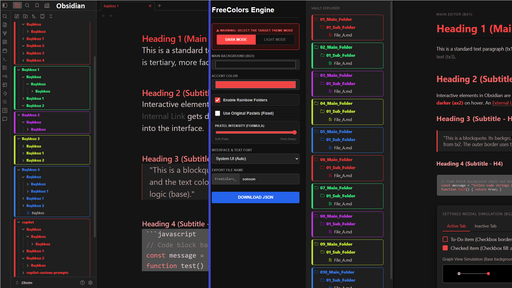
A modular Obsidian theme framework designed for total color control. FreeColors includes a standalone HTML Color Engine that allows you to visually design your color palette, instantly simulate the entire UI hierarchy, and export the profile directly to the Style Settings plugin via JSON.
⚠️ Prerequisites: This theme requires the Style Settings plugin to function. Custom color profiles and built-in features cannot be applied without it.
🚀 How It Works (The Workflow)
Unlike traditional Obsidian themes where you edit CSS files manually, FreeColors uses a hybrid approach:
- Design: Use the FreeColors Simulator (
index.html) to design your theme visually. - Export: The simulator calculates the optimal color math (contrasts, faded texts, muted backgrounds) and generates a
.jsonprofile. - Import: Import this JSON file into the Style Settings plugin inside Obsidian.
- Render: The theme dynamically reads these variables and renders the customized interface.
🛠️ Installation & Setup Guide
Step 1: Install the Theme
- Open Obsidian and go to Settings > Appearance.
- Under Themes, click Manage.
- Search for FreeColors and click Install and Use.
Step 2: Access the Simulator
You can use the color engine via the web or locally:
- Method A (Web): Open the FreeColors Web Simulator directly in your browser.
- Method B (Local): Download the
index.htmlfile from this repository and open it in any modern web browser (no internet required).
Step 3: Generate Your Custom Colors
- Choose your Target Mode (Dark or Light Mode). Note: The exported JSON will only apply to the selected mode.
- Select your Base Background (
bg1) and Accent Color (ax1). The simulator will automatically calculate the UI hierarchy. - Toggle and configure Rainbow Folders if desired.
- Click the "DOWNLOAD JSON" button to save your custom theme profile.
Step 4: Apply Colors to Obsidian
- In Obsidian, go to Settings > Style Settings.
- Click the "Import" button at the top right of the Style Settings menu.
- Select your downloaded
.jsonfile. - Click Save. Your custom colors will instantly apply.
Step 5: Enable Rainbow Folders (Optional)
The Rainbow Folders module is now built directly into the theme. To activate it:
- Go to Settings > Style Settings and find the FreeColors section.
- Toggle "Enable Rainbow Folders" to ON.
- The folder hierarchy will instantly use the custom rainbow colors defined in your JSON profile.
🎨 Features
- Standalone UI Simulator: Preview text contrasts, blockquotes, code blocks, and folder hierarchies before applying them to your vault.
- Intelligent Color Math: The engine automatically calculates secondary backgrounds, muted UI borders, and faded text colors based on your primary hex inputs.
- Built-in Rainbow Folders: A fully integrated, toggleable CSS solution for coloring the file explorer hierarchy with perfect opacity blending.
🐛 Troubleshooting
- Colors disappeared or reverted to default? Ensure you are using the FreeColors theme and that you have successfully imported a valid JSON file generated by the simulator.
- "St(...) is not iterable" error during import? This means the JSON format does not match the expected HEX values. Always use the provided FreeColors Simulator to generate valid, clean JSON strings. Do not edit the JSON manually unless you know what you are doing.
🤝 Acknowledgments
This theme is built upon a fork of the excellent Minimal Theme by kepano. The CSS foundation has been preserved while integrating the FreeColors dynamic JSON simulation engine and the built-in Rainbow module.