
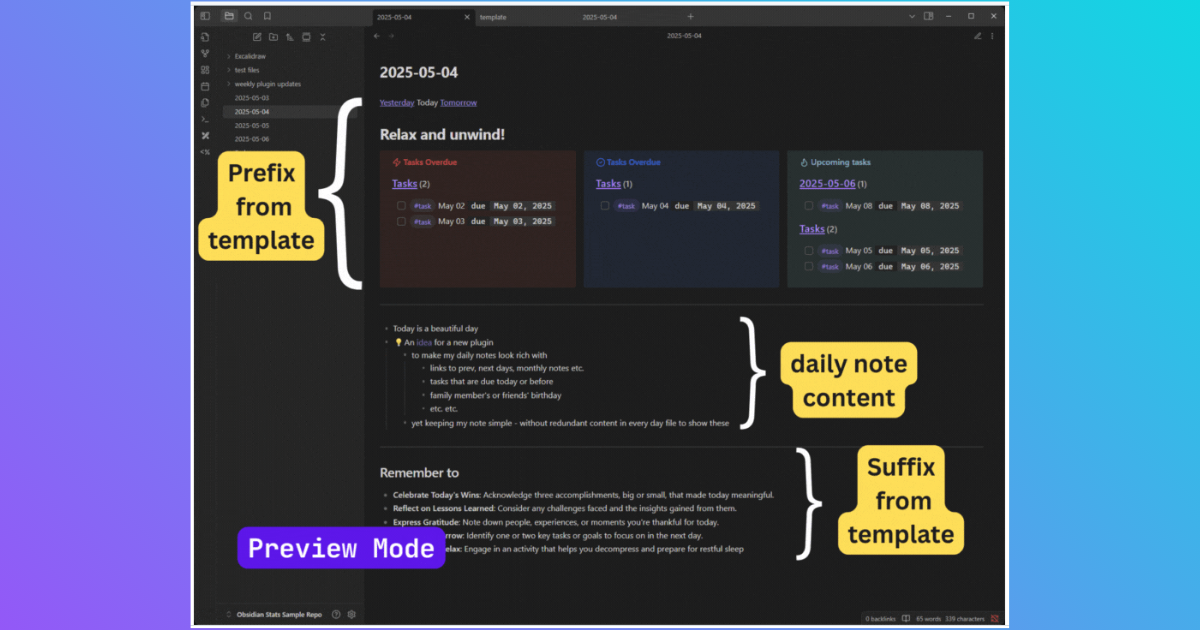
If your daily note doubles as a dashboard, its template can get noisy fast, which is what happened to mine. Dayframe is the Obsidian plugin I built to keep the dashboard in Obsidian and out of the Markdown file.
Daily notes are the primary interface for my work in Obsidian, where I capture tasks, create and reference documents and link back to notes that need an update. Pending tasks and today's work stay nearby.
When My Template Got Too Big
My first version put Markdown, Dataview queries and Tasks code blocks directly in the daily-note template. It worked, but the repeated dashboard definitions and supporting metadata could occupy more of the file than my writing.
I moved the dashboard into another file. That removed most of the duplication, but every generated note still needed inclusion markup at the top or bottom. Better, but I was still putting display instructions into files I wanted to keep clean.
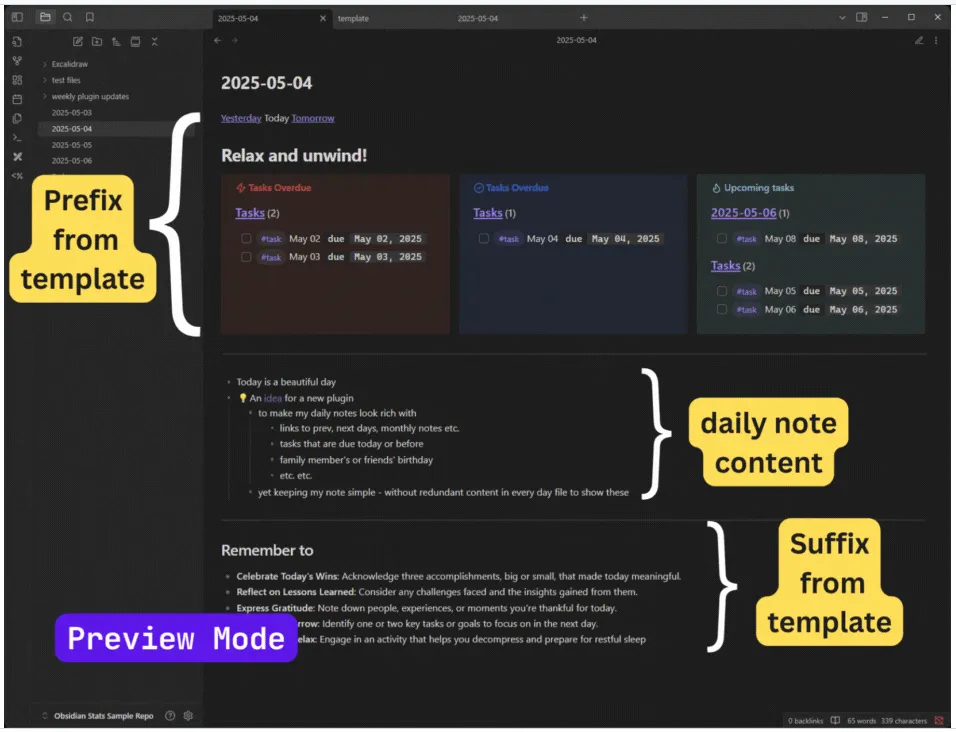
That was the part I wanted gone. Dayframe reads one template, splits it at {{CONTENT}} and renders the two fragments before and after the note. It never writes them into the source file.
Set Up Dayframe
Dayframe (0.0.4) requires Obsidian 1.8.10 or newer and is available in the Obsidian Community Plugins directory.
- Visit Dayframe in the Community Plugins directory and select Add to Obsidian. Enable it under Settings > Community plugins. Dayframe should appear in the settings list.
- Open Settings > Dayframe, then choose an inline template or a Markdown file from the vault. A vault file travels with the vault.
- Add
{{CONTENT}}where the note should appear. Put navigation, queries or prompts before and after that marker, then save and confirm that an open daily note refreshes. - Open a note named with the
YYYY-MM-DDpattern in Reading view or Live Preview. Look for the prefix above and suffix below. In Live Preview, the frame remains non-editable so the cursor stays inside your writing.
Rendered templates can include normal Markdown, links, embeds and plugin-provided code blocks. My demo uses DataviewJS queries to separate overdue, current and upcoming tasks, but Dataview and the multi-column CSS snippet are examples rather than Dayframe requirements.
Start With One Note
The frame content is configurable in two ways. Keep the template inline in Dayframe's settings or select a Markdown file from the vault, then place {{CONTENT}} between the material you want above and below the note.
Start small. Add a heading above {{CONTENT}} and a reminder below it, then open a YYYY-MM-DD.md note in Reading view or Live Preview. Both pieces should appear around your writing.
Inspect the same file in editing mode or outside Obsidian. The frame should disappear while the daily-note content remains, which is the part I care about most.
Found a bug or have an idea for Dayframe? Open an issue on GitHub to report it or request a feature.