Print Studio

by 5krus
5
4
3
2
1
Score: 50/100

Description

Category: Creative & Writing Tools

The Print Studio plugin turns notes into paginated documents with configurable paper size, orientation, margins, typography, colors, borders, logos, headers and footers. It keeps reusable presets in the vault, supports duplicate, import and export of those presets and includes undo and redo for layout changes within a session. The preview lets you move page by page, zoom, retain the current position after layout edits and surface warnings for clipped content or oversized table rows. Header and footer fields can pull placeholders from note metadata, page numbers, dates and vault details, while embedded note titles and properties can be hidden from output. It can also force page breaks before top level headings, honour manual break markers, export self contained HTML and print or save PDF, but it only works on desktop Obsidian 1.13.0+.

Reviews

No reviews yet.

Stats

0
stars
266
downloads
0
forks
8
days
4
days
4
days
0
total PRs
0
open PRs
0
closed PRs
0
merged PRs
0
total issues
0
open issues
0
closed issues
16
commits

Latest Version

5 days ago

Changelog

Print Studio 0.3.8 fixes embedded-note rendering so the option to hide embedded-note titles and properties works with native Obsidian embeds.

  • Preserve embedded-note titles, properties, and body content together when converting Obsidian’s rendered notes to printable HTML.
  • Keep surrounding text, formatting, nested embeds, and image embeds intact.
  • Avoid empty paragraphs introduced by embedded notes.

Requires desktop Obsidian 1.13.0 or newer. Update through Settings → Community plugins → Check for updates.

Validation: lint, unit tests, TypeScript/build, and all 21 browser/PDF tests passed, including the native span-embed regression fixture.

README file from

Github

Print Studio for Obsidian

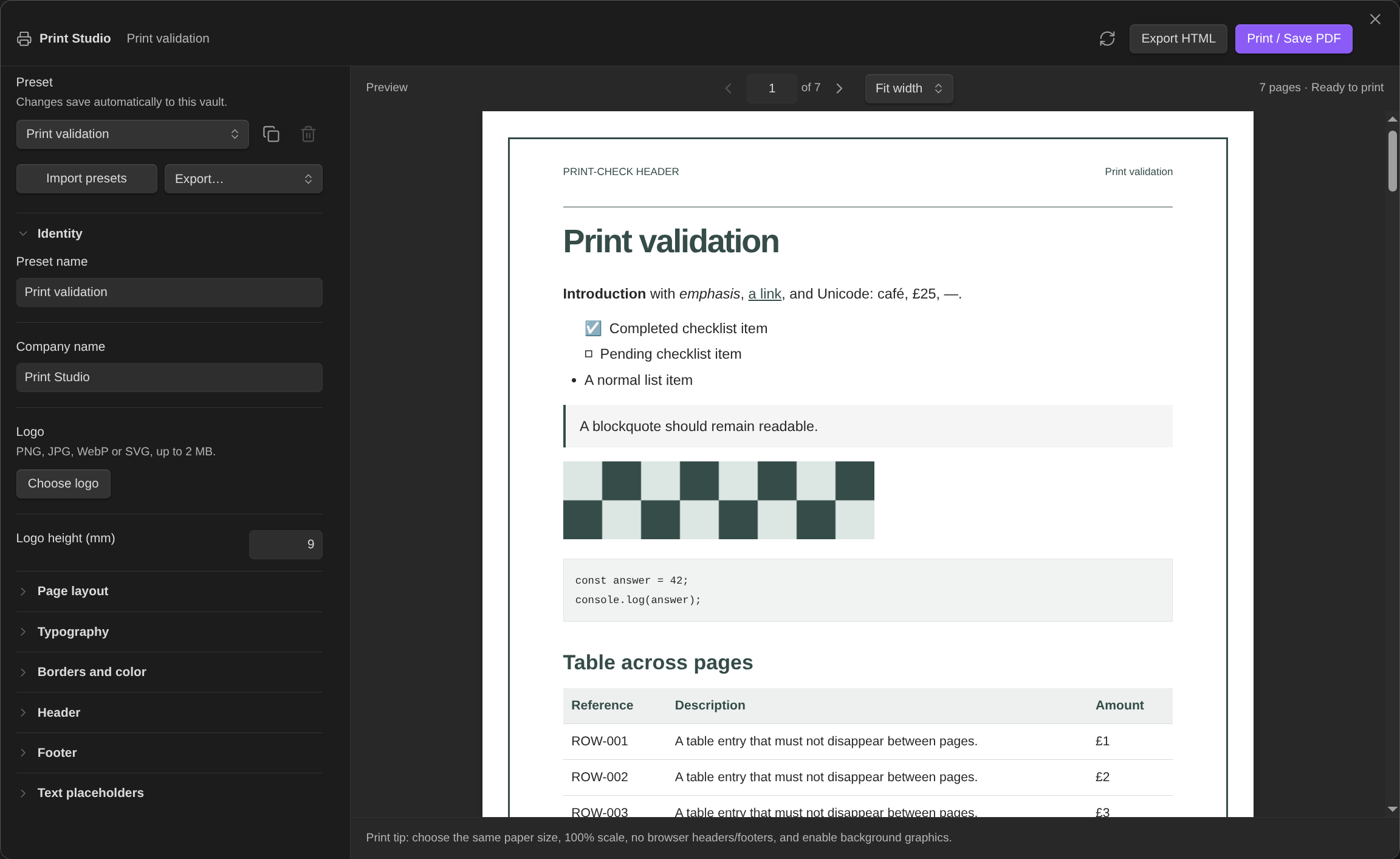
Turn Markdown notes into branded, paginated documents with logos, headers, footers, page borders, and reusable presets. Preview your pages, print or save a PDF, or export self-contained HTML.

Desktop Obsidian 1.13.0+ · Free · MIT licensed

Print Studio in Obsidian

Install

In Obsidian, open Settings → Community plugins → Browse, search for Print Studio, then select Install and Enable. Community plugins require Restricted mode to be off. Updates are available from the same settings page.

Use

Open a note and run Print Studio: Preview & print current note, click the printer ribbon icon, or right-click a note and choose Open in Print Studio.

  • Design: choose A4 or Letter, portrait or landscape, margins, typography, colors, borders, and a logo. Optionally use a larger, separate first-page letterhead.
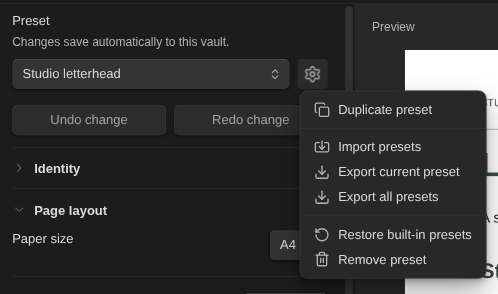
  • Presets: changes save automatically in your vault. Duplicate, import, or export presets—including logos—and undo/redo up to 20 changes per session.
  • Preview: navigate by page and zoom from 50–200% or fit to width. Layout changes retain your page and zoom. Layout warnings link to possible clipping or oversized table rows.
  • Refresh note: pick up changes to the note, properties, or attachments. Layout edits otherwise reuse the rendered content.

Use Insert placeholder… in any header/footer field for company, note title, date, vault, page numbers, or text/number/boolean note properties. For example:

Prepared for {{meta:client}}
{{page}} / {{pages}}

Enable Uppercase left, Uppercase center, or Uppercase right below a header/footer field to capitalize its printed text, including resolved placeholders (for example, Example becomes EXAMPLE). Each field has its own switch, including the separate first-page header. Your note and template text keep their original capitalization; the setting applies to preview, PDF, and HTML output and saves with the preset.

Under Content, enable Hide embedded note titles and properties to omit the generated titles and frontmatter (including tags) that can appear when printing embedded notes. Their body content, headings, and inline tags stay visible. The removed elements take up no space in preview, PDF, or HTML output. This option saves with the preset and is off by default.

Enable Page break before headings to start each subsequent top-level heading on a new page. For a manual break, put ==== on its own line, with blank lines around it, outside a code fence. The marker is hidden in the note editor until the cursor or selection reaches its line. Existing <!-- pagebreak --> markers also work. Frontmatter is omitted from the printed body.

For a bottom-aligned cover, put &&&& on its own line before the title and other cover text, then ==== after it. The space above that text expands to fill the printed page. Without a following break, alignment continues to the end of the note. The spacer is hidden in the editor until its line is active and adds no space to the ordinary note. Content too long for one page flows normally, with its last page aligned to the bottom.

Print and export

Choose Print / Save PDF once the preview is ready. In the print dialog, match the preview’s paper size and orientation, use 100% scale and no added margins, disable browser headers/footers, and enable background graphics.

Export HTML downloads the finished pages with embedded styles and images, without JavaScript. Open it in a desktop Chromium-based browser to print if the system dialog is unavailable in Obsidian. Preview zoom does not affect output size.

Compatibility and privacy

Standard Markdown and vault image attachments are supported. Remote, missing, or oversized attachments (over 10 MB) become labeled placeholders. Embedded notes/PDFs, dynamic plugin blocks, and complex MathJax/Mermaid content may not render faithfully. Check the preview; long rows or header/footer text may need simpler formatting or larger margins.

Print Studio reads the current note and resolves referenced images through targeted vault lookups. It does not enumerate the vault. Presets and logos live in the plugin’s data.json, which may be synchronized by your vault setup. Outside-vault access is limited to logo/preset files you select and exports you save.

No accounts, payments, telemetry, or cloud services are required. Print Studio makes no network requests of its own. Obsidian or enabled Markdown plugins may load remote resources during initial note rendering; the isolated print preview blocks network access.

Physical printing and Windows/macOS print dialogs remain unverified. See the validation report for version-specific test coverage.

Development

Requires Node.js 22+ and npm.

npm ci
npm run check     # lint, unit tests, and build
npm run package   # local installable folder and ZIP

npm run test:browser runs the browser/PDF suite and requires Chromium and Poppler. CI runs validation and packaging; the separate release workflow builds attested installer assets. See the release and provenance guide.

Support and license

Report bugs or request features in GitHub Issues. Include your Obsidian version, operating system, and a minimal example with sensitive information removed.

MIT license · Third-party licenses and attribution

Similar Plugins

info
• Similar plugins are suggested based on the common tags between the plugins.