
README file from
GithubWikidian
An Obsidian theme that makes your vault read like an encyclopedia article. Wikipedia-style headings, floating infoboxes, bordered images, and a sidebar that gets out of the way.
Wikidian is a fork of Wikipedia by Ha'ani Whitlock, rebuilt around a source tree and a build step. See Credits.
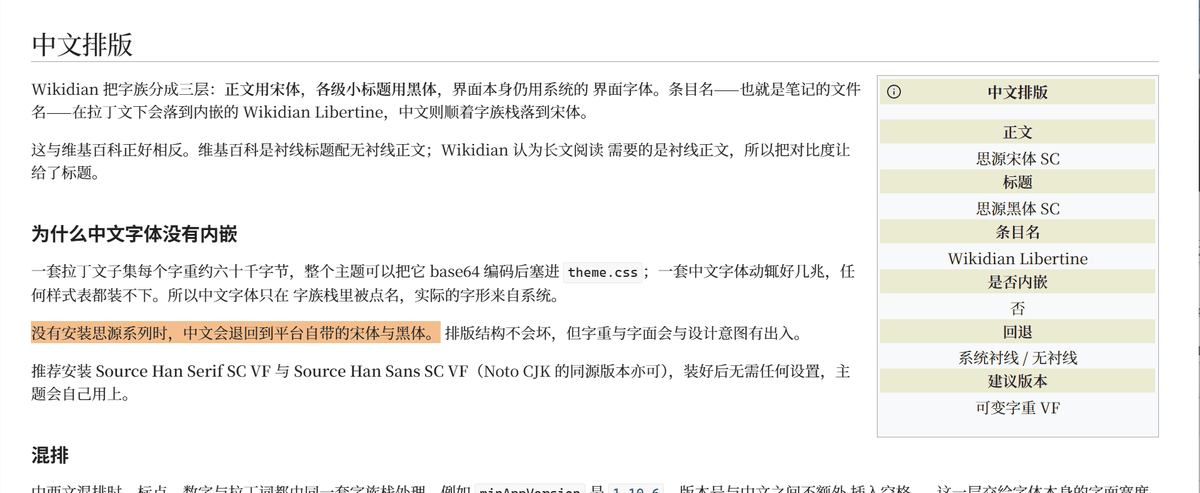
[!IMPORTANT] Reading or writing CJK? Install the Source Han variable fonts. The Latin faces ship inside
theme.css, but a Chinese font runs to several megabytes and cannot travel with a stylesheet. For the intended look — body text and article titles in the serif, section headings in the sans — install Source Han Serif SC VF and Source Han Sans SC VF (the Noto CJK releases are the same fonts under a different name). Without them, CJK text falls back to whatever serif and sans your platform happens to provide.
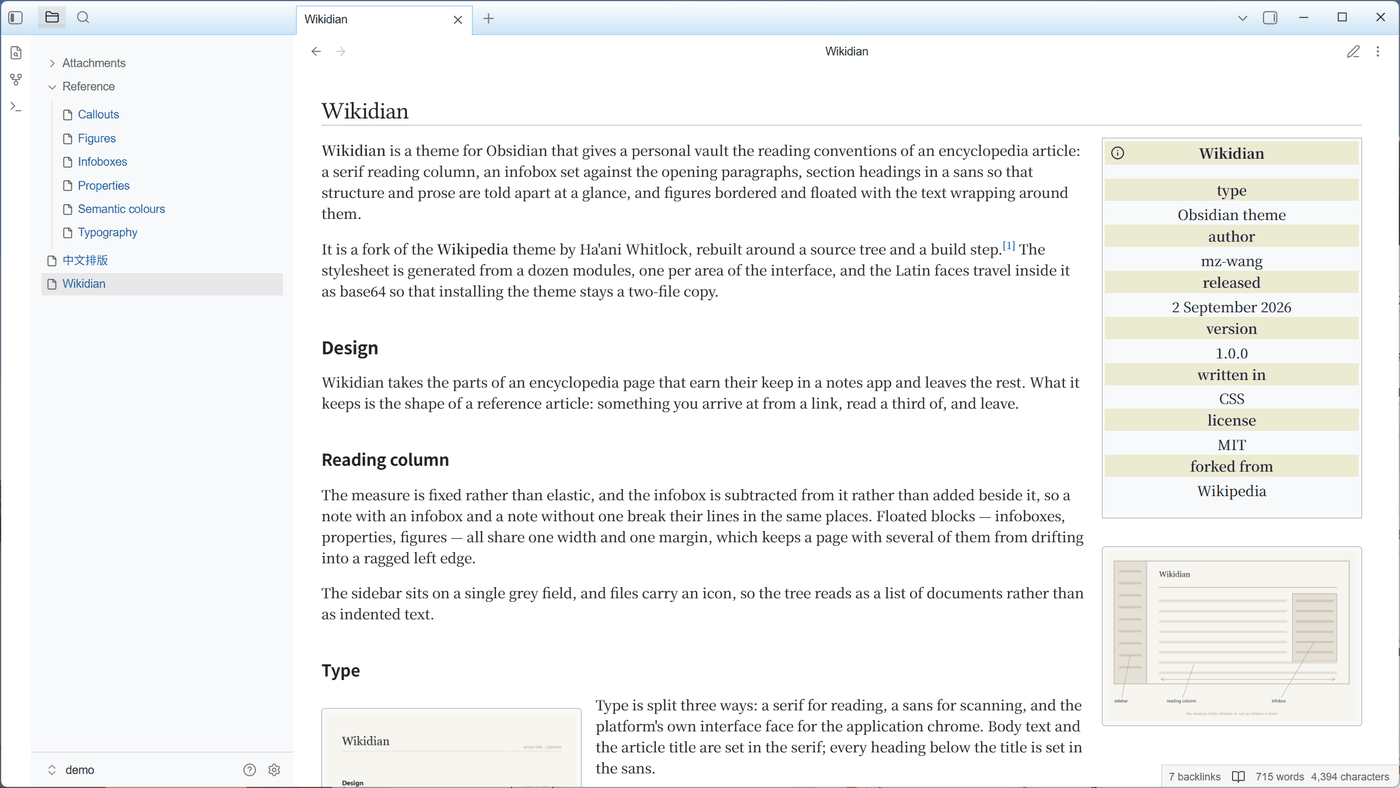
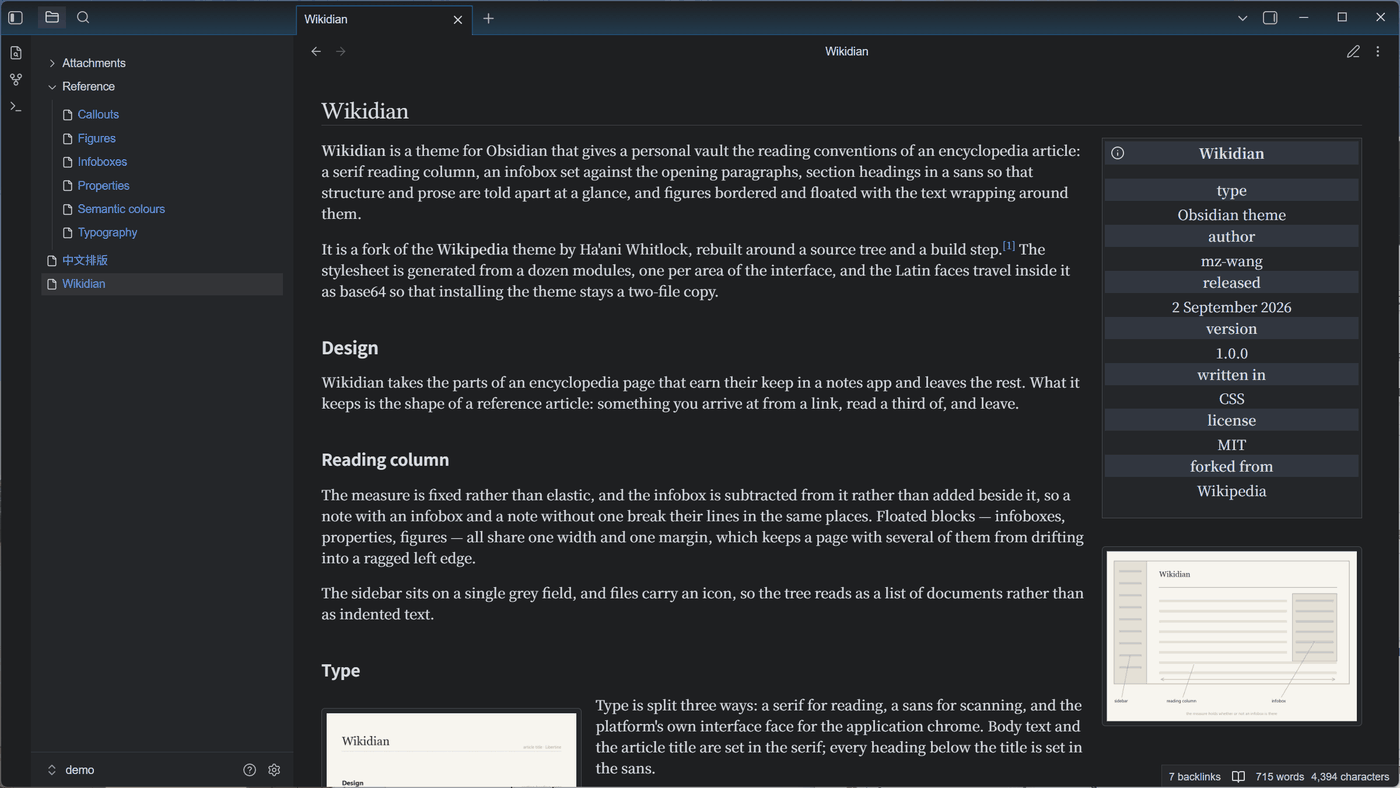
Every screenshot below is taken from demo/, a small vault that ships with the
repo — see Demo vault.
Install
From the community themes browser — not yet listed.
Manually — copy manifest.json and theme.css into
<vault>/.obsidian/themes/Wikidian/, then pick Wikidian under
Settings → Appearance → Themes.
The Style Settings plugin is optional but unlocks the ribbon, frontmatter, infobox, and image-float options described below.
Features
Infoboxes
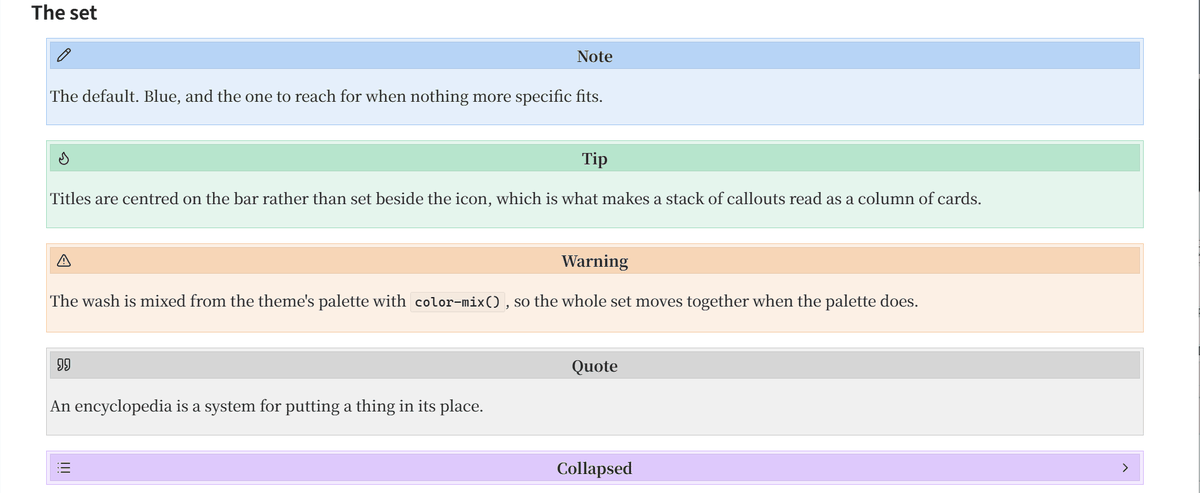
Any Info callout (>[!info]) floats to the right of the note like a
Wikipedia infobox. Inline Dataview fields written in brackets inside it — for
example [category::research] — are laid out on separate lines and styled like
infobox labels and values. A Heading 6 inside the callout groups the fields
into sections; with Style Settings installed it takes a pale background bar as
well.
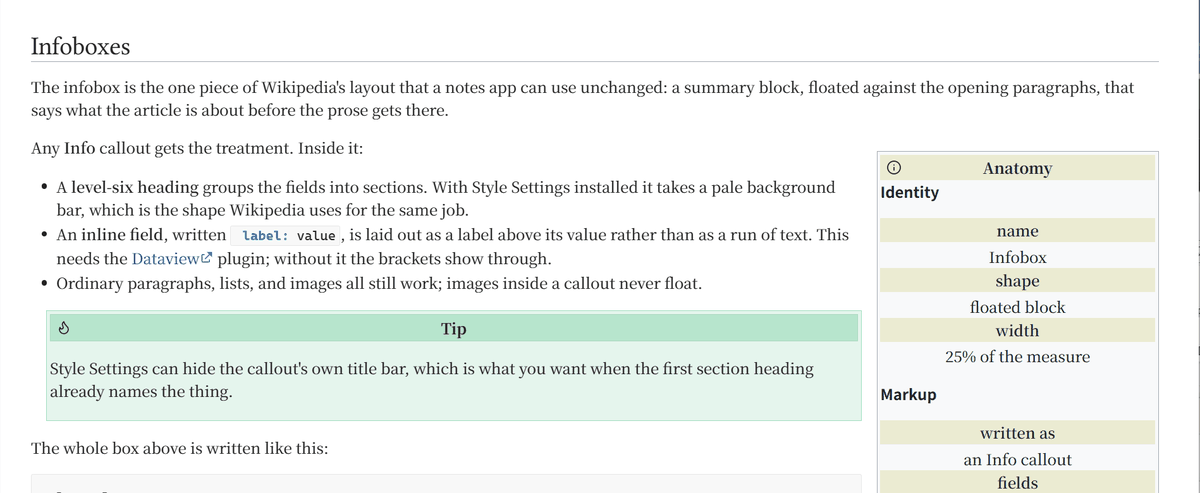
[!tip] Hide the callout's own title with Style Settings for a cleaner infobox.
Properties
A note's properties table is styled as an infobox too — floated, with each property's name as a centred label above its value. It stays fully interactive: the type icon and Add property button fade in on hover rather than being removed. Style Settings can switch it to an inline label-and-value list, or hide it in both views.
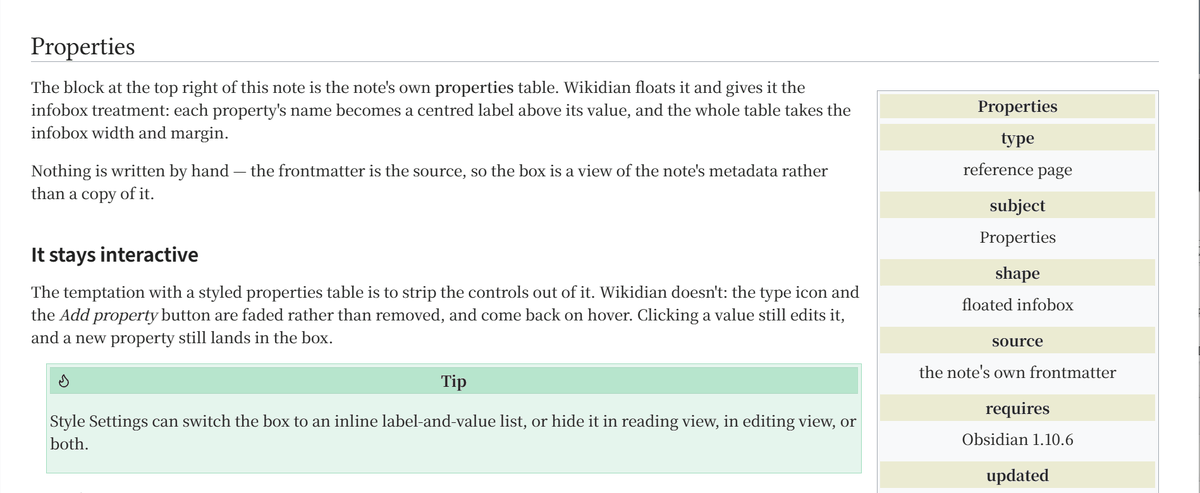
Requires Obsidian 1.10.6 or later — see minAppVersion in manifest.json.
Callout alts
| Alt | Effect |
|---|---|
right |
float the callout right |
left |
float the callout left |
normal |
on an Info callout, drop the infobox styling |
info |
give any callout the infobox look |
>[!info|normal] Looks like a regular callout instead of an infobox.

>[!bug|right] A bug callout that floats right like an infobox.

>[!quote|left] Floats to the left.

>[!check|info] A Check callout wearing infobox styling.
Typography
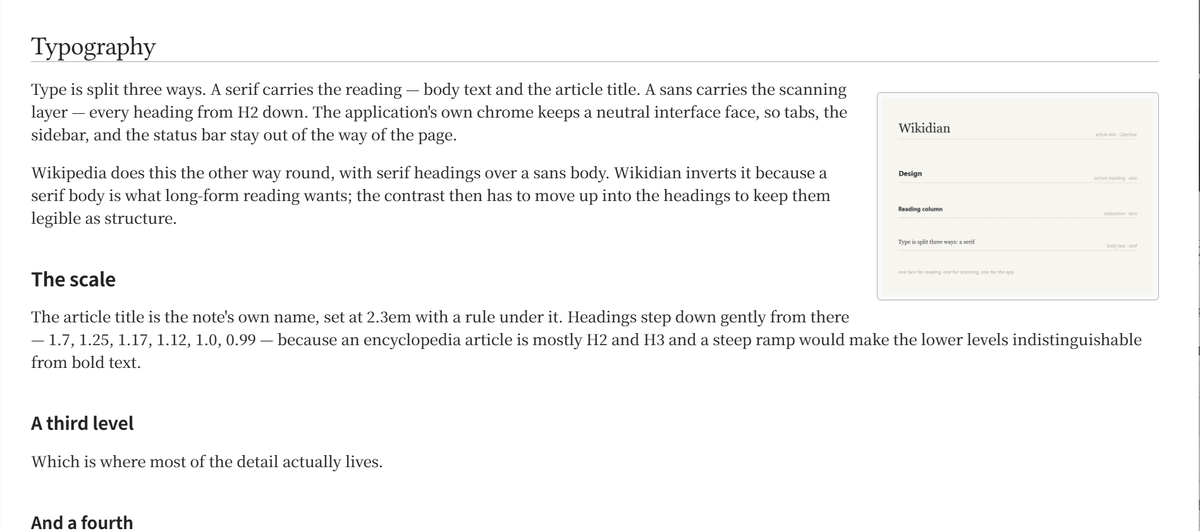
Body text and the article title (H1) are set in a serif; H2–H6 are set in a sans, so the section headings read as structure rather than as more prose.
The Latin faces travel with the theme, so the title always renders in Wikidian Libertine. CJK faces cannot — a Chinese font runs to several megabytes — so they are named in the stack and come from the system: install Source Han Serif SC and Source Han Sans SC (or their Noto twins) for the intended look, otherwise Chinese text falls back to whatever serif and sans the platform provides.
A font chosen under Settings → Appearance overrides all of this, as usual.
Image alts
| Alt | Effect |
|---|---|
right |
float right |
left |
float left |
center |
center, no float |
no-float / normal |
full width, no float |
![[books.png|no-float]]

![[books.png|left]]

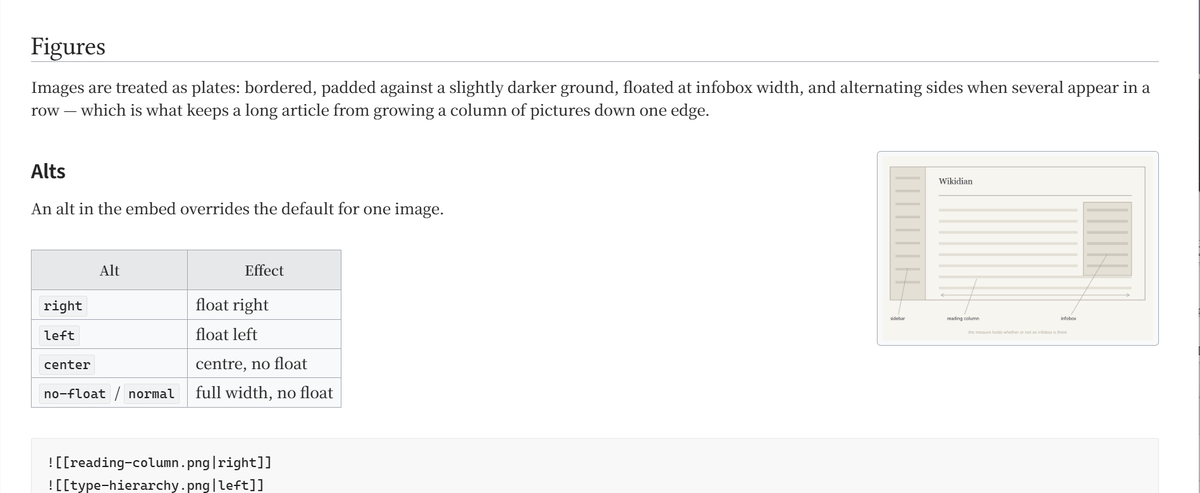
Images float by default and alternate sides when several appear in a row. Images inside callouts never float. The global default is configurable in Style Settings.
Snippets
snippets/ holds optional CSS snippets that are not part of the theme.
Copy one into <vault>/.obsidian/snippets/ and enable it under
Settings → Appearance → CSS snippets.
float-images-callouts-blockquotes.css— extends floating to blockquotes.semantic-colors.css— four semantic roles as a highlight or a text colour.
Semantic colours
==highlight== has one colour and no way to vary it, and there is no markdown
for a text colour at all, so semantic-colors.css defines four roles you write
as a tag. The tag picks the treatment and the class picks the role:
| Tag | Effect |
|---|---|
<mark class="key">…</mark> |
a wash behind the text |
<span class="key">…</span> |
the text itself |
<code class="key">…</code> |
inline code, chip and all |
| Role | Colour | Meaning |
|---|---|---|
note |
blue | an aside, a cross-reference, something to come back to |
ok |
green | settled, verified, done |
warn |
orange | a caveat, an open question, something that bites |
key |
purple | the load-bearing sentence on the page |
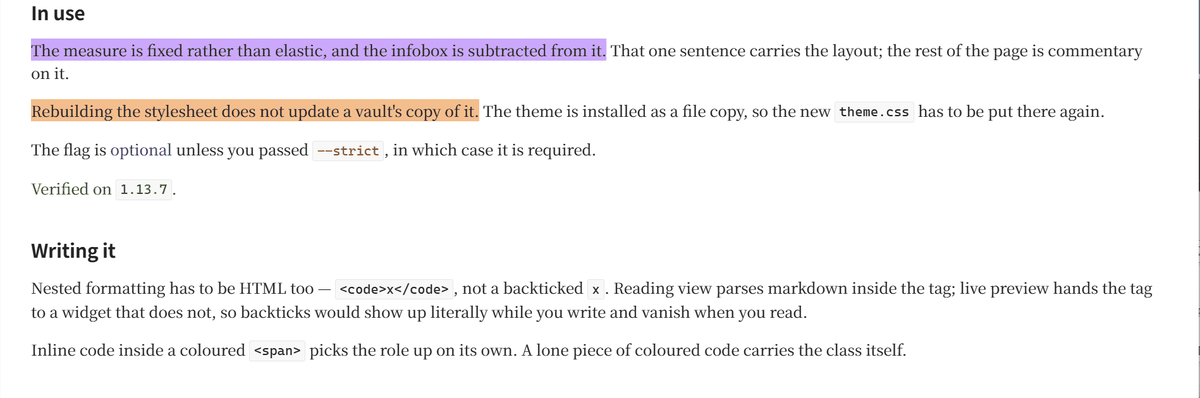
<mark class="warn">Rebuilding does not update the vault's copy.</mark>

The flag is <span class="note">optional</span> unless you passed
<code class="warn">--strict</code>.

<span class="ok">Verified on <code>1.10.6</code> and later.</span>
Nested formatting has to be written as HTML too — <code>x</code>, not
`x`. Reading view parses markdown inside the tag, but live preview hands
the tag to a widget that does not, so backticks would show up literally while
you write and vanish when you read. Inline code inside a <span> picks the
role up on its own; a lone piece of coloured code carries the class itself.
The colours are the theme's own palette, so they follow it — darkened on the light theme and lightened on the dark one, where the palette's mid tones would otherwise sit around 3:1 against the page. Each role is a couple of lines in the snippet: change a hue, rename a role, add a fifth.
Development
theme.css is generated. Edit the modules in src/ and rebuild:
uv run build.py            # regenerate theme.css
uv run build.py --check    # fail if theme.css is stale (what CI runs)
npm install && npm run lint    # stylelint, using Obsidian's own config
npm run lint:fix               # apply the fixable ones
src/*.css is concatenated in filename order, and {{ font: ... }}
placeholders are replaced with base64 data URIs from fonts/. The fonts are
inlined because Obsidian installs a theme by copying only manifest.json and
theme.css — there is no second file it would fetch.
src/                        theme source, one file per area
fonts/                      subset WOFF2 faces + their license
build.py                    src/ + fonts/ -> theme.css
snippets/                   optional add-ons, not part of the theme
demo/                       the vault every screenshot is taken from
screenshots/                store and README images
tools/subset_fonts.py       regenerate the font subsets from upstream
tools/make_demo_figures.py  the plates inside demo/Attachments
tools/setup_demo_vault.py   install the built theme into demo/
tools/make_screenshots.py   drive Obsidian and write screenshots/
tools/capture_window.ps1    grab the Obsidian window (Windows)
To iterate, copy or symlink the repo into
<vault>/.obsidian/themes/Wikidian/ — the folder name must match name in
manifest.json — and reload Obsidian after each build.
Demo vault
demo/ is an Obsidian vault whose notes are an encyclopedia entry about the
theme itself, a reference page per feature, and one page in Chinese. Every
screenshot in this README comes from it, so the images can be rebuilt for a
release instead of being re-staged by hand.
The notes, their figures, and the vault's settings are tracked. Anything that is a copy of something else is not — the theme, the snippet, the Dataview plugin — so the vault needs one command before it looks right:
uv run build.py
uv run tools/setup_demo_vault.py
Then open demo/ as a vault and install Dataview from Settings →
Community plugins: the infoboxes are built from its inline field:: value
syntax, and without it the brackets show through. uv run tools/make_demo_figures.py redraws the plates in demo/Attachments/.
With the vault open, rebuild the images in screenshots/:
uv run --with pillow tools/make_screenshots.py
uv run --with pillow tools/make_screenshots.py --only callouts --only cjk
It drives the running app over the Obsidian CLI — open a note, switch theme, scroll to a heading — grabs the window, and crops to element geometry read out of the live DOM, so a crop stays right when the content moves. It switches the app to English for the run and puts the language back afterwards. Windows only: the capture step is PowerShell.
The run stops rather than writing a wrong image if the window does not take the
size it was asked for, if it cannot be brought to the foreground — Obsidian does
not render its reading view in the background, so the grab would be of a blank
pane — or if a Shot's anchor heading is no longer in the note, in which case
it prints the headings that are there. Rename a heading in demo/ and the
next run will tell you which anchor to fix.
Release and store-submission steps are in RELEASING.md.
Credits
Wikidian is derived from Wikipedia by Ha'ani Whitlock, used under the MIT License. Much of the original CSS was adapted from wikipedia.org and mapped onto Obsidian's components. Both copyright notices are retained in LICENSE, and the derivation is stated in NOTICE.
Article titles are set in Wikidian Libertine, a Latin subset of Linux Libertine O by Philipp H. Poll, used under the SIL Open Font License 1.1. See fonts/README.md and fonts/OFL.txt.
This project is not affiliated with or endorsed by Wikipedia or the Wikimedia Foundation.
License
MIT for the theme. Bundled fonts are under the SIL OFL 1.1.