
README file from
GithubZencode — an Obsidian theme
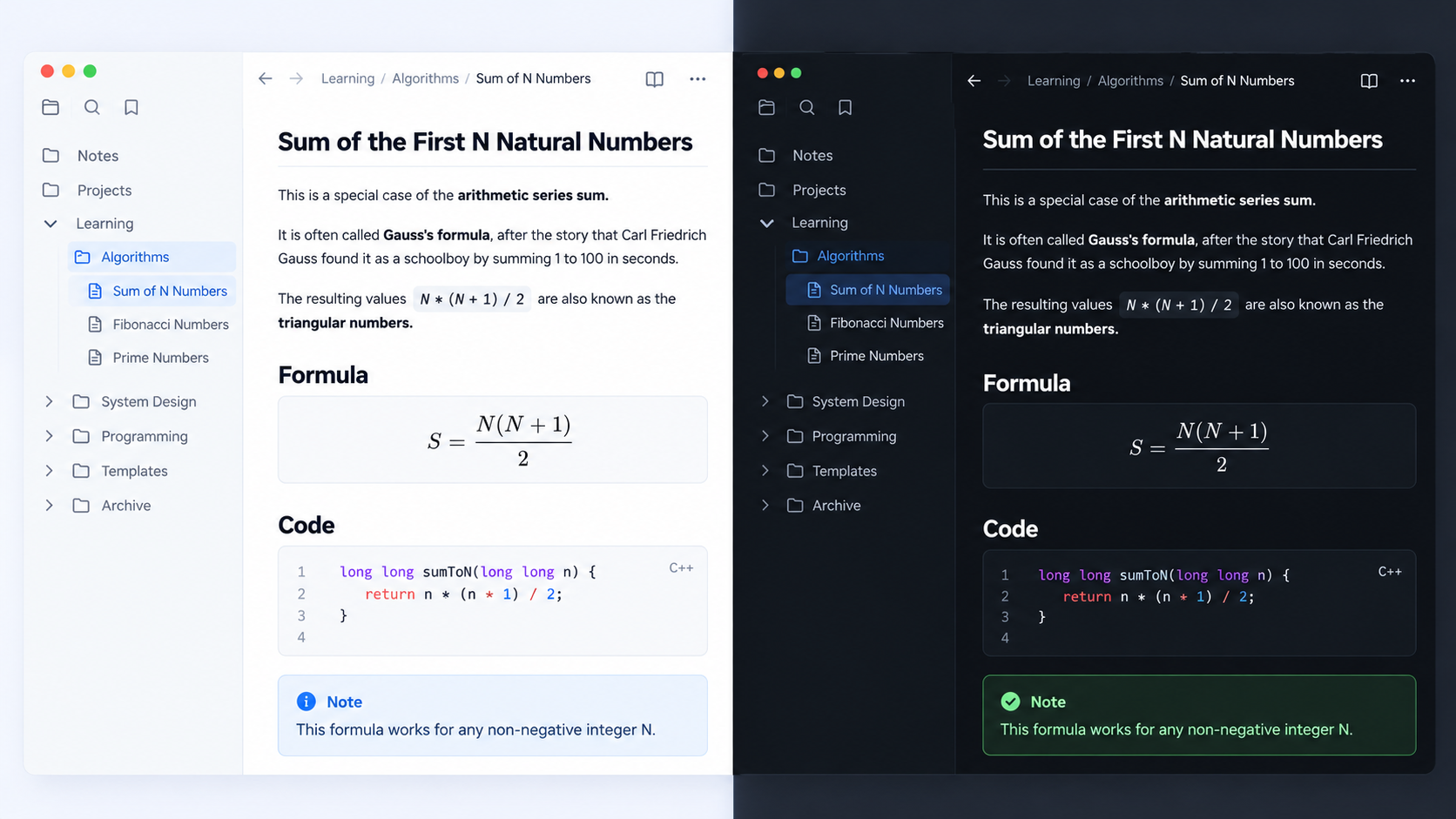
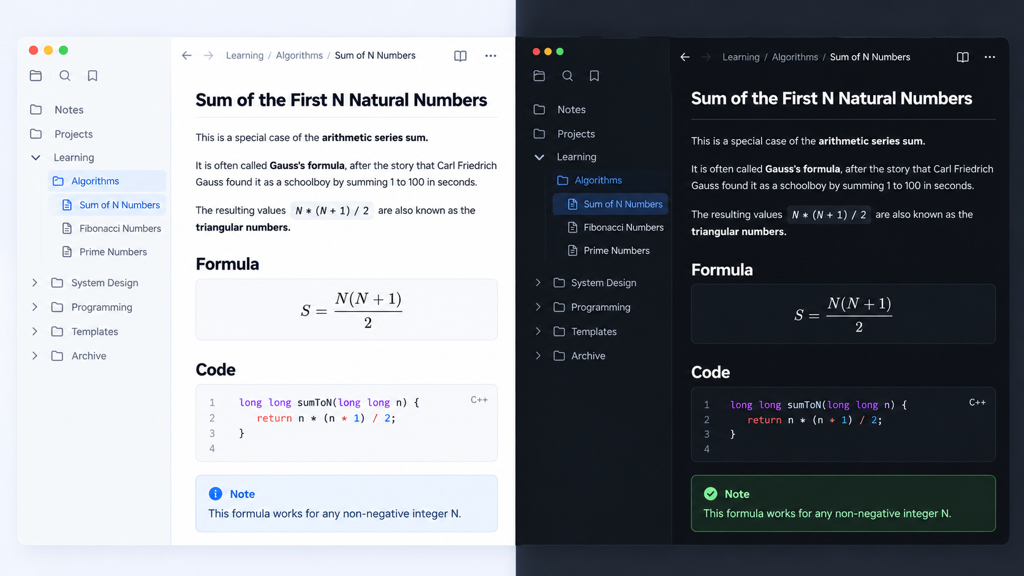
A clean, code-friendly theme for Obsidian. By default it uses GitHub's light colors in light mode and Atom One Dark in dark mode, for both the interface and syntax highlighting. Palettes from the Zed editor (Gruvbox and One) are available as options.
- Notes in the Lilex monospace font and the interface in IBM Plex Sans, like Zed (
brew install --cask font-lilex font-ibm-plex-sans). Without them the system fonts are used. - Underlined H1/H2, 1.65 line height
- The same syntax colors in reading mode (Prism) and live preview / source (CodeMirror 6)
- Code blocks with a border, rounded corners and a subtle copy button
- Callouts in the style of GitHub alerts (
note,tip,important,warning,caution, …) - Zebra-striped tables, GitHub-style
kbd, tags shown as labels - Respects the accent color you pick in Obsidian
Install (development)
./install.sh /path/to/your/vault          # symlink, so edits show up live
./install.sh /path/to/your/vault --copy   # or copy the files
Then go to Settings → Appearance → Themes and pick Zencode. Open sample.md in the vault to see every element.
When you edit theme.css, Obsidian usually reloads it automatically. If it doesn't, switch themes and switch back, or run Reload app without saving from the command palette.
Options
If you have the Style Settings plugin, you can change:
- the color palette: GitHub light + Atom One Dark (default), GitHub light/dark, Zed Gruvbox or Zed One
- monospace or sans-serif note text
- the readable line width
- the code font size
- whether H1/H2 are underlined
- whether code blocks have a border
- whether tables are zebra-striped
Structure
| File | Purpose |
|---|---|
manifest.json |
Theme metadata (the name is the folder name) |
theme.css |
Everything else |
sample.md |
A note for checking how the theme looks |