
README file from
GithubHarvest
A warm autumn theme for Obsidian, in light and dark: burnt orange, amber and rust on fireside browns or warm parchment, with falling leaves, and a Halloween mode for October.
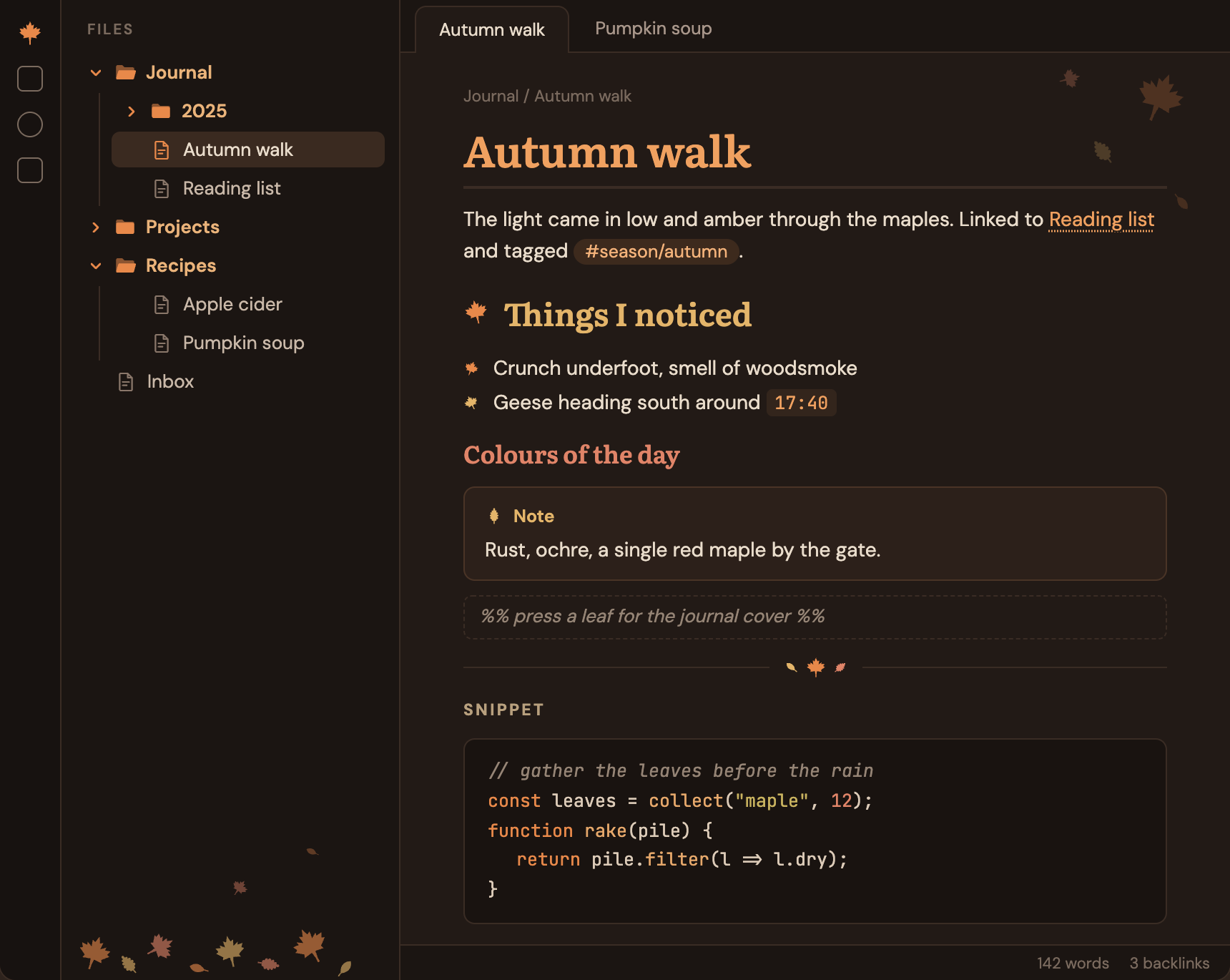
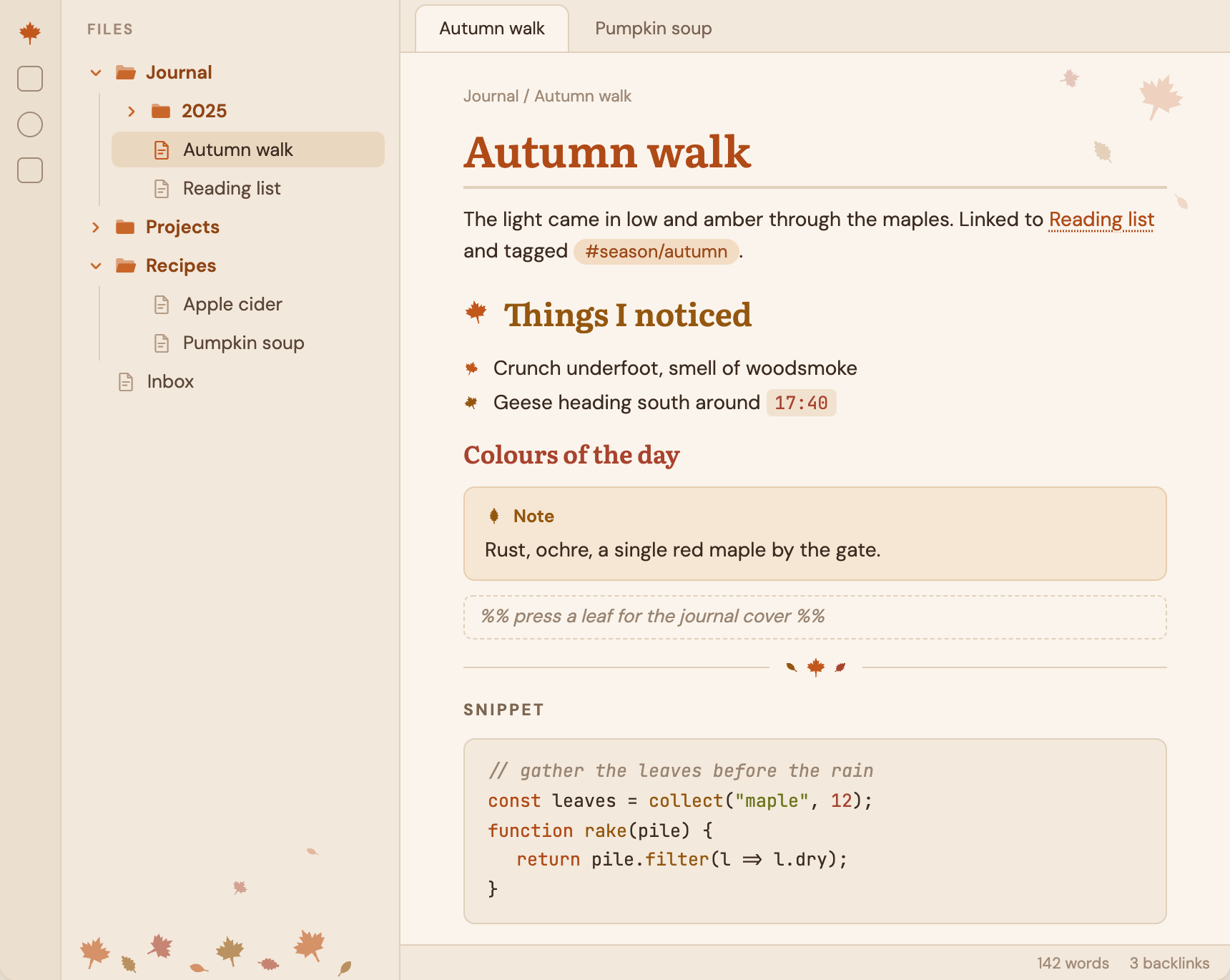
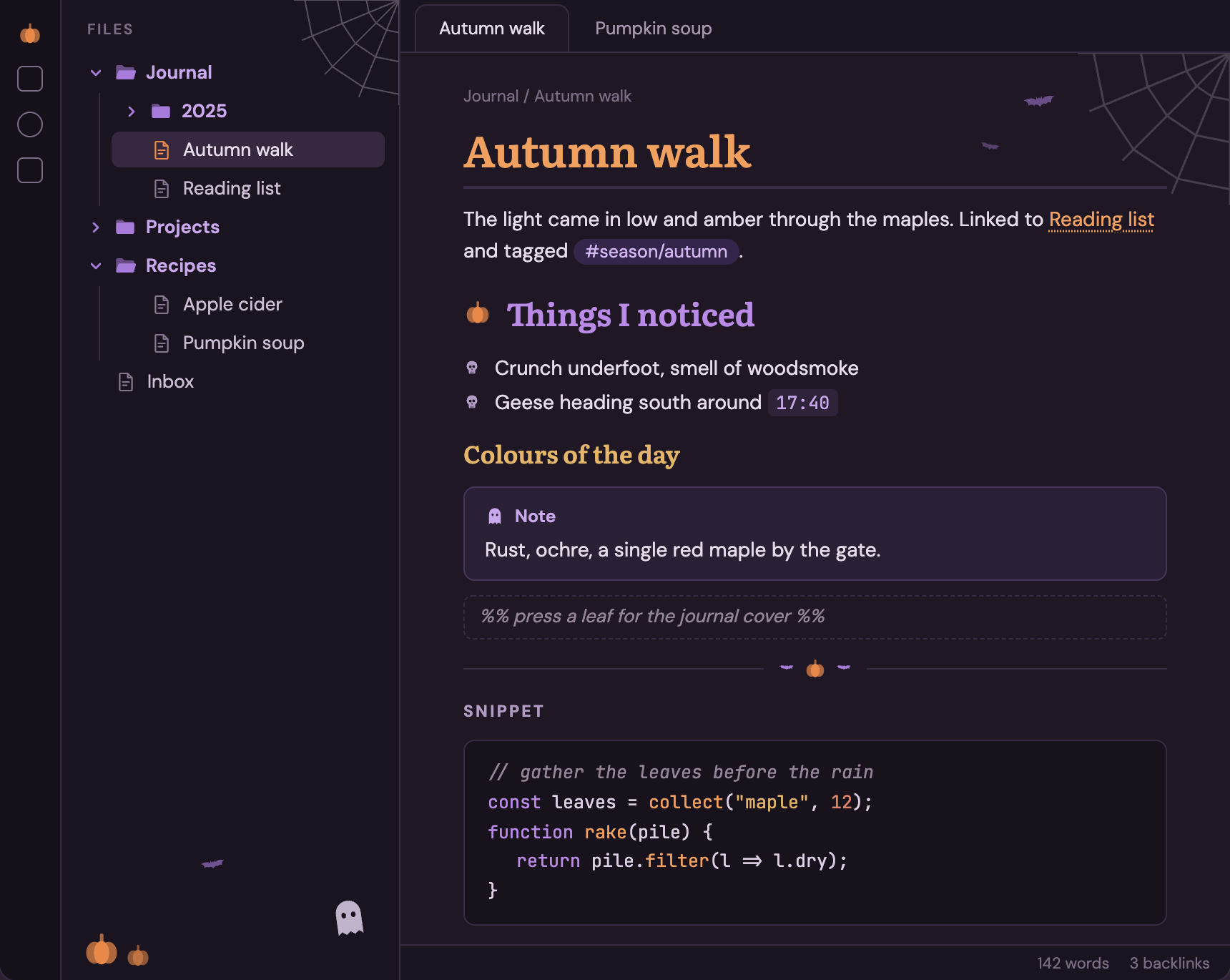
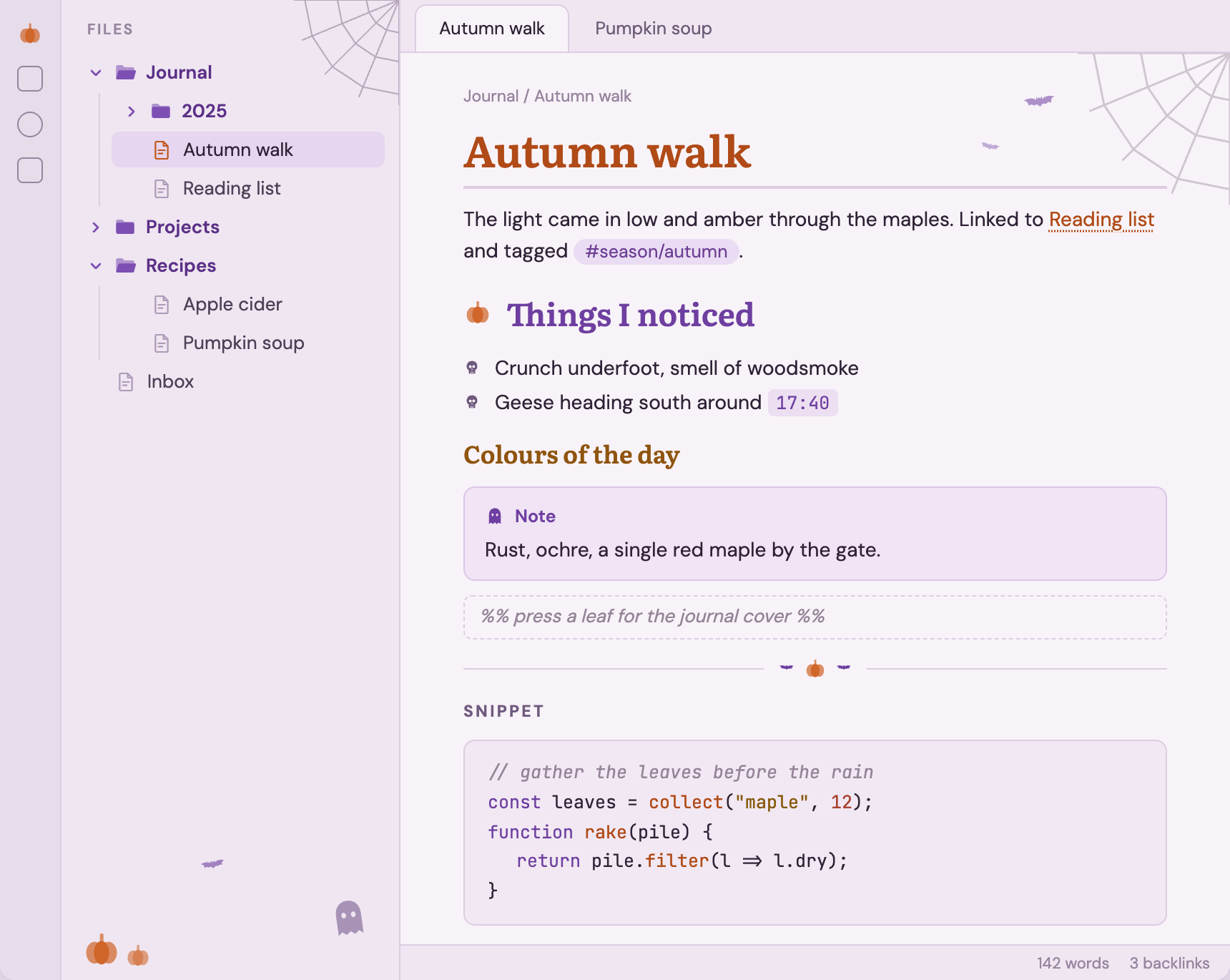
These are design mockups, not captures of Obsidian. They show the design fonts (DM Sans, Literata, JetBrains Mono), which you need to install yourself (see Fonts), and a "FILES" label that Obsidian's file explorer doesn't have. The shipped light palettes are a shade darker in a few places for contrast.
- Easy on the eyes. Warm, low-glare backgrounds instead of pure black or white, and a relaxed 1.6 line height.
- Folders and files are easy to tell apart. Folders have bold names and filled two-tone folder icons that open and close; files have outlined page icons, and the open file's icon lights up in the accent color.
- Every heading level looks different. H1 to H3 are serif headings in their own color (H1 with a rule under it, H2 with a leaf marker), H4 is a small spaced-out caps label, H5 and H6 are muted.
- Comments and code stand out from prose.
%% comments %%sit in an italic dashed box in the editor, inline code is a tinted pill, and code blocks have a border and autumn syntax colors. - Seasonal decor. Maple bullets, leaves on horizontal rules and Note callouts, a leaf pile in the file explorer. Or switch to Halloween: pumpkins, skulls, bats, a ghost and cobwebs, on a violet-plum palette.
- Readable. Text, headings, links, tags, code and callout titles reach at least 4.5:1 contrast (WCAG AA) against their backgrounds, in all four palettes.
- Desktop and mobile. Touch-sized file tree rows (44px), mobile heading sizes, and code blocks that scroll instead of wrapping on phones.
Install
From Obsidian: open Settings → Appearance → Themes → Manage, search for Harvest, then select Install and use.
Manually: download manifest.json and theme.css from the latest release, put them in <your vault>/.obsidian/themes/Harvest/, and choose Harvest under Settings → Appearance → Themes.
Harvest needs Obsidian 1.5.0 or later. Light and dark follow Obsidian's own Settings → Appearance → Base color scheme.
Options
Harvest works without any plugin; you get the Leaves decor. To change it, install the Style Settings plugin and open Settings → Style Settings → Harvest:
| Setting | Options | Default |
|---|---|---|
| Seasonal decor | Leaves: the ember palette with maple, oak and elm leaves. Halloween: the violet-plum palette with pumpkins, skulls, bats, a ghost and cobwebs. Off: the ember palette with no decorations (a small square before H2, plain bullets and rules). | Leaves |
| Heading font | The font for H1 to H3. Type the name of any font installed on your system. | Literata, then Georgia |
Halloween doesn't switch on by itself; pick it in Style Settings when the season comes.
The accent color (buttons, checkboxes, selection) is ember orange by default and follows Obsidian's Settings → Appearance → Accent color if you pick one. Headings, links, folders, code and decorations keep their autumn colors.
Fonts
Harvest doesn't bundle any fonts, to stay small. It uses these free fonts if you have them installed, and your system's fonts otherwise:
- DM Sans for text and the interface,
- Literata for headings (falls back to Georgia),
- JetBrains Mono for code.
All three are free on Google Fonts. To use other fonts, set them under Settings → Appearance → Font (text, interface and code) and, for headings, in the Heading font setting above.
Known limitations
- Corner decor in narrow panes. The leaves (or bats and cobweb) in the top-right corner of a note stay in place while you scroll. In a pane that's narrower than the note text plus about 180px, they can sit faintly over the first lines. On phones they're hidden.
- Bullet colors in Live Preview alternate by editor line, so items separated by other lines may not alternate exactly as in Reading view.
- Code block scrolling on mobile works in Reading view. In Live Preview and Source mode, code lines follow the editor's line-wrapping setting.
Development
src/theme.css is the source. The theme.css at the repository root is generated from it with the icons from icons/ embedded, so don't edit it directly. Both scripts need only Python 3.8+ with no dependencies.
python3 build.py      # build theme.css from src/theme.css and icons/
python3 contrast.py   # check WCAG contrast of the color tokens (fails below 4.5:1)
The community directory reviews themes with stylelint-config-obsidianmd. To run the same checks locally (needs Node 22+), install them in a scratch folder outside the repo:
REPO="$PWD"
mkdir -p /tmp/harvest-lint && cd /tmp/harvest-lint
npm install --no-save stylelint@17 stylelint-config-obsidianmd
echo '{"extends":"stylelint-config-obsidianmd"}' > .stylelintrc.json
npx stylelint "$REPO/theme.css" --config .stylelintrc.json
cd "$REPO"
Only its warnings matter for the review; the formatting errors it also prints come from stylelint-config-standard and are ignored there. Keep theme.css under about 100 KB.
Releasing: bump version in manifest.json, rebuild, commit, then create a GitHub release whose tag is exactly that version (for example 1.0.0, no v) and attach manifest.json and theme.css.
test-vault/README.md explains how to set up a test vault with the theme linked in.
Credits and licenses
- Harvest theme, including its icons and decorations (
icons/): MIT, © raccoon-overlord-dev. - Fonts suggested above (not bundled): DM Sans, Literata and JetBrains Mono, each under the SIL Open Font License 1.1.