
README file from
GithubWide View
Your Obsidian, exactly as it is — just wider. 순정 그대로의 옵시디언, 폭만 시원하게.
English · 한국어
English
Why Wide View?
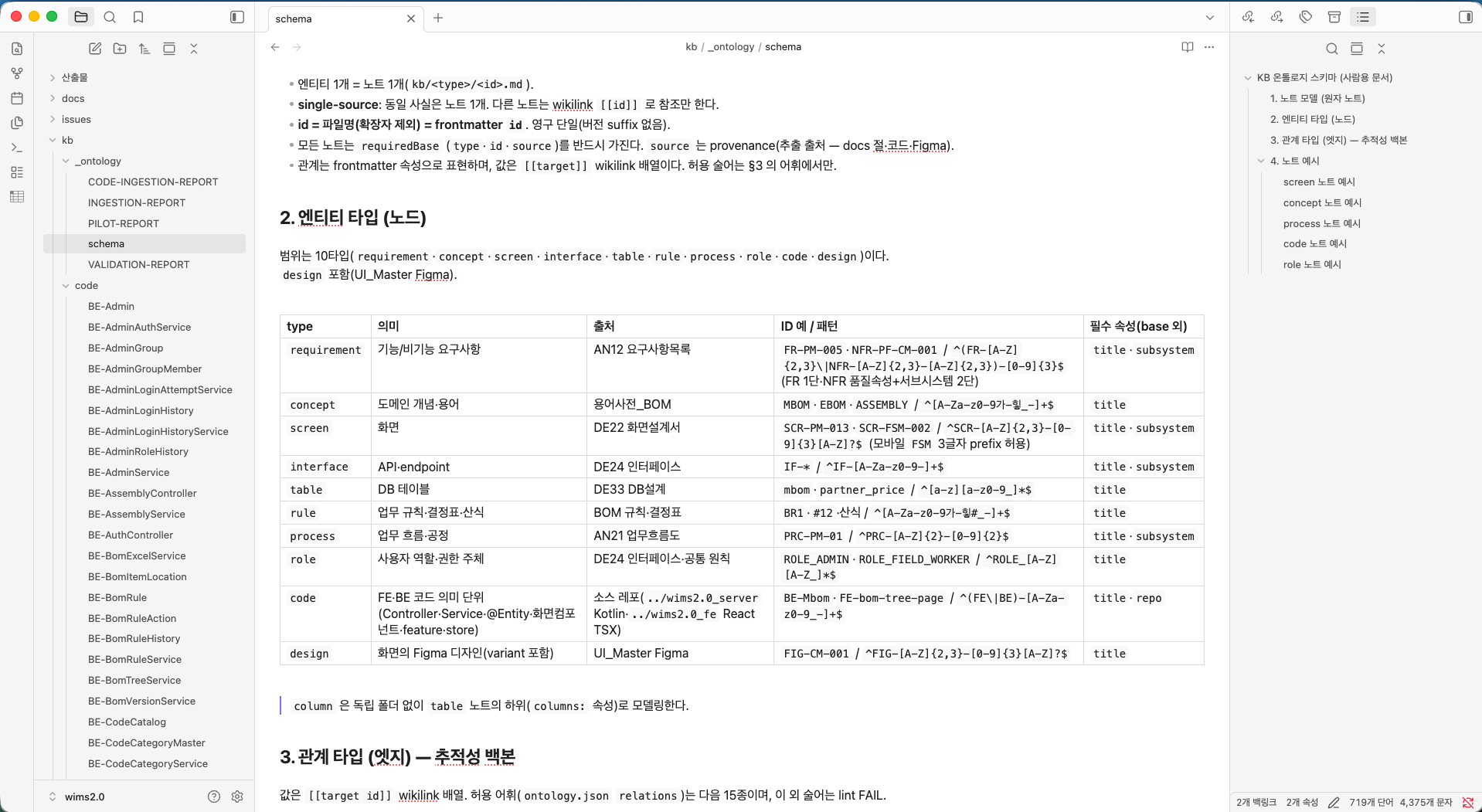
Out of the box, Obsidian locks your notes to a narrow, fixed reading width. On a wide monitor that leaves huge empty margins and cramped, short lines — fine for prose, frustrating for tables, code blocks, and dense documents.
Wide View fixes only that. It is not a full theme — it doesn't touch your colors, fonts, icons, or layout. Whatever you're using now looks exactly the same; it's simply no longer trapped at a narrow width. You keep your vanilla Obsidian and gain the one thing you were missing.
One job, done well — simple to set up, immediately effective.
Features
- Set the width of Reading view and Editing view independently
- Choose from 100% (full width) / 1600 / 1400 / 1200 / 1000 px
- Default: 1400 px for both views
- Works whether Obsidian's "Readable line length" toggle is on or off
- Changes nothing else — no color, font, icon, or UI overrides
Requirements
To switch widths from a dropdown, install the community plugin Style Settings. Without it the theme still applies a sensible 1400 px default.
Installation
- Copy
manifest.jsonandtheme.cssinto<vault>/.obsidian/themes/Wide View/. - Settings → Appearance → Themes → select Wide View.
Usage
- Install and enable Style Settings.
- Open Settings → Style Settings → Wide View.
- Pick your width for Reading view and Editing view — that's it.
License
한국어
왜 Wide View인가요?
옵시디언은 기본 상태에서 노트를 좁고 고정된 폭에 가둡니다. 넓은 모니터에서는 양옆이 휑하게 비고 줄이 답답하게 짧아지죠 — 긴 글에는 괜찮지만 표, 코드 블록, 정보 밀도가 높은 문서에는 불편합니다.
Wide View는 그것 하나만 해결합니다. 이건 본격적인 테마가 아닙니다 — 색상, 폰트, 아이콘, 레이아웃 무엇도 건드리지 않습니다. 지금 쓰던 화면 그대로, 다만 더 이상 좁은 폭에 갇히지만 않습니다. 순정 옵시디언을 그대로 유지하면서 아쉬웠던 딱 한 가지만 채웁니다.
딱 한 가지 일을 제대로 — 설정은 간단하고 효과는 즉각적입니다.
기능
- 읽기 뷰와 편집 뷰의 폭을 각각 독립적으로 설정
- 선택지: 100%(전체 폭) / 1600 / 1400 / 1200 / 1000 px
- 기본값: 두 뷰 모두 1400 px
- 옵시디언 "읽기 좋은 줄 길이" 토글이 켜져 있든 꺼져 있든 동작
- 그 외에는 아무것도 바꾸지 않음 — 색상·폰트·아이콘·UI 손대지 않음
요구 사항
폭을 드롭다운으로 바꾸려면 커뮤니티 플러그인 Style Settings 가 필요합니다. 없어도 테마는 기본 1400 px로 동작합니다.
설치
manifest.json과theme.css를<보관함>/.obsidian/themes/Wide View/폴더에 복사합니다.- 설정 → 외형 → 테마에서 Wide View를 선택합니다.
사용법
- Style Settings를 설치·활성화합니다.
- 설정 → Style Settings → Wide View를 엽니다.
- 읽기 뷰와 편집 뷰의 폭을 원하는 값으로 고르면 끝입니다.