
README file from
GithubLumen Docs
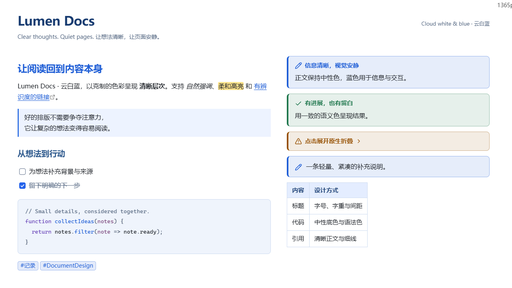
Lumen Docs is a lightweight Obsidian theme for clear, comfortable document reading. Cloud-white surfaces, ink-blue titles, blue chapter headings, and distinct semantic callouts give documents a recognizable visual identity. Dark appearance uses a midnight-blue palette.
The theme supports light and dark appearances in Live Preview and Reading view. It uses native Obsidian CSS variables and needs no additional plugins, downloaded fonts, or network services.
Version: 0.1.2. Requires Obsidian 1.13.0 or later.
The previews and features below describe version 0.1.2. Download both installation files from the matching GitHub Release. If that release is not yet published, download theme.css and manifest.json from the default branch.
Preview
Light
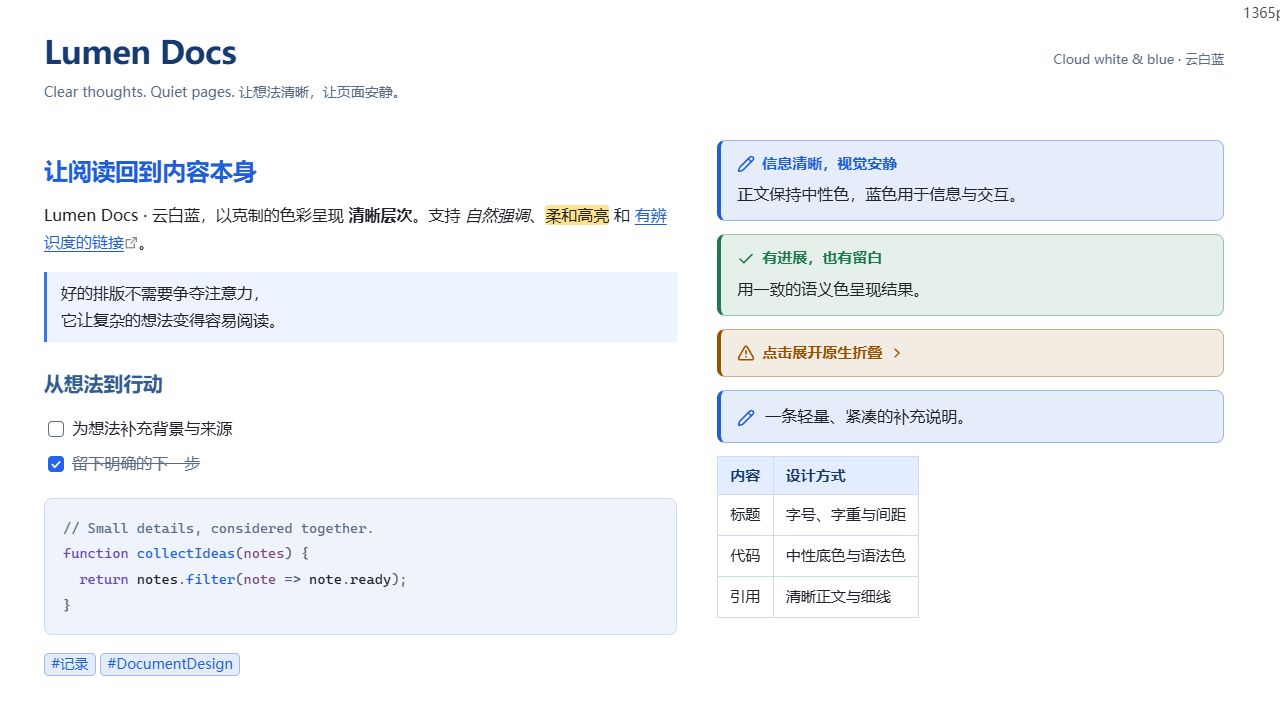
Content details · Semantic callouts


Dark
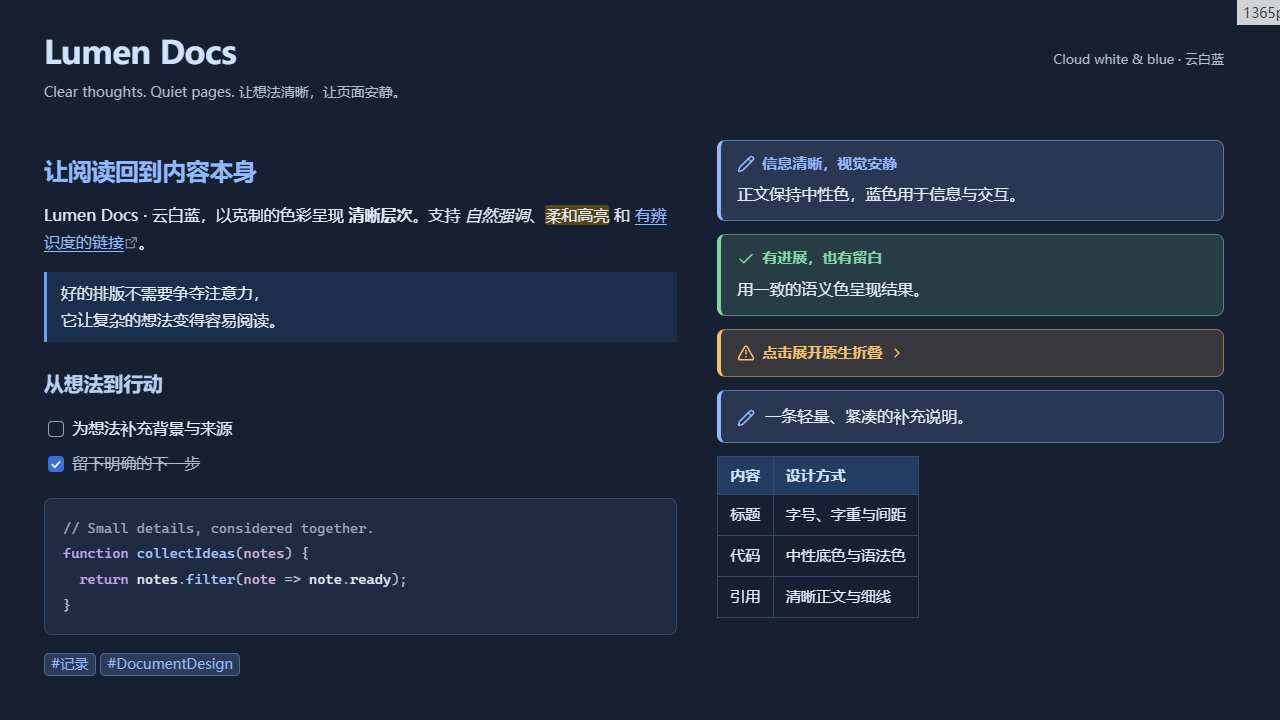
Content details · Semantic callouts


Installation
Manual installation
- Download
theme.cssandmanifest.jsonfrom the GitHub Release matching the version above, or from the default branch if that release is not yet published. Use both files from the same source. The source archive is optional; the two files are sufficient to install the theme. - Create
.obsidian/themes/Lumen Docs/inside your vault and copy both files there. If your vault uses a custom configuration folder, use that folder instead of.obsidian. - Open Settings → Appearance → Themes and select Lumen Docs. Reopen Settings or restart Obsidian if the theme does not appear immediately.
- Choose light, dark, or your preferred system appearance.
Your vault/
└─ .obsidian/
   └─ themes/
      └─ Lumen Docs/
         ├─ manifest.json
         └─ theme.css
Installation does not require Node.js or community plugins. To update, replace both files. Switching to another theme restores its appearance without modifying your Markdown notes.
Design
- Blue identity: ink-blue titles, blue chapter headings, and slate-blue subheadings give documents a consistent hierarchy.
- Comfortable layout: the default readable width is 800px and line height is 1.7. Font family and text size follow your Obsidian settings.
- Purposeful accents: blue identifies links, checked tasks, and interactive states; amber-yellow marks highlighted text.
- Clear structure: blue quote rules, blue-tinted table headers, and cloud-blue sidebars make the document structure visible.
- Readable code: keywords, functions, strings, values, and comments have distinct roles on a neutral background.
- Consistent details: tags, note embeds, footnotes, input fields, and keyboard focus share cloud-blue surfaces and clear blue accents.
- Responsive spacing: narrower screens use smaller page margins, compact callout padding, and wrapping for long titles and tags.
- Native behavior: task controls, links, callout folding, custom titles, and nested callouts retain their Obsidian behavior.
Completed tasks remain readable in gray. Selected text uses a clear foreground over a blue selection background.
Callouts
Callouts use a defined semantic background, a solid 4px color bar, and stronger title/icon colors while keeping their body text neutral. Information is blue, tips teal, success green, warnings amber, danger red, and examples purple. Nested filled callouts keep their own background rather than accumulating translucent tints.
Choose Color fill or Outline in Style Settings. Both appearances preserve the semantic title color, custom titles, nesting, and folding. Built-in aliases follow their native type color; custom types can keep their own --callout-color and --callout-icon. Ordinary blockquotes use readable body text, a blue rule, and a blue-tinted surface.
For an information block and a collapsible warning:
> [!info] Background
> Add context and a source for your note.

> [!warning]- Check before proceeding
> Expand to read the conditions and limitations.
For a compact note with its icon and content on the same row:
> [!note|compact]
> A short note without a visible title.
Compact styling applies only to non-collapsible note callouts and visually hides their title. Use [!note] Your title for a visible title. Adding the native + or - folding marker keeps the title and folding control visible.
Color palette
Cloud white and blue
| Role | Light | Dark |
|---|---|---|
| Document background | #FFFFFF |
#172033 |
| Sidebar background | #EEF4FF |
#111A2B |
| Body text | #1F2329 |
#E2EAF6 |
| Secondary text | #596B85 |
#AEBBD0 |
| Document title | #173B70 |
#D1E2FF |
| Chapter headings | #1F5ED6 |
#91B9FF |
| Table header background | #E4EDFF |
#223D61 |
| Links and text accents | #1F5ED6 |
#91B9FF |
| Primary button fill | #2563EB |
#3B6ED6 |
| Text highlight background | #FFE38C |
#5A4519 |
Text accents and button fills are defined separately. Dark appearance uses brighter links while retaining a blue button fill suited to white labels.
Semantic callout colors
| Role | Common types | Light | Dark |
|---|---|---|---|
| Information | note, info, todo, summary |
#1F5ED6 |
#91B9FF |
| Tip | tip, hint |
#086D75 |
#6CCECC |
| Success | success, check, done |
#1F774D |
#82D8A4 |
| Warning | warning, question |
#965000 |
#F4C16F |
| Danger | danger, error, failure, bug |
#B53147 |
#FF9BAE |
| Example | important, example |
#6D46BC |
#C7ABFF |
| Quote | quote, cite |
#4E607A |
#B3C4DF |
Syntax colors
| Syntax role | Light | Dark |
|---|---|---|
| Keywords | #6742B8 |
#C2A4F4 |
| Functions | #1F5ED6 |
#A8C5FF |
| Strings | #236D4B |
#9FD6B0 |
| Values and important tokens | #9A4B15 |
#EFBA86 |
| Comments | #5B6C84 |
#9AA6B8 |
| Operators and punctuation | #536075 |
#B3BFD1 |
Syntax colors use the native --code-* variables. Live Preview and Reading view use different syntax engines, so tokenization and some coloring details may differ by language and view.
Customization
Set your font and text size in Settings → Appearance. Enable the editor's Readable line length option to use the theme's document width.
The optional Style Settings plugin provides these controls under Lumen Docs · 清简文档:
- Document width: 560–1200px, default 800px.
- Line height: 1.4–2.2, default 1.7.
- Paragraph spacing: 0.5–1.2 times the body text size, default 0.8. The spacing follows your text size rather than a heading's size.
- Heading scale: 0.9–1.2, default 1. Scales all six levels together in Live Preview and Reading view.
- Callout style: Color fill (default) or Outline.
- Alternating table rows: off by default. Enable globally here or use
lumen-striped-tablesfor an individual note.
Without that plugin, the default appearance works normally. You can also create .obsidian/snippets/lumen-custom.css and enable it in Settings → Appearance → CSS snippets:
body {
  --lumen-page-width: 880px;
  --lumen-line-height: 1.8;
  --lumen-paragraph-spacing: 0.9;
  --lumen-heading-scale: 1.05;
}
Prefer snippets over editing the installed theme directly, so theme updates can preserve your customizations.
Tables use consistent text size and cell spacing in Live Preview and Reading view. A subtle row hover helps with scanning. Wide tables scroll horizontally inside the reading page, while the editor retains its native column controls and cell selection.
Add these optional classes to a note's cssclasses property. You can combine them:
| Class | Effect |
|---|---|
lumen-wide |
Use a 1100px readable width for tables and technical notes. Requires Readable line length to be enabled. |
lumen-compact |
Use tighter paragraphs, a 1.55 line height, and smaller table cell padding. |
lumen-striped-tables |
Add alternating row backgrounds to tables in this note. |
lumen-image-paper |
Give images a white background, useful for transparent diagrams designed for paper. Image colors are preserved. |
---
cssclasses:
  - lumen-wide
  - lumen-compact
  - lumen-striped-tables
---
Images keep their authored dimensions and colors. Native image embeds and standalone images use a subtle edge and rounded corners. Add a caption explicitly when useful; alt text is not automatically turned into a visible caption:
![[diagram.png|480]]

<div class="lumen-caption">Figure 1 · How the ideas connect.</div>
Standard HTML figure and figcaption elements also have caption styling. Full-note embeds use a quiet card; block references use a lighter quote-style edge. Native links back to the source remain available.
Notes and support
- The layout is designed for document reading with responsive spacing for narrower screens. Third-party plugins and custom layouts may need their own adjustments.
- This is an appearance theme. It does not provide document synchronization, collaboration, or floating editing tools.
- Other CSS snippets and plugin styles can override theme settings. Temporarily disable conflicting styles when investigating an issue.
- Fonts come from your system and Obsidian settings. The theme does not load remote fonts, images, or scripts.
- When reporting an issue, include your Obsidian version, appearance mode, relevant plugins/snippets, and a screenshot with private information removed.
License and contributions
Released under the MIT License. See the contribution and release guide for the source layout and publishing instructions.