
README file from
GithubEye Safe Writer
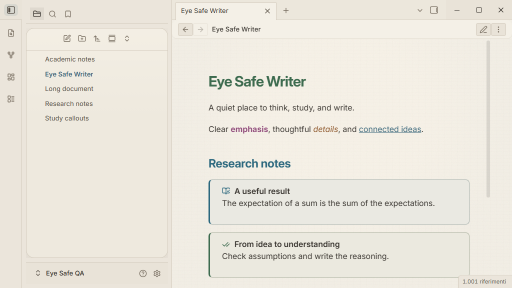
Warm paper surfaces, quiet chrome, and eight light/dark palettes for Obsidian. Version 1.8.1 requires Obsidian 1.13.0 or later.
Features
- Salvia, Gruvbox, AMOLED, Tokyo Night, Rose Pine, Solarized, Nord, and Cappuccino, each in light and dark mode.
- Reading View, Live Preview, and Source Mode styling; local system fonts and embedded textures, with no remote CSS assets.
- Optional Study, Writing, Code, and Academic / Research typography presets.
- Palette, emphasis, headings, links, line width, density, ribbon spacing, panels, and texture controls through Style Settings.
- English/Italian study and academic callouts using ordinary Obsidian Markdown.
- Keyboard focus indicators, reduced-motion support, system high-contrast/forced-color fallbacks, and print/PDF styles.
The name is not a medical or universal accessibility guarantee. Built-in colors are tested against specified surfaces; custom colors, snippets, plugins, and intentional dimming can change contrast. See the release audit for measured results and native QA scope.
Install and update
Manual installation
- Download both
theme.cssandmanifest.jsonfrom a published GitHub release. - Inside your vault, put them in
.obsidian/themes/Eye Safe Writer/. - Select Settings → Appearance → Themes → Eye Safe Writer.
- Optionally install Style Settings through Obsidian's Community Plugins browser.
To update, replace both files together. Notes and saved Style Settings preferences are not removed. Do not install the src/ modules individually.
Community Themes
Once the theme is listed, use Settings → Appearance → Manage themes, search for Eye Safe Writer, and install it. Use Obsidian's theme update controls for subsequent releases. Listing/submission status is recorded in the release audit; the presence of this repository does not mean the theme has been accepted.
Customize with Style Settings
Open Settings → Style Settings → Eye Safe Writer. Existing setting identifiers and saved preferences are retained.
| Preset | Default text size | Line height | Reading width |
|---|---|---|---|
| Default | 16.5px | 1.72 | 700px |
| Study | 17px | 1.8 | 760px |
| Writing | 18px, system serif | 1.85 | 660px |
| Code | 16px | 1.6 | 1000px |
| Academic / Research | 17px | 1.78 | 820px |
Saved text size, line height, line width, and Obsidian font overrides take precedence. Reset individual overrides to let a preset control them. At narrow widths the default text size is 16px and content fits the view.
- Left ribbon spacing: 8px gaps and 36px rows by default. Compact density uses 4px/32px; Spacious uses 12px/40px. Explicit saved ribbon values win. Full-height distribution is optional; crowded action lists scroll.
- Clear navigation: prevents intentional chrome/inactive-pane dimming.
- Enhanced contrast: strengthens subdued text and reveals navigation, inactive panes, and paragraphs; it disables texture. Prefer this if you need consistently visible controls.
- Calm / No dimming: readable defaults. Deep focus, custom opacity values, and Paragraph focus intentionally reduce contrast away from the current area. Hover or keyboard interaction reveals controls. Previously saved opacity values remain effective; reset them or enable Enhanced contrast if navigation remains too faint after updating.
- Active writing line and Flat editor background: optional, off by default.
- Manual color overrides are optional and can reduce the tested contrast. Only one legacy palette snippet should be enabled at a time; prefer the built-in palette selector.
- Links are underlined by default so color is not their only cue. Explicitly saved Clean links retain their previous no-underline appearance; this preference reduces non-color link identification. Enhanced Contrast restores underlines.
CSS-only paragraph focus
Live Preview can emphasize an active editor line, not a complete multi-line paragraph. Reading View reveals the hovered or keyboard-focused paragraph while the reading area is interacted with. This is not caret-aware paragraph tracking, and Source Mode has no prose-token guarantee. Paragraph dimming is suppressed by Enhanced Contrast, forced colors, and print. No scripts are bundled with the theme.
Study and academic callouts
These work in every preset. Use a descriptive title in any language:
| Meaning | English type | Italian type |
|---|---|---|
| Definition | definition |
definizione |
| Formula | formula |
formula |
| Example | example |
esempio |
| Exercise | exercise |
esercizio |
| Question / doubt | doubt |
dubbio |
| Theorem | theorem |
teorema |
| Proof | proof |
dimostrazione |
| Lemma | lemma |
lemma |
| Important | important |
importante |
> [!theorem] Linearity of expectation
> $\mathbb{E}[aX+bY]=a\mathbb{E}[X]+b\mathbb{E}[Y]$.

> [!proof]- Proof — expand to read
> Apply linearity of the integral.
Native folding (+/-), nesting, links, and mathematics remain native Obsidian features. Icons and explicit titles convey meaning without color. The built-in example and important types receive the theme's custom styling; other native types retain their native icons and palette-aware colors. See study examples and academic examples.
Academic print layout opts into serif typesetting and pagination. Normal printing also removes textures/chrome and uses light paper, including when a dark palette is selected. Extremely wide tables may still need shorter cell content or landscape paper.
Plugin compatibility
Style Settings is optional. Notes and native callouts do not depend on it. Native QA exercises Style Settings and Tasks in an isolated vault; exact tested versions and limitations are in the audit. This is not a guarantee for every plugin or operating system.
The optional eye-safe-pomodoro.css snippet styles commonly used timer container classes. Copy it to .obsidian/snippets/ and enable it under Appearance. Individual timer plugin versions are not certified.
Troubleshooting
- Ribbon/sidebar overlap: update both theme files, restart Obsidian, and disable obsolete
eye-safe-ribbon-fixor competing ribbon snippets. The app owns the sidebar toggle; the theme supports both.mod-leftand.mod-primaryribbon classes. - Preset appears unchanged: reset saved typography overrides in Style Settings. They deliberately take precedence.
- Unexpected palette or low contrast: disable legacy palette snippets/manual color overrides, then test Enhanced contrast and reset saved opacity values.
- Clipped plugin controls or overflow: compare with the default Obsidian theme and other snippets disabled. Report the Obsidian/installer version, OS, palette, preset, plugin versions, and a sanitized example.
Please report regressions without private notes or account details.
Development and releases
theme.css and the seven legacy palette snippets are generated from src/. See DEVELOPMENT.md for reproducible checks, fixture/native testing, screenshots, and the gated draft-release procedure. See CHANGELOG.md for changes. Licensed under MIT.