
README file from
GithubObOrange
A calm, expressive Obsidian theme for reading, writing, and technical notes



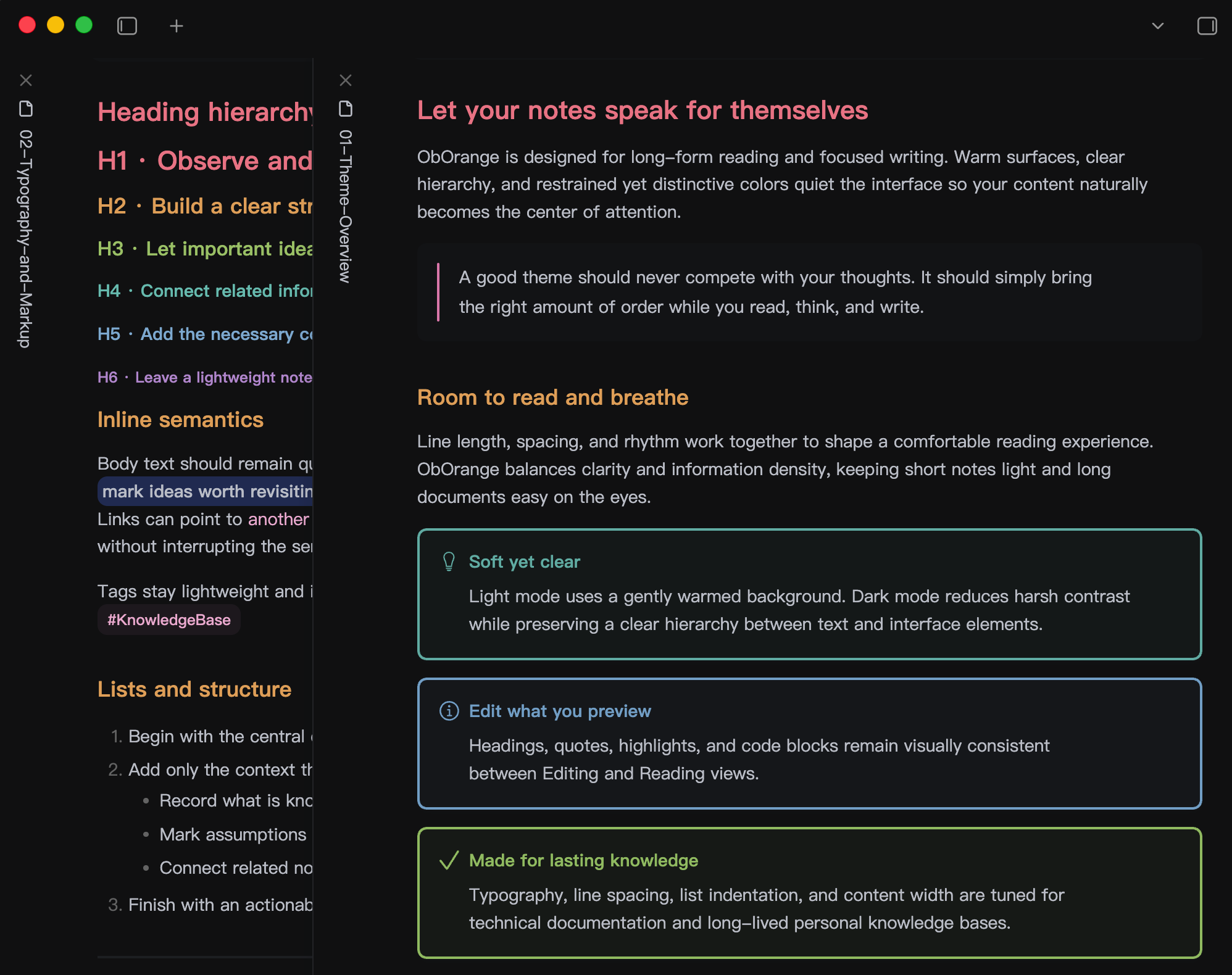
ObOrange combines a warm, paper-like light mode with a focused, IDE-inspired dark mode. Its mineral-colored headings, carefully balanced typography, and consistent Editing and Reading views keep the interface quiet while giving your notes a distinct visual identity.
Highlights
- Warm, low-glare light surfaces and a deep charcoal dark workspace
- A vivid mineral palette across H1–H6, tuned independently for each mode
- Matching styles in Live Preview and Reading view
- Purpose-built fenced code blocks and restrained inline code
- Refined tables, callouts, quotes, highlights, tags, and task lists
- Comfortable line length, spacing, and indentation for long-form notes
- Polished sidebars, settings dialogs, tabs, focus states, and transparency
- Optional customization through the Style Settings community plugin
Typography with a clear voice
Headings move through coral, amber, green, teal, blue, and violet. The palette creates a recognizable hierarchy without overpowering body text, while inline markup stays easy to scan.
Code that reads consistently
Fenced code blocks use the same carefully balanced syntax palette in Reading view and Live Preview. YAML, TypeScript, SQL, and other technical content sit on a stable charcoal surface with clear token separation.
| Reading view | Live Preview |
|---|---|
Mermaid diagrams with the same visual language
ObOrange coordinates Mermaid nodes, connections, labels, groups, notes, and chart colors with the theme's mineral palette in both light and dark modes. Style Settings can independently limit the maximum diagram width and height; choose Unrestricted for either dimension to preserve Mermaid's natural rendered size.
flowchart LR
    A[Capture an idea] --> B{Enough context?}
    B -->|No| C[Refine the note]
    C --> B
    B -->|Yes| D[Connect related notes]
    D --> E[Publish knowledge]

    class A primary
    class C warning
    class D info
    class E success
Components with purpose
Tables use defined but unobtrusive borders, quotes retain the natural text color, and callouts inherit coordinated tones from the same heading palette.
A polished Obsidian interface
ObOrange extends beyond Markdown. Settings, navigation, tabs, controls, window transparency, and focus states are tuned as one system in both color schemes.
| Light mode | Dark mode |
|---|---|
Installation
Community Themes
Once ObOrange is available in the Obsidian Community Themes directory:
- Open Settings → Appearance.
- Select Manage next to Themes.
- Search for ObOrange, then select Install and use.
Updates installed through the community directory can be managed directly from Obsidian.
Manual installation
-
Download
manifest.jsonandtheme.cssfrom the latest release. -
Create this directory inside your vault:
<Vault>/.obsidian/themes/ObOrange/ -
Place both downloaded files in that directory:
ObOrange/ ├── manifest.json └── theme.css -
Reload Obsidian and choose ObOrange under Settings → Appearance → Themes.
Manual installations are not updated automatically. Download and replace the two files when a new release is published.
Optional customization
Install the Style Settings community plugin to access ObOrange's optional interface, typography, accessibility, link, tab, status bar, and media controls.
Design foundations
ObOrange is built on the excellent Cupertino theme by aaaaalexis, with code-color inspiration from Drake Typora Theme by liangjingkanji. ObOrange adds its own palette, Markdown treatments, dark-mode system, Chinese typography refinements, and application-level fixes.
Releases and updates
Every tagged release publishes the files Obsidian needs:
manifest.jsontheme.css
For maintainers, update the version in manifest.json, push the commit, then
create and push a matching tag without a v prefix:
git tag <version>
git push origin master <version>
The GitHub Actions release workflow validates the version and attaches the theme files automatically.
License
ObOrange is released under the MIT License. The upstream projects credited above are also distributed under the MIT License.