
README file from
GithubTheCAP CV Generator - Obsidian Plugin
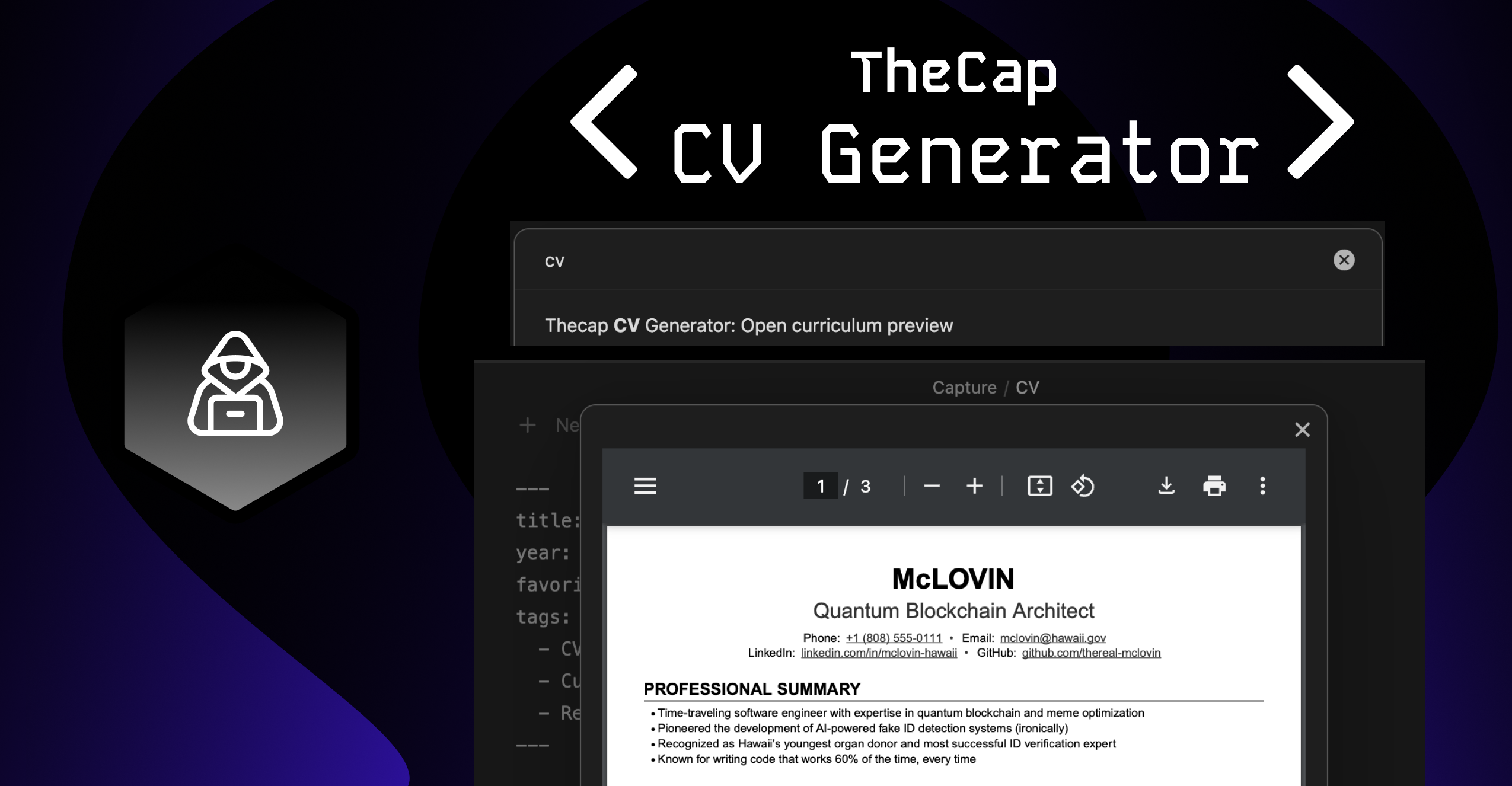
An Obsidian plugin for CV/Resume generation that's part of the Thecap CV Generator monorepo. This plugin allows you to generate a PDF version of your CV directly within your Obsidian vault.
Features
- Create and edit CVs using markdown format
- Preview your CV in PDF.
- Consistent formatting with the web version.
Usage
There are two ways to open the curriculum preview:
- Ribbon Icon: Click the PDF file icon (📄) in the left sidebar ribbon to "Preview curriculum"
- Command Palette: Open the command palette (Cmd/Ctrl + P) and search for "Open curriculum preview"
Choose which notes are CV notes
Open Settings → Thecap cv generator → CV notes and choose:
- All Markdown notes: Allow previewing any Markdown note (the default).
- A specific note: Enter a path relative to your vault, such as
Career/CV.md. The.mdextension is optional. The saved path follows renames and moves of the note or its containing folder while the plugin is enabled. - Notes with a tag: Enter a tag such as
cv,#cv, orcareer/cv. The tag can appear in the note text or its YAMLtagsproperty. Matching is case-insensitive and includes nested tags, like Obsidian search:cvmatchescv/draftbut notcv-old.
For example, this property enables the button when the configured tag is cv:
---
tags:
  - cv
---
The ribbon button and command palette action are available only when a matching Markdown note is active. Neither is available on non-Markdown views or empty tabs. An empty path or tag matches no notes. Visibility updates when you switch notes or edit their tags. The command palette action follows the same rule even if you hide the ribbon through Obsidian's own ribbon settings.
PDF text size and fonts
Open Settings → Thecap cv generator → PDF text size to change the default text size (8–20, default 12). Headings and contact details scale with it. To override the size for one CV, add this property to its existing frontmatter:
---
font-size: 14
---
For Chinese or other scripts unsupported by the default Helvetica font:
- Copy a static TTF or WOFF font that contains your characters into your
vault, for example
Fonts/Chinese-Regular.ttf. Variable fonts, OTF, WOFF2, and font collections are not supported. - Set PDF font file to its path relative to the vault.
- Optionally set PDF bold font file to the matching bold font. Without one, headings use the regular font. Custom fonts use upright text throughout.
- Close and reopen the CV preview after changing these settings.
Fonts load locally and work offline. Choose a font whose license permits PDF embedding, with coverage for all the languages in your CV. Chinese text wraps between characters without adding hyphens. Clear both font paths to restore Helvetica. If you move or rename a font file, update its path in settings.
Notation Guide
Use the following markdown notation to structure your curriculum:
| Notation | Description | Example |
|---|---|---|
# Name |
Your name followed by contact details | # John Doe |
- key: value |
Contact details (under name) | - email: [email protected] |
## Section |
Main section | ## Experience |
## Section \break |
Section with page break after | ## Education \break |
### Primary Title | Right Text |
Item with title and optional right-aligned text | ### Software Engineer | 2020-Present |
### Primary Title \break |
Item with page break after | ### Project Lead \break |
#### Secondary Title | Right Text |
Subtitle with optional right-aligned text | #### Team Lead | New York |
- Detail |
Bullet point details | - Led team of 5 developers |
Contact keys are not restricted to a fixed list. title appears beneath your
name; phone, email, location, LinkedIn, and GitHub have built-in formatting.
Other keys keep their labels and appear in the contact header, for example:
# John Doe
- title: Software Engineer
- Location: Shanghai, China
- Website: [Portfolio](https://example.com)
- Languages: Chinese: native; English: fluent
Use a full https:// URL or a Markdown link to make a custom field clickable.
Empty contact entries are omitted.
Example:
The CV follows a specific markdown format. For detailed information about the format, please refer to the main repository README.
Quick example:
---
title: My CV
year: 2024
---
# John Doe
- title: Software Engineer
- Email: [email protected]
- Location: New York, NY

## PROFESSIONAL EXPERIENCE
### Company Name | Location
#### Position | 2020 - Present
- Achievement 1
- Achievement 2
License
This project is licensed under the GNU General Public License v3.0 (GPL-3.0) - see the LICENSE file for details.
What this means:
- ✔️ You can use this software for commercial purposes
- ✔️ You can modify the source code
- ✔️ You can distribute modified versions
- ❗ You must keep the source code open source
- ❗ You must state changes made to the code
- ❗ You must disclose your source code
- ❗ You must use the same license (GPL-3.0)