Shiki Highlighter

by Moritz Jung
5
4
3
2
1
Score: 58/100

Description

Category: Coding & Technical Tools

The Shiki Highlighter plugin enhances syntax highlighting in Obsidian by integrating Shiki through Expressive Code, supporting over 100 programming languages. It provides consistent highlighting in reading, live preview, and edit modes, offering features such as line numbers, customizable themes, and various code block configurations. Users can highlight specific lines, add headers, and enable diff highlighting to track code changes. The plugin also supports inline highlighting and allows custom JSON themes compatible with VS Code. With its robust capabilities, this plugin is ideal for those seeking improved visual clarity and customization in their code notes.

Reviews

No reviews yet.

Stats

216
stars
27,156
downloads
20
forks
770
days
10
days
10
days
12
total PRs
2
open PRs
4
closed PRs
6
merged PRs
69
total issues
18
open issues
51
closed issues
68
commits

Latest Version

10 days ago

Changelog

README file from

Github

Shiki Highlighter

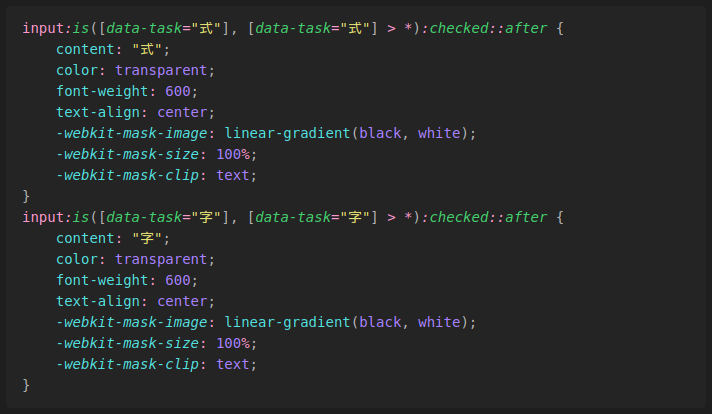
This plugin integrates shiki via Expressive Code into Obsidian, providing better syntax highlighting for over 100 languages.

This plugin works in reading, live preview and edit mode, providing a consistent experience across the app.

Below is an example with line numbers, a custom header, and line highlighting.
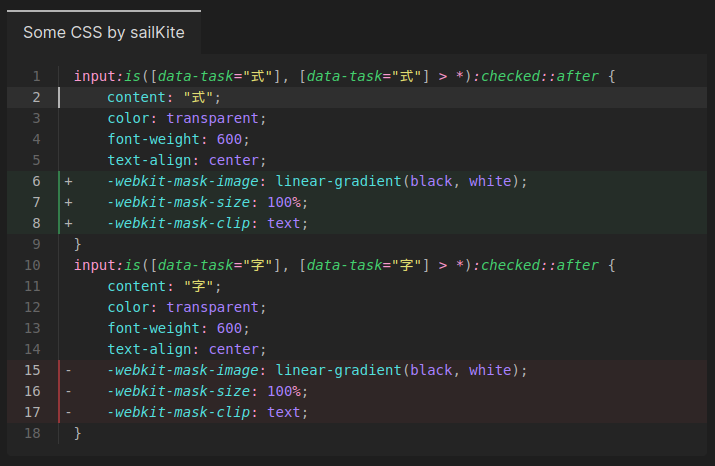
exampleImage

Comparison

Default Obsidian syntax highlighting:
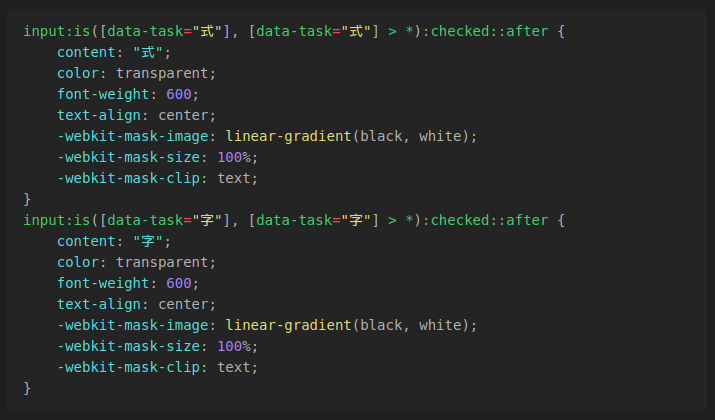
exampleImageObsidian

Shiki Plugin syntax highlighting:

exampleImagePlain

Usage

The plugin will automatically highlight code blocks in your notes.

Inline Highlighting

This plugin offers inline code block highlighting. The language for inline code blocks is specified via {lang} code.

Some inline code `{jsx} <button role="button" />`.

This feature can be turned off in the settings.

Custom Themes

This plugin comes bundled with a wide variety of themes. In addition, it supports custom JSON theme files compatible with VS Code. To enable custom themes, create a folder containing your theme files, and specify the folder's path relative to your Vault in the plugin settings. After restarting Obsidian, your custom themes will be available in the Theme dropdown.

Code Block Configuration

To configure the code block you add the configuration options on the same line as the opening triple backticks.

```language configurationHere
some code ...
```

More info on the configuration options can be found on the Expressive Code homepage.

Line Numbers

Line numbers can be enabled with showLineNumbers.

```language showLineNumbers
some code ...
```

Title

A title can be added with title="Title Here".

```language title="Title Here"
some code ...
```

Line Highlighting

Line highlighting can be enabled with {1, 5-10}. Lines can either be single lines or ranges.

```language {1, 5-10}
some code ...
```

Diff Highlighting

Diff highlighting can be enabled with ins={1} and del={5-10}. Lines specified in ins will be highlighted green, and lines specified in del will be highlighted red. Lines can once again either be single lines or ranges.

```language ins={1} del={5-10}
some code ...
```

When the language is set to diff, the plugin will automatically enable diff highlighting for lines either prefixed by + or -.

License

MIT

Installation

  1. Open Settings -> Community Plugins in your vault
  2. Click on the Browse button in the Community plugins section
  3. Search for Shiki Highlighter
  4. Select Shiki Highlighter and click first Install, then Enable

BRAT

  1. Install and enable the BRAT plugin
  2. Run the BRAT: Plugins: Add a beta plugin for testing command
  3. Enter https://github.com/mProjectsCode/obsidian-shiki-plugin into the text field
  4. Click on Add Pluign

Credits

This plugin uses shiki, Expressive Code, and parts of the Dracula VSCode theme for syntax highlighting.

Special thanks to:

  • Hippo (hippotastic) for their work and support with Expressive Code
  • sailKite for CSS help and testing the plugin

Similar Plugins

info
• Similar plugins are suggested based on the common tags between the plugins.
Code Block Labels
4 years ago by Sean Bowers
Provides labels for codeblocks in Obsidian
Execute Code
4 years ago by twibiral
Obsidian Plugin to execute code in a note.
Code Block
4 years ago by Patrik Lindefors
Embed Code File
4 years ago by Abdullah Almariah
Natural Language Syntax Highlighting
3 years ago by artisticat
Highlight adjectives, nouns, adverbs, verbs, and conjunctions in Obsidian.md
Code Files
3 years ago by Lukas Bach
Plugin for ObsidianMD to show and edit code files along other notes.
File Include
3 years ago by Till Hoffmann
Code::Stats
3 years ago by MiskaMyasa
The Code::Stats plugin allows you to track your coding progress and earn XP for writing markdown in the Obsidian editor.
InlineCodeHighlight
3 years ago by Dimava
MLIR Syntax Highlight
3 years ago by Lewuathe
VSCode Editor
3 years ago by Sun Xvming
Edit Code Files like VSCode in Obsidian.
Fountain Editor
3 years ago by Chuang Caleb
Obsidian plugin for Fountain screenplay syntax formatting.
Orgmode (CM6)
2 years ago by Benoit Bazard
Orgmode plugin for Obsidian
Alt-Click to Copy
2 years ago by Veer Sheth
ruby.wasm
2 years ago by geeknees
Obsidian RubyWasm Plugin
Svelte Syntax Highlighter
2 years ago by Typhoon-Kim
This plugin adds Svelte syntax highlighting to Obsidian.
Magic Move
2 years ago by imfenghuang
Animating Code Blocks in Obsidian
Code block from selection
5 years ago by Dmitry Savosh
Obsidian plugin. Adds code block for the selected text.
Stenography
5 years ago by bramses
Code Language Completer
2 years ago by Stanley Wang
minimal Obisdian plugin, fine-tuned to speed up developer note-taking
Simple Code Formatter
a year ago by SY
Format current code block in obsidian.
Snippetsaurus
a year ago by Christian Humbert
Inline Code Copy
a year ago by Hongchen Lin
Ace Code Editor
a year ago by RavenHogWarts
An enhanced code editor using Ace editor
Code Blocks commands
8 months ago by dragonish
Provide commands to insert code blocks with markup, and support triggering commands with backticks.
Custom Syntax Highlights
6 months ago by Outsiders17711
Display files with custom extensions as syntax-highlighted code blocks in reading view with configurable extension-to-language mappings.