
README file from
GithubScan Sketch
A powerful Obsidian plugin for scanning, processing, and enhancing handwritten notes and documents. Transform photos of your handwritten notes into clean, processed images with automatic perspective correction, background removal, and advanced filtering.
DEMO
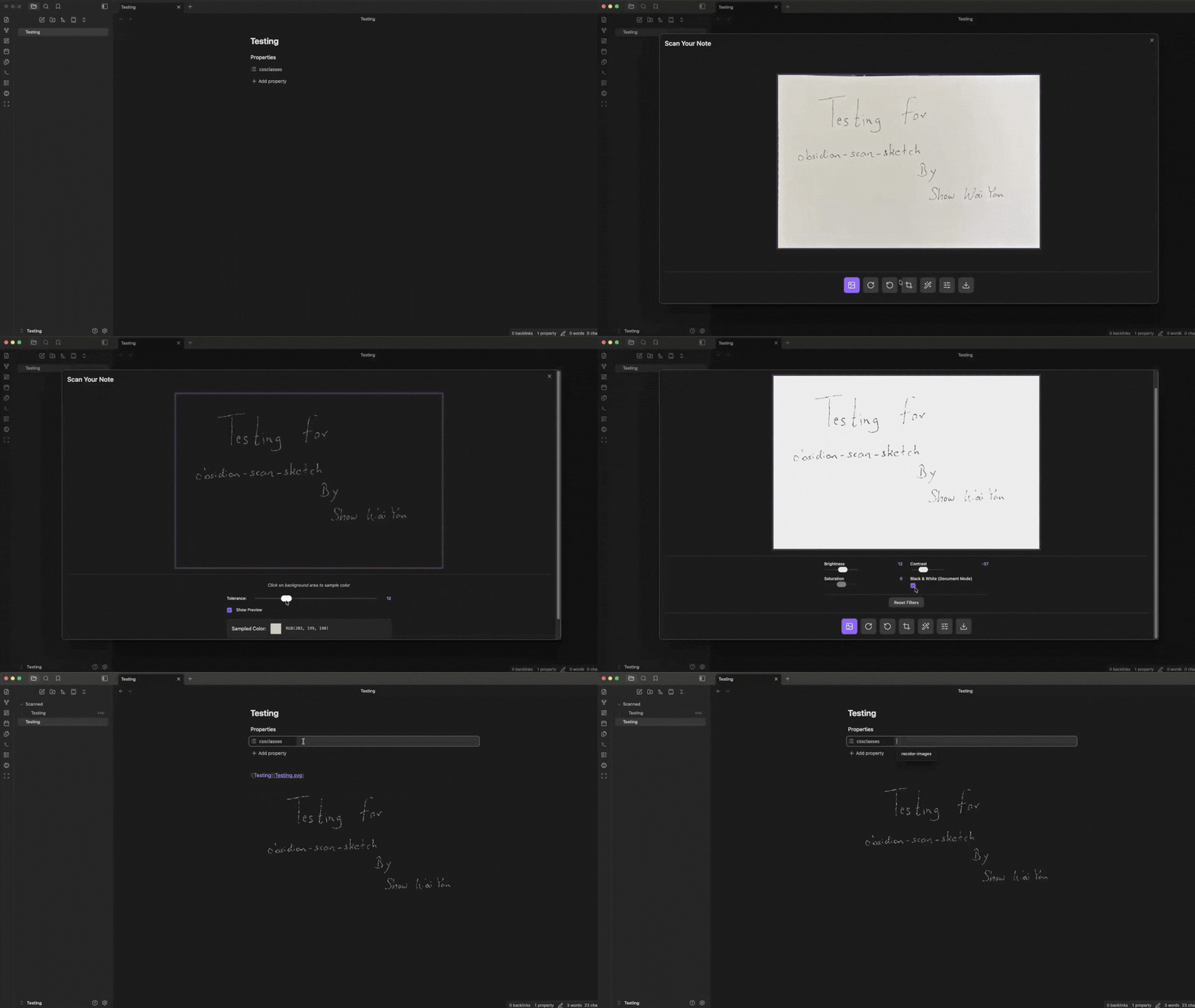
Features
📸 Image Upload & Processing
- Multiple Input Methods: Upload from file picker or capture directly from camera
- Automatic Corner Detection: One-click automatic page corner detection for physical notebook pages and documents
- Smart Perspective Correction: Interactive four-corner crop handles with quadrilateral transform
- Rotation Controls: Rotate images in 90-degree increments for proper orientation
- HiDPI Support: Full support for high-resolution displays (Retina, 4K, etc.)
🎨 Advanced Image Enhancement
-
Background Removal:
- Click-to-sample background color detection
- Adjustable tolerance slider (0-50)
- Real-time preview with checkerboard pattern for transparency
- Export with true transparent background (PNG)
-
Image Filters:
- Brightness adjustment (-100 to +100)
- Contrast enhancement (-100 to +100)
- Saturation control (-100 to +100)
- Black & White conversion
- Real-time preview with 200ms debouncing
💾 Export & Storage Options
- Multiple Export Formats:
- PNG (with transparency support)
- JPG (compact image format)
- SVG (embedded vector wrapper with customizable stroke color)
- Flexible Storage & Workflows:
- Multi-Destination Folders: Select from multiple target vault folders via dropdown menu
- Direct Markdown Link Insertion: Automatically insert
![[folder/image.png]]embed link into active note at cursor position - Auto-Close Scanner: Optionally auto-close scanner window after successful export
- Automatic timestamp-based filename generation
- Custom filename support with validation
🎯 User Experience
-
Visual Feedback:
- Checkerboard pattern for transparent areas during editing
- Magnifying loupe when dragging crop points
- Real-time filter preview
- Clear status notifications
-
Touch & Mouse Support:
- Responsive controls for both desktop and mobile
- Larger touch targets (30px) for mobile devices
- Drag-and-drop crop point adjustment
Installation
From Obsidian Community Plugins
- Open Obsidian Settings
- Navigate to Community Plugins
- Search for "Scan Sketch"
- Click Install
- Enable the plugin
Beta Testing with BRAT (Recommended for now)
⚠️ Important: Manual installation may cause the plugin to crash on mobile devices. Until the official community plugin release, we recommend using BRAT for installation.
-
Install the BRAT plugin from Obsidian Community Plugins:
- Open Obsidian Settings → Community Plugins
- Search for "BRAT" (Beta Reviewers Auto-update Tool)
- Install and enable BRAT
-
Add this plugin via BRAT:
- Open BRAT settings (Settings → BRAT)
- Click "Add Beta plugin"
- Enter:
showwaiyan/obsidian-scan-sketch - Click "Add Plugin"
-
Enable the plugin:
- Go to Settings → Community Plugins
- Find "Sketch Scanner" and enable it
BRAT will automatically keep the plugin updated with the latest releases.
Manual Installation (Desktop Only)
⚠️ Warning: Manual installation can cause crashes on mobile devices. Use BRAT instead if you use Obsidian on mobile.
- Download the latest release from GitHub
- Extract files to
VaultFolder/.obsidian/plugins/obsidian-scan-sketch/ - Reload Obsidian
- Enable plugin in Settings → Community Plugins
Usage
Basic Workflow
-
Open Scanner Modal
- Click the scan icon in the ribbon (left sidebar)
- Or use Command Palette: "Open Scanner"
-
Upload Image
- Click "Upload" to select from files
- Or click "Camera" to capture directly (if available)
-
Adjust & Process
- Rotate: Click rotation buttons to orient correctly
- Crop: Click "Crop" to show corner points, drag to adjust, click "Apply"
- Filters: Adjust sliders for brightness, contrast, saturation
- Background Removal: Click to sample background color, adjust tolerance
-
Export
- Click "Export" button (download icon)
- Choose format (PNG/SVG)
- Enter filename or use auto-generated timestamp
- Click "Export" to save to vault
Background Removal
- Click the background removal icon
- Click on any background area to sample the color
- Adjust tolerance slider to fine-tune selection
- Preview shows transparent areas with checkerboard pattern
- Click "Apply" to confirm or "Cancel" to revert
- Export as PNG to preserve transparency
Perspective Crop
- Click "Crop" button to show corner points
- Click "Detect Corners" to automatically detect page edges, or manually drag the four corner points to match document borders
- Click "Apply" to transform the quadrilateral into a straight rectangle
Settings
Access plugin settings via Settings → Scan Sketch:
- Destination Folders: Manage multiple target vault folders for saving exported images
- Default Export Format: Set default export file format (PNG, JPG, or SVG)
- Close Scanner After Export: Toggle automatically closing the scanner modal upon successful export
Optional: Enhanced Notebook Styling
For enhanced visual styling with notebook-themed backgrounds and pen colors, you can optionally add CSS snippets from the Obsidian-Notebook-Themes repository by @CyanVoxel.
How to Add Notebook Theme CSS:
- Visit the Obsidian-Notebook-Themes repository
- Download the CSS snippets you want (e.g., notebook background colors, pen colors)
- In Obsidian, go to Settings → Appearance → CSS snippets
- Click the folder icon to open your snippets folder
- Copy the CSS files into this folder
- Return to Obsidian and enable the snippets
Available Notebook Themes:
- Page Backgrounds: Manila, White, Blueprint
- Pen Colors: White, Gray, Black, Red, Green, Blue, Light Blue, Purple
- Grid Patterns: Optional grid overlay for notebook paper effect
- Image Recoloring: Recolor images to match your pen color theme
Example Usage in Notes:
---
cssclasses: page-manila pen-black recolor-images
---
This applies a manila (tan) page background with black pen styling and recolors images accordingly.
Important Limitations:
- 📌 SVG Export Only: The notebook background and image recoloring functionality only works with SVG exports, not PNG exports.
- For best results with notebook themes, always export as SVG format.
- PNG exports will preserve transparency but won't apply CSS-based recoloring effects.
Note: These CSS snippets are completely optional. The plugin works perfectly without them. They simply provide additional theming options for your scanned notes to match a physical notebook aesthetic.
Technical Architecture
Project Structure
obsidian-scan-sketch/
├── main.ts                 # Plugin entry point & settings tab
├── Services/              # Business logic & stateless utilities
│   ├── CanvasRenderer.ts       # Canvas drawing & magnifier utilities
│   ├── CropPointManager.ts     # Crop point validation & dragging
│   ├── ImageBackgroundRemoval.ts  # Color sampling & background removal
│   ├── ImageExport.ts          # PNG/JPG/SVG export encoders
│   ├── ImageFilter.ts          # Brightness, contrast, saturation, B&W
│   ├── ImageTransform.ts       # Rotation & perspective transforms
│   ├── ImageUpload.ts          # File picker & camera capture
│   ├── Interaction.ts          # Hit testing & pointer interaction
│   ├── PageDetection.ts        # Automatic corner & edge detection
│   ├── VaultExport.ts          # Obsidian vault file saving
│   └── types.ts                # TypeScript interfaces & types
├── UI/                    # User interface components
│   ├── Components/
│   │   ├── BackgroundRemovalControls.ts
│   │   ├── ExportControls.ts
│   │   ├── FilterControls.ts
│   │   └── ImagePreview.ts
│   └── Modals/
│       ├── ExportModal.ts
│       └── scannerModal.ts
├── test/                  # Vitest unit test suite (136 tests)
└── styles.css            # Plugin CSS styling
Key Technologies
- TypeScript: Type-safe development with strict null checks
- Obsidian API: Native integration with Obsidian
- Canvas API: Image rendering and manipulation
- perspective-transform: Perspective correction library
- Vitest: Fast unit testing with happy-dom
- esbuild: Lightning-fast bundling
Code Quality
- Testing: 136 unit tests with >90% coverage
- Linting: ESLint with TypeScript support
- Formatting: EditorConfig (tabs, double quotes, LF)
- Type Safety: Strict TypeScript configuration
- Documentation: JSDoc comments for public APIs
Development
Prerequisites
- Node.js v16 or higher
- npm or yarn
Setup
# Clone the repository
git clone https://github.com/Showwaiyan/obsidian-scan-sketch.git

# Install dependencies
npm install

# Start development mode (watch)
npm run dev

# Run tests
npm test

# Run tests with UI
npm run test:ui

# Run tests with coverage
npm run test:coverage

# Build for production
npm run build
Commands
npm run dev- Watch mode compilation with esbuildnpm run build- Production build with TypeScript checkingnpm test- Run all tests with Vitestnpm run test:ui- Interactive test UI dashboardnpm run test:coverage- Generate coverage reportnpm run version- Bump version and update manifest/versions.json
Testing
Run specific tests:
# Single test file
npx vitest test/ImagePreview.test.ts

# Single test case
npx vitest -t "should initialize"

# Watch mode
npx vitest --watch
Code Style
- Indentation: Tabs (width 4)
- Quotes: Double quotes
- Semicolons: Required
- Imports: Obsidian imports first, then blank line, then local imports with path aliases
- Path Aliases: Use
Services/andUI/instead of relative paths
Example:
import { App, Modal, Notice } from "obsidian";

import { uploadImageToCanvas } from "Services/ImageUpload";
import { ImagePreview } from "UI/Components/ImagePreview";
Changelog
Version 1.0.0 (Current)
Features:
- Initial release
- Image upload and camera capture
- Perspective correction with interactive crop points
- Image rotation (90° increments)
- Advanced filters (brightness, contrast, saturation, B&W)
- Background removal with tolerance adjustment
- PNG/SVG export with transparency support
- Checkerboard pattern for transparent areas
- Configurable export folder
- Touch and mouse support
- HiDPI display support
Bug Fixes:
- Fixed transparent background export (removed black background fill)
- Fixed background removal cropping issue (DPR dimension mismatch)
- Fixed checkerboard contamination in background removal
Contributing
Contributions are welcome! Please follow these guidelines:
- Fork the repository
- Create a feature branch:
git checkout -b feature/amazing-feature - Follow code style: Use tabs, double quotes, proper imports
- Write tests: Add tests for new features
- Run tests:
npm test(all tests must pass) - Build:
npm run build(must build without errors) - Commit: Use clear, descriptive commit messages
- Push:
git push origin feature/amazing-feature - Open a Pull Request
License
This project is licensed under the OBSD License - see the LICENSE file for details.
Support
- Issues: Report bugs on GitHub Issues
- Discussions: Ask questions in GitHub Discussions
- Documentation: See Obsidian Plugin Guidelines
Acknowledgments
- Built with Obsidian API
- Uses perspective-transform for perspective correction
- Optional notebook theme CSS snippets available from Obsidian-Notebook-Themes by @CyanVoxel (v2.2.3)
- Inspired by document scanning apps and the Obsidian community
Made with ❤️ for the Obsidian community