
README file from
Github
Obsidian Export Image Plugin


This Obsidian plugin can easily help you export any article as an image.
Features
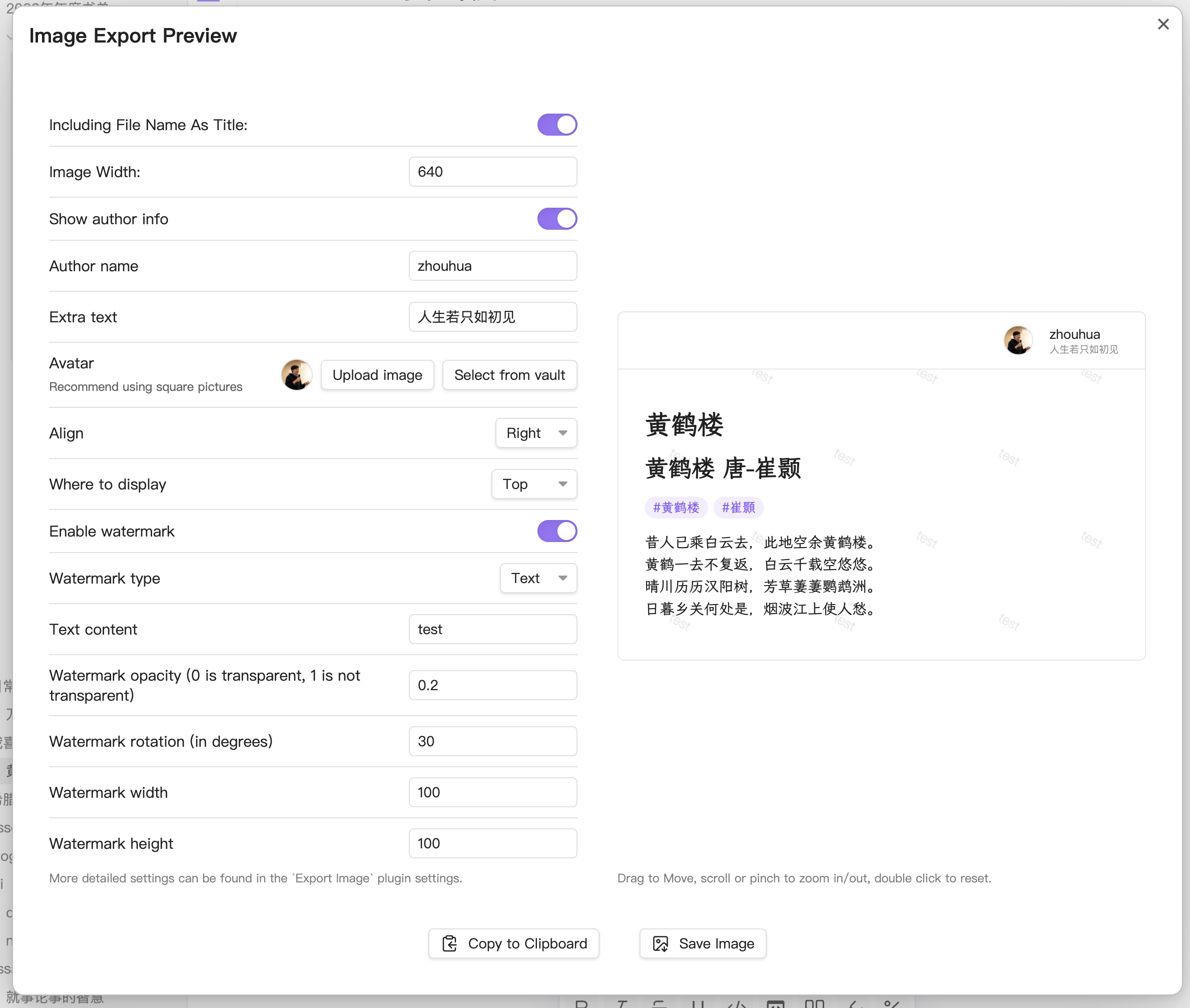
- Export any article as an image, with the option to save it as a local image file or copy it to the clipboard.
- Support adding watermarks, both text and image watermarks, to protect your copyrights.
- Support adding author information (avatar, name, etc.) for easier sharing and dissemination.
- Support outputting images at twice the resolution for clearer display on high PPI devices like smartphones.
- Support adjusting the image width to cater to different scenarios, such as exporting images suitable for viewing on mobile devices or ensuring readability when embedding images in articles.
- Offer flexible configuration options with a convenient WYSIWYG (What You See Is What You Get) interface.
- Support exporting selected content as an image.
- Support for batch exporting all notes in a folder as images.
- Support displaying obsidian metadata.
- Support split long articles into multiple images.
Usage
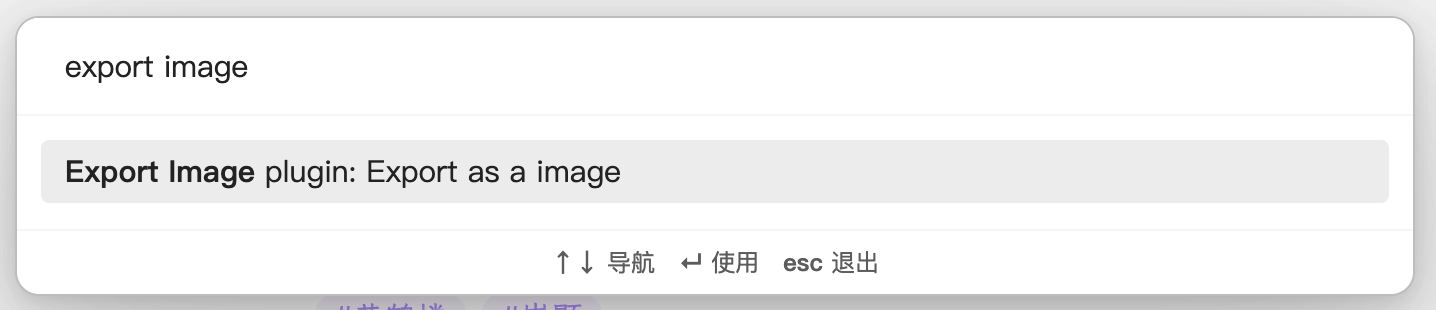
Use the command export as a image in command palette (Press cmd/ctrl+P to enter the command) to generate a image. You can download it to your file system, or copy to clipboard.
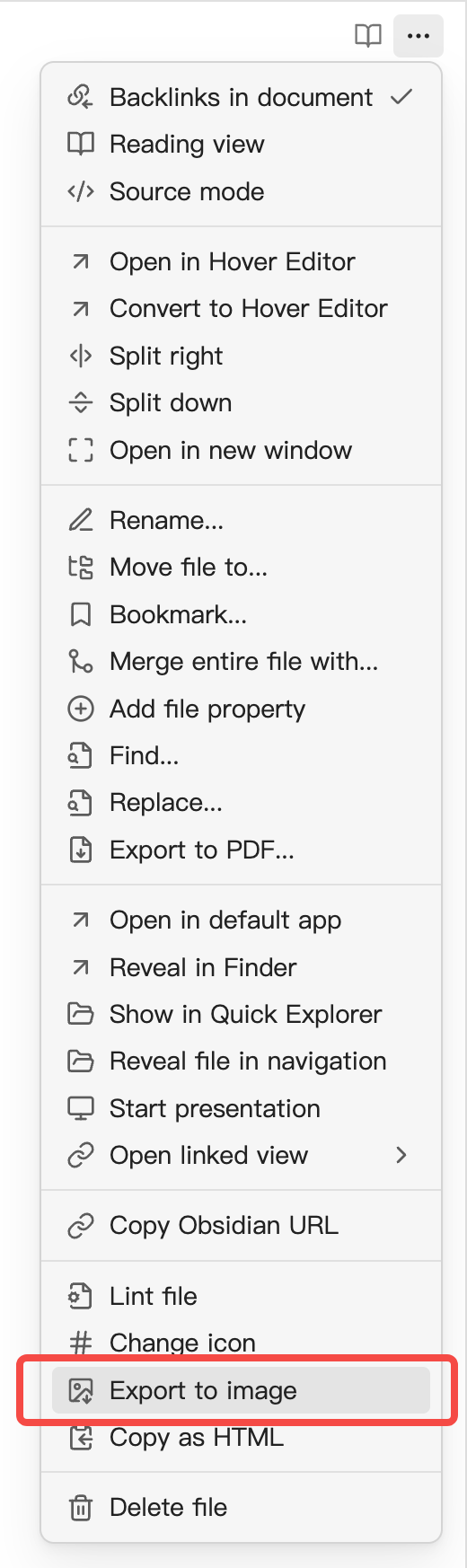
Also, you can access this function from the editor menu:
[!NOTE] Due to device limitations, exporting images on mobile can only be saved to the current vault.
Installation
Obsidian
Search Export Image in community plugins.
Custom Styles
To help experienced users write their own CSS styles, here is the combined DOM structure of the exported image.
<!-- Export Image Root -->
<div class="export-image-root markdown-reading-view">
  <!-- Watermark Container -->
  <div class="markdown-preview-view markdown-rendered export-image-preview-container">
    <!-- Inline Title -->
    <div class="inline-title"></div>
    <!-- Metadata -->
    <div class="metadata-container">
      <div class="metadata-content">
        <!-- Metadata Items -->
        <div class="metadata-property">
          <!-- Metadata Key -->
          <div class="metadata-property-key">
            <!-- Metadata Icon -->
            <span class="metadata-property-icon"></span>
            <!-- Metadata Name -->
            <span class="metadata-property-name"></span>
          </div>
          <!-- Metadata Value -->
          <div class="metadata-property-value"></div>
        </div>
      </div>
    </div>

    <!-- Note Content -->
    <div>...</div>
  </div>

  <!-- Author Info -->
  <div class="user-info-container">
    <!-- Author Avatar -->
    <div class="user-info-avatar"></div>
    <div>
      <!-- Author Name -->
      <div class="user-info-name"></div>
      <!-- Extra Info -->
      <div class="user-info-remark"></div>
    </div>
  </div>
</div>
Star History
Special Thanks
- dom-to-image & dom-to-image-more. This repo borrows lots of code from dom-to-image-more. The amazing lib helps me generate images from dom.