
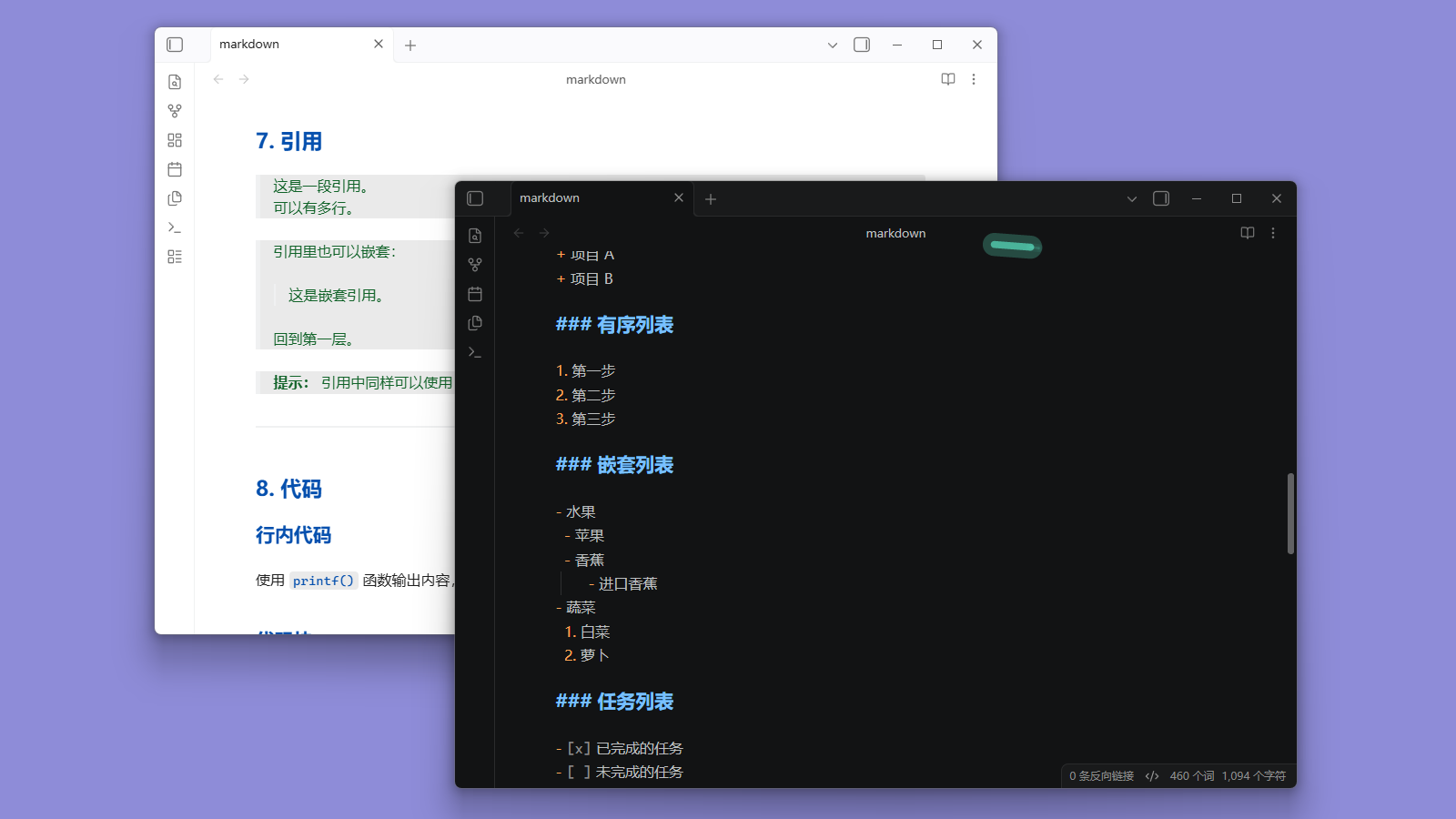
README file from
GithubVS Code Theme for Obsidian
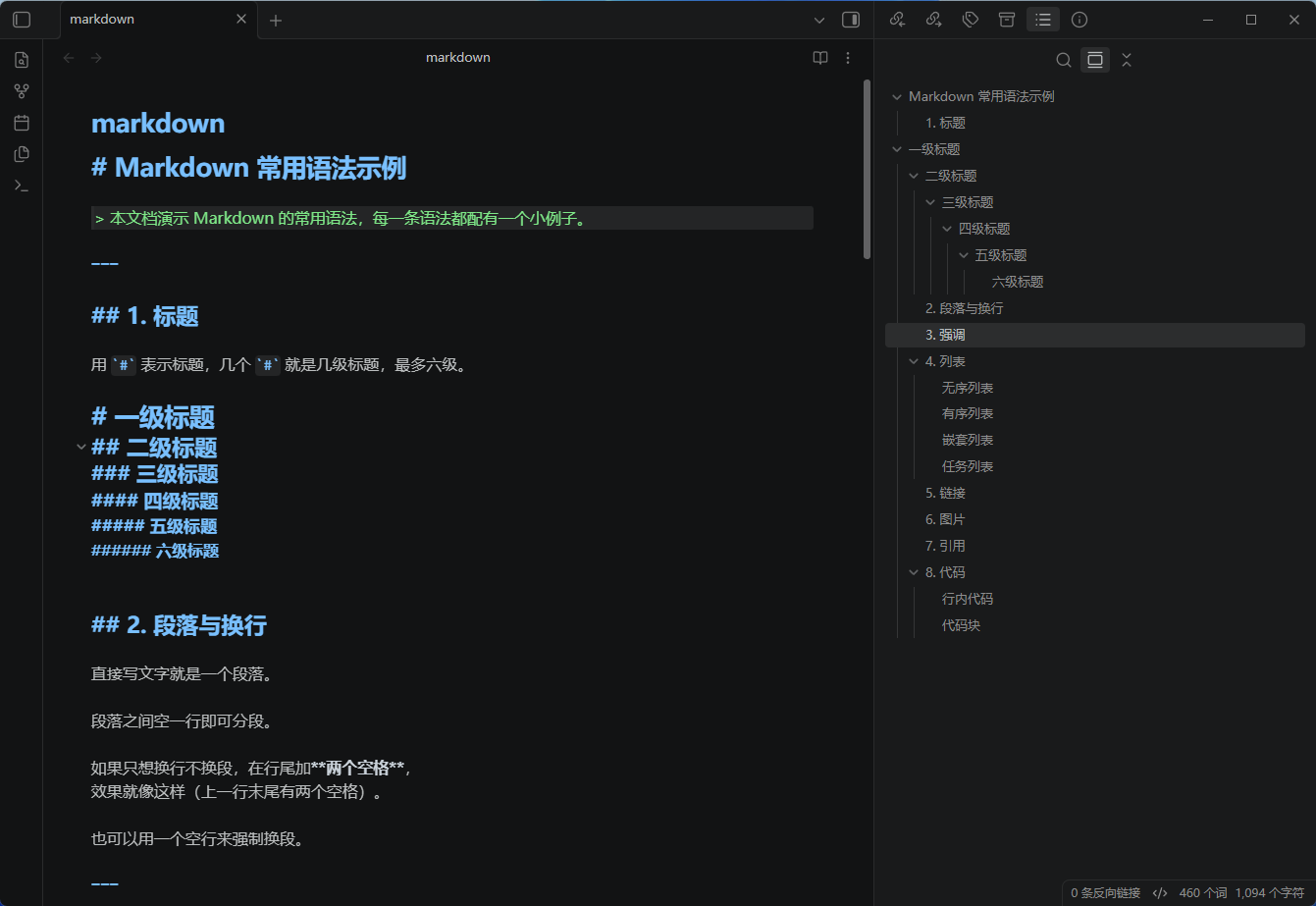
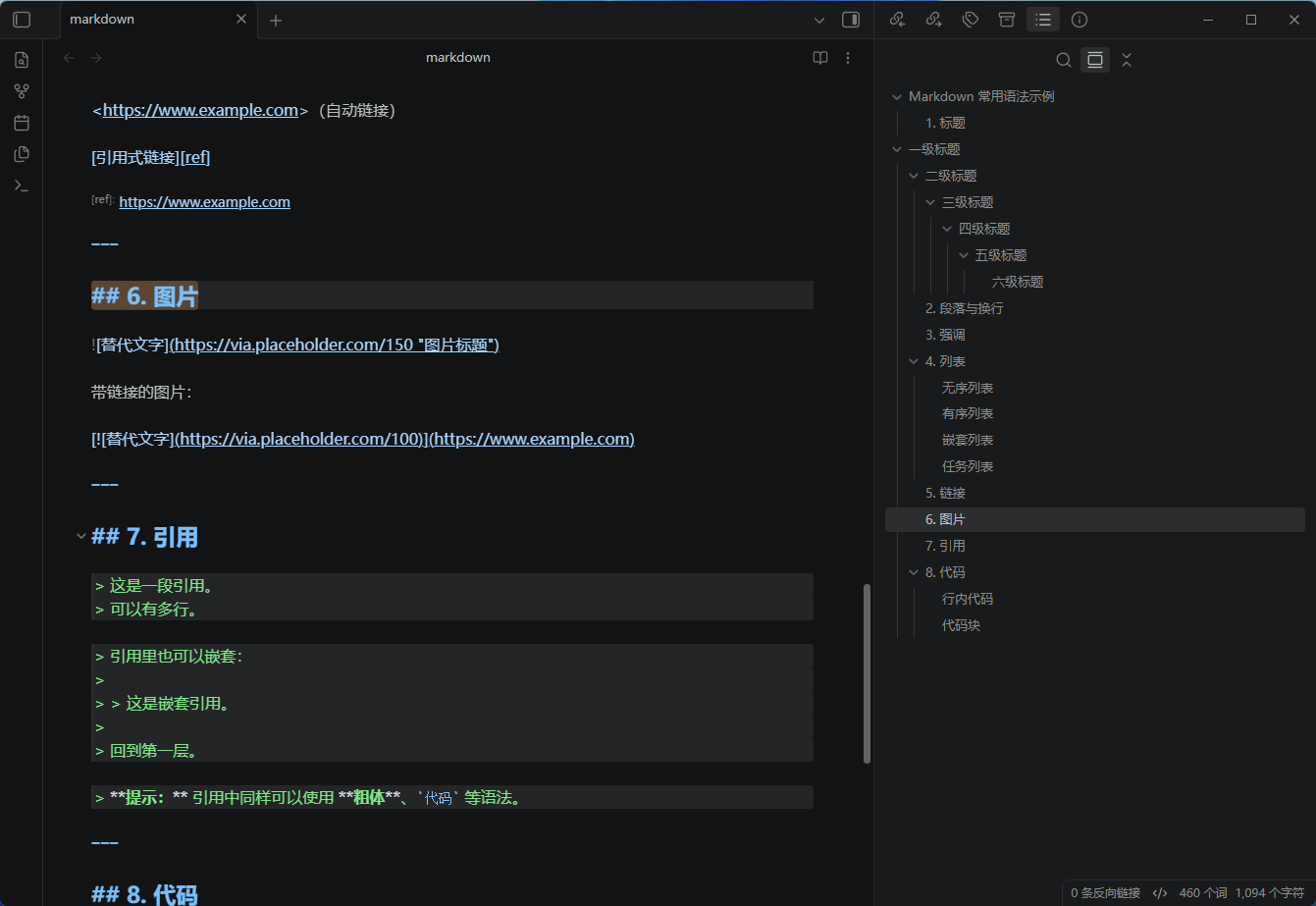
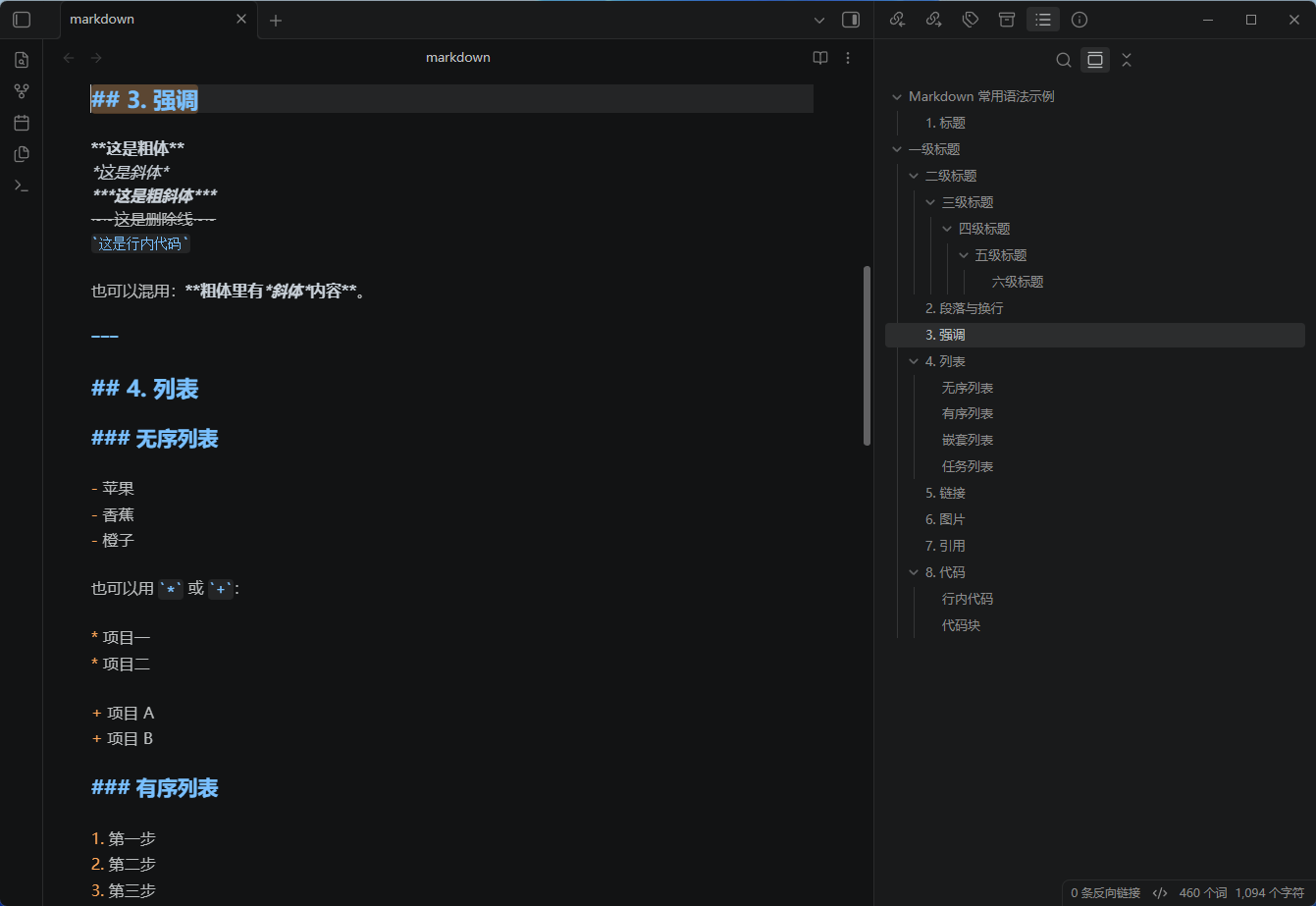
Ports the official VS Code default color scheme (Dark 2026) into Obsidian, with support for both dark and light mode.
1. Installation
1.1 Via Community Themes (recommended; requires marketplace approval)
- Settings → Appearance → Themes → Manage
- Search for
VS Code - Install
1.2 Manual installation
Copy the manifest.json and theme.css files from this directory into your vault:
<your-vault>/.obsidian/themes/VS Code/

├── manifest.json

└── theme.css
Note: The folder name must be
VS Code, matching thenamefield inmanifest.json.
.obsidianis a hidden directory. On Windows, you can navigate to it by typing.obsidian\themesdirectly into the File Explorer address bar.
2. Enabling the Theme
Settings→Appearance- Set
Base themeto Dark or Light (this determines which variant is used by default) - Select VS Code from the
Themesdropdown
No restart is required. If the theme does not appear, click the refresh button next to the theme dropdown.
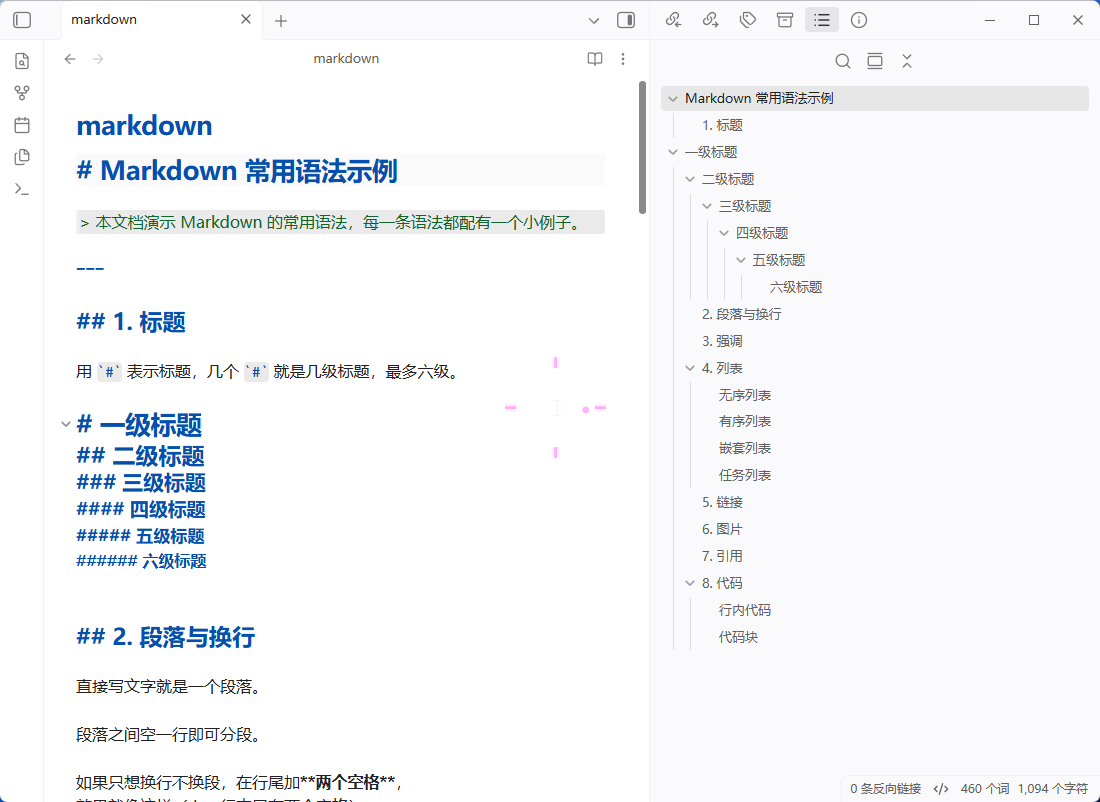
3. Screenshots
4. License
- This theme is released under the MIT License, see LICENSE. You are free to use, modify, and redistribute it.
- Color data is sourced from microsoft/vscode (MIT License).
This theme does not modify the content of any note; it only affects rendering styles. Deleting the directory completely reverts the change.