
README file from
GithubMilk Tea — Warm & Friendly Obsidian Theme
A warm, creamy Obsidian theme inspired by Claude's desktop palette. Designed to make your note-taking feel less clinical and more welcoming.
一款温暖的奶茶色 Obsidian 主题,灵感来自 Claude 桌面端的配色。让你的笔记空间不再冰冷,写字像手捧一杯热奶茶。
Companion to the Milk Tea VS Code theme — use both for a consistent warm workspace across writing and coding.
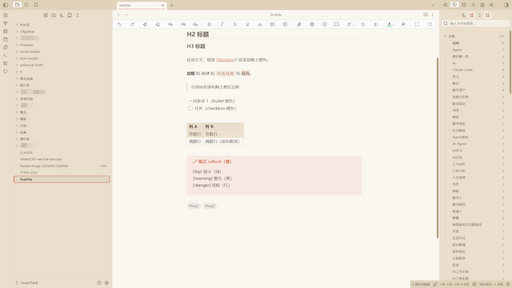
Preview
Milk Tea Light
Features
- Claude desktop palette — creamy beige background
#FAF6F0, terracotta orange accent#D97757, never harsh white - Dark mode included — deep warm brown
#2A2420(not pure black), cozy for night writing - Polished UI details
- Three-column hierarchy with clear visual weight
- Rounded warm hover states for all icons (Claude.ai-style)
- Thicker stroke icons (2px) in muted brown, terracotta on hover
- Active file highlight in the file tree with accent bar
- YAML frontmatter block with accent left border
- Heading weight ladder (H1 bold 800 → H6 italic)
- Matching syntax colors — code blocks use the same palette as the Milk Tea VS Code theme
- Style Settings support — 8 user-configurable options (accent color, radius, fonts, size, line height, heading & bold weights). Install the Style Settings plugin and go to Settings → Style Settings → Milk Tea to customize.
- Plugin compatibility — polished styling for Dataview, Kanban, Calendar, Tasks
- Accessibility — visible focus outlines,
prefers-reduced-motionhonored - Mobile-friendly — adjusted type scale and spacing on phones/tablets
- Recommended font — pairs beautifully with Maple Mono NF CN, falls back to JetBrains Mono / Consolas gracefully
Install
From Community Themes (once approved)
- Obsidian → Settings → Appearance → Themes → Manage
- Browse community themes → search Milk Tea
- Install → Apply
Manual install (before it's in the gallery)
- Download
manifest.jsonandtheme.cssfrom the latest release - Place both files into
<YourVault>/.obsidian/themes/Milk Tea/ - Obsidian → Settings → Appearance → Themes → select Milk Tea
Set the accent color
After applying the theme, Obsidian's user-level accent override may still show its default purple. Go to Settings → Appearance → Accent color and set it to:
- Light mode:
#D97757 - Dark mode:
#E8945A
(Obsidian's built-in "reset" button resets to its own default — not the theme's. Manually set the hex.)
Color Palette
| Role | Light | Dark |
|---|---|---|
| Background (editor) | #FAF6F0 |
#2A2420 |
| Background (sidebar) | #EADFCD |
#1F1A12 |
| Foreground | #3D3029 |
#E8DDD0 |
| Accent | #D97757 |
#E8945A |
| Blockquote / list marker | #D97757 |
#E8945A |
| Inline code | #C0602A on #F0E8DC |
#E8945A on #302A22 |
| Links (external) | #5B7FA5 |
#82A0C4 |
| Tags | #5B7FA5 |
#82A0C4 |
Companion theme
If you use VS Code, pair this with Milk Tea VS Code — same palette, unified workspace.
Feedback
Issues and suggestions welcome on GitHub.
License
MIT