
README file from
GithubInlay
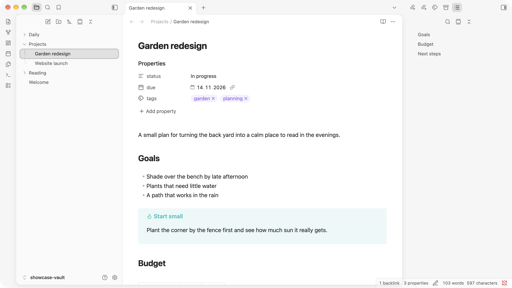
The Obsidian workspace as a single card, inlaid in a calm neutral shell.






Why Inlay
Most themes restyle everything. Inlay changes one idea: your notes sit on a raised card, and the app chrome around it falls back into a quiet shell. Everything else stays exactly as Obsidian made it.
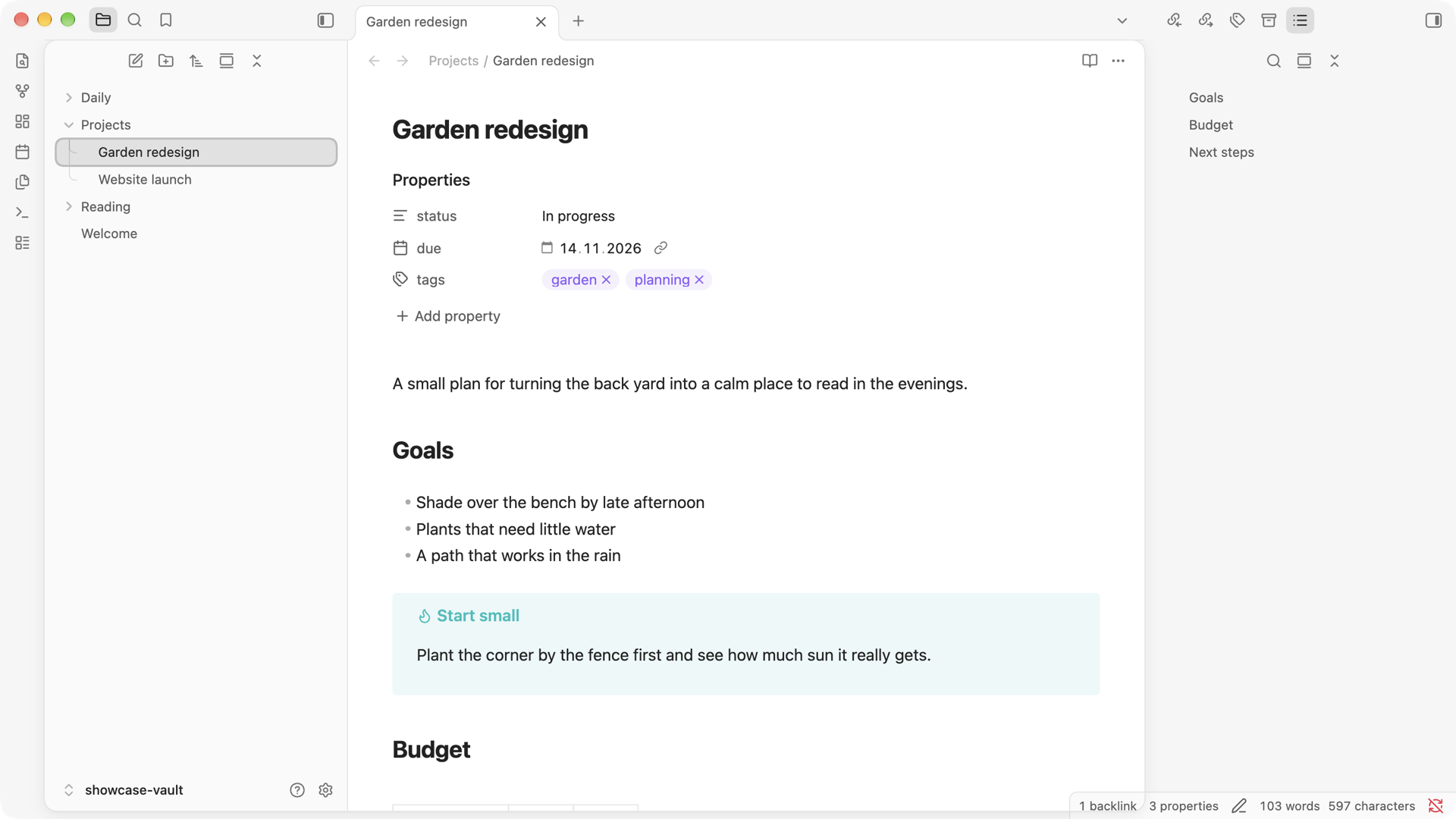
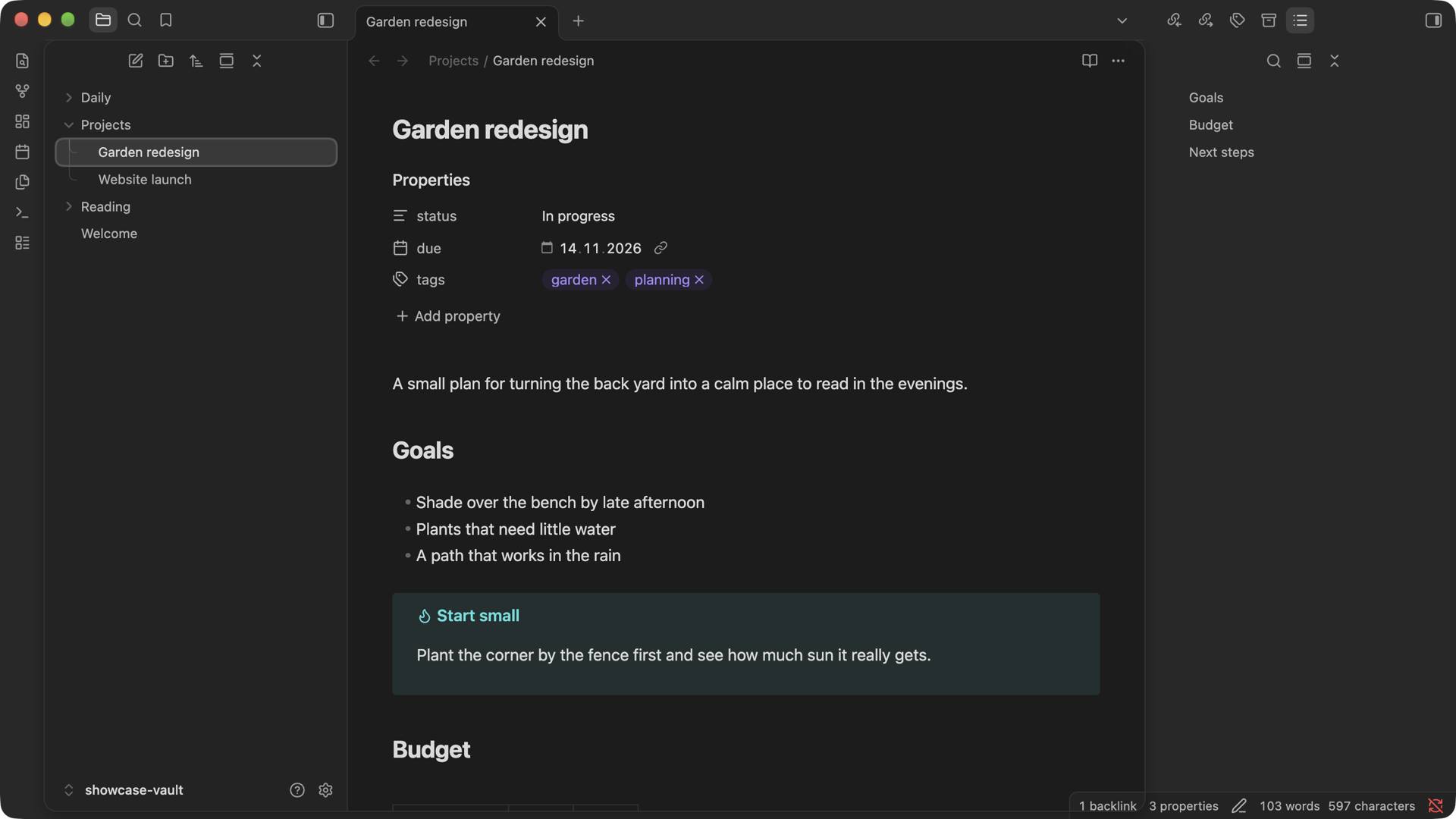
- Inlaid card. The editor and file explorer share one floating card with a soft shadow.
- Quiet shell. The ribbon, title bar and right sidebar rest on the shell beside the card.
- Default where it matters. Fonts, sizes, spacing and the rendering of your notes (editor, reading view, properties, callouts, code) are untouched.
- Obsidian's own palette. Light and dark mode use the default colour scale, so plugins and snippets look the way they expect.
- Optional glass. A translucent shell over the OS blur, and a frosted note header that text scrolls beneath.
- Details. Curved file-tree guides, unified tab outline, pop-out windows with their own card.
- Mobile. Drawers sit on the shell and the open note is the card.
Screenshots
| Light | Dark |
|---|---|
 |
 |
Installation
From the community directory
Once Inlay is published: Settings → Appearance → Themes → Manage, search for Inlay, then select Use.
Manually
- Download
manifest.jsonandtheme.cssfrom the latest release. - Put them in
<your vault>/.obsidian/themes/Inlay/. - Select Inlay in Settings → Appearance → Themes.
Customisation
Install Style Settings, then open Settings → Style Settings → Inlay.
| Section | Options |
|---|---|
| Colours | Theme or app accent · shell · card · left sidebar (light and dark) |
| Layout | Flat mode · card gap · card radius · card shadow |
| Tabs & sidebars | Close button on hover · curved or straight tree guides · auto-hide explorer buttons |
| Translucent window | Shell opacity · frost amount and colour · grain · card and sidebar opacity |
| Glass note header | Opacity · blur · saturation |
[!NOTE] Translucent window needs Settings → Appearance → Translucent window (macOS and Windows). The operating system draws the blur behind the window, so a theme can't adjust its strength. The glass note header turns itself off while the window is translucent, because in-app blur on a translucent window breaks Chromium's repainting while scrolling.
Compatibility
| Obsidian | 1.14 or newer, desktop (tested on 1.14.4, macOS) |
| Mobile | Phone and tablet: drawers rest on the shell, the open note is the card (rounded on tablets) |
| Plugins | Style Settings (optional) · Iconize and other plugins that use Obsidian's variables work unchanged |
Development
git clone https://github.com/Brightwav3/obsidian-inlay.git
cd obsidian-inlay
npm install
| Command | What it does |
|---|---|
npm run lint |
Checks theme.css against stylelint-config-obsidianmd, the rules used in theme review |
npm run sync |
Copies manifest.json and theme.css into showcase-vault/ and every vault listed in vaults.local.txt (one path per line, git-ignored). Obsidian doesn't pick up edits made through symlinks, so vaults get real copies |
npm run version |
Writes the package.json version into manifest.json and versions.json |
showcase-vault/ is a small demo vault for trying the theme and taking screenshots. Open it as a vault after npm run sync.
Releasing
- Bump
versioninpackage.jsonand runnpm run version. - Commit, tag the version and push it:
git tag 0.2.0 && git push --tags. - The release workflow creates a draft release with
manifest.jsonandtheme.css. Review it, then publish.
Credits
- Built on obsidian-sample-theme.
- Configurable through Style Settings by mgmeyers.
License
MIT © 2026 Simon Zelenkovi