
README file from
GithubNeon Alley
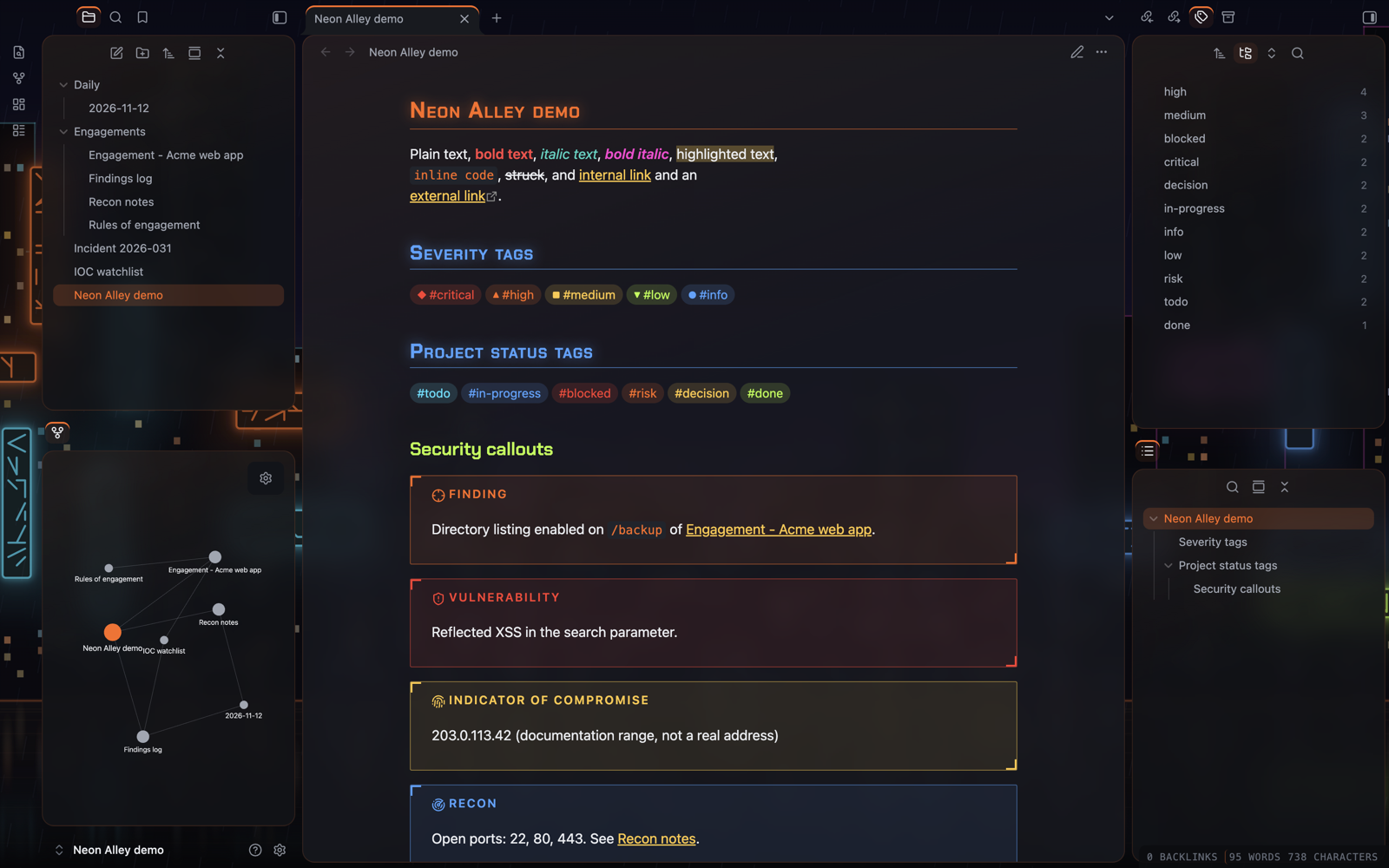
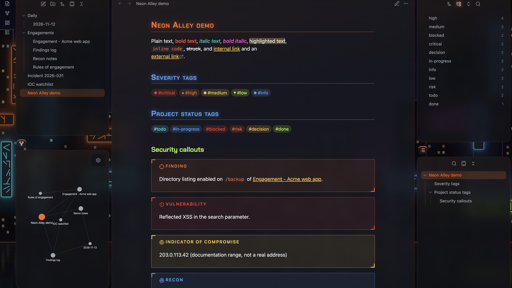
An Obsidian theme that looks like a city street at night: dark asphalt, traffic-cone orange and a row of neon signs. It has HUD-style callouts for security work, color-coded severity tags and a retro, framed layout with buttons that press in.
How this was made
I designed and directed this theme. The CSS, the tools and this README were generated with Claude (Anthropic's AI) through many rounds of my feedback, and the theme was checked against screenshots of Obsidian at each step.
Looks
Choose these in the Style Settings or Style Manager plugin.
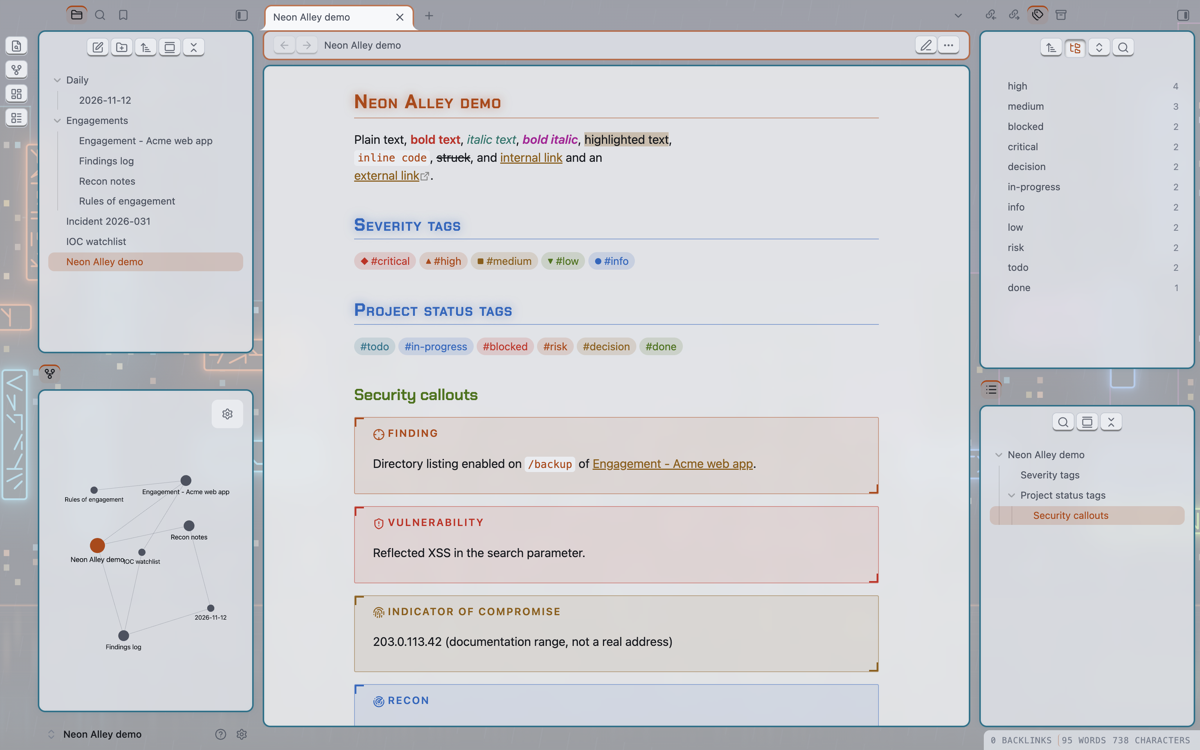
Palettes (each has a dark and a light version):
- Neon Alley: asphalt with cone orange, signage blue, acid lime, amber and cyan. Links are amber, bold text neon red, italics wet teal and bold italics neon fuchsia.
- Sodium Rain: the same street after rain, with wet teal, gold and brake-light red.
- Cold Forge: slate with aqua and forge orange.
- Polar Ember: slate with ice blue and forge orange.
Structures:
- Glass: rounded panes with a faint sheen.
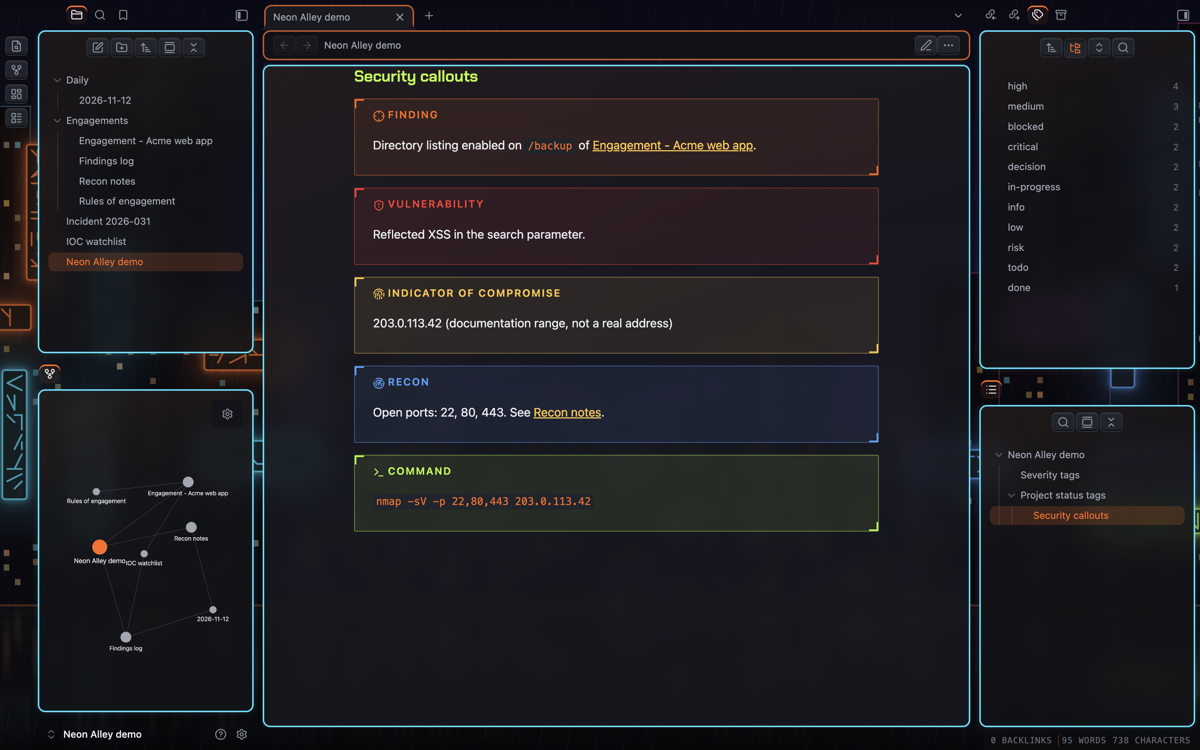
- Retro: each pane split into a framed header (orange) and a framed content area (cyan, with a faint glow), with 3D buttons that press in when clicked.
Callout styles:
- HUD: corner brackets and spaced capitals.
- Glass: a soft glow with a colored left edge.
Backdrop and wallpaper: behind the panes sits one of three built-in
wallpapers drawn for this theme: Neon skyline (a rainy city at night),
Rain alley (neon signs down a wet alley) or Sodium street (a road under
orange street lamps). You can dim it, turn it off, or use your own image
(paste url("https://…")). A web link is loaded by Obsidian when you
choose it; the theme itself loads nothing from the internet.
Turn on Obsidian's Translucent window setting (Settings → Appearance) and the panes become see-through, with the wallpaper blurred behind your notes; adjust the opacity and blur in the theme's options.
Features
Security callouts
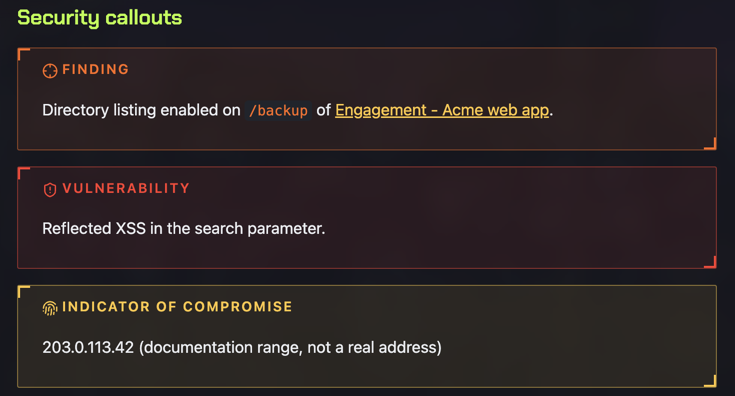
Use these like any Obsidian callout, for example > [!vuln]:
[!finding]: a finding[!vuln]: a vulnerability[!ioc]: an indicator of compromise[!recon]: reconnaissance notes[!cmd]: a command (shown in monospace)[!flag]: blurred until you hover over it, so flags and secrets stay hidden in screenshots
Project callouts
[!risk],[!decision],[!blocker],[!action]and[!done]
Severity and status tags
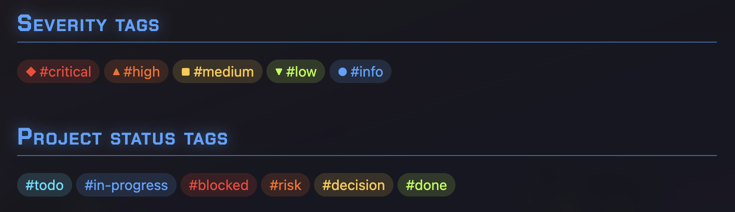
Severity tags get a color and a shape, so the level reads without relying on color alone:
#critical: red, ◆#high: orange, ▲#medium: amber, ■#low: green, ▼#info: blue, ●
Project status tags get their own colors: #todo, #in-progress,
#blocked, #risk, #decision and #done.
Mission-status tasks
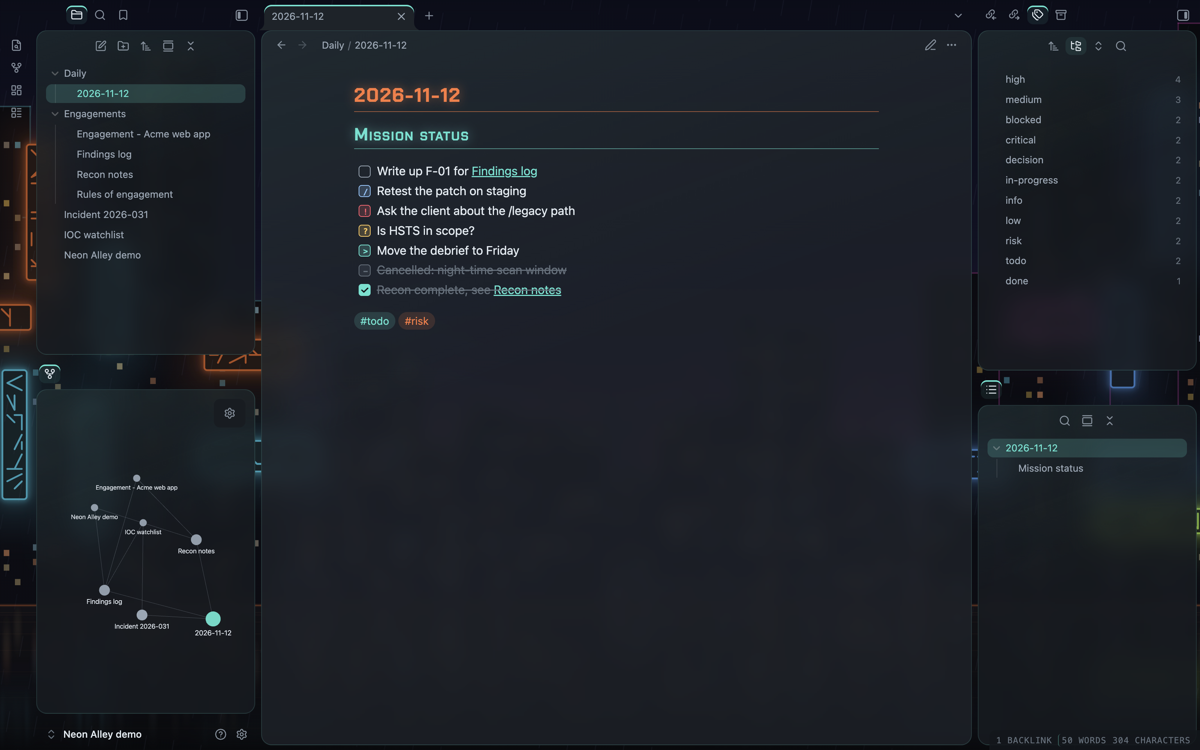
- [/]in progress- [!]urgent- [?]question- [>]deferred- [-]canceled
Other details
- Headings in Chakra Petch, with small capitals and a soft glow on the note title and the first two heading levels, and a fine underline under H1 and H2
- Code in Tokyo Night colors, the default color scheme of LazyVim (moon in dark mode, day in light mode). Obsidian's own highlighters know fewer kinds of token than Neovim, so a few kinds share a color (for example, every keyword is pink)
- A HUD-style status bar
- Graph view and Canvas colors that follow the palette
- Styling for the Calendar and Kanban plugins
- Optional prompt-style headings (
❯), CRT scanlines, flat panes, plain frames, flat buttons and a glass sheen for Retro
Accessibility
Every text color meets WCAG contrast targets in all eight palette and mode combinations: 7:1 for body text, 4.5:1 for colored text and 3:1 for faint text. Run the check yourself with:
python3 tools/contrast.py src/theme.src.css
Hover effects are turned off when your system asks for reduced motion.
Install
Neon Alley is not in Obsidian's community theme list yet. To install it by hand:
- In your vault, open the
.obsidian/themesfolder and create a folder calledNeon Alley. - Copy
manifest.jsonandtheme.cssinto it. - In Obsidian, open Settings → Appearance → Themes and choose Neon Alley. Restart Obsidian if it is not listed.
- For the options, install the Style Settings plugin (or Style Manager) and open its Neon Alley section.
Working with other plugins
- Colored Tags: this plugin colors every tag. Neon Alley overrides it for the severity and status tags only, so the rest of your tags keep their plugin colors.
- Code Block Customizer: set its theme to Obsidian so code blocks and inline code follow Neon Alley's colors. Its other themes use fixed colors of their own.
- Shiki Highlighter: this plugin colors code with its own theme, in both editing and Reading view, and overrides Neon Alley's code colors. Choose its Obsidian Theme to use Neon Alley's colors, or a Tokyo Night theme of your own.
Build from source
The theme is written in src/theme.src.css. The build script adds the
fonts and writes theme.css:
./build.sh
Credits
- Chakra Petch by the Chakra Petch Project Authors, embedded under the
SIL Open Font License 1.1 (see
OFL.txt). - The Retro structure was inspired by the Retroma theme by emarpiee. Neon Alley shares no code with it.
- Code colors follow Tokyo Night as set up in tokyonight.nvim by Folke Lemaitre (Apache License 2.0), the default color scheme of LazyVim.
- The wallpapers were drawn for this theme by
tools/skyline.pyandtools/scenes.py.
License
Neon Alley is released under the MIT License (see LICENSE). The
embedded Chakra Petch font keeps its own SIL Open Font License 1.1
(see OFL.txt).