
README file from
GithubTable of Contents
- Table of Contents
- Key Features
- Custom Callouts
- Building Dashboards
- Typography & Offline Use
- Installation & Configuration
- Acknowledgements & Credits
Key Features
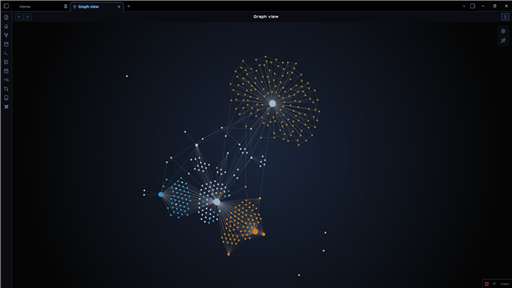
- 🖥️ Sci-Fi Cockpit: Darkened interface, futuristic fonts, and neon glow effects for optimal contrast.
- 🔠 Gradient Headers (H1-H6): Dynamic headers with unique gradients (Stellar Glow, Neon Nav, Status Energy, etc.) to elegantly hierarchy your notes.
- 🌫️ Glassmorphism: Dynamic transparency and background blur on active tabs and floating menus.
- 📁 Dynamic File Explorer: Built-in "Rainbow Folders" effect to automatically colorize and visually differentiate your folders.
- ⚙️ Highly Customizable: Full support for the Style Settings plugin.
Custom Callouts
The theme features a custom callout system tailored to structure your dashboards, based on a strict design language. Use these to visually organize your data.
| Syntax | Render | Usage |
|---|---|---|
> [!nav] |
🧭 Neon Blue | Navigation, Table of Contents, Dashboards. |
> [!status] |
📊 Tactical Gold | Tasks, Validations, Project Status. |
> [!projects] |
🚀 Tactical Bronze | Ideas, Ongoing projects, Warnings. |
🛠️ Icon Modifiers
You can swap the default callout icon on the fly by adding a keyword after a slash /.
| Keyword | Icon | Example |
|---|---|---|
idea |
💡 | > [!projects/idea] |
brain |
🧠 | > [!projects/brain] |
target |
🎯 | > [!status/target] |
write |
✍️ | > [!nav/write] |
file |
📂 | > [!nav/file] |
heart |
❤️ | > [!projects/heart] |
code |
< > |
> [!nav/code] |
lock |
🔒 | > [!status/lock] |
link |
🔗 | > [!projects/link] |
(All icons render as Lucide SVG — emoji above are visual references only. For the native Obsidian bug icon use > [!bug] directly.)
🔲 Clean Mode
If you want a minimalist block (just the frame and color) without any icon on the left. Useful if you put an emoji directly in the title.
- Syntax:
> [!type/clean](e.g.,> [!nav/clean])
💠 Native Mode
If you want to use the default Obsidian vector icons instead of the theme's custom SVG icons.
- Syntax:
> [!type/native](e.g.,> [!status/native])
(Note: Default Obsidian callouts like > [!info] or > [!warning] are also supported and natively colorized to match the Nebulux palette).
Building Dashboards
Nebulux offers two powerful ways to build beautiful button grids and dashboards using Markdown lists inside callouts.
Method 1: The Flexbox Menu (No frontmatter required)
Perfect for quick navigation bars at the top of your notes. It automatically wraps your links into sleek buttons.
Syntax: Use the nav/menu callout modifier.
> [!nav/menu] Quick Links
> - [Home](Home)
> - [Projects](Projects)
> - [Resources](Resources)
Method 2: The Classic Full-Page Dashboard Grid
Perfect for a dedicated "Homepage" or "MOC". This transforms a standard > [!nav] callout into a robust grid of square buttons.
Step 1: Add the dashboard cssclass to your note's frontmatter:
---
cssclasses: dashboard
---
Step 2: Use the standard > [!nav] callout with a list:
> [!nav] System Navigation
> - [Daily Note](Daily)
> - [Tasks](Tasks)
> - [Finances](Finances)
Typography & Offline Use
The theme uses Orbitron for headers and Montserrat for the body text to achieve its futuristic look.
- Orbitron is embedded directly in the theme (headers only).
- Montserrat is not embedded to keep the file size small. Install it on your system for the intended look, or choose any other font via the Style Settings plugin (
Settings > Community Plugins > Style Settings).
Installation & Configuration
- Search for Nebulux in the Obsidian Community Themes gallery and click "Install".
- In Obsidian, go to
Settings > Appearanceand select the theme. - Important: Install the Style Settings community plugin to unlock all theme options (Neon colors, header gradients, blur intensity, etc.).
Acknowledgements & Credits
This theme would not have been possible without the incredible work, open-source code, and inspiration from the Obsidian theme developer community. A massive thank you to the creators of the following themes, whose design philosophies and technical innovations heavily inspired Nebulux:
- Minimal by @kepano
- Obsidianite by @hdykokd
- Things by @colineckert
- AnuPpuccin by @AnubisNekhet
Thank you for paving the way and making the Obsidian customization scene so amazing!
💡 Tip: To fully enjoy the Glassmorphism effect on the top bar, it is highly recommended to enable the "Hidden window frame" option in Obsidian's Appearance settings.
Created with 🩷 by @sikoso774