
README file from
Github
Lifein — Make Obsidian Look the Way You Like
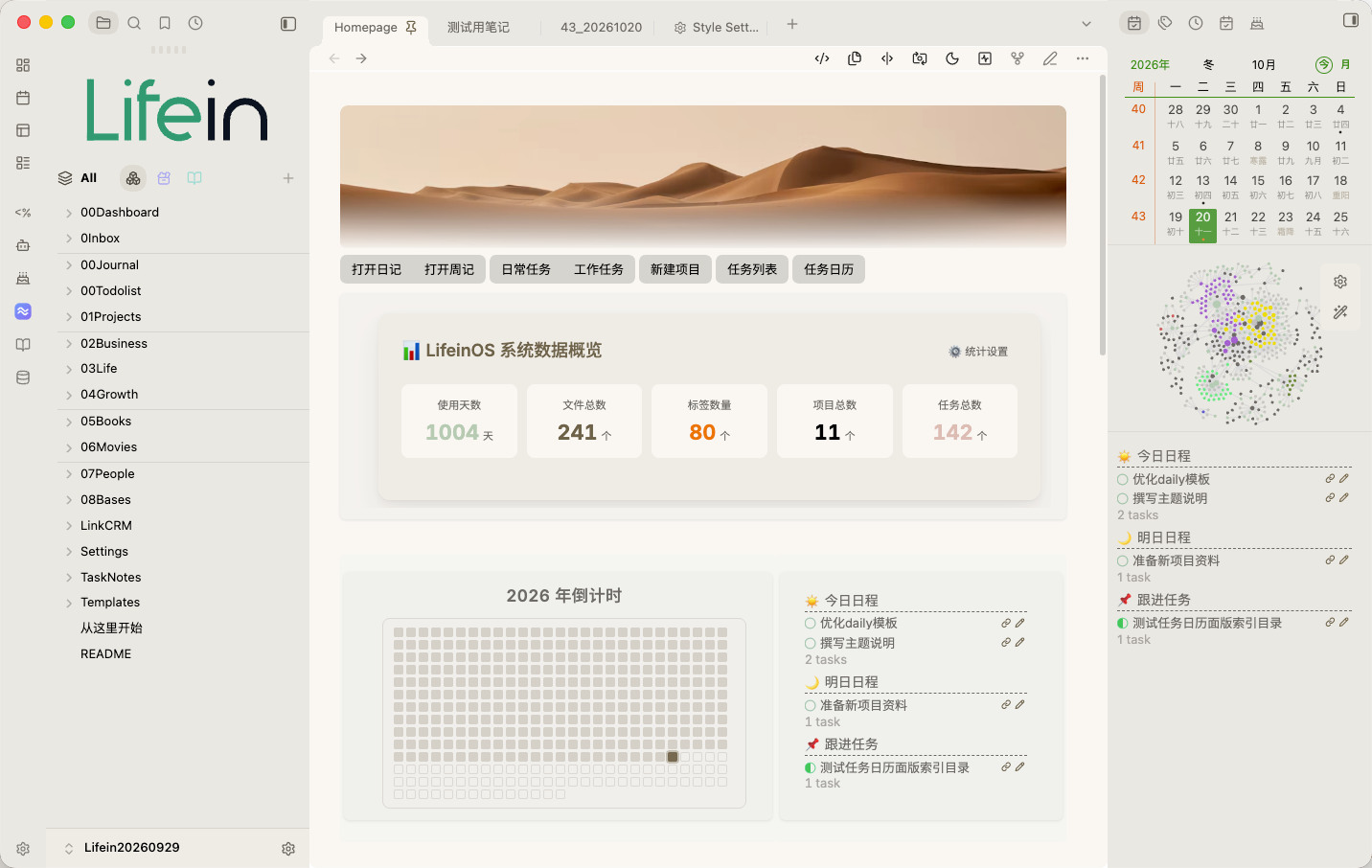
Lifein isn't just a recolor theme — it's a fully tunable interface system. Colors, layout, sidebar, typography, the properties panel, and plugin appearance all live in a single settings panel. Go minimal when you want minimal; go textured when you want texture.
Built on a Glassmorphism visual language and deeply integrated with Style Settings, Lifein is made for focused writing. Less is more: let the interface quietly step back behind your content, and let your notes take center stage.
1 ✨ Key Features
1.1 🪟 Unified Glassmorphism Visuals
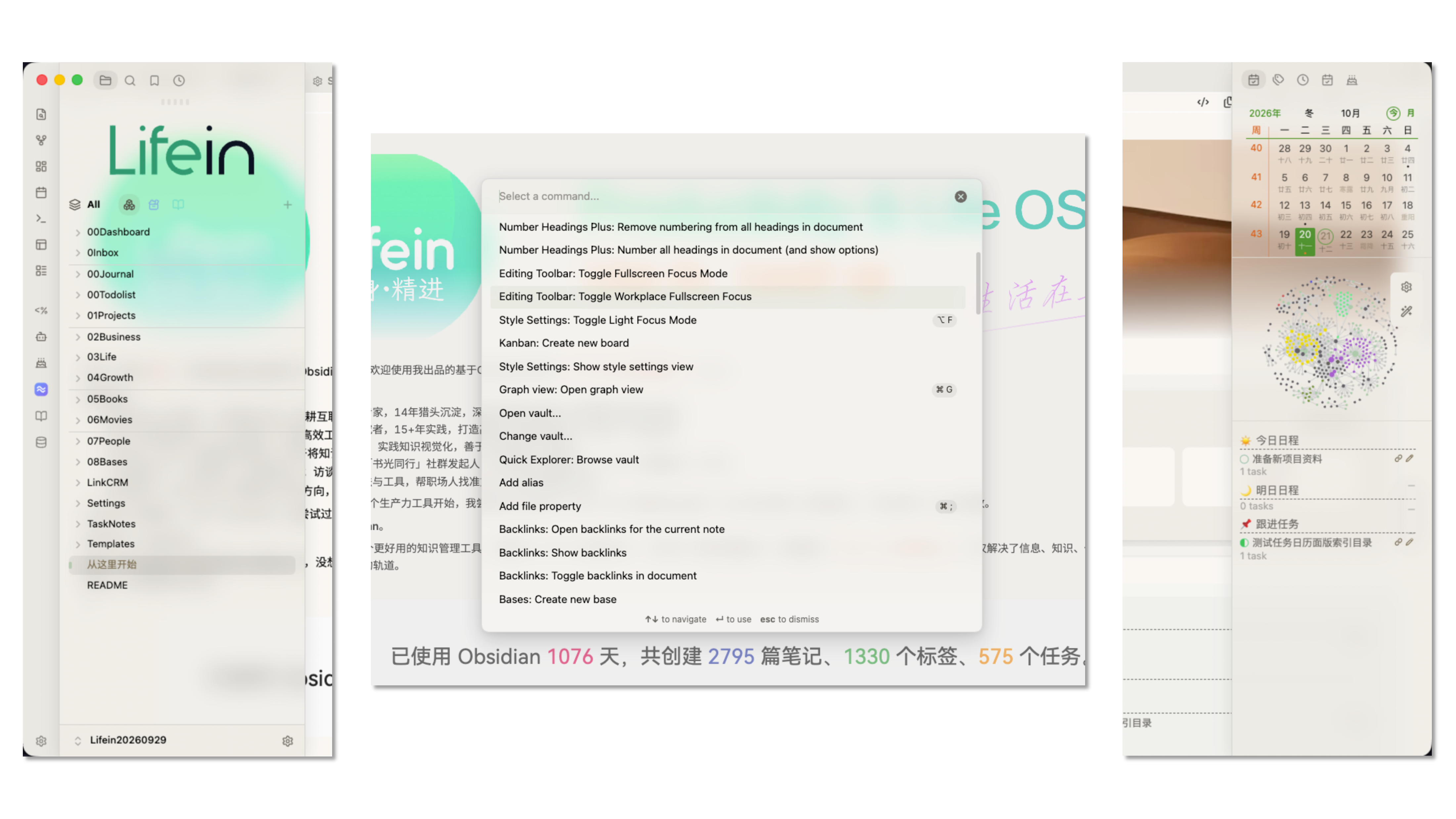
Menus, the command palette, popovers, tooltips, and the Style Settings panel all share one consistent "frosted glass" treatment: semi-transparent backgrounds + background blur + a subtle saturation boost + a 1px hairline border + rounded corners. We use only a single layer of glass to avoid the cheap "window-in-window" feel; blur intensity and opacity can be fine-tuned via Style Settings.
1.2 🎛 Deeply Integrated Style Settings
The theme ships two major settings blocks and a dozen-plus groups — nearly every detail is adjustable — and the settings panel itself has been reworked (horizontal layout + Lucide icons + the theme's green buttons) to look as good as it works:
- Colors & Theme: theme palette, background glass density / blur / saturation, and more.
- Layout & Navigation: title & status bar, Banner, sidebar, sidebar on hover.
- Editing & Typography: text, inline elements (quote bar · tags · links), lists, tables.
- Popovers & Interaction: command palette, menus, page preview.
- Core Views & Components: properties panel, Bases.
- Community Plugin Styles: Dataview, Calendar, Dust Calendar, Tasks, Kanban, and more.
Installing the community plugin Style Settings is recommended to unlock all adjustments; the theme works fine with its default look even without it.
1.3 🎨 Ten Color Schemes (One-Click Reskin)
A built-in "derivation engine" generates the entire interface — backgrounds, text, sidebar, color blocks, code highlighting, and semantic colors — from a single seed color plus a set of saturation ceilings. Switching a scheme = switching the seed hue; the whole theme recolors itself, with no need to hand-tune dozens of variables.
- 10 presets: Follow Accent Color (= default behavior) / Plain White / Warm Sand / Forest / Teal / Indigo / Jade Black / Rose / Graphite / Pure Black AMOLED.
- Independent light & dark: light and dark schemes are chosen separately (the community-standard approach) — the same color reads very differently on light vs. dark backgrounds, so separating them lets you tune accurately; "Pure Black · AMOLED" drives the background to true black in dark mode, saving power with a purer look.
- Accent color included: aside from "Follow Accent Color", every other scheme takes over the global accent — buttons, links, and selection states all follow the scheme; if you've explicitly chosen a color under Settings → Appearance → Accent Color, that choice wins and the scheme steps aside.
1.4 🧘 Two Focus Modes (Independent)
- Full Focus Mode: triggered when you enable Obsidian's native "Focus Mode". Automatically hides the main tab bar / per-page title bar / status bar (revealed on hover), centers the editor (720px + top padding), and dims inactive panes to minimize distraction.
- Light Focus Mode: a standalone lightweight focus mode. Hides tabs / title bar / status bar / properties heading / title-bar buttons / scrollbar, with smooth fade in/out transitions, and can be bound to a hotkey for one-key toggle in Style Settings.
1.5 📱 Cupertino-style Floating Sidebar
A macOS-inspired semi-transparent floating sidebar with customizable background color and toggle, matching the theme's overall glass aesthetic.
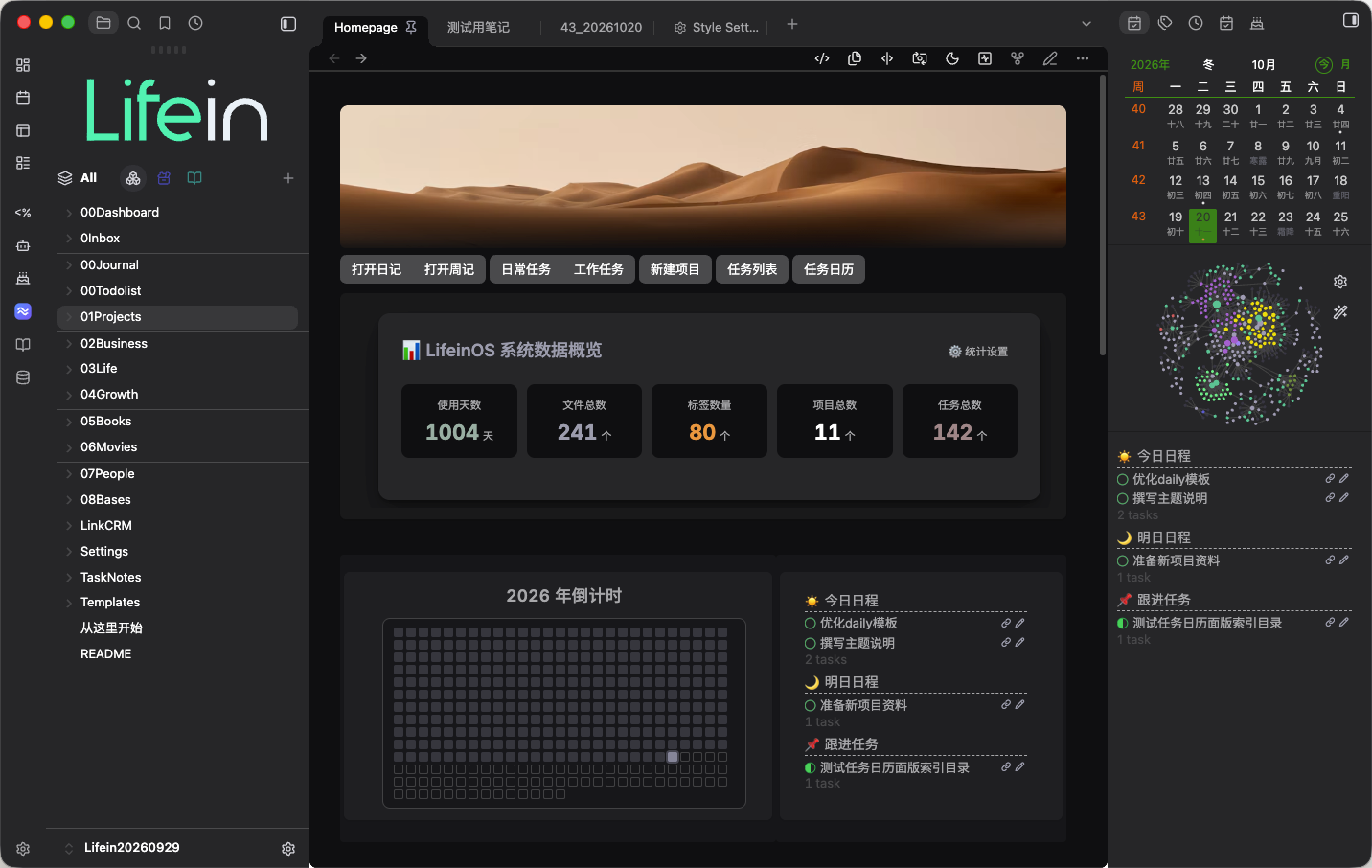
1.6 🌗 Automatic Light/Dark Inversion
Full light / dark support. Dark mode is achieved by inverting a whole group of variables, so there's no need to maintain two separate color sets.
1.7 🧩 Community Plugin Support
Common community plugins are styled and tucked in neatly: Dataview, Calendar, Dust Calendar, Tasks, Kanban — works out of the box and stays unobtrusive.
1.8 🗂 Bases View Support
The Core Views & Components group includes dedicated styling for Obsidian Bases.
2 📸 Screenshots
3 📦 Installation
3.1 Option 1: Obsidian Community Theme
- Open Obsidian → Settings → Appearance.
- Click "Manage" → find Lifein in the theme list → enable it.
3.2 Option 2: Manual Installation
- Download
theme.cssfrom this repository. - In your vault, create the directory
.obsidian/themes/Lifein/. - Place
theme.cssinside it (final path:your-vault/.obsidian/themes/Lifein/theme.css). - Restart Obsidian → Settings → Appearance → Theme → select Lifein.
3.3 Customization (Optional)
- Install the Style Settings community plugin.
- Go to Settings → Community Plugins → Style Settings (or the command palette "Style Settings") to see all of Lifein's adjustable options.
3.4 Reading the Source (Optional)
theme.css in this repository is intentionally minified — it ships as a single line of CSS (plus the verbatim Style Settings @settings blocks) to stay well under the theme size limit. This costs you nothing in adjustability: every option still lives in the Style Settings panel.
If you'd rather read the code, the fully commented original ships right next to it as theme.source.css — 16,000+ lines, with a section banner and an explanation above nearly every block. Install with theme.css; read and fork from theme.source.css.
4 🔧 Compatibility & Notes
- Obsidian v1.7 or above is recommended (required for Bases and the newer Style Settings).
- The theme works on its own without any plugins; Style Settings only unlocks visual adjustments.
5 📄 License
This theme is released under the MIT License. The full terms are in the LICENSE file at the repository root.
Copyright © 2026 Chris
6 🙏 Acknowledgments
- Underwater theme: the idea and implementation of Light Focus Mode were referenced from it.
- Baseline theme: reference for refined layout and the floating sidebar.
- Border theme: reference for heading styles.
- Minimal theme: reference for the multi-block Style Settings structure, Dataview styles, and progress bars.
- The official Obsidian default theme and community provided the foundation and inspiration.