
README file from
GithubWatchLog
Track anime, movies, TV shows, books, manga and games in one place — inside your vault.
WatchLog adds a sidebar panel with eight tabs:
- Dashboard — progress rings, time watched/remaining, library stats across all four libraries.
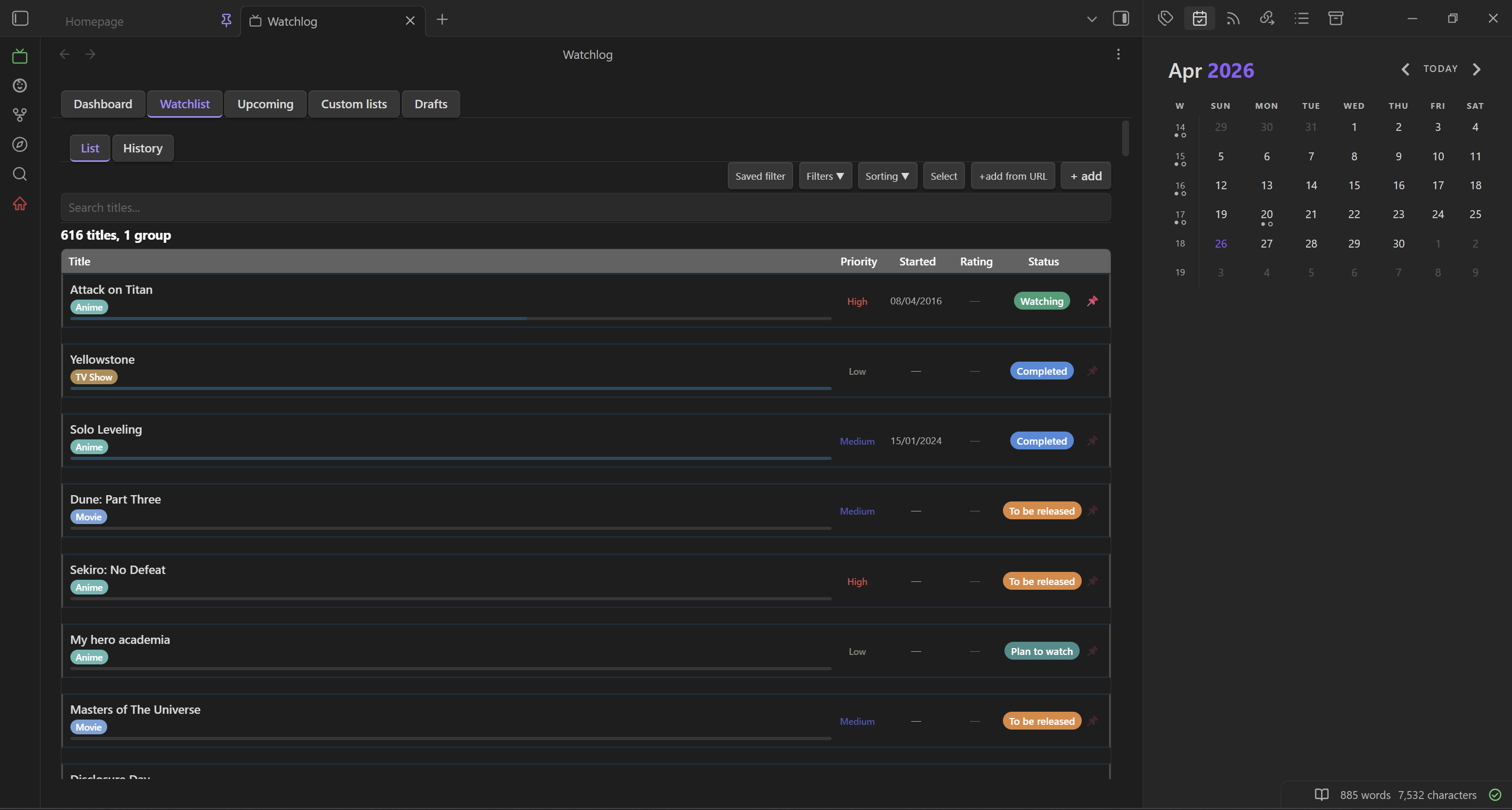
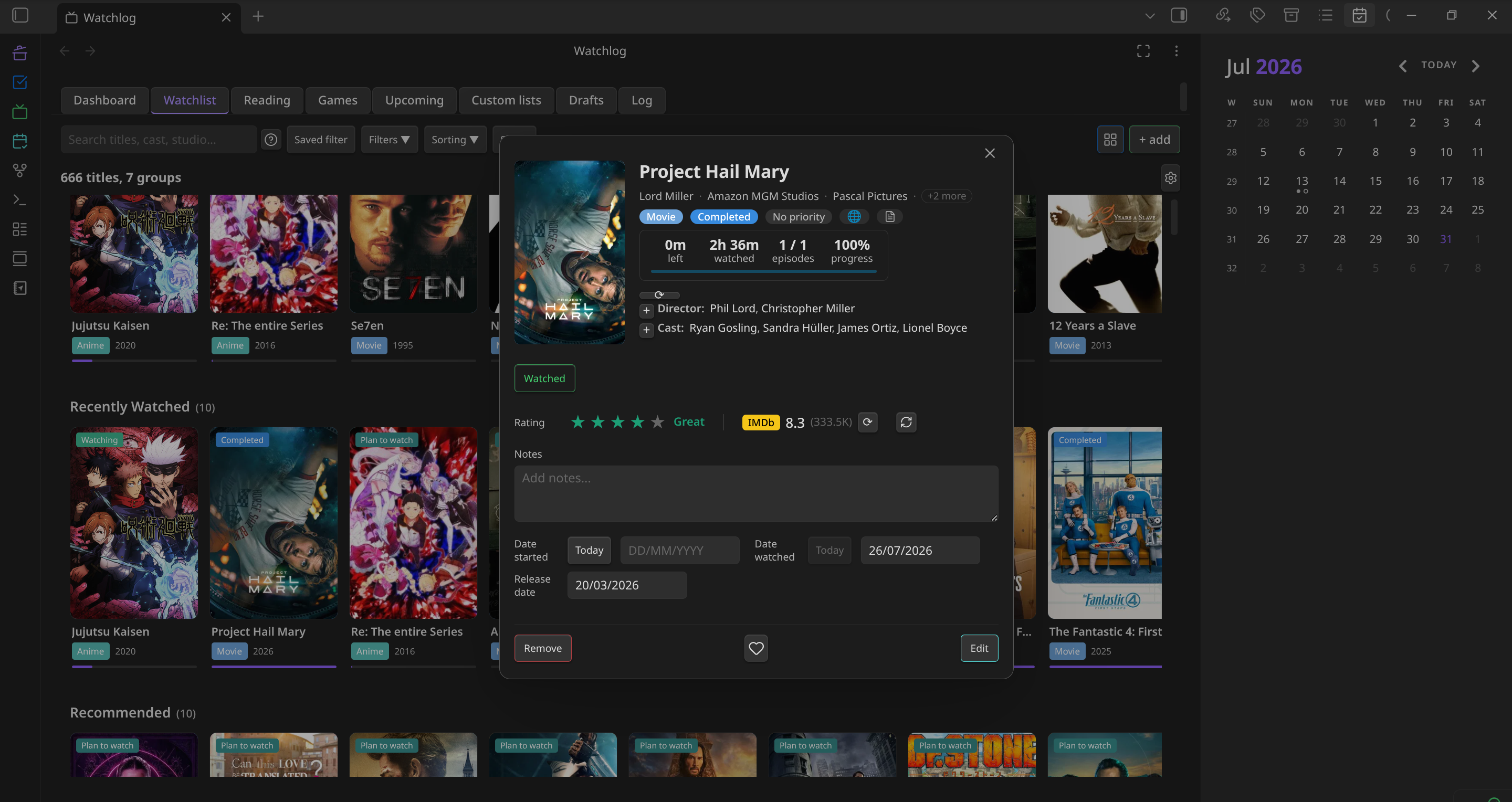
- Watchlist — titles and groups with per-episode tracking, seasons, skipped episodes, community ratings (IMDb / MAL / AniList / TMDB), studios, cast and directors.
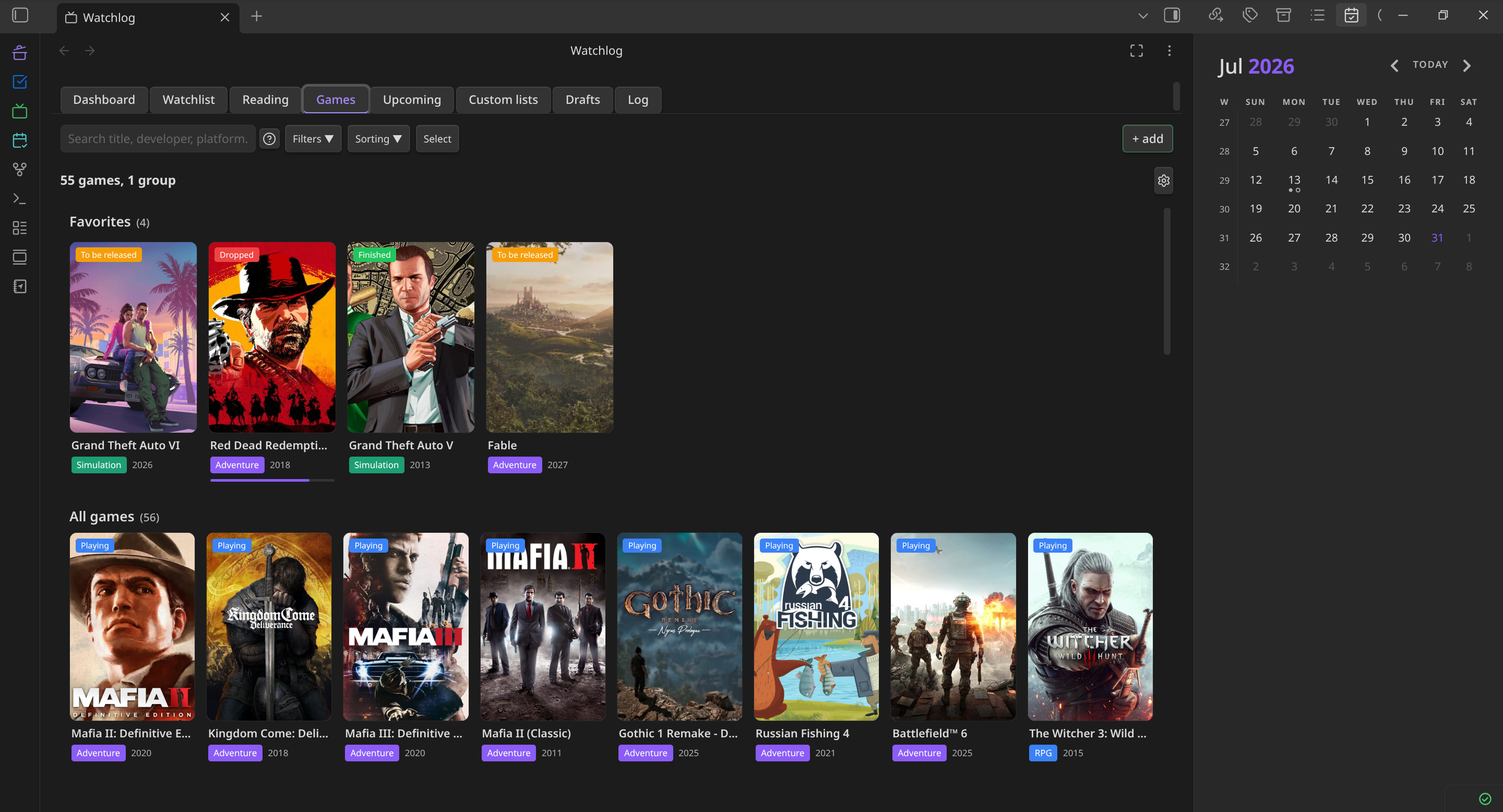
- Games — status, completion %, playtime, platforms, wishlist, groups, optional Steam library sync.
- Reading — books (pages or words) and manga (chapters, volumes), quotes pulled from your notes, custom columns.
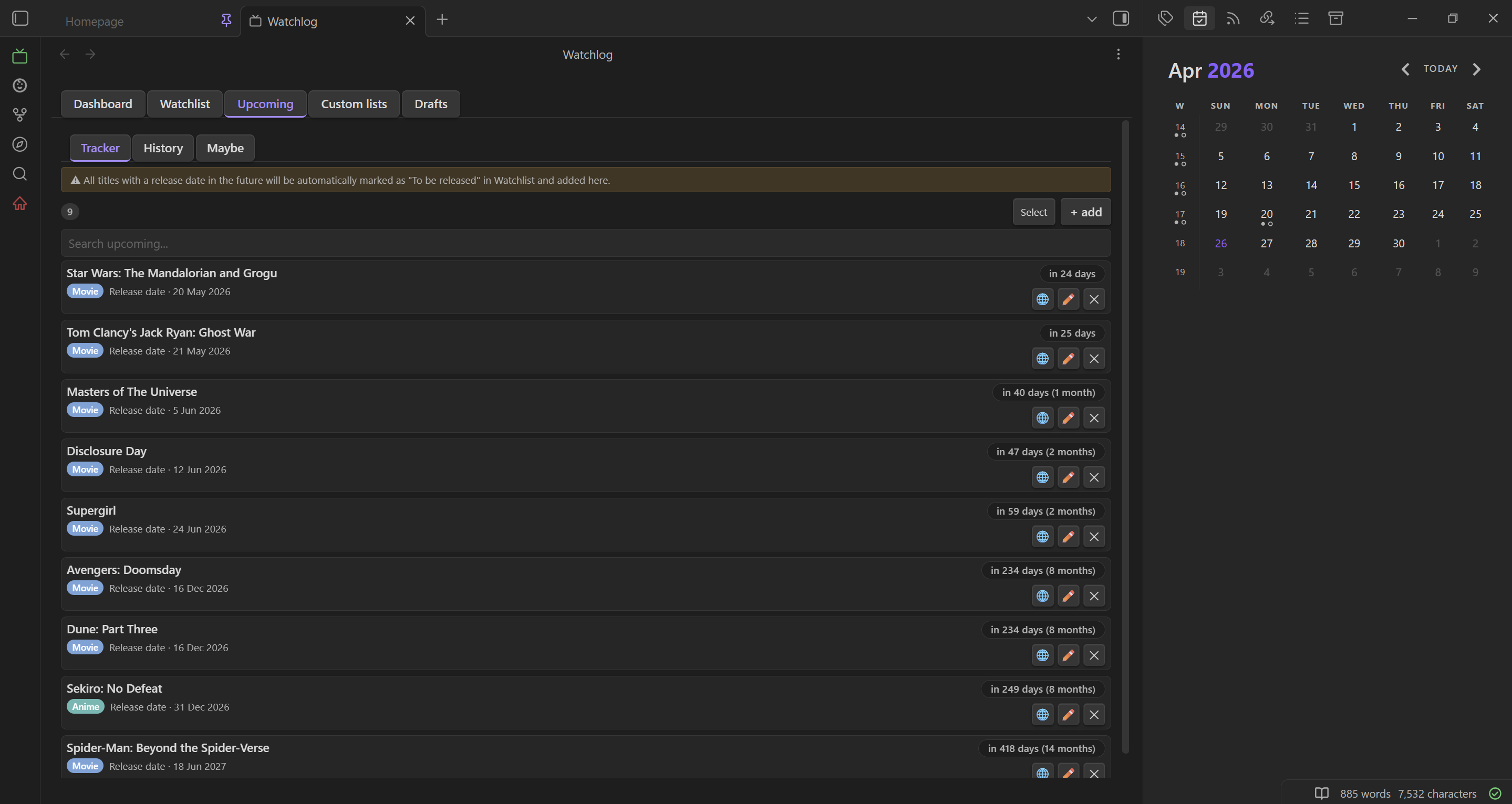
- Upcoming — release schedules with recurrence, countdowns and desktop notifications.
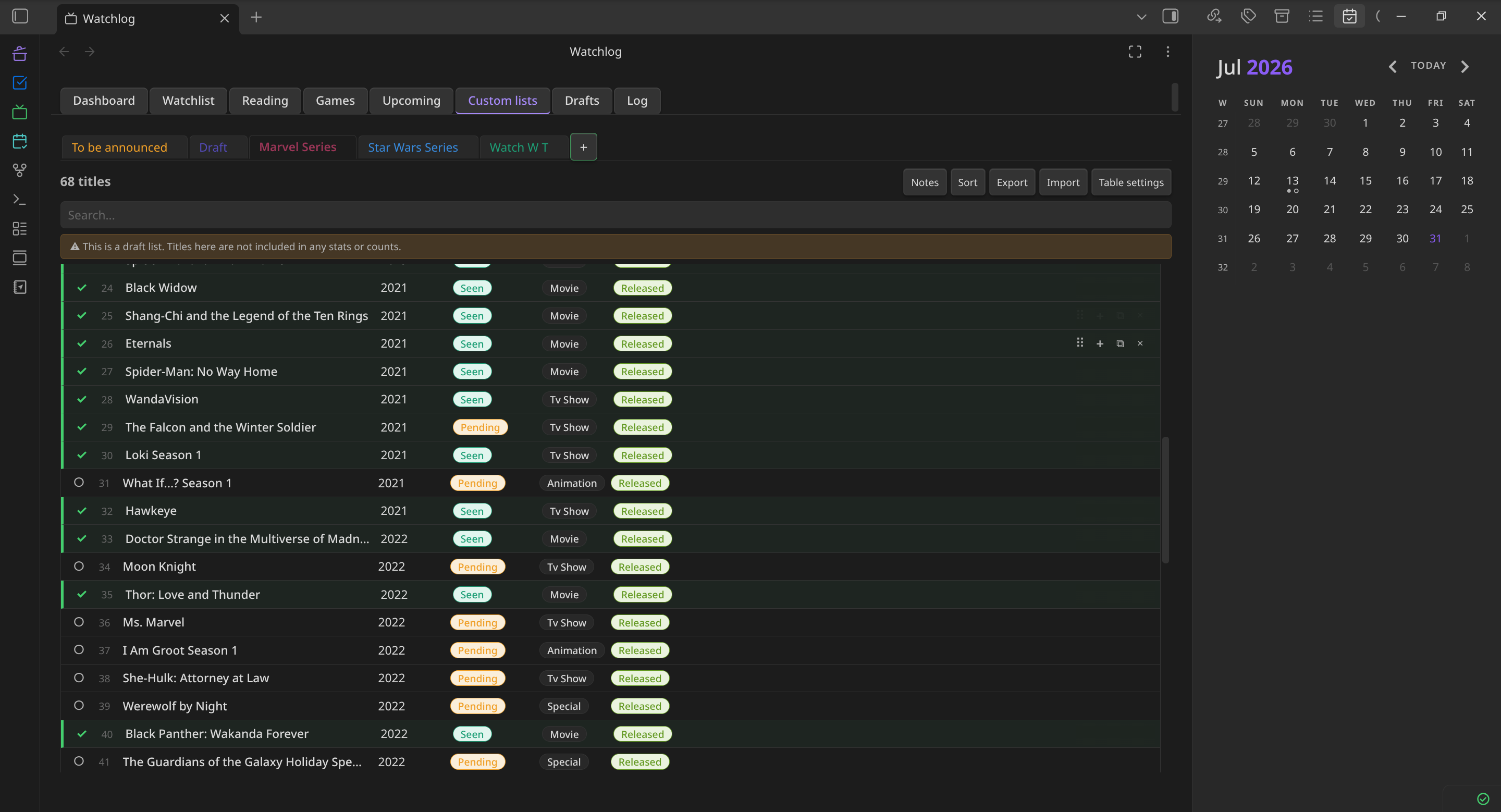
- Custom Lists — freeform Markdown-backed tables that can auto-pull remaining watch time.
- Drafts — scans your vault for a tag (default
#watchlog) and turns those lines into entries. - Log — a unified activity timeline of everything you add, finish, rate or delete.
Everything is stored in your vault: each entry gets a Markdown note with YAML frontmatter, and inline
code-block widgets (wl-todo, wl-stat, wl-upcoming, wl-nowwatching, wl-now-next) render live
progress anywhere in your notes. Desktop and mobile.
Set up the APIs
This is the only real setup step. Everything works manually without a key, but APIs are what fill in posters, covers, episode counts, release dates and ratings for you.
Go to Settings → WatchLog → API. Each library is a card:
- Movies & TV shows — pick OMDb or TMDB, paste the key.
- Anime — pick Jikan or AniList. No key needed either way.
- Books & manga — paste a Google Books key for books; manga always uses Jikan (no key).
- Games — pick RAWG or IGDB. Steam is optional and runs alongside, for library sync.
Each card has a Get a key ↗ link, a (?) for the full instructions and a Test button — use Test after pasting so you know the key works before you start adding things.
If you added your own Watchlist types, scroll to API routing by type in Watchlist at the bottom of the same page and pick which service answers for each (Anime, Movie and TV Show are locked to theirs).
Add your first entry
Use + add in any tab, or the command palette. Type a name, pick a result from the search list, and
the fields fill themselves — or skip the search and type everything by hand. #watchlog Some Movie in
any note also queues it up in the Drafts tab.
Worth knowing
- Settings → Customize — themes, card sizes and text placement, and your own types, statuses, priorities, genres and platforms with colors.
- Settings → General — date format, half-star ratings, JSON backup & restore.
- The ⋮ menu on any card has Edit, Refresh cover, Open note and Delete.
Screenshots
Watchlist — shelves of poster cards with status badges, type colors and progress bars.
Games — the same layout for your library, with genres, statuses and wishlist.
Upcoming — releases grouped by month with countdowns and airing info.
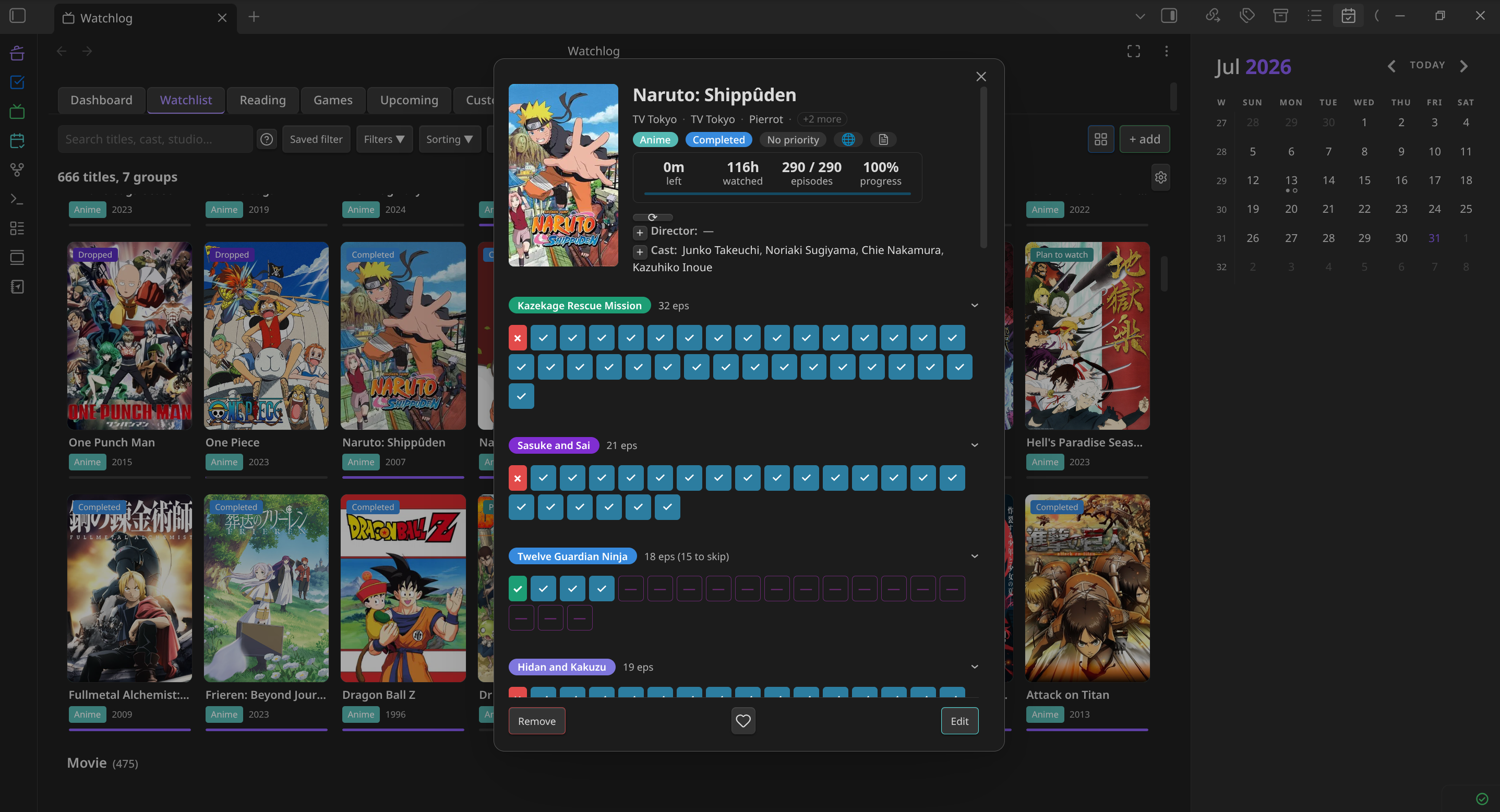
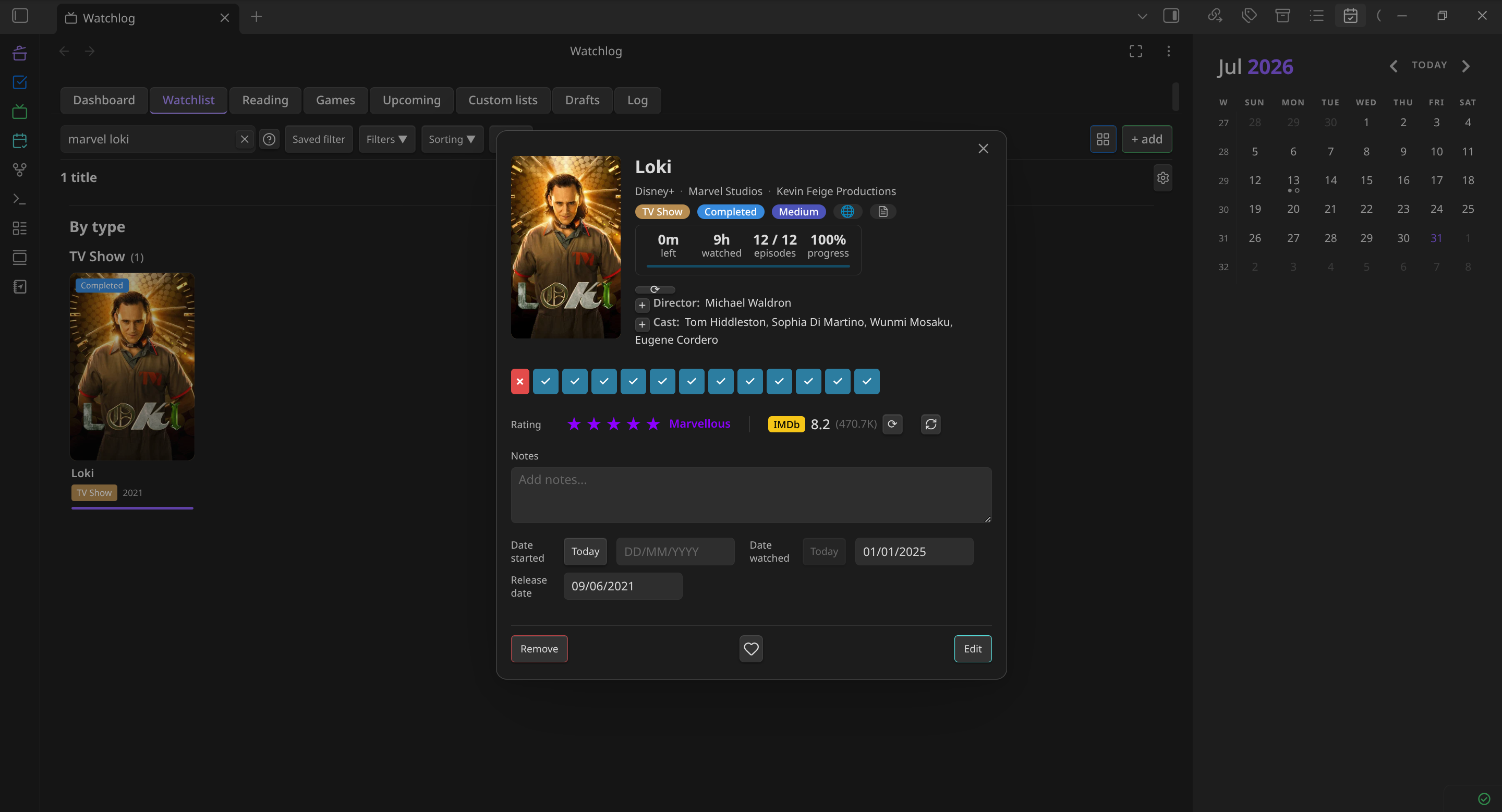
Title details — studios, cast, time watched, IMDb score and notes in one modal.
Episode tracking — tick episodes one by one; seasons collapse and skipped episodes (dashes) stay out of your progress.
Custom lists — freeform tables stored as Markdown notes in your vault.
APIs
| Service | Used for | Key |
|---|---|---|
| Jikan (MyAnimeList) | Anime + manga search, airing schedules, scores | Not needed |
| AniList | Anime alternative to Jikan | Not needed |
| OMDb | Movies & TV, season episode counts, IMDb ratings | Free key |
| TMDB | Movies & TV, posters, cast, studios, collections | Free read token |
| Google Books | Book search, authors, page counts, covers | Free key |
| RAWG | Game search, covers, platforms, store links | Free key |
| IGDB | Game alternative to RAWG | Twitch client ID + secret |
| Steam | Import your owned games and playtime | Web API key + Steam ID |
All of them are optional and all of them are free. TMDB unlocks the most (posters, cast, studios, film collections). Steam needs your profile's Game details privacy set to Public.
Support me
If WatchLog is useful to you, you can support development here:
There is also a Buy me a coffee button in Settings → WatchLog → General.
License
MIT © Shynkro (BogdanS)