
README file from
GithubVoxNote — Meeting Transcription & AI Summary
An Obsidian plugin that turns meeting recordings into Markdown notes — speech-to-text via Deepgram with per-speaker timestamps, plus an optional AI summary step via Google Gemini that drops a structured digest next to the transcript.
🇰🇷 한국어 가이드: README-ko.md
Migrating from "Deepgram Meeting STT"? The plugin was relisted as VoxNote in v2.0.0 (id
voxnote). The old listing has been withdrawn from the Obsidian community directory, so the old plugin will not auto-update to 2.0.0. To switch: uninstall the old plugin → search "VoxNote" in Community plugins → install → re-enter your Deepgram + Gemini API keys. YourVoxNote/vault folder (recordings, transcripts, templates, summaries) is untouched.
What you get
- Audio → transcript: drop an audio file, right-click, pick a title — get back a Markdown note with per-speaker
[HH:MM:SS]timestamps. - Audio → transcript → AI summary (optional): in the same right-click, also produce a structured summary note (action items, decisions, key quotes — whatever the template says) backlinked to the transcript.
- File-based summary templates under
VoxNote/Templates/. Each.mddeclares its own prompt and output skeleton with{{placeholders}}; you edit them like any other note. Favorites surface as flat menu items; the rest sit in anAI 요약 ▸submenu. Three starters are seeded on first run (Meeting,Interview,Lecture). - Workspace stays clean:
VoxNote/(Audio · STT · Templates · AI-Summaries) is auto-created at the vault root, and.gitignorerules are added so recordings and your API keys never enter vault git sync. - Bilingual UI — Korean / English / auto-follow Obsidian locale.
- Zero Retention by default for Deepgram; AI summary is fully optional and gated on having a Gemini key set.
- Mobile compatible — works on Obsidian for iOS / Android.
The plugin keeps working as a pure STT tool. If you don't set a Gemini key, no AI menus appear and nothing leaves your machine except the audio you choose to transcribe.
Install
- Settings → Community plugins → Browse
- Search for "VoxNote"
- Install + Enable
Setup
On first enable, a one-time consent modal explains what's sent to Deepgram and auto-creates an VoxNote/ workspace at the vault root — including Templates/ (seeded with three starter summary templates) and AI-Summaries/. It also writes .gitignore rules so recordings and your API keys stay out of vault git sync.
1. Deepgram API key (required for STT)
-
Sign up at Deepgram Console — free tier includes a $200 credit (~770 hours of
nova-3).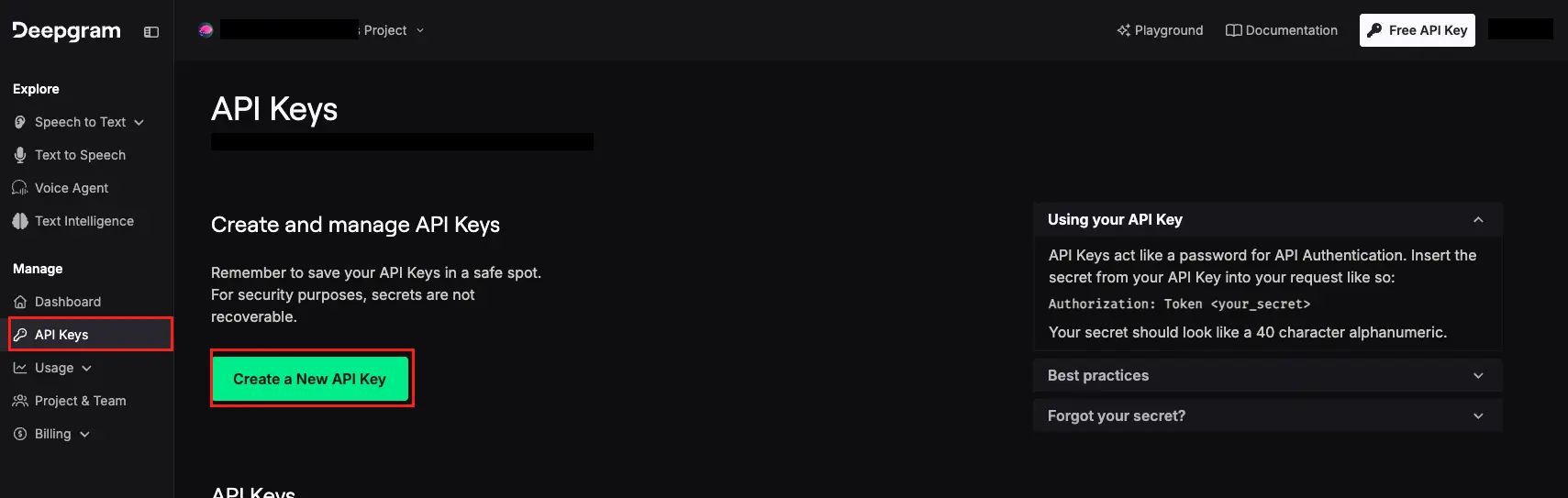
-
API Keys → Create New API Key (any name,
Memberpermission is enough).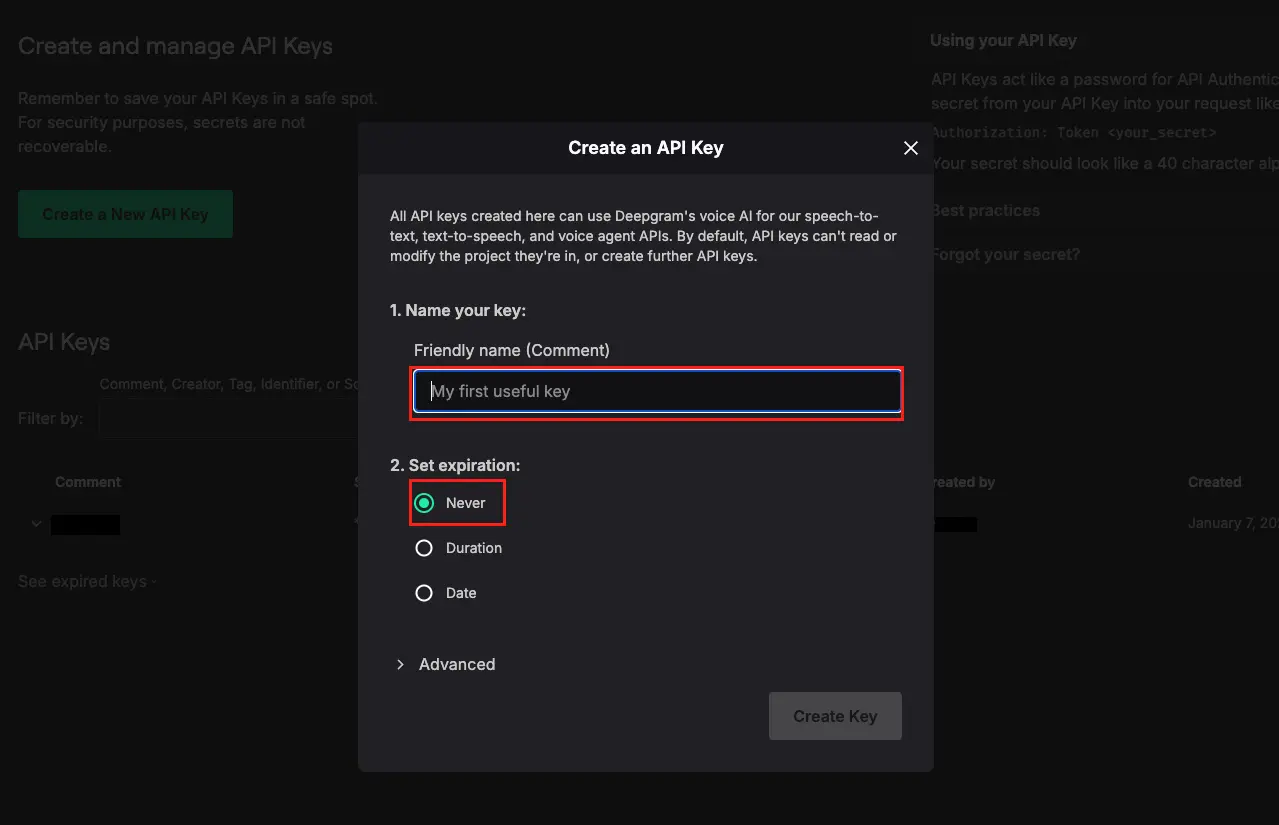
-
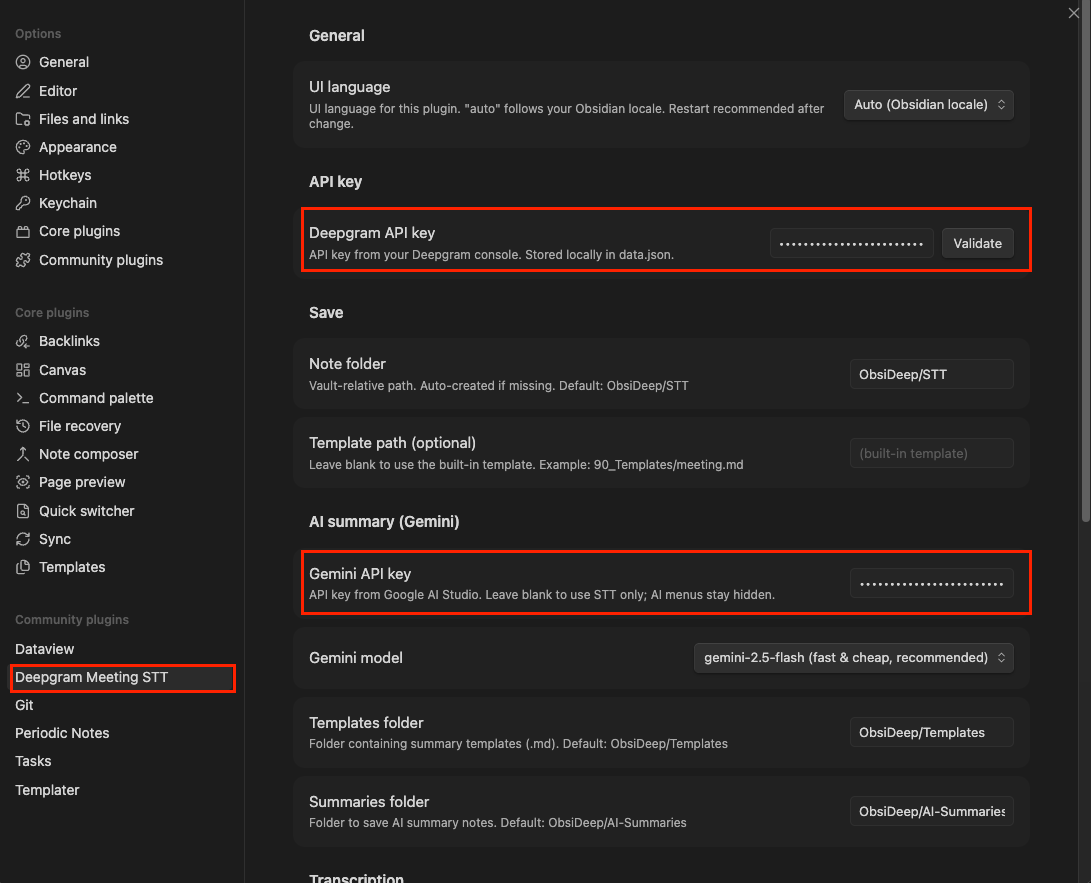
Paste into Settings → VoxNote → "Deepgram API key" → click Validate.
2. Gemini API key (optional — only for AI summary)
Leave this blank if you only want STT. To enable AI summary:
- Open Google AI Studio → API keys and create one.
- Paste into Settings → VoxNote → "Gemini API key".
- Pick a model —
gemini-2.5-flash(default, fast & cheap) orgemini-2.5-pro(higher quality).
The AI menus stay hidden until a key is set.
Usage
Transcribe only
- Place an audio file (
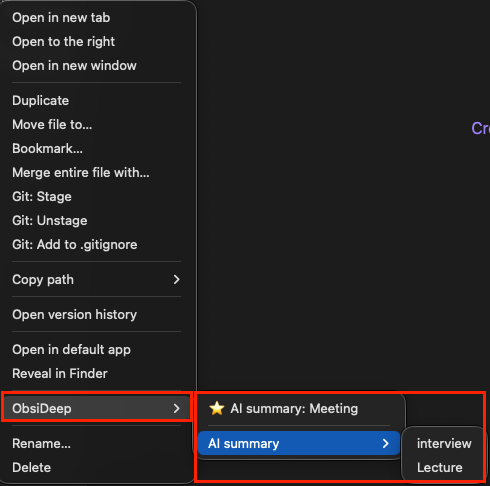
mp3,m4a,mp4,wav,flac,ogg,opus,webm,aac) intoVoxNote/Audio/. - Right-click the file →
VoxNote ▸ Transcribe only. - Enter a title → Enter.
- After ~1–2 minutes the transcribed note appears in
VoxNote/STT/and opens automatically.
The same flow is available from the command palette (Cmd+P / Ctrl+P) → "Transcribe audio → meeting note".
If you copied the file via Finder/Explorer and it doesn't appear in the sidebar right away, run
Cmd+P→ "Reload app without saving" first.
Transcribe + summarize in one go (AI summary set up)
- Right-click an audio file →
VoxNote ▸ ⭐ Transcribe + AI summary: Meeting(favorite templates surface flat; others live underAI summary ▸). - Enter a title.
- After STT finishes, the transcript is fed to Gemini with the template's prompt.
- Two notes appear: the transcript in
VoxNote/STT/, the summary inVoxNote/AI-Summaries/{title} (요약).mdwith asource: "[[...]]"backlink to the transcript.
If STT fails, nothing else runs. If only the summary step fails, the transcript is preserved and you get a notice.
Re-summarize an existing note
Right-click any markdown note → VoxNote ▸ AI summary: <template> — same flow, but the note's body is the input transcript. Useful for trying a different template, or summarizing notes that weren't produced by this plugin.
Output examples
Transcript (VoxNote/STT/...):
---
date: 2026-05-13
type: meeting
tags: [meeting, stt]
duration: 28m 41s
language: ko
source: [[VoxNote/Audio/standup.m4a]]
speakers: ["Speaker 1", "Speaker 2"]
---

# Stand-up 2026-05-13

**Speaker 1** [00:00:01 - 00:00:08]
Good morning, let's start with the status updates.

**Speaker 2** [00:00:09 - 00:00:14]
Sure, I'll go first.
Summary (VoxNote/AI-Summaries/..., using the Meeting template):
---
source: "[[VoxNote/STT/Stand-up 2026-05-13]]"
template: "Meeting"
date: 2026-05-13
language: Korean
type: ai-summary
---
# Stand-up 2026-05-13

> Source: [[VoxNote/STT/Stand-up 2026-05-13]] · 2026-05-13 · 28:41

## Summary
- Status updates from each team
- ...

## Decisions
- ...

## Action Items
- [ ] @Speaker1 — follow up with ...
Customize a template
Edit any .md in VoxNote/Templates/:
---
name: "Meeting"
favorite: true        # show flat in the right-click menu
prompt: |
  Summarize the transcript as meeting minutes.
  - decisions: clear, one bullet per decision.
  - action_items: use checkbox markdown; include owner name when present.
placeholders:
  summary: "3-5 bullet overview of the discussion"
  decisions: "Bullet list of decisions made"
  action_items: "Checkbox list of action items (with owner if mentioned)"
---
# {{title}}

> Source: {{source}} · {{date}} · {{duration}}

## Summary
{{summary}}

## Decisions
{{decisions}}

## Action Items
{{action_items}}
The placeholders you declare here become the JSON schema Gemini is forced to fill — no free-form text drift. Add as many as you want.
To scaffold a new template with every system placeholder documented, run the command palette → "새 요약 템플릿 만들기 (Create new summary template)".
Rename speakers
Speakers are labelled Speaker 1, Speaker 2 by default. To replace with real names:
-
Open the meeting note.
-
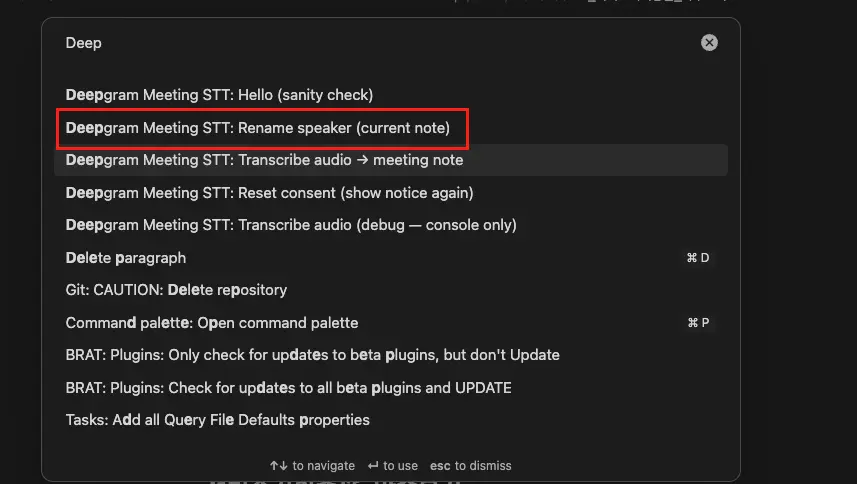
Command palette → "Rename speaker (current note)".
-
Pick the speaker from the dropdown (auto-detected from the note's frontmatter).
-
Type the real name → click Replace.
Every occurrence in both the body and the speakers frontmatter array is rewritten.
Settings
| Setting | Description | Default |
|---|---|---|
| UI language | Plugin UI (Korean / English / auto-follow Obsidian) | auto |
| Deepgram API key | Required for STT. Stored locally in data.json |
(none) |
| Note folder | Vault-relative STT output path | VoxNote/STT |
| Template path | Optional custom STT note template | (built-in template) |
| Audio language | Primary recording language | ko |
| Deepgram model | nova-3 (latest) / nova-2 (stable) |
nova-3 |
| Speaker diarization | Produce per-speaker transcripts | true |
| Zero Retention | Ask Deepgram to discard data after processing | true |
| Gemini API key | Optional. Enables the AI summary menus | (none) |
| Gemini model | gemini-2.5-flash (fast/cheap) / gemini-2.5-pro (higher quality) |
gemini-2.5-flash |
| Templates folder | Where summary templates live | VoxNote/Templates |
| Summaries folder | Where AI summary notes are written | VoxNote/AI-Summaries |
See FEATURES.md for the full placeholder reference, AI summary deep-dive, accuracy guide (audio quality, speaker count, recording-room checklist), and mobile usage notes.
Security & Privacy
- Audio is sent to Deepgram over HTTPS for processing. Transcript text is sent to Gemini only if you trigger an AI summary.
- Your API keys are stored locally as plain JSON in
.obsidian/plugins/voxnote/data.json(Obsidian plugin standard). The plugin auto-adds this path to your vault's.gitignore. - The
VoxNote/folder is also auto-added to.gitignoreso recordings, transcripts, and summaries never enter vault git sync. - Deepgram complies with GDPR / SOC 2 Type II / HIPAA (with BAA) / CCPA. See Deepgram Trust Center and Privacy Policy.
- Zero Retention is on by default for Deepgram. Guaranteed immediate effect on Growth or higher Deepgram plans; free / Pay-as-you-go tier may still retain data per standard policy (~30 days).
- Gemini API usage is governed by Google's Gemini API Terms and Privacy Policy. Free-tier requests may be used to improve Google's models — use the paid tier if that's a concern.
- Please obtain consent from meeting participants before recording and transmitting audio to a third-party API.
Cost
Approximate cost with nova-3:
| Length | Deepgram | Gemini (2.5-flash, summary) | Total |
|---|---|---|---|
| 30 min | $0.13 | ~$0.005 | ~$0.14 |
| 1 hour | $0.26 | ~$0.01 | ~$0.27 |
| 2 hours | $0.52 | ~$0.02 | ~$0.54 |
The free $200 Deepgram credit + Gemini's free tier cover many hours of typical use. See Deepgram Pricing and Gemini API Pricing for current rates.
License
MIT © 2026 Moonjuun