
README file from
GithubObsidian Vim IM Select Plugin
This plugin is used to automatically switch the current input method of the system when vim key binding is used in Obsidian, to prevent non-English input method from causing key binding failure in vim normal mode.
本插件用于在Obsidian.md中使用Vim时,自动切换当前输入法,以防止非英文输入法 导致在Vim normal模式下按键失效。
Install
First, need to turn on vim key binding in Obsidian.
In setting of Obsidian, turn off safe mode then install this plugin.
Alternatively, manually install: copy main.js and manifast.json to VAULT_ROOT/.obsidian/plugins/vim-im-select/.
Usage
After enabling this plugin, you can find a setting tab in Setting.
The setting options are devided into two parts, the first is for default platform, the second is for Windows platform.
If you use Obsidian under the Windows platform, the plug-in will use the second part of the settings, otherwise the first part of the settings.
The options are similar in different platform.
| Option | Defination |
|---|---|
Default IM |
specify the input method used in normal mode |
Obtaining Command |
Command to obtain current input method (must be excutable) |
Switching Command |
Command to switch current input method (must be excutable, use {im} as placeholder of target input method) |
Following is a example:
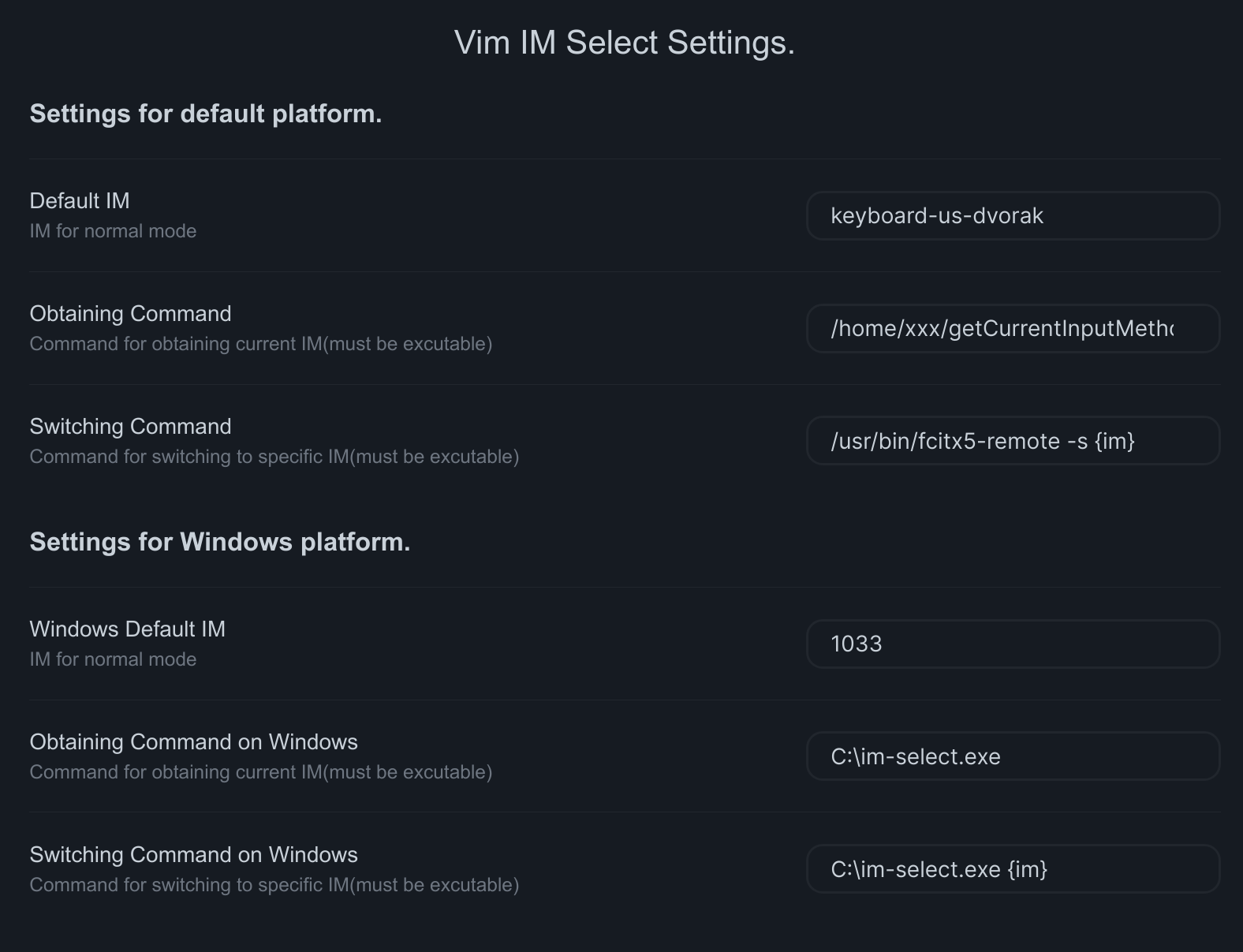
After activating the plugin in the first time and finishing setting, you need to restart Obsidian.
If you want to know more: