
README file from
Githubvibgyor
Customize your Obsidian notes with custom color palettes and built-in background patterns.


Give each note its own personality -> apply custom page colors, text colors, link colors, accent colors, and background patterns through a simple visual interface or frontmatter properties.
Features
- Per-note theming : Set unique background, text, link, and accent colors for individual notes
- Background patterns : Apply textures like Grid, Blueprint, Cosmos, Starfield, Zen Waves, and more
- Image color matching : Automatically tints transparent-background images to match your note's pen color, with a one-click toggle to view originals
- 10 built-in presets : Ready-to-use themes including Dark Mode, Vampire, Nord Dark, Neon Noir, and more
- Custom palettes : Create and save your own reusable color combinations
- Real-time updates : Changes to frontmatter are applied instantly
Getting Started
Ribbon Icons & Usage
The plugin provides two main entry points in your left ribbon:
| Icon | Name | Purpose |
|---|---|---|
 |
Create Themed Note | Opens a modal to name a new note and pick its initial theme/pattern. |
 |
Edit Active Theme | Modifies the theme and pattern of the note you are currently viewing. |
🎨 Creating a Themed Note
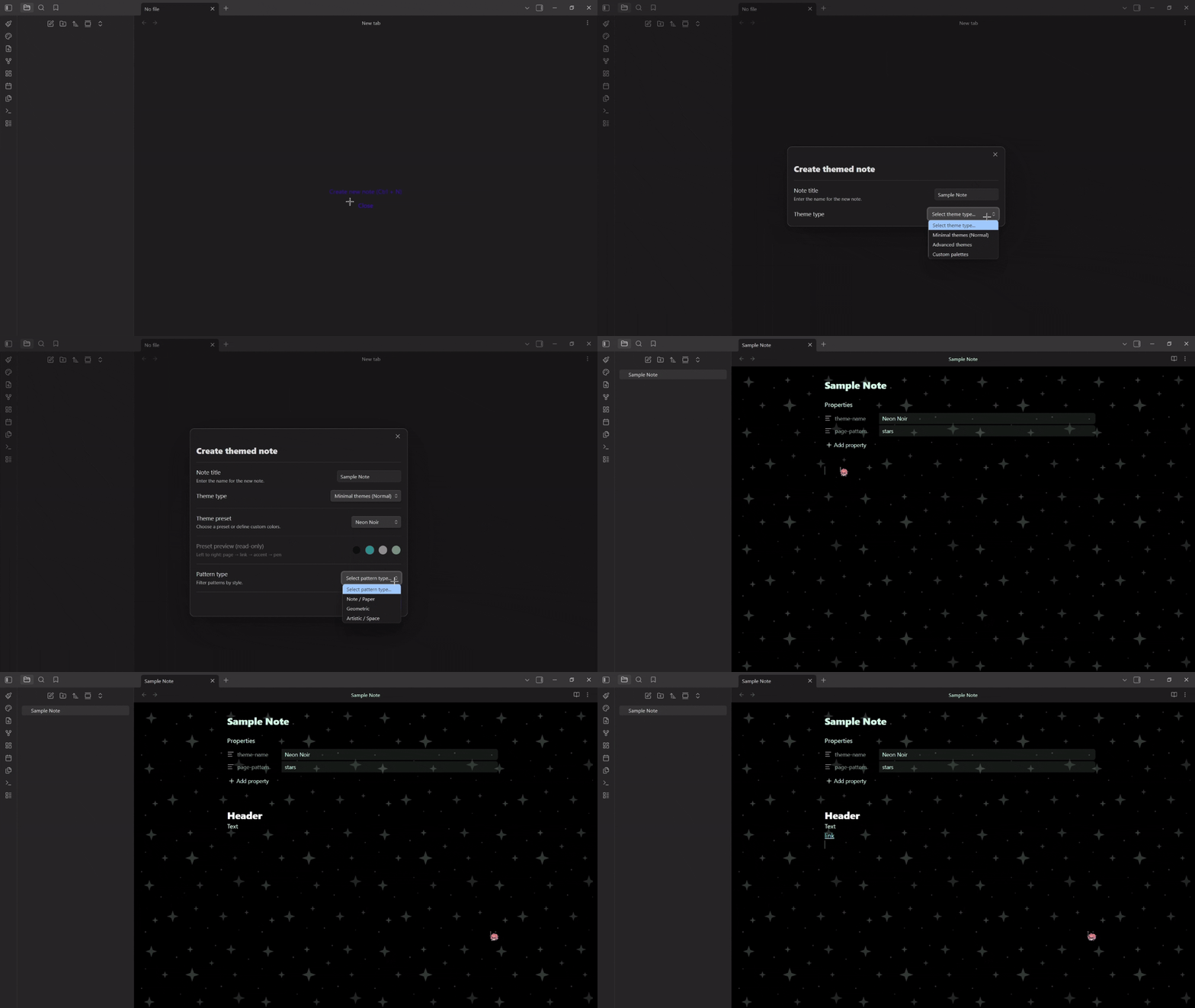
Use the Paintbrush ribbon icon or the command palette (Create themed note) to open the creation modal:
- Enter a note title
- Pick a theme type : Minimal, Advanced, or Custom Palettes
- Choose a preset or define custom colors (page, link, accent, pen)
- Select a background pattern (optional)
- Click Create note
✏️ Editing an Existing Note's Theme
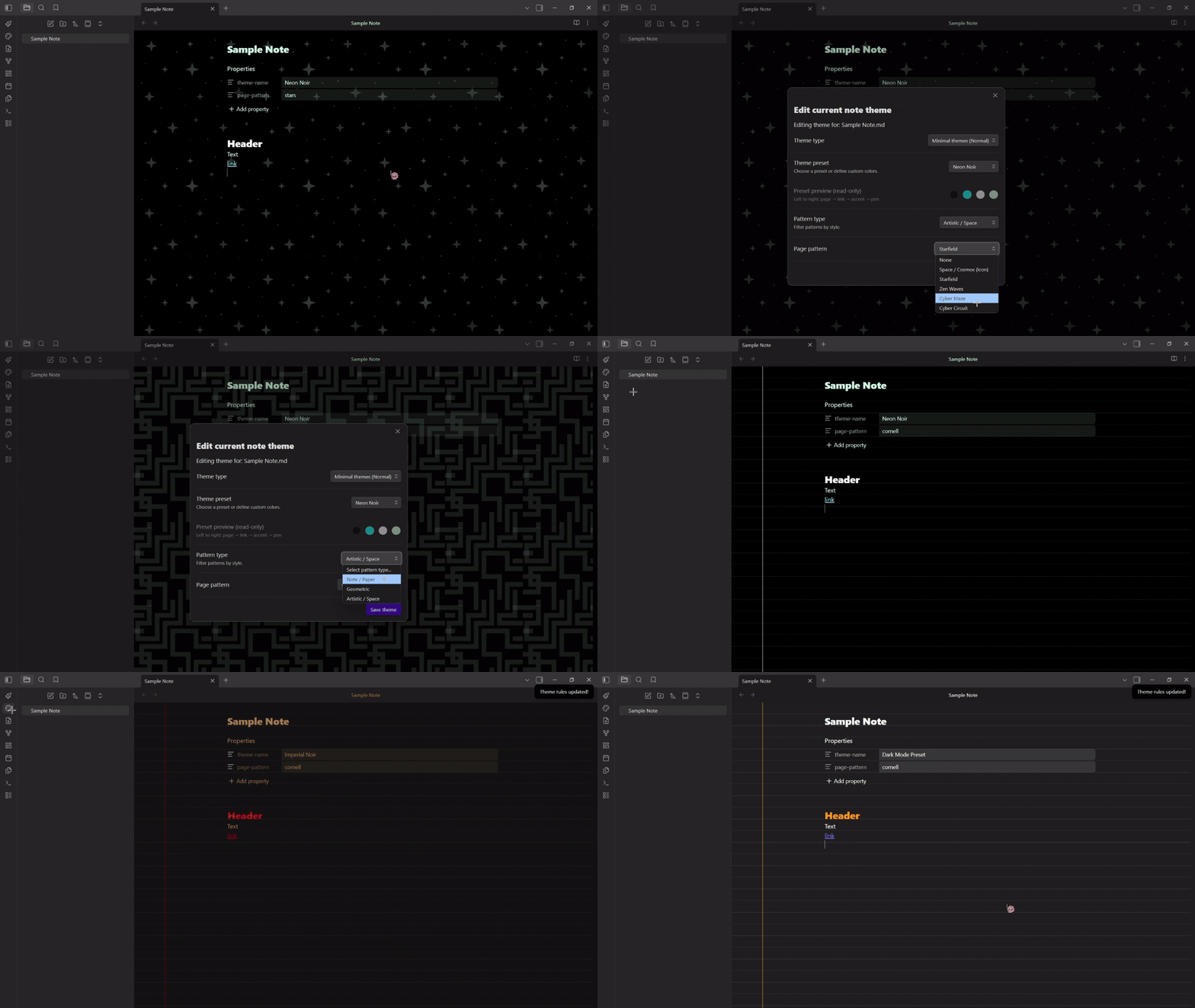
- Navigate to the Edit active note theme at the left sidebar.
- Pick the new theme type and the new palette or custom colors.
- Modify as you wish.
- Click on Save theme button to apply the changes.
🖌️ Create Custom Palettes
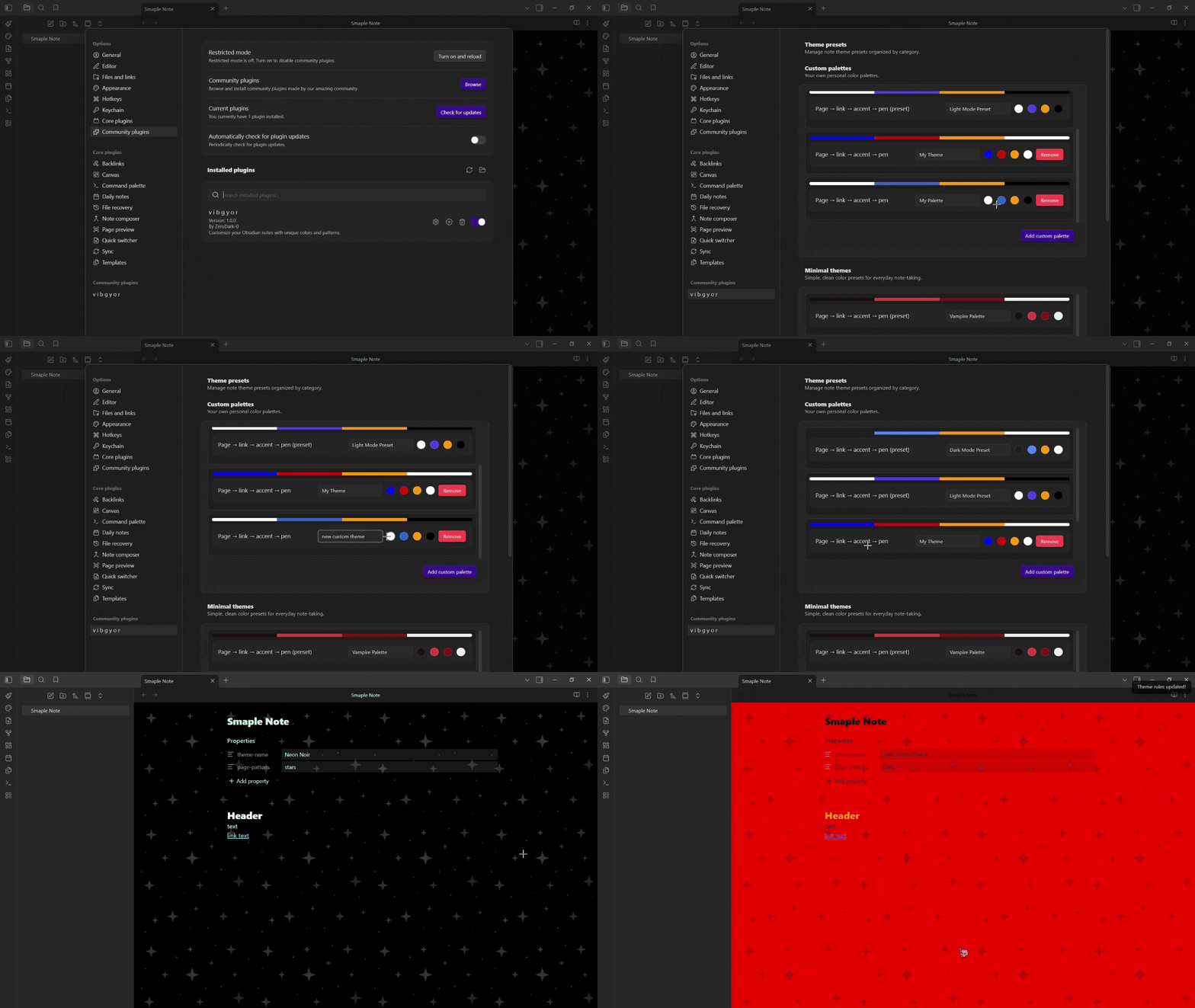
- Navigate to the Obsidian Settings tab.
- Under Community plugins search for vibgyor, hit the settings icon.
- Under Custom palettes, click Add custom palette, name it and define your own color combinations.
- Navigate back to the Edit active theme tab, select Custom Palettes and use your custom colors.
🖼️ Image Color Toggle
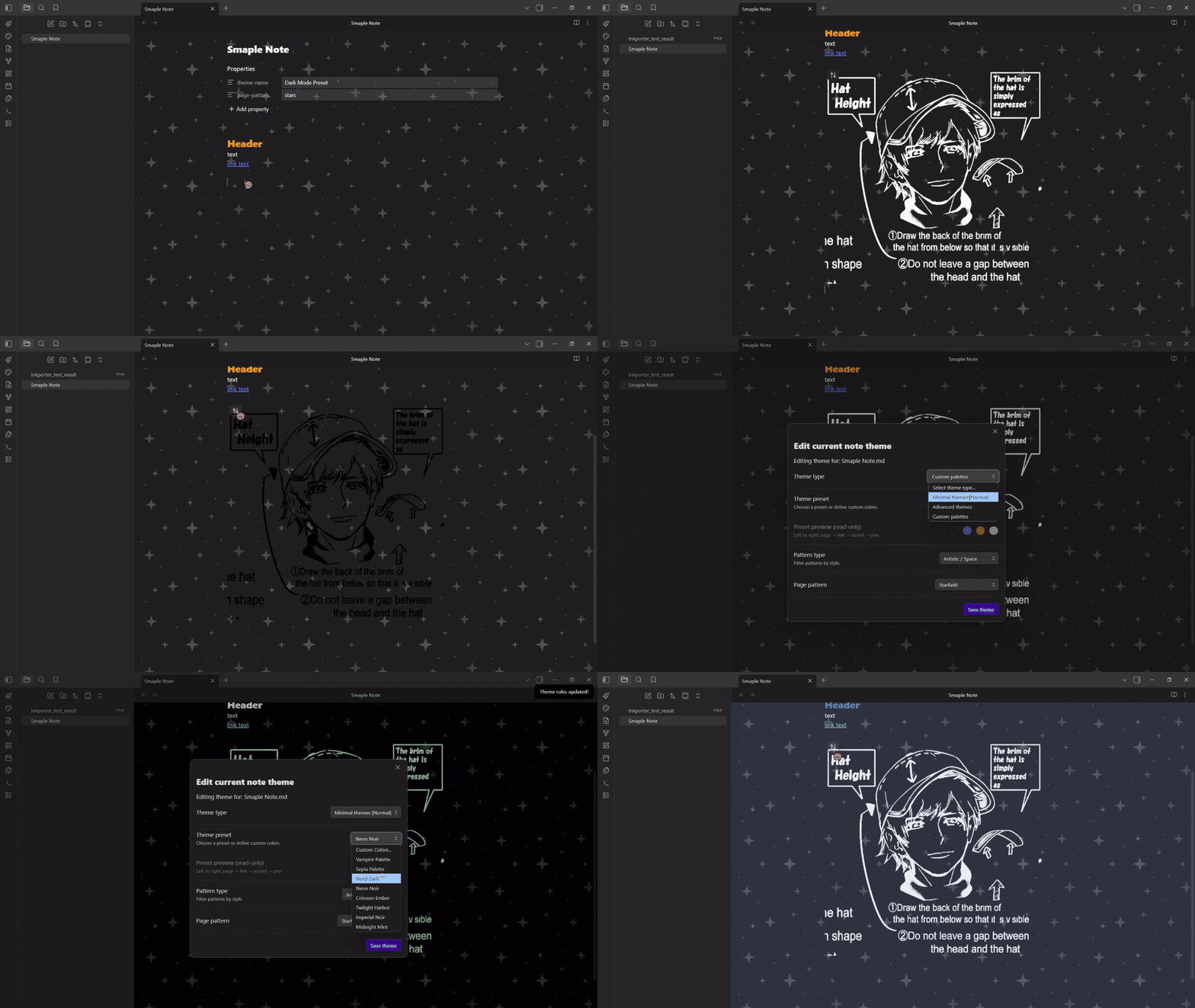
When a note has a theme applied, images with transparent backgrounds are automatically tinted to match the pen color. Hover over any image to reveal a toggle button at the top-left corner:
- Click to view original colors
- Click again to re-apply theme tinting
The plugin remembers your choice per image.
Built-in Theme Presets
| Theme | Palette Preview (Page, Pen, Link, Accent) |
|---|---|
| Dark Mode | |
| Light Mode | |
| Vampire | |
| Sepia | |
| Nord Dark | |
| Neon Noir | |
| Crimson Ember | |
| Twilight Harbor | |
| Imperial Noir | |
| Midnight Mint |
Background Patterns
🗒️ Note / Paper
- Lined : Horizontal ruled lines
- Dotted : Evenly spaced dot grid
- Grid : Square grid overlay
- Cornell : Ruled lines with a left margin
- Blueprint : Fine + coarse grid (engineering style)
📐 Geometric
- Woven : 45° crosshatch texture
- Hexagonal : Sci-fi hexagonal grid
🌌 Artistic / Space
- Cosmos : Scattered stars and sparkles
- Starfield : Dense 4-pointed star field
- Zen Waves : Concentric ripple circles
- Cyber Maze : Thick maze-like corridors
- Cyber Circuit : Circuit board traces with nodes
Settings
Open Settings → vibgyor to manage your theme library:
- Custom palettes : Create, edit, and delete your own color combinations
- Minimal themes : View built-in preset themes (read-only)
Frontmatter Reference
The plugin reads and writes these frontmatter properties:
---
theme-name: "Vampire Palette"   # Name of the selected preset
page-pattern: "grid"            # Background pattern
page-color: "#1a1a1a"           # Page background (custom colors only)
pen-color: "#ffffff"            # Text color (custom colors only)
link-color: "#3366cc"           # Link color (custom colors only)
accent-color: "#ff9900"         # Headings & accent (custom colors only)
grid-color: "#333333"           # Pattern grid color (optional)
---
Note: When using a preset, only
theme-nameandpage-patternare stored. The colors are resolved from the preset at runtime, so updating a preset automatically updates all notes using it.
Installation
📦 From Obsidian Community Plugins
- Open Settings → Community plugins → Browse
- Search for vibgyor
- Click Install, then Enable
🔧 Manual Installation
- Download
main.js,manifest.json, andstyles.cssfrom the latest release - Create a folder named
vIbGyOrin your vault's.obsidian/plugins/directory - Move the downloaded files into that folder
- Reload Obsidian and enable the plugin in Settings → Community plugins
Development
git clone https://github.com/ZeroDark-0/vIbGyOr.git
cd vIbGyOr
npm install
npm run dev       # Start compilation in watch mode
npm run build     # Production build
npm run lint      # Run ESLint
Contributing
Found a bug or have a suggestion? All feedback is welcome!
- 🐛 GitHub Issues: Having any issues, tell me!!
- 💬 Discord: Boldness
- 💡 Ideas & Brainstorming: Discussions
- ✉️ Email: Slide into my inbox
Support
If you enjoy vIbGyOr and want to support its development, any support means a lot!
Acknowledgements
[!IMPORTANT] 🎨 The image background removal feature is handled by Inkporter -> a fantastic plugin by AmadeussSystem. If you enjoy that feature, go show their plugin some love! ⭐
License
MIT License -> MIT © ZeroDark-0