
README file from
GithubObsidian Translucent BG
An Obsidian plugin for Windows that applies native Windows 11 background materials (Mica, Acrylic, Tabbed) to the Obsidian window. Unlike a fixed aesthetic theme, Translucent BG is built around theme compatibility and full customization, it works with any Obsidian color theme and gives both users and theme authors precise control over how the translucency looks.
Windows only. Requires Obsidian running as a native desktop app on Windows 10/11 with a version of Electron that supports
BrowserWindow.setBackgroundMaterial.
[!NOTE] Inspiration & Credits This plugin is inspired by and partially based on ideas from pseudo mica licensed under MIT.
Preview
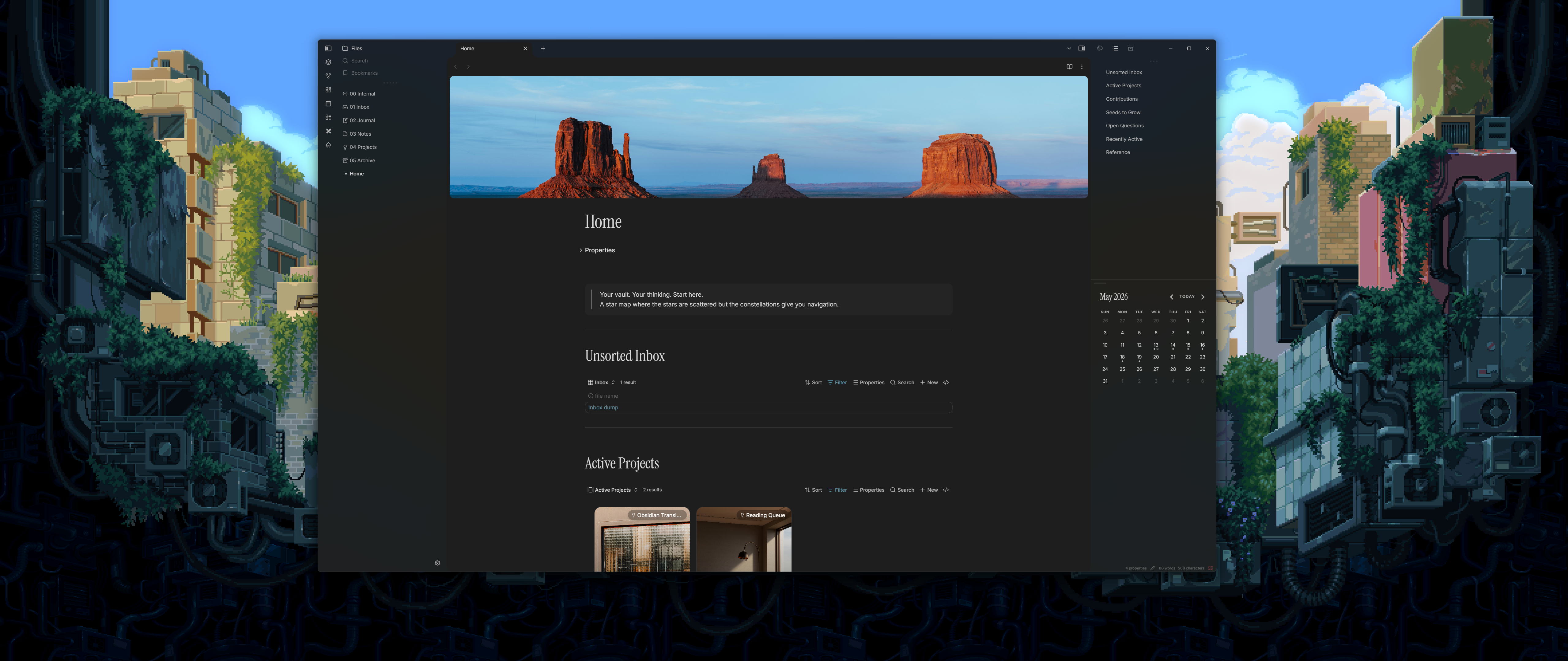
Plugin-managed tinting - Mica
Mica material, plugin-managed tinting (user picks color and opacity directly in settings).
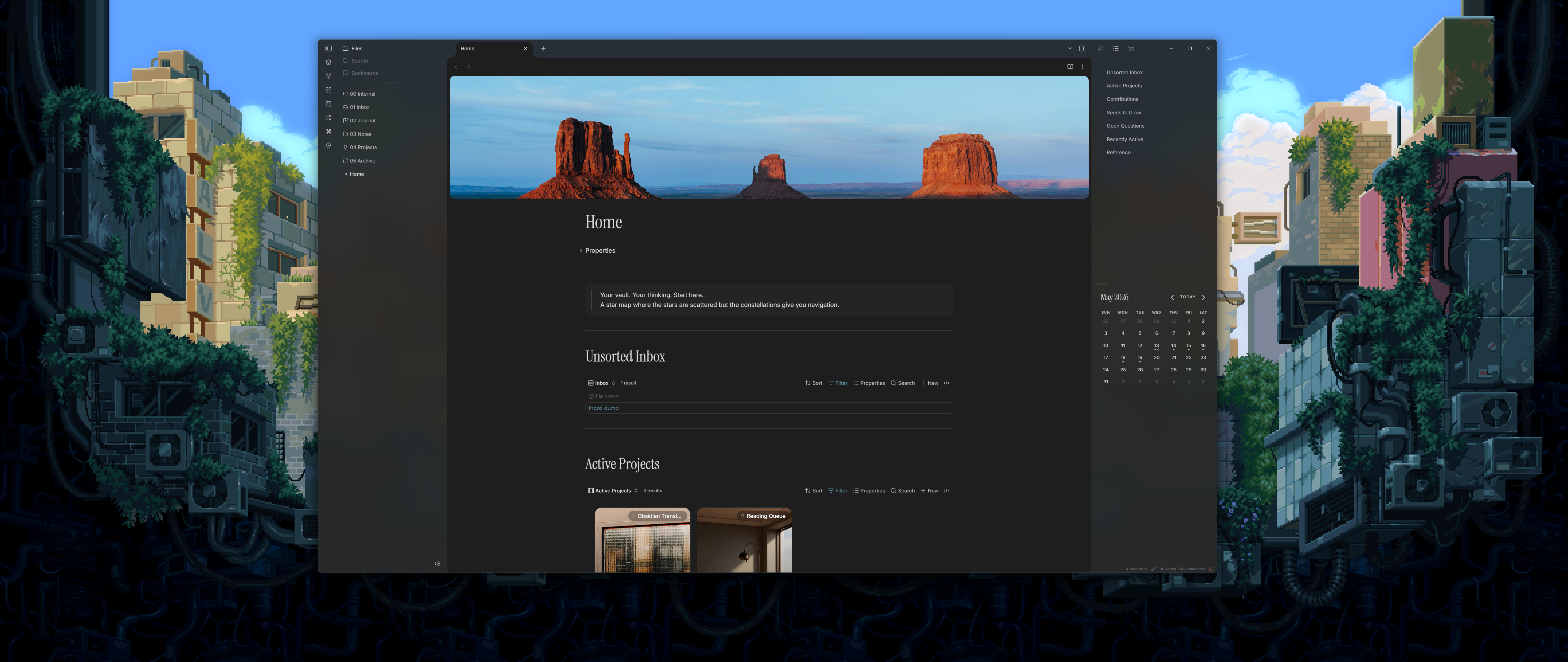
Plugin-managed tinting - Acrylic
Acrylic material, plugin-managed tinting - stronger frosted-glass effect than Mica.
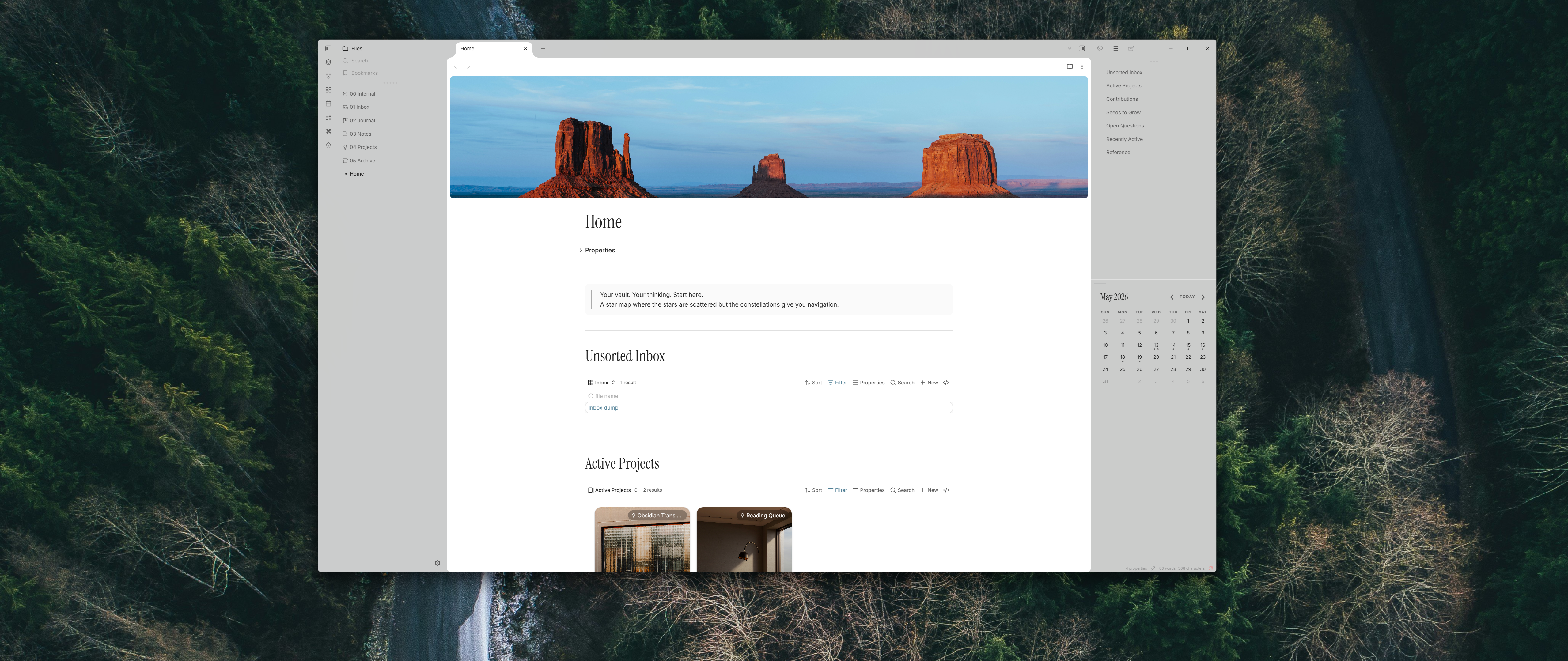
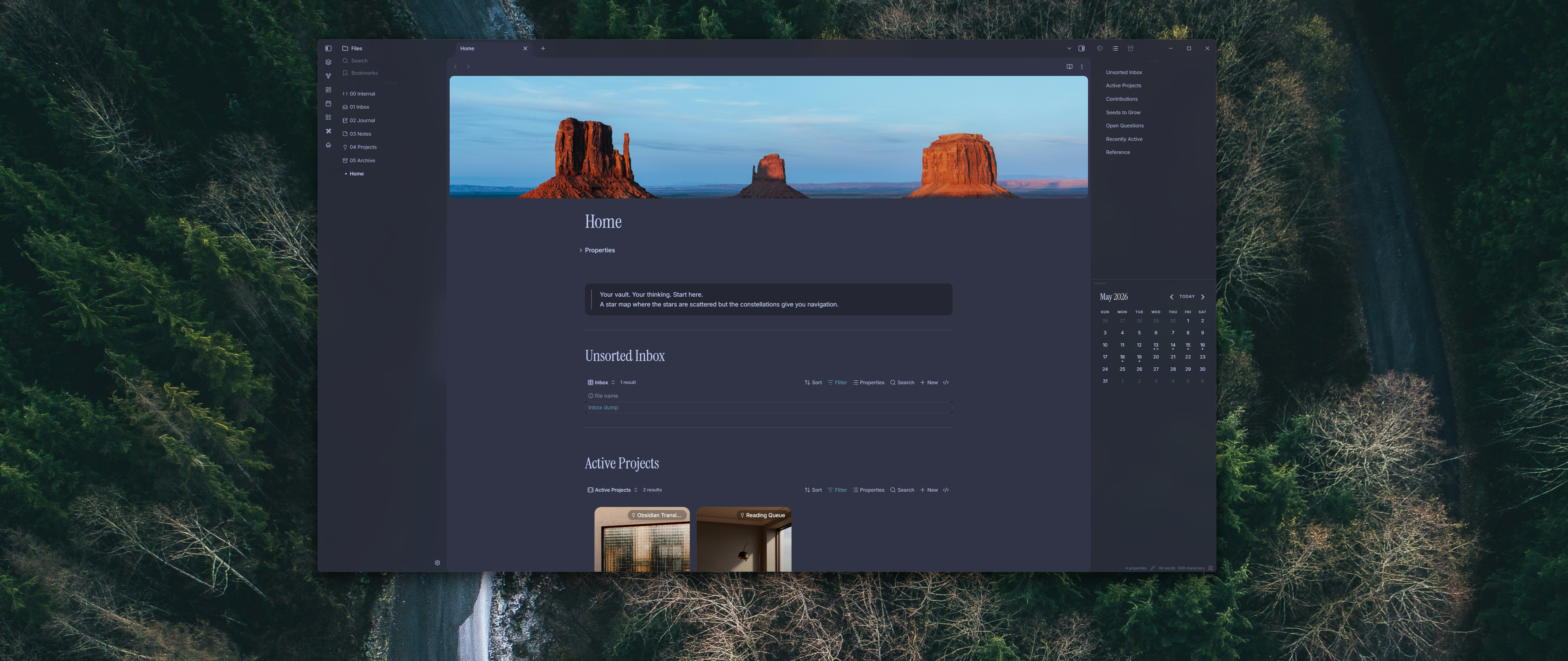
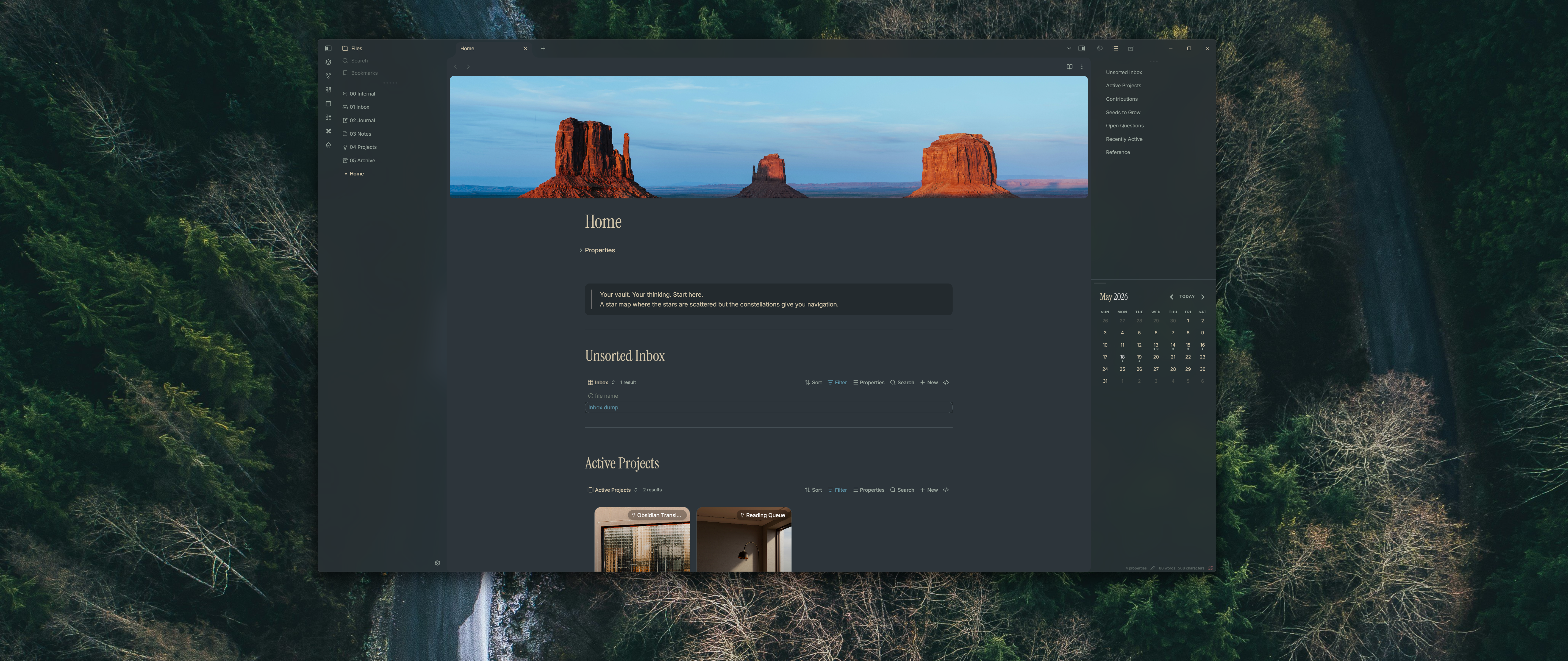
Theme-managed tinting - same material, different color schemes
Theme-managed mode: the plugin defers tint color and opacity entirely to your Obsidian theme. Swap themes, and the translucency adapts automatically. Shown here with Mica and three different color schemes - default, Catppuccin, and Everforest.
| Default | Catppuccin | Everforest |
|---|---|---|
 |
 |
 |
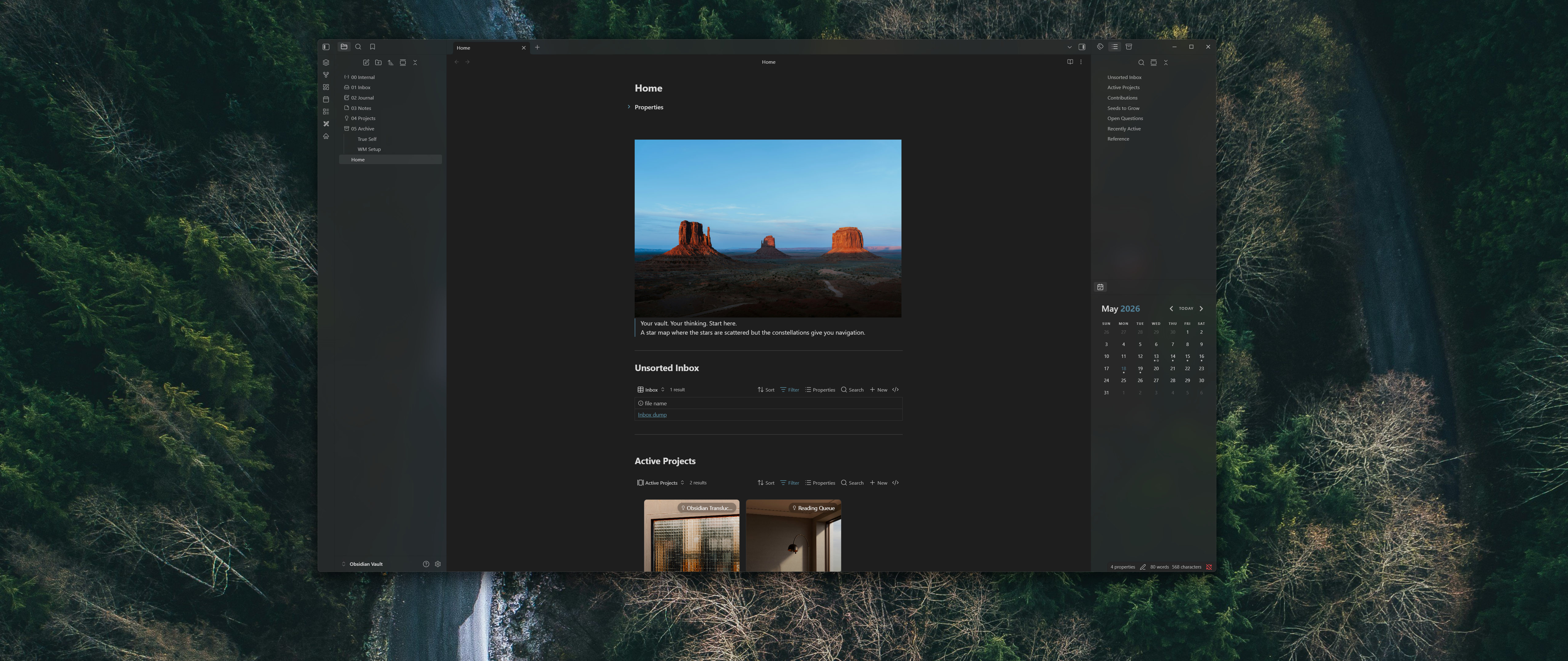
Plugin-managed - Acrylic, dark theme
Plugin-managed tinting on a dark theme. All three materials are available.
Settings
Two ways to control the tint
Translucent BG ships with two tinting modes. Both produce the same result - the difference is who controls it.
Plugin-managed (default)
The plugin owns the tint. You pick a hex color and opacity for light and dark mode independently in settings. The tint is always there regardless of which theme is active.
Best for: users who want a consistent look across all themes, or who prefer sliders and color pickers.
Theme-managed
The plugin defers tint color and opacity entirely to your active Obsidian theme. Tint color is derived from your theme's --background-secondary, and opacity is controlled via --translucent-light-opacity and --translucent-dark-opacity on :root. Swap to a different theme and the translucency automatically matches.
Best for: theme authors who want translucency to feel native to their palette, and users who are happy with a theme's existing design.
/* Theme authors: add this to your theme's snippet and opacity is yours to control */
:root {
  --translucent-light-opacity: 50%;
  --translucent-dark-opacity:  50%;
}
Features
- Three Windows 11 materials - Mica, Acrylic, and Tabbed via the native Electron API
- Two tinting modes - plugin-managed (sliders + color pickers) or theme-managed (theme controls everything)
- Theme compatibility - theme-managed mode produces the exact same
--workspace-background-translucentexpression Obsidian themes use natively, so it integrates without conflict - Auto theme switching - tint reacts instantly when you switch between light and dark themes
- Extra CSS blur - optional
backdrop-filterblur stacked on top of the native material - Cycle command - keyboard command and ribbon icon to cycle through materials without opening settings
- Clean unload - all CSS modifications reversed when the plugin is disabled
Installation
Manual
- Download the latest release from the Releases page.
- Copy
main.js,styles.css, andmanifest.jsoninto your vault at:<vault>/.obsidian/plugins/translucent-bg/ - Enable the plugin in Settings → Community plugins.
From source
git clone https://github.com/MellowMarsh-Git/Obsidian-Translucent-BG.git
cd Obsidian-Translucent-BG
npm install
npm run build
Then copy main.js, styles.css, and manifest.json into your vault's plugin folder as above.
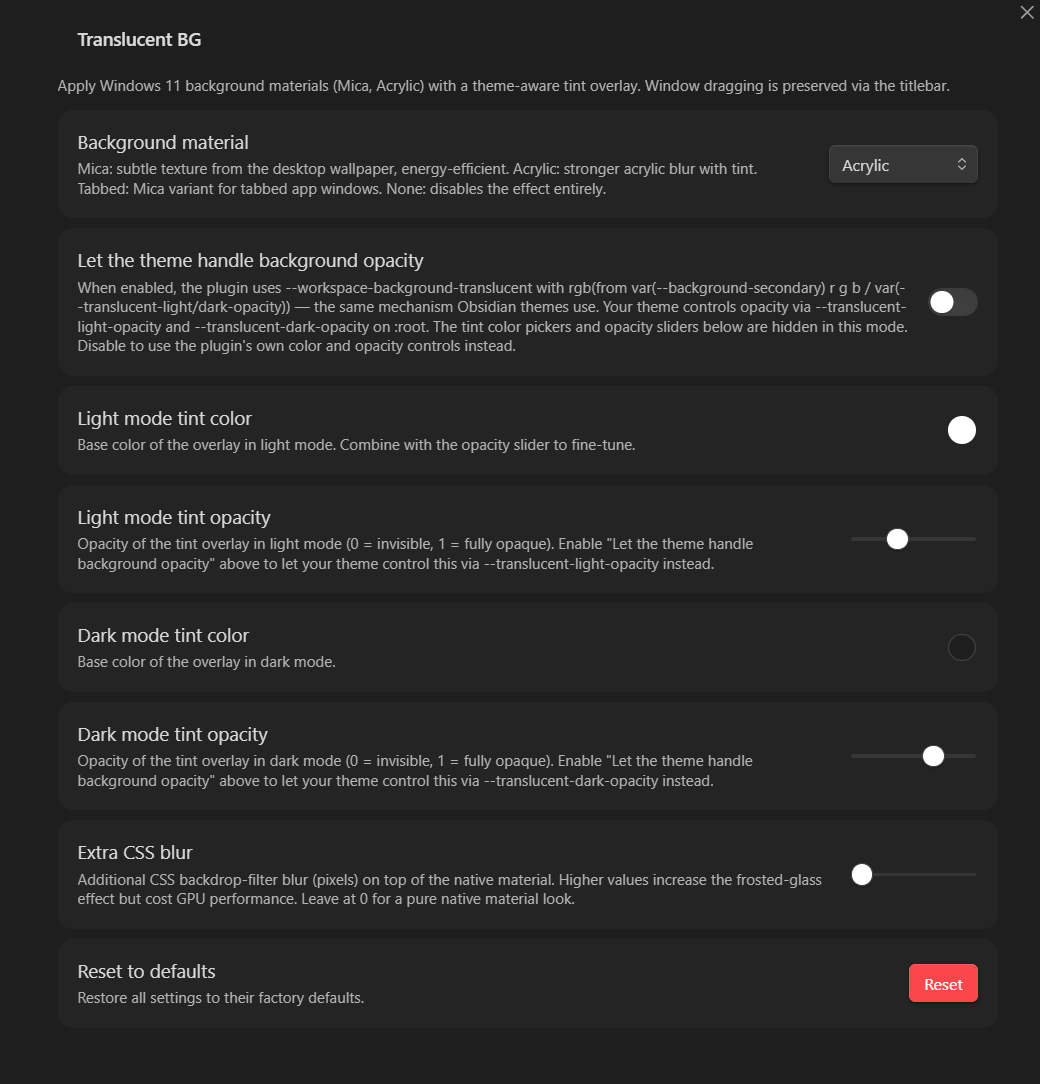
Settings
| Setting | Description |
|---|---|
| Background material | Mica, Acrylic, Tabbed, or None |
| Let the theme handle background opacity | Toggle between plugin-managed and theme-managed tinting |
| Light mode tint color | Tint color in light mode (plugin-managed only) |
| Light mode tint opacity | Tint opacity in light mode, 0–1 (plugin-managed only) |
| Dark mode tint color | Tint color in dark mode (plugin-managed only) |
| Dark mode tint opacity | Tint opacity in dark mode, 0–1 (plugin-managed only) |
| Extra CSS blur | Additional backdrop-filter blur in pixels (0–40 px) |
| Reset to defaults | Restore all settings to factory defaults |
When Let the theme handle background opacity is enabled, the color and opacity controls are hidden - they have no effect in that mode.
Commands
| Command | Description |
|---|---|
Translucent BG: Cycle background material |
Cycles Mica → Acrylic → Tabbed → None → Mica |
Translucent BG: Open Translucent BG settings |
Opens the plugin's settings tab directly |
A ribbon icon (stacked layers) also triggers the cycle command.
How it works
Plugin-managed mode (default)
- The plugin calls
BrowserWindow.setBackgroundMaterial(material)via Electron to apply the chosen Windows 11 material. - Obsidian's
is-translucentclass is added to<body>and--workspace-background-translucentis set totransparent, letting the native material show through. - A full-screen
<div id="translucent-bg-overlay">atz-index: -1carries the tint color and optional extra blur. - A
MutationObserverwatches<body>class changes and updates the tint instantly when you switch themes.
Theme-managed mode
- The overlay div is hidden - it is not used for tinting here.
--workspace-background-translucentis set to thergb(from …)expression that Obsidian's own translucency system uses:- Light:
rgb(from var(--background-secondary) r g b / var(--translucent-light-opacity, 50%)) - Dark:
rgb(from var(--background-secondary) r g b / var(--translucent-dark-opacity, 50%))
- Light:
- Obsidian's own
is-translucentshell reads--workspace-background-translucentand applies it as the workspace background - the same way native Obsidian themes work. - The plugin never writes
--translucent-light-opacityor--translucent-dark-opacityas inline styles, so your theme's:rootdeclarations always take effect.
For Theme Authors
In theme-managed mode the plugin produces exactly the same workspace background as native Obsidian translucency. To take full control, add this to your theme (or an accompanying snippet):
:root {
  /* Adjust opacity to taste - 50% is a good starting point */
  --translucent-light-opacity: 50%;
  --translucent-dark-opacity:  50%;
}
The tint color is automatically derived from your theme's own --background-secondary, so it always matches your palette with no extra configuration.
In plugin-managed mode the plugin exposes two informational variables for themes or snippets that want to read the current state:
--tbg-tint-color   /* rgba() of the current plugin-managed tint */
--tbg-extra-blur   /* current extra blur amount, e.g. "0px"   */
Building
npm install       # install dev dependencies
npm run dev       # development build (source maps, no minification)
npm run build     # production build  (minified, no source maps)
Output is main.js at the project root.