
README file from
GithubTime Manager — Obsidian Plugin
An Obsidian plugin that visualizes tasks from your Daily Notes as a timeline and tracks completion by category so you can review your day at a glance.
Author: Najeong Kim
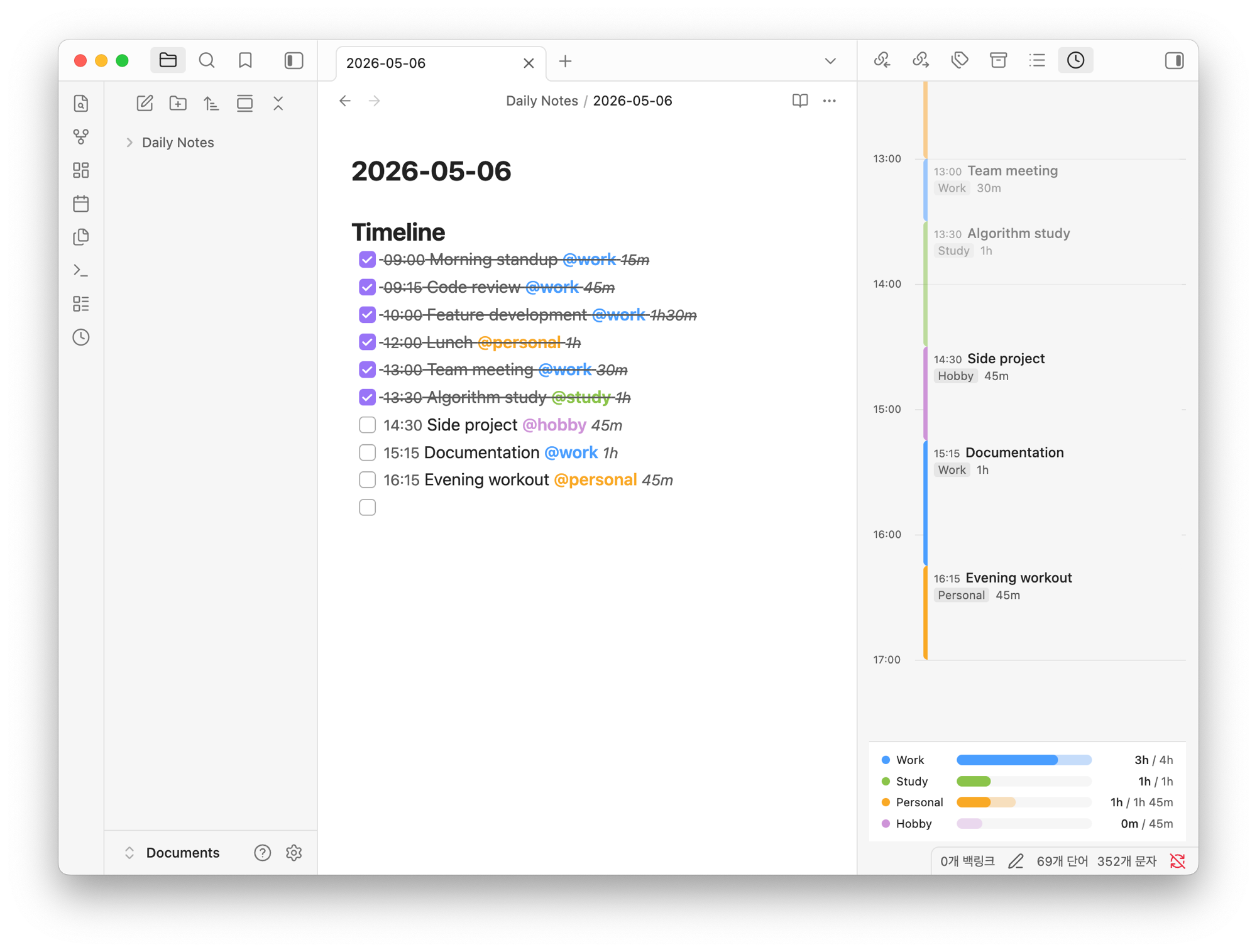
Features
| Feature | Description |
|---|---|
| Visual timeline | Displays daily tasks as time blocks on a vertical time axis |
| Task tracking | Records duration and category for each task |
| Categories | Classify time into Work · Study · Personal · Hobby |
| Daily stats | Per-category bar chart with an overload warning |
| Editor autocomplete | Category suggestions when typing @ |
| Category highlight | Color highlights for @tags in the editor |
Installation
- Obsidian Settings → Community plugins → Disable safe mode
- Copy the
time-managerfolder into.obsidian/plugins/ - Enable Time Manager in the community plugin list
- Click the clock (🕐) icon in the left ribbon to open the timeline
Markdown format
## Timeline

- [ ] 09:00 Team standup @work 30m
- [x] 10:00 Feature development @work 2h
- [ ] 13:00 Workout @personal 1h
- [ ] 14:30 Algorithm study @study 1h30m
- [ ] 23:00 end
Inline fields
| Format | Meaning | Example |
|---|---|---|
@work / @personal / @study / @hobby |
Category tag | @work |
| Trailing time notation | Duration (unit required) | 30m · 1h · 1h30m |
[cat:: X] |
Category (long form) | [cat:: work] |
[dur:: N] |
Duration in minutes (long form) | [dur:: 60] |
Categories
| ID | Label | Color |
|---|---|---|
work |
Work | Blue (#4a9eff) |
study |
Study | Green (#8bc34a) |
personal |
Personal | Yellow (#f9a825) |
hobby |
Hobby | Purple (#ce93d8) |
| (none) | Etc | Pink (#f48fb1) |
Usage
Opening the timeline
- Click the clock icon (🕐) in the ribbon
- Or open the command palette (
Cmd+P) →Open Timeline
Adding tasks
There are two ways to add tasks.
Option 1: Modal
Click the + Task button at the top of the timeline.
| Field | Description |
|---|---|
| Start time | HH:MM format (defaults to current time) |
| Task name | What you plan to do |
| Duration | Number of minutes (optional) |
| Category | Dropdown (Work / Study / Personal / Hobby / Etc) |
The task is automatically inserted into the ## Timeline section of your Daily Note, sorted by time.
Option 2: Direct file editing
Open your Daily Note and type directly into the ## Timeline section:
- [ ] HH:MM Task name @category duration
Type @ in the editor to trigger category autocomplete. Mark a task done by changing [ ] to [x] — it will be reflected in the stats immediately.
Navigating dates
Use the ◀ / ▶ buttons at the top of the timeline to browse other dates.
Settings
Go to Obsidian Settings → Time Manager to configure.
| Setting | Default | Description |
|---|---|---|
| Daily Note folder | Daily Notes |
Folder where your Daily Notes are stored (dropdown) |
| Section heading | Timeline |
The ## section name to parse as the timeline |
| Daily work hour limit | 8h |
Shows an overload warning when exceeded (4–16h slider) |
Development
# Development mode (watch)
npm run dev

# Production build
npm run build

# Type check
npm run typecheck
File structure
src/
├── main.ts                  Plugin entry point
├── settings.ts              Settings tab
├── types.ts                 Shared type definitions
├── parser/
│   ├── DailyNoteParser.ts   Read/write markdown files
│   └── InlineFieldParser.ts Parse @tags and [key:: value] fields
├── editor/
│   ├── CategorySuggest.ts   @ autocomplete in the editor
│   └── CategoryHighlight.ts Color highlight for @tags in the editor
├── views/
│   └── TimelineView.ts      Sidebar timeline view
├── stats/
│   └── StatsCalculator.ts   Daily stats calculation
└── utils/
    ├── DateUtils.ts         Date/time utilities
    └── ObsidianUtils.ts     Vault file access helpers
License
MIT License — © 2026 Najeong Kim